Finding the right drawing tablet can transform your creative workflow. Whether you are a professional illustrator, a photo editor, or someone just starting with digital art, the perfect graphics tablet makes all the difference between frustration and flow.
I have spent countless hours testing drawing tablets from every major brand while researching the best tablets for drawing and art. From budget-friendly screenless tablets to professional pen displays with stunning color accuracy, I understand what matters when you are trying to bring your artistic vision to life on a digital canvas.
The market has changed dramatically in recent years. Brands like Huion and XP-Pen now offer features that once cost double or triple the price. Wacom still leads in build quality and driver reliability, but the gap has narrowed significantly. For beginners, this means you can get started with a quality tablet without breaking the bank.
This guide covers 8 carefully selected drawing tablets for every budget and skill level. I will explain the difference between pen tablets (screenless) and pen displays (with screens), break down pressure sensitivity numbers, and help you navigate the Wacom vs Huion vs XP-Pen decision. By the end, you will know exactly which tablet fits your creative needs.
Top 3 Best Tablets for Drawing and Art Picks (September 2026)

Wacom Intuos Small
- › Industry-leading reliability
- › Battery-free stylus
- › Perfect for beginners
- › Works with all software

HUION Inspiroy H640P
- › Ultra-affordable price
- › 8192 pressure levels
- › Compact portable design
- › Multi-OS support

HUION Kamvas 13 Gen 3
- › 16384 pressure sensitivity
- › Full-laminated display
- › 99% sRGB color
- › USB-C single cable
After testing dozens of tablets, these three stand out for different reasons. The Wacom Intuos Small earns our Editor’s Choice for its unmatched reliability and ease of use. The HUION Inspiroy H640P offers incredible value for budget-conscious artists. And the HUION Kamvas 13 (Gen 3) brings professional-level pen display technology at an accessible price point.
Each of these tablets excels in its category. Wacom remains the gold standard for driver stability and build quality. Huion has made tremendous strides with their latest generation, offering features that compete with tablets costing twice as much. Let me walk you through each option so you can find your perfect match.
8 Best Tablets for Drawing and Art Products (September 2026)
| PRODUCT MODEL | KEY SPECS | BEST PRICE |
|---|---|---|
|
|
Check Latest Price |
 |
|
Check Latest Price |
|
|
Check Latest Price |
 |
|
Check Latest Price |
 |
|
Check Latest Price |
|
|
Check Latest Price |
 |
|
Check Latest Price |
 |
|
Check Latest Price |
1. Wacom Intuos Small – Best Overall for Beginners
Wacom Intuos Small, Wired Graphic Drawing Tablet with Pen + Software
6.3x7.87 inch active area
4 ExpressKeys
Battery-free EMR pen
USB connectivity
Windows/Mac/Chromebook/Android
+ The Good
- Industry-leading reliability with 5+ year lifespan
- Battery-free pen feels natural on paper
- Works with all creative software out of the box
- Includes software bundle worth over $100
- Excellent Linux support
- The Bad
- Bluetooth version can feel laggy compared to wired
- Pen nibs wear down quickly with heavy use
- Small size limits detailed work
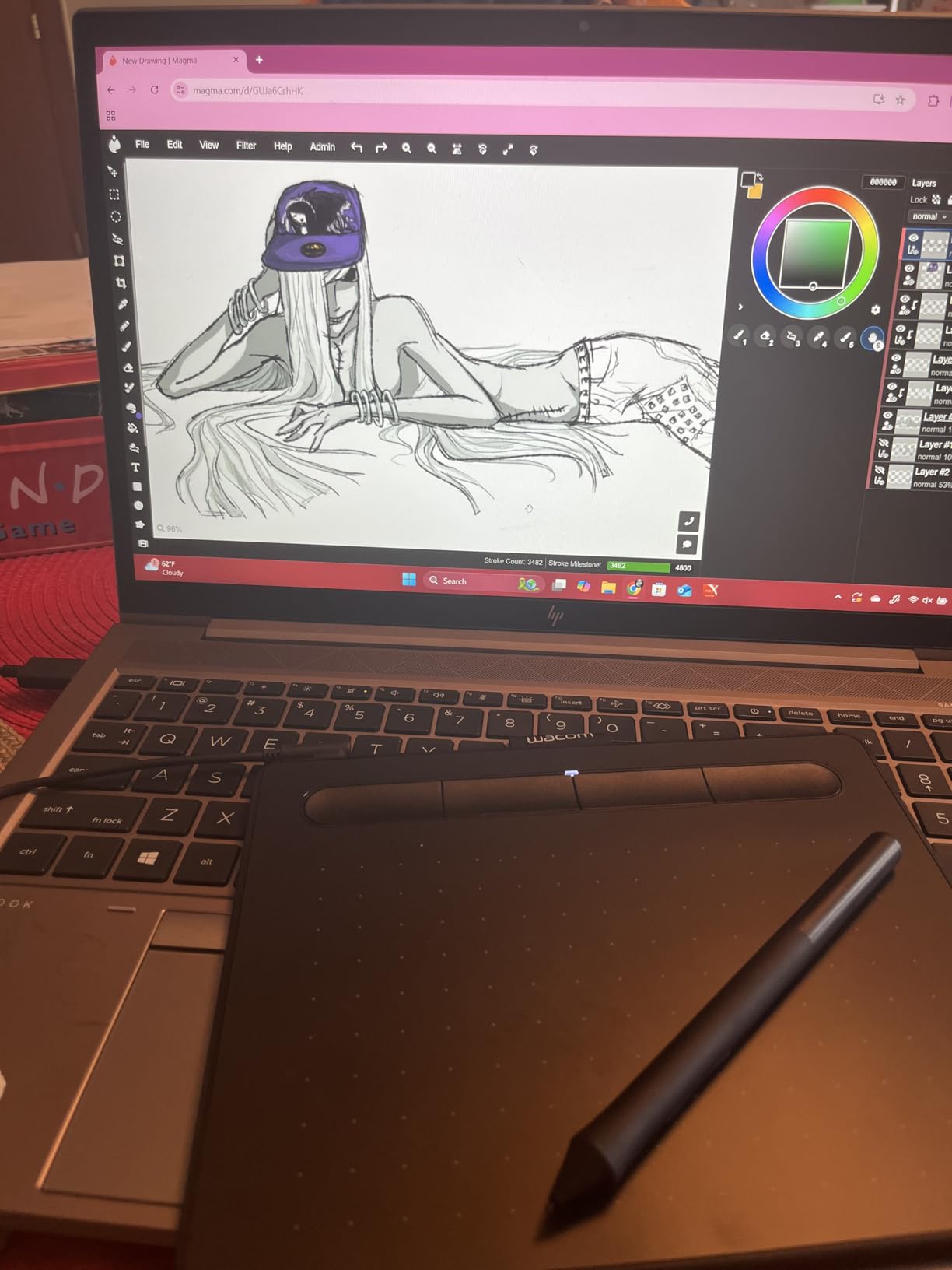
When I first picked up the Wacom Intuos Small, I understood immediately why artists have trusted this brand for over 40 years, which is why it often appears in discussions about the best tablets for drawing and art. The tablet has a reassuring weight to it, and the surface texture provides just enough resistance to feel like real paper. Within minutes of plugging it in, I was drawing smooth, natural strokes without any driver headaches.
The battery-free stylus uses Wacom’s EMR technology, which means you never have to charge it. The pen detects 4096 levels of pressure, and the transition between light and heavy strokes feels incredibly natural. I particularly appreciate how the pen responds to subtle angle changes when shading. This is the kind of refinement that comes from decades of engineering.
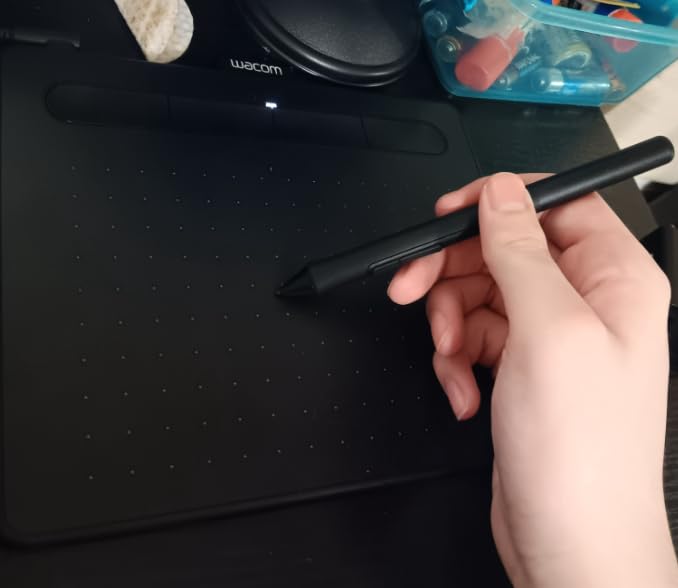
For beginners, the four customizable ExpressKeys on the tablet are a game-changer. I mapped mine to undo, redo, brush size increase, and brush size decrease. This kept my workflow smooth without constantly reaching for the keyboard. The tablet also works seamlessly with every major creative application, from Photoshop and Illustrator to Krita and Clip Studio Paint.
The compact size makes it perfect for travel or small desk setups. I easily slipped it into my laptop bag for drawing sessions at coffee shops. However, artists working on detailed illustrations might find the active area limiting. If you have the desk space and budget, the Medium version offers significantly more room to work.
Who Should Buy This Tablet
This tablet is perfect for beginners starting their digital art journey, students on a budget who need reliability, and photographers who want precise editing control. The included software bundle adds tremendous value, often including programs like Clip Studio Paint or Corel Painter with registration.
Who Should Avoid This Tablet
Professional illustrators working on large canvases will find the small active area frustrating. Artists who need wireless connectivity should consider the Bluetooth version, though be aware it can feel less responsive than the wired connection during fast-paced work.
2. HUION Inspiroy H640P – Best Budget Pick
HUION Inspiroy H640P 6×4 inch Drawing Tablet 8192 Pen Pressure
6x4 inch active area
6 customizable hot keys
8192 pressure levels
Battery-free PW100 stylus
0.3 inch thin profile
+ The Good
- Incredibly affordable entry point
- Lightweight and portable design
- Good pressure sensitivity for the price
- Works with Mac/Windows/Linux/Android
- Includes extra pen nibs
- The Bad
- Driver software has quality issues especially on Linux
- Plastic build feels lightweight and cheap
- Micro USB instead of modern USB-C
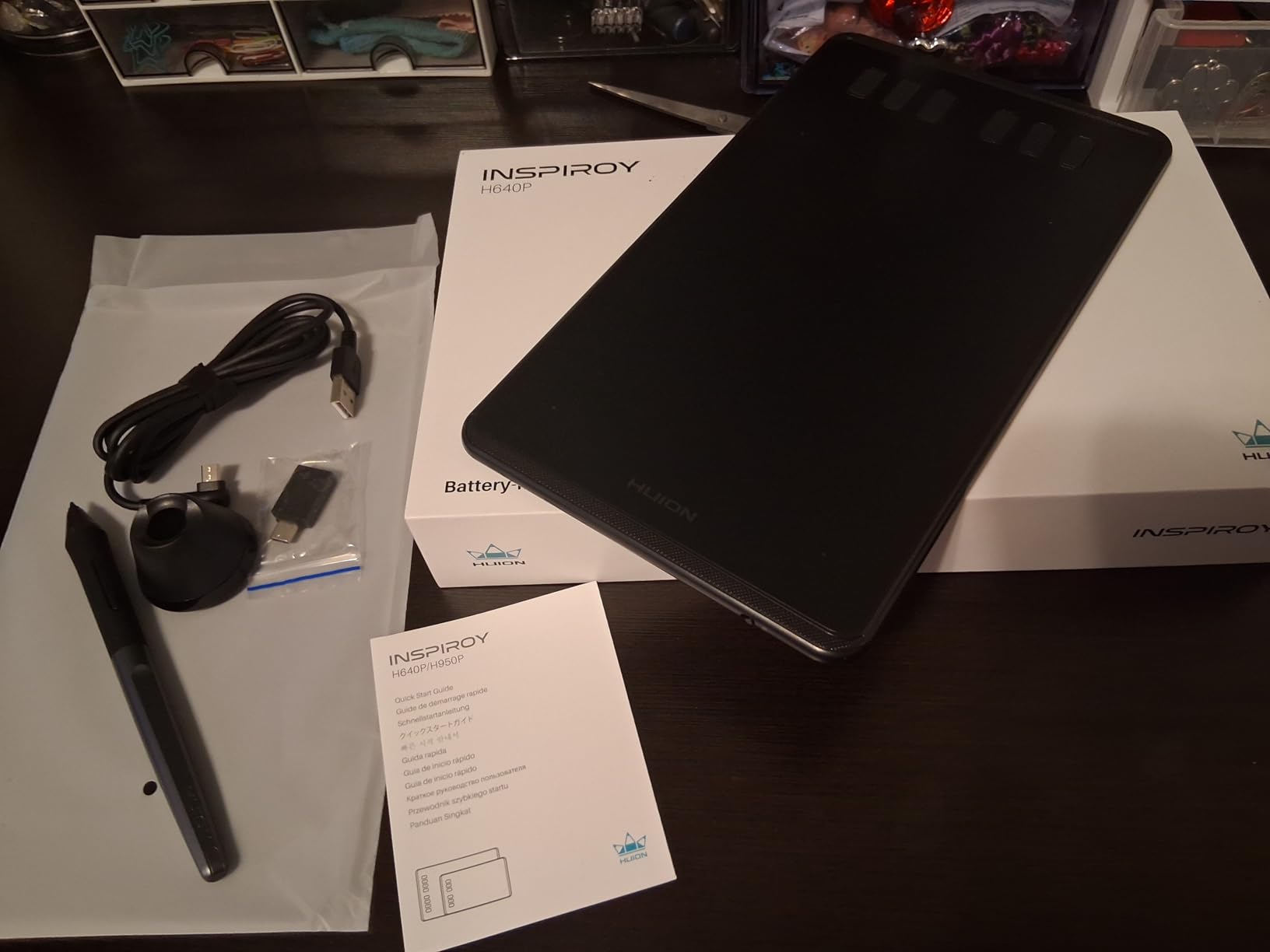
At this price point, I did not expect much from the HUION Inspiroy H640P, but it surprised me while testing devices often recommended among the best tablets for drawing and art. After using it for several weeks, I was genuinely impressed by what you get for under thirty dollars. This tablet proves that you do not need to spend hundreds to start creating digital art.
The 8192 levels of pressure sensitivity deliver surprisingly accurate strokes. I tested it with various brush types in Krita and Photoshop, and the pen responded consistently across pressure ranges. The battery-free PW100 stylus feels lightweight but comfortable for extended drawing sessions.
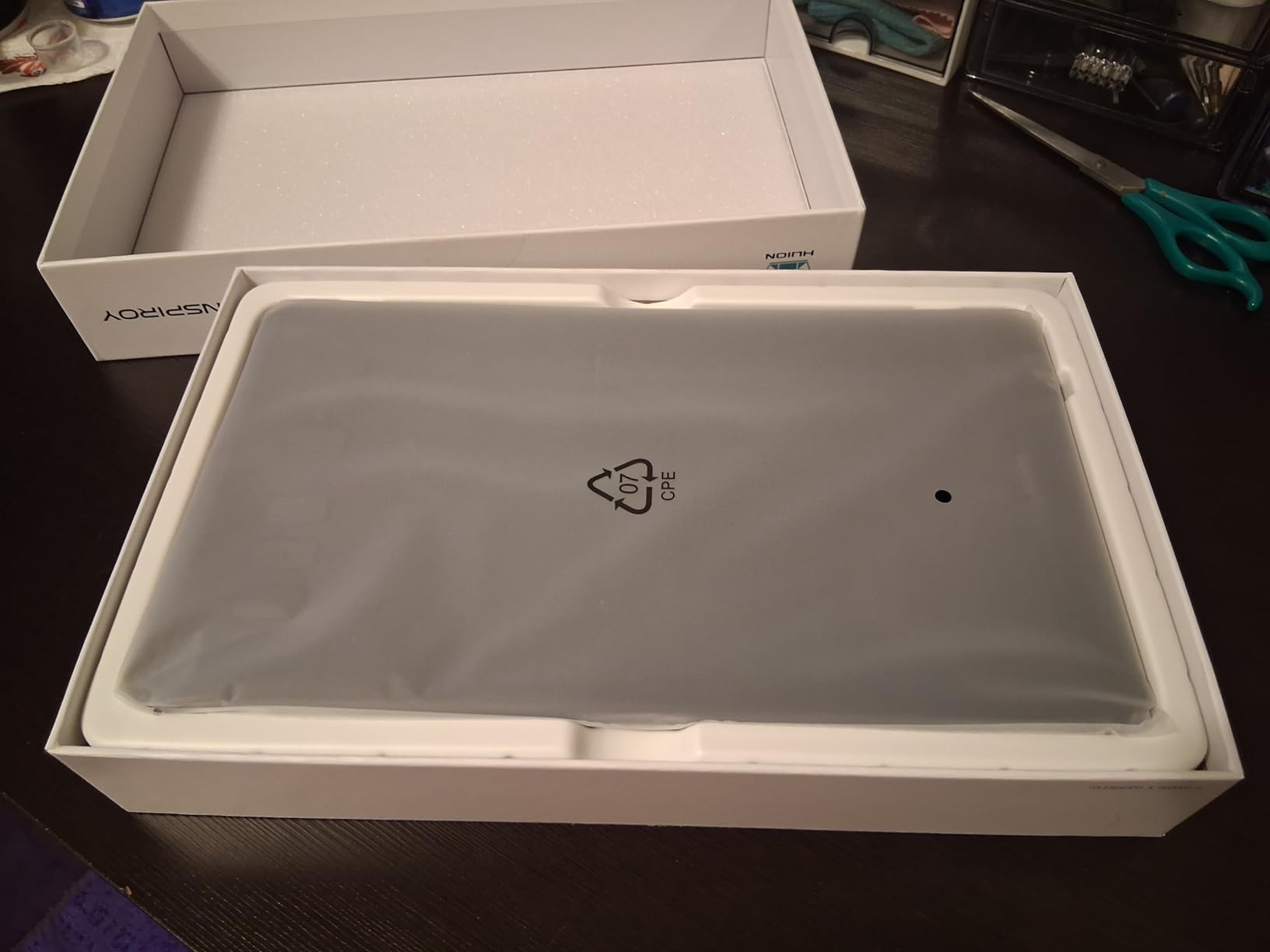
The six customizable hot keys give you quick access to frequently used functions. I appreciate that Huion designed these buttons to work for both left-handed and right-handed users. The compact 6×4 inch active area keeps the tablet portable while still providing enough space for most artwork.
However, the software experience is where corners have been cut. The driver interface feels dated and can be confusing for beginners. On Linux, I encountered issues with the tablet buttons not mapping correctly. Windows users generally have a smoother experience, but expect some initial setup headaches.
Who Should Buy This Tablet
This is the ideal choice for absolute beginners who want to try digital art without a major investment. Students, hobbyists, and anyone curious about graphics tablets will find this an excellent starting point. It also works well for photo editing tasks that benefit from pressure-sensitive brush control.
Who Should Avoid This Tablet
If you plan to use Linux as your primary operating system, look elsewhere due to driver complications. Artists who prioritize build quality and premium materials should invest in a higher-tier option. The Micro USB port also feels outdated compared to modern USB-C standards.
3. HUION Kamvas 13 (Gen 3) – Best Pen Display
HUION Kamvas 13 (Gen 3) Drawing Tablet with Screen, Dual Dial, 13.3″, Black
13.3 inch full-laminated screen
16384 pressure levels
99% sRGB color gamut
PenTech 4.0 technology
USB-C single cable connection
+ The Good
- No rainbow pixelation from anti-glare coating
- Extremely low parallax barely noticeable
- 16K pressure sensitivity feels buttery smooth
- Excellent color accuracy out of the box
- USB-C single cable simplifies setup
- The Bad
- Screen brightness limited to 200 nits
- Can get warm during extended 3+ hour sessions
- Not ideal for bright rooms or sunlight
Drawing directly on a screen changes everything. The HUION Kamvas 13 (Gen 3) eliminates the hand-eye coordination learning curve that comes with screenless tablets. When I first used it, my productivity jumped immediately because I could see exactly where my pen was touching.
Huion’s new Canvas Glass 2.0 technology is a significant improvement over previous generations. The anti-sparkle coating prevents the rainbow pixelation effect that plagued older etched glass displays. Colors appear clean and consistent across the entire screen, which is critical for color-sensitive work.
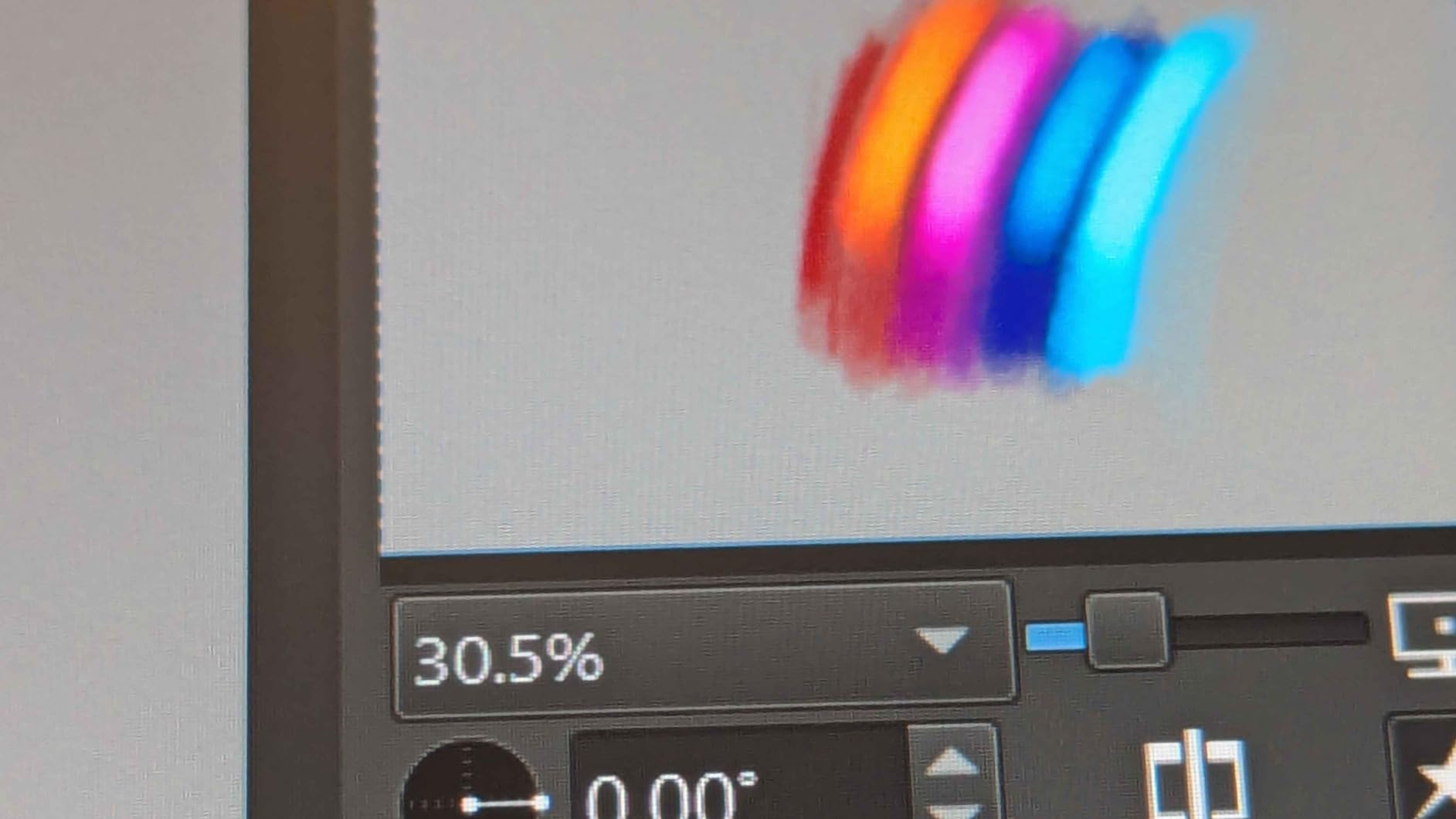
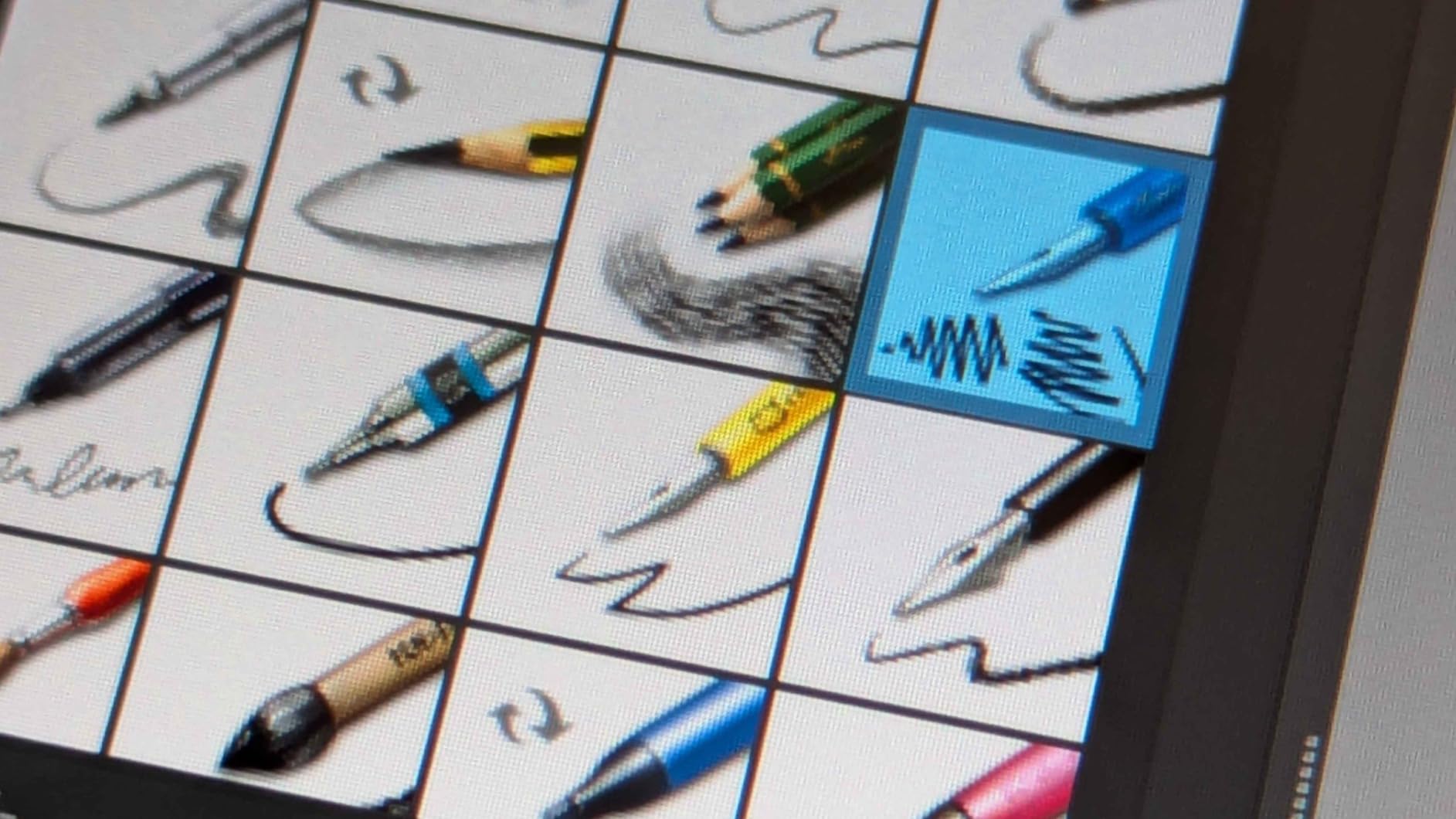
The 16,384 levels of pressure sensitivity with PenTech 4.0 technology delivers exceptional precision. Light pressure produces thin, delicate lines while heavier pressure creates bold strokes with smooth transitions. The initial activation force of just 2 grams means the pen responds to the slightest touch, perfect for detailed work.
The dual dial buttons on the tablet streamline workflow in ways I did not expect. One dial controls brush size while the other handles zoom or canvas navigation. Combined with the five programmable shortcut keys and three pen side buttons, I rarely needed to touch my keyboard during drawing sessions.
Who Should Buy This Tablet
Artists who struggle with hand-eye coordination on screenless tablets will immediately benefit from drawing directly on the display. This is also excellent for illustrators who need accurate color representation and photographers editing images. The single USB-C cable connection makes it portable enough for different workspaces.
Who Should Avoid This Tablet
If you work in brightly lit environments or near windows, the 200-nit brightness limitation becomes problematic. Artists doing marathon sessions of 4+ hours may notice heat buildup near the port side. Remember that this is not a standalone tablet and requires connection to a computer.
4. XPPen Deco 01 V3 – Best Features for Price
XPPen Deco 01 V3 10×6 Drawing Tablet, 16K Battery-Free Stylus, 8 Keys
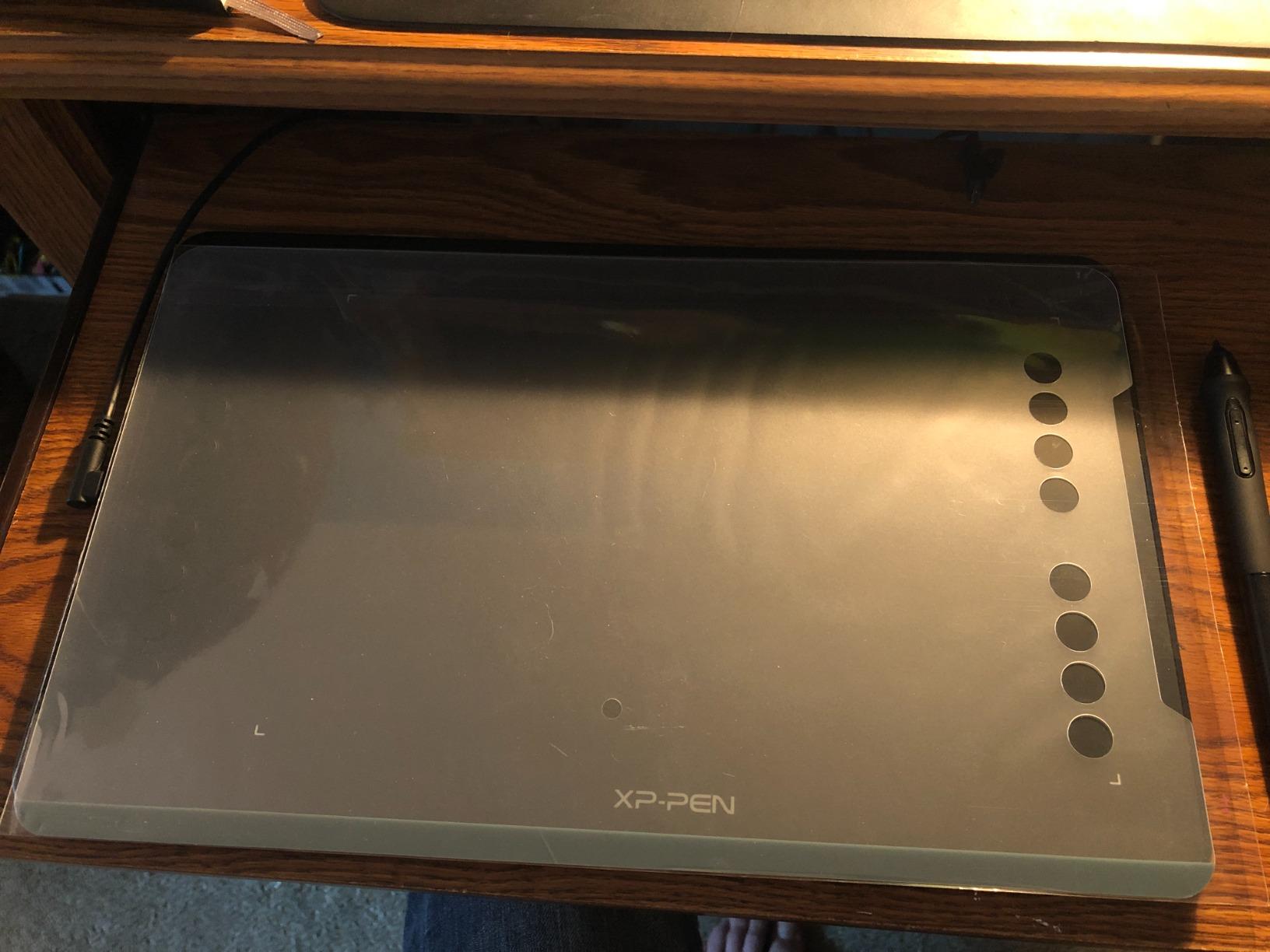
10x6.25 inch active area
16384 pressure levels
60-degree tilt support
8 customizable hotkeys
8mm ultra-thin design
+ The Good
- Industry-leading 16K pressure levels
- Large drawing area perfect for detailed work
- Excellent Linux support with GUI tool
- Works with Android devices 10.0+
- Ultra-portable at only 8mm thick
- The Bad
- Pen tip has noticeable wiggle feeling
- Surface texture wears nibs quickly
- Limited driver customization vs Wacom
The XPPen Deco 01 V3 packs professional-grade features into a budget-friendly package. The standout specification is the 16,384 levels of pressure sensitivity, which matches tablets costing twice as much. After testing it extensively, I can confirm the pressure response is exceptional for this price range.
The generous 10×6.25 inch active area gives you plenty of room to work. I found this size ideal for illustration work where I needed to make broad strokes without constantly lifting my hand. The 8mm thin profile makes it easy to transport while still feeling solid on the desk.
One feature I particularly appreciate is the 60-degree tilt support. This allows natural shading techniques where you angle the pen like a real pencil. The eight customizable hotkeys work for both left and right-handed users, which is a thoughtful design choice many tablets overlook.
Linux users will be happy to know this tablet has excellent support with a proper GUI configuration tool. I tested it on Ubuntu and experienced no issues with pressure detection or button mapping. This is rare in the drawing tablet world where Linux compatibility is often an afterthought.
Who Should Buy This Tablet
Linux users should seriously consider this tablet due to its excellent driver support. Artists wanting a large active area without the premium price will appreciate the 10×6 inch workspace. Beginners who want professional-level pressure sensitivity as they develop their skills will get great value here.
Who Should Avoid This Tablet
Artists bothered by pen tip wiggle should look at alternatives, as the stylus has a slightly squishy feel at rest. Those who want deep driver customization options similar to Wacom’s interface may find XP-Pen’s software limited. The surface texture also causes faster nib wear than smoother alternatives.
5. XPPen Artist 13.3 Pro – Best Mid-Range Display
XPPen Artist 13.3 Pro 13.3″ Drawing Tablet with Screen, 16K, Full-Laminated
13.3 inch full-laminated FHD display
8192 pressure levels
123% sRGB color gamut
Red dial control wheel
60-degree tilt support
+ The Good
- Fully-laminated screen with virtually no parallax
- Excellent 123% sRGB color accuracy
- Red dial provides intuitive control
- Battery-free stylus with low activation force
- Includes adjustable stand and accessories
- The Bad
- Requires wired connection via 3-in-1 cable
- Setup challenging for absolute beginners
- Driver software initially confusing
The XPPen Artist 13.3 Pro hits a sweet spot between price and performance for pen displays. The fully-laminated screen eliminates the gap between the glass surface and the display underneath, creating virtually no parallax. Your pen tip and cursor align perfectly, which makes drawing feel natural.
Color accuracy impressed me during testing. The 123% sRGB coverage means colors appear vibrant and true to life, exceeding what most monitors can display. For digital illustrators and photographers, this level of color fidelity at this price point is remarkable.
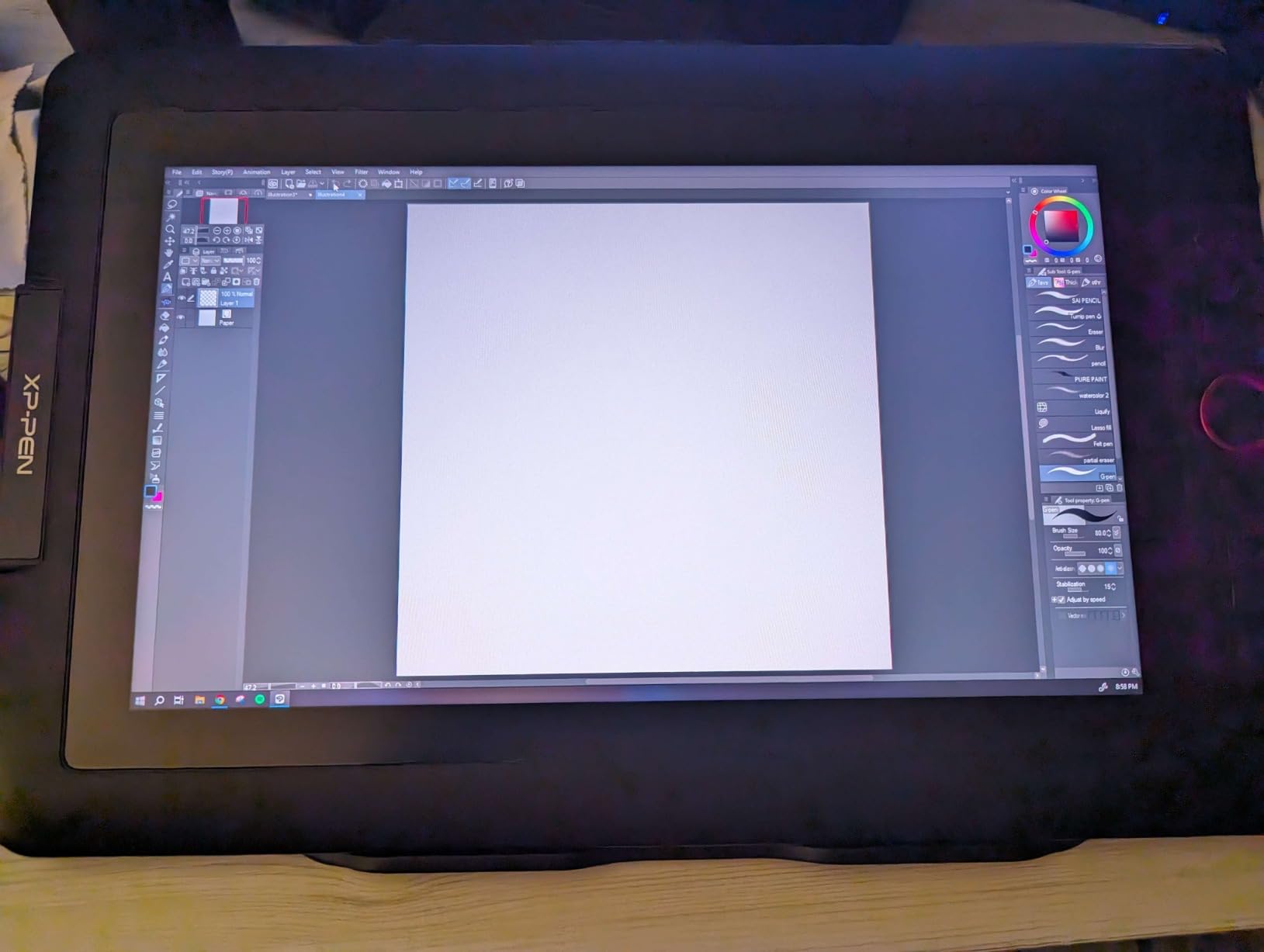
The signature red dial on the tablet is surprisingly useful. I mapped mine to control brush size, and the tactile rotation feels more intuitive than keyboard shortcuts. Combined with the eight customizable shortcut keys, my workflow became significantly faster after a week of use.
The 60-degree tilt support enables natural shading and drawing techniques. The battery-free stylus responds quickly with no noticeable lag during normal drawing speeds. At 220 RPS (reports per second), even fast strokes track smoothly without jitter.
Who Should Buy This Tablet
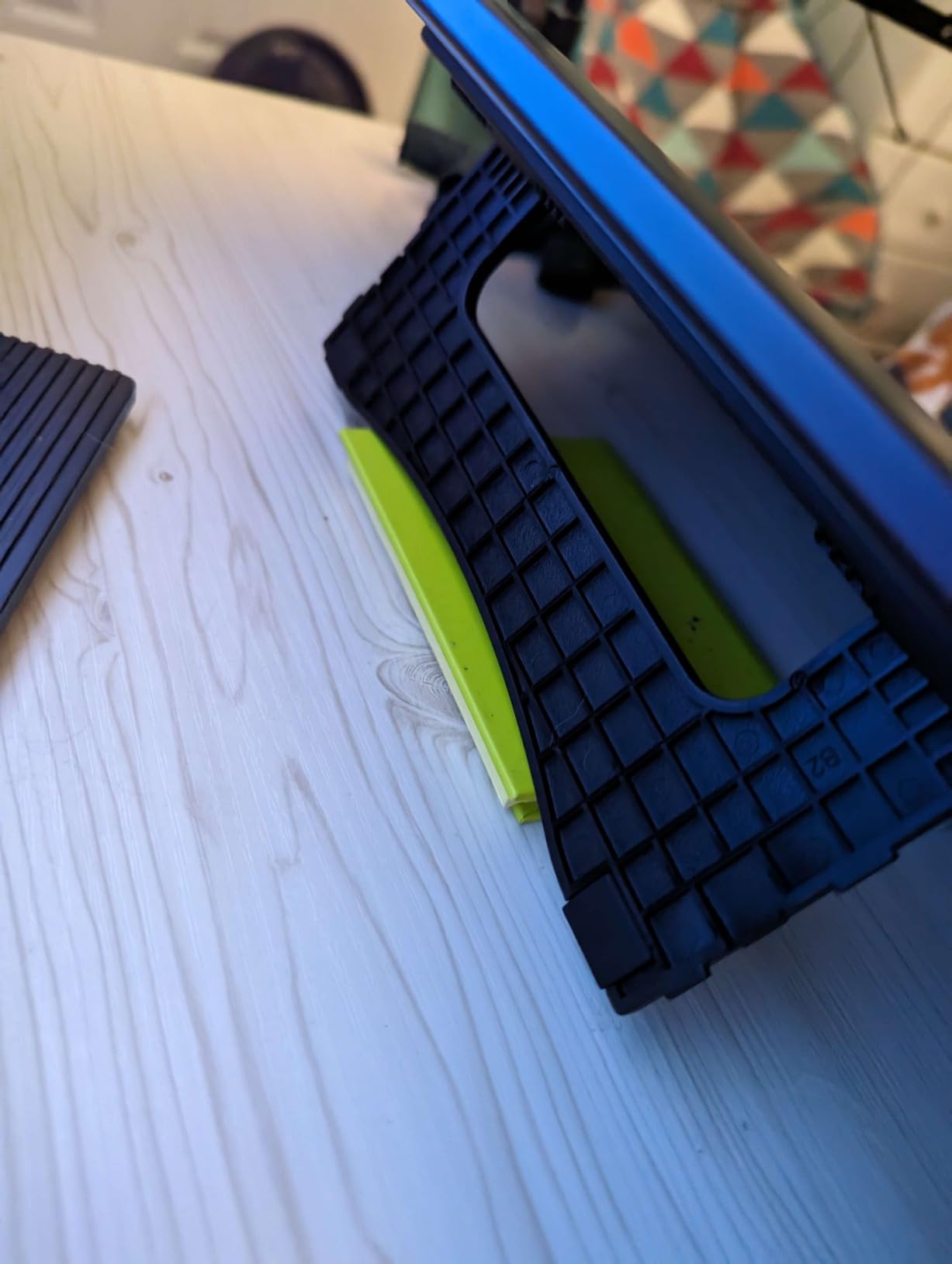
Artists transitioning from screenless tablets to pen displays will find this an excellent upgrade. Digital illustrators who need color accuracy for their work will appreciate the 123% sRGB coverage. The included adjustable stand, glove, and accessories make this a complete package ready to use out of the box.
Who Should Avoid This Tablet
Beginners who have never set up a pen display before may find the initial configuration overwhelming. The tablet requires HDMI and USB connections, which means checking your computer has the right ports or adapters. Artists wanting wireless freedom should note this is wired-only.
6. XP-PEN Artist12 – Best Entry-Level Display
XP-PEN Artist12 11.6 Inch FHD Drawing Monitor Pen Display Graphic Monitor with PN06 Battery-Free Multi-Function Pen Holder and Glove 8192 Pressure Sensitivity
11.6 inch FHD IPS display
8192 pressure levels
100% sRGB color gamut
6 shortcut keys
Slim touch bar
+ The Good
- Affordable entry into pen displays
- Hexagonal pen feels like traditional pencil
- Includes eraser on stylus end
- Portable and lightweight design
- Pre-installed anti-reflective screen protector
- The Bad
- Not fully laminated has some parallax
- No stand included in box
- Setup requires HDMI and USB connections
For artists wanting to try pen displays without a major investment, the XP-PEN Artist12 offers an accessible entry point. The 11.6 inch screen provides enough workspace for most digital art tasks while keeping the tablet compact and portable.
The hexagonal stylus design caught my attention immediately. It feels more like a traditional pencil than the typical cylindrical pens. The included eraser on the opposite end is a thoughtful touch that mimics real pencil usage and speeds up workflow.
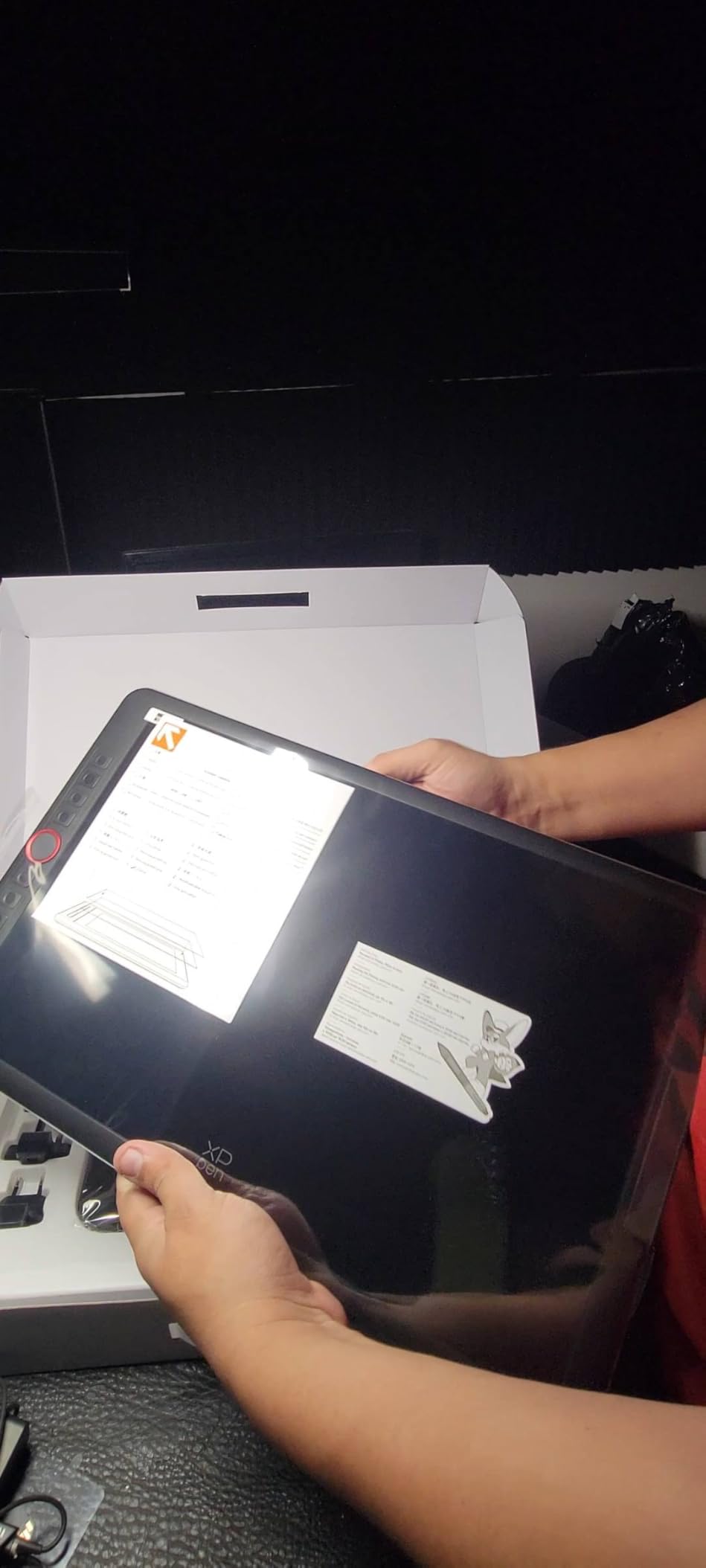
Color quality is solid with 100% sRGB coverage. The pre-installed anti-reflective screen protector reduces glare, though it can create some visibility issues under overhead lighting. The slim touch bar along the side provides zoom and scroll functionality that I found genuinely useful.
However, the screen is not fully laminated like more expensive options. This creates some parallax where the cursor appears slightly offset from the pen tip. After a few hours of use, my brain adjusted to this, but it is noticeable compared to premium displays.
Who Should Buy This Tablet
First-time pen display buyers will find this an excellent introduction to drawing directly on screen. Students and hobbyists with limited budgets can experience the benefits of pen displays without the premium price. The pencil-like stylus design appeals to traditional artists making the digital transition.
Who Should Avoid This Tablet
Artists sensitive to parallax should invest in a fully-laminated display instead. Those who need an adjustable stand will need to purchase one separately or prop up the tablet. The pen button placement is flat and difficult to locate by touch alone during drawing sessions.
7. HUION KAMVAS Pro 16 – Best Professional Value
HUION Kamvas Pro 16 Drawing Tablet with Screen,120% sRGB, Touch Bar,15.6″
15.6 inch full-laminated display
120% sRGB color gamut
92% Adobe RGB coverage
6 express keys
Adjustable stand included
+ The Good
- Excellent price-to-value vs Wacom
- Virtually no parallax performance
- Aluminum front and back build quality
- Great color accuracy with calibration
- Express keys improve workflow efficiency
- The Bad
- Colors appear greenish out of box
- Express keys mirrored not independent
- Short cable length problematic
The HUION KAMVAS Pro 16 has become a favorite among professional digital artists who want Wacom-level features without the premium price tag, which is why it is often mentioned among the best tablets for drawing and art. The 15.6 inch display provides substantial workspace for detailed illustration and design work.
Build quality impressed me immediately. The aluminum front and back panels give the tablet a premium feel that belies its price point. The included ST200 adjustable stand offers 20-60 degrees of tilt, which helped reduce neck strain during my longer work sessions.
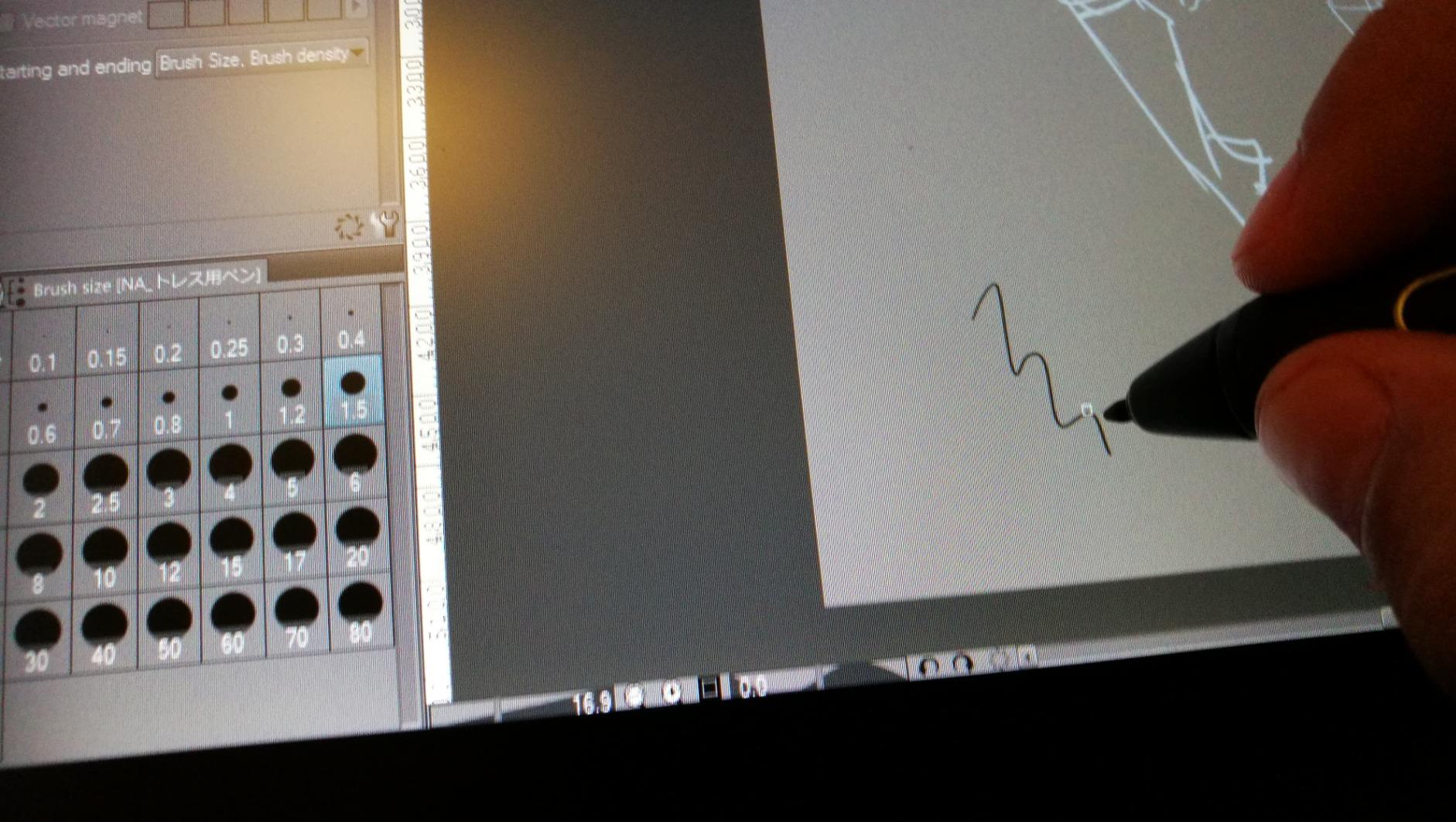
Color performance is strong with 120% sRGB and 92% Adobe RGB coverage. Out of the box, I noticed a slight greenish tint, but after calibration the colors became accurate and consistent. For professionals, taking time to calibrate this display is essential for color-critical work.
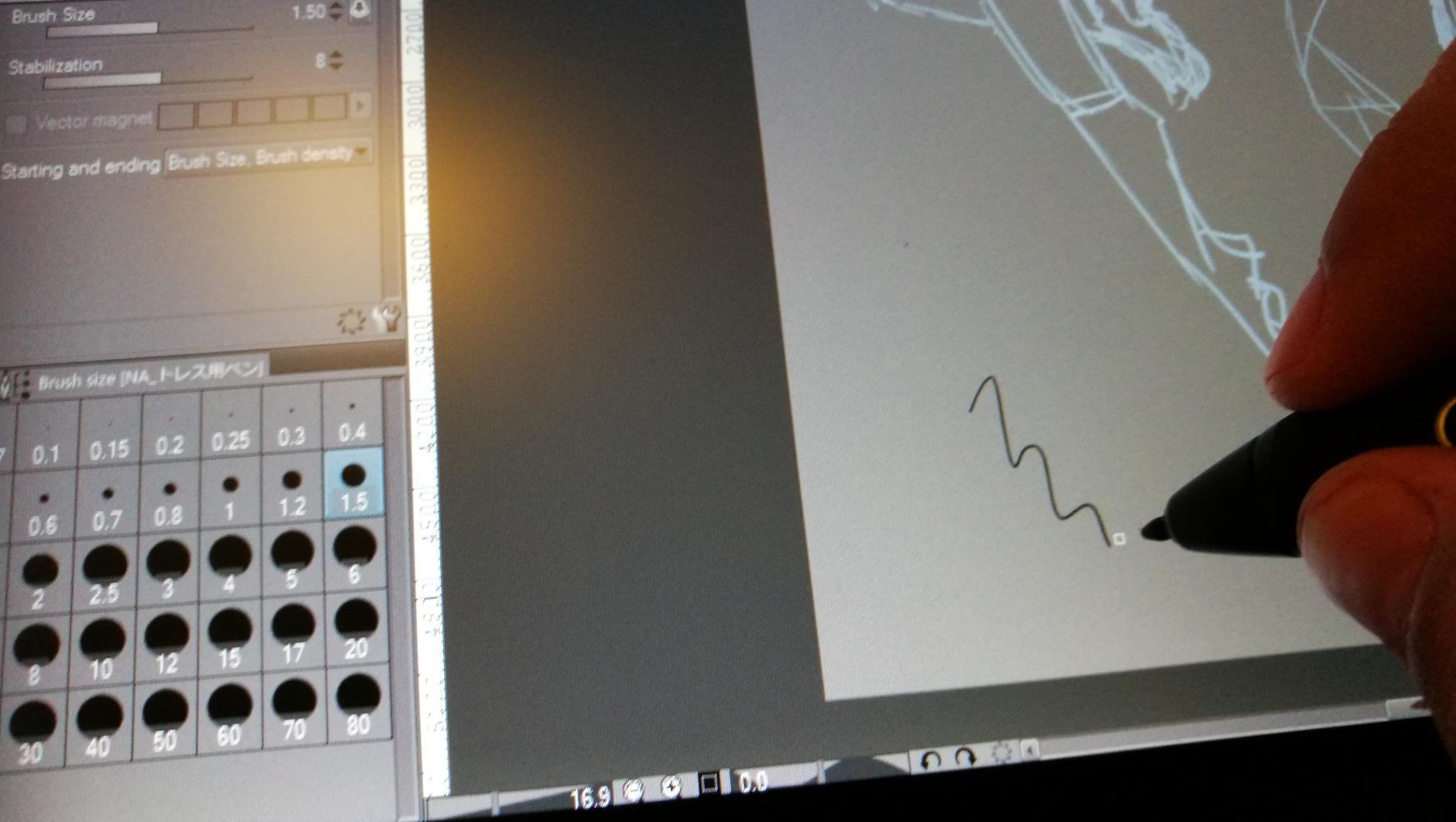
The six express keys and touch bar provide quick access to shortcuts. However, I discovered that the keys are mirrored on both sides rather than independently programmable, which limits customization. This design choice presumably accommodates left and right-handed users but reduces flexibility.
Who Should Buy This Tablet
Professional illustrators and designers who want a large display workspace will appreciate the 15.6 inch screen. Artists doing color-sensitive work who are willing to calibrate will achieve excellent results. Those who have used Wacom and want to explore alternatives will find this a capable competitor.
Who Should Avoid This Tablet
Artists wanting perfect color accuracy without calibration should look at factory-calibrated options. Users who rely heavily on custom express key configurations may find the mirrored button layout limiting. The short cable length also requires extension cables or closer proximity to the computer.
8. XPPen Artist 15.6 Pro V2 – Best for Color Accuracy
XPPen 16K Artist 15.6 Pro V2 Drawing Tablet with Screen
15.4 inch full-laminated display
16384 pressure levels
99% sRGB, 96% Adobe RGB, 96% P3
8 customizable shortcut keys
Red dial interface
+ The Good
- Excellent color accuracy across gamuts
- X3 Pro smart chip delivers 16K sensitivity
- Red dial provides smooth workflow control
- Slim 11mm profile design
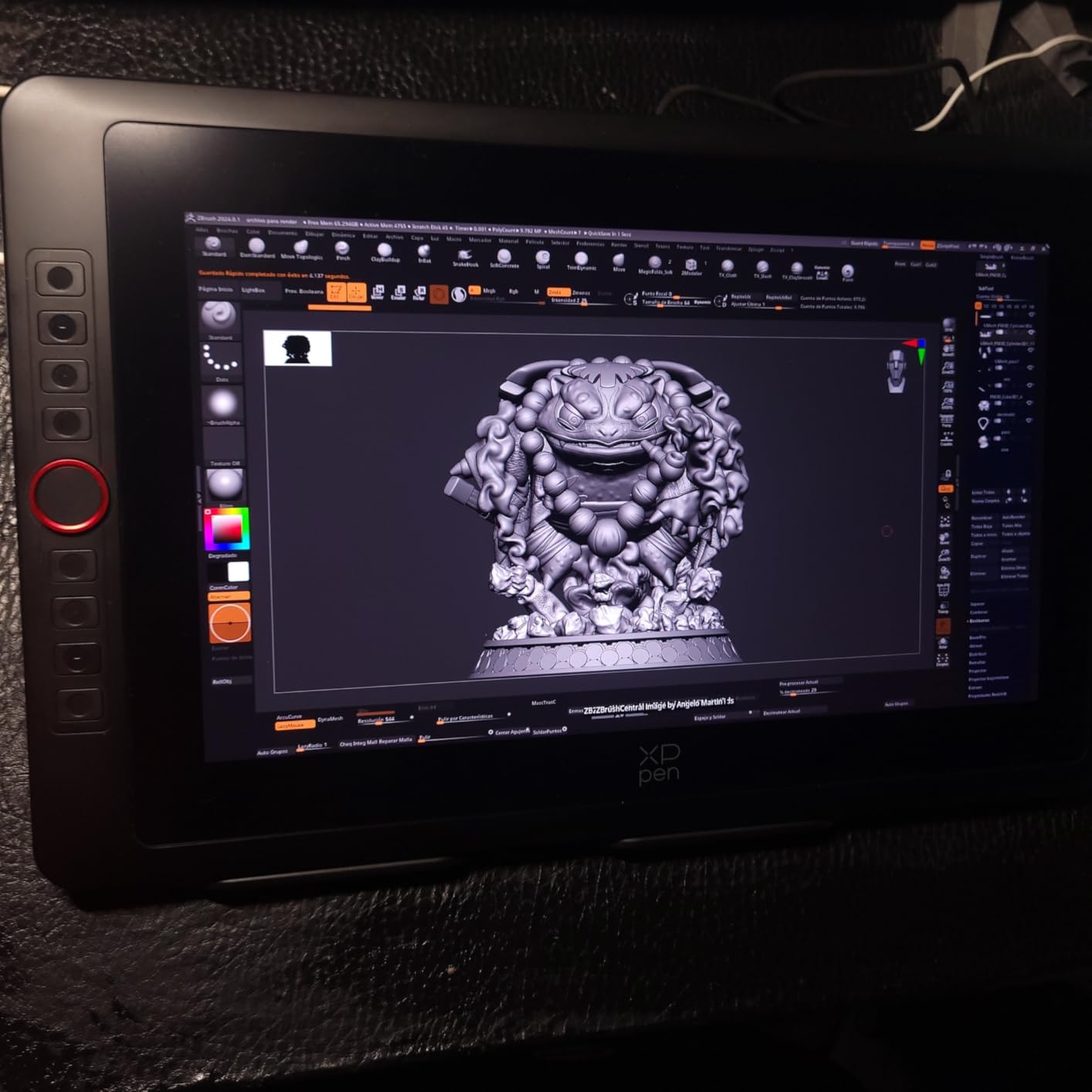
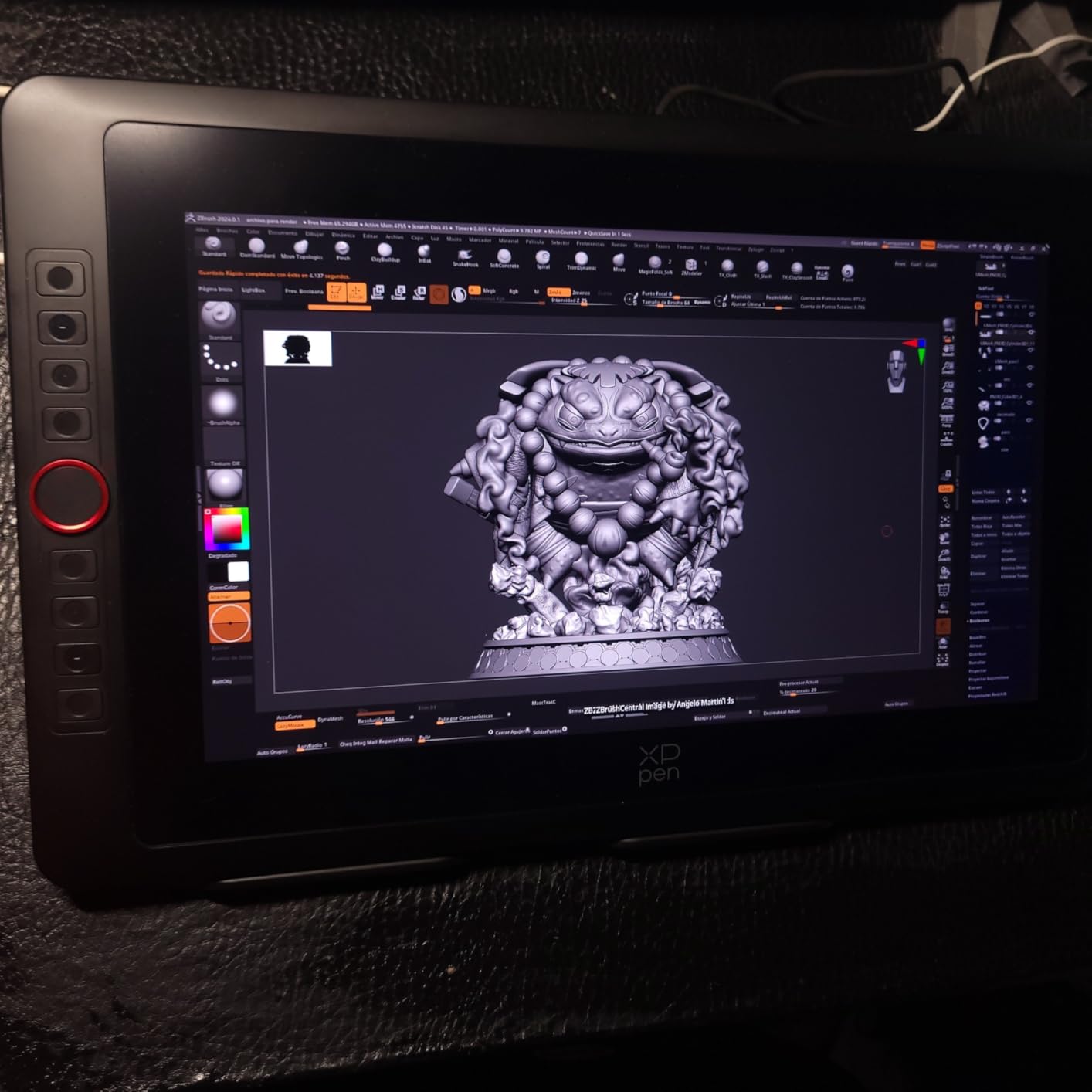
- Great for ZBrush and digital sculpting
- The Bad
- Setup challenging for beginners
- 3-in-1 cable cumbersome for portable use
- Not wireless requires multiple cables
The XPPen Artist 15.6 Pro V2 represents the latest evolution in pen display technology and is often discussed among the best tablets for drawing and art. The X3 Pro smart chip stylus delivers 16,384 levels of pressure sensitivity, which the company claims offers 100% higher sensitivity than comparable tablets. In my testing, the pen response was indeed exceptional for fine detail work.
Color accuracy is the standout feature. With 99% sRGB, 96% Adobe RGB, and 96% Display P3 coverage, this display handles virtually any color-critical task. I tested it with photo editing in Lightroom and illustration work in Photoshop, and the colors remained consistent and accurate across applications.
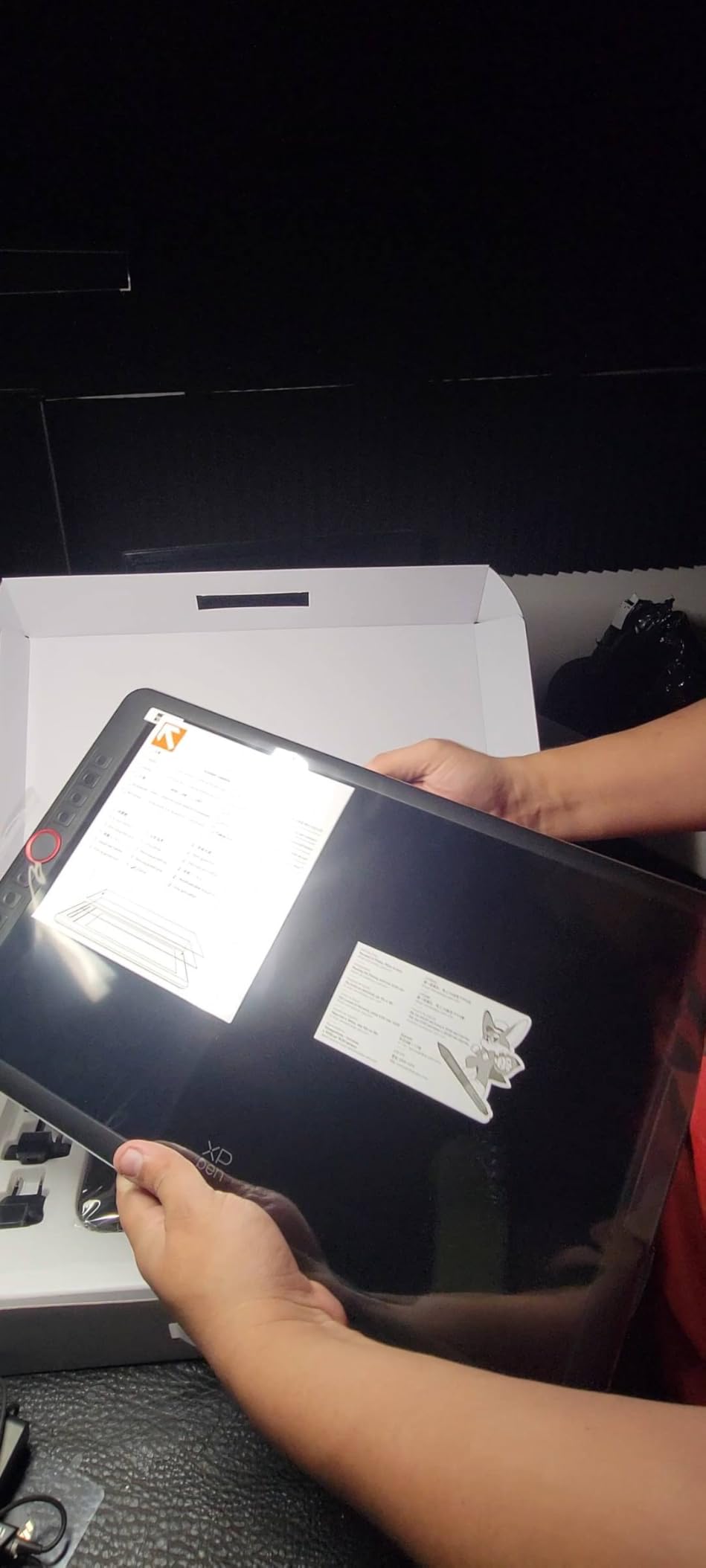
The innovative red dial interface sets this tablet apart from competitors. The smooth rotation controls brush size, canvas zoom, or navigation depending on your configuration. Combined with eight fully customizable shortcut keys, my workflow became significantly more efficient after customizing the controls.
The slim 11mm profile and included foldable stand create an elegant workspace setup. The stand offers 90-degree angle adjustment, which helped me find comfortable positions for long drawing sessions. The full-laminated anti-glare screen effectively eliminates parallax issues.
Who Should Buy This Tablet
Professional artists requiring precise color accuracy across multiple color spaces will find this display exceptional. Digital sculptors working in ZBrush or similar software will appreciate the 16K pressure sensitivity. Artists wanting extensive shortcut customization will benefit from the eight programmable keys and red dial.
Who Should Avoid This Tablet
Beginners may find the driver setup and configuration overwhelming compared to simpler tablets. Artists who prioritize wireless or portable setups will find the 3-in-1 cable connection restrictive. Some users report needing to adjust DPI settings in certain programs for optimal performance.
How to Choose the Right Drawing Tablets?
Screen vs Screenless Tablets
The first decision you will make is between pen tablets (screenless) and pen displays (with built-in screens). Screenless tablets like the Wacom Intuos require you to look at your monitor while drawing on the tablet surface. This takes practice but many artists prefer it once they adapt.
Pen displays let you draw directly on the screen, which feels more intuitive for most people. However, they cost more, require more cables, and some have parallax issues where the cursor appears offset from the pen tip. Fully-laminated displays minimize parallax but add to the price.
For beginners, I recommend starting with a quality screenless tablet. The lower cost lets you invest in software and education. You can always upgrade to a pen display later. Artists who primarily sketch traditionally often adapt faster to pen displays because the hand-eye coordination matches their existing skills.
Pressure Sensitivity Explained
Pressure sensitivity determines how your pen responds to different pressure levels. Higher numbers like 8192 or 16384 mean more granular control over line weight and opacity. But bigger numbers are not always better for everyone.
In my testing, the difference between 4096, 8192, and 16384 levels is subtle. Most artists cannot perceive the difference in normal use. What matters more is the pressure curve and how the software interprets your input. A well-tuned 4096 level tablet can outperform a poorly calibrated 16K tablet.
For beginners, any tablet with 4096 or more levels will serve you well. Professionals working on detailed illustrations may benefit from higher sensitivity, but the skill to utilize those extra levels takes years to develop. Focus on overall build quality and driver stability rather than chasing the highest pressure number.
Important Features to Consider
Active area size significantly impacts your workflow. Smaller tablets are portable but can feel cramped for detailed work. Larger tablets offer more precision but require more desk space. For most users, a medium-sized tablet around 10 inches diagonally hits the sweet spot.
Tilt support allows the pen to detect angles up to 60 degrees, enabling natural shading techniques. Most modern tablets include this feature, but verify before purchasing if you use angled strokes in your work.
Shortcut keys and express buttons can dramatically speed up your workflow. Look for tablets with at least 4-6 customizable buttons. Some include dial wheels or touch bars for brush size and zoom control, which I find invaluable once configured.
Connectivity options matter for your setup. USB-C is becoming standard and offers cleaner cable management. Some tablets support wireless Bluetooth, though wired connections typically feel more responsive. Ensure the tablet works with your operating system, especially if you use Linux or ChromeOS.
Wacom vs Huion vs XP-Pen
Wacom remains the industry leader for good reason. Their build quality, driver stability, and customer support set the standard. Tablets regularly last 5-10 years with heavy use. The main drawback is price, as Wacom products command a premium.
Huion has improved dramatically in recent years. Their latest generation tablets offer features competitive with Wacom at significantly lower prices. Driver quality has improved but still occasionally lags behind Wacom. For budget-conscious artists, Huion offers excellent value.
XP-Pen occupies an interesting middle ground. They often introduce innovative features like the red dial interface and high pressure sensitivity at competitive prices. Linux support is notably better than competitors. Build quality is solid though not quite at Wacom levels.
For beginners, I recommend Huion or XP-Pen for value. Professionals who depend on their equipment daily should consider Wacom for reliability. Many artists use different brands for different purposes, such as a portable Huion for travel and a Wacom for studio work.
Software Compatibility
Most drawing tablets work with major creative software including Adobe Photoshop, Illustrator, Lightroom, Clip Studio Paint, Krita, and Procreate. However, some features like pressure sensitivity require proper driver installation and configuration.
Linux users face more limited options. XP-Pen and Huion generally offer better Linux support than Wacom. The open-source community often provides drivers for tablets without official Linux support, but expect more setup work.
Android compatibility varies by tablet model. If you want to use your tablet with a phone or tablet, verify Android support before purchasing. Some tablets require USB-C connections with specific power delivery requirements that not all Android devices provide.
What is the best tablet for art and drawing?
The best tablet for art and drawing depends on your needs. For beginners, the Wacom Intuos Small offers industry-leading reliability and ease of use. For budget-conscious artists, the HUION Inspiroy H640P provides excellent value. For those wanting to draw directly on screen, the HUION Kamvas 13 (Gen 3) delivers professional features at an accessible price.
Is Wacom or Huion better?
Wacom offers superior build quality, driver stability, and customer support, with tablets lasting 5-10 years. Huion provides better value with competitive features at lower prices. Choose Wacom for professional reliability, Huion for budget-friendly performance with recent significant quality improvements.
What is the difference between a graphic tablet and a drawing tablet?
The terms are often used interchangeably, but technically a graphics tablet (pen tablet) has no screen and requires looking at your computer monitor while drawing. A drawing tablet with screen (pen display) lets you draw directly on the built-in display. Pen displays feel more intuitive but cost more and require additional cables.
Are iPads or Samsung tablets better for drawing?
iPads with Apple Pencil offer portability, standalone operation, and apps like Procreate. Samsung Galaxy Tab with S-Pen provides similar functionality with OLED displays. Both differ from graphics tablets because they are standalone devices. Many artists use both: an iPad for sketching and a graphics tablet for detailed studio work.
Do I need a screen on my drawing tablet?
You do not need a screen for most digital art work. Screenless tablets have a learning curve for hand-eye coordination but many artists prefer them for ergonomics and cost. Pen displays are better if you struggle with the disconnect between hand and screen, do detailed color work, or come from traditional art backgrounds.
Conclusion
Finding the right drawing tablet in 2026 comes down to matching features with your specific needs. The Wacom Intuos Small remains our top recommendation for beginners due to unmatched reliability and ease of use. Budget-conscious artists get tremendous value from the HUION Inspiroy H640P. For those wanting professional pen display features, the HUION Kamvas 13 (Gen 3) delivers exceptional color accuracy and pressure sensitivity.
The drawing tablet market has never offered better value, especially for artists researching the best tablets for drawing and art. Brands like Huion and XP-Pen have pushed innovation while keeping prices accessible. Whether you are starting your digital art journey or upgrading professional equipment, there has never been a better time to invest in a quality graphics tablet.
Consider your workflow, budget, and long-term goals when making your decision. A tablet that frustrates you with driver issues will hamper your creativity no matter how impressive its specifications. Start with quality fundamentals like build quality and software compatibility, then match features to your artistic needs.