
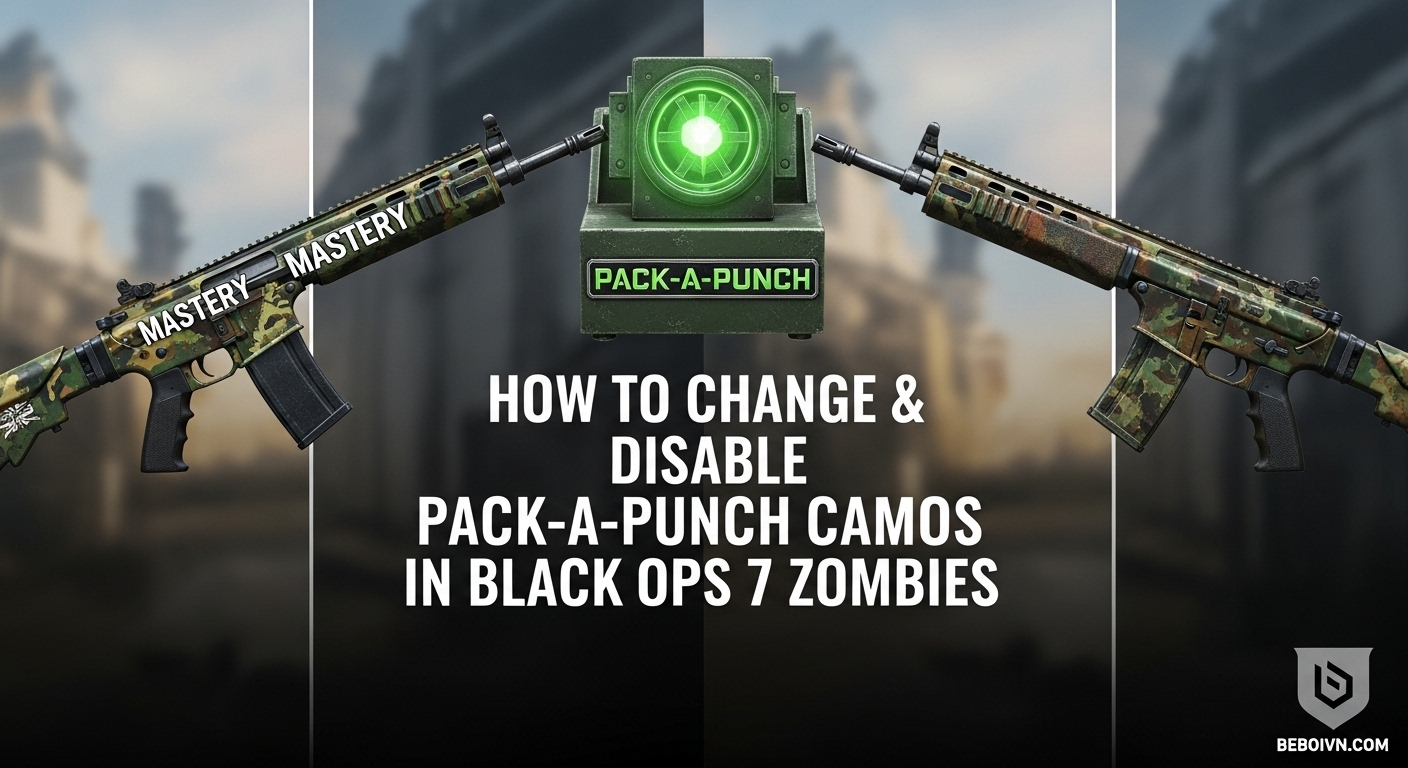
One of the most frustrating aspects of Call of Duty Zombies has always been losing your hard-earned weapon camos when you Pack-a-Punch your weapons. In Black Ops 7 Zombies, however, Treyarch has finally given players the tools to customize their Pack-a-Punch experience. Whether you want to disable those automatic Pack-a-Punch camos entirely or switch to different styles, this guide will walk you through every method available.
Understanding Pack-a-Punch Camos in Black Ops 7
Before diving into the how-to, it’s important to understand what Pack-a-Punch camos are and why they matter. In Black Ops 7 Zombies, every time you upgrade your weapon at the Pack-a-Punch machine, the game automatically applies a special camo unique to that map and upgrade tier. While these camos look cool, they often override the mastery camos or custom skins you’ve worked hard to unlock.
The good news? Black Ops 7 introduces multiple ways to take control of your weapon’s appearance after Pack-a-Punching. You can now disable these automatic camos entirely, choose from different Pack-a-Punch styles, or even keep your original camo intact throughout the upgrade process.
How to Disable Pack-a-Punch Camos in Black Ops 7 Zombies
There are three distinct methods to disable Pack-a-Punch camos in Black Ops 7 Zombies, each with its own advantages and use cases. Let’s break down each approach so you can choose the one that works best for your playstyle.
Method 1: The Classic Melee Technique (In-Game)
This method will be familiar to veteran Zombies players, as it’s been a feature in previous Call of Duty titles. It’s perfect for when you want to disable Pack-a-Punch camos for a single weapon during a match:
- Locate any Pack-a-Punch machine on the map
- Melee the machine once with your equipped weapon
- Watch for the color change – the machine will glow green instead of blue
- Pack-a-Punch your weapon while the machine is green
- Your original camo will remain on the weapon after upgrading
This method is ideal for situations where you want to keep a specific mastery camo or custom skin on a particular weapon without affecting other weapons you might upgrade later in the same match.
Method 2: The Permanent Menu Toggle (Pre-Game)
For players who want to disable Pack-a-Punch camos across all weapons and matches, the menu system offers a permanent solution:
- From the main menu, navigate to the Weapons tab
- Select Zombies Skins from the options
- Choose Pack-a-Punch Camos in the submenu
- Locate the Pack-a-Punch Camos Toggle Option
- Set the toggle to “Off”
Once this setting is disabled, all weapons you Pack-a-Punch in any Zombies match will retain their original appearance, regardless of upgrade tier or map. This is the most comprehensive solution for players who prefer their custom camos over the default Pack-a-Punch styles.
Method 3: The Per-Machine Deactivation (Match-Specific)
This lesser-known method combines elements of the first two approaches and offers additional flexibility:
- Approach any Pack-a-Punch machine during a match
- Hold the interact button (square/X) instead of tapping it
- Access the machine’s settings menu
- Select “Camo Override” from the options
- Choose “Disable” to turn off camos for this specific machine
This method is particularly useful in maps with multiple Pack-a-Punch machines, allowing you to customize the camo behavior for each location independently.
How to Change Pack-a-Punch Camos in Black Ops 7 Zombies?
Disabling camos isn’t your only option. Black Ops 7 also allows you to customize which Pack-a-Punch camo styles appear on your weapons. Here’s how to access and modify these settings:
Accessing the Pack-a-Punch Camo Menu
- From the main menu, go to Weapons
- Select Zombies Skins
- Choose Pack-a-Punch Camos
- Browse the available camo options for each upgrade tier
Understanding Camo Tiers and Options
Black Ops 7’s Pack-a-Punch system features multiple upgrade tiers, each with its own camo customization options:
- Tier 1 (Basic Upgrade): Choose from basic Pack-a-Punch patterns
- Tier 2 (Advanced Upgrade): Access more elaborate designs
- Tier 3 (Ultimate Upgrade): Unlock premium camo styles
As of the current season, players can select between:
- Standard Map-Specific Camos: Unique designs for each Zombies map
- Cursed Mode Camos: Special styles unlocked by completing Cursed Mode challenges
- Universal Pack-a-Punch Camos: Classic designs from previous Black Ops games
Applying Your Selected Camos
Once you’ve chosen your preferred camos:
- Select your desired camo for each upgrade tier
- Confirm your selection – the game will save your preferences
- Launch any Zombies match – your selected camos will automatically apply when you upgrade weapons
Your chosen camos will override the default map-specific designs across all maps released during the game’s current season, giving you consistent customization regardless of which location you’re playing.
Unlocking Additional Pack-a-Punch Camos
Beyond the default options, Black Ops 7 offers several ways to unlock exclusive Pack-a-Punch camos for dedicated players:
Cursed Mode Camos
Cursed Mode, Black Ops 7’s high-difficulty Zombies experience, rewards players with unique Pack-a-Punch camos:
- Complete the Ashes of the Damned Main Quest in Cursed Mode
- Finish with 3, 6, or 9 Relics activated for different camo tiers
- Unlock exclusive Cursed Mode Pack-a-Punch camos for each completion level
These camos feature distinctive designs that signal your mastery of Black Ops 7’s most challenging Zombies content.
Universal Pack-a-Punch Rewards
For players who enjoy variety, Black Ops 7 includes universal Pack-a-Punch camos that work across all weapons:
- Classic Remastered Camos: Updated versions of iconic designs from Black Ops 2
- Seasonal Event Camos: Limited-time styles available during special events
- Challenge-Based Camos: Unlockable by completing specific Zombies objectives
Weapon-Specific Pack-a-Punch Camos
Some weapons in Black Ops 7 have unique Pack-a-Punch camos that can be unlocked through dedicated gameplay:
- Use Pack-a-Punch Level 1 on specific weapons
- Kill 1,000 zombies with the upgraded weapon
- Unlock weapon-specific Pack-a-Punch camos that can be applied to all weapons
This system rewards players who specialize in particular weapons, giving them additional customization options for their entire arsenal.
Advanced Tips for Pack-a-Punch Camo Management
To get the most out of Black Ops 7’s Pack-a-Punch camo system, consider these advanced strategies:
Strategic Camo Selection for Different Maps
Different maps have different visual themes, so consider selecting Pack-a-Punch camos that complement each environment:
- Ashes of the Damned: Dark, fiery camos work well with the map’s hellish aesthetic
- Liberty Falls: Urban-themed camos match the city setting
- Mountain Pass: Snowy or woodland camos blend with the mountain environment
Coordinating with Team Camos
If you regularly play with a squad, consider coordinating your Pack-a-Punch camo selections for a unified team appearance. This not only looks cool but can also help with quick weapon identification during intense moments.
Saving Multiple Loadout Configurations
Black Ops 7 allows you to save multiple Zombies loadouts with different Pack-a-Punch camo configurations. Create separate loadouts for:
- High-round strategies (camos that are easy to see in dark areas)
- Easter egg runs (camos that don’t distract from puzzle elements)
- Casual play (camos that match your personal style)
Common Issues and Troubleshooting
Even with these comprehensive options, you might encounter some issues with Pack-a-Punch camos. Here are solutions to common problems:
Camos Not Applying Correctly
If your selected Pack-a-Punch camos aren’t appearing in-game:
- Check your internet connection – camo settings sync with online servers
- Restart the game – this can resolve temporary sync issues
- Verify your settings – double-check that camos are enabled in the menu
- Re-select your camos – sometimes reapplying the selection fixes the issue
Melee Method Not Working
When the Pack-a-Punch machine won’t turn green after meleeing:
- Ensure you’re meleeing the correct part of the machine
- Try a different Pack-a-Punch location if available
- Check if the machine is currently in use by another player
- Verify you haven’t already disabled camos via the menu toggle
Missing Cursed Mode Camos
If you’ve completed Cursed Mode but aren’t seeing the rewards:
- Wait for the match to fully complete – rewards sometimes take time to process
- Check your camo inventory – they might be there but not automatically equipped
- Contact Activision Support if rewards are missing after 24 hours
The Future of Pack-a-Punch Camos in Black Ops 7
As Black Ops 7 continues its seasonal content updates, expect the Pack-a-Punch camo system to evolve:
- New Maps: Each new Zombies map will likely introduce unique Pack-a-Punch camos
- Seasonal Events: Limited-time camos tied to holidays and special events
- Community Favorites: Treyarch may add popular camo designs based on player feedback
- Cross-Game Integration: Potential for classic camos from previous Black Ops titles
Conclusion: Mastering Your Pack-a-Punch Experience
The ability to change and disable Pack-a-Punch camos in Black Ops 7 Zombies represents a significant quality-of-life improvement for the series. Whether you’re a mastery camo collector who wants to preserve your hard-earned designs or simply prefer the look of your custom weapon skins, these options give you unprecedented control over your weapon’s appearance.
By following the methods outlined in this guide, you can customize your Pack-a-Punch experience to match your personal style and gameplay preferences. From the quick in-game melee technique to the comprehensive menu toggle options, Black Ops 7 offers solutions for every type of player.
Remember that the Pack-a-Punch camo system will continue to evolve with new seasons and content updates, so stay tuned for additional customization options and exclusive camo releases. For now, take advantage of these tools to make your Zombies experience truly your own.
The next time you step into the mysterious world of Black Ops 7 Zombies, you’ll do so with the confidence that your weapons will look exactly how you want them to—whether that means rocking those flashy Pack-a-Punch designs or keeping your favorite mastery camos intact through every upgrade tier.