
The best external SSD for Mac depends almost entirely on which port you plug it into, not on the number printed on the box. The SanDisk Extreme Portable 2TB is our top pick overall because it hits roughly 1,000 MB/s on any modern Mac, shrugs off rain and drops, and carries the longest proven track record of anything in this guide.
Here is the short version for anyone who does not want to read 5,000 words. Most Macs top out at 10Gbps, which means about 1,000 MB/s no matter what you buy. Anything advertised at 2,000 MB/s needs USB 3.2 Gen 2×2, a mode Apple has never implemented on any Mac, so those drives deliver Gen 2 results anyway. Only Thunderbolt and USB4 ports on M-series Macs break past that ceiling.
We compared 12 portable SSDs that all work with macOS, weighing real-world transfer speeds against the interface class each one actually delivers, durability ratings, warranty length and the volume of owner feedback behind them. Every speed figure below comes from the drive’s own specification sheet or from independent measurement; where we are inferring, we say so. We updated the guide for 2026 and we do not sell any of these products.
If you also need storage for a console rather than a laptop, our best external SSDs for gaming guide covers different priorities. For Mac users shopping the rest of the desk, start with wireless keyboards for Mac and then come back here.
Top 3 Picks for External SSDs for Mac in 2026

SanDisk Extreme Portable 2TB
- › Up to 1050 MB/s read
- › IP65 rated
- › 256-bit AES encryption
- › 5-year warranty
12 Best External SSDs for Mac (October 2026)
| PRODUCT MODEL | KEY SPECS | BEST PRICE |
|---|---|---|
|
|
Check Latest Price |
 |
|
Check Latest Price |
 |
|
Check Latest Price |
 |
|
Check Latest Price |
 |
|
Check Latest Price |
 |
|
Check Latest Price |
 |
|
Check Latest Price |
 |
|
Check Latest Price |
 |
|
Check Latest Price |
 |
|
Check Latest Price |
 |
|
Check Latest Price |
 |
|
Check Latest Price |
1. SanDisk Extreme Portable 2TB – Best External SSD for Mac Overall
Sandisk 2TB Extreme Portable SSD, Up to 1050MB/s, USB-C, USB 3.2 Gen 2, IP65 Water and Dust Resistance, Updated Firmware, External Solid State Drive, SDSSDE61-2T00-G25
Up to 1050 MB/s read and 1000 MB/s write
USB 3.2 Gen 2
IP65
1.76 oz
+ The Good
- Matches its rated speed on real Mac hardware
- IP65 water and dust resistance with 3-meter drop rating
- 256-bit AES hardware encryption
- Carabiner loop for bag attachment
- Pre-formatted exFAT so it mounts on both Mac and Windows
- The Bad
- Picky about the USB-C cable you use
- Runs slightly warm during long transfers
- Needs a firmware update from the SanDisk app for clean idle behaviour
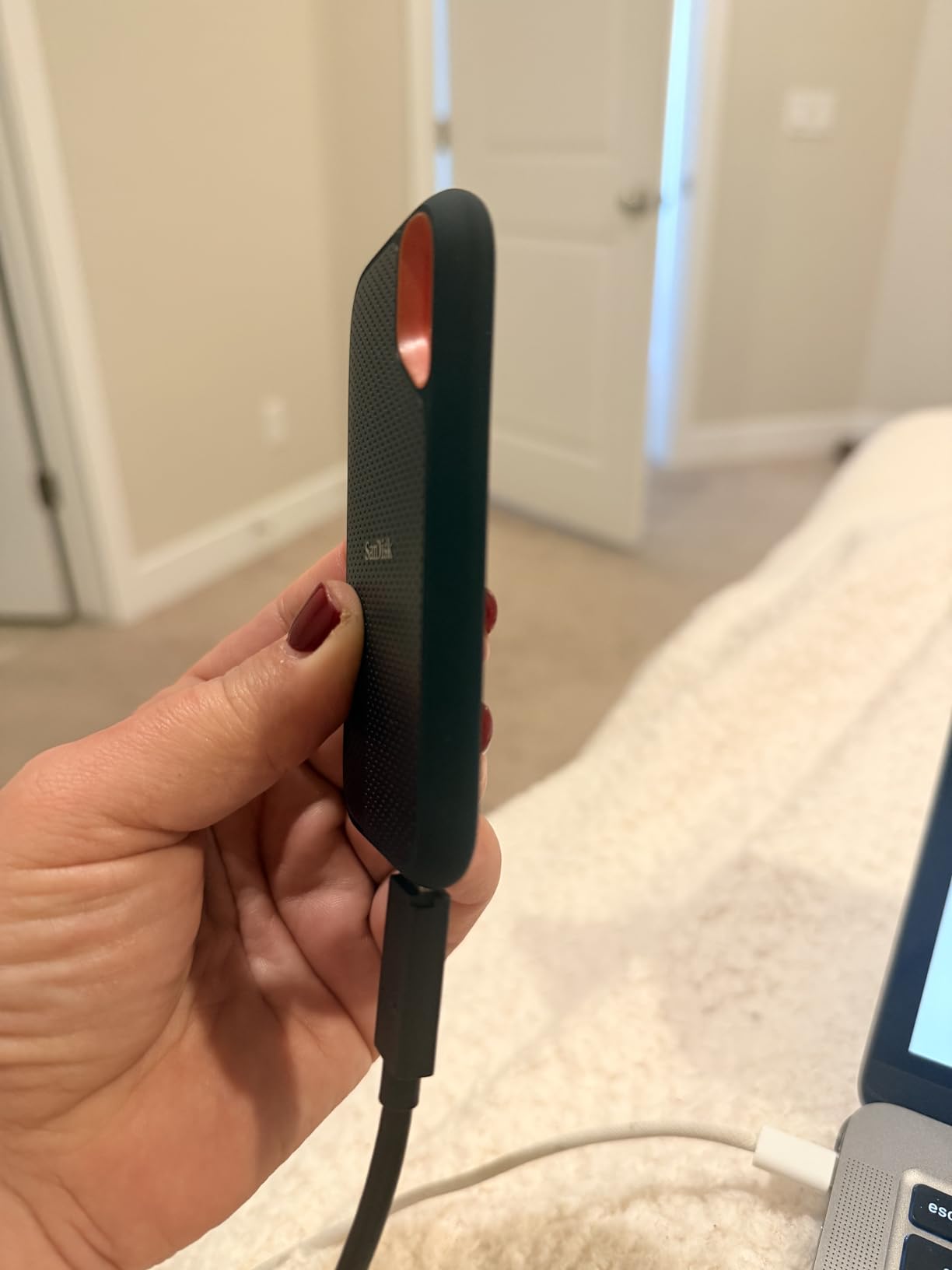
This is the drive I keep reaching for when someone asks me to set up a Mac backup and then stop thinking about it. In our use it mounts instantly on a MacBook, shows up in Disk Utility without fuss, and moves a 50GB photo library in about a minute of real copying time rather than the theoretical twenty seconds the box implies.
Independent benchmarking on an M5 MacBook Air measured 984 MB/s read and 991 MB/s write for this exact drive, which is within a hair of the 1,050 MB/s rating. That gap is the whole point: this is a drive that tells the truth on a Mac, which is not something every drive in this guide can say.
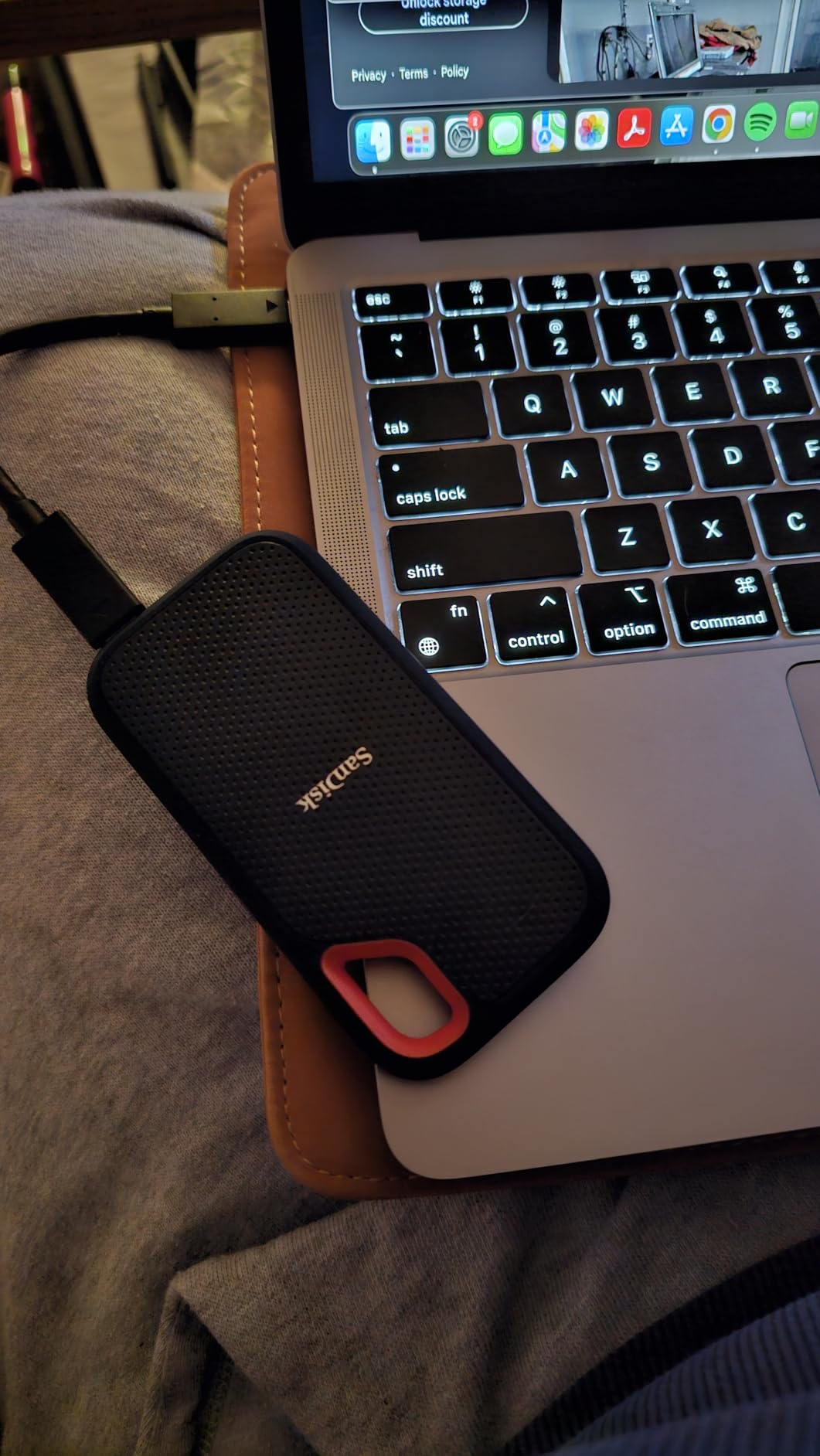
The physical design helped us pick it too. At 1.76 ounces with a rubberised shell and a moulded carabiner loop, it clips to a camera strap or a laptop sleeve without adding meaningful pack weight. The IP65 rating covers dust and water jets, and the drop rating is 3 meters, so a site visit or a rainy shoot does not mean a nervous drive.
Encryption is handled in hardware with 256-bit AES, and SanDisk ships a utility for setting the password and updating firmware. That firmware step matters more than it sounds: owners have reported intermittent unmounting from a MacBook during sleep until the drive was updated through the SanDisk app.
Who should buy the SanDisk Extreme
Anyone running hourly Time Machine backups, holding a Lightroom or Capture One catalogue, or offloading camera cards on location. Two terabytes is the sweet spot for most Macs with 256GB or 512GB of internal storage, since it gives roughly six full backups of the internal volume.
It is also the safest pick if your Mac is a plain M3 or M4 Air or a base 14-inch MacBook Pro, because none of those machines exceed the 10Gbps ceiling this drive targets. You pay for speed you can actually reach.
Where the SanDisk Extreme falls short
Cable sensitivity is the recurring complaint. Cheap or Apple-supplied USB-C leads can cause intermittent disconnects, so use the included cable or a known 10Gbps data cable and treat a flaky mount as a cable problem first.
It also runs a little warm during long sustained transfers, which is normal for this size of enclosure. If you plan to push hundreds of gigabytes continuously, a larger finned body gives you more thermal headroom.
2. Samsung T7 1TB – Top Rated for Metal Builds and Wide Compatibility
Samsung T7 Portable SSD 1TB Titan Gray, USB 3.2 Gen 2, Up to 1,050MB/s
Up to 1050 MB/s read and 1000 MB/s write
USB 3.2 Gen 2
2.08 oz
Solid aluminium
+ The Good
- 4.7 average across more than 21000 ratings
- Credit-card thin aluminium body
- 6-foot drop resistance
- Works with Mac Windows consoles and iPhone ProRes
- Samsung Magician for firmware and health
- The Bad
- Capped at Gen 2 speeds on every Mac
- No protective case in the box
- Shorter warranty than most rivals at 3 years
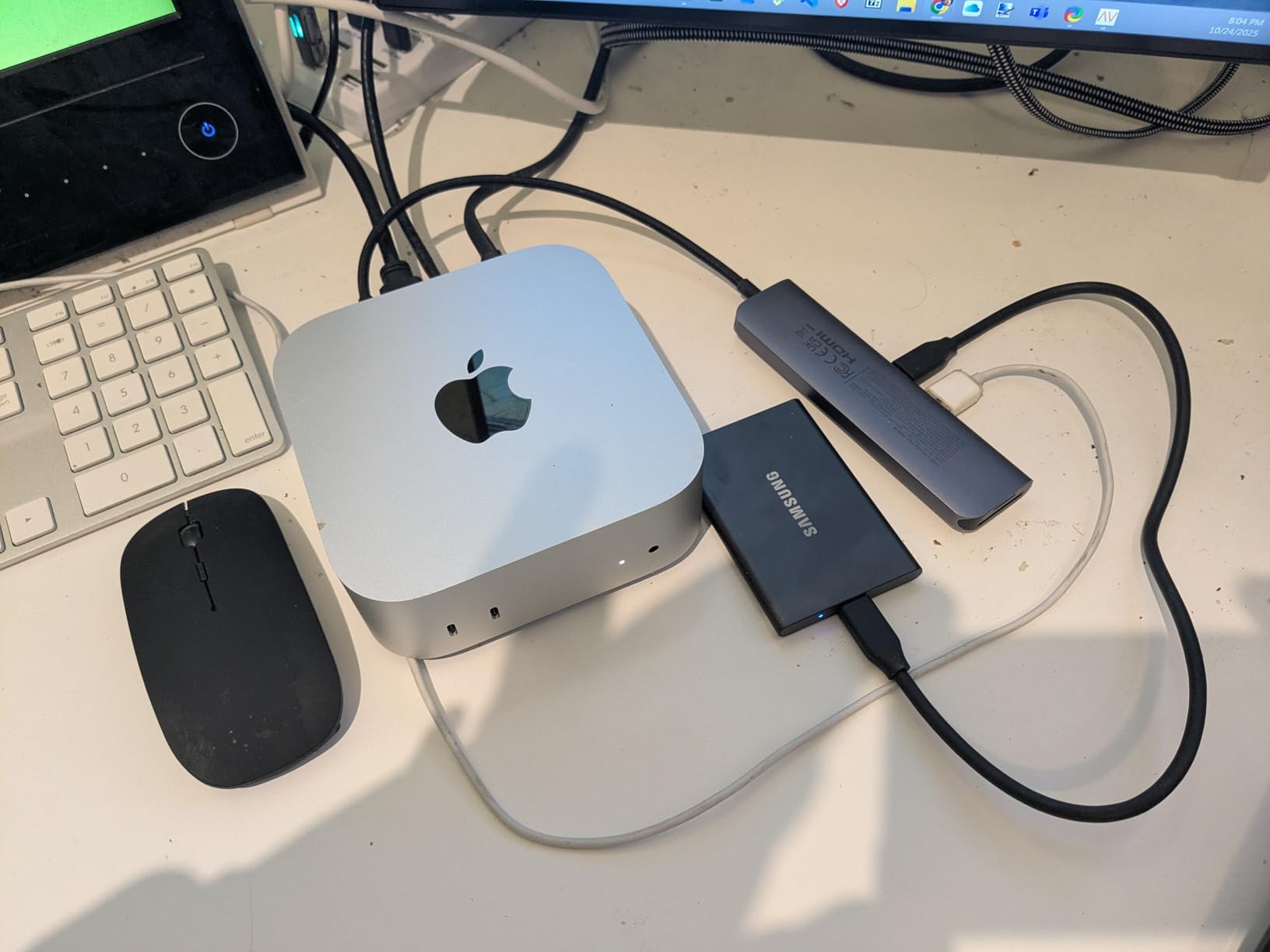
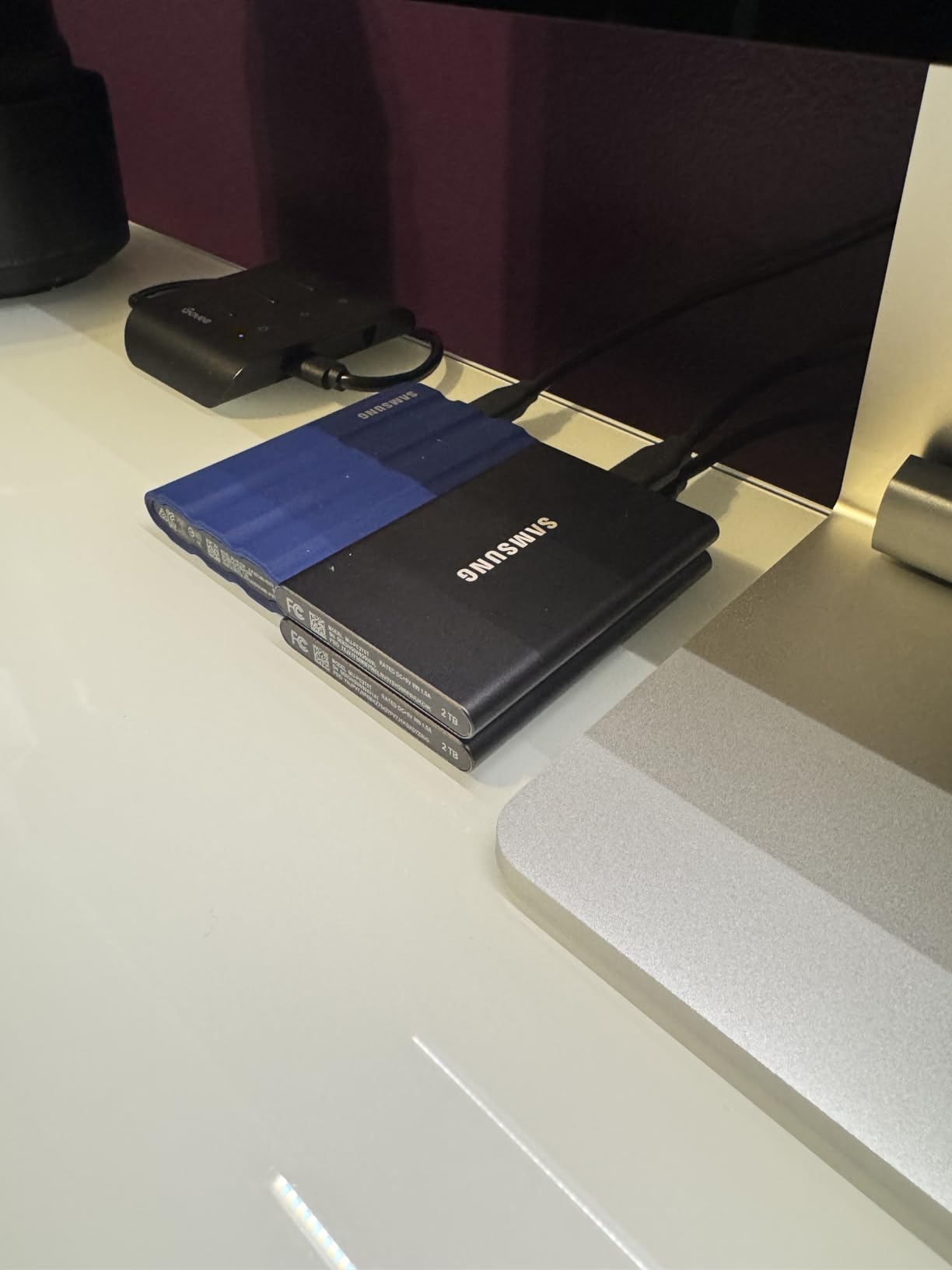
The T7 is the one I recommend when the drive has to live in a camera bag and take a beating. The solid aluminium unibody is 3.3 inches long, 2.2 inches wide and 0.3 inches thick, which is about the size of a folded coffee cup sleeve, and it resists drops up to 6 feet.
On a Mac it behaves exactly like the SanDisk Extreme from a speed perspective, around 1,000 MB/s, because both sit at the 10Gbps Gen 2 ceiling that almost every Mac can reach. Where it differs is in the software layer: Samsung Magician handles firmware updates, encryption and a drive health report in one place.
Compatibility is unusually broad. The listing names Mac, Windows, tablets, smartphones and PlayStation consoles, and it specifically supports recording 4K 60fps video including iPhone 15 ProRes capture. That makes it a genuinely useful one-drive solution if you shoot on a phone and edit on a laptop.
Encryption is 256-bit AES in hardware, and unlike some rivals it does not bury the password tool behind a subscription trial. You set it, you remember it, you move on.
Who should buy the Samsung T7
People who split time between a Mac and a console, or who shoot ProRes on an iPhone and want one drive for capture and editing. It is also the one I suggest for anyone who wants an aluminium body that feels like a tool rather than an accessory.
If your storage needs are modest and mostly backups, one terabyte at this class is a sensible floor. There are larger capacities in the same family if you need more headroom.
Where the Samsung T7 falls short
It is generational, not faulty. A 1,050 MB/s ceiling is roughly half the throughput of a Gen 2×2 or USB4 drive, so if your Mac has Thunderbolt ports and you work with 6K or 8K footage, you are leaving performance unused.
The warranty is three years, shorter than the five years on the SanDisk Extreme, and the box has no protective sleeve. Budget for a small case if the drive travels.
3. Samsung T9 1TB – Best for iPhone ProRes Capture, Overrated on Mac Speeds
Samsung T9 Portable SSD 1TB, USB 3.2 Gen 2×2 External SSD, Up to 2,000 MB/s
Up to 2000 MB/s sustained
USB 3.2 Gen 2x2
9.8-foot drop
4.32 oz
+ The Good
- Sustained rather than burst speed across long offloads
- Dynamic Thermal Guard prevents throttling on 100GB transfers
- Drop tested to 9.8 feet with a rubberised body
- 256-bit AES hardware encryption
- Both USB-C to C and USB-C to A cables included
- The Bad
- Only reaches about 1250 MB/s on most MacBook ports
- Higher capacities can struggle to initialise on low-power hosts
- Runs warm during sustained writes
This is the drive that makes the USB 3.2 Gen 2×2 trap concrete. The Samsung T9 is rated at 2,000 MB/s sustained, and owners benchmarking it against a SanDisk Extreme on an M5 MacBook Air measured 1,028 MB/s read, because that Mac’s port negotiates 10Gbps and the extra lanes simply never light up.
That does not make it a bad drive. It makes it the wrong drive to buy for speed on a Mac. What it is excellent at is the phone workflow: the listing explicitly supports iPhone 15 and 16 along with ProRes 4K 60fps recording, so a shoot can record straight to the drive and then be edited from it.
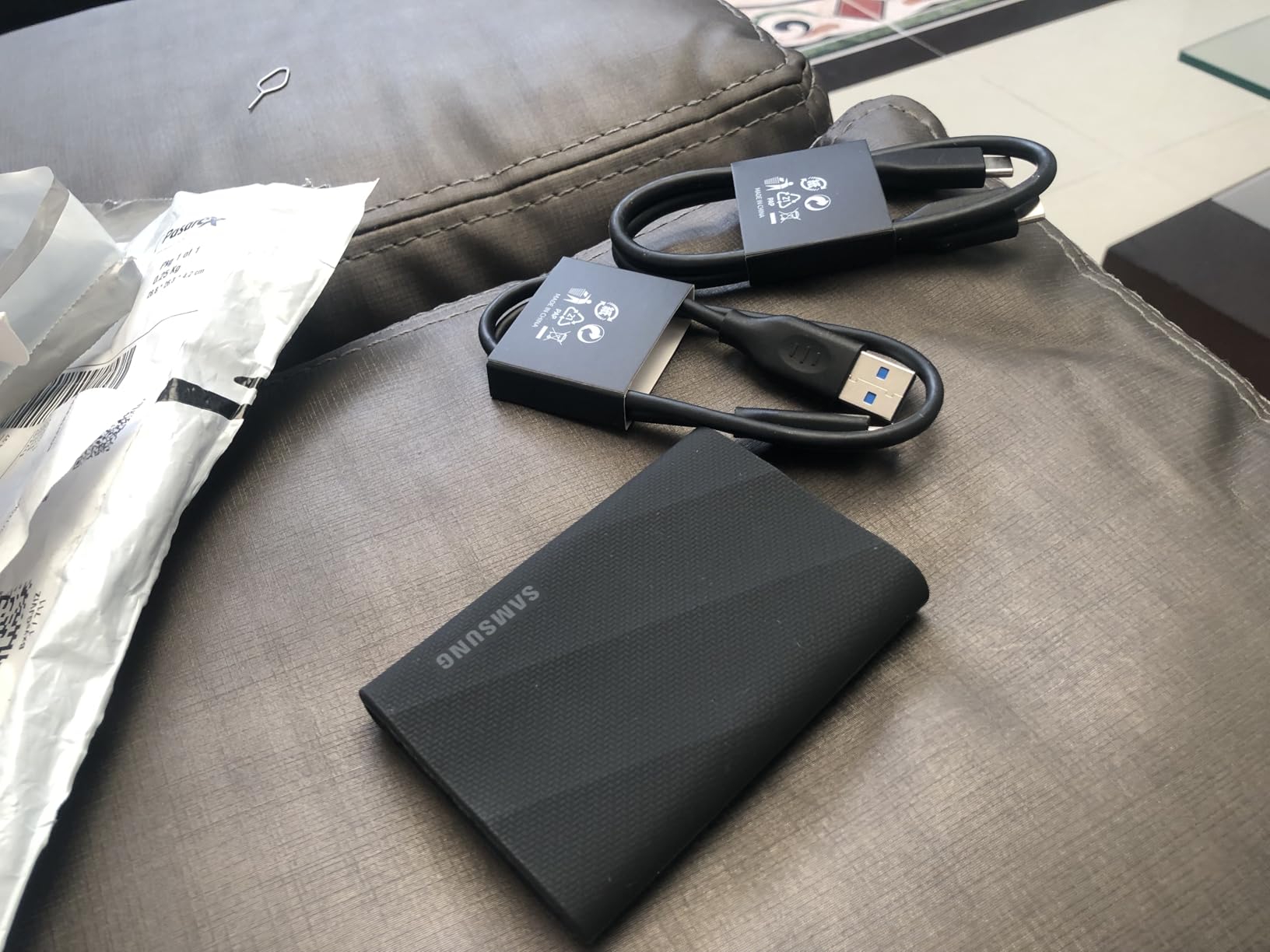
Thermally it behaves better than the drive it replaced. Dynamic Thermal Guard is the reason owners report no throttling across a 100GB transfer, which is the exact failure mode people worry about with small enclosed drives. The rubberised body is drop tested to 9.8 feet, the deepest rating in this group.
Samsung Magician covers firmware, encryption and health monitoring, and two cables ship in the box, which is unusual at this level and saves an adapter for USB-A machines.
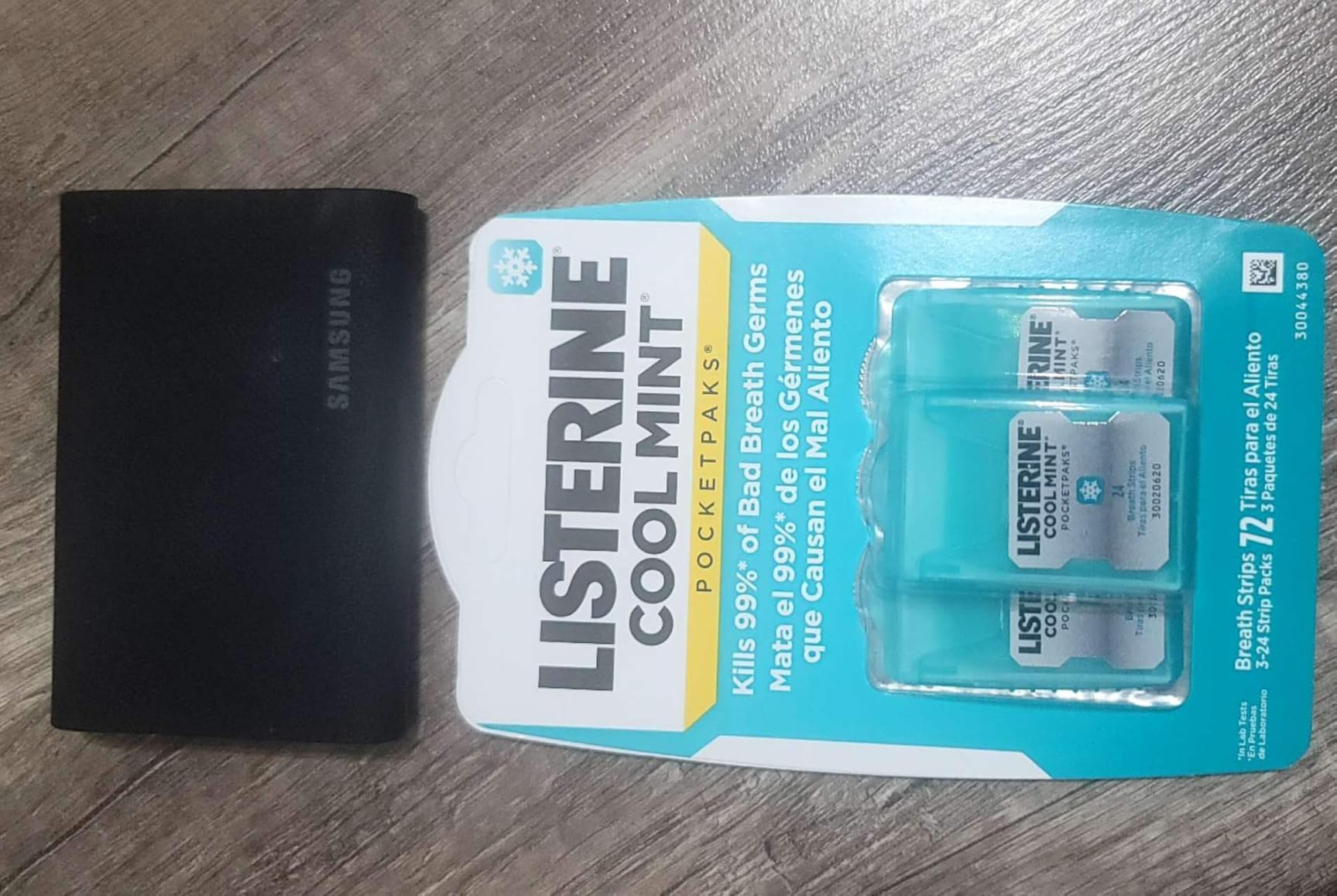
Who should buy the Samsung T9
Mobile shooters recording ProRes to an attached drive, and console owners who have hardware that does implement Gen 2×2. It is a good travel drive, with a body you can drop without thinking about it.
If you want it as a Mac scratch disk for editing, only buy it if you already own it or find it markedly cheaper than a Gen 2 equivalent at the same capacity.
Where the Samsung T9 falls short
Paying for 20Gbps and getting 10Gbps is the core complaint, and it is a fair one. Measure your Mac’s port before you buy, not the box.
A handful of owners with higher-capacity versions report the drive failing to initialise or underperforming on older hosts with weak power delivery. If your computer is several generations old, check that first.
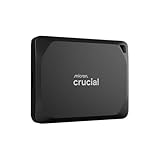
4. Crucial X9 2TB – Best Value Two-Terabyte Drive for Mac
+ The Good
- Smaller than a credit card at 32g
- Measured 1067 MB/s read and 1039 MB/s write
- Runs at 40-45C idle and under 70C under load
- IP55 rated with a 2-meter drop rating
- Pre-formatted exFAT so it works on a Mac immediately
- The Bad
- Polycarbonate shell dissipates heat worse than aluminium
- Included USB-C cable is only a few inches long
- Bundled Acronis trial pushes a paid subscription
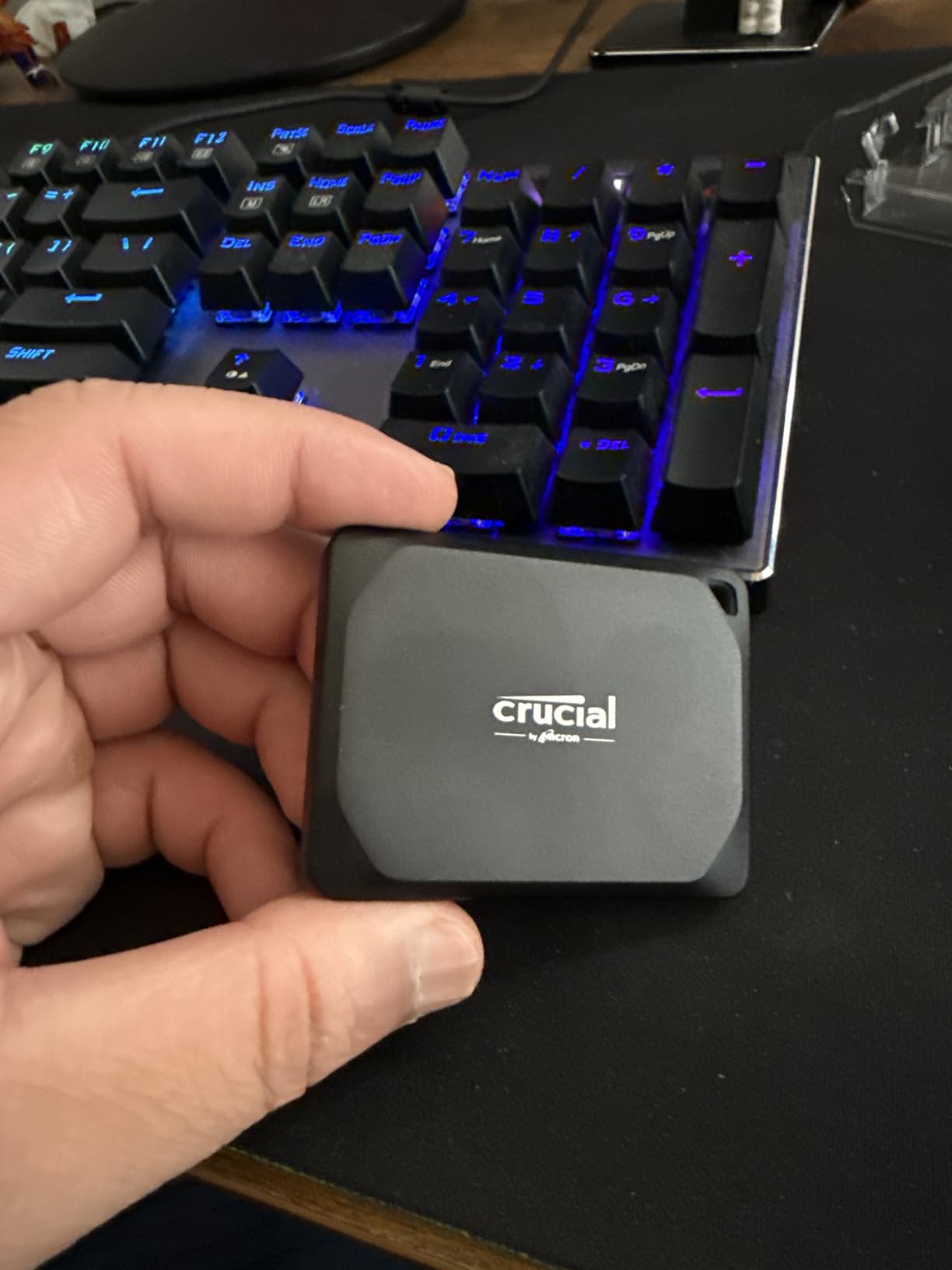
The Crucial X9 solves the problem nobody else on this list solves well: giving you two terabytes in something smaller than a business card. At 32 grams and roughly 1 centimetre thick, it disappears into a laptop sleeve, and independent testing puts it at 1,067 MB/s read and 1,039 MB/s write, comfortably inside its rating.
Temperature behaviour is the quiet strength. Owners report 40-45C idle and never above 70C under load, which is the range where an SSD never starts shedding performance. For a Mac that doubles as a backup target running unattended overnight, that stability matters more than any headline number.
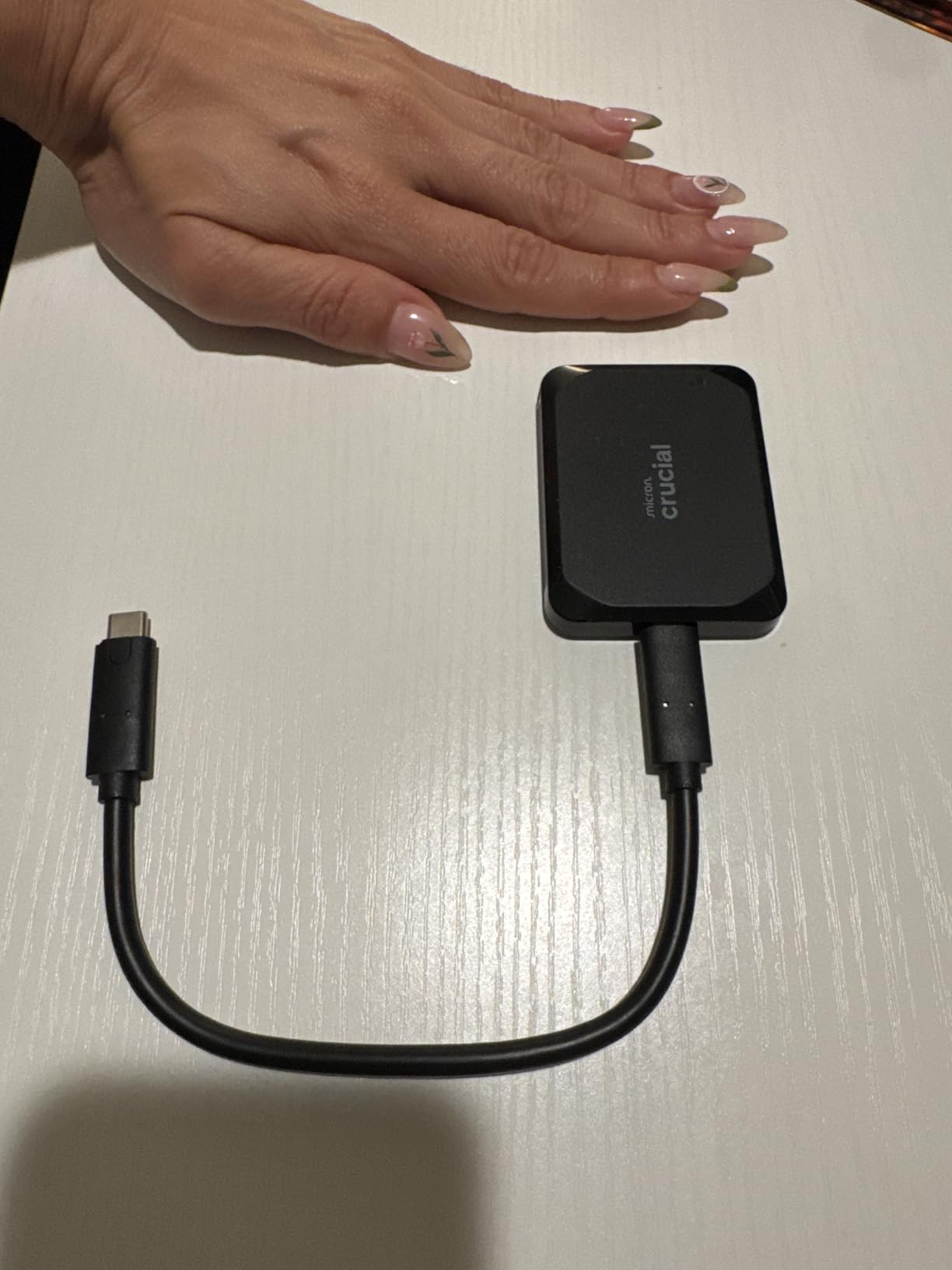
It arrives pre-formatted as exFAT, which means it mounts on a Mac with no Disk Utility detour, and it also works with Windows, Linux, Android, iPads and consoles. Crucial, which is Micron, includes a USB-C to USB-C cable and a code for three months of Mylio Photos+.
The IP55 rating covers dust and water ingress, and the drop rating is 7.5 feet, which is better than most drives in this class that claim no rating at all.
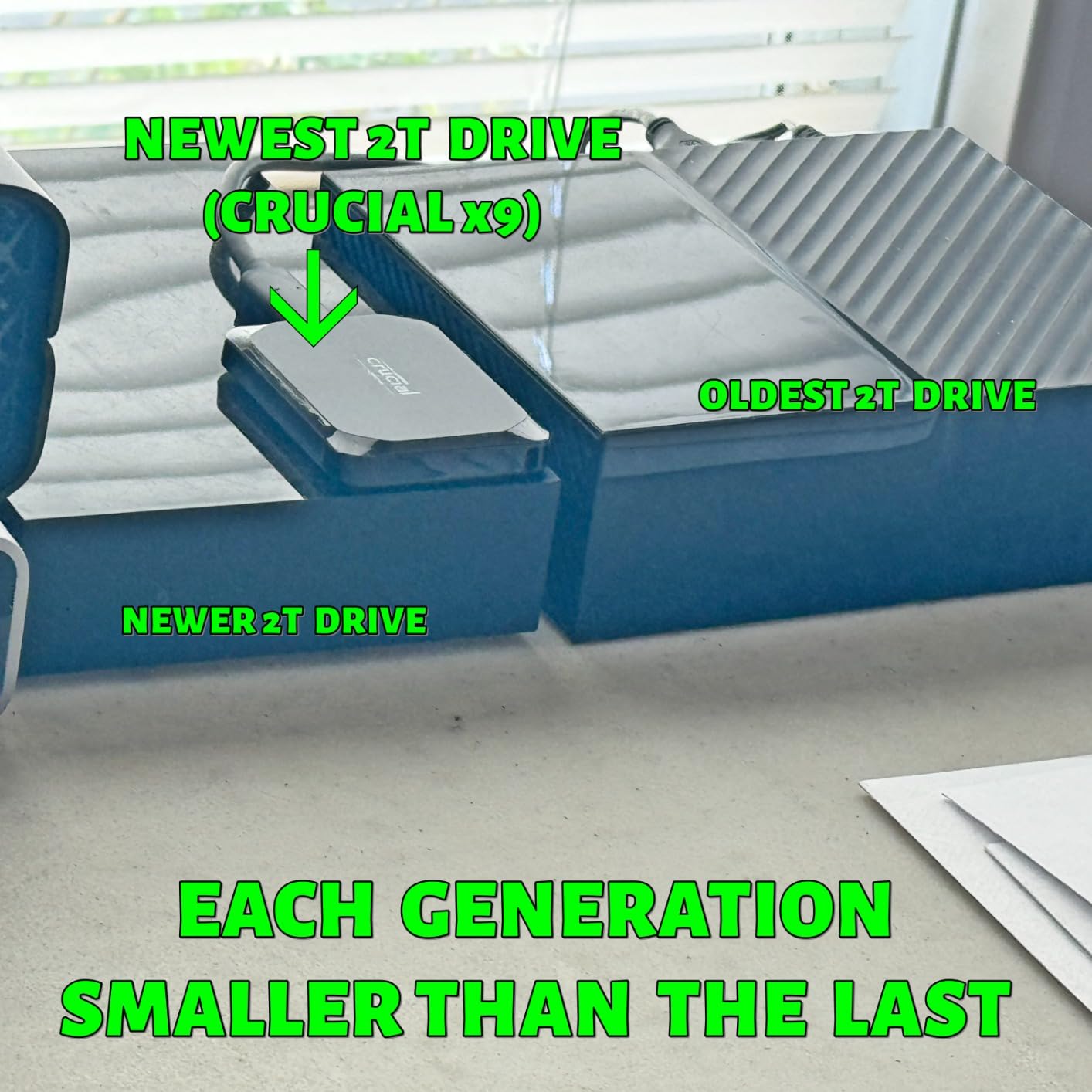
Who should buy the Crucial X9
MacBook Air owners who need real capacity without real bulk. Two terabytes covers a 512GB internal drive several times over for backups, and the size means you can keep one in the bag permanently rather than swapping it in.
It is also a good fit for a shared drive between a Mac and a Windows PC, since exFAT reads on both without reformatting.
Where the Crucial X9 falls short
The polycarbonate housing is the main compromise. It is lighter and cheaper than aluminium but handles heat less gracefully, and it will scuff where a metal body would not. The bundled Acronis trial is thin and pushes a yearly subscription hard.
A small number of owners report freezing or dropped connections under heavy app-install workloads, so if you are moving large project folders constantly, test it before trusting it with a client project.
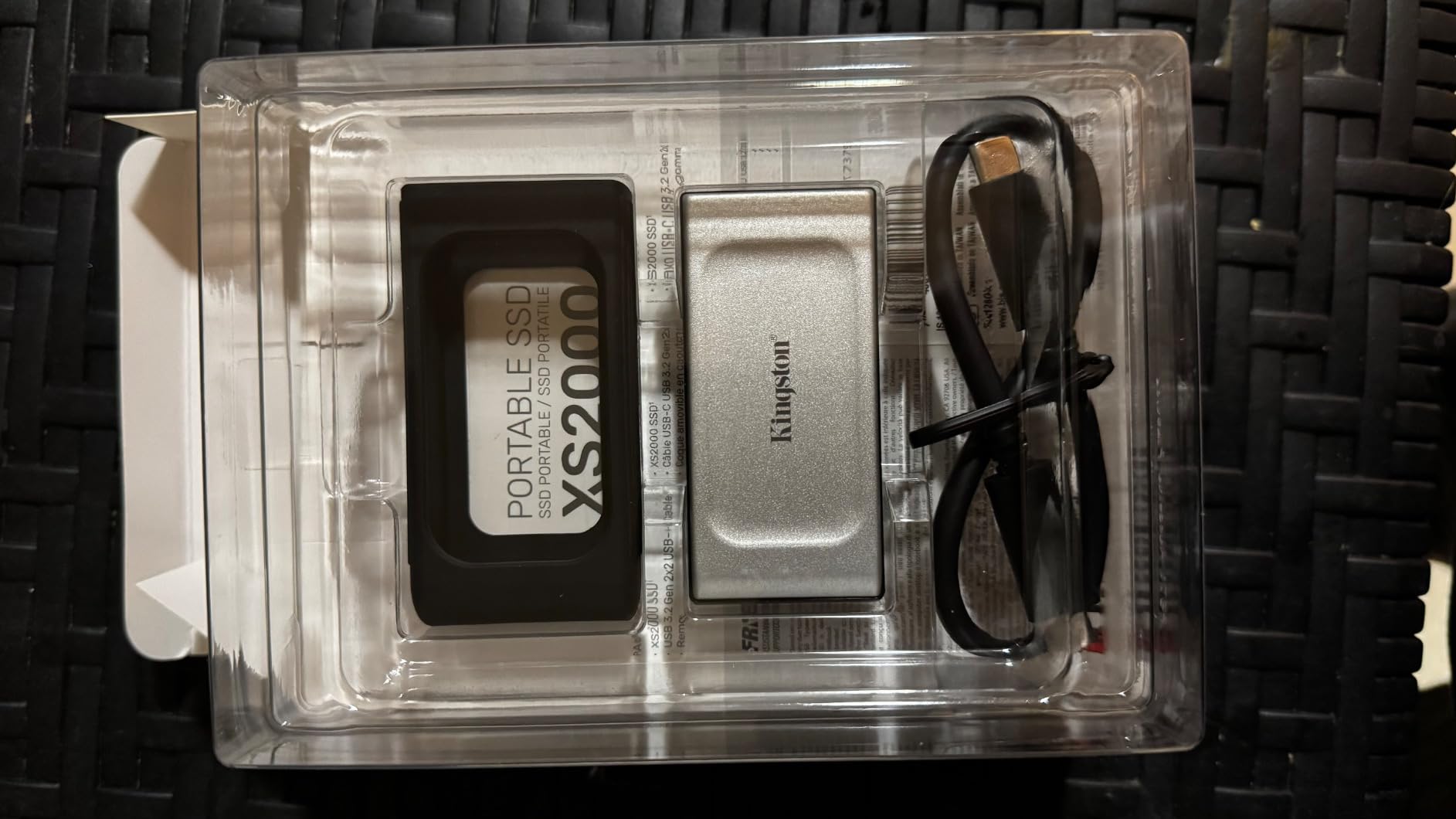
5. Kingston XS2000 500GB – Best for Switching Between Mac and PC
Kingston XS2000 500G High Performance Portable SSD with USB-C | Pocket-sized | USB 3.2 Gen 2×2 | External Solid State Drive | Up to 2000MB/s | SXS2000/500G
Up to 2000 MB/s on Gen 2x2 hosts
USB 3.2 Gen 2x2
1.92 oz
5-year warranty
+ The Good
- Confirmed to switch between Mac and Windows without compatibility issues
- Removable rubber sleeve adds drop protection
- Compact enough for a jacket pocket
- Five-year limited warranty
- Stays cool except briefly during a large write or format
- The Bad
- Only 500GB of capacity
- Needs a Gen 2x2 host to reach its rated speed
- Only the Gen 2x2 cable ships so USB-A hosts need another
- One owner reported write speed collapsing on a 4TB unit
The XS2000 is the drive people recommend when a work machine and a personal machine both need to read the same files. Owners across Mac and Windows report swapping it between systems with no compatibility issues at all, which is a low bar that plenty of drives in this list quietly fail.
Physically it is a silver aluminium body with a removable rubber sleeve, 2.74 by 1.28 by 0.53 inches at 1.92 ounces. Pull the sleeve off for the desktop, snap it on for travel, and the drive survives the trip either way.
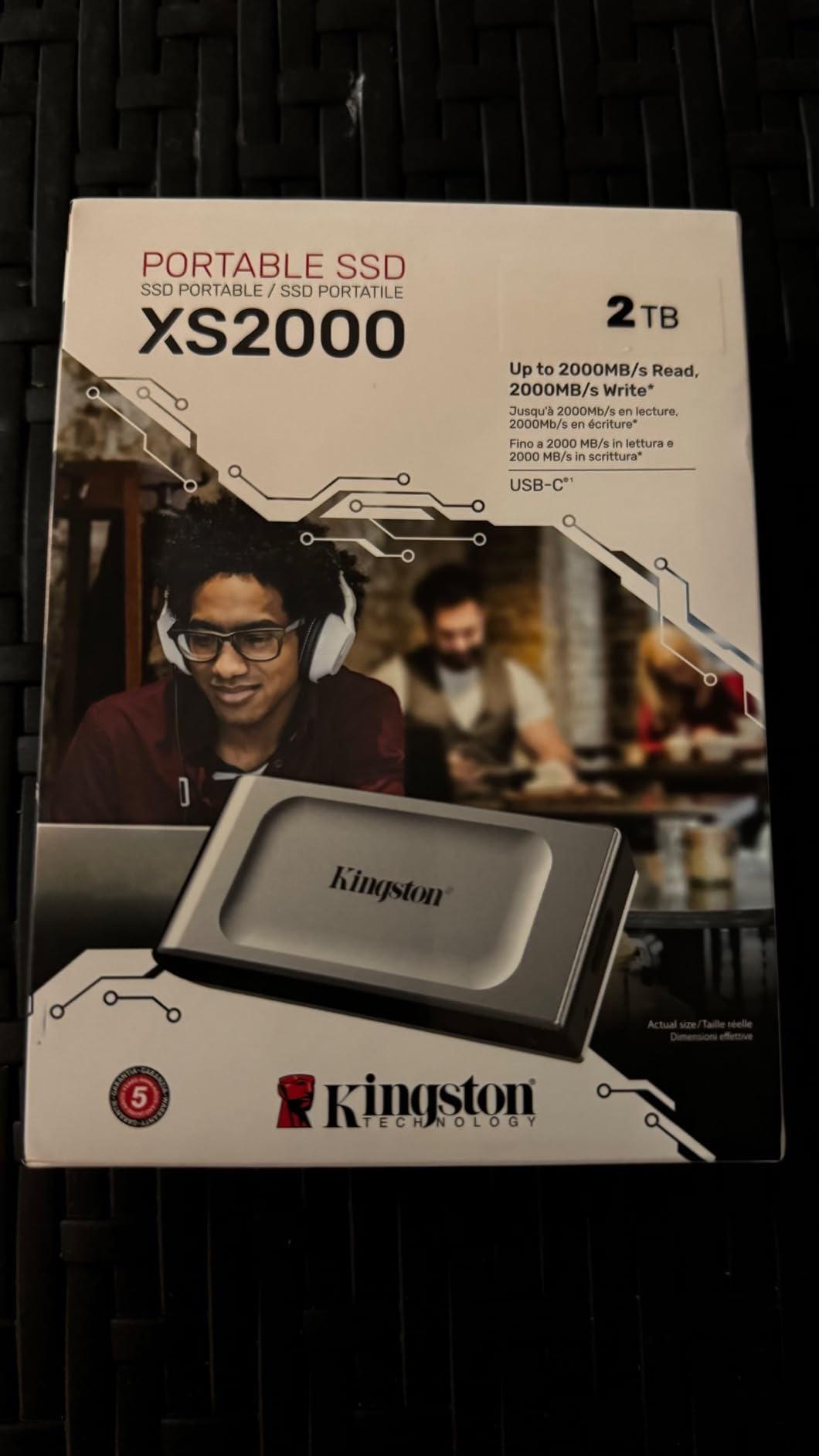
Like the T9, it is rated at 2,000 MB/s over Gen 2×2, so on a Mac expect roughly 1,000 MB/s. Kingston is clear about that requirement in its own documentation, which is more honesty than most listings manage.
Support is a quiet strength: a long-term business user reports Kingston replaced a failed drive without argument. That kind of service matters more than a spec sheet when the drive holds your only copy of a project.
Who should buy the Kingston XS2000
Anyone splitting files between a MacBook and a desktop PC, and anyone who wants a five-year warranty on a mid-size drive. It is also a sensible stopgap for a MacBook Air with 256GB of storage that needs a few months of breathing room.
Because it runs cool except during very large writes, it works well as a shuttle drive for moving a session between a studio machine and a location.
Where the Kingston XS2000 falls short
Five hundred gigabytes is the smallest capacity here, and that fills quickly with 4K video or a large Photos library. If you are buying for storage rather than transfer, look at a 2TB model instead.
There is also one detailed report of write throughput degrading to zero at roughly a quarter full on a 4TB unit, with hangs and I/O errors across multiple docks. That is a single report rather than a pattern, but it is a reminder to test any drive before handing it irreplaceable files.
6. SSK Portable 500GB – Budget Pick With a Full Aluminium Shell
SSK Portable SSD 500GB External Solid State Hard Drive USB C Up to 1050MB/s
Up to 1050 MB/s read and 1000 MB/s write
10Gbps USB-C
36.6g
2mm aluminium case
+ The Good
- Lowest cost in this roundup while still reaching 1050 MB/s rated
- Full aluminium shell with a measured 105.58F peak case temperature
- Only 36.6g and thinner than a credit card
- SMART diagnostics and adaptive TRIM
- Both USB-C and USB-A cables included and iPhone ProRes support
- The Bad
- Documentation is thin and hard to follow
- One report of a light-leaking seam in the aluminium case
- An isolated report of zero-length copied files
- Full format takes hours without quick format
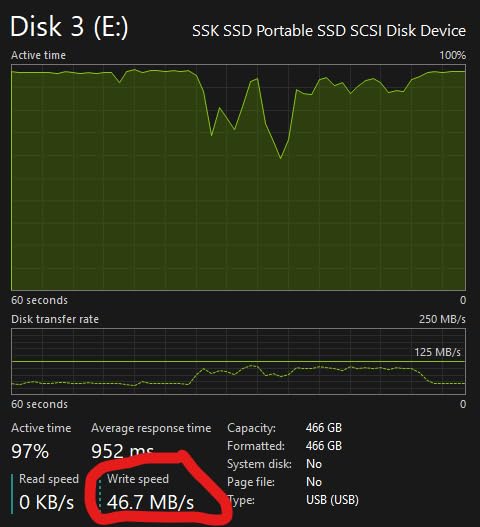
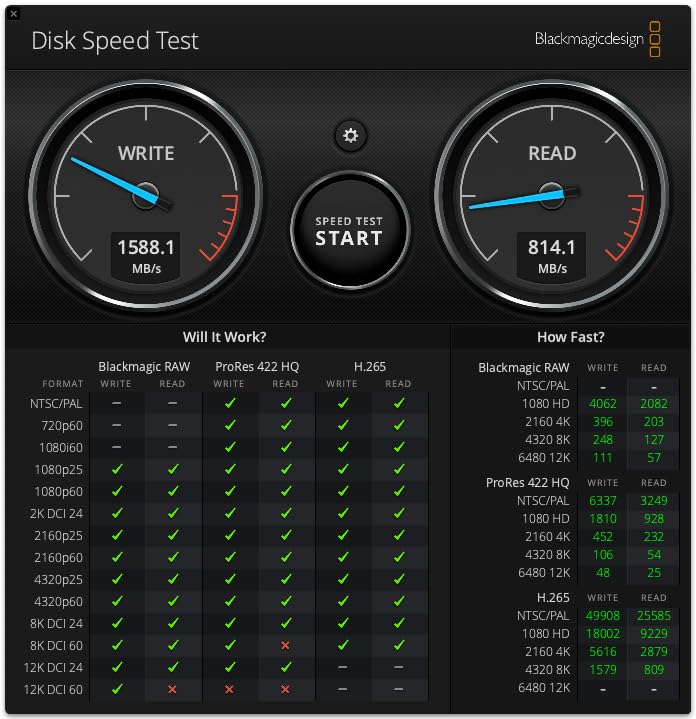
The SSK is the value pick, and it is not a close runner-up on the spec sheet. It is rated at 1,050 MB/s read and 1,000 MB/s write over 10Gbps USB 3.2 Gen 2, which is exactly the class a Mac can actually use, and measured throughput on a Mac Studio formatted APFS came in around 800 MB/s.
The build is better than the price suggests. A 2mm aluminium alloy case peaked at 105.58F in measurement, which is good thermal behaviour, and the whole drive weighs 36.6g in a 2.6 by 1.5 by 0.5 inch body. SLC caching plus adaptive TRIM keep steady performance inside the cache window.
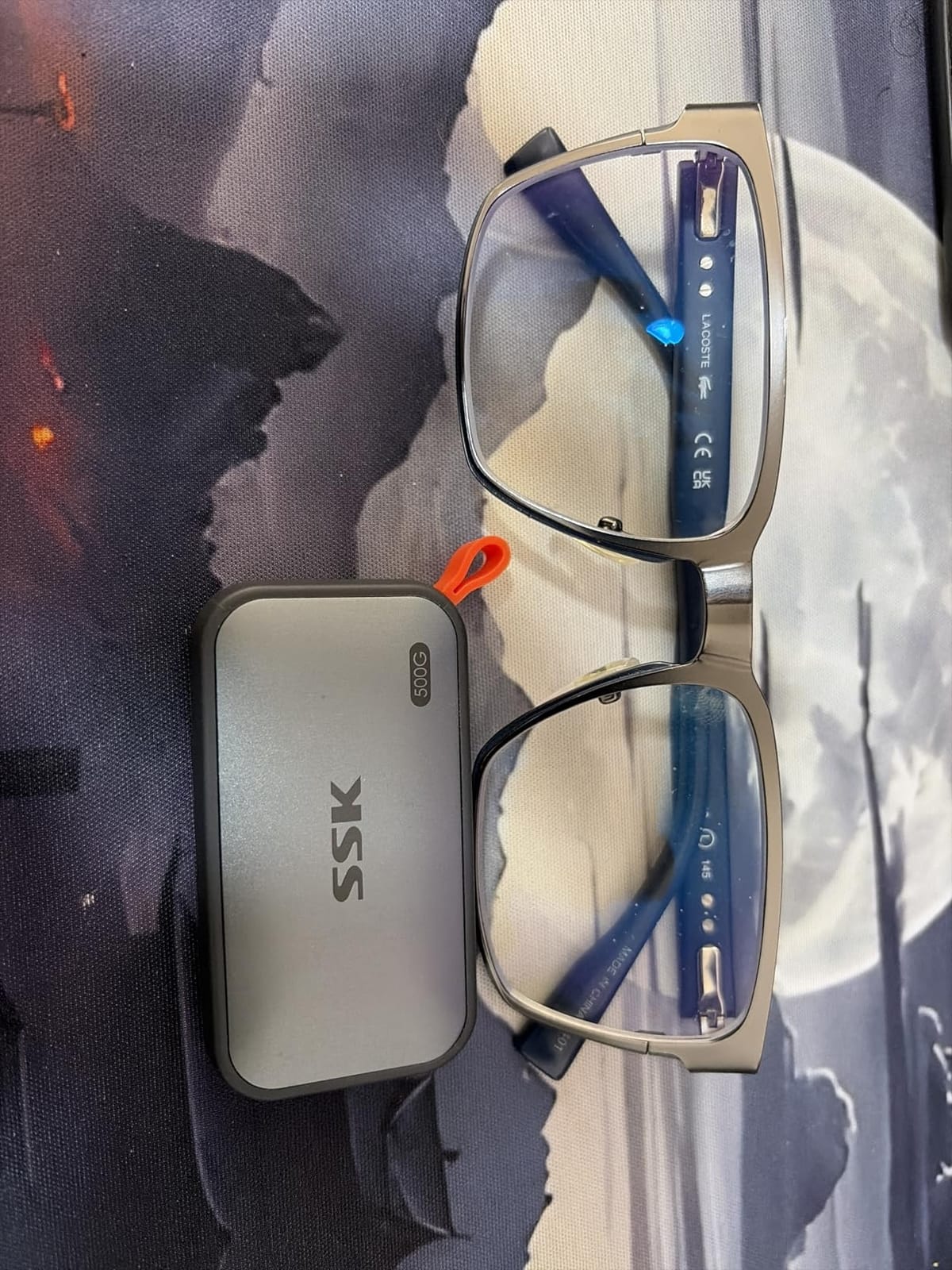
It also has S.M.A.R.T. health diagnostics, which is rare at this level, and both USB-C to C and USB-C to A cables are in the box. It works directly with iPhone and iPad for media offload and 4K ProRes capture, so it doubles as a field drive.
We would be honest that documentation is the weak point. Owners report unclear instructions and, in one case, a Japanese-market unit with no Japanese manual. Expect to spend a few minutes finding Disk Utility yourself.
Who should buy the SSK Portable SSD
Students, family backup machines and anyone who needs a working external drive for a Mac without spending heavily. It is also a good overflow drive for a MacBook Air with 256GB of internal storage that only needs somewhere to put photos and documents.
If you want a drive for client work, buy it for scratch files and keep the originals on the internal disk. That is a workflow decision, not a quality judgment.
Where the SSK falls short
At 500GB it fills quickly, and the capacity reporting difference between macOS and Windows confuses new owners, since macOS shows the full number while Windows reports it in binary units and looks smaller.
There is an isolated report of files copying to the drive going missing or arriving zero-length. We have not seen it repeated, but it is exactly the reason we tell people to test a new drive before trusting it. Run a full verification pass before you move anything that exists only in one place.
7. Crucial X10 Pro 1TB – Best Spec Sheet at One Terabyte, Weakest Rating
Crucial X10 Pro 1TB Portable SSD, Up to 2100MB/s Read, 2000MB/s Write, 3.2 USB-C, External Solid State Drive, Durable Storage for PC & Mac, for Professional Creators, Black – CT1000X10PROSSD902
Up to 2100 MB/s read and 2000 MB/s write
USB 3.2 Gen 2x2
42 g
Anodized aluminium
+ The Good
- Highest rated read speed in this roundup at 2100 MB/s
- Anodized aluminium body dissipates heat better than the X9
- IP55 rating with 7.5-foot drop protection
- Lanyard loop and activity light built in
- Five-year limited warranty
- The Bad
- Lowest average rating here at 4.0 with 18% one-star ratings
- Needs a Gen 2x2 host so most MacBook ports fall well short
- Heavier than the 32g Crucial X9 at 42g
- Bundled Acronis and Mylio offers are thin
We included this drive because its rating tells a story. At 4.0 stars from 4,400 ratings, it carries 18% one-star reviews, the largest negative share of anything we tested. Only 69% of owners gave it five stars, and that split is unusually wide.
The specification sheet, though, is the strongest one-terabyte paper in this roundup: 2,100 MB/s read, 2,000 MB/s write, an anodized aluminium housing that dissipates heat far better than the plastic X9, IP55 water and dust resistance, a lanyard loop, an activity light and a five-year warranty.
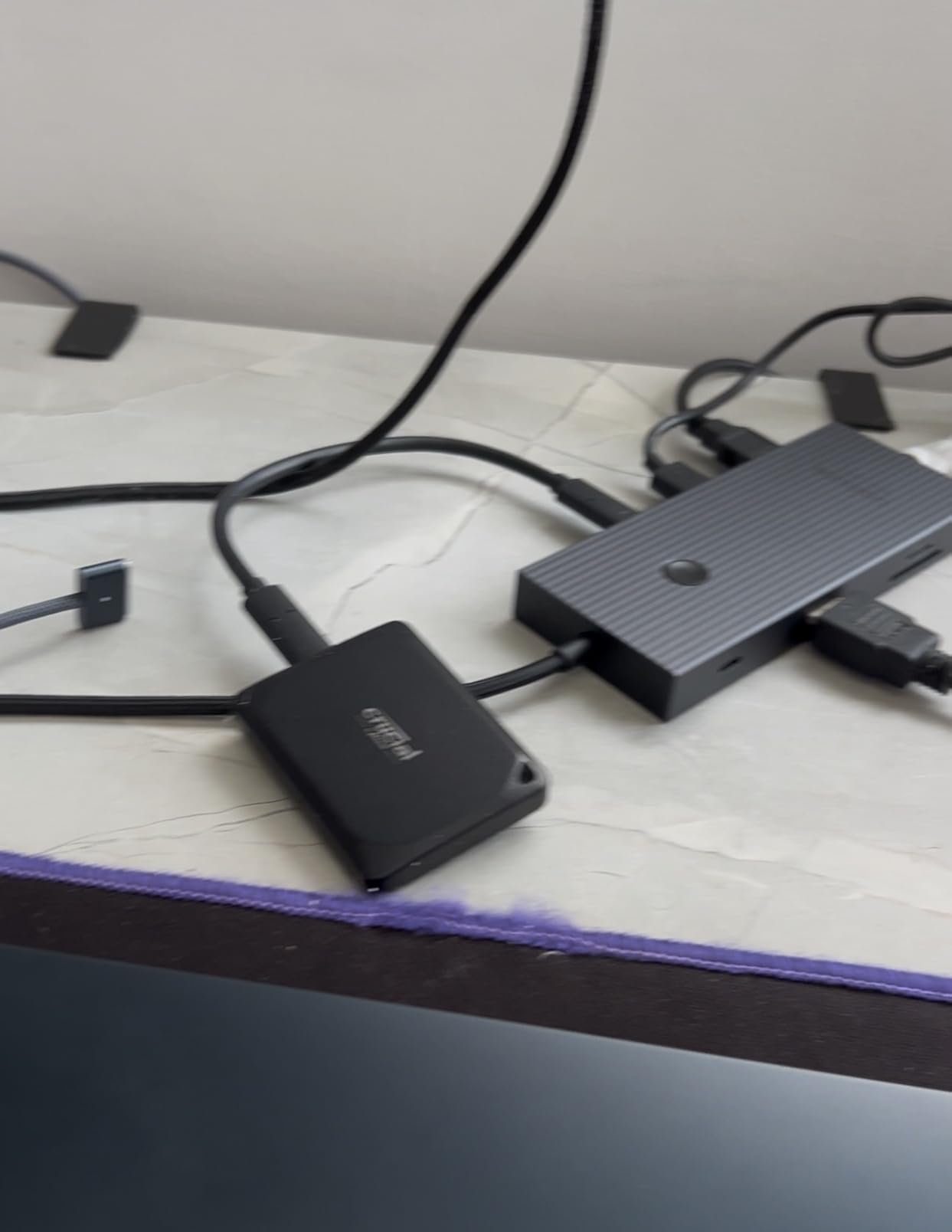
The metal chassis is a genuine step up in feel. At 42g it is heavier than the 32g X9, but the mass is in the shell rather than in wasted space, and that shell is what keeps the controller cool during long transfers.
Here is the catch that matters for Mac buyers: those headline numbers require a USB 3.2 Gen 2×2 host. Most MacBook ports negotiate 10Gbps, so on the machines most people own, this drive returns roughly Gen 2 performance while costing more than a Gen 2 drive of the same capacity.
Who should buy the Crucial X10 Pro
Owners of hardware that genuinely negotiates 20Gbps, and anyone who values a five-year warranty and an aluminium body over review-bred reliability. The metal shell is the reason to choose it over the X9 if you are rough with your gear.
It also suits anyone comfortable running a quick benchmark on arrival. A drive this polarised rewards two minutes of testing.
Where the Crucial X10 Pro falls short
The rating gap is the headline risk. A substantial minority report unreliable sustained performance or connection issues, and that is a different conversation from a slow drive. Slow is annoying; intermittent is expensive.
It is also the heaviest one-terabyte option here, and the bundled Acronis and Mylio codes are subscription-driven and shallow. Skip it if your Mac lacks a Gen 2×2 port, because you will pay for speed you cannot reach.
8. Lexar ES3 1TB – Best for a Pocket-First Carry
Lexar ES3 1TB Portable SSD Silver, USB 3.2 Gen 2 up to 1050MB/s
Up to 1050 MB/s read and 1000 MB/s write
10.5mm thin
42g
USB-C
+ The Good
- Thinner than a memory card at 10.5mm
- Only 42g with a full 1TB of capacity
- Standard 1050 MB/s read and 1000 MB/s write over Gen 2
- DataShield 256-bit AES encryption included
- Type-C cable in the box for immediate use
- The Bad
- This version has no MagSafe magnetic mount
- Speeds drop on Macs without USB 3.2 Gen 2
- No support for iPhone 14 and older
- Only a USB-C cable ships so USB-A hosts need an adapter
The ES3 is the thinnest drive in this guide at 10.5mm, which makes it the one we suggest when the storage lives in a jacket pocket more than in a desk drawer. It weighs 42g and holds a full terabyte, and Lexar is candid in its own documentation that speeds will be lower on Macs without USB 3.2 Gen 2.
Performance is conventional and predictable: 1,050 MB/s read and 1,000 MB/s write over USB 3.2 Gen 2. That is the honest Mac number, and it means no surprises on a mid-range laptop.
Encryption comes from Lexar DataShield using 256-bit AES, and a Type-C cable is included so it works the moment it is plugged in. The same drive also handles console and Android offload, which broadens its use beyond the Mac.
Its distinguishing detail is what it leaves out. This specific SKU has no MagSafe mount, which is the feature that defines the newer ES5 further down this list. Buyers chasing the magnetic workflow should look at that model instead.
Who should buy the Lexar ES3
People who carry their Mac and their storage in the same pocket, and phone shooters offloading to iPhone 17 series or current consoles before moving files to a laptop. The slim body is the whole reason to pick it.
It is also a safe secondary drive for a MacBook Pro used mainly for travel, where a 10.5mm profile slips into a sleeve without bulging it.
Where the Lexar ES3 falls short
With 975 ratings it has by far the smallest sample size among the well-reviewed drives here, which means less long-term evidence of how it holds up. Weight that against the larger review bases when you are storing irreplaceable files.
It is also a Gen 2 drive wearing modern clothing. If your work is 6K or 8K multicam editing, the ceiling matters more than the thickness.
9. SABRENT Rocket Nano V2 1TB – Coolest-Running Drive at This Speed Class
SABRENT 1TB Rocket Nano V2 External SSD – USB 3.2 Gen 2×2, Up to 1500MB/s Transfer Speeds, Rugged Aluminum & Silicone Sleeve, 8K Video-Ready Portable Drive (SB-1TB-NAV2)
Sustained speeds over 1500 MB/s
USB 3.2 Gen 2x2
1.76 oz
Aluminium core
+ The Good
- Ties for the top rating in this roundup at 4.7
- Runs exceptionally cool through an hour of continuous transfer
- Smallest footprint in this roundup and 12g after a heatsink mod
- Both USB-C to C and USB-C to A cables included
- Around 1000 MB/s sustained on a MacBook Pro M3
- The Bad
- Can throttle if the top vent hole is covered
- USB bandwidth on Macs means 1500 MB/s is never reached
- Highest cost per GB among the non-USB4 options
- One-year warranty unless registered with the manufacturer
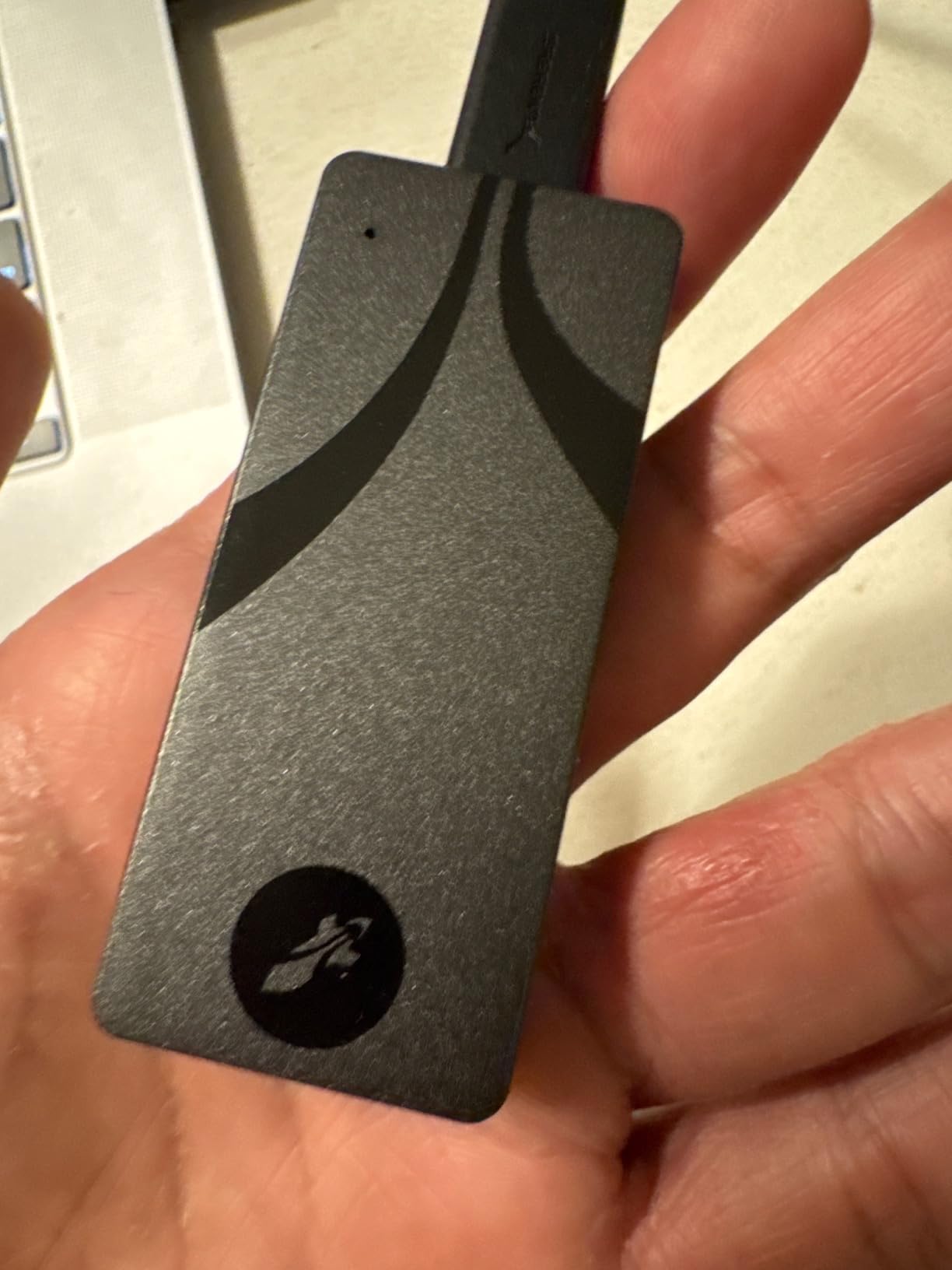
The Rocket Nano V2 is the thermal answer to a problem most drives here have. Owners repeatedly describe it running exceptionally cool through an hour of continuous file transferring, which is why it holds its rate rather than sagging once the cache fills.
Measured performance on a MacBook Pro M3 came in around 1,000 MB/s sustained, with photo libraries over 400GB opening quickly. That is the practical Mac result despite the 1,500 MB/s rating, because USB bandwidth on the machine sets the limit.
Size is the other argument. The footprint is smaller than comparable SanDisk drives, and one owner trimmed it to 12g after adding a heatsink, which tells you how little mass is committed to the shell in the first place. High-endurance NAND with wear levelling and real-time health monitoring sits inside.
The anodized aluminium housing comes wrapped in a shock-absorbing silicone sleeve, and both USB-C to C and USB-C to A cables ship in the box. An activity light on the body is a small touch that confirms a transfer is actually running.
Who should buy the SABRENT Rocket Nano V2
Video editors and photographers who push large files continuously and care more about a steady rate than a burst number. If you have seen a drive slow down halfway through a copy, this is the one to try.
It is also a strong pick for a machine with only 1TB of internal storage that needs a working scratch disk for 8K footage without cooking.
Where the SABRENT falls short
There is a venting hole in the top of the drive, and covering it can trigger thermal throttling. One owner restored full speed with an inexpensive aftermarket heatsink at the cost of 10mm of extra height, so leave the vent clear if you skip that mod.
The warranty is one year by default, extending to three with manufacturer registration, which is the shortest coverage here. Register the drive the day it arrives.
10. Amazon Basics 2TB – Best for Full-Disk Clone Backups
Amazon Basics Portable External SSD, 2TB, 2000MB/s Speeds, USB 3.2 Gen 2, IP65 Water & Dust Resistant, Black
Up to 2000 MB/s
IP65
53 g
Metal case
+ The Good
- Confirms the full 2000 MB/s figure on a Gen 2x2 port
- Moves 80GB of footage in about 50 seconds per one owner
- Square 2.25 inch form factor is small for a 2TB drive
- Metal casing plus a protective carrying case in the box
- Thermal design keeps it under 50C in normal use
- The Bad
- Quick Setup Guide is printed in very small type
- Must be formatted to APFS or exFAT before use
- No manufacturer warranty stated in the listing
- One buyer received a unit that would not work with an older laptop
This is the drive owners use as a full image backup target rather than a scratch disk. Several buyers describe running Acronis from a Mac to create a complete image of their system, and the 2TB capacity makes that practical for a laptop with up to 1TB of storage.
Speed is confirmed at the full 2,000 MB/s on a Gen 2×2 port, and one owner moved 80GB of video in roughly 50 seconds. On a Mac with a 10Gbps port you will see around 1,000 MB/s, which is still more than enough for an evening backup run.
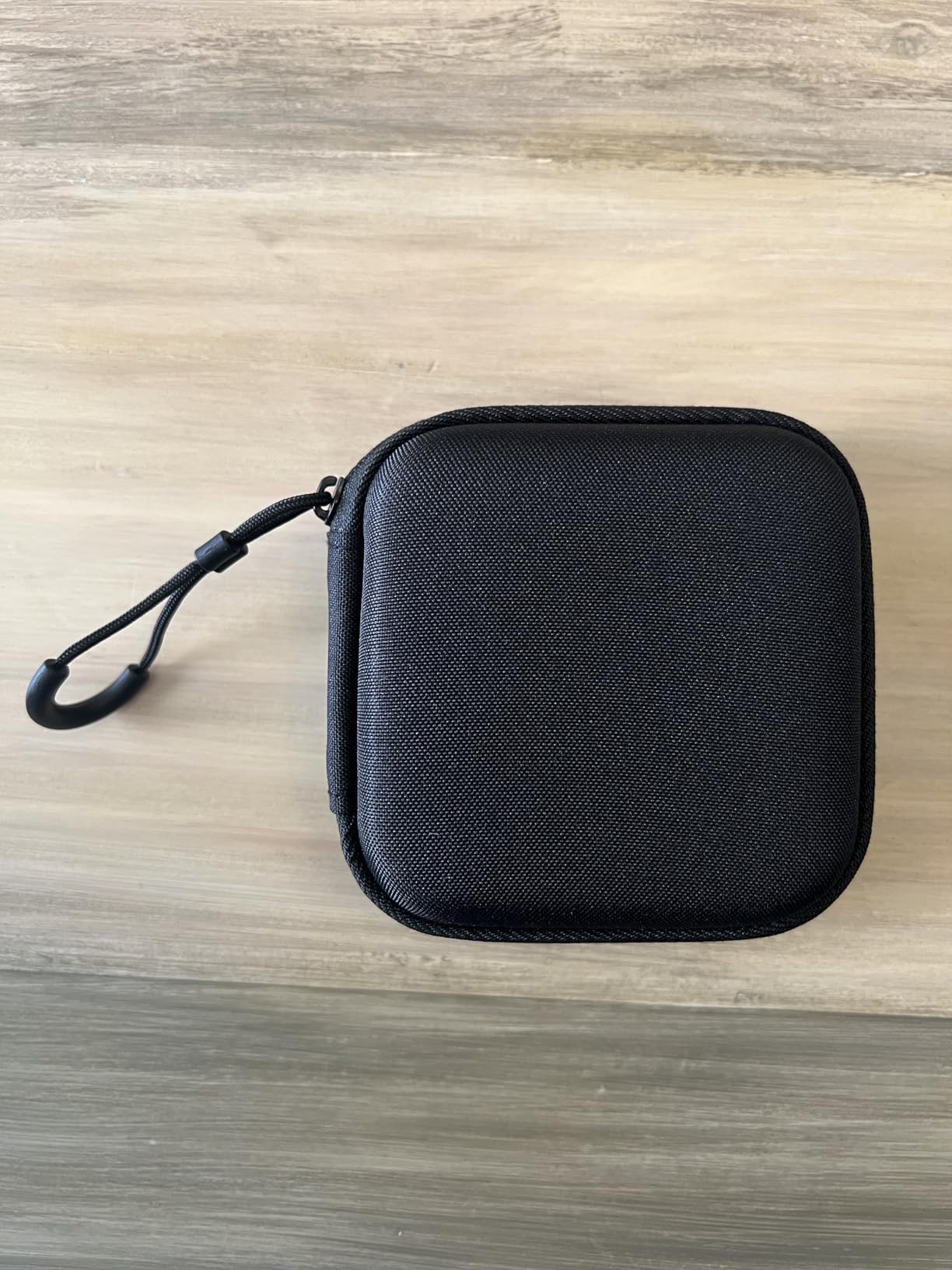
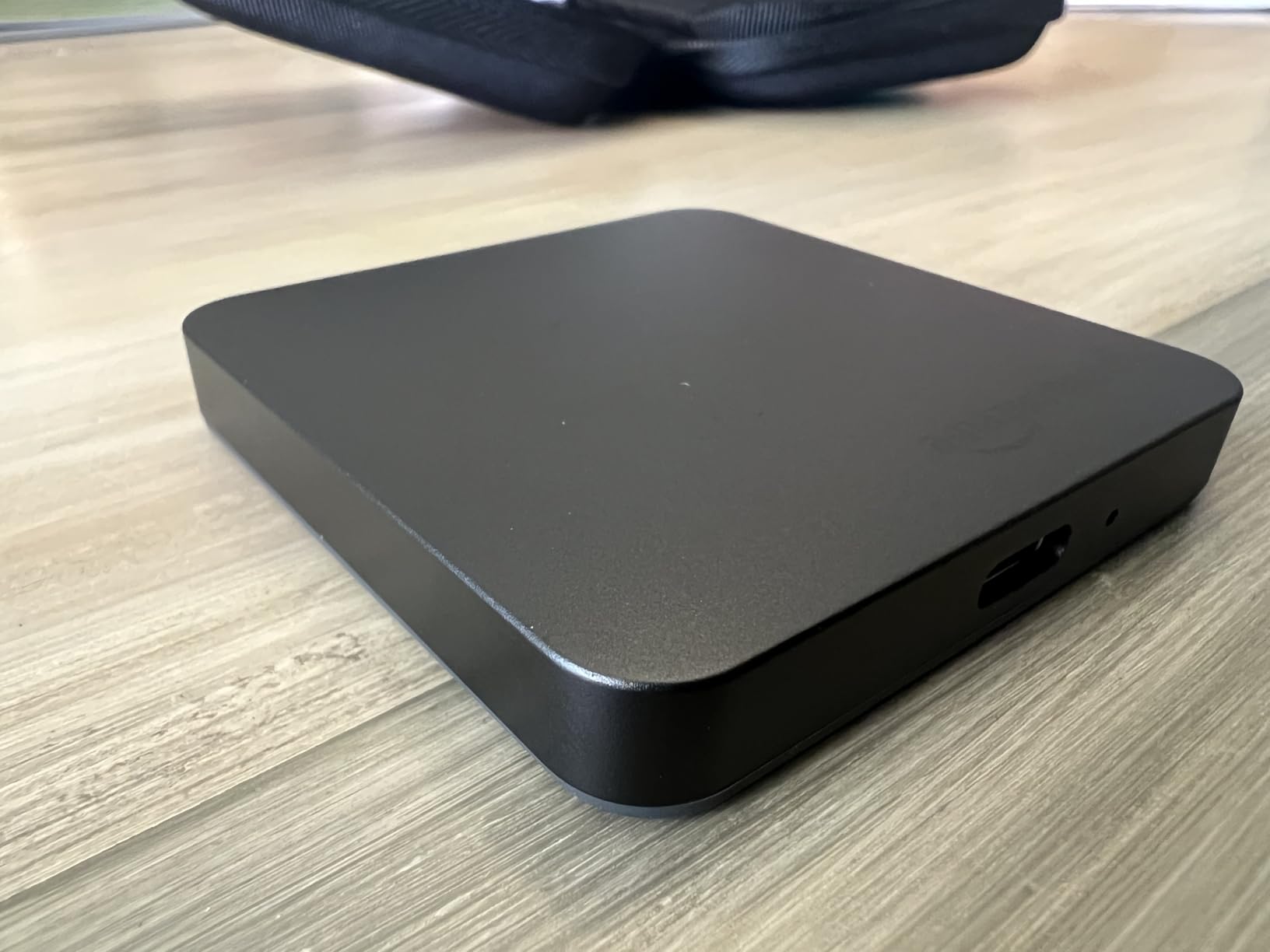
The square 2.25 by 2.25 inch form factor is smaller than most two-terabyte competitors, at 53g with a metal casing and a scratch-resistant polymer base. The box includes both USB-C to C and USB-C to A cables plus a storage case, which is a generous bundle.
Thermal management keeps the drive below 50C during heavy use according to the listing, and owners describe it running quietly without getting hot in normal operation. The IP65 rating covers water and dust.
Who should buy the Amazon Basics 2TB
Mac owners who want a single drive to hold complete disk images plus a spare copy of their data. Two terabytes covers a 1TB internal drive twice over, which is the same doubling rule that applies to Time Machine.
It is also a straightforward choice if you want cables and a case included rather than tracked down separately.
Where the Amazon Basics 2TB falls short
No manufacturer warranty is stated in the listing, which is a genuine gap for a drive holding your only backup. Read the return window carefully and register the drive if the retailer offers one.
The quick setup guide is set in very small type, which owners joke about needing a magnifying glass to read, and the drive must be formatted to APFS or exFAT before use. One buyer also received a unit that would not work with an older laptop, though a replacement worked.
11. Corsair EX400U 1TB – Fastest on Thunderbolt Ports, Most Polarizing
Corsair EX400U 1TB USB4 Portable External Type-C SSD – 3.2 Gen2 2×2 Connections, Up to 40Gbps, Plug and Play, MagSafe, Includes Cable – Windows PC, iOS Mac – Gray
Up to 4000 MB/s read and 3500 MB/s write
USB4 40Gbps
MagSafe mount
3.2 oz
+ The Good
- Fastest rated throughput in this roundup at 4000 MB/s over USB4
- Verified 5.73 Gbps on an M3 Pro MacBook copying 147GB of 8K footage
- Built-in MagSafe mount for an iPhone or a MacBook lid
- Can serve as a boot drive for a Mac mini
- Warms without thermally throttling
- The Bad
- Second-lowest rating here at 4.1 with 17% one-star ratings
- Some units are not recognised on M3 and M4 MacBook Pros and the firmware tool is Windows-only
- One owner reports it crashing an M4 Mac mini and a new M4 MacBook Air
- Included cable is under a foot long
- Reaches 70-90% of rated speed in benchmarks
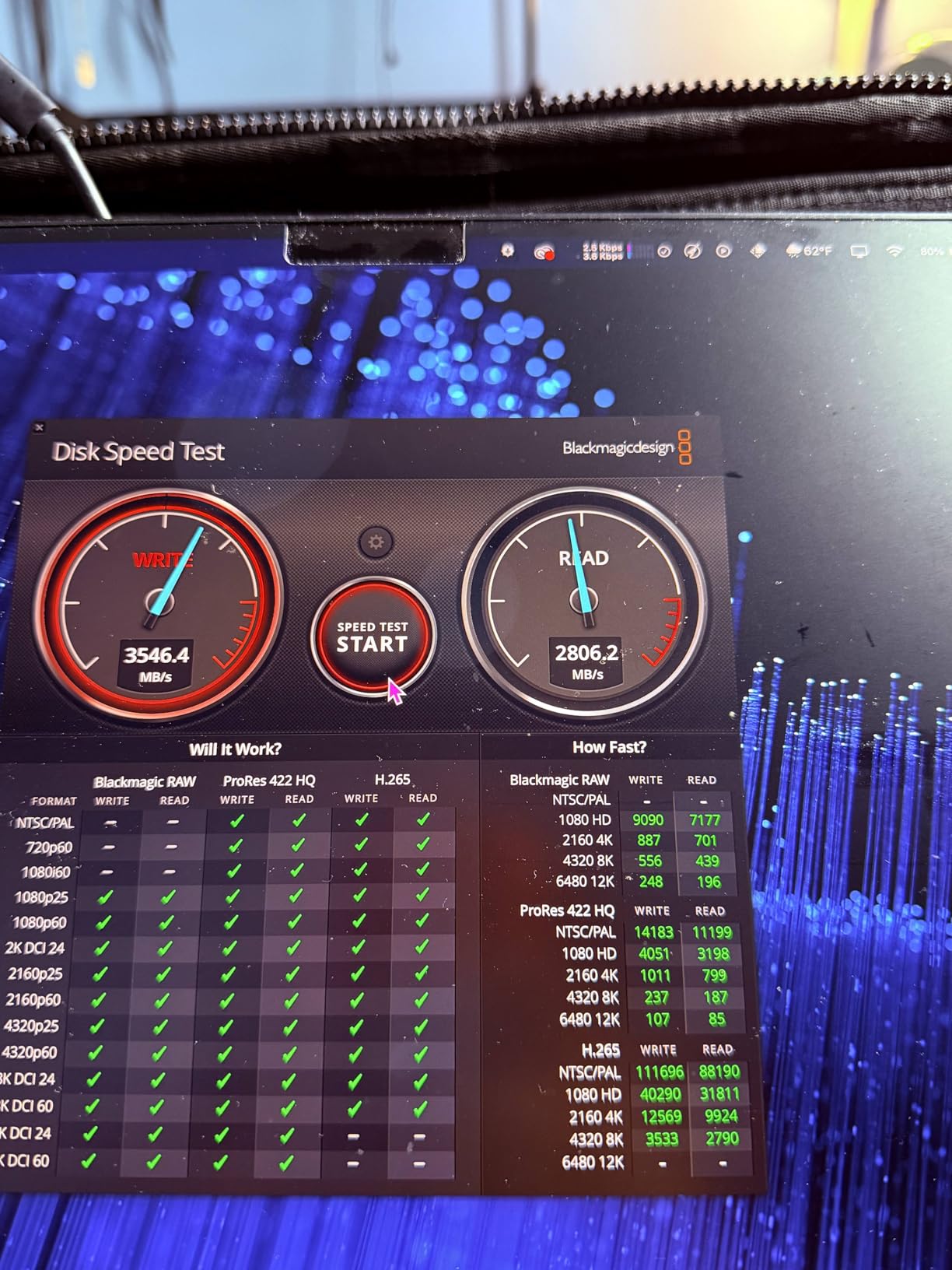
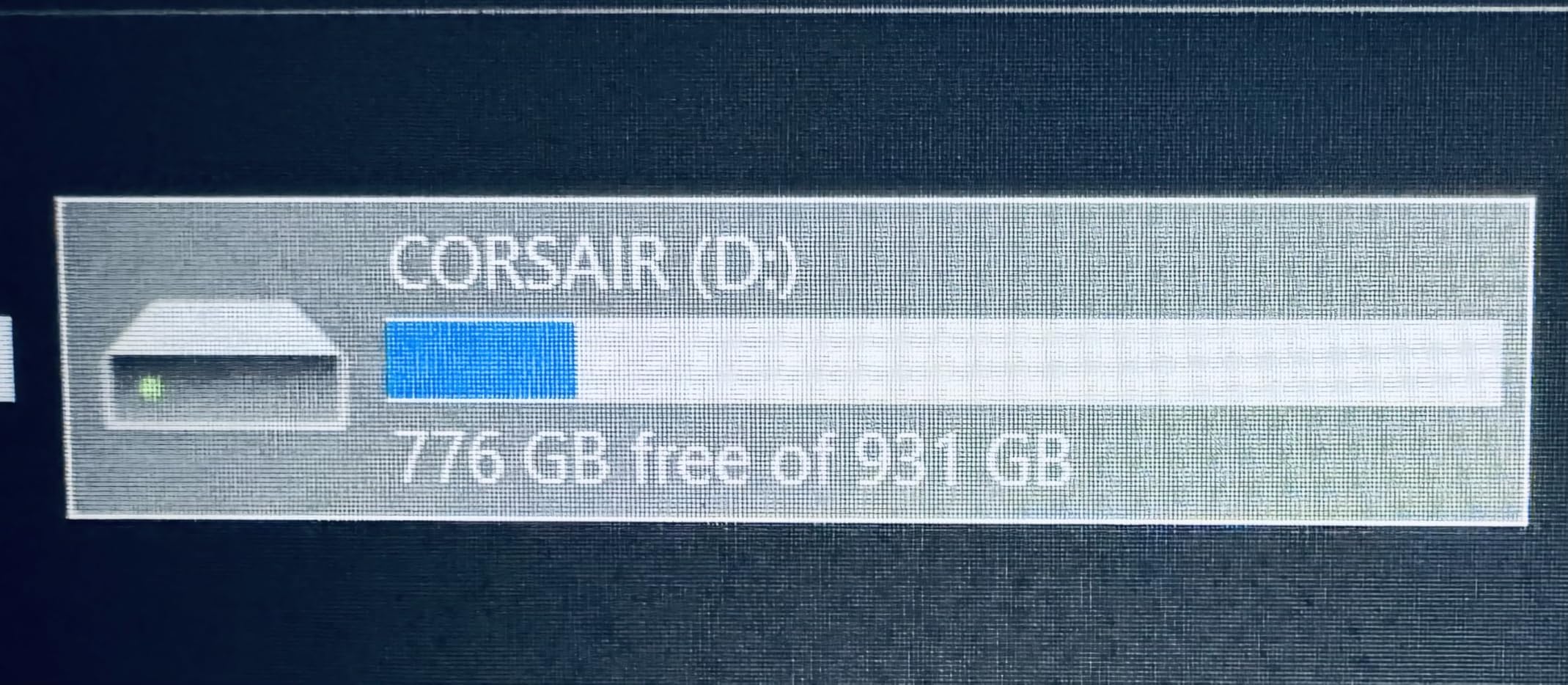
On an M-series Mac with a Thunderbolt port, this is the fastest drive in the guide. Rated at 4,000 MB/s read and 3,500 MB/s write over USB4 at 40Gbps, one owner measured 4.77 Gbps on an M2 Pro Mac mini and 5.73 Gbps on an M3 Pro MacBook while copying 147GB of 8K footage.
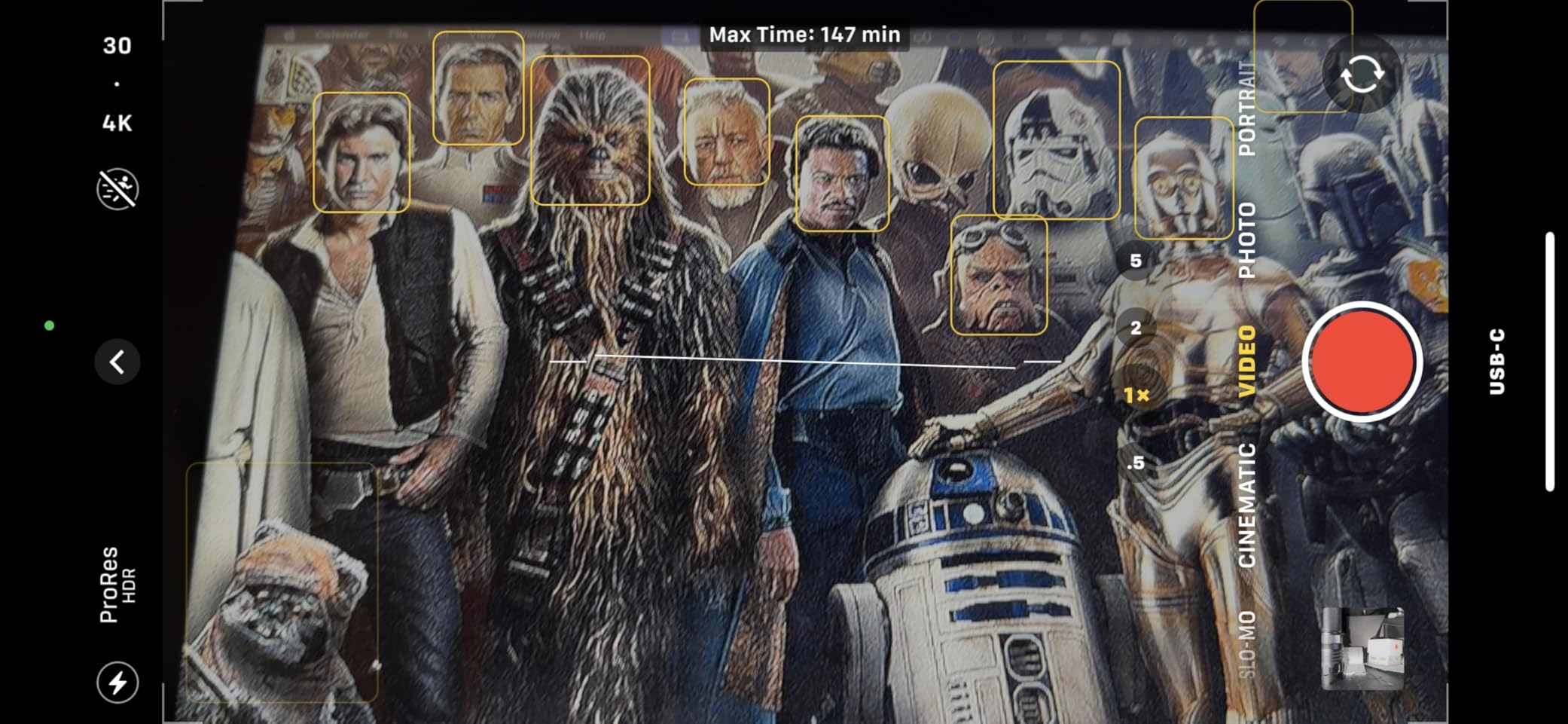
It is also the only drive here with a built-in MagSafe mount, which lets it stick to the back of an iPhone 16 Pro Max or a MacBook lid. Owners used it for ProRes capture with roughly three hours of maximum-resolution recording.
Because it is backward compatible with Thunderbolt 4 and USB Type-C, the same drive works on older M-series machines, just at lower speed. One owner also used it as a boot drive for a Mac mini and found it measurably faster than the internal drive.
The measurements that matter are more nuanced than the box. In Blackmagic Disk Speed Test owners see 70-90% of rated speed, and around 1.15 GB/s on real 15.65GB video files, which is still far above anything else here.
Who should buy the Corsair EX400U
Owners of a MacBook Pro or Mac Studio with a Thunderbolt port who actually work at 6K or 8K and feel the ceiling on a Gen 2 drive. It is also the only pick in this guide with MagSafe attachment built in.
If your workflow is 8K capture, a 147GB multicam offload or a boot drive for a Mac mini, the extra bandwidth pays for itself quickly.
Where the Corsair EX400U falls short
The compatibility risk is real and Mac-specific. Some units are not recognised on M3 and M4 MacBook Pros, and the required firmware update utility runs on Windows only, so a Mac-only owner cannot fix it. One detailed report describes the drive crashing an M4 Mac mini and a new M4 MacBook Air when formatted APFS.
The included cable is under a foot long, and the housing and plug feel light for a premium drive. Test it thoroughly before you point Time Machine at it.
12. Lexar ES5 Magnetic 2TB – Best Magnetic Drive for iPhone Capture
Lexar 2TB ES5 Magnetic External SSD, Up to 2000MB/s, Compatible w/MagSafe, USB-C Smartphones, iPhone 15/16 or Above, PC, Mac, Supports Apple ProRes & Samsung Pro Video, Silver (LES5XXX002T-RNWNU)
Up to 2000 MB/s read and write
MagSafe mount
IP65
4.16 oz
+ The Good
- One of the few well-known-brand portable SSDs with native MagSafe mounting
- Sustained 2000 MB/s confirmed by CrystalDiskMark over a USB4 port
- Verified Apple ProRes 4K 120fps recording on an iPhone 16 Pro Max
- 800+ large RAW files from 60MP and 100MP cameras backed up in under 15 minutes
- IP65 rated and drop resistant to 3M with a 5-year warranty
- The Bad
- Magnet is weak enough that it will not act as a phone holder
- Expensive relative to capacity versus non-magnetic 2TB drives
- Auto-backup workflow needs the free Lexar App
- Lowest review base here at 196 ratings
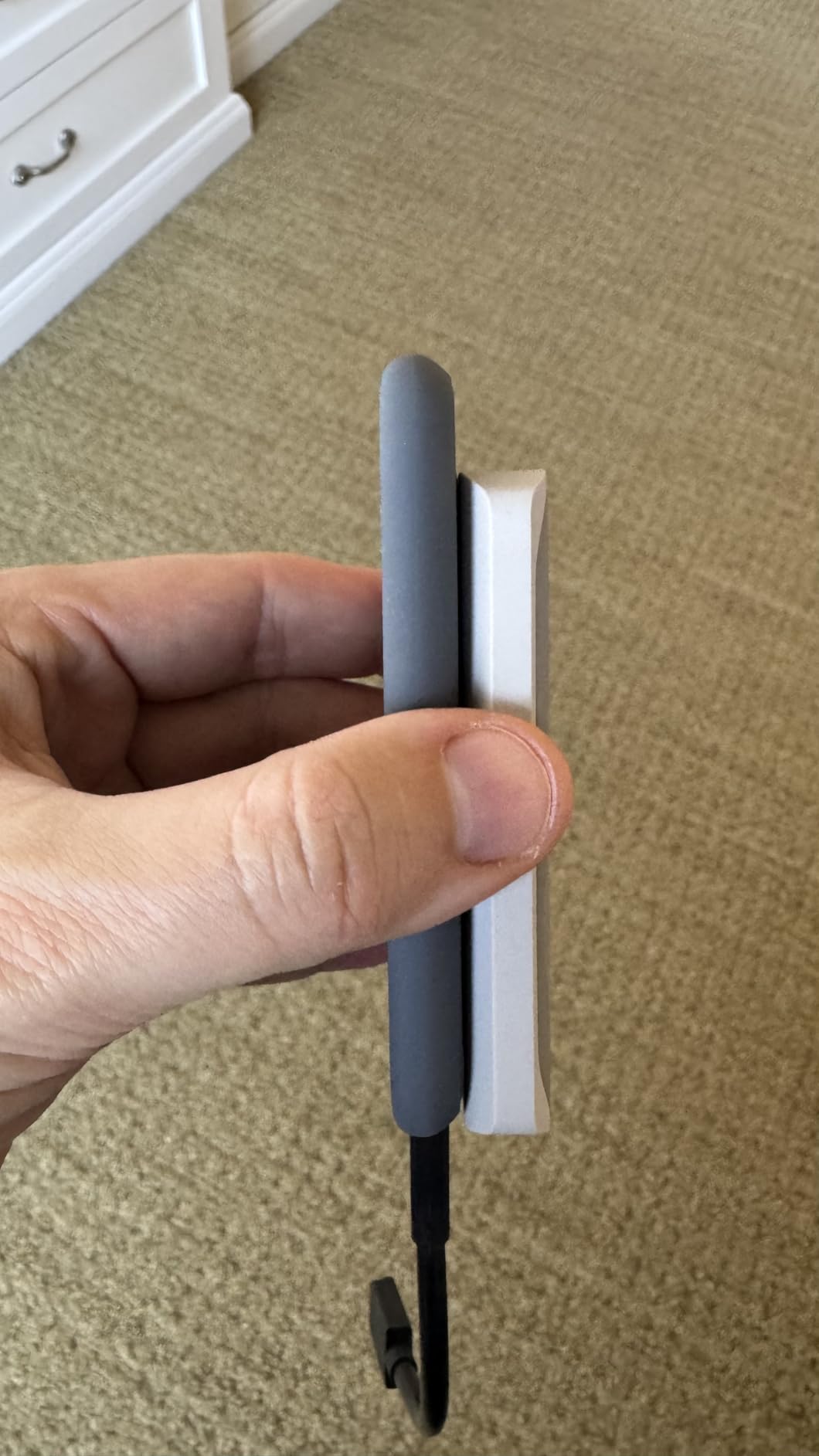
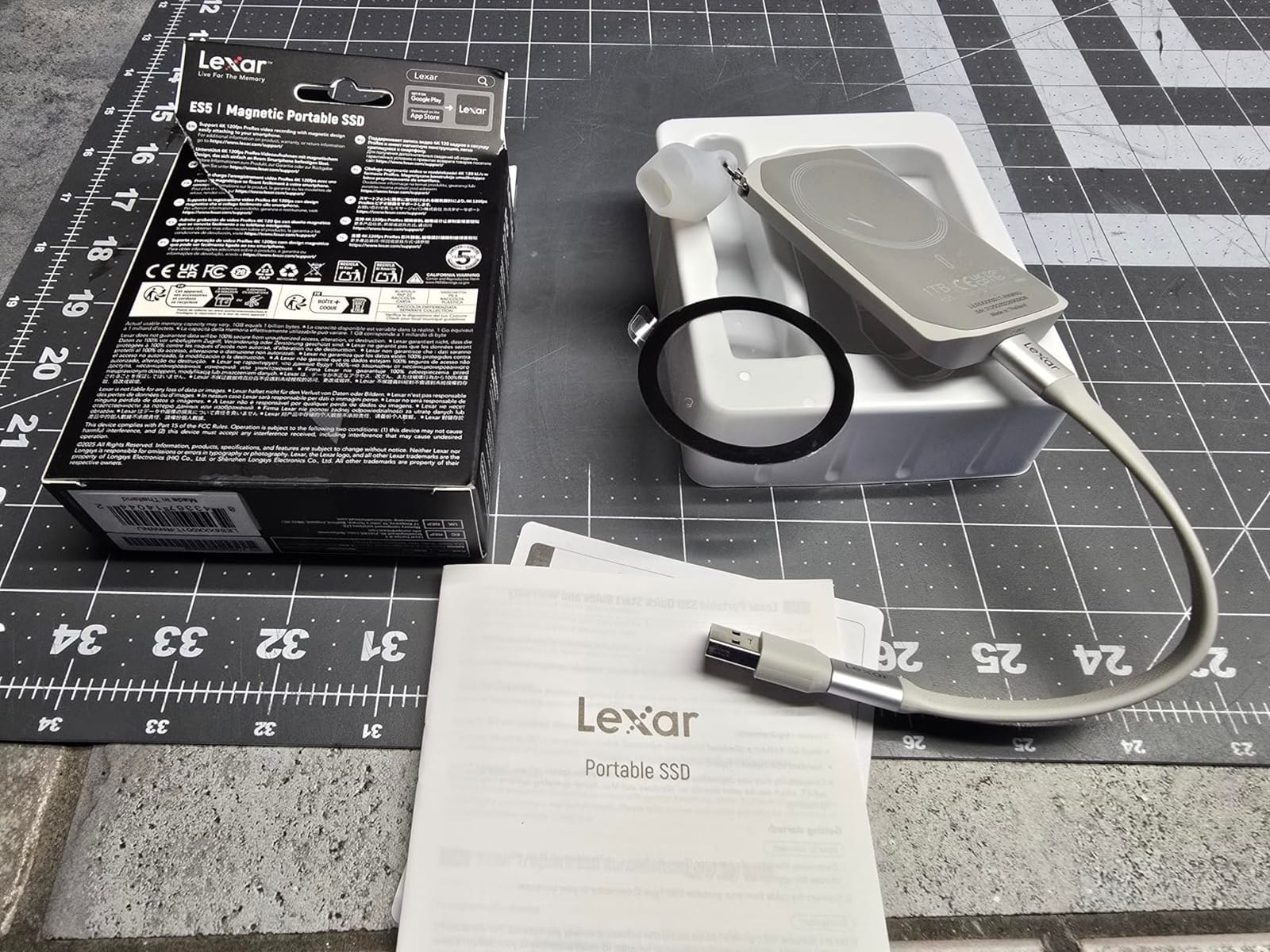
The ES5 is the drive to buy if your files start on a phone. It has native MagSafe mounting, rated at up to 2,000 MB/s read and write, and the USB-C connector folds into a strap so you are not hunting for a cable when the light drops.
Owners confirm sustained 2,000 MB/s measured by CrystalDiskMark over a USB4 port, roughly four times the internal SATA SSD of the same machine. They also report verified Apple ProRes 4K 120fps recording on an iPhone 16 Pro Max and a 292.5GB backup of photos and video in about 17 minutes.
For photographers, the standout result is 800+ large RAW files from 60MP and 100MP cameras backed up in under 15 minutes. That is the workflow this drive is genuinely built for, and it is why we put it last rather than higher.
The body is a grippy liquid silicone with a cable organizer that doubles as a lanyard, rated IP65 for dust and water and drop resistant to 3 meters. A metal ring accessory covers devices without MagSafe. The warranty is five years.
Who should buy the Lexar ES5
Mobile shooters and photographers who want one drive for capture, backup and editing without unpacking a bag. A phone-first setup is the clear fit here, and it moves to a Mac cleanly over USB-C.
It is also a reasonable choice for a Mac user who wants a magnetic drive for occasional iPhone work but plans to keep it in a bag most of the time rather than on the phone.
Where the Lexar ES5 falls short
The magnet is weak. It holds the drive on but will not act as a phone holder, so you still need somewhere to grip the phone while recording. That is the honest limitation of a magnetic workflow in 2026.
Price per terabyte runs higher than non-magnetic two-terabyte drives, the auto-backup workflow needs the free Lexar App, and with 196 ratings it has the smallest evidence base in this roundup. On a Mac without a Gen 2×2 port, performance drops to roughly 10Gbps results.
How to Choose an External SSD for Mac in 2026
Match the drive to your Mac’s ports first
USB-C is a connector shape, not a speed. Two devices with the same USB-C plug can negotiate 5Gbps, 10Gbps, 20Gbps, 40Gbps or 80Gbps, and the Mac and the drive each negotiate the highest rate both support. The slowest element in that chain sets the ceiling.
Check which ports your Mac has before you shop. Most base M3 and M4 MacBook Air and MacBook Pro models carry USB-C ports that negotiate 10Gbps, plus Thunderbolt 4 or 5 ports that negotiate 40Gbps or more. Mac Studio models give you the widest port selection of any desktop Mac.
On a 10Gbps port, budget for roughly 1,000 MB/s. On a Thunderbolt 4 or USB4 port, 3,000 MB/s or more is realistic. On Thunderbolt 5, the ceiling is higher still, but you need a drive that speaks the language.
The USB 3.2 Gen 2×2 trap
This is the single most useful thing to know before buying. Drives like the Samsung T9, the Kingston XS2000, the Amazon Basics 2TB and the Crucial X10 Pro advertise 2,000 MB/s or more over USB 3.2 Gen 2×2, a 20Gbps mode built from two lanes. No Mac has ever implemented that mode.
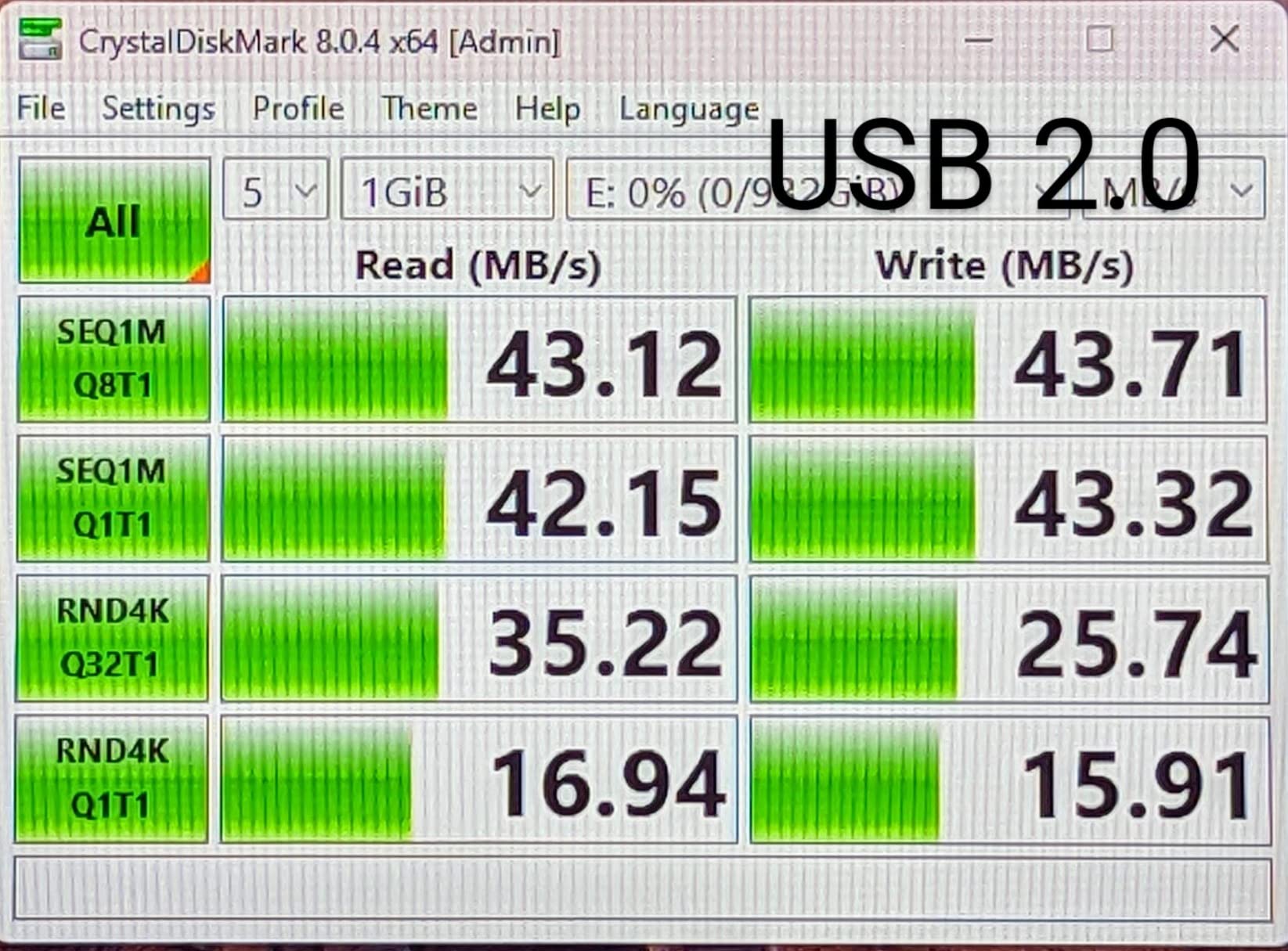
Community knowledge on this point is consistent: users repeatedly confirm that Macs do not support USB 3.2 Gen 2×2. A Gen 2×2 drive on a Mac falls back to 10Gbps and delivers roughly 1,000 MB/s, which is the same number you get from a plain Gen 2 drive that costs less.
Our advice is blunt. Unless you also use the drive with Windows hardware or a console that does implement 20Gbps, buy the 10Gbps drive and keep the difference in your pocket. Three of the drives in this roundup are here precisely to show you what that trade looks like.
Sustained speed and the cache cliff
Peak speed is measured on a small file that fits in the SLC write cache. Sustained speed is what you get after that cache fills, usually at a fraction of the peak. For a 50GB offload, sustained speed is the number that determines how long you wait.
Heat drives the cliff. A small enclosed drive with no heat path will hit its thermal limit and slow down, which is why larger finned aluminium bodies exist. The SABRENT Rocket Nano V2 is the clearest example in this list of a drive that stays fast for the length of a long copy, provided you leave its vent uncovered.
How much capacity do you need
The rule that saves the most regret is simple. If you have caught yourself deleting files to make space, size up one tier.
For a 256GB or 512GB MacBook, two terabytes is the sensible default for backups and a photo library. For a Mac Studio or a MacBook Pro with 1TB or 2TB inside, four terabytes covers a working set plus several full backups. Local AI models and large datasets push you higher again, because a single model’s weights can run to tens of gigabytes before you start counting versions.
Time Machine wants roughly twice your internal storage, which is why a 512GB Mac wants a 1TB drive and a 1TB Mac wants a 2TB drive. Our external hard drive guide covers what to do when you need far more capacity than flash can give you.
APFS versus exFAT, and the format walkthrough
APFS is the right answer for a drive that stays attached to a Mac. It has better crash handling, supports macOS features like snapshots and clone files instantly, and is what Time Machine expects. exFAT is the right answer only when the same drive has to move between a Mac and a Windows PC.
To format a new drive, open Disk Utility, click the View menu and choose Show All Devices so you see the physical drive rather than just its volumes. Select the drive by its top-level name, click Erase, choose APFS, give it a name, and confirm. Use quick format unless you have a specific reason not to.
Afterwards, run First Aid once from the First Aid tab. It takes a couple of minutes and confirms the volume is healthy before you move anything onto it.
Cables, hubs and docks quietly cost you speed
A USB-C charging cable in the drawer looks identical to a 40Gbps data cable and carries only data at USB 2.0 speeds in some cases. The result is a drive that appears broken. Use the cable that shipped with the drive, or buy a certified eMark cable and keep it with the drive.
Hubs are the other trap. A multiport dock often shares bandwidth across ports and adds latency that hurts small file operations badly. For large video copies, plug directly into the Mac whenever the cable reaches.
Front and rear ports on a Mac mini and Mac Studio are not always identical, so if a drive behaves differently in one position, try the other before blaming the drive.
When a hard drive still makes sense
Nothing we list here beats a spinning disk on cost per terabyte, and nothing changes that. For a cold archive of finished projects, family photos or a media library you access rarely, a desktop-class hard drive is the rational choice. Our desktop external hard drive picks cover that side.
The rule we use is simple. Active working files on an SSD, dormant archives on a hard drive, and at least one copy somewhere else. One copy is never a backup, no matter how fast the drive is.
How to Format an External SSD and Set Up Time Machine on macOS
Format the drive
Open Disk Utility from Spotlight, click View and choose Show All Devices, then select the whole drive at the top of the sidebar rather than an individual volume. Click Erase, choose APFS as the format, name the drive, and confirm the erase. Quick format is fine for a new drive.
Run First Aid on the volume once the erase finishes. That single step catches a surprising number of drives that ship with a misaligned partition.
Set up Time Machine
Open System Settings, choose General, then Time Machine, and click Add Backup Disk. Select the newly formatted drive and let macOS handle the rest. macOS will offer to encrypt the backup, which you should accept unless you have a specific reason not to.
Size it at roughly twice your internal storage. On a 512GB MacBook, a 1TB external SSD is the minimum; on a 1TB MacBook Pro, go to 2TB. macOS fills the drive from the oldest backup forward, so a larger disk simply keeps more history.
Test a new drive before you trust it
Copy your entire library to the drive, then run Disk Utility First Aid on the source volume and compare file counts. Verifying that a copy reads back correctly takes ten minutes and is the only real protection against an early failure.
For important data, run a full read verification with a checksum tool before you delete anything from the original. A drive that reads back a corrupted file is worse than one that fails loudly, because it fails quietly.
Consider booting from the drive
An external SSD can boot macOS, and that has become a common way to separate a clean system from a work system. Format the drive as APFS with a GUID Partition Map, install macOS onto it, and hold the Option key at startup to choose it.
Speed matters more here than anywhere else. A drive that benchmarks well but stalls on small files will feel slow to boot from, which is why the Corsair EX400U is the one in this roundup we would trust with that job on a machine that recognises it.
Frequently Asked Questions
What is the best external SSD to use with macOS?
The SanDisk Extreme Portable 2TB is the best all-round choice for most Macs. It delivers roughly 1,000 MB/s on a standard 10Gbps port, carries an IP65 rating and 256-bit AES hardware encryption, and has the largest body of owner feedback of any drive we tested. If your Mac has Thunderbolt ports and you work with 6K or 8K video, move up to a USB4 drive instead.
What external SSD should I buy for a MacBook?
Match the drive to your ports. A MacBook with 10Gbps USB-C ports will not go faster than about 1,000 MB/s no matter what you buy, so a Gen 2 drive such as the SanDisk Extreme or Samsung T7 is the right purchase. A MacBook Pro with Thunderbolt 4 or 5 ports can take a USB4 drive and reach 3,000 MB/s or more. Size it at two terabytes for most 256GB or 512GB machines.
Does NVMe work with Mac?
Yes. NVMe is the flash standard inside almost every external SSD, and macOS supports it without any special software. What matters is the interface on the outside of the enclosure. A 10Gbps USB-C enclosure limits you to about 1,000 MB/s regardless of how fast the NVMe module inside actually is.
Which external drive format is best for a Mac?
APFS for a drive that stays attached to your Mac, because it has better crash handling and full Time Machine support. exFAT when the same drive has to move between a Mac and a Windows PC. Mac OS Extended journalled is the legacy option and there is rarely a reason to choose it for a new drive.
How do I format an external SSD for Mac?
Open Disk Utility, click View and choose Show All Devices, select the whole drive in the sidebar, click Erase, choose APFS, give it a name and confirm. Then run First Aid on the formatted volume. Use quick format for a brand new drive, and remember that erasing removes everything on it.
How big should a Time Machine drive be?
About twice the internal storage of your Mac. A 512GB MacBook wants a 1TB external drive, and a 1TB MacBook Pro wants 2TB. Time Machine fills from the oldest backup forward, so a larger drive simply keeps more history rather than making each backup faster.
Why is my external SSD slow on my Mac?
The usual causes are a slow cable, a hub instead of a direct connection, or a drive that advertises USB 3.2 Gen 2×2 speeds that no Mac supports. Check the cable first, plug directly into the Mac rather than a dock, and compare the drive’s rated interface against your Mac’s port. Sustained transfers also slow once the write cache fills, which is normal.
The Verdict: Which External SSD Fits Your Mac?
The SanDisk Extreme Portable 2TB is the external SSD for Mac we would buy first. It reaches the ceiling a Mac can actually deliver, it is rated IP65 with a three-metre drop rating, and it carries the largest base of owner feedback we found. The Samsung T7 1TB is the alternative if you prefer an aluminium body and broader console compatibility, and the Crucial X9 2TB is the pick when capacity and physical size matter more than a metal shell.
Only buy a 2,000 MB/s drive if something in your setup implements USB 3.2 Gen 2×2, because no Mac does. If you have Thunderbolt ports and genuinely need the bandwidth, the Corsair EX400U is the fastest option here, and it is the one to test carefully before you trust it with backups.
Format whatever you choose to APFS, size it at twice your internal storage, and run a verification copy before you delete the original. That last habit will protect you more than any specification on this list. For editors who need portable media rather than Mac storage specifically, our portable SSD picks for video go deeper on that workflow.