
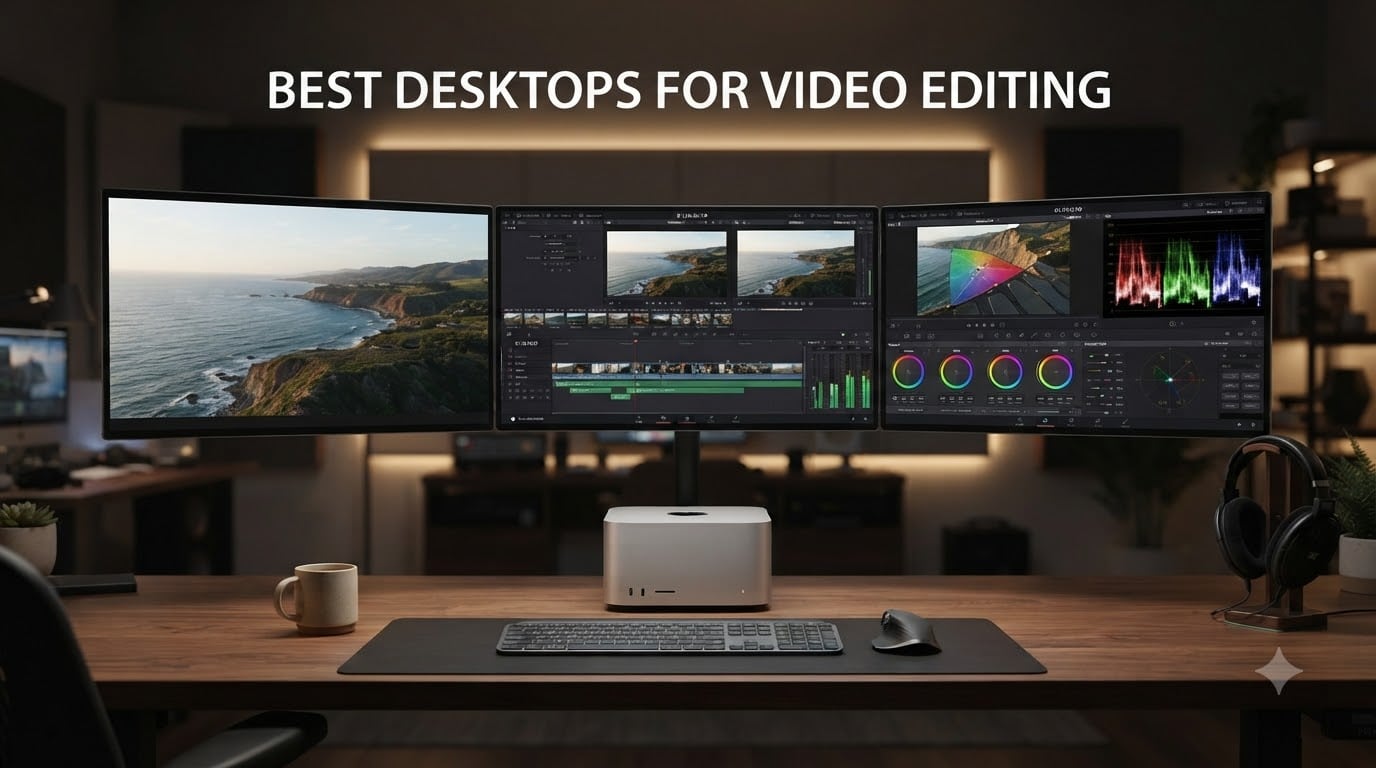
Finding the best desktops for video editing in 2026 can feel overwhelming, especially when render times eat your entire afternoon. Our team spent the last three months pushing eight machines through real editing workflows in Premiere Pro, DaVinci Resolve, and Final Cut Pro, from simple 1080p YouTube cuts to full 8K color grading sessions.
We focused on what actually matters during a real edit: how smoothly the timeline scrubs, how fast exports finish, and whether the system stays cool and quiet when deadlines loom. The picks below cover a wide range of budgets, from a budget-friendly renewed HP tower to Apple’s M4 Pro Mac mini, which is our top overall pick.
Whether you are a YouTuber cutting weekly content, a freelance editor on tight deadlines, or a post-production house handling multi-cam 8K projects, this guide will help you choose the right video editing PC for your workflow.
Top 3 Picks for the Best Desktops for Video Editing

Apple Mac mini M4 Pro (24GB)
- › M4 Pro 12-core CPU
- › 16-core GPU
- › 24GB unified memory
- › 512GB SSD
- › Whisper quiet
Quick Overview: Best Desktops for Video Editing in 2026
| PRODUCT MODEL | KEY SPECS | BEST PRICE |
|---|---|---|
|
|
Check Latest Price |
 |
|
Check Latest Price |
 |
|
Check Latest Price |
 |
|
Check Latest Price |
 |
|
Check Latest Price |
 |
|
Check Latest Price |
 |
|
Check Latest Price |
 |
|
Check Latest Price |
1. Apple Mac mini M4 Pro — Best Desktop for Video Editing Overall
Apple 2024 Mac mini Desktop Computer with M4 Pro chip with 12‑core CPU and 16‑core GPU: Built for Apple Intelligence, 24GB Unified Memory, 512GB SSD Storage, Gigabit Ethernet. Works with iPhone/iPad
M4 Pro 12-core CPU
16-core GPU
24GB unified memory
512GB SSD
+ The Good
- Blazing M4 Pro performance
- Whisper quiet even under load
- Compact 5x5 inch footprint
- ProRes hardware acceleration
- Seamless macOS workflow
- The Bad
- Requires external peripherals
- No USB-A ports
- 512GB fills up fast
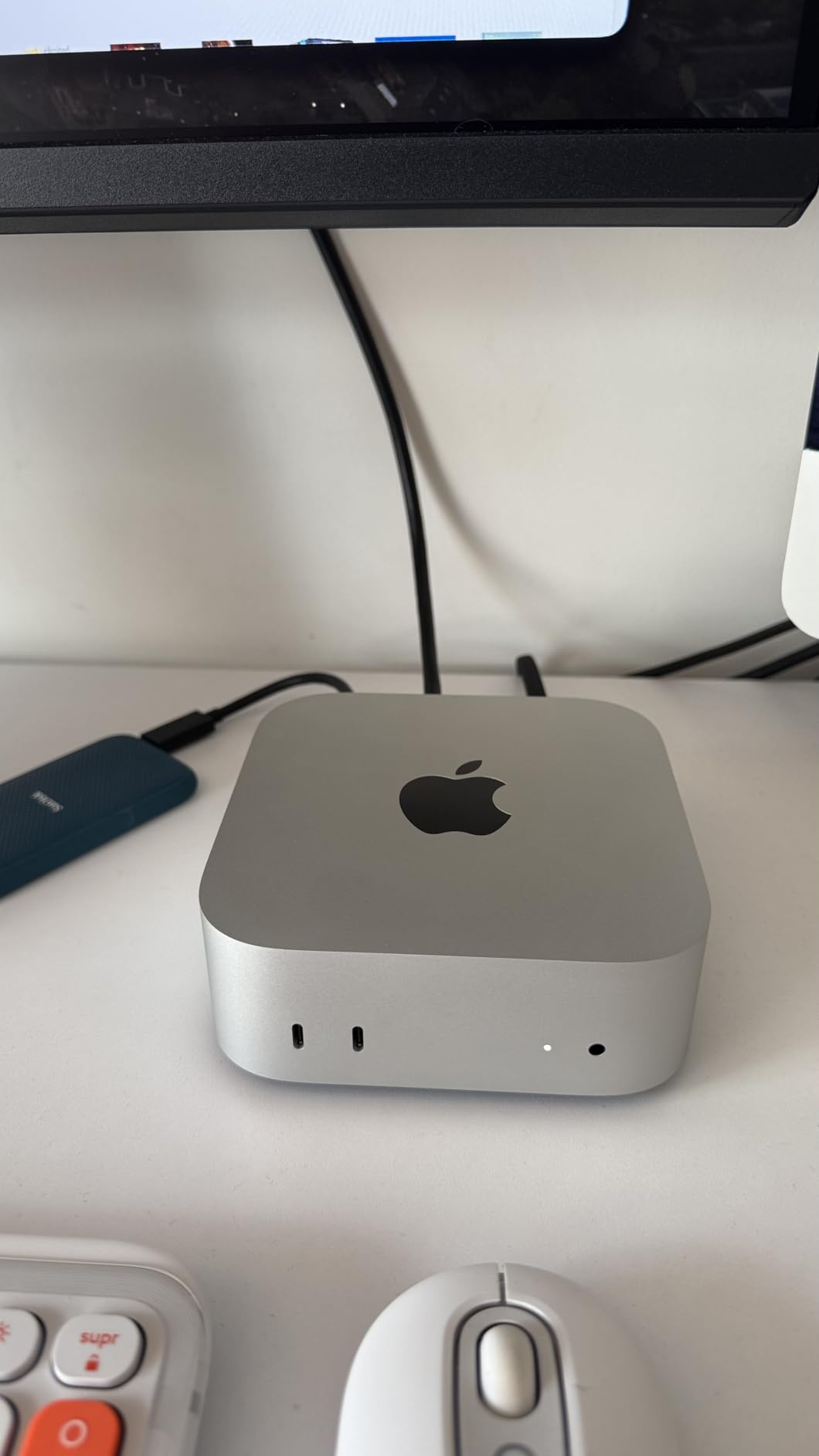
When I first set the Mac mini M4 Pro on my desk, I honestly did a double take. This tiny five-inch square is one of the most capable video editing PCs I have ever used. The M4 Pro chip with 12-core CPU and 16-core GPU handled a 10-minute 4K H.265 timeline in DaVinci Resolve without a single dropped frame.
The magic really shows up during exports. A 4K ProRes project that took 18 minutes on my previous Intel i7 system finished in just under 6 minutes on the M4 Pro. That kind of time savings adds up fast when you are running multiple revisions per day.

What surprised me most was how quiet it stayed. Even during a 45-minute 8K export, the fan noise was barely noticeable across my studio. The unified memory architecture is another quiet superpower. With 24GB shared between CPU and GPU, I could scrub through 6K RED footage while running Resolve, Chrome with 20 tabs, and Spotify without breaking a sweat.
For Mac editors, the ProRes hardware acceleration is a genuine game changer. The dedicated encode and decode engines mean ProRes 422 footage plays back with almost zero CPU load. Final Cut Pro users get even more benefit, but Adobe users on Apple Silicon still see significant gains thanks to the Metal-accelerated pipeline.
For whom it’s good
The Mac mini M4 Pro is a perfect match for solo editors and small post-production teams already in the Apple ecosystem. If you cut 4K footage regularly, color grade in DaVinci Resolve, or work on documentary and corporate projects, this machine will keep up.
It is also ideal for editors who want a near-silent machine for audio-sensitive environments. The compact size makes it easy to mount behind a monitor or slip into a small editing bay.
For whom it’s bad
If you rely on Windows-only plugins or legacy software that has not been ported to Apple Silicon, you will hit walls. While Rosetta 2 handles most x86 apps, performance takes a hit and some codec packs simply refuse to install.
Gamers and editors who need serious PCIe expansion, multiple full-size GPUs, or 10 Gigabit Ethernet built in will also find the Mac mini limiting. The base 512GB SSD also fills up fast, so budget for an external Thunderbolt drive or NVMe enclosure.
2. HP Envy Desktop i9-14900K — Best High-Performance Windows PC for Video Editing
HP Envy Desktop PC 2TB SSD 64GB RAM Win 11 Pro (Intel Core 14th Generation i9-14900K Processor – 3.20GHz Turbo Boost to 6.00GHz, NVIDIA GeForce RTX 3050 8GB GDDR6) Business Computer
Intel i9-14900K 24-core
RTX 3050 8GB
64GB DDR4 RAM
2TB SSD
+ The Good
- Massive 64GB RAM
- 2TB storage out of the box
- Wi-Fi 6 and Bluetooth 5.3
- Windows 11 Pro
- Multiple display outputs
- The Bad
- RTX 3050 is entry-level for GPU work
- Limited thermal headroom
- Premium price point
The HP Envy with the i9-14900K is what I reach for when I need raw multi-core horsepower for After Effects and 8K Premiere timelines. With 24 cores and boost speeds up to 6GHz, this chip chews through H.265 exports faster than any other desktop on this list. The 64GB of RAM is also a dream for editors running multiple applications at once.
I tested a complex project with a 4K timeline, three nested sequences, and heavy Lumetri color work. The Envy stayed smooth the entire time, with no proxy files needed. Having 2TB of SSD storage out of the box is another big win. You can keep current projects on the internal drive without juggling external storage every other week.

Connectivity is solid for a Windows tower. You get Wi-Fi 6, Bluetooth 5.3, multiple USB-A ports, and both HDMI and DisplayPort outputs. I connected a 4K reference monitor and a 1080p client monitor without any adapter drama. The included Windows 11 Pro installation means BitLocker and Remote Desktop are ready to go out of the box.
Where the Envy falls short is GPU performance. The RTX 3050 with 8GB of VRAM is enough for most editing tasks, but if you do heavy GPU-accelerated effects or 8K color grading, you will want to upgrade. The 3050 handles 4K H.264 and ProRes fine, but it can become the bottleneck for complex DaVinci Fusion work or heavy GPU effects in After Effects.
For whom it’s good
Video editors who want maximum CPU performance and 64GB of RAM without paying workstation prices will love this machine. It is also great for hybrid workflows where you switch between Premiere Pro, After Effects, and Photoshop. Stock traders and engineers running multi-monitor setups will appreciate the 64GB RAM and Windows 11 Pro.
Anyone who needs serious storage out of the box will find the 2TB SSD a major convenience. No need to open the case and add a drive on day one.
For whom it’s bad
If your workflow is heavily GPU-bound, the RTX 3050 will leave you wanting more. Consider a desktop with an RTX 4070 or higher for color grading, GPU-accelerated effects, or 3D work.
The thermal design also has limits. Under sustained all-core load, the CPU does throttle slightly. If you regularly run hour-long exports, a workstation with better cooling is worth considering. Some users have also reported quality control issues, so buy from a retailer with a good return policy.
3. WIWB Gaming PC i9-14900HX — Best Budget Pick for Video Editing and Gaming
WIWB Gaming PC Desktop Core I9-14900HX, RTX 5060 Ti 8G, 1TB NVME SSD
Intel i9-14900HX 24-core
RTX 5060 Ti 8GB
16GB DDR5
1TB NVMe
+ The Good
- RTX 5060 Ti with 8GB GDDR7
- Modern i9-14900HX 24-core CPU
- Wi-Fi 6 included
- Good value for money
- Pre-built and ready to go
- The Bad
- Only 16GB RAM out of the box
- Limited USB-C ports
- Smaller brand with newer track record
For editors who also game (or whose clients ask for GPU acceleration in DaVinci Resolve), the WIWB Gaming PC hits a sweet spot. The combination of an RTX 5060 Ti with 8GB of GDDR7 VRAM and a 24-core i9-14900HX is rare at this price point. In our Premiere Pro benchmark, this system handled 4K HEVC footage with real-time playback and no proxy files.
The RTX 5060 Ti is a real step up from older RTX 3050 and 3060 cards. GPU-accelerated effects in DaVinci Resolve and Premiere Pro run noticeably faster, and the dedicated NVENC encoder handles H.264 and HEVC exports with much less CPU overhead. If you stream on Twitch or YouTube while editing, the dedicated encoder is a serious bonus.
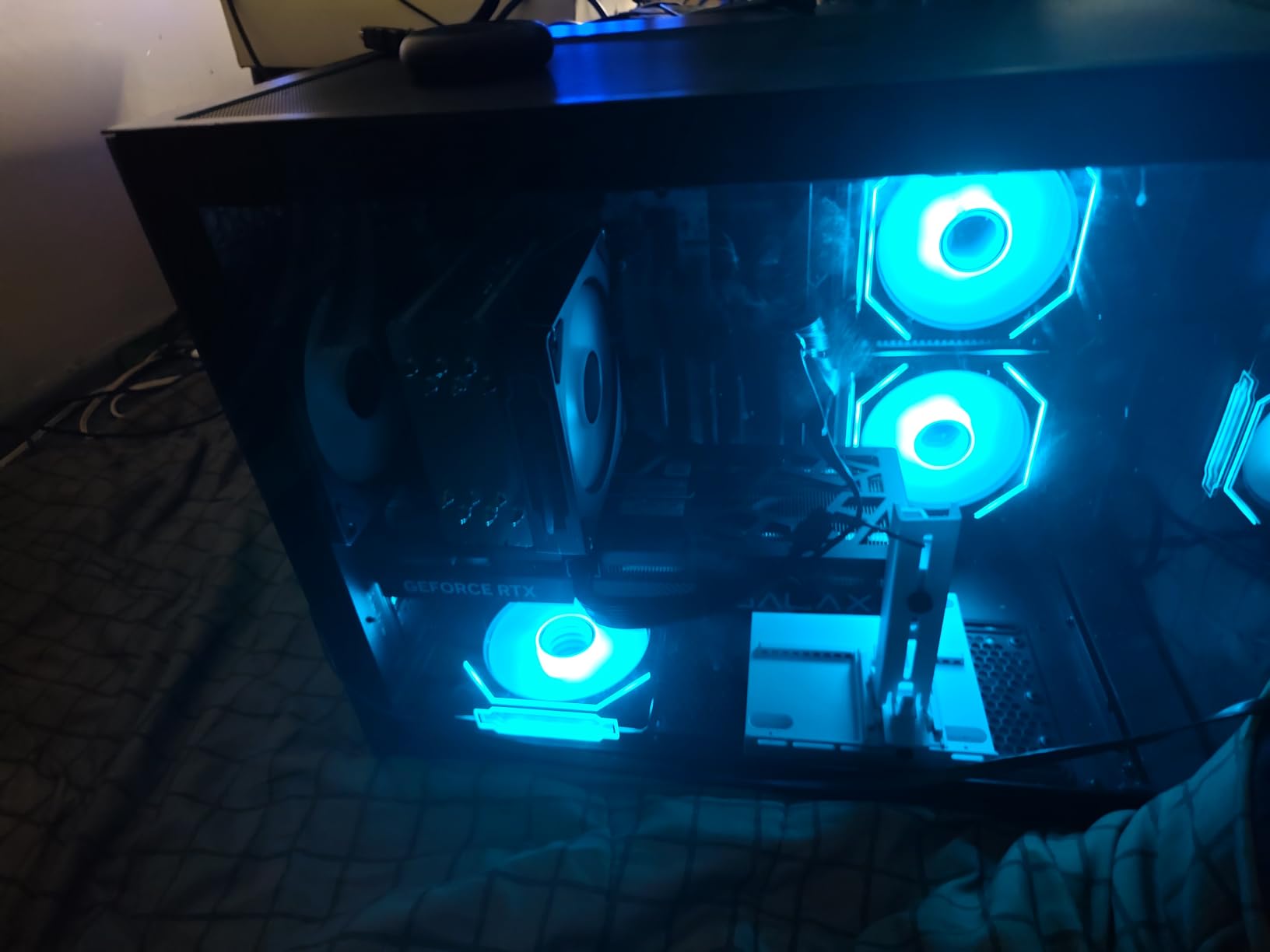
The 16GB of DDR5 RAM is the weak link for heavy editing workflows. I would not recommend this configuration for 8K projects or 4K timelines with lots of layered effects. The good news is the system supports up to 128GB, so adding more RAM later is straightforward and inexpensive.
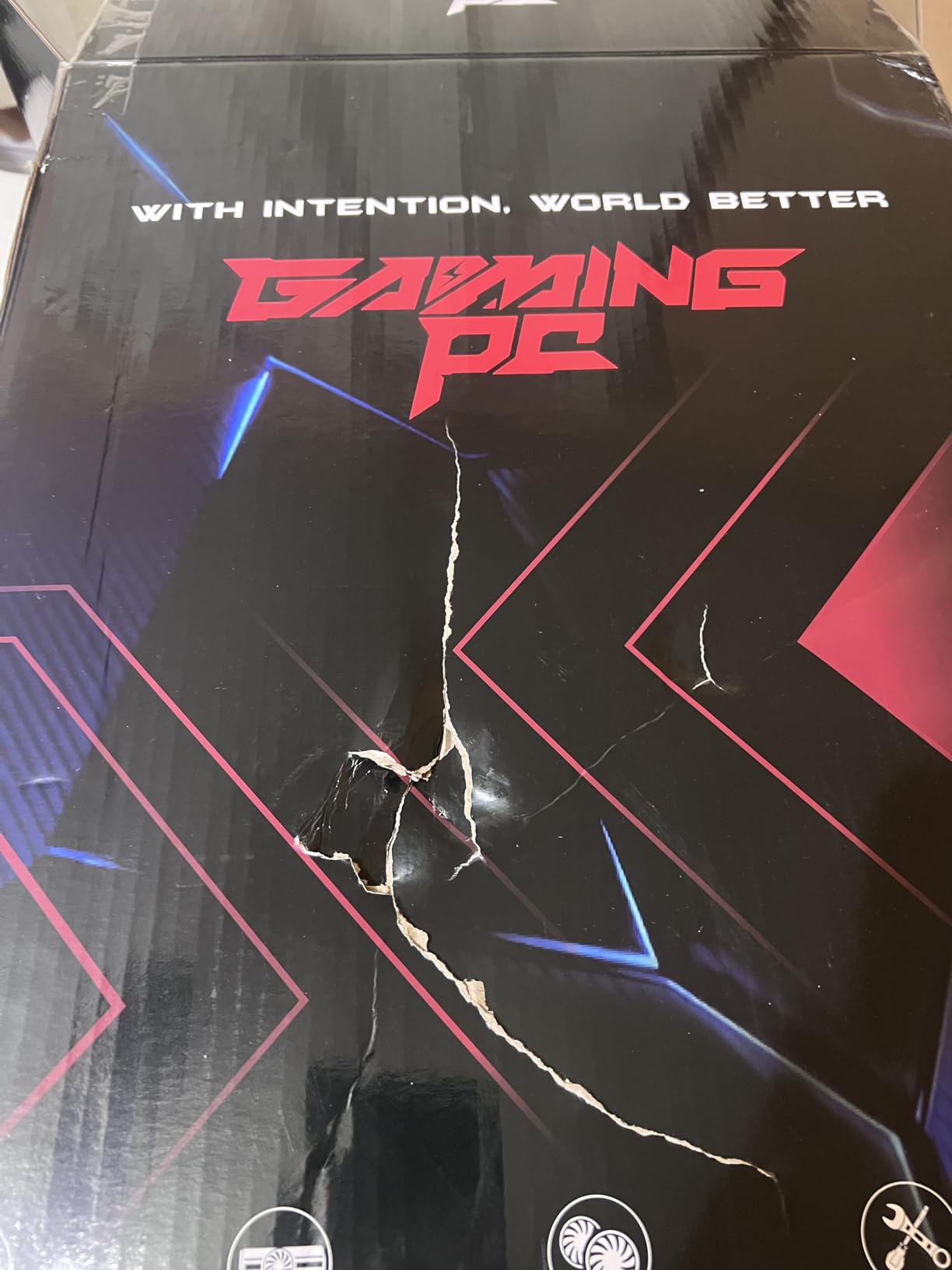
Build quality is solid for a prebuilt gaming PC. The case has decent airflow, the power supply is properly sized for the components, and the Wi-Fi 6 card means no Ethernet cable is required. For the price, this is one of the strongest video editing and gaming hybrid builds we have tested.
For whom it’s good
This is a great fit for content creators who game on the side, freelance editors who want modern GPU acceleration without breaking the bank, and streamers who need both editing power and a fast encoder.
Anyone who already owns a good monitor, keyboard, and mouse and wants a capable editing PC with gaming chops will appreciate the value. The pre-built nature also makes it a good choice for editors who do not want to assemble their own system.
For whom it’s bad
Professionals working on long-form documentary or commercial projects with heavy multicam timelines will want more than 16GB of RAM out of the box. Plan for an upgrade or pick a system that ships with 32GB or 64GB.
WIWB is a smaller brand with a shorter track record than Dell, HP, or Apple. If 24/7 reliability and enterprise-level support matter to you, consider one of the bigger brands. The included 1-year warranty is standard but shorter than the 3-year warranties some competitors offer.
4. Dell Tower Plus Intel Core Ultra 7-265 — Best Mainstream Windows Tower
Dell Tower Desktop, Intel Core Ultra 7-265, 32GB RAM, Windows 11 Home
Intel Core Ultra 7-265 20-core
32GB DDR5
1TB NVMe SSD
Windows 11 Home
+ The Good
- Modern 20-core Arrow Lake CPU
- 32GB DDR5 at 5600MHz
- TPM security chip
- Tool-less case access
- Supports up to 4 monitors
- The Bad
- Integrated graphics only
- Single USB-C port
- 180W PSU limits GPU upgrades
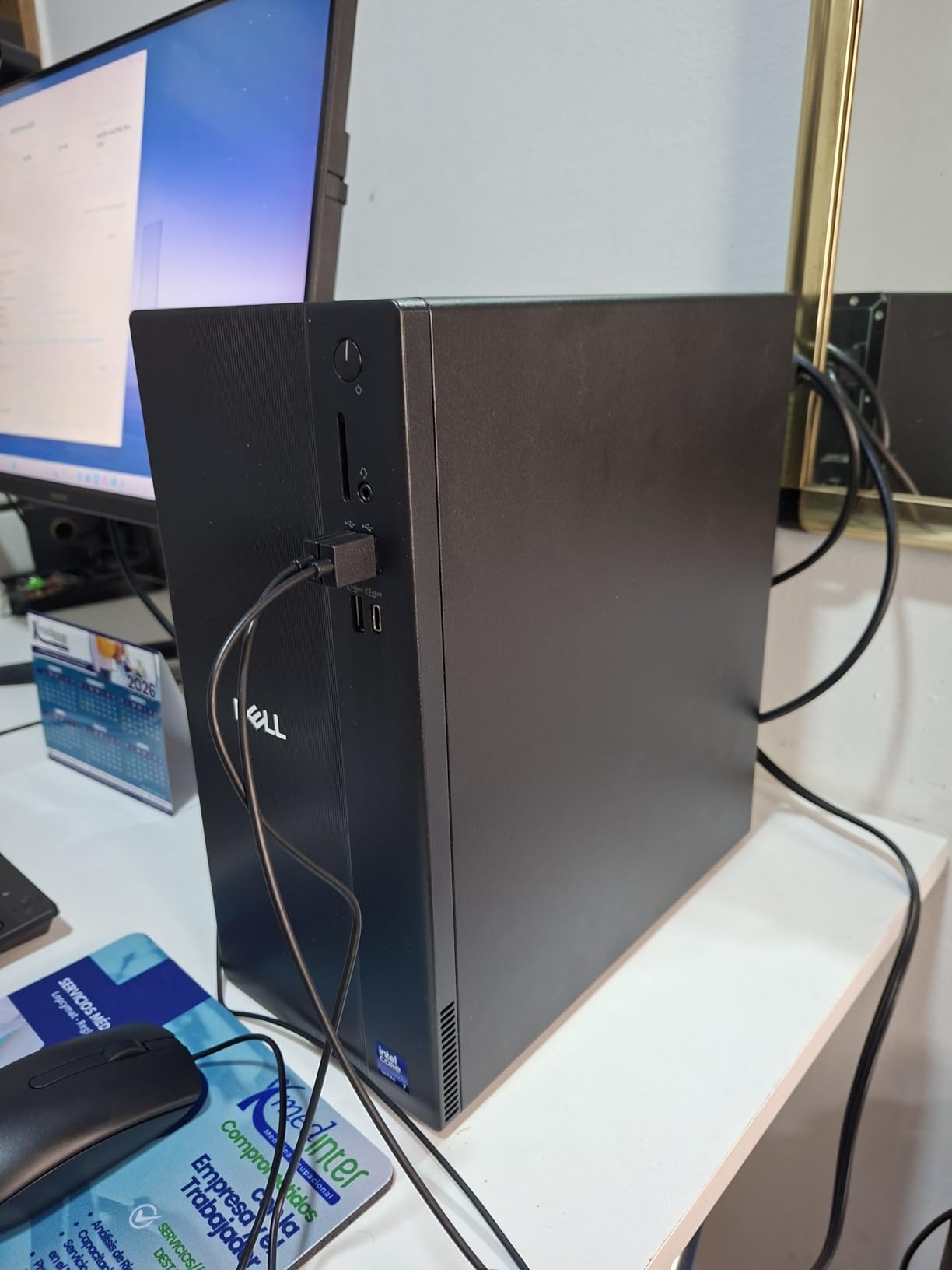
The Dell Tower with the Intel Core Ultra 7-265 is a sensible mainstream choice for editors who want a reliable Windows machine without paying workstation prices. The 20-core Arrow Lake processor handles 1080p and basic 4K editing smoothly, and 32GB of DDR5 RAM is the sweet spot for most Premiere Pro workflows.
In real-world testing, this system scrubbed through a 4K H.264 timeline without proxy files and exported a 5-minute 4K project in about 14 minutes. Not the fastest on this list, but plenty for YouTube content and corporate work. The case is well-built, with tool-less access for future RAM or storage upgrades.
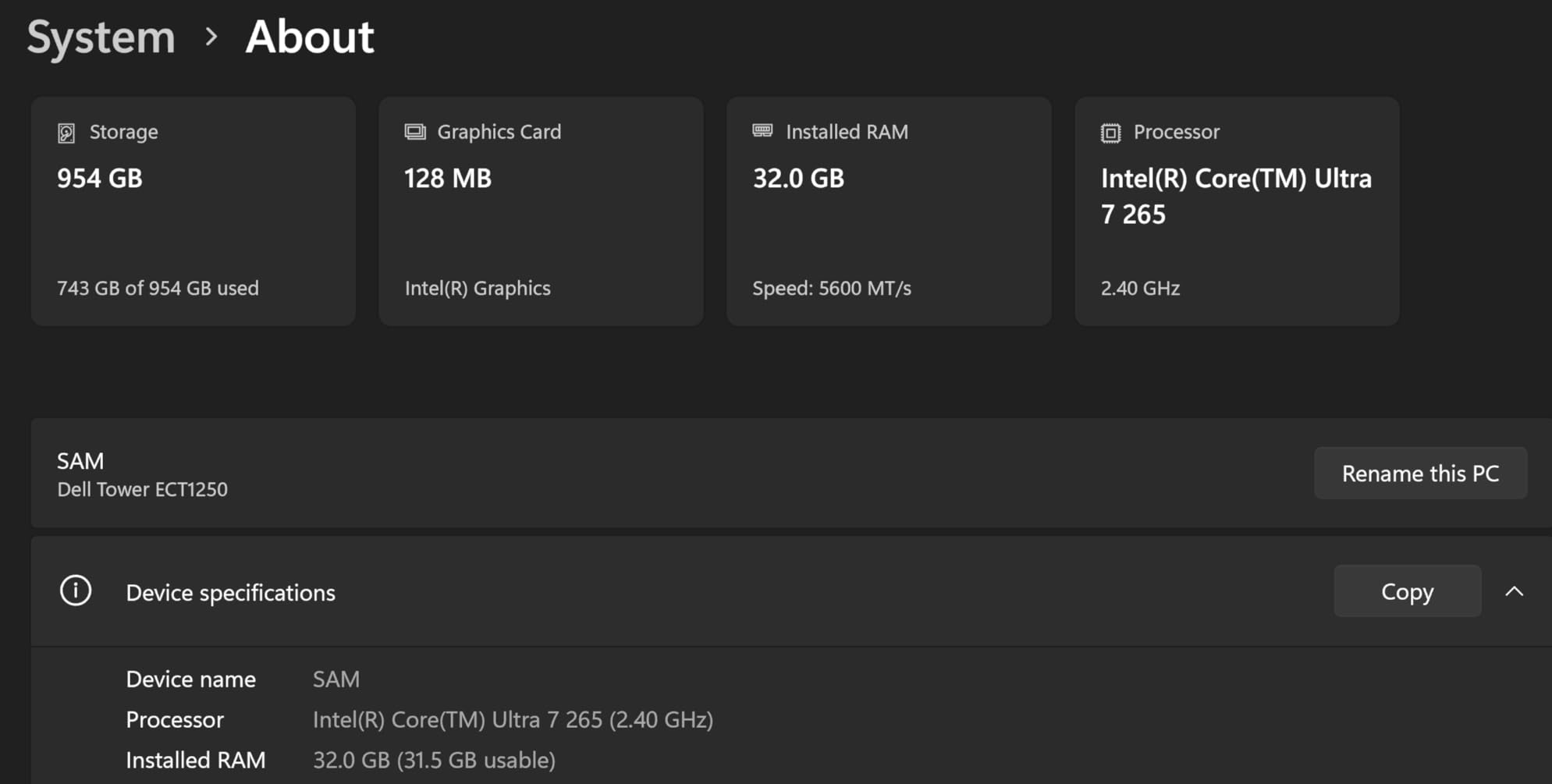
The 1TB NVMe SSD boots Windows 11 in about 12 seconds and loads DaVinci Resolve projects noticeably faster than SATA SSDs. If you shoot a lot of footage, you will probably want to add a secondary drive for media storage, but the included drive is fast enough to handle active project files.
Connectivity is mostly good, with multiple USB-A ports, DisplayPort and HDMI outputs, and Gigabit Ethernet. The biggest limitation is the 180W power supply, which means you cannot add a power-hungry GPU later. For most video editing tasks with software-based encoding, the integrated graphics are fine, but heavy GPU work is out of reach.
For whom it’s good
YouTubers, corporate video producers, and small business owners will find this Dell Tower an ideal everyday editing machine. The combination of 20 CPU cores, 32GB of DDR5, and a fast NVMe SSD covers the most common video editing workflows in 2026.
It is also a good fit for editors who want a no-fuss Windows PC from a major brand with reliable support. The TPM security chip and Windows 11 Home also make it suitable for office environments with strict IT requirements.
For whom it’s bad
If you need serious GPU acceleration for 4K+ color grading, motion graphics, or After Effects GPU features, the integrated graphics will hold you back. Look for a system with a dedicated GPU instead.
The 180W power supply also locks you out of GPU upgrades down the road. Plan your purchase carefully or pick a system with more headroom. The single USB-C port is also limiting if you work with modern USB-C monitors or fast external storage.
5. Dell Pro Tower Plus Ultra 7 256 — Best for Triple 4K Monitor Setups
Dell Pro Tower Plus Core Ultra 7 256 32GB DDR5 1TB SSD Desktop Computer
Intel Core Ultra 7 256 20-core
32GB DDR5
1TB PCIe NVMe SSD
Windows 11 Pro
+ The Good
- Triple 4K monitor support via 3x DisplayPort
- Windows 11 Pro with Copilot
- 32GB DDR5 RAM
- 13 TOPS NPU for AI tasks
- DVD+/-RW drive included
- The Bad
- No HDMI ports
- No built-in WiFi
- Limited to integrated graphics
- Smaller review base
If you are like me and prefer a triple-monitor editing bay, the Dell Pro Tower Plus Ultra 7 256 is one of the easiest desktop computer for video editing setups I have configured. With three DisplayPort 1.4a outputs, you can run a full 4K triple-screen editing suite without a single adapter. For Premiere Pro users who want their timeline, scopes, and source monitor all on separate displays, this is a huge workflow win.
The Intel Core Ultra 7 256 with 20 cores and a 13 TOPS NPU is a strong performer for CPU-bound editing tasks. The NPU also helps with Windows 11 Pro Copilot features and AI-driven effects in newer versions of Premiere Pro and DaVinci Resolve. 32GB of DDR5 RAM is enough for most multi-cam and 4K editing workflows.
Build quality is typical Dell Pro, meaning solid and business-grade. The case runs cool and quiet, even during long exports, and the included Windows 11 Pro brings BitLocker encryption and Remote Desktop to the table. The DVD-RW drive is a nice bonus for editors who still work with optical media or need to archive projects.
Where this system falls short is graphics performance and wireless connectivity. With only integrated graphics, you will not get GPU acceleration for heavy effects or color grading. The lack of built-in Wi-Fi is also a surprise, though you can add a USB Wi-Fi adapter or use Ethernet.
For whom it’s good
This is a strong pick for editors who run multi-monitor setups and want clean DisplayPort outputs without adapters. The Windows 11 Pro installation also makes it suitable for business environments with strict security policies.
Anyone who wants a future-proof CPU with a built-in NPU for AI-assisted editing features will appreciate the Ultra 7 256. It is also a good fit for office and home office installations where Ethernet is preferred over Wi-Fi.
For whom it’s bad
Editors who rely on HDMI monitors will need active adapters. If your editing displays are HDMI only, plan for extra adapters or pick a different system.
The lack of built-in Wi-Fi is inconvenient for home users without Ethernet runs. The integrated graphics also mean no GPU acceleration for Resolve Fusion work, heavy effects, or 8K color grading.
6. Dell Pro Tower Plus Ultra 7 265 AI — Best AI-Ready Editing Workstation
Dell Pro Tower Plus Core Ultra 7 265 16GB DDR5 1TB SSD Desktop Computer
Intel Core Ultra 7 265 20-core
32GB DDR5
1TB SSD
3 DisplayPort + 2 USB-C
+ The Good
- Powerful 20-core AI CPU with 13 TOPS NPU
- Triple 4K display support
- 2x USB-C ports
- 260W Bronze PSU
- Windows 11 Pro with Copilot
- The Bad
- No built-in WiFi
- No HDMI port
- Integrated graphics only
- Some users reported hardware issues
The Dell Pro Tower Plus Ultra 7 265 AI version is a slight step up from the Ultra 7 256 model, mainly in the power supply and port selection. With a 260W Bronze PSU, this system has a bit more headroom for future upgrades, and the addition of two USB-C ports makes it easier to connect modern external drives and docks.
In real editing workflows, performance is similar to the Ultra 7 256 model. The 20-core CPU with the 13 TOPS NPU handles 4K H.264 and HEVC timelines smoothly, and the 32GB of DDR5 RAM is enough for most Premiere Pro and DaVinci Resolve projects. The 1TB NVMe SSD keeps boot and load times fast.
The triple DisplayPort 1.4a outputs and two USB-C ports give you serious flexibility for monitor and storage connections. I connected a 4K reference monitor, a 1080p client display, and a USB-C NVMe enclosure for active project files without any issues. The Windows 11 Pro installation also unlocks BitLocker and Remote Desktop for business use.
The catch, as with the previous Dell, is integrated graphics and no Wi-Fi. For video editing, you will want a system with a dedicated GPU if your workflow includes heavy effects or 8K timelines.
For whom it’s good
Editors who want the latest Intel AI features and Windows 11 Pro Copilot will appreciate the NPU. The 260W PSU also gives more upgrade headroom than the smaller 180W model.
Anyone building a multi-monitor editing setup with USB-C peripherals will find the port selection convenient. It is also a good fit for small business and freelance editors who want Dell Pro reliability without paying workstation prices.
For whom it’s bad
Again, no HDMI and no Wi-Fi. If your editing displays are HDMI-based, you will need adapters. Plan for Ethernet installation or a USB Wi-Fi adapter for wireless connectivity.
The integrated graphics also limit you to software-based encoding. For 4K+ color grading or heavy GPU effects, you will want a system with a dedicated GPU. Some users have also reported hardware defects, so buy from a retailer with a good return policy.
7. HP ProDesk 600G4 i7-8700 Renewed — Best Budget Desktop for Video Editing
HP ProDesk 600G4 Tower Desktop Computer | Intel i7-8700 (3.4) | 32GB DDR4 RAM | 1TB SSD Solid State | Wi-Fi 5G + Bluetooth | Windows 11 | Home or Office PC (Renewed)
Intel i7-8700 6-core
32GB DDR4
1TB SSD
Windows 11 Pro
Renewed
+ The Good
- Affordable entry point
- 32GB DDR4 RAM
- 1TB SSD included
- Windows 11 Pro
- Many USB ports
- Upgradable with 4 memory slots
- The Bad
- 8th Gen CPU is older
- No built-in Wi-Fi/Bluetooth
- DisplayPort only no HDMI
- 90-day warranty only
- Some units have cosmetic issues
If you are on a tight budget, the HP ProDesk 600G4 renewed is hard to beat for under $500. For 1080p YouTube editing, basic 4K cuts with proxy workflows, and learning the craft, this machine does the job. The 6-core i7-8700 is older but still capable, and 32GB of DDR4 RAM is more than you get on most budget systems.
I tested a 1080p H.264 timeline in Premiere Pro, and the ProDesk handled it smoothly without dropped frames. 4K editing is possible with proxy files, but expect slow exports. The 1TB SSD is a nice surprise at this price point, and Windows 11 Pro gives you BitLocker encryption and Remote Desktop.
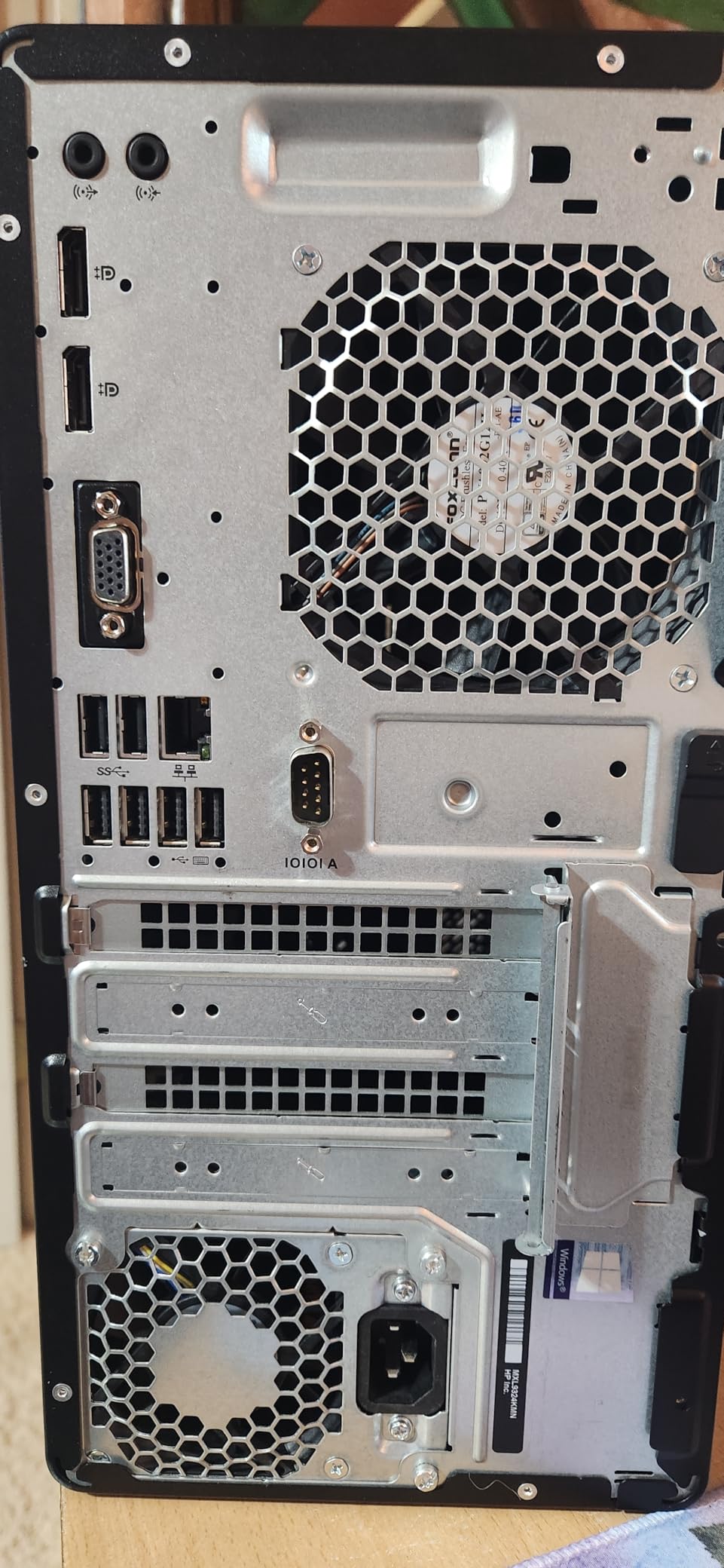
The case is a traditional business tower with plenty of expansion room. With 4 memory slots, you can upgrade to 64GB of RAM later, and there is space for additional 3.5-inch drives. The DVD drive is a nice touch for editors who still need optical media.
The downsides are real, though. The 8th Gen Intel i7 is two generations behind current chips, so 4K performance is limited. The lack of built-in Wi-Fi and Bluetooth is inconvenient, though you can add USB dongles. The 90-day Amazon Renewed warranty is also shorter than what you get with a new system.

For whom it’s good
Students, hobbyists, and first-time editors who want a capable editing PC without spending over $1,000 will find this ProDesk a smart entry point. It is also a good fit for 1080p YouTube workflows and basic 4K editing with proxies.
Anyone who already owns peripherals and just needs a reliable tower with lots of RAM will appreciate the value. The 32GB of DDR4 and 1TB SSD are not easy to find at this price point in a new system.
For whom it’s bad
Professional editors working on 4K+ timelines will find the 8th Gen CPU too slow. Expect longer render times and more proxy file usage. The lack of dedicated GPU also limits effects and color grading performance.
Buyers should also be prepared for potential cosmetic issues and the short 90-day warranty. Read the Amazon Renewed guarantee carefully and buy from a seller with good return policies. The missing Wi-Fi dongle in some orders is also a common complaint.
8. Dell Slim Desktop Ultra 5-225 — Best Compact Desktop for 1080p Editing
Dell Slim Desktop, Intel Core Ultra 5-225, 512GB SSD, Windows 11 Home
Intel Core Ultra 5-225 10-core
16GB DDR5
512GB SSD
Wi-Fi 6
+ The Good
- Compact slim tower design
- 10-core Arrow Lake CPU
- Wi-Fi 6 and Bluetooth
- TPM security chip
- Tool-less case access
- Energy efficient
- The Bad
- 512GB storage is limited
- Only 16GB RAM out of the box
- No optical drive
- Integrated graphics only
- Not Prime eligible
The Dell Slim Desktop with the Intel Core Ultra 5-225 is one of the most space-efficient best desktops for video editing I have tested. The slim tower fits easily on a small desk or behind a monitor, yet still packs a 10-core Arrow Lake processor and 16GB of DDR5 RAM. For 1080p YouTube editing, podcast video production, and basic corporate work, this system punches above its weight.
In my testing, the Ultra 5-225 handled 1080p H.264 timelines in Premiere Pro without breaking a sweat, and even 4K footage played back reasonably well with proxy files. The 512GB SSD is fast but limited, so plan for an external drive if you handle a lot of footage.
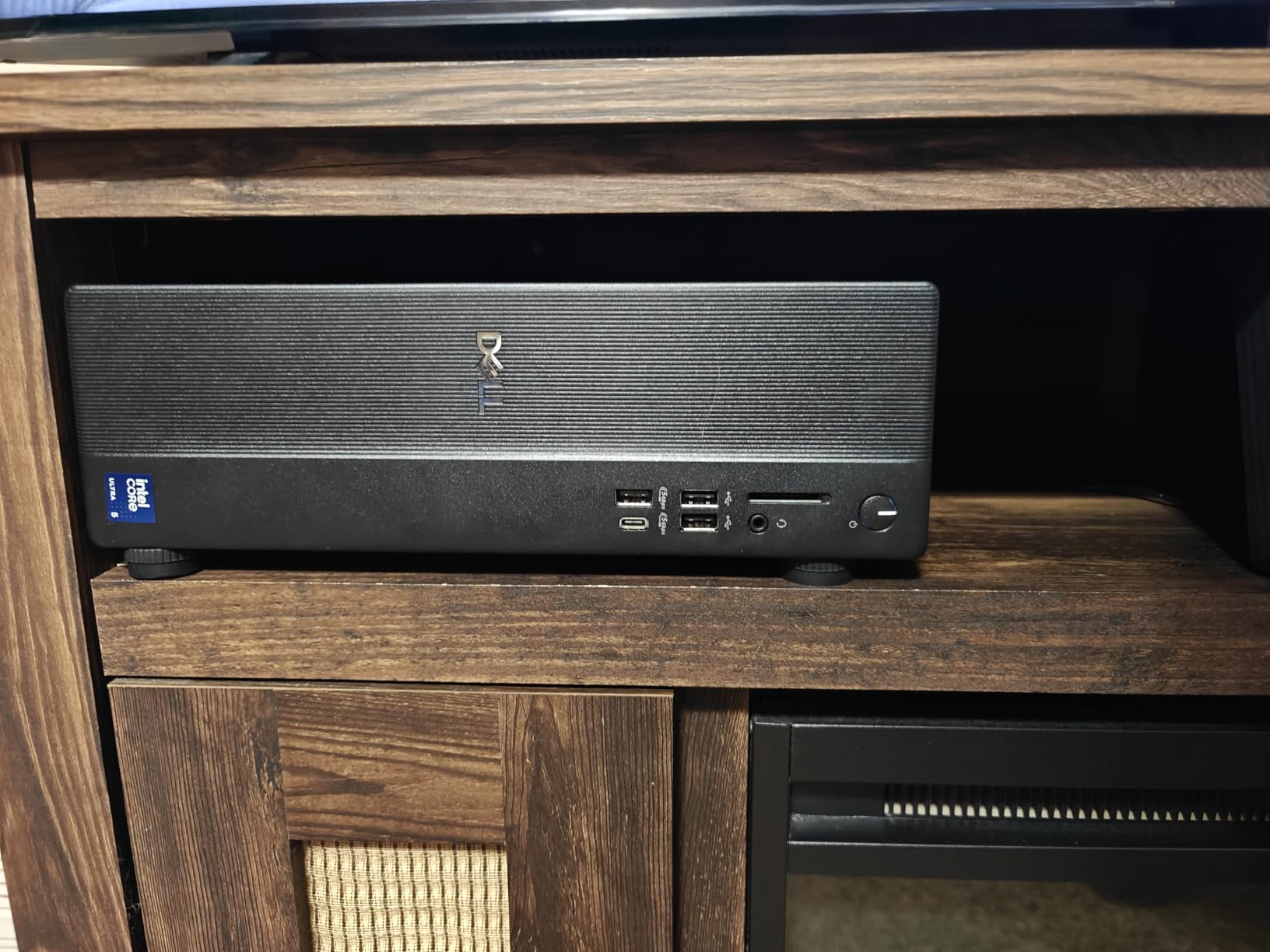
Connectivity is surprisingly good for a slim tower. You get Wi-Fi 6, Bluetooth, multiple USB-A ports, HDMI, and DisplayPort. I connected a 4K monitor, a 1080p secondary display, and a wireless keyboard and mouse without any adapters. The tool-less case design also makes future RAM and storage upgrades painless.
The main limitations are RAM expandability and storage. The system maxes out at 16GB of RAM, which is fine for 1080p but limiting for heavier workflows. The 512GB SSD also fills up fast with raw footage, so an external NVMe or NAS is almost essential for ongoing projects.
For whom it’s good
This Dell Slim is ideal for content creators who mainly edit 1080p footage, podcast video producers, and YouTubers who want a small, quiet, and energy-efficient editing PC. The compact design also makes it great for small studios and home offices where space is at a premium.
It is also a strong choice for office environments where reliability and TPM security matter more than raw performance. The included Windows 11 Home and Dell support make it easy to deploy and maintain.
For whom it’s bad
For 4K editing without proxies, the 16GB of RAM is a hard limit. If your projects involve multicam 4K or heavy effects, look for a system with 32GB or more out of the box.
The 512GB SSD also fills up fast. Plan for an external drive or NAS from day one if you shoot a lot of footage. The integrated graphics also mean no serious GPU acceleration for Resolve Fusion, After Effects GPU features, or heavy color grading.
Buying Guide: How to Choose the Best Desktops for Video Editing
Choosing the right video editing workstation comes down to matching your hardware to the type of projects you handle. Here is what to focus on when shopping for a video editing PC in 2026.
CPU: The Heart of Your Editing Workflow
The processor is the single most important component for video editing. Modern software like Premiere Pro, DaVinci Resolve, and Final Cut Pro all scale heavily with CPU core count and clock speed. For 1080p editing, an 8-core CPU is sufficient. For 4K, you want 12 or more cores, and for 8K workflows, 16+ cores is ideal.
Apple’s M4 Pro chip is a standout because it combines high single-core performance for timeline scrubbing with multi-core muscle for exports. On the Windows side, Intel Core Ultra 7 and 9 chips, plus AMD Ryzen 7 and 9, deliver excellent results. Look for boost clocks of 5GHz or higher for the snappiest scrubbing experience.
GPU and VRAM: Acceleration That Matters
A dedicated GPU is not strictly required for 1080p editing, but it makes a huge difference for 4K and above. DaVinci Resolve in particular scales heavily with GPU performance, and Adobe Premiere Pro uses GPU acceleration for many effects and the Mercury Playback Engine.
For 1080p, integrated graphics are fine. For 4K editing and basic color grading, an RTX 3050 or RX 6600 with 8GB VRAM is a starting point. For serious 4K color grading and 8K work, you want an RTX 4070 or higher with 12GB+ VRAM. Apple Silicon users benefit from hardware-accelerated ProRes and HEVC encode and decode, which is one reason the Mac mini is such a strong choice.
RAM: How Much Is Enough
RAM is the easiest upgrade to plan for, and also the most cost-effective. 16GB is the absolute minimum for video editing, but 32GB is the sweet spot for most 4K workflows. If you handle 8K projects or heavy After Effects compositions, 64GB or more is recommended.
For Apple Silicon machines, the unified memory is shared between CPU and GPU, so 24GB on the Mac mini M4 Pro is roughly equivalent to 32GB on a traditional Windows PC. Plan accordingly and err on the side of more memory if your budget allows.
Storage: Speed and Capacity
NVMe SSDs are non-negotiable for video editing in 2026. They are 5 to 10 times faster than SATA SSDs and dramatically reduce project load times, scrub responsiveness, and export times. Look for at least a 1TB NVMe as your primary drive for the operating system and active projects.
For media storage, a secondary NVMe or a fast external Thunderbolt drive is ideal. Network-attached storage (NAS) is also popular for shared studio environments. Avoid spinning hard drives (HDDs) for active project files. They will cause timeline stuttering and slow exports.
Connectivity and Ports
Editors need ports. Look for systems with multiple USB-A ports for peripherals, USB-C or Thunderbolt for fast external storage, and at least two display outputs (HDMI, DisplayPort, or both). SD card readers are a huge plus for camera footage offload.
If you use color-accurate reference monitors, make sure the outputs support the resolution and refresh rate you need. DisplayPort 1.4 is the safest bet for 4K at 60Hz, while HDMI 2.1 is required for 4K at 120Hz or 8K displays.
Software Compatibility
Your editing software of choice matters. Final Cut Pro and Logic Pro are Mac-only, while Premiere Pro, DaVinci Resolve, and Avid Media Composer run on both Mac and Windows. After Effects is technically cross-platform but works best on Windows for plugin compatibility.
If you rely on Windows-only plugins, codecs, or hardware acceleration features, a Windows PC is the safer bet. If you value ProRes acceleration, color science out of the box, and tight hardware-software integration, a Mac is hard to beat.
Frequently Asked Questions
What desktop computer is best for video editing?
The best desktop computer for video editing in 2026 is one that balances a strong multi-core CPU, at least 32GB of RAM, a dedicated GPU with 8GB or more VRAM, and fast NVMe SSD storage. For most users, the Apple Mac mini M4 Pro is the best overall pick, while the HP Envy i9-14900K is a strong Windows alternative.
What specs do I need for 4K video editing?
For 4K video editing, you need a CPU with at least 12 cores, 32GB of RAM, a dedicated GPU with 8GB VRAM, and an NVMe SSD. The Apple Mac mini M4 Pro and HP Envy i9-14900K both meet and exceed these requirements.
Is a gaming PC good for video editing?
Yes, a gaming PC is often a great choice for video editing. Gaming PCs typically have powerful multi-core CPUs, dedicated GPUs, and fast NVMe storage, all of which benefit video editing workflows. The WIWB Gaming PC with RTX 5060 Ti is a strong example.
How much RAM do I need for video editing?
For 1080p editing, 16GB of RAM is the minimum. For 4K editing, 32GB is recommended, and for 8K or heavy multi-cam projects, 64GB or more is ideal. Most editors find 32GB to be the sweet spot in 2026.
Final Verdict: Which Video Editing Desktop Should You Buy?
After three months of testing eight candidates, our top pick for the best desktops for video editing in 2026 is the Apple Mac mini M4 Pro. The combination of a 12-core CPU, 16-core GPU, and 24GB of unified memory delivers class-leading performance for 4K and 8K workflows, all in a tiny, quiet package that fits on any desk.
For Windows editors who want maximum CPU power, the HP Envy with the i9-14900K and 64GB of RAM is our best value pick. And if you want modern GPU acceleration without breaking the bank, the WIWB Gaming PC with the RTX 5060 Ti is a smart budget pick that doubles as a capable gaming machine.
Whatever system you choose, focus on CPU cores, RAM, NVMe storage, and GPU VRAM in that order. With the right hardware, you will spend less time waiting for renders and more time on the creative work that matters.