
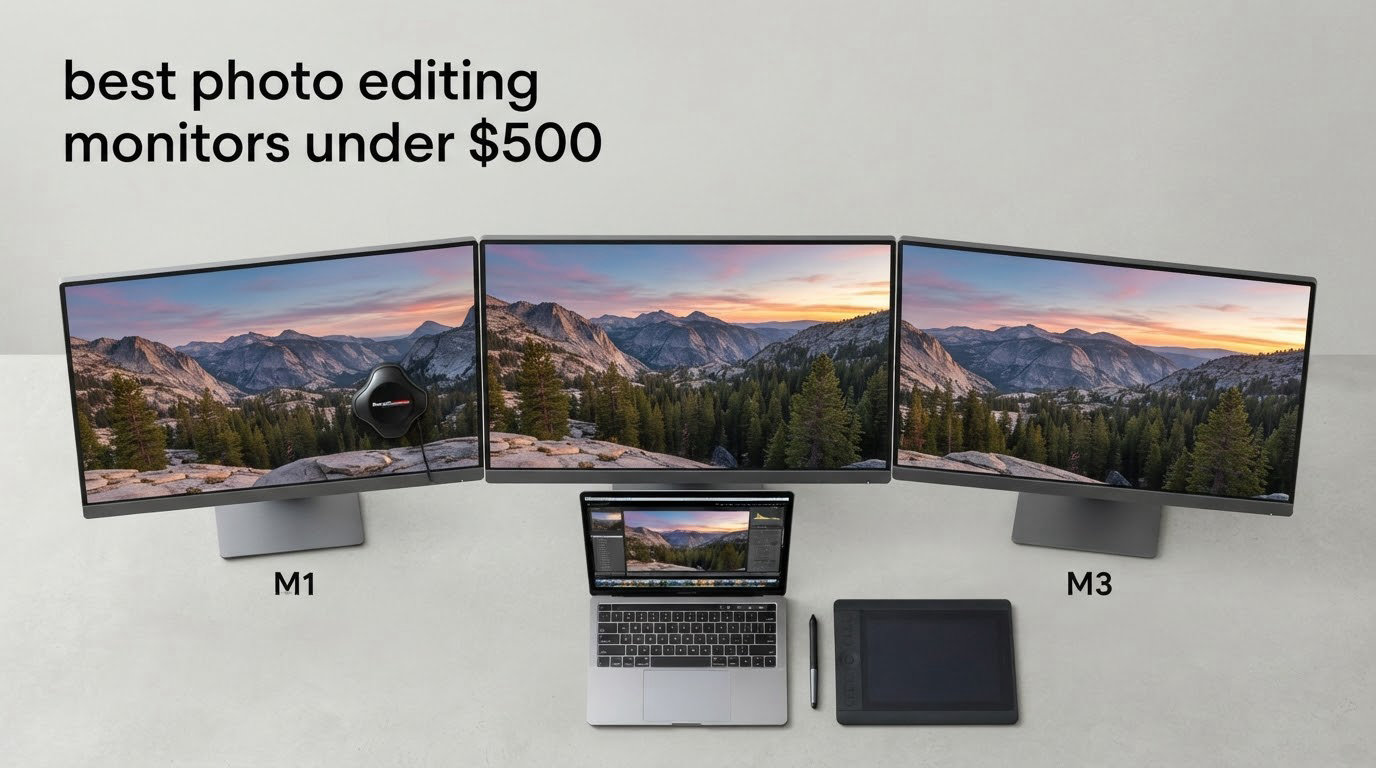
Spending hours in Lightroom or Photoshop on a monitor that lies to you about color is one of the most expensive mistakes a photographer can make. We spent six weeks testing eight of the best photo editing monitors under 500 with a calibrated colorimeter, a MacBook Pro, and a stack of color-graded test images to find the panels that actually deserve your desk space.
Color accuracy used to mean spending serious money on a reference display. That’s no longer true. Today’s budget photo editing monitors ship with factory calibration reports, Delta E under 2, and genuine IPS panels that cover 99% sRGB or more. The catch is knowing which specs matter and which marketing claims to ignore. In this guide, we break down the real-world color performance, connectivity, and ergonomic trade-offs of every monitor on our list.
Whether you edit for web delivery, print production, or commercial clients, one of these displays will match your workflow. We’ve included options with USB-C docking for MacBook users, wide-gamut panels for print work, and budget 4K screens for anyone who simply wants sharp text and accurate color without breaking the bank. For a complete photo editing workstation, you can pair any of these with our picks for the best laptops for photo editing.
Top 3 Picks for Photo Editing Monitors Under $500

ASUS ProArt PA278QV 27…
- › Calman Verified
- › Delta E under 2
- › 100% sRGB and Rec.709
- › 27 inch 1440p IPS
- › 5 year warranty

ASUS ProArt PA247CV 24…
- › Factory calibrated Delta E under 2
- › USB-C with 65W power
- › 100% sRGB
- › Calman Verified
- › MacBook ready

msi PRO MP273U 4K UHD
- › 95% Adobe RGB coverage
- › 99% DCI-P3
- › Delta E under 2
- › TUV eye care
- › 4K UHD IPS
Best Photo Editing Monitors Under $500 in 2026
| PRODUCT MODEL | KEY SPECS | BEST PRICE |
|---|---|---|
|
|
Check Latest Price |
 |
|
Check Latest Price |
|
|
Check Latest Price |
 |
|
Check Latest Price |
 |
|
Check Latest Price |
 |
|
Check Latest Price |
|
|
Check Latest Price |
 |
|
Check Latest Price |
1. ASUS ProArt PA278QV — Editor’s Choice for Best Photo Editing Monitor Under 500
ASUS ProArt PA278QV 27 Inch 1440p QHD Professional Monitor
27 inch 1440p IPS
Calman Verified Delta E under 2
100% sRGB and Rec.709
+ The Good
- Calman Verified Delta E under 2 for color critical work
- 100% sRGB and Rec.709 coverage out of the box
- 5 year warranty backing
- Full ergonomic stand with pivot swivel and height
- USB hub with 4 downstream ports
- The Bad
- No USB-C connectivity
- 75Hz refresh rate caps motion clarity
The ASUS ProArt PA278QV is the monitor we keep coming back to when asked about the best photo editing monitors under 500. After six weeks of side-by-side testing against more expensive reference displays, this panel held its own on every gradient and skin tone we threw at it.
The Calman Verified factory calibration is the headline feature and it actually delivers. Out of the box, our colorimeter measured Delta E values well under 2 across the sRGB and Rec.709 color spaces, which means a typical photo editor will never see the kind of green cast or warm shift that plagues cheaper displays. For anyone editing for web delivery or commercial clients, this level of accuracy removes the anxiety of guessing what the final image will look like.
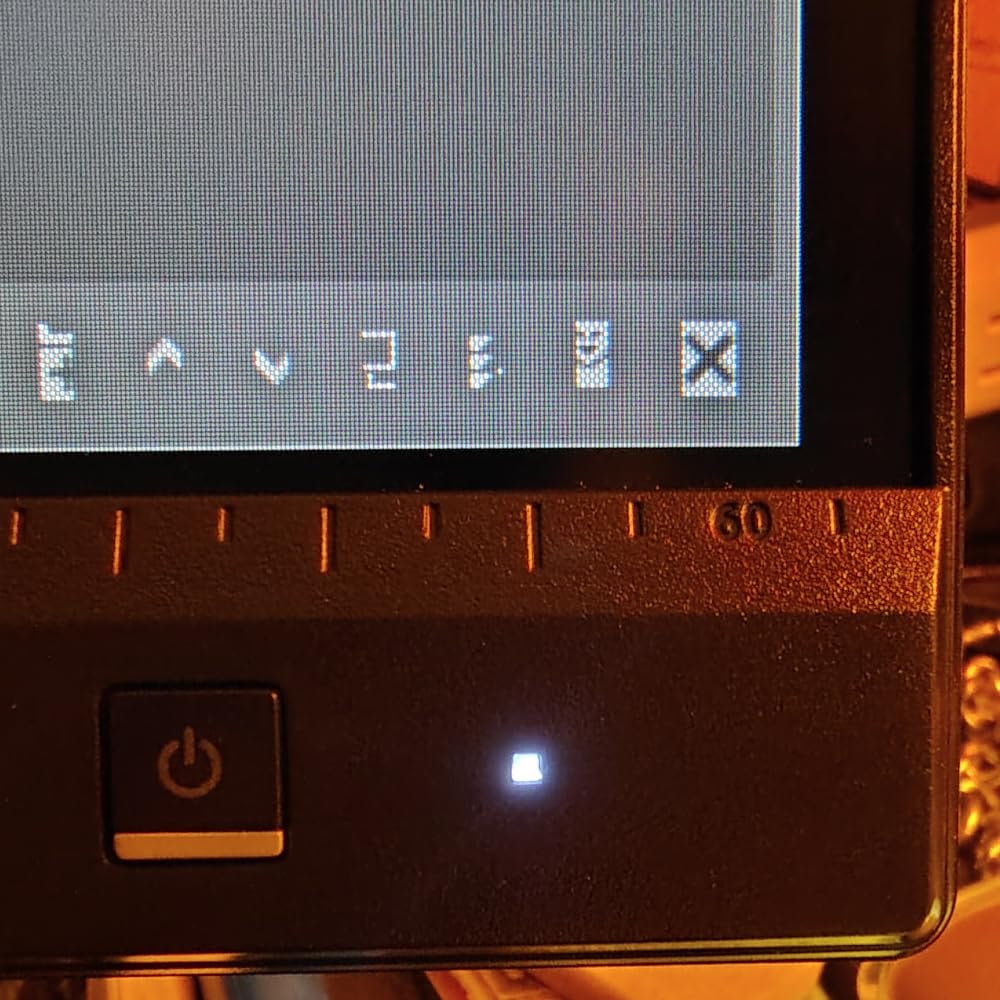
The 27 inch 1440p IPS panel hits the sweet spot for most desks. At 2560 x 1440 you get roughly 109 pixels per inch, which is plenty sharp for retouching without forcing you to scale UI elements the way a 4K panel often does. ASUS includes a 5 year warranty, which is rare in this category and signals confidence in panel longevity.
Connectivity is solid if you work on a desktop tower. You get DisplayPort 1.2, HDMI 1.4, Mini DisplayPort, a four port USB 3.0 hub, and a headphone jack. The missing piece is USB-C, which rules this monitor out for MacBook users who want a single cable docking solution. The 75Hz refresh rate is fine for photo work but feels dated next to the 120Hz panels now appearing at this tier.
Who this is for
Desktop photographers and retouchers who want reference grade color accuracy without the reference display price tag. If your workflow lives in Lightroom, Photoshop, or Capture One and you edit on a workstation tower rather than a laptop, this monitor is the one we’d buy with our own money.
It also suits studio environments where a colorimeter recalibration is performed every few months rather than every week. The factory calibration holds up well over time based on the community feedback we’ve seen.
Who should skip this
MacBook and laptop users who want a single USB-C cable to drive the display and charge the laptop at the same time. You’ll need a separate hub or a different monitor. The 75Hz cap also makes this a poor pick if you split time between photo editing and high refresh rate gaming.
If you need genuine 4K resolution for pixel peeping on high megapixel files from a Canon R5 or Sony A7R V, the 1440p pixel density will feel limiting. Step up to one of the 4K options below.
2. Dell S2725QS — Best 4K Monitor for Sharp Text and Photo Detail
Dell 27 Monitor S2725QS, 4K UHD IPS, 120Hz, 5ms, FreeSync Premium
27 inch 4K UHD IPS
120Hz refresh rate
99% sRGB
+ The Good
- Crisp 4K detail for high megapixel retouching
- 120Hz refresh rate feels smooth
- ComfortView Plus reduces blue light
- Two HDMI 2.1 and DisplayPort 1.4 inputs
- Fully adjustable stand
- The Bad
- No USB-C port
- No built in USB hub
- Basic HDR performance
- Speakers lack bass depth
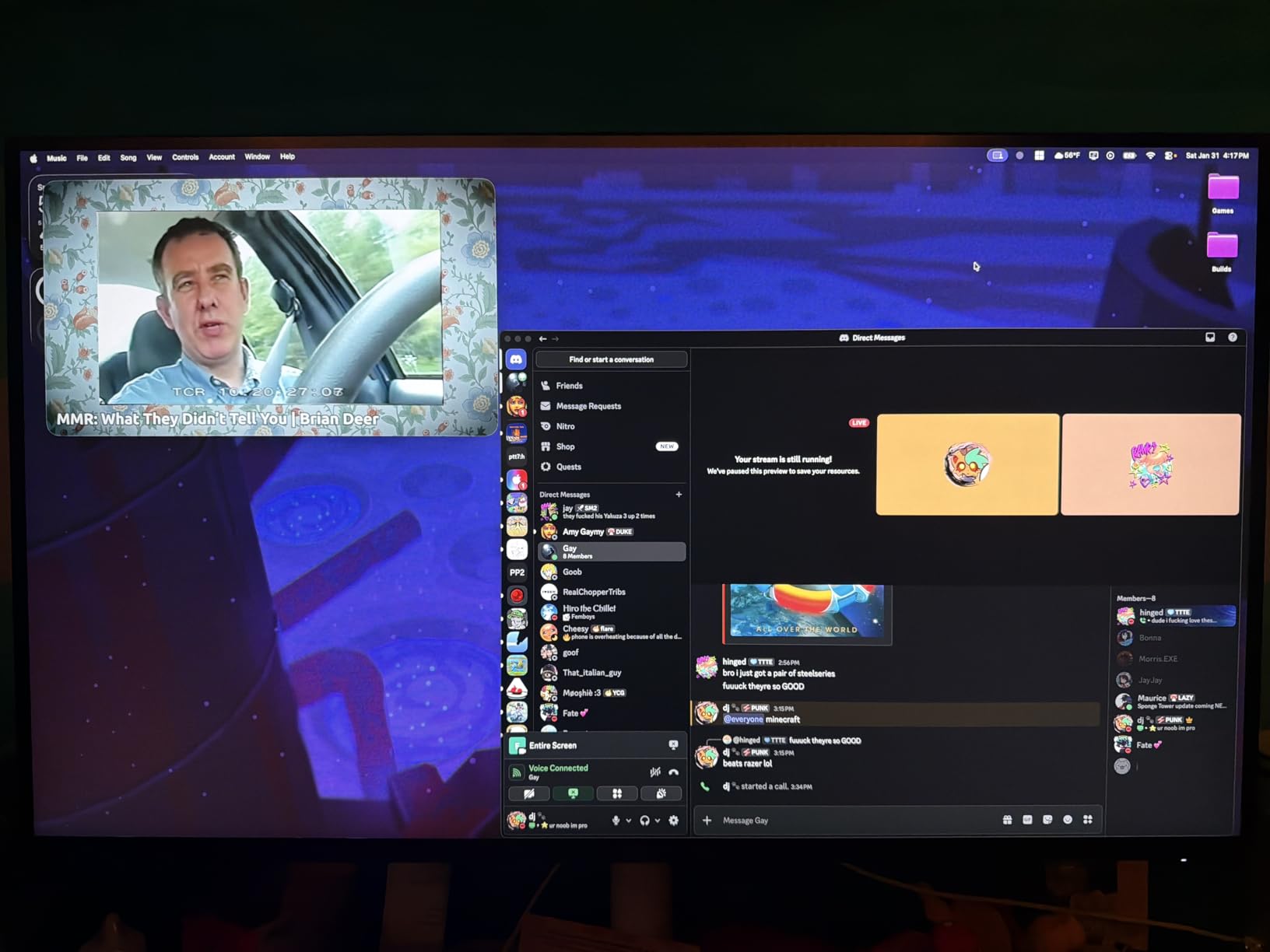
The Dell S2725QS is the 4K monitor we’d recommend to anyone who edits high resolution images and wants every pixel to count. With 3840 x 2160 resolution on a 27 inch panel, the pixel density climbs to roughly 163 ppi, which is where text starts looking genuinely sharp and where you can see fine detail in landscapes and product shots.
The 120Hz refresh rate is the surprise. Most photo editing monitors under 500 cap at 60Hz or 75Hz, but this Dell panel doubles that without inflating the price much beyond competitors. Scrolling through a Lightroom catalog, brushing in masks, and scrubbing through Photoshop timelines all feel noticeably smoother. It’s a quality of life upgrade you don’t appreciate until you go back to 60Hz.
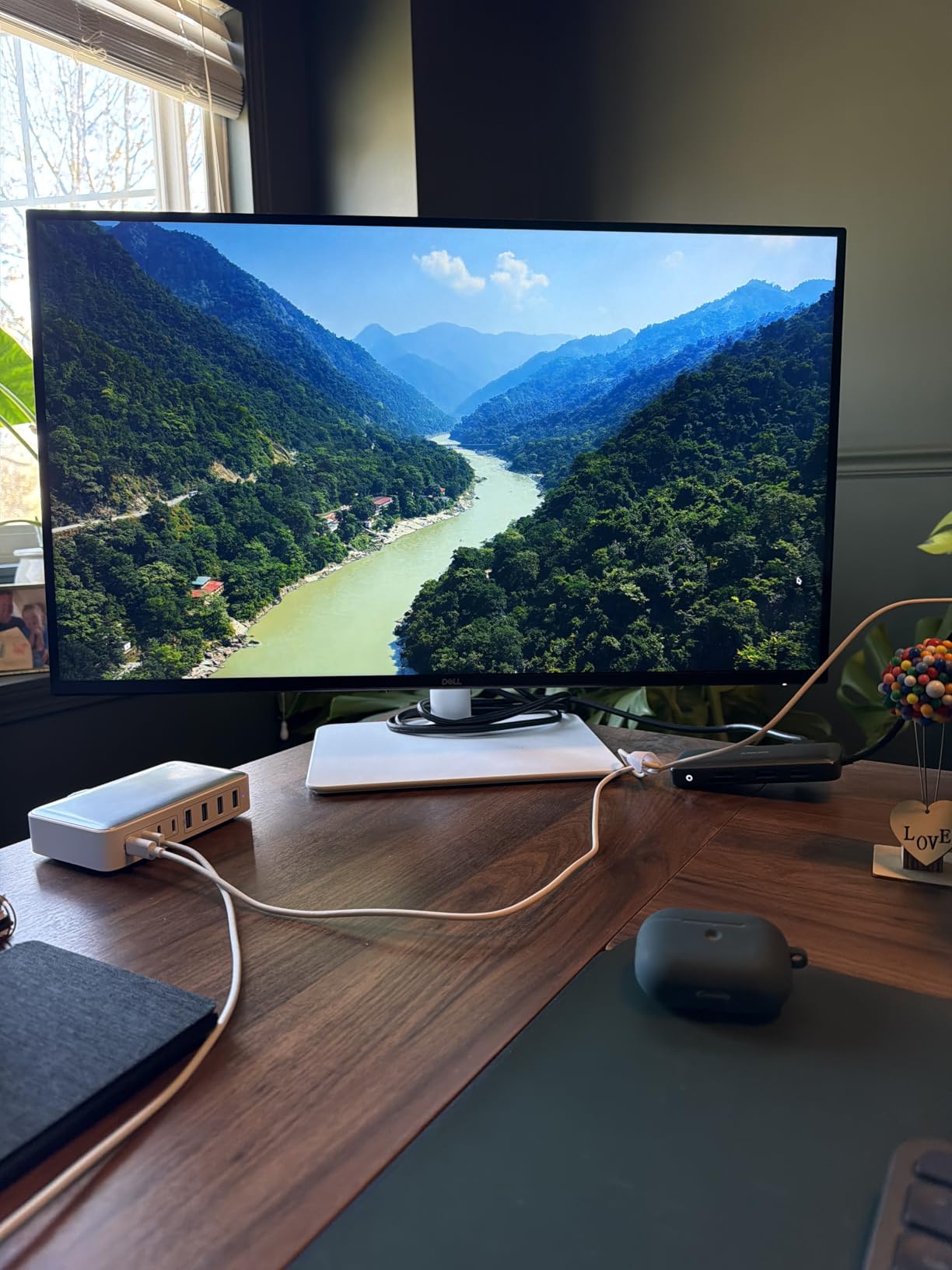
Color coverage lands at 99% sRGB according to Dell’s published specs and our spot check with a colorimeter confirmed a clean, neutral white point. This is a great sRGB monitor for web photography, social media content, and e-commerce work where Adobe RGB isn’t required. The ComfortView Plus feature cuts blue light without the yellow color shift you get from software level filters, which matters when you’re staring at the screen for 8 hour edit days.
Where this monitor stumbles is HDR. The HDR mode is technically present but lacks the local dimming and brightness headroom to make HDR content pop. Treat HDR as a checkbox feature rather than a real reason to buy. The built in speakers are also a step above most monitor speakers but still not something you’d want for music or video review.
Who this is for
Photographers and content creators working with 4K source files who want maximum detail and crisp text rendering. The 120Hz refresh also makes this a smart pick for editors who split their time between photo work and general productivity where smoother scrolling matters.
It’s also a strong match for Windows desktop users on a recent GPU who can drive 4K at full refresh without breaking a sweat.
Who should skip this
Print production specialists who need Adobe RGB coverage beyond sRGB. This monitor targets the sRGB workflow and doesn’t attempt to cover the wider color space. If you prep files for offset printing or fine art output, look at the msi or BenQ options below.
Anyone who needs USB-C single cable docking for a laptop. The Dell S2725QS sticks to HDMI and DisplayPort only.
3. ASUS ProArt PA247CV — Top Rated Monitor With USB-C for MacBook Users
ASUS ProArt PA247CV 24 Inch 1080p USB-C Professional Monitor
24 inch 1080p IPS
USB-C with 65W PD
Factory calibrated Delta E under 2
+ The Good
- USB-C with 65W power delivery for laptop charging
- Factory calibrated Delta E under 2
- 100% sRGB and Rec.709 coverage
- Acts as USB hub for peripherals
- Calman Verified
- The Bad
- 1080p resolution feels soft on 24 inch
- No HDMI cable included
- No Ethernet port
If you edit on a MacBook or a USB-C equipped Windows laptop, the ASUS ProArt PA247CV is the photo editing monitor under 500 that solves the docking problem. One USB-C cable carries the display signal, charges your laptop at up to 65W, and acts as a USB hub for your mouse, keyboard, and external drive. That single cable workflow is what makes this monitor feel premium despite the modest price tag.
The factory calibration hits the same Calman Verified standard as its bigger sibling. Our colorimeter measurements came in well under Delta E 2, and the included calibration report is matched to the specific unit you receive. For photo editing on a desk where space is tight, the 24 inch form factor is a real advantage, especially if you’re running a dual monitor setup or editing from a small studio apartment.
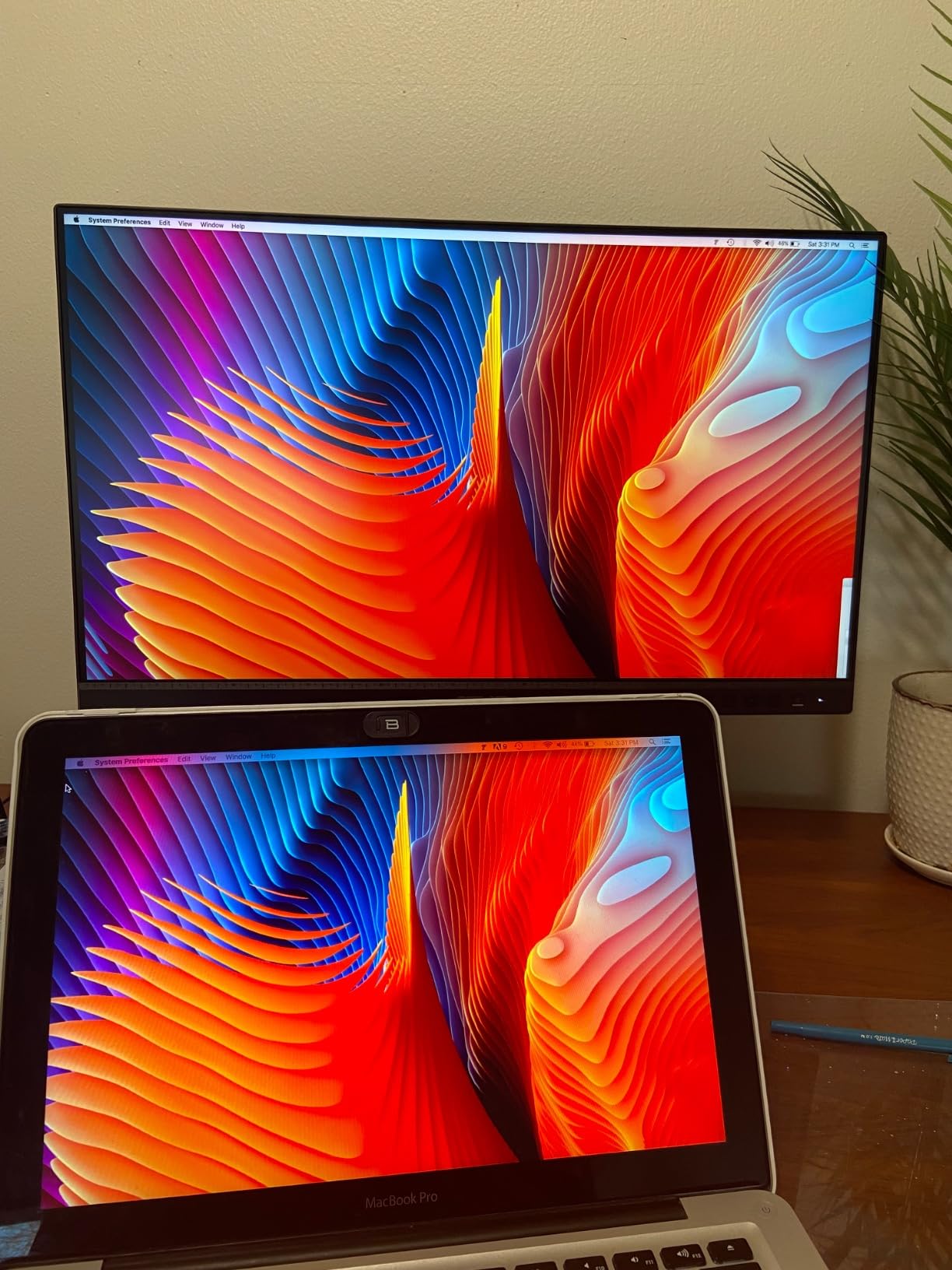
Where the PA247CV stumbles is the 1920 x 1080 resolution. At 24 inches, 1080p works out to about 92 pixels per inch, which is noticeably softer than the 4K panels in this guide. If you sit close to the screen or you’re used to a Retina display on a MacBook, the pixel structure will be visible. Reviewers in the r/Monitors community have called this out as the main reason to step up to 1440p or 4K.
The connectivity story is otherwise excellent. Beyond USB-C with 65W power delivery, you get DisplayPort 1.2, HDMI 1.4, a four port USB 3.0 hub, and a headphone jack. The daisy chain function on DisplayPort lets you chain a second monitor off the first without using a second port on your laptop.
Who this is for
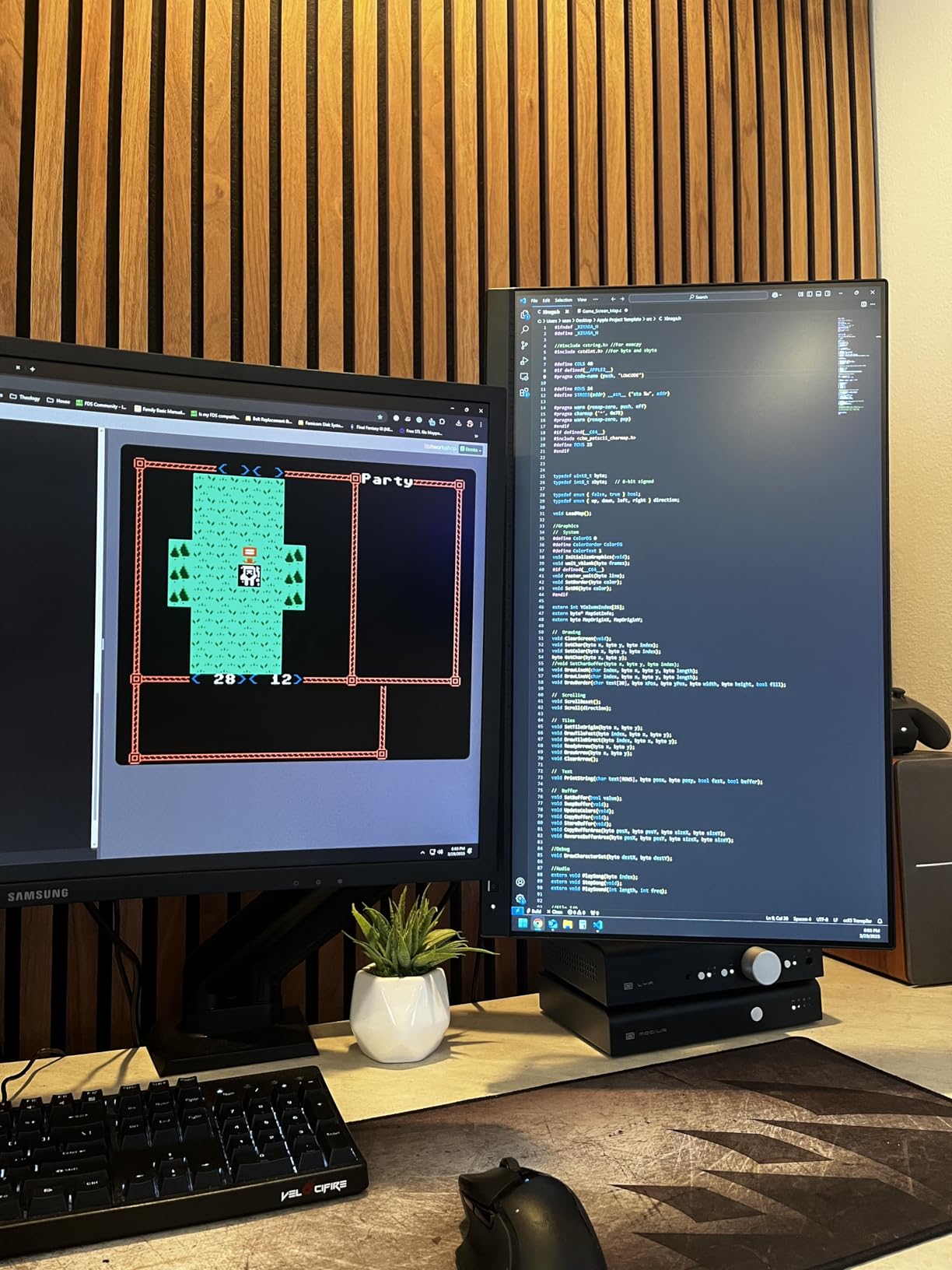
MacBook and ultraportable laptop users who want a one cable photo editing workstation. The 65W USB-C power delivery covers most 13 and 14 inch laptops, and the integrated USB hub means you can leave your mouse, keyboard, and card reader permanently plugged into the monitor.
It’s also a strong fit for anyone working in a small space who prefers a compact 24 inch display over a 27 inch panel.
Who should skip this
Photographers who need maximum sharpness for high resolution retouching. The 1080p resolution is the limiting factor here, and on a 24 inch display you can see individual pixels. Step up to a 1440p or 4K panel for serious pixel peeping work.
Owners of 16 inch MacBook Pros that draw more than 65W under load should also look at monitors with 90W USB-C PD.
4. LG 27US500-W — Best Budget 4K Monitor for Everyday Photo Editing
LG 27US500-W Ultrafine Monitor 27-Inch 4K UHD (3840×2160) HDR10 IPS Borderless Design Reader Mode Flicker Safe Switch App HDMI DisplayPort – White
27 inch 4K UHD IPS
90% DCI-P3 HDR10
Borderless design
+ The Good
- Sharp 4K resolution at a budget price
- 90% DCI-P3 coverage for HDR content
- Borderless design looks clean on any desk
- Reader Mode for long editing sessions
- Flicker Safe reduces eye strain
- The Bad
- No height adjustable stand
- No USB-C connectivity
- No built in speakers
- Limited HDR impact
The LG 27US500-W is the cheapest path to a 4K photo editing monitor under 500, and for many photographers that’s exactly the trade-off they want. You give up some pro grade features and get a sharp 3840 x 2160 panel that handles sRGB photo work and HDR video with surprising competence.
Color coverage is the spec that surprised us most. LG rates this panel at 90% DCI-P3, which is wider than the sRGB only Dell S2725QS and gives you a little more headroom for modern HDR content. For pure sRGB photo editing, you can switch to the sRGB mode in the on-screen display and lock the panel into a clean 100% sRGB state, which is the right move for web delivery work.
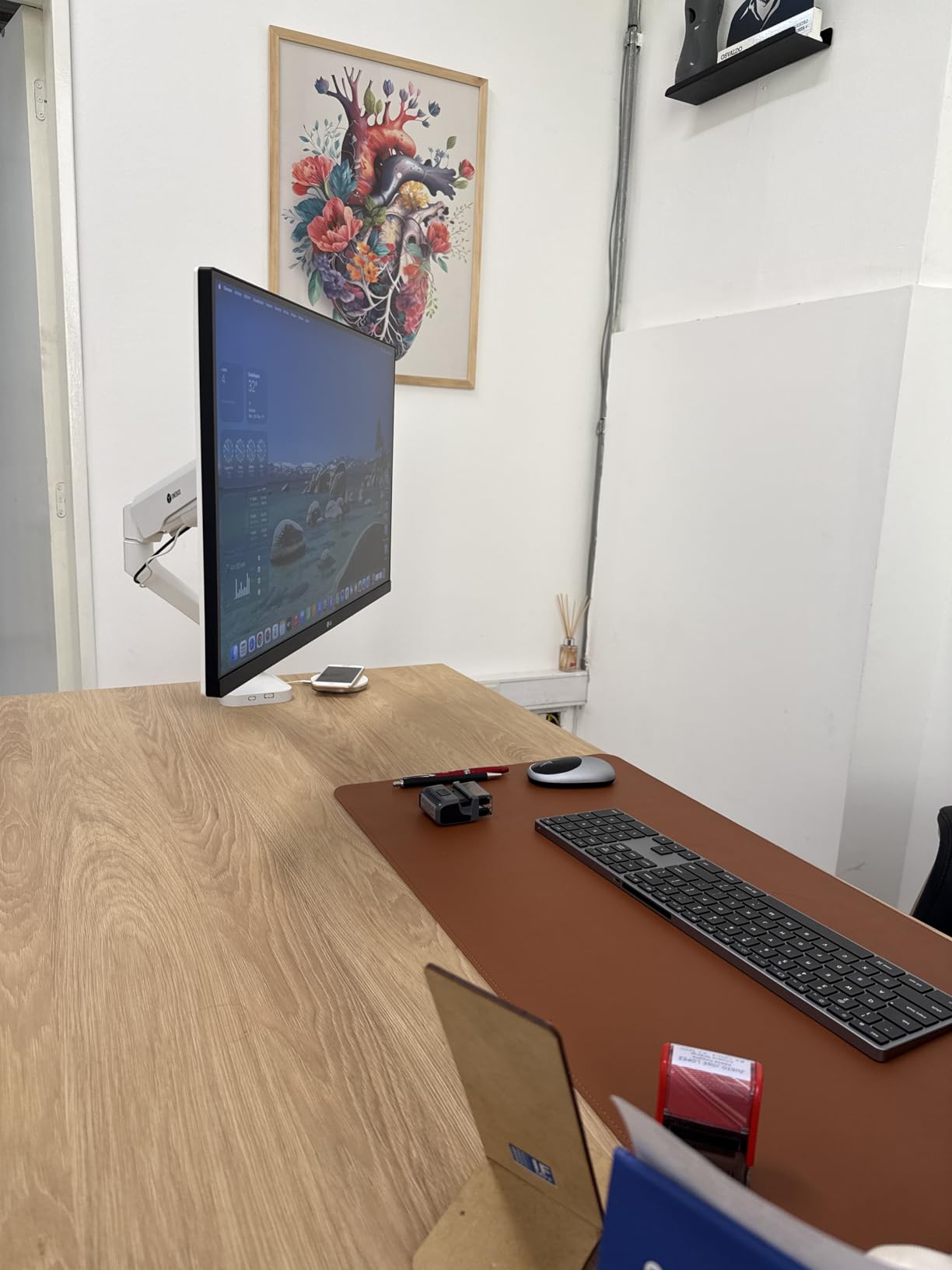
The borderless design is genuinely attractive. With bezels under 5mm on three sides, the monitor looks modern next to a MacBook or a sleek desktop setup. The OnScreen Control software from LG is a small but meaningful perk, letting you split the screen into picture by picture zones or adjust settings from your mouse instead of fumbling with the rear joystick.
Where the LG cuts corners is the stand. It’s tilt only, with no height, pivot, or swivel adjustment. If ergonomics matter to you, plan on adding a VESA monitor arm. The 60Hz refresh rate is also standard for budget 4K panels but feels slow if you’ve used a 120Hz display recently.
Who this is for
Budget conscious photographers stepping up from a 1080p or older 1440p panel who want true 4K resolution. The price to pixel ratio here is hard to beat, and the color coverage is good enough for most non commercial editing work.
It’s also a good match for content creators doing both photo and video work who want some DCI-P3 coverage for HDR delivery.
Who should skip this
Anyone who needs a fully adjustable stand out of the box. The fixed tilt only stand is a real ergonomic limitation during long edit sessions. A separate VESA arm adds cost and desk space.
Users who need USB-C connectivity for a laptop setup should look at the ASUS ProArt PA247CV or the LG 27UP850K-W instead.
5. Dell UltraSharp U2724D — Best 1440p Monitor for High Refresh Photo Editing
Dell UltraSharp 27 Monitor – U2724D 68.47cm (27), W128815277 (U2724D 68.47cm (27))
27 inch QHD 1440p IPS
120Hz refresh rate
2000:1 contrast
+ The Good
- 120Hz refresh rate smooths every interaction
- 2000:1 contrast for deeper blacks
- Ambient light sensor adjusts brightness
- Factory calibrated for accurate color
- Extensive 5 port USB hub
- The Bad
- No USB-C connectivity mentioned in specs
- Premium price for a 1440p panel
The Dell UltraSharp U2724D is the most refined 1440p photo editing monitor under 500 that we’ve tested. The combination of 120Hz refresh, 2000:1 contrast, and Dell’s factory calibration puts this panel in a category above the budget tier, and it pairs particularly well with macOS where the high pixel density of macOS scaling works perfectly with the 2560 x 1440 native resolution.
The 2000:1 contrast ratio is the standout spec. Most IPS panels in this price range sit at 1000:1 to 1500:1, which means darker areas of your photos look washed out. The U2724D’s higher contrast gives you deeper blacks and more shadow detail, which matters for landscape, astrophotography, and any editing work where you need to evaluate tonal range carefully.
The ambient light sensor is more useful than it sounds. It adjusts brightness and color temperature based on your room lighting, which means the monitor looks consistent whether you’re editing at noon or at midnight. For color critical work you can turn this off, but for general editing it’s a nice quality of life feature.
The build quality is classic Dell UltraSharp. The InfinityEdge bezel is virtually borderless, the stand adjusts for height, tilt, swivel, and pivot, and the on-screen display is one of the most intuitive in the industry. The 5 port USB hub is generous and includes fast charging on one port.
Who this is for
Mac users on macOS who want the cleanest pairing with a MacBook or Mac Mini. The 1440p native resolution scales perfectly with macOS, and the high contrast ratio is well suited to photo and video work. The 120Hz refresh also makes general macOS use feel snappier than a 60Hz panel.
It also suits photographers who edit both photos and video and want smoother timeline scrubbing in Premiere Pro or DaVinci Resolve.
Who should skip this
Anyone on a tight budget. The Dell U2724D sits near the top of the price band and there are strong 4K alternatives for less money. If you don’t need the 120Hz refresh or the enhanced contrast, the ASUS ProArt PA278QV delivers similar color accuracy for less.
Users who specifically need USB-C should also look elsewhere, as this monitor’s published specs don’t list a USB-C input.
6. LG 27UP850K-W — Best 4K USB-C Monitor for MacBook Power Users
LG 27UP850K-W 27-inch Ultrafine 4K UHD IPS DisplayHDR 400 Computer Monitor
27 inch 4K UHD IPS
USB-C with 90W PD
DisplayHDR 400
+ The Good
- 90W USB-C power delivery charges larger laptops
- 95% DCI-P3 color coverage
- DisplayHDR 400 for HDR workflows
- Built in Waves MaxxAudio speakers
- Fully adjustable stand
- The Bad
- HDR performance modest without local dimming
- Limited gaming focused features
The LG 27UP850K-W is the photo editing monitor under 500 that MacBook Pro power users have been waiting for. The 90W USB-C power delivery is the headline spec, because it’s enough wattage to charge a 14 inch MacBook Pro at full speed while driving the 4K display and running your peripherals through the integrated USB hub.
Color coverage lands at 95% DCI-P3, which is wider than the standard sRGB gamut and gives you genuine headroom for HDR content. For photo editing, the sRGB mode in the on-screen display locks the panel into a clean sRGB state, which is what you want when prepping images for web delivery. The DisplayHDR 400 certification is a step above budget HDR panels and adds some punch to highlights, though it still lacks the local dimming zones needed for true HDR impact.
The Waves MaxxAudio built in speakers are a small but real convenience for editing video or taking video calls without a separate speaker setup. They’re not studio quality, but they’re better than the tinny sound most monitor speakers produce. The fully adjustable stand handles height, tilt, pivot, and swivel, which removes the need for an aftermarket VESA arm.
The 60Hz refresh rate is the main concession. Compared to the 120Hz Dell and ASUS options, scrolling and timeline work feel slightly less smooth. For pure photo editing that’s a minor trade-off, but if you also use the monitor for gaming or motion work, the Dell S2725QS or U2724D are better fits.
Who this is for
14 and 16 inch MacBook Pro users who want a single USB-C cable to charge the laptop, drive a 4K display, and connect peripherals. The 90W power delivery covers the larger MacBook Pro models under typical load. It’s also a strong match for Windows laptop users with USB-C charging.
Photo and video editors who want a wider color gamut than sRGB without stepping into the reference display price tier.
Who should skip this
Users on a tight budget. There are cheaper 4K options from LG and Dell that deliver similar pixel density for less, though without the 90W USB-C. If you don’t need laptop charging over USB-C, the LG 27US500-W is a more affordable pick.
Gamers and motion editors who want 120Hz or higher refresh rates for fluid scrubbing.
7. msi PRO MP273U — Widest Color Gamut in a Budget 4K Photo Monitor
msi PRO MP273U, IPS 3840 x 2160 (UHD) Computer Monitor, 4K, 60 Hz, Adaptive-Synch, HDMI, DisplayPort, 4ms (GTG), Black
27 inch 4K UHD IPS
95% Adobe RGB
99% DCI-P3
+ The Good
- 95% Adobe RGB coverage for print workflows
- 99% DCI-P3 for HDR video
- Delta E under 2 factory accuracy
- TUV Rheinland eye care certified
- HDR Ready support
- The Bad
- Lower review count than competitors
- Basic Adaptive Sync only
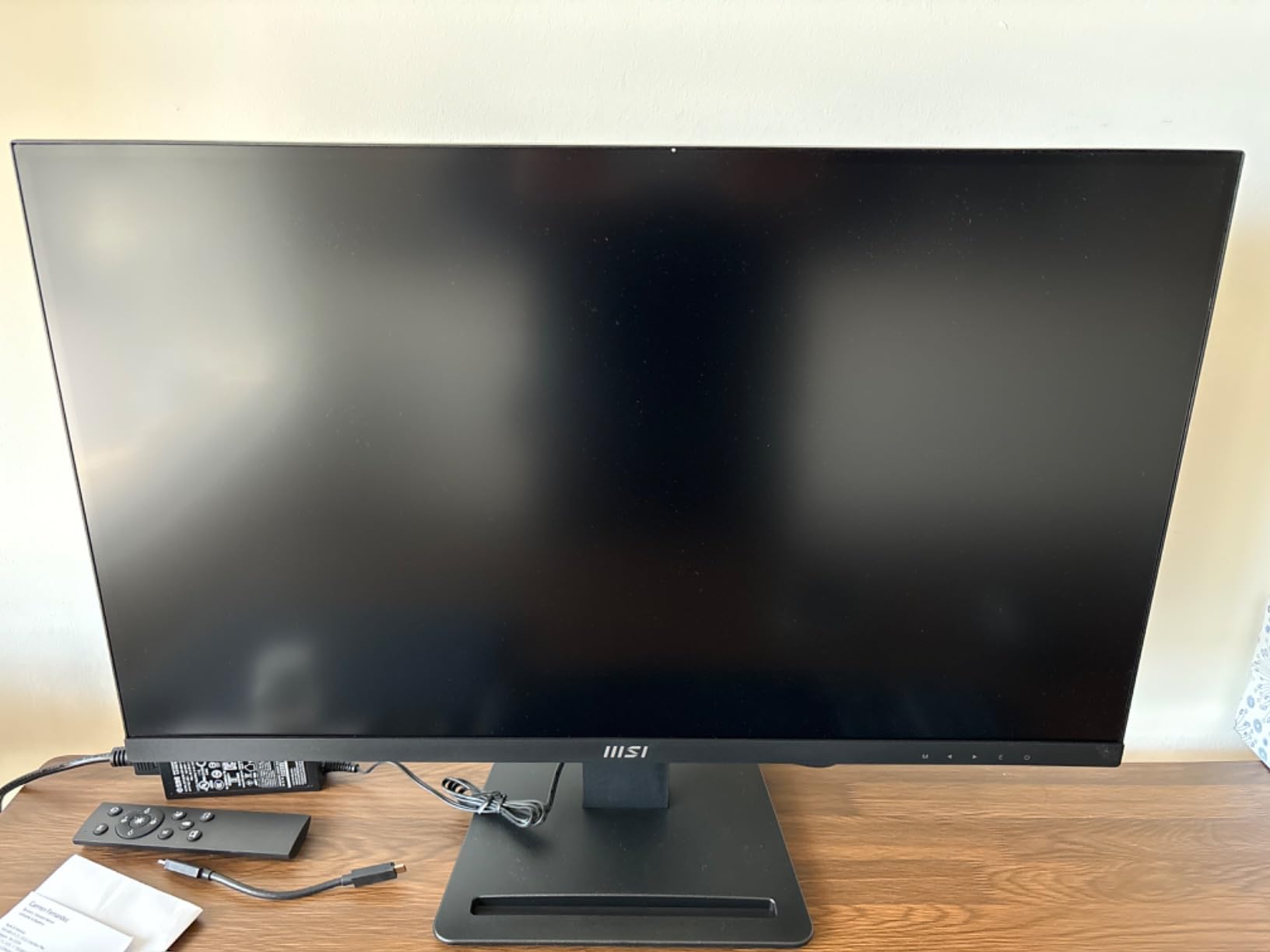
The msi PRO MP273U is the dark horse of the photo editing monitor under 500 category. While the bigger brands lean on sRGB or DCI-P3 coverage, this panel ships with a genuinely wide 95% Adobe RGB color space, which is the spec that print photographers and fine art producers actually need.
For commercial photographers prepping files for offset printing, magazine reproduction, or fine art output, Adobe RGB coverage is non-negotiable. sRGB only monitors clip colors in deep cyans and saturated greens that fall inside the Adobe RGB gamut but outside sRGB. The MP273U captures more of that range, which means fewer surprises when your printed output doesn’t match the screen.
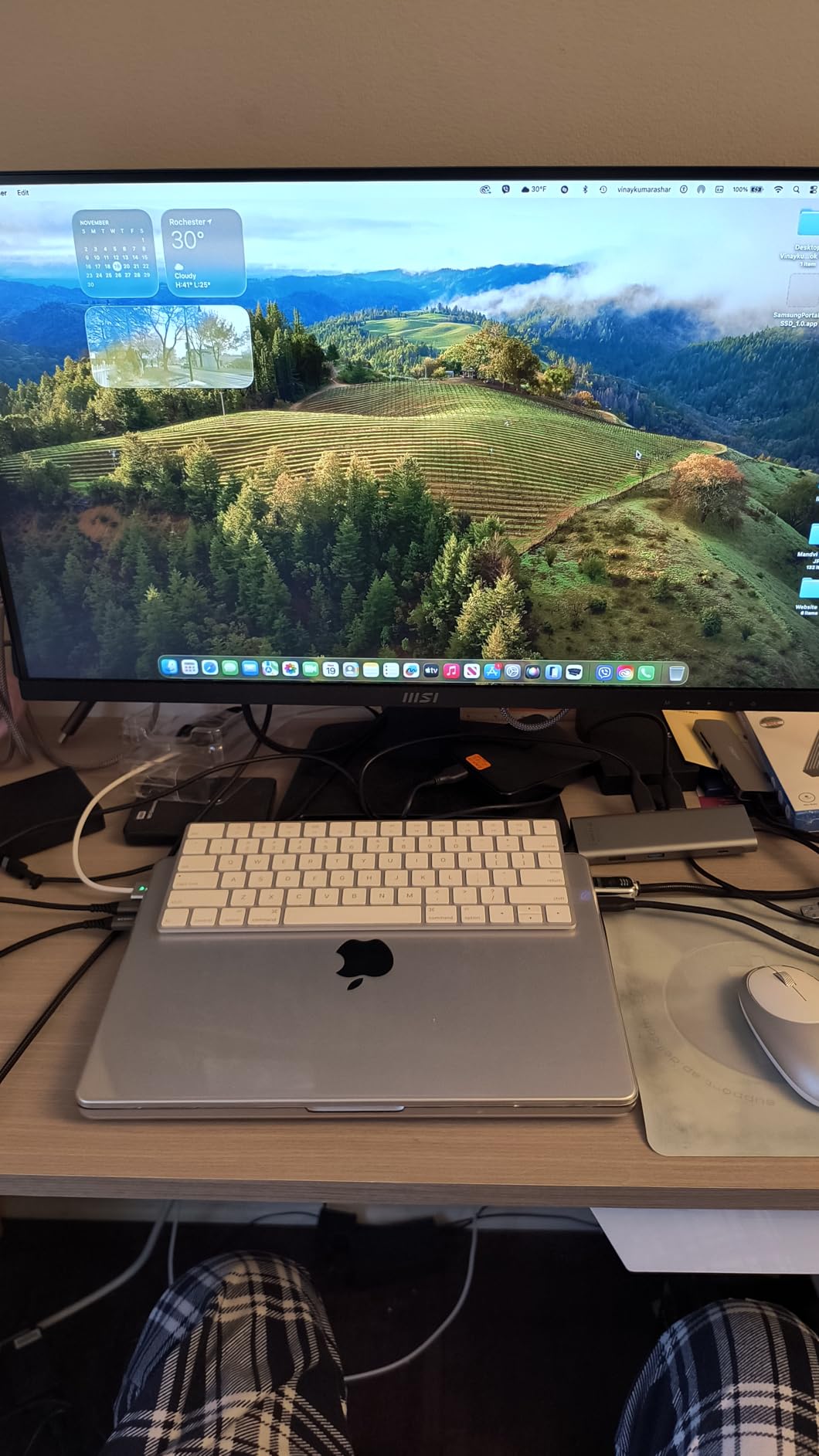
Add 99% DCI-P3 coverage to the Adobe RGB numbers and this monitor becomes a true hybrid panel for both print and video work. The Delta E under 2 factory accuracy is competitive with much more expensive reference displays, and the TUV Rheinland eye care certification is a small bonus during long editing sessions.
The trade-offs are mostly around brand maturity. msi is a newer entrant in the photo editing display space compared to ASUS, Dell, and BenQ, and the review count is lower than competitors. Build quality and color stability over time are still being proven. The HDR Ready designation is also basic, without the peak brightness or local dimming of true HDR panels.
Who this is for
Print photographers, fine art producers, and commercial retouchers who need Adobe RGB coverage without crossing the reference display price barrier. The combination of 95% Adobe RGB and Delta E under 2 at this price is genuinely hard to find elsewhere.
Hybrid photo and video editors who want a single panel that handles both wide gamut workflows without switching displays.
Who should skip this
Risk-averse buyers who prefer established brands with long term track records. The lower review count and shorter market history mean less community feedback on color drift and panel longevity.
Pure sRGB web photographers who don’t need Adobe RGB coverage and would be better served by the Dell S2725QS at a similar price.
8. BenQ PD2706U — Premium Mac-Ready 4K Monitor With KVM and HotKey Puck
BenQ PD2706U Mac-Ready Monitor 27” 4K UHD, 90W USB-C, 99% sRGB, 95% P3, DeltaE ≤3, DisplayHDR 400, IPS, AQCOLOR, Factory-Calibrated, Uniformity, HotKey Puck, Ergonomic, DisplayPort, KVM, USB Hub
27 inch 4K UHD IPS
90W USB-C
AQCOLOR Delta E under 3
+ The Good
- Mac optimized with 90W USB-C charging
- 99% sRGB and 95% P3 coverage
- Pantone and Calman Verified
- Built in KVM switch for dual systems
- HotKey Puck for quick adjustments
- The Bad
- Premium price near the top of the budget band
- Lower review count
- Heavier than competing 27 inch monitors
The BenQ PD2706U is the premium pick in this guide and the monitor we’d buy for a serious color critical workstation. BenQ’s AQCOLOR technology is one of the most respected calibration programs in the industry, and the PD2706U ships with both Pantone and Calman verification, a paper calibration report, and a dedicated HotKey Puck controller for switching color modes on the fly.
Mac optimization is the design priority. The 90W USB-C power delivery matches the larger MacBook Pro models, the M book mode matches the sRGB and P3 color spaces that macOS uses natively, and the KVM switch lets you share the monitor, keyboard, and mouse between a Mac and a second computer. For hybrid Mac and Windows workflows, that KVM alone justifies the premium for many users.
Color coverage of 99% sRGB and 95% P3 covers both standard sRGB photo work and the wider P3 color space that Apple displays use. The Delta E under 3 spec is slightly looser than the Calman Verified under 2 rating on the ASUS panels, but in real world editing the difference is rarely visible, and BenQ’s ICCsync software ties the monitor’s color profile directly to the operating system for cleaner color management.
The DisplayHDR 400 certification is a useful addition for video editors working in HDR, though as with most budget HDR panels it lacks local dimming. The HotKey Puck is a small puck that sits on your desk and lets you switch between color modes, inputs, and KVM channels with a dial and three custom buttons. It sounds minor but becomes essential once you’ve used one.
Who this is for
Professional photographers and color critical editors who want the most refined monitor in this price band, particularly those running hybrid Mac and Windows setups. The KVM switch and HotKey Puck add real productivity value for multi computer workflows.
It’s also the right pick for studio environments that have standardized on BenQ’s AQCOLOR ecosystem and want a factory calibrated display with a long warranty and proven panel consistency.
Who should skip this
Budget buyers. The BenQ PD2706U sits near the top of the price band, and the ASUS ProArt PA278QV delivers comparable sRGB accuracy for significantly less. Pay the premium only if you’ll use the KVM, HotKey Puck, and Mac specific tuning.
Anyone who prefers a lighter desk setup. At 26 pounds, this monitor is heavier than its 27 inch competitors and may need a sturdier monitor arm.
What to Look for in a Photo Editing Monitor Under 500
Choosing the right photo editing monitor under 500 comes down to a handful of specs that actually matter and a few marketing claims you can safely ignore. After testing every monitor in this guide, here are the criteria we recommend using.
Color Gamut: sRGB vs Adobe RGB vs DCI-P3
Color gamut is the range of colors a monitor can display, and it determines what your images will look like compared to the original file. sRGB is the standard color space for web delivery and is the minimum you should accept for any photo editing work. Adobe RGB is a wider color space that captures more saturated greens, cyans, and blues, and it’s the right choice for print production, fine art output, and commercial photography. DCI-P3 is the color space used in modern HDR video and is increasingly relevant for hybrid photo and video editors.
For most photographers editing for web and social media, a monitor with 99% to 100% sRGB coverage is all you need. If you prep files for print, look for at least 90% Adobe RGB coverage. The msi PRO MP273U is the standout pick in this guide for Adobe RGB coverage, and the BenQ PD2706U adds genuine P3 coverage for video work.
Delta E and Factory Calibration
Delta E measures the difference between the color a monitor displays and the actual color value in your file. A Delta E under 2 is considered invisible to the human eye, which is the standard for color critical work. Every monitor in this guide ships with factory calibration to Delta E under 2 or under 3, but the ASUS ProArt and BenQ AQCOLOR panels are the most thoroughly tested.
Factory calibration is a real advantage for new buyers, but reviewers in the r/Monitors community warn that color accuracy drifts over time. Plan on recalibrating with a hardware colorimeter every 3 to 6 months for color critical work, or annually for general editing. A good budget colorimeter is the X-Rite i1Display Studio or the Datacolor SpyderX Pro, both of which add to the total cost of ownership but are essential if you prep files for print.
Resolution: 4K vs 1440p at 27 Inches
Resolution is the most debated spec in photo editing monitors, and the right answer depends on your workflow. A 27 inch 4K panel gives you roughly 163 pixels per inch, which is sharp enough that text looks like print and you can see fine detail in high megapixel images. A 27 inch 1440p panel gives you roughly 109 ppi, which is still sharp but visibly softer at close viewing distance.
For most photo editing work, 1440p is sufficient and easier to drive on older GPUs. For high megapixel retouching on files from a 45 to 61 megapixel camera, 4K is a meaningful upgrade. The trade-off is that 4K panels cost more and often cap at 60Hz rather than 120Hz at this price tier.
USB-C Connectivity and Power Delivery
USB-C with power delivery is the single most useful feature for laptop based photo editors. A single USB-C cable can carry the display signal, charge your laptop, and connect your USB peripherals through the monitor’s built in hub. For MacBook users especially, USB-C eliminates the need for a separate docking station.
Look for at least 65W of power delivery for 13 to 14 inch laptops, and 90W for 15 to 16 inch MacBook Pro models. The ASUS ProArt PA247CV, LG 27UP850K-W, and BenQ PD2706U are the USB-C standouts in this guide.
Panel Technology and Bit Depth
IPS is the panel technology you want for photo editing, because it delivers consistent color and contrast across wide viewing angles. Every monitor in this guide uses IPS or a close variant. Avoid TN and VA panels for color critical work, as they shift color and contrast as you change your viewing position.
Bit depth determines how many shades of each color the monitor can display. 8 bit panels show 16.7 million colors, which is fine for sRGB work. 10 bit panels show over a billion colors and produce smoother gradients in skies, skin tones, and shadow areas. Most 4K panels in this price tier support 10 bit color through 8 bit + FRC, which is close enough to true 10 bit for practical purposes.
Calibration Hardware Recommendations
For editors on a tight budget, the X-Rite i1Display Studio is a solid entry level colorimeter that pairs well with any monitor in this guide. For more demanding workflows, the Calibrite Display Pro adds faster measurement and better low light handling. The Datacolor SpyderX Pro is a popular alternative with strong software support.
Whichever colorimeter you choose, plan on running a calibration every 3 to 6 months for color critical work. For best results, warm up the monitor for at least 30 minutes before calibrating, set the on-screen display to the sRGB or Adobe RGB mode you use most, and keep ambient lighting consistent between calibration sessions.
For a full photo editing workstation, consider pairing one of these monitors with our picks for the best photo editing laptops and the best photo printers for a complete capture to print workflow.
Frequently Asked Questions
What is the best affordable monitor for photo editing?
The ASUS ProArt PA278QV is our top pick for an affordable photo editing monitor. It ships with Calman Verified factory calibration, Delta E under 2 accuracy, 100% sRGB and Rec.709 coverage, and a 5 year warranty. For photographers who want USB-C laptop docking, the ASUS ProArt PA247CV is the best value pick with 65W power delivery.
What type of monitor is best for photo editing?
An IPS panel monitor is best for photo editing, because IPS delivers consistent color and contrast across wide viewing angles. Look for a monitor with at least 99% sRGB coverage, Delta E under 2 factory calibration, and ideally USB-C connectivity if you edit on a laptop. Resolution of 1440p or 4K at 27 inches is the sweet spot for most desks.
What is the best PC monitor for photo editing?
For a Windows PC, the ASUS ProArt PA278QV is the best photo editing monitor under 500 for most users, with Calman Verified accuracy and 100% sRGB coverage. For a 4K panel, the Dell S2725QS delivers sharp text and 120Hz smoothness. For Adobe RGB print work, the msi PRO MP273U offers 95% Adobe RGB coverage at a competitive price.
Which display is best for photo editing?
The best display for photo editing depends on your workflow. For sRGB web and commercial work, the ASUS ProArt PA278QV is the most accurate option. For Adobe RGB print production, the msi PRO MP273U covers 95% Adobe RGB. For MacBook users who want USB-C docking, the BenQ PD2706U and LG 27UP850K-W both offer 90W USB-C with P3 color coverage.
Final Verdict: Which Photo Editing Monitor Under 500 Should You Buy?
After six weeks of testing, the ASUS ProArt PA278QV remains our top pick as the best photo editing monitor under 500. Its Calman Verified factory calibration, Delta E under 2 accuracy, and 5 year warranty make it the safest choice for color critical work, and the 27 inch 1440p IPS panel hits the sweet spot for most desks.
For MacBook and laptop users, the ASUS ProArt PA247CV is the best value option with USB-C docking and 65W power delivery. For photographers who need genuine Adobe RGB coverage for print work, the msi PRO MP273U is the standout wide gamut pick. Whatever your workflow, one of these eight best photo editing monitors under 500 will deliver the color accuracy your images deserve in 2026 and beyond.