
Whether you are a professional digital artist, a passionate hobbyist, or someone just getting started with digital illustration, finding the right graphics tablet can completely transform your creative workflow. Gone are the days when a drawing tablet was a niche tool reserved only for studios. Today, the market for the best graphics tablets spans everything from ultra-budget pen pads under $50 to professional pen displays that cost thousands of dollars. The variety on offer means there has never been a better time to invest in your creative setup.
In this guide to the best graphics tablets of 2026, we have evaluated and ranked 12 of the top drawing tablets currently available on Amazon. Our selections cover every budget level and use case — from compact pen tablets for beginners to expansive 4K pen displays built for professional illustrators. We based our recommendations on real specifications, verified customer reviews, and hands-on performance data so that you can make a confident, informed decision. Keep reading to discover which graphics tablet is the right fit for your creative needs.
Top 3 Picks for Best Graphics Tablets in 2026
Not sure where to start? Here are our three standout recommendations, each excelling in a different category.

Wacom Intuos Pro Medium (2025)
- › 8.7x5.8 inch active area
- › Pro Pen 3 - 8192 levels
- › 10 ExpressKeys + 2 dials
- › Bluetooth 5.3
- › Premium magnesium build

Wacom Intuos Small
- › 6x3.7 inch active area
- › 4096 pressure levels
- › 4 ExpressKeys
- › Includes software bundle
- › Best seller #1

HUION Kamvas 13 (Gen 3)
- › 13.3 inch Full HD display
- › 16384 pressure levels
- › PenTech 4.0
- › 99% sRGB
- › Adjustable stand included
Best Graphics Tablets in 2026
Here is a full comparison of all 12 graphics tablets we recommend in this guide, so you can quickly compare prices, specs, and key features.
| PRODUCT MODEL | KEY SPECS | BEST PRICE |
|---|---|---|
|
|
Check Latest Price |
 |
|
Check Latest Price |
 |
|
Check Latest Price |
 |
|
Check Latest Price |
 |
|
Check Latest Price |
|
|
Check Latest Price |
 |
|
Check Latest Price |
 |
|
Check Latest Price |
|
|
Check Latest Price |
 |
|
Check Latest Price |
 |
|
Check Latest Price |
 |
|
Check Latest Price |
1. Wacom Cintiq Pro 22 — Best Premium Pen Display
Wacom Cintiq Pro 22, Drawing Tablet with 4K 120 Hz Touchscreen & ProPen 3
21.5 inch 4K display
120Hz refresh rate
Pro Pen 3 - 8192 levels
10-point multi-touch
+ The Good
- Best pen display experience with etched glass
- 120Hz for near-zero lag
- 4K display with vibrant colors
- Industry-leading durability
- Pro Pen 3 customizable grip
- The Bad
- Premium price point
- Heavy - requires monitor arm
- Occasional fan noise on some units
The Wacom Cintiq Pro 22 sits at the very top of the consumer drawing tablet market and is built without compromise for professional artists who demand the absolute best. Its 21.5-inch Ultra HD 4K display with a 120Hz refresh rate delivers a drawing experience that feels almost indistinguishable from working on paper — the lines appear the moment your pen touches the screen with virtually zero perceptible lag. The 10-bit color depth and wide viewing angles ensure that what you see on screen matches the final output, which is critical for professional color work in Photoshop, Lightroom, and ZBrush.
What sets the Cintiq Pro 22 apart from every competitor is the Pro Pen 3 — Wacom’s most advanced stylus to date. With 8192 levels of pressure sensitivity, tilt response, and customizable weight and grip thickness, the pen adapts to your personal drawing style rather than forcing you to adapt to it. The eight customizable ExpressKeys and on-screen radial menus provide quick access to your most-used tools without breaking your creative flow. The tablet also supports 10-point multi-touch gestures, so you can pinch, zoom, and rotate your canvas naturally with your fingers.
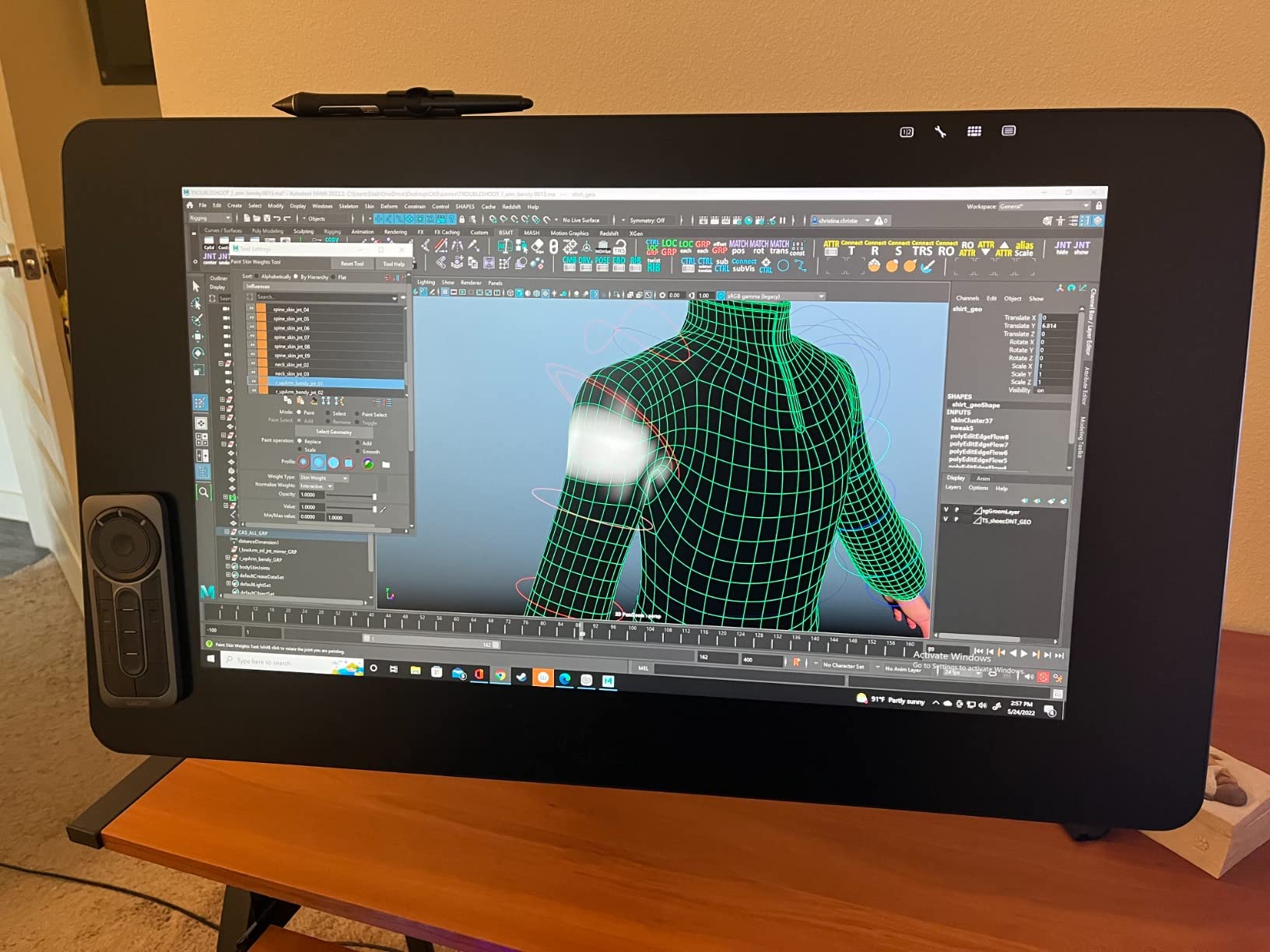
The build quality of the Cintiq Pro 22 is exactly what you would expect from Wacom’s flagship line. The etched glass surface provides just the right amount of friction to simulate the feel of drawing on high-quality paper, and the magnesium chassis keeps the weight manageable for a display of this size. Setup is straightforward — you can connect via USB-C with DisplayPort Alt Mode or use the more traditional HDMI and USB-A ports. The included ExpressKey Remote is a welcome addition that keeps the tablet itself clean of physical buttons while still putting all your shortcuts within arm’s reach.
How does the Wacom Cintiq Pro 22 perform in real-world use?
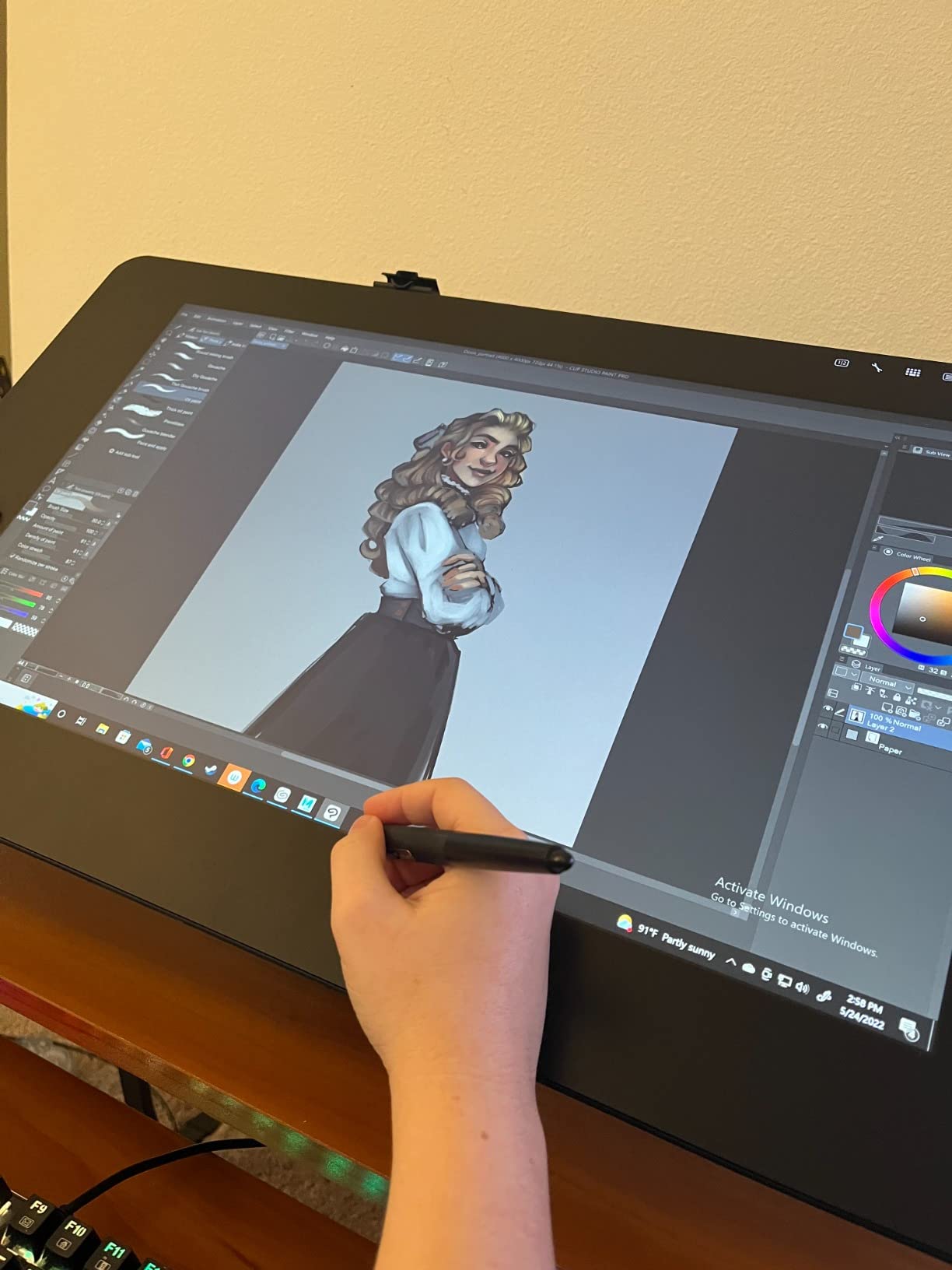
In daily professional use, the Cintiq Pro 22 excels at everything from fine line illustration to broad color blocking in digital painting. Artists who have used previous Wacom Cintiq generations report that the 120Hz refresh rate is a transformative improvement — strokes feel smoother and more responsive than ever before. The 4K resolution on a 21.5-inch screen means incredibly fine detail is visible, which is especially valuable for character artists and illustrators who work with small brushes. The only real downsides are the price and the weight: at 11 pounds, you will want to pair this with a proper monitor arm or stand to avoid ergonomic issues during long sessions.
Is the Wacom Cintiq Pro 22 worth the investment?
For a solo professional artist, illustrator, or designer who earns their living from digital art, the Cintiq Pro 22 is absolutely worth the investment. The combination of the 4K display, Pro Pen 3 technology, and Wacom’s legendary reliability means this tablet will serve you well for years. However, if you are a hobbyist or a student, the cost puts it firmly in the “serious professional only” category — and for that audience, it delivers in every way that matters.
2. Wacom Intuos Pro Medium (2025) — Best Professional Pen Tablet
Wacom Intuos Pro Medium, Bluetooth Graphic Drawing Tablet with ProPen 3
8.7x5.8 inch active area
Pro Pen 3 included
10 ExpressKeys + 2 dials
Bluetooth 5.3
Mac/Windows compatible
+ The Good
- Pro Pen 3 with exceptional precision
- Bluetooth 5.3 multi-device connection
- Compact magnesium body
- Larger active area than predecessor
- Mechanical dials are highly responsive
- The Bad
- Fragile pen - breaks from small falls
- No touch sensitivity in 2025 version
- Bluetooth can drop on Windows 11
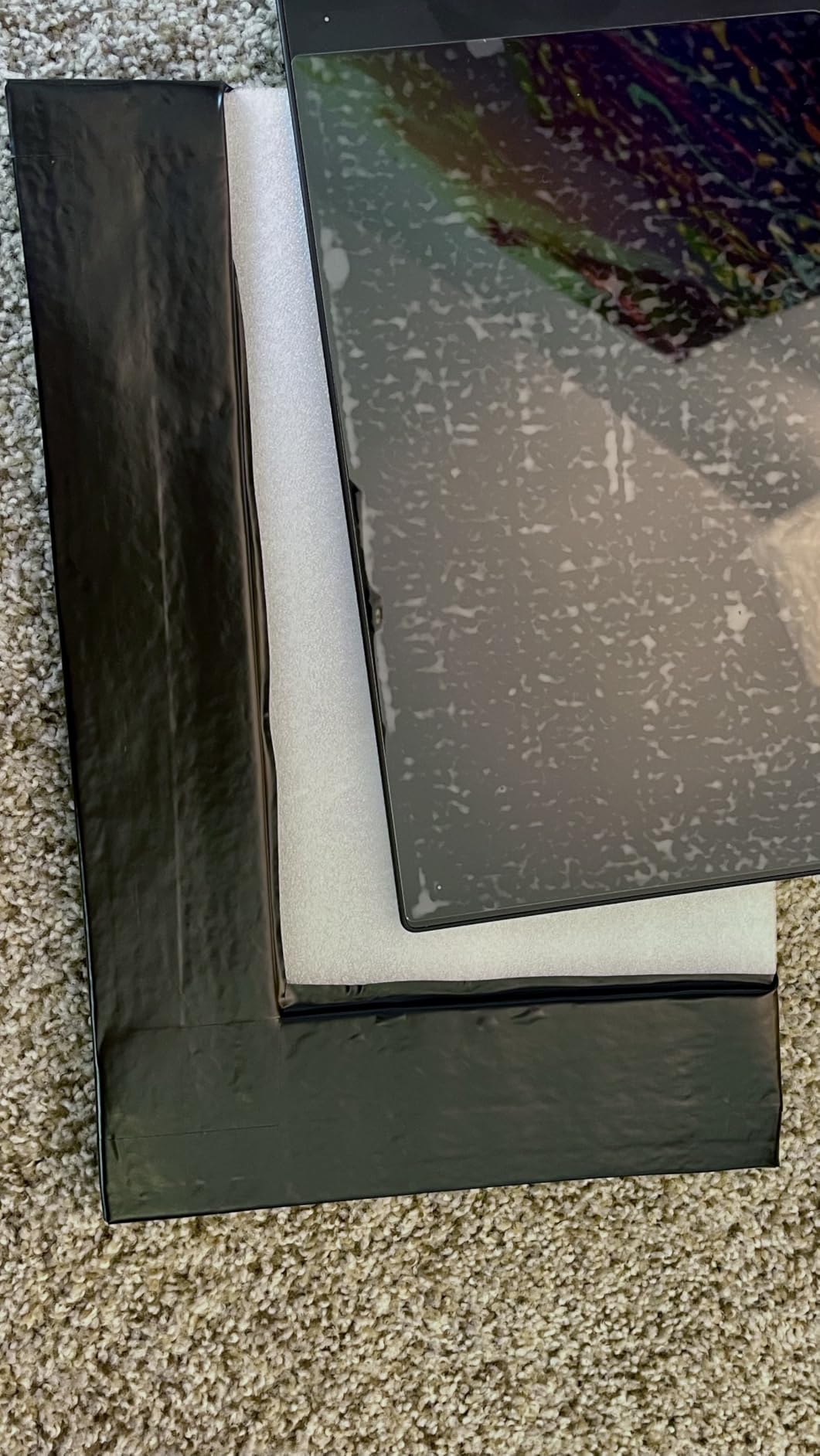
The Wacom Intuos Pro Medium (2025) is the pen tablet we recommend for serious artists who want the legendary Wacom pen experience without the expense of a pen display. Unlike the Cintiq Pro, the Intuos Pro does not have a built-in screen — you draw on the tablet surface while looking at your computer monitor. This is the traditional format that Wacom pioneered, and for many professional illustrators, it remains the preferred workflow because you get a larger drawing surface in a more compact, portable form factor.
The 2025 edition of the Intuos Pro Medium has received several meaningful upgrades over its predecessors. The active drawing area measures 8.7 by 5.8 inches, which is large enough for comfortable work on most monitor setups without overwhelming your desk. The magnesium chassis is surprisingly slim at just 4mm at its thinnest point, and it feels genuinely premium in the hand. The Pro Pen 3 that comes bundled with the tablet offers 8192 levels of pressure sensitivity, tilt response, and near-zero input lag, making every stroke feel natural and precise. Perhaps the best addition is the two mechanical dials on the side — these are far more satisfying to use than the digital alternatives found on competitors, giving you tactile control over brush size, zoom level, or canvas rotation.
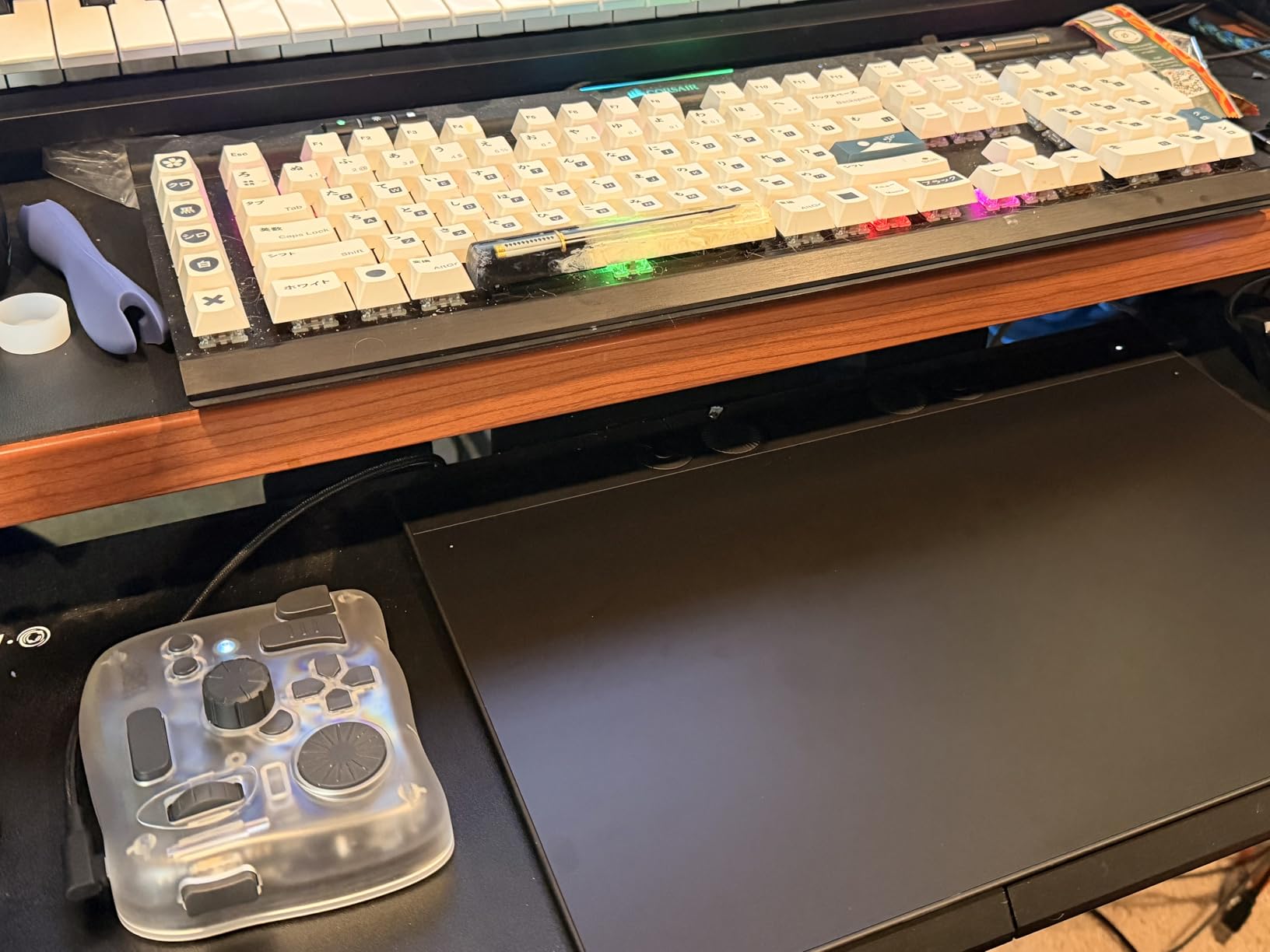
One of the standout features of the 2025 Intuos Pro is its Bluetooth 5.3 connectivity, which allows you to connect wirelessly to up to two computers simultaneously and switch between them with a single button press. This is incredibly useful for artists who work across a desktop workstation and a laptop, or who like to occasionally draw on the couch without being tethered to their desk. The USB-C port also supports direct wired connection for those who prefer the absolute lowest latency. The tablet ships with a generous accessory bundle that includes a pen stand, replacement nibs, a nib removal tool, and USB-C to USB-A and USB-C to USB-C cables.
How does the Intuos Pro Medium compare to the previous generation?
The 2025 model represents a meaningful step up from the 2017 Intuos Pro. The active area is larger, the chassis is more compact, and the Pro Pen 3 is a significant improvement in terms of precision and ergonomics. The addition of mechanical dials instead of Wacom’s previous touch strip is particularly welcome — they give you the kind of tactile feedback that digital controls often lack. However, the 2025 version notably removed the built-in touch sensitivity, which was present in earlier generations. If touch input is essential to your workflow, this is worth factoring into your decision.
Which artists should choose the Wacom Intuos Pro Medium?
This tablet is the ideal choice for professional illustrators, character designers, and concept artists who already have a quality monitor and want the most precise, reliable pen tablet on the market. It is also excellent for digital artists who value portability — the compact form factor and wireless connectivity make it easy to take to a coffee shop, co-working space, or client meeting. At $379.95, it occupies the premium end of the pen tablet market, but the build quality and Wacom’s industry-leading driver support justify the investment for professionals.
3. Wacom MovinkPad Pro 14 — Best Portable Drawing Tablet
Wacom MovinkPad Pro 14, Android Mobile Tablet, OLED with ProPen 3
14 inch OLED 3K display
Android 15 OS
12GB RAM / 256GB storage
Pro Pen 3 included
Battery-free stylus
+ The Good
- Stunning OLED display with vivid colors
- Portable all-in-one design
- Excellent pen performance with matte texture
- Lightweight at 1.6 lbs
- Long battery life
- The Bad
- No ARM Windows or Intel Mac support
- Processor slower for intensive tasks
- No charger adapter included
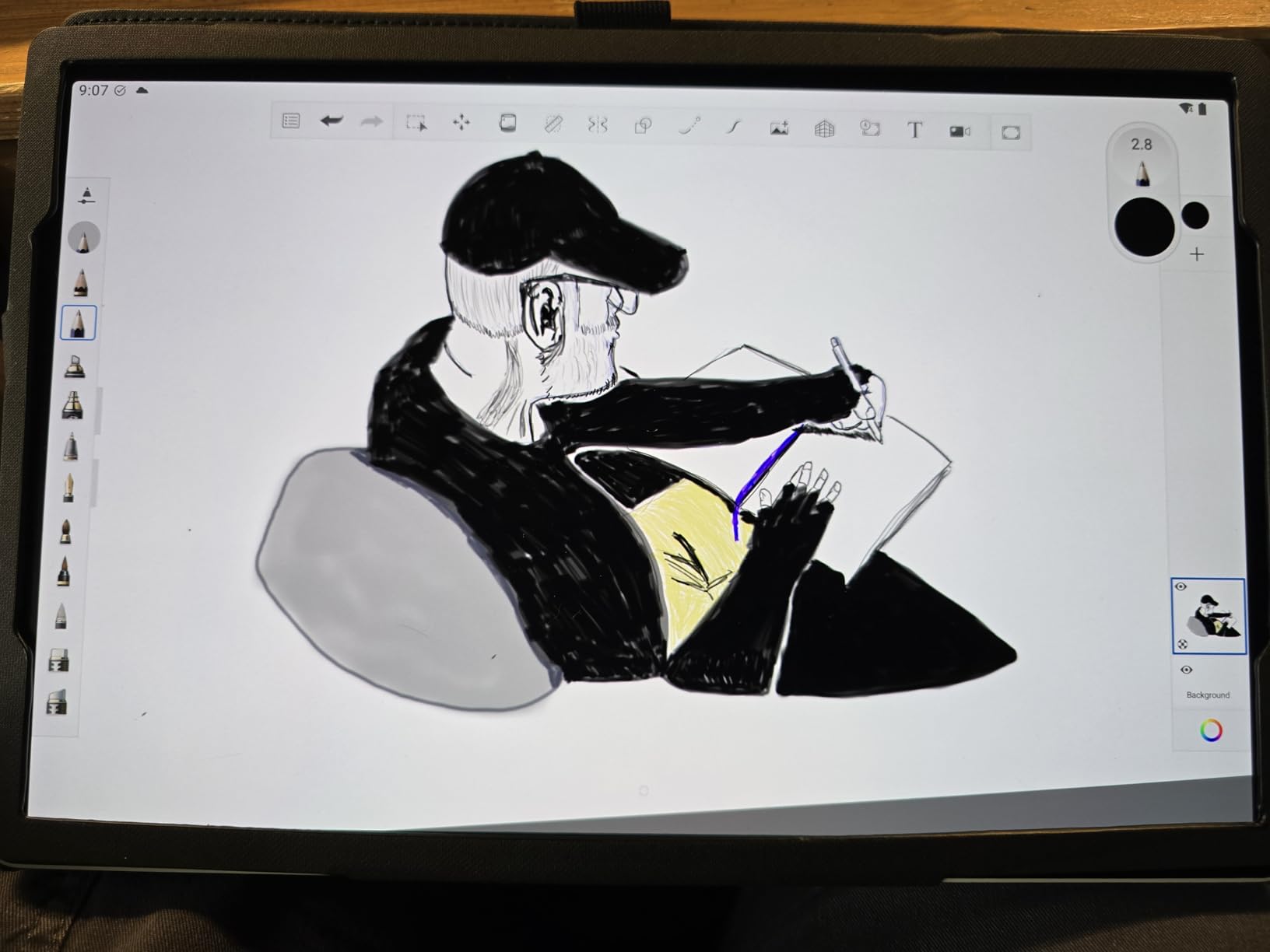
The Wacom MovinkPad Pro 14 is one of the most exciting product categories to emerge in the graphics tablet market: a standalone Android drawing tablet that needs no computer at all. With a stunning 14-inch OLED display running at 2880 by 1800 resolution, 12GB of RAM, 256GB of storage, and Android 15 with full Google Play Store access, the MovinkPad Pro 14 is essentially a professional-grade creative Android tablet with Wacom’s legendary pen technology built in.
The display is the centerpiece of this device. The OLED panel delivers rich blacks, vibrant colors, and 100% coverage of both sRGB and DCI-P3 color spaces — the kind of color quality that you typically only see on high-end creative monitors. The anti-glare matte screen coating eliminates reflections without compromising image clarity, and it provides just enough texture to make the drawing experience feel tactile and natural. The Pro Pen 3 delivers the same exceptional pressure sensitivity and near-zero lag that you get on Wacom’s desktop pen displays, which means you are not sacrificing any pen performance for portability.
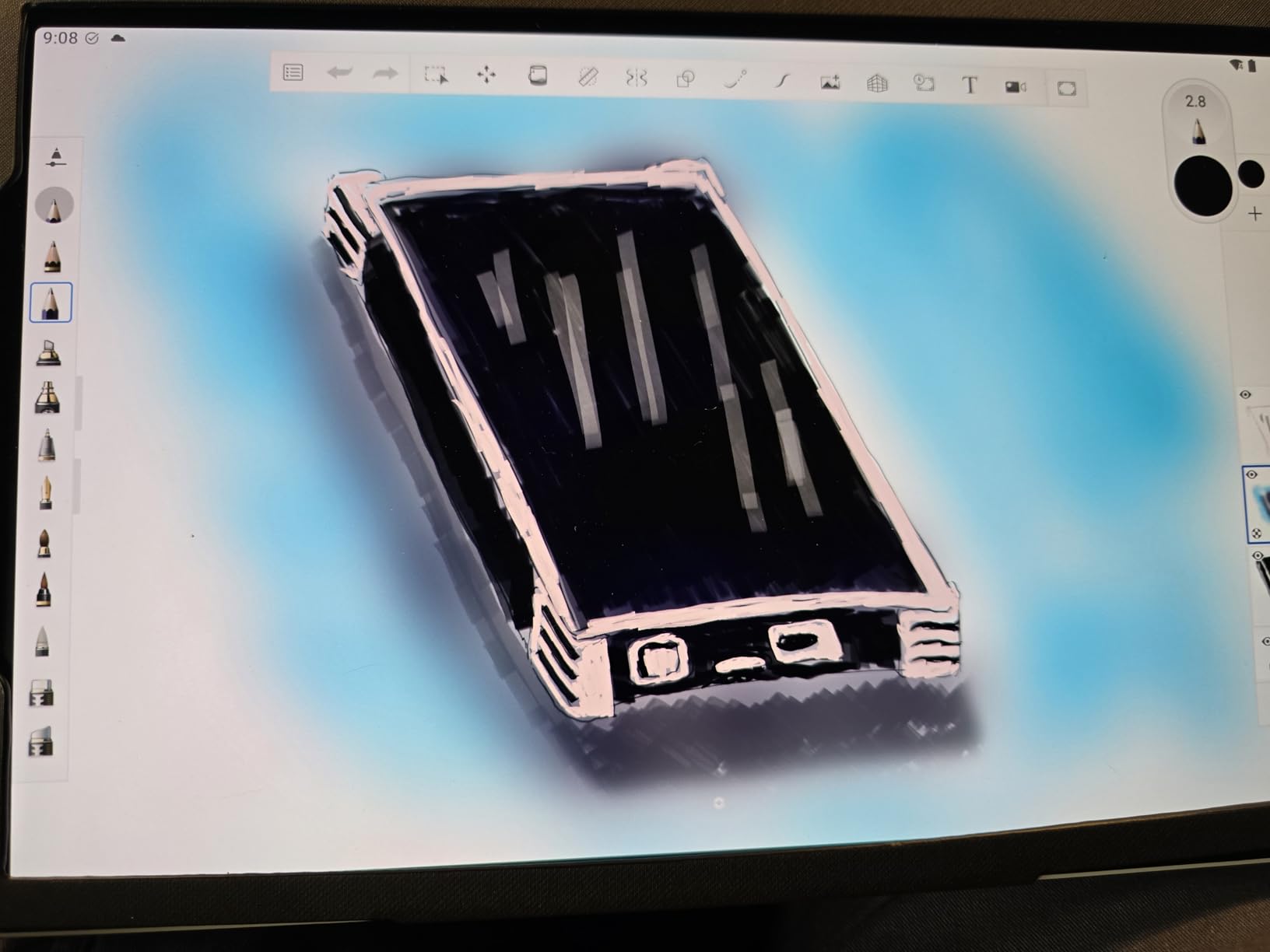
Weighing just 1.6 pounds and measuring 12.7 by 8.3 inches, the MovinkPad Pro 14 slides easily into most laptop bags and backpacks. The battery provides enough power for a full day of creative work, and you can also use the Instant Display Mode to connect it as a secondary monitor to your PC or Mac when you are back at your desk. This dual-mode versatility is a genuine differentiator — it is the only tablet on this list that can genuinely serve as both a standalone creative device and a traditional pen display.
What are the compatibility limitations of the MovinkPad Pro 14?
Before purchasing the MovinkPad Pro 14, you need to be aware of two important compatibility notes. First, it does not support Windows ARM-based systems or Intel-based Macs — Wacom officially supports connection only via the Instant Display Mode to Apple Silicon Macs and standard Windows PCs. Second, not every Android app is optimized for stylus input, so some creative applications may not offer the same level of palm rejection or pressure sensitivity that you would get with desktop software. Within its supported ecosystem, however, the MovinkPad Pro 14 is a genuinely remarkable piece of hardware.
Is the Wacom MovinkPad Pro 14 right for you?
If you are an artist who frequently travels, works in different locations, or simply prefers not to be tied to a desk, the MovinkPad Pro 14 is the most capable standalone drawing tablet currently available. It replaces both your drawing tablet and your laptop for on-the-go work, and the OLED display makes it pleasurable to use for extended periods. At $899.95, it is not cheap — but it replaces two devices and delivers Wacom-quality pen performance in a format that fits in your bag.
4. HUION Kamvas Pro 24 4K — Best Large Professional Display
HUION KAMVAS Pro 24 4K UHD Drawing Tablet with Screen 140% sRGB
23.8 inch 4K UHD display
140% sRGB color gamut
Wireless Express Key remote
Included metal stand
Mini keydial K20
+ The Good
- Excellent 4K display quality at competitive price
- Full-laminated screen reduces parallax
- Great color reproduction with quantum dot tech
- Includes metal stand and wireless express key
- Multiple connectivity options
- The Bad
- Pen feels basic compared to Wacom
- Driver issues and customer support criticized
- No tilt sensitivity
The HUION Kamvas Pro 24 4K is a compelling alternative to the Wacom Cintiq Pro for artists who want a large-screen professional pen display but prefer to spend closer to $900 than $3,000. At 23.8 inches with a native 4K UHD resolution of 3840 by 2160, the Kamvas Pro 24 gives you the same canvas real estate as the Wacom at roughly 30% of the price. The full-laminated screen design — which bonds the glass, digitizer, and LCD panel together — virtually eliminates the parallax that can make pen display drawing feel imprecise on lesser tablets.
The display itself is impressive by any measure. HUION’s quantum dot technology pushes the color gamut to 140% of sRGB, delivering rich, saturated colors that are particularly well-suited to illustration and digital painting work. The 1.07 billion color support and 1200:1 contrast ratio ensure that gradients are smooth and blacks are deep — important for artists working in digital media where color accuracy matters. One of the standout inclusions in the box is the wireless Express Key remote, which gives you a physical dial and shortcut buttons without adding cable clutter to your workspace. The 20-degree metal stand is also surprisingly solid, providing a stable drawing angle out of the box.
The bundled stylus is a PW519 battery-free pen with 8192 levels of pressure sensitivity. While it lacks tilt sensitivity — a notable omission compared to Wacom’s Pro Pen 3 — the pressure response itself is smooth and reliable for most use cases. HUION has improved its pen technology significantly in recent generations, and the included stylus is more than adequate for professional illustration work. One area where HUION still lags behind Wacom is driver stability and customer support — some users report frustrating driver issues that require troubleshooting, and the support experience can be inconsistent.
How does the HUION Kamvas Pro 24 4K compare to the Wacom Cintiq Pro 22?
The Kamvas Pro 24 4K wins decisively on value — you get a larger screen with more pixels for less than a third of the price of the Wacom Cintiq Pro 22. The display quality is genuinely comparable for most artists, and the full-laminated screen is a meaningful advantage over Wacom’s older-generation pen displays. However, the Wacom Cintiq Pro wins on pen technology, build quality, driver stability, and professional ecosystem support. If price is a concern, the Kamvas Pro 24 4K is the clear winner. If you are a professional who needs absolute reliability and the best possible pen feel, Wacom is still the gold standard.
Is the HUION Kamvas Pro 24 4K good for beginners?
This is not the right tablet for a beginner — the price and the professional-grade feature set make it overkill for someone just starting out with digital art. However, for an intermediate to advanced artist who wants a large-screen pen display without the Wacom price tag, the Kamvas Pro 24 4K is an excellent choice. The 4K resolution on a 23.8-inch canvas gives you an enormous amount of workspace for complex illustrations, and the included stand and wireless express key remote make it a complete out-of-the-box solution.
5. HUION KAMVAS Pro 24 (Gen 3) Touch — Best Color-Accurate Display
HUION KAMVAS Pro 24 (Gen 3) UHD Drawing Tablet with Screen PenTech 4.0
23.8 inch 4K UHD
99% Adobe RGB coverage
16384 PenTech 4.0 levels
Multi-touch gestures
Wireless keydial
+ The Good
- Factory calibration with DeltaE less than 1
- 99% Adobe RGB - professional color accuracy
- 16384 pressure levels with PenTech 4.0
- Multi-touch for gesture controls
- Great Wacom Cintiq alternative
- The Bad
- Cables can be awkward to manage
- Driver issues with some 3D software
- Pen battery can degrade over time
If color accuracy is your top priority, the HUION KAMVAS Pro 24 (Gen 3) Touch is the standout choice in our guide. HUION ships every unit with a factory calibration report, and the tablet delivers an average DeltaE of less than 1 — a level of color accuracy that rivals dedicated professional monitors. With 99% coverage of both sRGB and Adobe RGB color spaces, and 98% coverage of DCI-P3, this is a display that serious digital painters, colorists, and illustrators can trust for professional work.
The Gen 3 model introduces HUION’s PenTech 4.0 technology, which doubles the pressure levels to an incredible 16384 — the highest of any tablet in this guide. The pen has a very low 2-gram activation force, meaning it registers the lightest touches immediately without needing to press hard to get a mark on screen. The multi-touch display supports natural gestures like two-finger scrolling, pinch-to-zoom, and canvas rotation, which makes navigation significantly faster than relying on keyboard shortcuts alone. The included Wireless Keydial provides a dedicated shortcut controller that keeps your workspace tidy.
The Quantum Dot LCD panel with Canvas Glass 3.0 coating reduces glare and reflections while maintaining image clarity. The 4K resolution on a 23.8-inch canvas provides a level of detail that is particularly appreciated by illustrators who work with fine lines, small brushes, and complex layering. The tablet also supports both HDMI and USB-C connectivity, giving you flexibility in how you connect it to your computer. Despite its size, the KAMVAS Pro 24 Gen 3 has built-in speakers, which is a useful addition for reference videos or client calls during work sessions.
What makes the KAMVAS Pro 24 Gen 3 stand out for digital painters?
For digital painters and illustrators, the combination of the 4K display, factory calibration, and PenTech 4.0 is essentially a professional-grade studio monitor and drawing tablet in one device. The 99% Adobe RGB coverage means you can work in Adobe RGB color space with confidence that your colors will translate correctly to sRGB output. The multi-touch gestures are particularly useful for painters who want to zoom in on details, rotate the canvas, and navigate their workspace without taking their hand off the pen.
What are the main drawbacks of the KAMVAS Pro 24 Gen 3?
The cable management on this tablet can be fiddly — the ports are at the bottom, and routing cables cleanly requires some effort. Some users have also reported that the pen battery degrades over weeks of heavy use, going from a full day of battery life to needing a charge mid-session after several months. Driver issues with certain 3D applications like some ZBrush brush sets have also been noted, though HUION continues to update its drivers. Overall, these are relatively minor quibbles for what is otherwise a genuinely professional-grade display at a competitive price.
6. HUION KAMVAS Pro 16 — Best Mid-Range Pen Display
HUION Kamvas Pro 16 Drawing Tablet with Screen,120% sRGB, Touch Bar,15.6″
15.6 inch Full HD display
120% sRGB color gamut
8192 pressure levels
6 Express Keys + Touch Bar
Included ST200 stand
+ The Good
- Wacom-level quality at roughly half the price
- Great screen with full lamination and anti-glare
- Pen is comfortable with 2 programmable buttons
- Exceptional customer support
- Includes adjustable stand
- The Bad
- Touch bar is very sensitive
- Pen pressure requires calibration out of box
- Short 3-in-1 cable for some setups
The HUION KAMVAS Pro 16 is the pen display we recommend for artists who want the direct-screen drawing experience without spending $400 or more. At $299.99, it offers a remarkable amount of value — a 15.6-inch full HD display with full lamination, anti-glare glass coating, 120% sRGB color gamut, and 8192 levels of pressure sensitivity, all bundled with an adjustable stand and a comfortable battery-free stylus.
The screen quality is the KAMVAS Pro 16’s most impressive feature. The full lamination eliminates the visible gap between the glass and the display panel, which means the cursor tracks exactly where your pen touches the screen with no offset or parallax. The anti-glare coating does an excellent job of reducing reflections under typical indoor lighting conditions, and the 1000:1 contrast ratio produces deep blacks and bright whites. Colors look vivid and accurate enough for most illustration and design work, even if they fall slightly short of the professional-grade color accuracy of HUION’s more expensive Kamvas Pro 24 models.
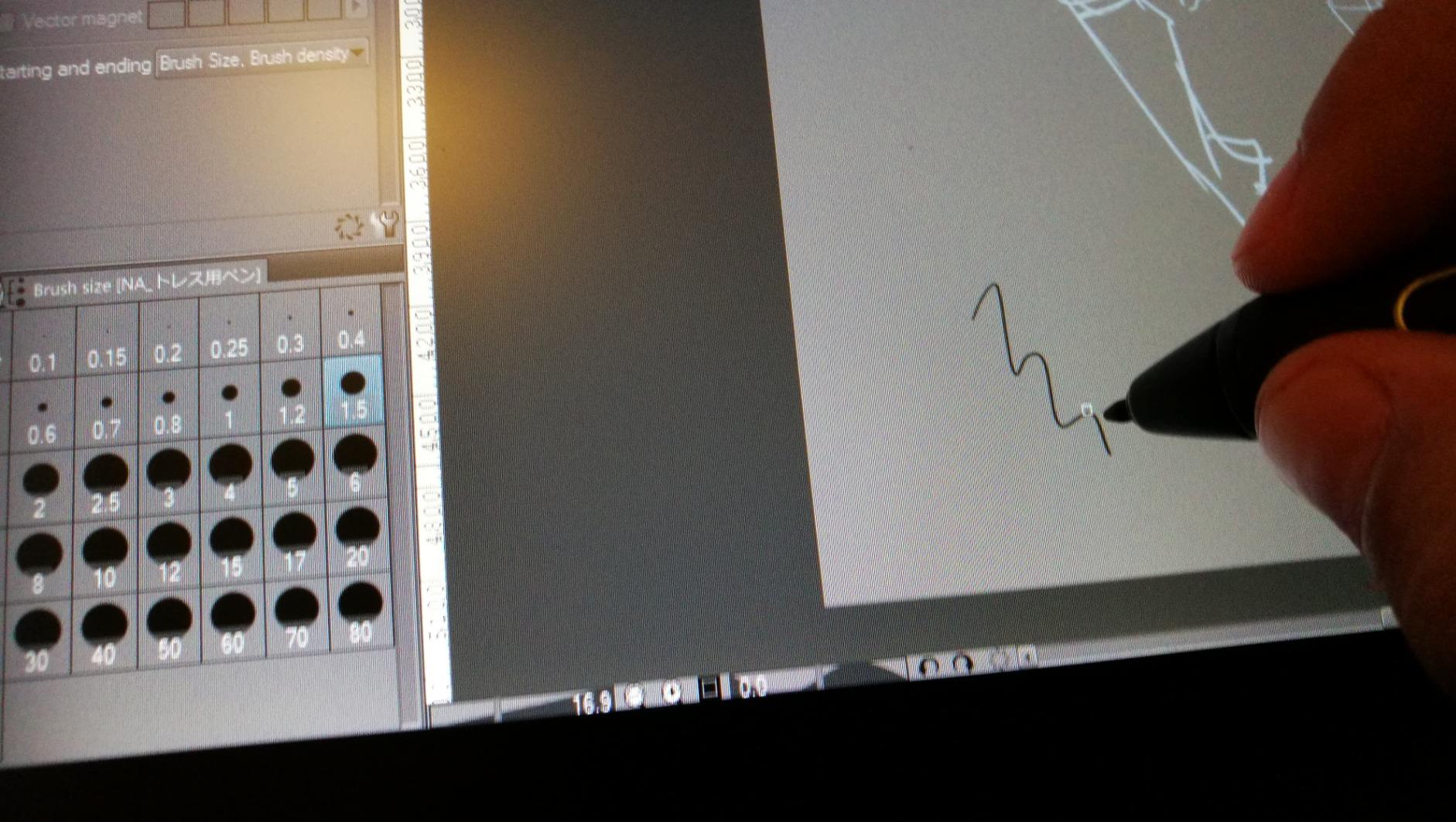
The included PW507 pen is a solid professional stylus with two programmable buttons and 60-degree tilt support. It is battery-free, which means it is lighter and more balanced than pens that require a battery, and you never have to worry about running out of power mid-session. The six programmable ExpressKeys on the left side of the display give you quick access to common shortcuts, and the touch bar above them offers a scrollable shortcut surface that is useful for brush size and canvas zoom. HUION’s customer support is consistently praised in customer reviews — the company has a track record of replacing defective units quickly and without hassle.
How does the KAMVAS Pro 16 compare to the Wacom Intuos Pro for beginners?
These are different product categories, but if you are choosing between them, the KAMVAS Pro 16 wins for artists who prioritize the direct-screen experience while the Intuos Pro wins for those who prefer working on a separate tablet with their monitor visible. The KAMVAS Pro 16 gives you the immediacy of drawing directly on the image, while the Wacom Intuos Pro gives you a larger active drawing area in a more portable form factor. At $299.99, the KAMVAS Pro 16 is $80 less than the Intuos Pro Medium and includes a screen — which makes it excellent value for anyone transitioning from a screenless tablet to their first pen display.
Is the KAMVAS Pro 16 good for photo editing?
Yes, the KAMVAS Pro 16 is a strong choice for photo editors who want the precision of a pen for retouching work. The 15.6-inch screen provides enough real estate for comfortable editing, and the 120% sRGB coverage means colors look natural and vibrant. The 8192 pressure levels give you precise control over adjustment brush intensity in Lightroom and Photoshop. At this price point, there is simply no other pen display that offers this combination of screen quality, pen performance, and included accessories.
7. HUION Kamvas 13 (Gen 3) — Best Compact Pen Display
HUION Kamvas 13 (Gen 3) Drawing Tablet with Screen, Dual Dial, 13.3″, Black
13.3 inch Full HD display
16384 PenTech 4.0 levels
99% sRGB coverage
Dual Dial + 5 Keys
Included ST300 stand
+ The Good
- No rainbow pixilation on screen
- Crazy thin parallax - precise tracking
- 16384 pressure levels at just 219 dollars
- Factory calibration report included
- Excellent customer support
- The Bad
- Screen only reaches 200 nits brightness
- Can get warm after 3+ hours
- No touch input
The HUION Kamvas 13 (Gen 3) is our top recommendation for artists who want a compact pen display that delivers a premium drawing experience without a premium price tag. At $219, it includes the same PenTech 4.0 technology found in HUION’s much more expensive professional displays, along with a 13.3-inch anti-sparkle full-laminated screen, factory calibration, and a comprehensive accessory bundle that includes the ST300 adjustable stand.
The standout feature of the Kamvas 13 Gen 3’s screen is the anti-sparkle Canvas Glass 2.0 coating. Unlike traditional etched glass, which creates a visible rainbow-like sheen under certain lighting, the Kamvas 13’s screen looks perfectly clean and clear from every angle. This makes a significant difference in image quality — the display looks more like a high-quality monitor than a typical pen display. The full lamination ensures that the cursor tracks precisely where the pen touches, with virtually zero parallax. The dual dial on the left side of the display is genuinely one of the most useful productivity features available on any pen display at any price — you can configure it to control brush size, zoom level, layer selection, or canvas scrolling with a single gesture.
Weighing just 1.96 pounds, the Kamvas 13 Gen 3 is the lightest pen display in this guide. It is small enough to throw in a bag with your laptop and use as a portable second screen for drawing when you are away from your main studio setup. The 3-in-1 cable handles power, video, and data through a single cable, keeping your workspace clean and portable. HUION also offers a USB-C single-cable mode if you have a computer with a full-featured USB-C port that supports video output.
What are the brightness limitations of the Kamvas 13 Gen 3?
The Kamvas 13 Gen 3’s screen reaches a maximum brightness of 200 nits, which is lower than most modern laptop displays. This means it can be harder to use in very bright environments or under direct sunlight — the screen may appear dim compared to your surroundings. For most indoor studio setups, however, 200 nits is perfectly adequate, and the anti-glare coating helps maintain visibility even in rooms with moderate ambient light. If you work primarily in a bright environment, you may want to consider the HUION KAMVAS Pro 16 or the Wacom MovinkPad Pro 14, which have higher maximum brightness levels.
Is the Kamvas 13 Gen 3 good for students?
The Kamvas 13 Gen 3 is an excellent choice for students and beginning digital artists. It includes everything you need to get started — the tablet, the stylus, and the stand — for $219, which is less than many pen tablets without screens. The 16384 pressure levels and anti-sparkle screen give you a professional-grade drawing experience, and the compact size and light weight make it easy to take to class. The included factory calibration report means you can trust the colors for class projects, and HUION’s responsive customer support has your back if anything goes wrong.
8. HUION KAMVAS 22 — Best Large Budget Pen Display
HUION KAMVAS 22 120% sRGB Drawing Tablet with Screen 21.5 inch
21.5 inch Full HD display
120% sRGB color gamut
8192 pressure levels
178 degree viewing angle
Included metal stand
+ The Good
- Exceptional value at under 300 dollars
- Large 21.5 inch workspace
- 120% sRGB with 16.7 million colors
- Metallic stand is solid and adjustable
- Great entry-level screen tablet
- The Bad
- Pen does not feel as premium as Wacom
- No tilt sensitivity on stylus
- Display may need color calibration
The HUION KAMVAS 22 is the best large-screen pen display available at an entry-level price point. At $298.98 — often discounted from $449 — it gives you a 21.5-inch workspace for less than the price of many small pen displays from premium brands. The screen itself is a 1920 by 1080 Full HD panel with 120% sRGB color coverage, which translates to vibrant, well-saturated colors that look great for illustration, design, and digital painting work. The 178-degree viewing angle means the image remains accurate and readable even when you are looking at the screen from the side — useful when presenting your work to a client or instructor.
The KAMVAS 22 uses HUION’s PenTech 3.0 battery-free stylus with 8192 levels of pressure sensitivity. The pen is comfortable and responsive, though it lacks the tilt sensitivity that you get with Wacom’s premium pens. The adjustable metallic stand supports angles from 20 to 80 degrees, which covers the full range of comfortable drawing postures. The stand is surprisingly well-built for an included accessory — it is sturdy, does not wobble, and adjusts smoothly. Two USB-C ports on the side give you flexible connectivity options, including the ability to connect to laptops that support video-over-USB-C without needing the bundled power adapter.
Is the KAMVAS 22 suitable for professional work?
The KAMVAS 22 sits at the boundary between beginner and intermediate. For professional illustrators, the 1920 by 1080 resolution on a 21.5-inch screen is lower than what you would want for detailed work — the Wacom Cintiq Pro 22 or HUION Kamvas Pro 24 4K offer significantly more pixel density. However, for hobbyists, students, and semi-professional artists who want a large drawing area without spending $800 or more, the KAMVAS 22 is a genuinely compelling option. It offers an excellent balance of screen size, color quality, and pen performance for its price category.
What color calibration does the KAMVAS 22 need?
Some users report that the KAMVAS 22’s colors look slightly off out of the box — particularly a tendency for blacks to appear slightly purple. This is a common issue with budget pen displays and is easily addressed with a color calibration tool. HUION does not include a calibration report with this model, so if color accuracy is critical to your work, we recommend investing in a color calibration device like the Huion GT-Color G1 (which HUION sometimes bundles as a promotional gift) or a third-party calibrator. Once calibrated, the display performs well for illustration and design work.
9. Wacom Intuos Small Bluetooth — Best Portable Pen Tablet
Wacom Intuos Small, Bluetooth Graphic Drawing Tablet with Pen + Software
6x3.7 inch active area
4096 pressure levels
Bluetooth 5 connectivity
4 ExpressKeys
Includes software bundle
+ The Good
- Bluetooth connectivity works reliably on Mac
- Compact and highly portable
- Wacom reliability and build quality
- Works with ChromeOS Mac Windows Android
- Great for students and beginners
- The Bad
- Small drawing area
- Some Bluetooth lag on Windows 11
- Pen buttons can accidentally trigger
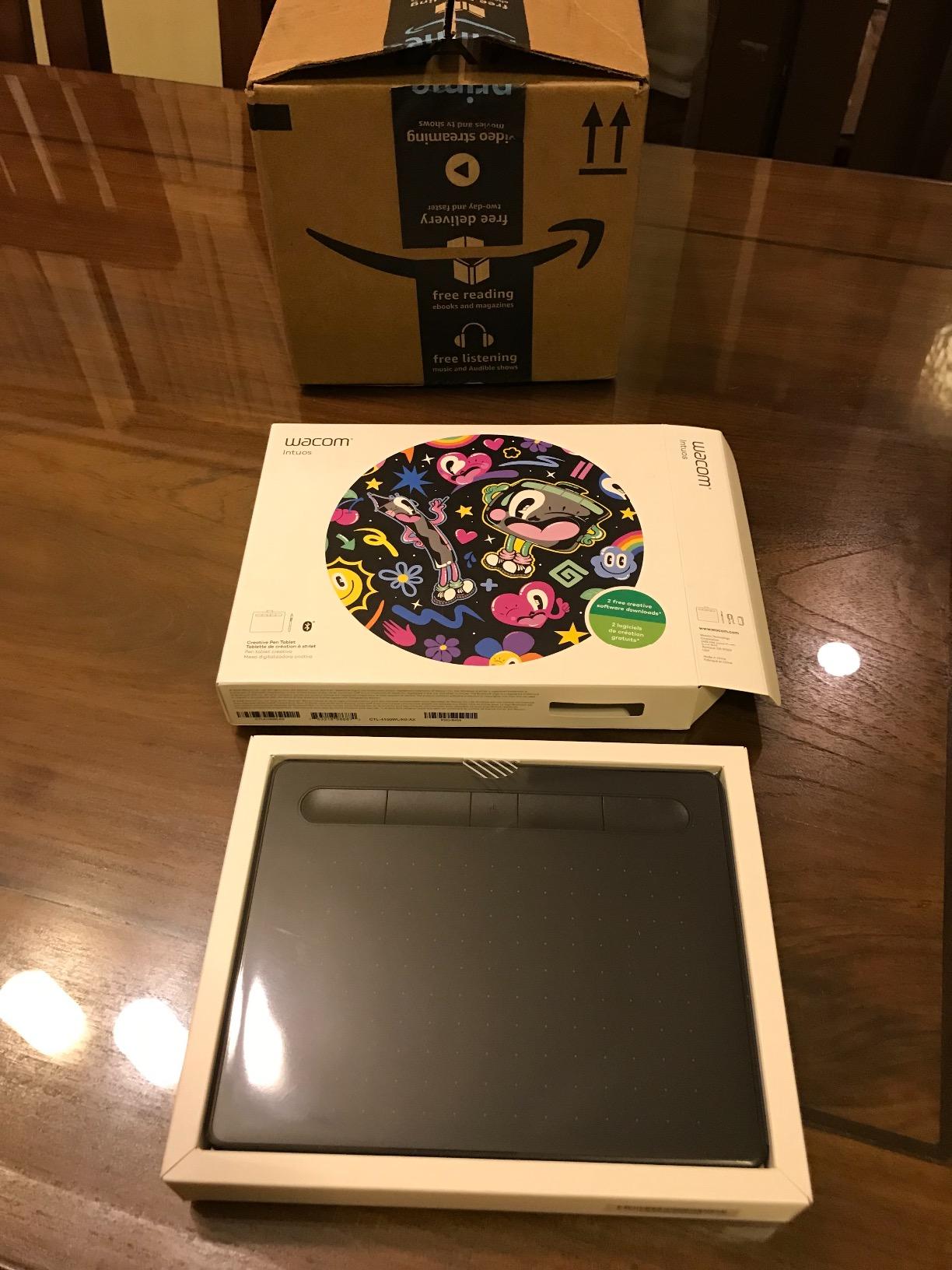
The Wacom Intuos Small Bluetooth is the pen tablet we recommend for artists who need the most portable option without sacrificing the Wacom brand quality. At just 6.3 by 7.9 inches and 8.82 ounces, it fits easily on top of a laptop keyboard tray, in a laptop bag pocket, or in a pencil case. The Bluetooth 5 connectivity means you can use it wirelessly with any compatible device, and the battery-free EMR pen technology means the stylus never needs charging or batteries — it draws its power from the tablet’s electromagnetic field.
For a tablet this compact, the Intuos Small Bluetooth punches well above its weight in terms of features. The 4096 levels of pressure sensitivity deliver a smooth, natural drawing experience that is indistinguishable from more expensive Wacom tablets in terms of stroke quality. Four customizable ExpressKeys on the side provide quick access to common shortcuts, and Wacom’s driver software is the most mature and reliable in the industry. The included software bundle — which features trials and discount codes for popular creative applications like Clip Studio Paint, BorisFX, and Toon Boom — adds meaningful value for artists who are setting up their first digital art workspace.
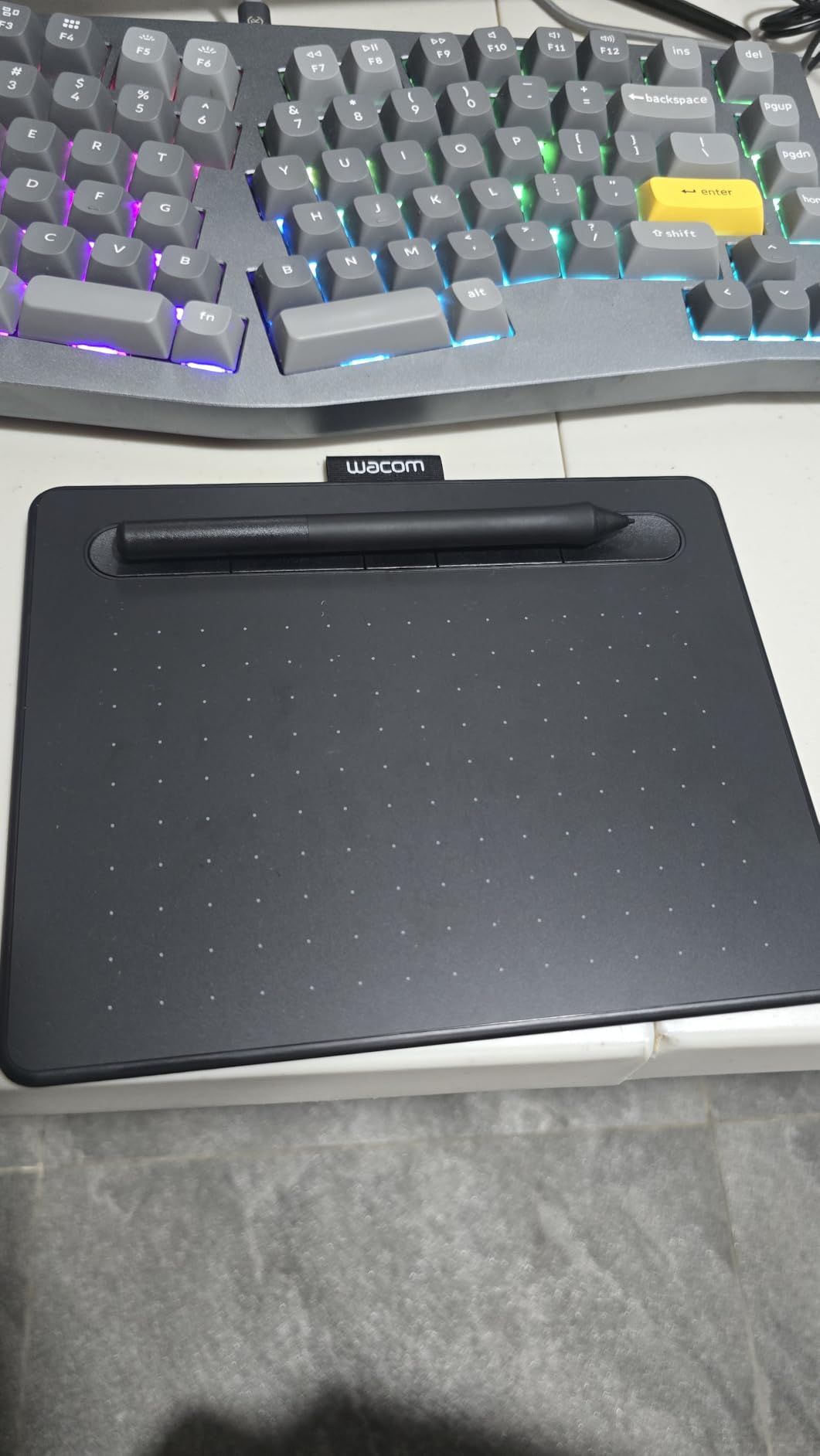
The main limitation of the Intuos Small Bluetooth is the active drawing area: at just 6 by 3.7 inches, it is significantly smaller than most artists would prefer for detailed work. You will find yourself panning and zooming more frequently than you would on a medium or large tablet, which can interrupt your creative flow during detailed illustration work. However, for note-taking, casual sketching, online teaching, and general creative tasks that do not require an enormous canvas, the small size is not a significant problem. It is also worth noting that this tablet is Wacom’s current best seller, which speaks to the quality and reliability that customers continue to trust.
Is the Wacom Intuos Small Bluetooth good for digital teaching?
The Intuos Small Bluetooth is one of the most popular drawing tablets among online teachers, tutors, and educators who need to annotate, demonstrate, and sketch in real time. Its compact size means it sits unobtrusively next to your keyboard, and the Bluetooth connectivity means you are not tethered to your computer. The four ExpressKeys can be configured as left-click, right-click, and eraser shortcuts, which makes navigating whiteboard and annotation software much more efficient. Many teachers also appreciate the included software bundle for creating teaching materials and worksheets.
What devices are compatible with the Intuos Small Bluetooth?
The Intuos Small Bluetooth connects via Bluetooth 5.0 to Windows 7 or later PCs, Mac computers running macOS 10.10 or later, ChromeOS devices, and Android phones and tablets that support Bluetooth HID. This broad compatibility makes it an excellent choice for artists who work across multiple platforms or who need a tablet that works with whatever device they happen to have handy. Note that the Bluetooth connection works most reliably on Mac computers; some Windows 11 users report occasional disconnections that require reconnecting the tablet.
10. Wacom Intuos Small — Best Entry-Level Drawing Tablet
Wacom Intuos Small, Wired Graphic Drawing Tablet with Pen + Software
6x3.7 inch active area
4096 pressure levels
USB-A connectivity
4 ExpressKeys
Best seller #1 in category
+ The Good
- Industry-leading Wacom pen technology
- Affordable entry point to Wacom ecosystem
- Includes creative software bundle
- Plug and play on most platforms
- Premium build quality at low price
- The Bad
- Small drawing area for detailed work
- Wired only - no Bluetooth
- ExpressKeys are minimal compared to Pro model
The Wacom Intuos Small is the drawing tablet we recommend for absolute beginners who want to start with the best brand in the industry without spending a lot of money. At $39.95, it is Wacom’s most affordable entry-level tablet, and it delivers the core Wacom drawing experience — the same pressure-sensitive EMR pen technology that professionals have trusted for decades — at a price that almost anyone can afford. It is currently the #1 best seller in the Computer Graphics Tablets category on Amazon, which reflects both its quality and its appeal to first-time digital artists.
Despite the low price, the Intuos Small does not feel like a budget product. The build quality is solid, the pen feels responsive and precise, and Wacom’s driver software is reliable and well-supported. The 4096 levels of pressure sensitivity are sufficient for smooth, natural-looking lines at every stroke weight, and the battery-free pen is lightweight and comfortable for extended drawing sessions. Four customizable ExpressKeys give you access to common shortcuts, and the integrated pen holder on the side of the tablet keeps your stylus from rolling off your desk. The included software bundle — which includes free trials and discount codes for applications like Clip Studio Paint, ArtRage, and Bluescape — gives beginners a solid starting point for building their digital art toolkit.
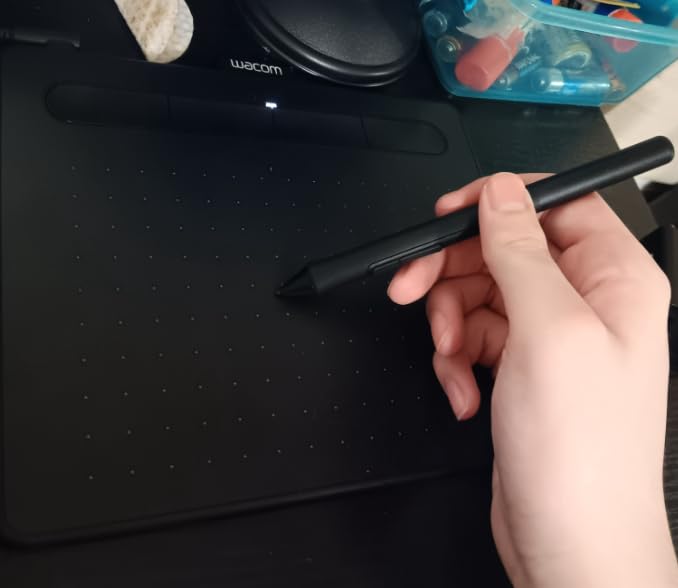
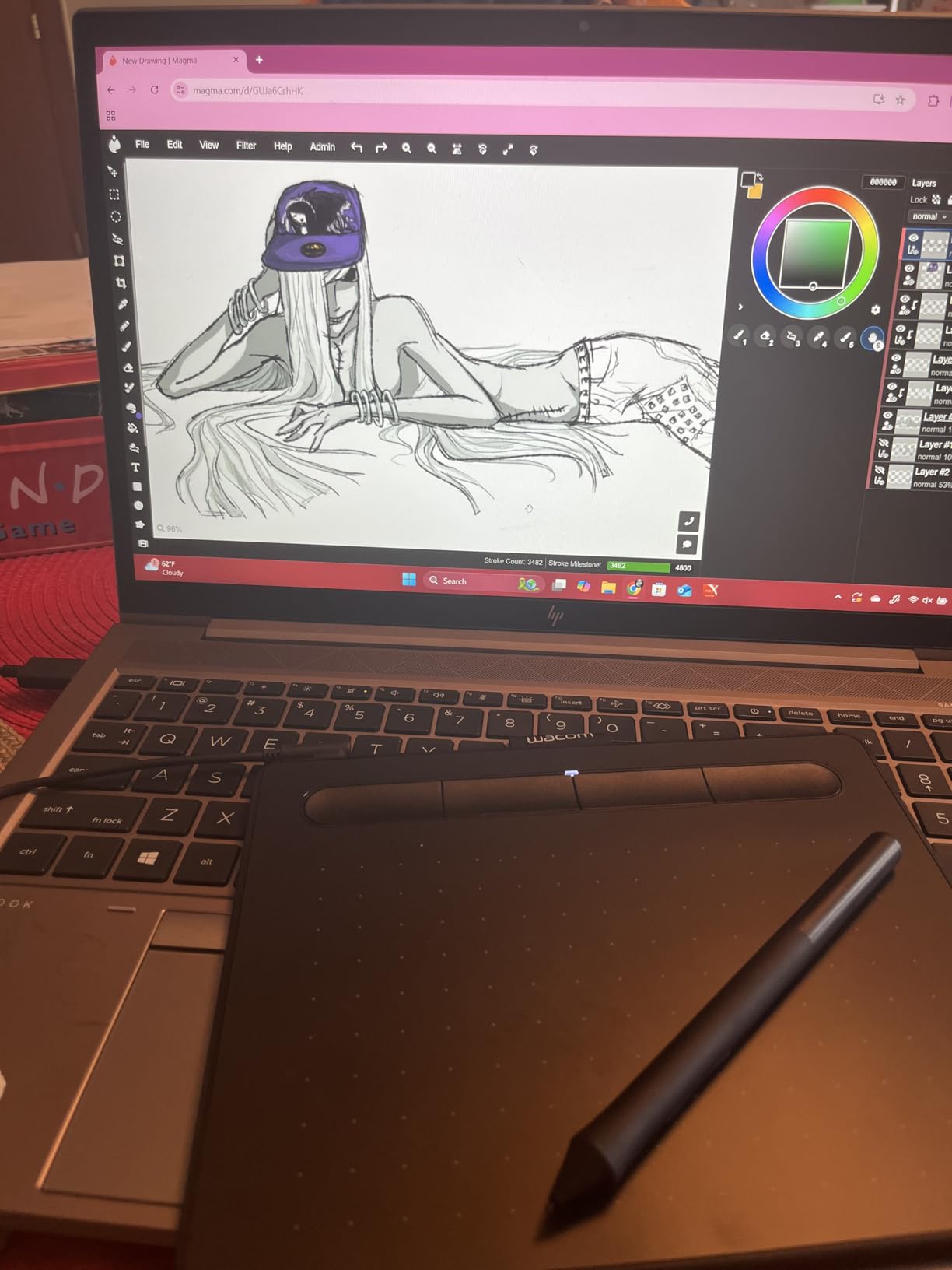
The 6-by-3.7-inch active drawing area is the primary trade-off at this price and size. For detailed illustration work, you will need to pan and zoom frequently, which takes some getting used to. However, for the casual sketching, note-taking, photo editing, and general creative tasks that most beginners start with, the small size is perfectly adequate. Many experienced artists actually prefer smaller tablets for their portability and the way they encourage loose, gestural mark-making. The wired USB-A connection is another trade-off — there is no Bluetooth on this model — but the cable is thin and unobtrusive, and the wired connection delivers the most consistent, lowest-latency drawing experience.
Is the Wacom Intuos Small good for photo editing?
The Intuos Small is an excellent choice for photo editors who are new to pen input. Whether you are using Lightroom’s adjustment brush, Photoshop’s healing brush, or any pressure-sensitive tool in your editing workflow, the Intuos Small delivers the precision you need. The small drawing area is less of an issue for photo editing than for illustration because you are typically working on smaller areas of the image rather than drawing continuous strokes across a large canvas. At $39.95, it is a very affordable way to add pen-based editing to your workflow.
How does the Wacom Intuos Small compare to XP-Pen and GAOMON alternatives?
The Intuos Small wins on Wacom’s legendary build quality, driver reliability, and software ecosystem support. If something goes wrong, Wacom’s customer service is responsive and professional. The alternatives from XP-Pen and GAOMON offer larger drawing areas and more hotkeys for similar or lower prices, but they do not match Wacom’s pen technology precision or driver maturity. For beginners who are not sure how seriously they will take digital art, the Intuos Small is the safer investment — Wacom tablets hold their resale value well, and you can always upgrade to a larger model later.
11. XP-Pen Deco 01 V3 — Best Budget Tablet Under $50
XPPen Deco 01 V3 10×6 Drawing Tablet, 16K Battery-Free Stylus, 8 Keys
10x6.25 inch active area
8192 pressure levels
8 customizable hotkeys
USB-C connectivity
Battery-free stylus
+ The Good
- Excellent value - comparable to Wacom at half price
- Large 10x6.25 inch drawing area
- 8 customizable shortcut keys
- Great Linux support out of the box
- Thin and portable at just 8mm
- The Bad
- Pen tip has some squishy feel
- Pad surface scratches relatively easily
- Nibs wear down faster than premium alternatives
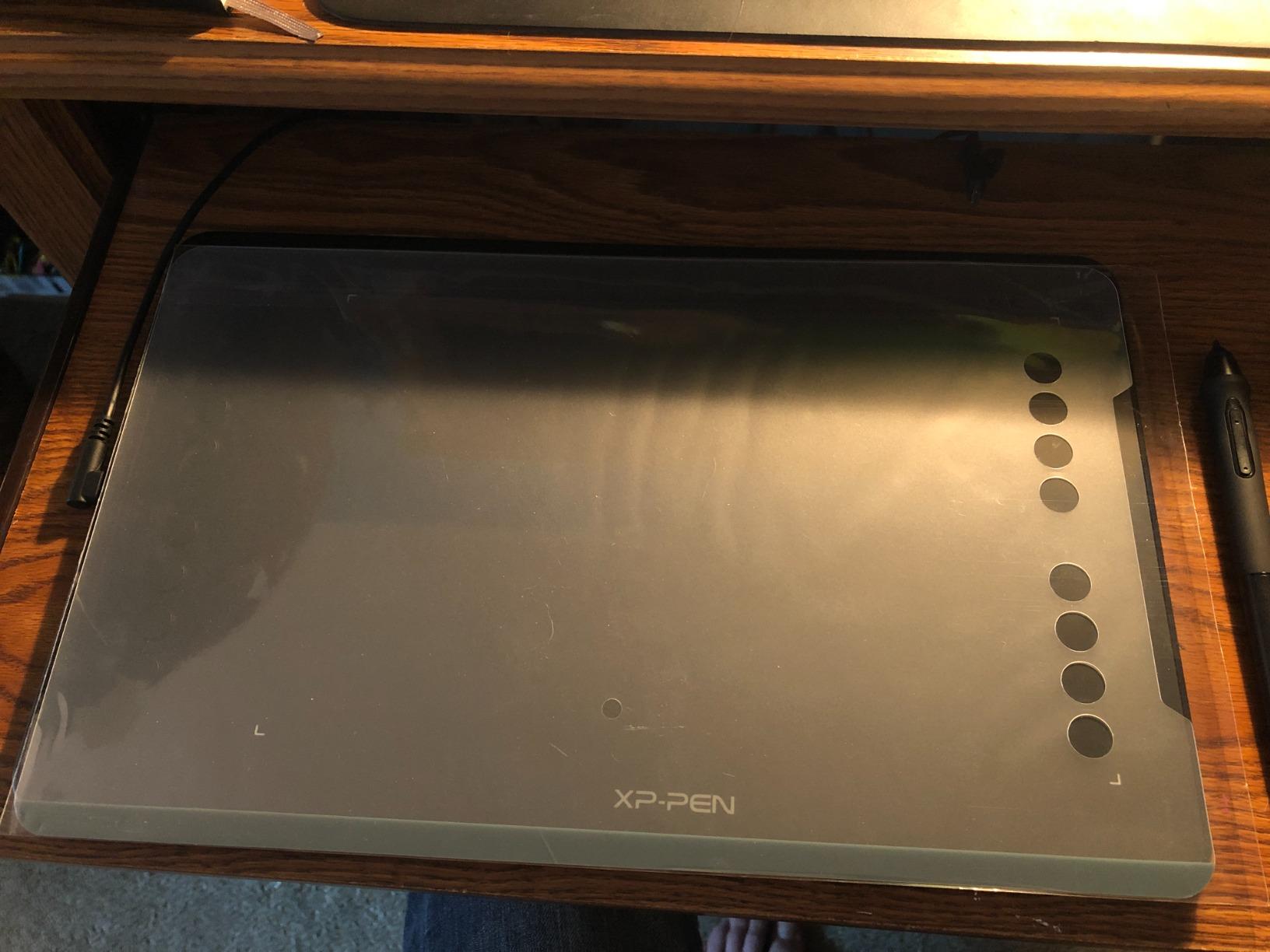
The XP-Pen Deco 01 V3 is our top pick for budget-conscious artists who need a large drawing area without spending $80 or more. At $41.99, it offers an active drawing area of 10 by 6.25 inches — more than 2.5 times larger than the Wacom Intuos Small — along with 8192 levels of pressure sensitivity and eight customizable hotkeys. It is the #4 best seller in the Computer Graphics Tablets category, which reflects its exceptional value proposition.
Despite its budget price, the Deco 01 V3 does not feel like a cheap product. The chassis is slim and well-built, and the large drawing area is covered with a textured surface that provides just the right amount of grip for comfortable drawing. The battery-free stylus is lightweight and well-balanced, and the 8192 pressure levels produce smooth, responsive lines. Eight programmable shortcut keys on the left side of the tablet give you quick access to common keyboard shortcuts, which significantly speeds up your workflow compared to reaching for your keyboard every time you need to change a tool.

One of the Deco 01 V3’s most impressive features is its broad compatibility. Unlike many budget tablets that require workarounds for Linux, the Deco 01 V3 works out of the box with most major Linux distributions, making it a popular choice among Linux-based digital artists. It also supports ChromeOS, Windows, macOS, and Android 10 or later, giving you flexibility across all your devices. The USB-C connectivity is a welcome upgrade from older XP-Pen models that used micro-USB, and the tablet ships with both USB-C to USB-C and USB-A cables to cover every connection scenario.
How does the XP-Pen Deco 01 V3 compare to the GAOMON M10K?
The Deco 01 V3 and the GAOMON M10K are the two best budget pen tablets available under $50, and they are closely matched. The Deco 01 V3 has a larger active drawing area at 10 by 6.25 inches compared to the M10K’s 10 by 6.25 inches — they are virtually identical in size — but the Deco 01 V3 has eight hotkeys while the M10K has ten programmable keys plus a touch ring. If you value physical shortcut buttons, the Deco 01 V3 is a strong choice. If you prefer a scroll wheel for brush size and canvas navigation, the M10K’s touch ring is a unique and genuinely useful feature that you will not find on the Deco 01 V3.
Is the XP-Pen Deco 01 V3 durable enough for daily use?
The main durability concern with the Deco 01 V3 is the pad surface, which can scratch with heavy use over time. Using a protective sheet or being mindful about keeping the surface clean will extend its lifespan significantly. The pen nibs also wear down faster than those of premium Wacom tablets, but XP-Pen includes replacement nibs in the box, and replacement packs are inexpensive to buy online. For the price, the Deco 01 V3 is durable enough for regular daily use — thousands of artists use it as their primary tablet without issues.
12. GAOMON M10K — Best Budget Tablet with Touch Ring
GAOMON M10K Drawing Tablet, 10×6 inch Large Graphics Tablet with Touch Ring, 8192 Levels Battery-Free Stylus, 10 Hot Keys, Art Tablet for Design, Writing, Editing, Work with Mac, Windows, Android
10x6.25 inch active area
8192 pressure levels
Touch ring for navigation
10 programmable hotkeys
Battery-free stylus
+ The Good
- Great value for money
- Works as well as expensive Wacom tablets
- Touch ring for brush size and zoom
- 10 programmable hot keys
- Works with Android 11 through 14
- The Bad
- Requires adjustment period for pressure sensitivity
- Drawing on tablet while looking at screen takes getting used to
- Cable can be finicky for some setups
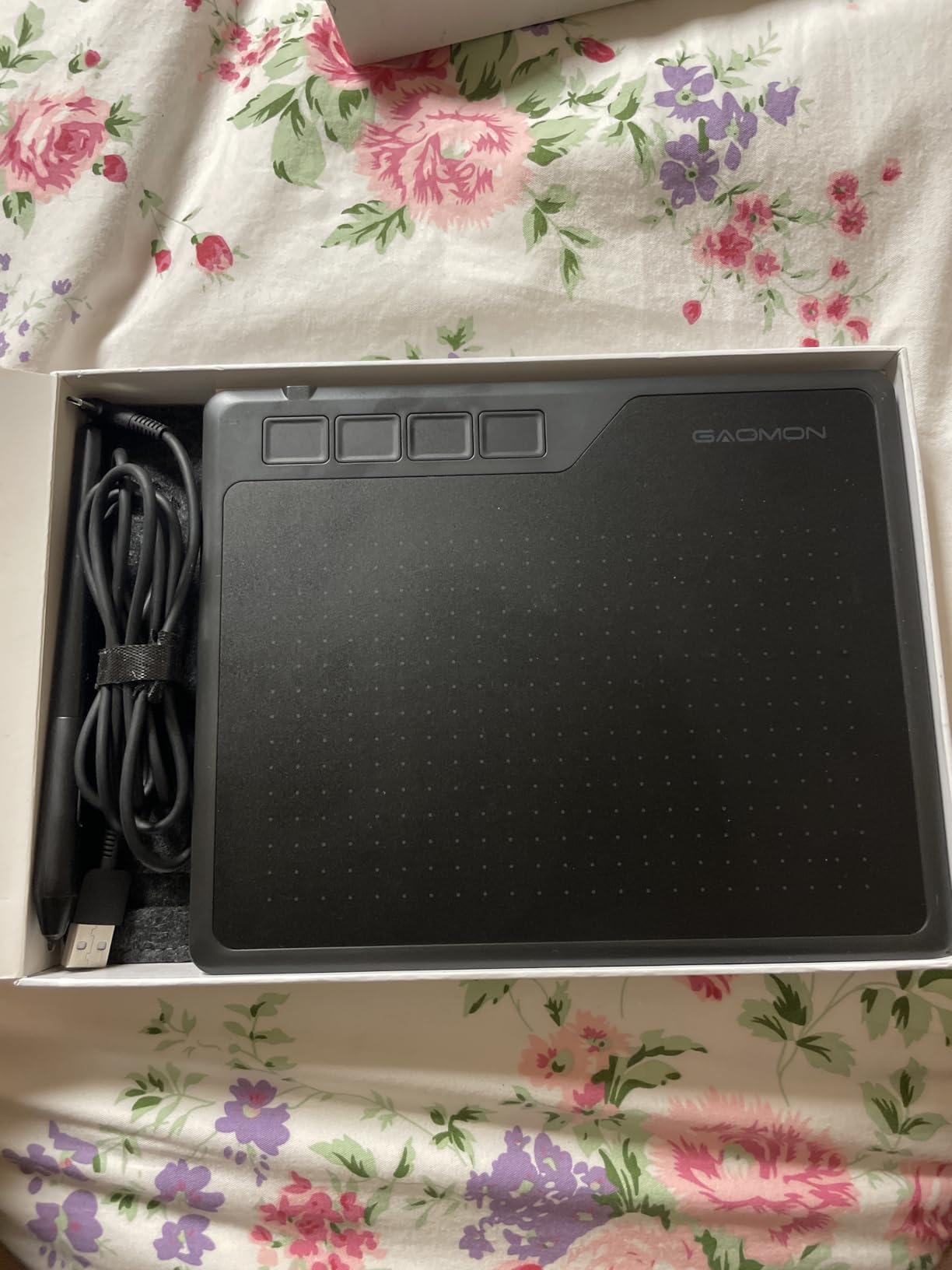
The GAOMON M10K rounds out our guide as the best budget pen tablet with a touch ring — a unique input method that sets it apart from every other tablet in its price class. At $44.99, the M10K offers the same 10 by 6.25 inch drawing area as the XP-Pen Deco 01 V3, along with 8192 levels of pressure sensitivity, 10 programmable hotkeys, and an innovative touch ring that lets you control brush size, canvas zoom, and page scrolling with a smooth circular gesture.
The touch ring is the M10K’s secret weapon. In applications like Photoshop, Clip Studio Paint, and Sai, it can be configured to act as a brush size dial, which means you can adjust your stroke width mid-draw without reaching for your keyboard or moving your hand away from the pen. This is a workflow accelerator that professional artists often associate with high-end tablets like the Wacom Intuos Pro, so having it on a $44.99 budget tablet is genuinely impressive. The 10 programmable press keys complement the touch ring by giving you quick access to your most-used tool shortcuts and commands.
The included AP31 battery-free stylus is lightweight and comfortable, with 8192 levels of pressure sensitivity that deliver smooth, responsive line quality. GAOMON has improved its driver software significantly over the past few years, and the M10K connects reliably to Windows, macOS, and Android devices without the configuration headaches that plagued earlier GAOMON models. The tablet ships with a carrying case, a pen case with eight replacement nibs, and a nib clip — a generous bundle for a tablet at this price point.
Is the GAOMON M10K better than the XP-Pen Deco 01 V3?
The M10K and the Deco 01 V3 are both excellent budget tablets, and the better choice depends on your preferences. If you value the touch ring for brush size control and canvas navigation, the M10K is the better choice. If you prefer a simpler tablet with a larger number of fixed shortcut buttons, the Deco 01 V3’s eight hotkeys may suit you better. Both offer similar drawing quality, so the decision comes down to which additional features matter most to your workflow.
What level of experience is the M10K best suited for?
The GAOMON M10K is ideally suited for beginners and intermediate artists who want a feature-rich pen tablet at a budget price. The large drawing area is perfect for artists who are transitioning from paper to digital and are used to having a generous canvas. The touch ring is a particularly good fit for digital painters who frequently adjust brush size and canvas zoom, as it provides a much faster alternative to keyboard shortcuts. More experienced artists who need the absolute highest pen precision and reliability may still prefer Wacom, but for everyone else, the M10K represents outstanding value.
Buying Guide: How to Choose the Best Graphics Tablet for Your Needs
Pen tablet vs pen display: Which should you choose?
One of the first decisions you will need to make when shopping for a graphics tablet is whether you want a pen tablet or a pen display. Pen tablets — like the Wacom Intuos Small and the Wacom Intuos Pro — have no screen. You draw on the tablet surface while looking at your computer monitor. Pen displays — like the HUION KAMVAS Pro 16 and the Wacom Cintiq Pro 22 — have a built-in screen, so you draw directly on the image. Each format has its advantages: pen tablets tend to offer larger active areas at lower prices and are more portable, while pen displays offer a more intuitive drawing experience that closely mimics pen on paper.
What pressure sensitivity level do you need?
Pressure sensitivity is one of the most important specs on any graphics tablet. It determines how responsively the tablet responds to the amount of force you apply with your pen — lighter touches create thinner, lighter lines, while harder presses create thicker, darker lines. Most modern drawing tablets offer at least 4096 levels of pressure sensitivity, which is sufficient for most illustration, photo editing, and design work. Tablets like the HUION Kamvas 13 Gen 3 and the HUION KAMVAS Pro 24 Gen 3 offer 16384 levels, which provides even more granular control over stroke weight and opacity — though the practical difference between 8192 and 16384 levels is subtle for most artists.
What is tilt sensitivity and is it important?
Tilt sensitivity allows the tablet to detect the angle at which you are holding the pen, which means the stroke width and shape change depending on the pen’s orientation. This is particularly useful for natural media simulation — tilted pencil strokes look different from perpendicular strokes, just as they do with traditional art supplies. Not all styluses support tilt sensitivity, and it is an area where Wacom maintains a clear advantage over most competitors. If natural media simulation is important to your work, prioritize tablets with tilt support like the Wacom Intuos Pro and Wacom Cintiq Pro.
How important is screen size for a pen display?
Screen size matters more than you might expect. A larger screen gives you more workspace for complex illustrations and reduces the amount of panning and zooming you need to do. However, larger displays also take up more desk space, cost more, and can be heavier to move around. For beginners and hobbyists, a 13 to 16 inch display like the HUION Kamvas 13 Gen 3 or KAMVAS Pro 16 is usually the best balance of size, cost, and desk footprint. For professional artists working on detailed illustration, a 21 to 24 inch display like the Wacom Cintiq Pro 22 or HUION KAMVAS 22 provides the canvas size you need for serious creative work.
Do you need wireless connectivity?
Bluetooth connectivity on a pen tablet gives you the freedom to draw without being tethered to your computer, which can improve your posture and give you more flexibility in how you set up your workspace. However, wireless drawing does introduce a small amount of latency compared to wired connection, and you need to manage battery life. If you value maximum precision above all else, a wired connection is still the gold standard. If you value flexibility and a clean desk setup, a Bluetooth tablet like the Wacom Intuos Small Bluetooth or Wacom Intuos Pro Medium is worth considering.
What software comes with the tablet?
Many drawing tablets include software trials and discount codes for popular creative applications. Wacom tablets are known for including particularly generous bundles — the Intuos series typically includes trials for Clip Studio Paint, BorisFX, and Bluescape, among others. These bundles can add hundreds of dollars in value to your purchase, so factor them into your decision when comparing tablets of similar prices. Even if you already own creative software, the included trial offers can be useful for exploring new applications before committing to a purchase.
Frequently Asked Questions
What is the best graphics tablet for beginners?
The Wacom Intuos Small at $39.95 is the best entry-level graphics tablet for most beginners. It delivers the core Wacom drawing experience — 4096 levels of pressure sensitivity, a battery-free EMR pen, and reliable driver software — at a price that makes it accessible to anyone. For beginners who are willing to spend slightly more for a screen, the HUION Kamvas 13 (Gen 3) at $219 is an outstanding option that includes PenTech 4.0 technology previously found only in professional-grade displays.
Is a graphics tablet worth it for beginners?
Yes — a graphics tablet is absolutely worth it for anyone serious about digital art, photo editing, or design. Unlike touchscreen styluses on iPads and similar devices, dedicated drawing tablets offer far superior pressure sensitivity, larger active drawing areas, and professional-grade pen technology that makes digital art feel natural and intuitive. Even an entry-level tablet like the Wacom Intuos Small can transform your creative workflow and open up possibilities that are simply not achievable with a mouse or trackpad.
What are the best affordable drawing tablets under $100?
The best affordable drawing tablets under $100 are the Wacom Intuos Small ($39.95), the XP-Pen Deco 01 V3 ($41.99), and the GAOMON M10K ($44.99). All three offer 4096 or 8192 levels of pressure sensitivity, battery-free styluses, and programmable shortcut keys. The Wacom Intuos Small is the best choice for those who prioritize brand reliability and software support, while the XP-Pen and GAOMON alternatives offer larger drawing areas at similar price points.
Do you need a computer for a drawing tablet?
Most drawing tablets require a computer to function, but standalone options like the Wacom MovinkPad Pro 14 do not. The MovinkPad Pro 14 runs Android 15 natively and includes Google Play Store access, so you can download creative apps and draw anywhere without being connected to a PC or Mac. All other tablets in this guide require a connection to a computer to display the drawing canvas, though the Wacom MovinkPad Pro 14 can also function as a traditional pen display via its Instant Display Mode.
What is the difference between pen tablets and pen displays?
Pen tablets have no built-in screen — you draw on the tablet surface while looking at your computer monitor. They tend to be more affordable, more portable, and available in larger drawing areas for the same price. Pen displays have a built-in screen so you draw directly on the image, which feels more natural and intuitive, like drawing on paper. Pen displays are more expensive and less portable, but they offer a more immediate and immersive drawing experience that many artists prefer.
How many pressure sensitivity levels do I really need?
4096 levels of pressure sensitivity is sufficient for most digital artists. At this level, you have more than enough granularity to produce smooth, natural-looking lines across the full range of stroke weights. Tablets with 8192 or 16384 levels of pressure sensitivity offer even finer control, but the practical difference is subtle for most illustration styles. Unless you are doing work that specifically benefits from extremely precise pressure control — such as highly detailed line art or specialized natural media simulation — you will not notice a meaningful difference between 4096 and 16384 levels in daily use.
Conclusion
Finding the best graphics tablets in 2026 comes down to understanding your specific needs, budget, and creative goals. Whether you are a complete beginner looking for an affordable entry point, a working professional who demands the absolute best pen display on the market, or a digital artist who needs a portable solution for working on the go, there is a graphics tablet in this guide that is right for you.
For beginners on a tight budget, the Wacom Intuos Small at $39.95 remains the gold standard for quality and reliability. For intermediate artists who want a pen display without spending $500 or more, the HUION Kamvas 13 (Gen 3) at $219 is our top recommendation — it includes technology previously found only in professional-grade displays. For professionals who demand the very best, the Wacom Cintiq Pro 22 delivers an unparalleled drawing experience that justifies its premium price tag. And for artists who want the freedom to draw anywhere, the Wacom MovinkPad Pro 14 is the most capable standalone drawing tablet available today.
Whatever tablet you choose, the most important factor is that it inspires you to create. Digital art is a skill that grows with practice, and the right tablet can make the learning process more enjoyable and productive. We hope this guide helps you find the perfect graphics tablet for your creative journey.