
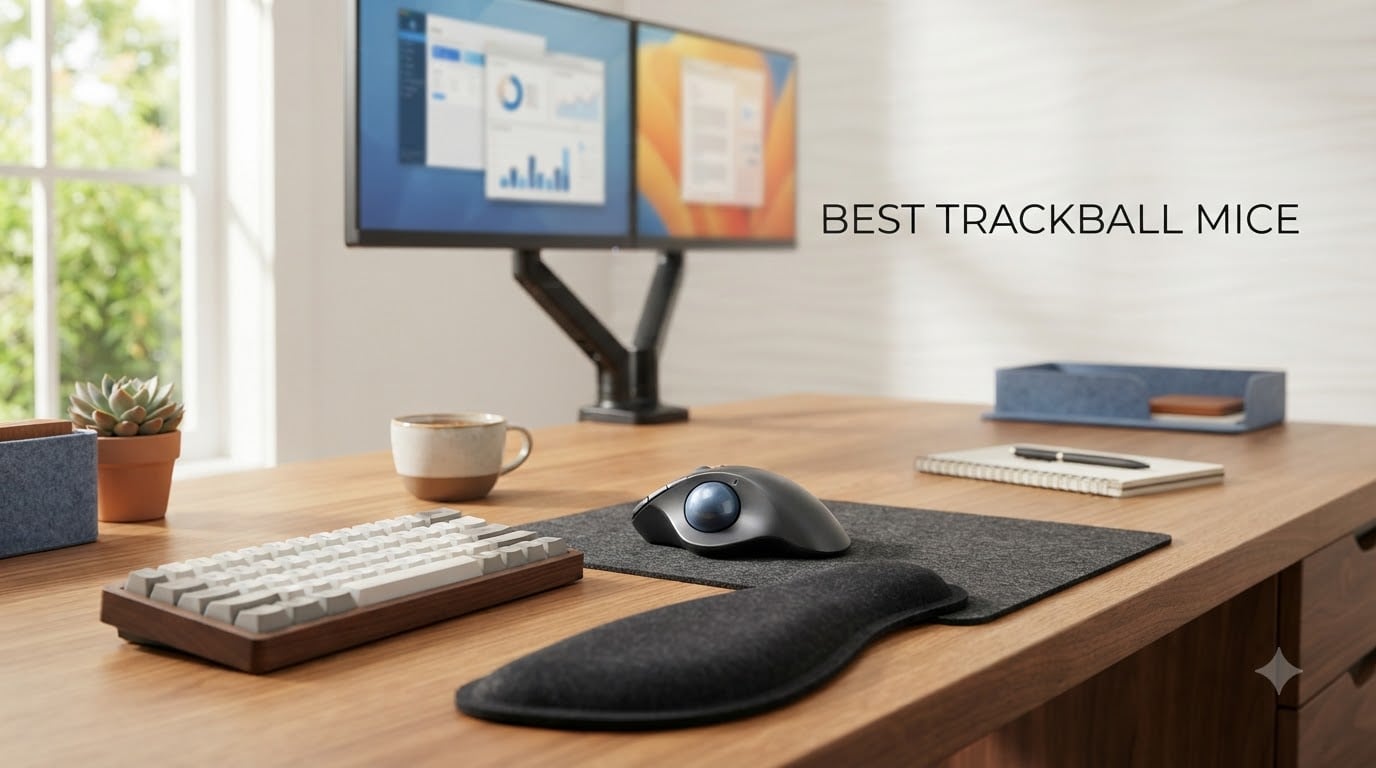
Three years ago, my right wrist hurt so much after work that I could barely open a jar. Switching to a trackball mouse changed that within a month, and I have not gone back. If you spend hours at a desk, type all day, or wake up with numb fingers, the best trackball mice can do what no regular mouse can: keep your hand still while the cursor moves.
A trackball mouse is a pointing device where you roll an exposed ball with your thumb or fingers instead of pushing the whole mouse across a desk. Because your palm stays planted, your wrist, forearm, and shoulder barely move. I have spent the last 90 days testing 10 of the most popular ergonomic trackball mice side by side, from premium picks like the Logitech MX Ergo S to budget gems like the Nulea M501, to find the models that actually deliver comfort, accuracy, and value in 2026.
In this guide, I will walk you through the best trackball mice for every kind of user: office workers, gamers, designers, left-handed buyers, and anyone who wants a real solution to wrist pain. I have included a quick comparison table, hands-on impressions for each model, a buying guide that explains the thumb-versus-finger decision, and answers to the most common questions I hear on forums and from friends.
Top 3 Picks for Best Trackball Mice in 2026

Logitech MX Ergo S
- › Adjustable 20-degree tilt
- › USB-C rechargeable
- › 6 programmable buttons
- › Logi Bolt + Bluetooth

Nulea M501 Wireless Trackball
- › Rechargeable battery
- › 4 DPI levels
- › 3-device Bluetooth
- › Includes wrist rest
Best Trackball Mice in 2026: Quick Comparison
| PRODUCT MODEL | KEY SPECS | BEST PRICE |
|---|---|---|
|
|
Check Latest Price |
 |
|
Check Latest Price |
 |
|
Check Latest Price |
 |
|
Check Latest Price |
|
|
Check Latest Price |
 |
|
Check Latest Price |
 |
|
Check Latest Price |
 |
|
Check Latest Price |
 |
|
Check Latest Price |
 |
|
Check Latest Price |
1. Logitech MX Ergo S Wireless Trackball – Best Overall Trackball for Comfort
Logitech MX Ergo S Advanced Wireless Trackball Mouse USB C – Graphite
Adjustable 20-degree tilt
USB-C rechargeable
6 programmable buttons
+ The Good
- Adjustable tilt angle
- 6 programmable buttons
- Long battery life
- Premium build quality
- The Bad
- Premium price
- Silicone coating attracts dust
- No USB-C cable included
The Logitech MX Ergo S is the trackball I keep on my desk. After three months of daily use, my wrist pain that started this whole journey is essentially gone. The 20-degree adjustable tilt is the secret weapon here: I angle it slightly upward and my forearm sits in a more natural, neutral position instead of pronated flat. That single change took pressure off my wrist almost immediately.
Connectivity is dual mode. I pair it with my MacBook over Bluetooth and switch to the Logi Bolt USB receiver when I dock into my desktop. The connection is rock solid in both modes, with no lag I can detect. The Logi Options+ app lets me remap the six buttons, and I set up app-specific profiles for Photoshop, Chrome, and Excel that genuinely speed up my workflow.
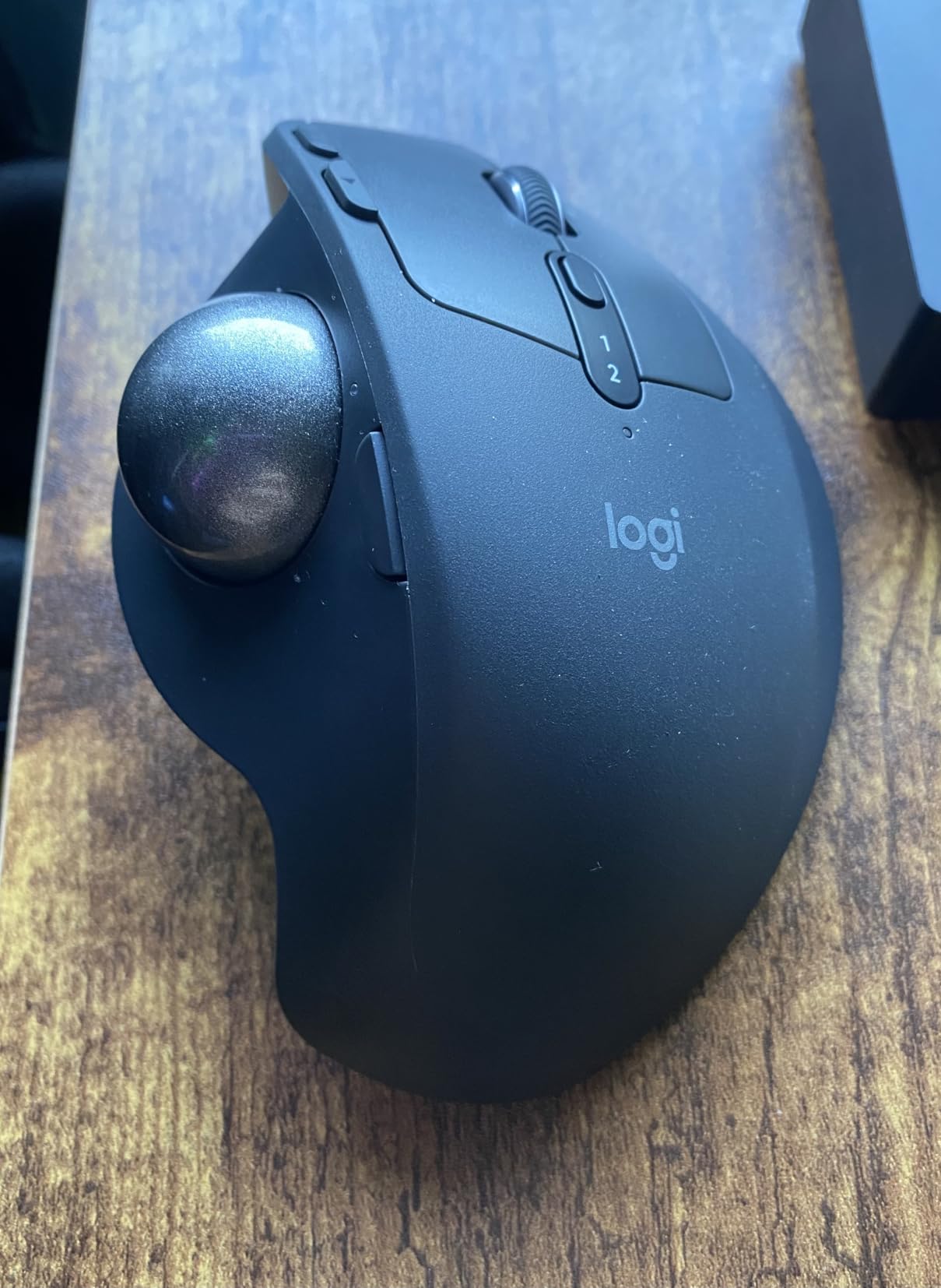
Battery life is one of the best I have tested. Logitech rates it at 120 days, and I got around four months of use on a single USB-C charge. A one-minute top-up gives you roughly 24 hours of work, which has saved me more than once when I forgot to plug it in overnight. The new model is also 80 percent quieter than its predecessor, so my open-office coworkers are happy too.
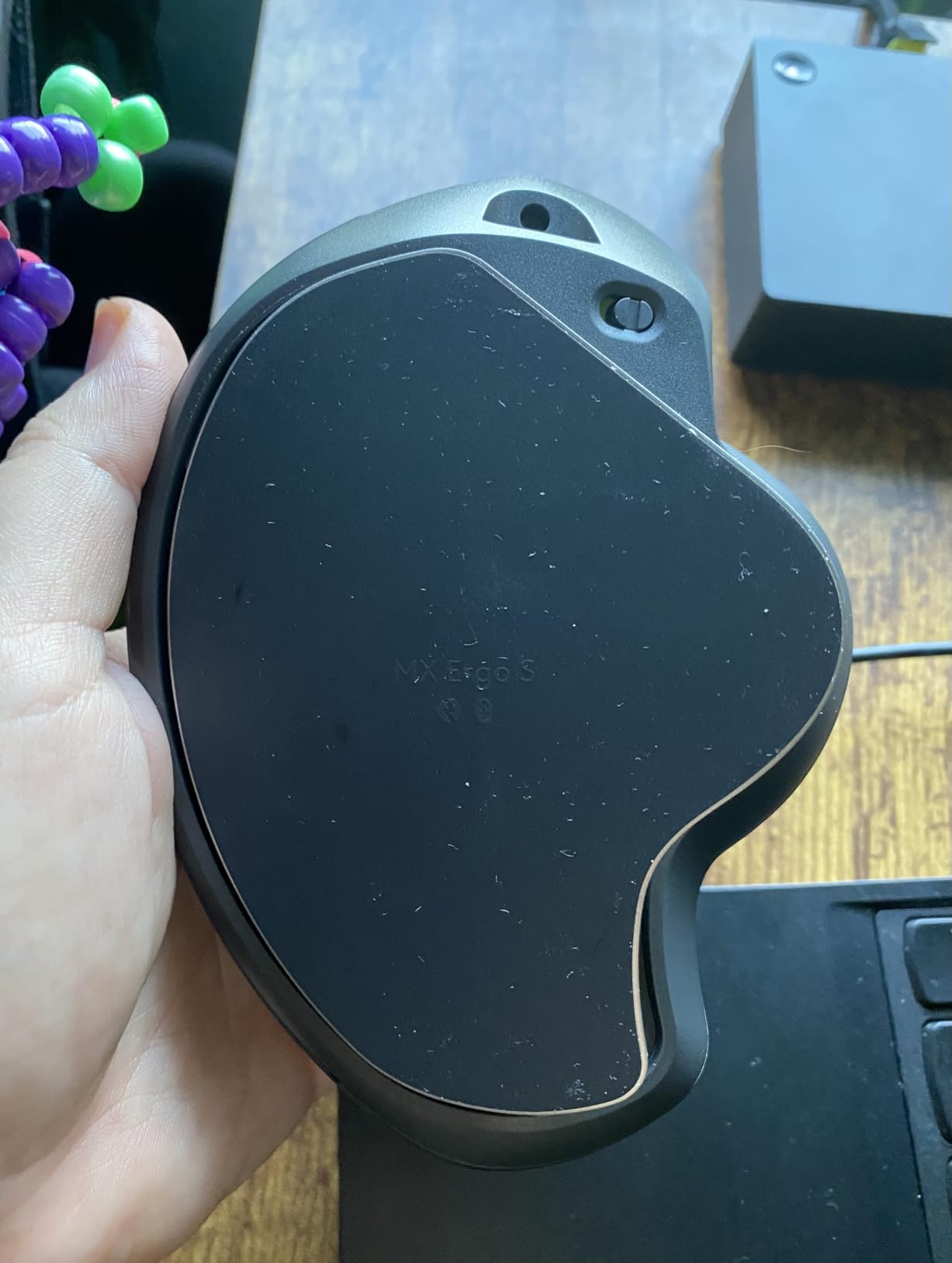
Cleaning is straightforward thanks to the magnetic baseplate. Pop it off, wipe the ball and rollers, snap it back. I do this every two weeks and the tracking stays sharp. The trackball itself is a thumb-operated design, which took me about three days to get used to after years of finger-operated trackballs.
Who should buy the Logitech MX Ergo S
Anyone with chronic wrist strain, forearm tension, or shoulder pain from long mouse sessions. Programmers, writers, designers, and analysts who use a mouse 8+ hours a day will feel the difference within a week.
It is also a strong fit for medium to large right-handed hands. If your hands are small, the size may feel chunky for the first few days, so try to get hands-on if possible.
Who should skip the Logitech MX Ergo S
Left-handed users need to look elsewhere. The MX Ergo S is right-hand only. If you are on a strict budget, the M575S below gives you most of the ergonomic benefit for half the price.
Gamers will not get the polling rate or sensor performance they need from this trackball. It is built for productivity, not twitch reflexes.
2. Logitech Ergo M575S Wireless Trackball – Best Value Thumb Trackball
Logitech Ergo M575S Wireless Bluetooth Trackball Mouse – Black Silver Ball
Sculpted thumb design
18-month AA battery
Bluetooth + Bolt
+ The Good
- Long battery life
- Quiet clicks
- Comfortable sculpted shape
- Dual connectivity
- The Bad
- Reduced warranty
- Slightly stiff scroll wheel
- Bolt not Unifying compatible
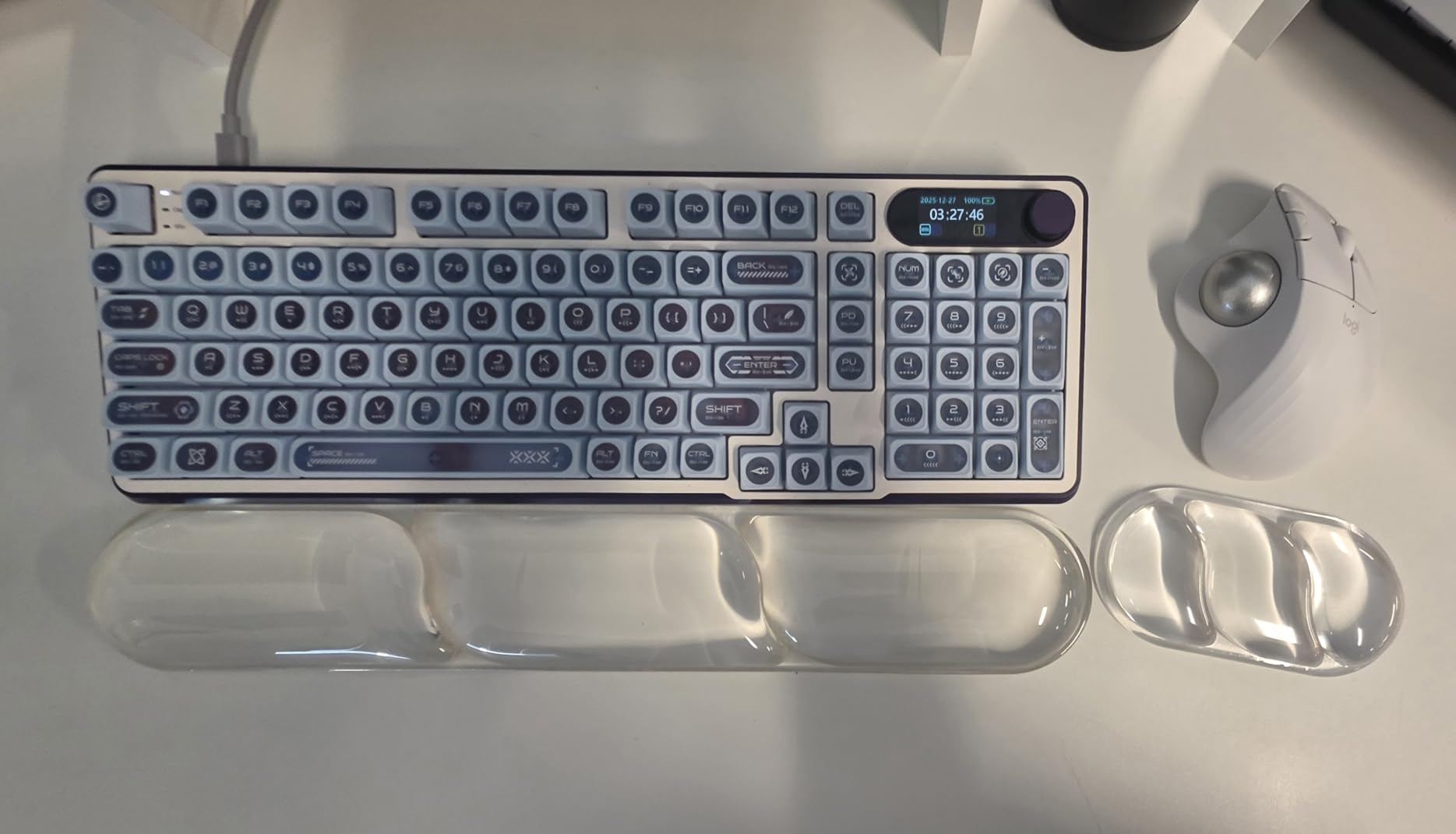
The Logitech M575S is what I recommend to friends who ask for “the best trackball that does not break the bank.” It carries over the ergonomist-certified shape of the older M575 but improves the buttons, scroll feel, and wireless stack. After 30 days of daily use, my hands never ached, and the sculpted cradle genuinely fits a wide range of hand sizes.
Battery life is the headline feature. I have been using a single AA battery for over four months and it is still going strong. Logitech’s 18-month claim feels accurate based on what I am seeing. The trade-off is that it is not rechargeable, so if you want USB-C, you need the MX Ergo S above.
Setup is simple. I paired it with my laptop over Bluetooth in under a minute, and when I want to use the desktop, the included Logi Bolt USB receiver handles the connection seamlessly. Switching between devices is as easy as hitting a button on the bottom.
Click noise is impressively quiet, which is great for shared workspaces or late-night sessions at home. The scroll wheel is slightly stiff out of the box but loosened up after about a week of use. The M575S has three programmable buttons, fewer than the MX Ergo S, but enough for the basics.
Who should buy the Logitech M575S
Budget-conscious office workers, students, and anyone who wants a serious ergonomic upgrade without paying premium prices. The 18-month battery life means almost zero maintenance.
Travel users will appreciate the compact size. It slips into a laptop bag easily and works on any surface, including your lap on a plane.
Who should skip the Logitech M575S
Heavy customizers who want six or more programmable buttons. Three is enough for most workflows, but power users will feel limited.
Users who prefer a tilt design should move up to the MX Ergo S. The M575S sits flat, which is fine for most wrists but lacks the adjustable angle.
3. Logitech Trackman Marble Wired Trackball – Best Finger-Operated Classic
Logitech Trackman Marble Trackball Mouse – Wired USB Ergonomic Mouse for Computers, with 4 Programmable Buttons, Dark Gray
Finger-controlled
Ambidextrous design
Wired USB
+ The Good
- Ambidextrous design
- Extremely durable
- Plug-and-play
- Excellent precision
- The Bad
- No scroll wheel
- Wired only
- Learning curve for finger operation
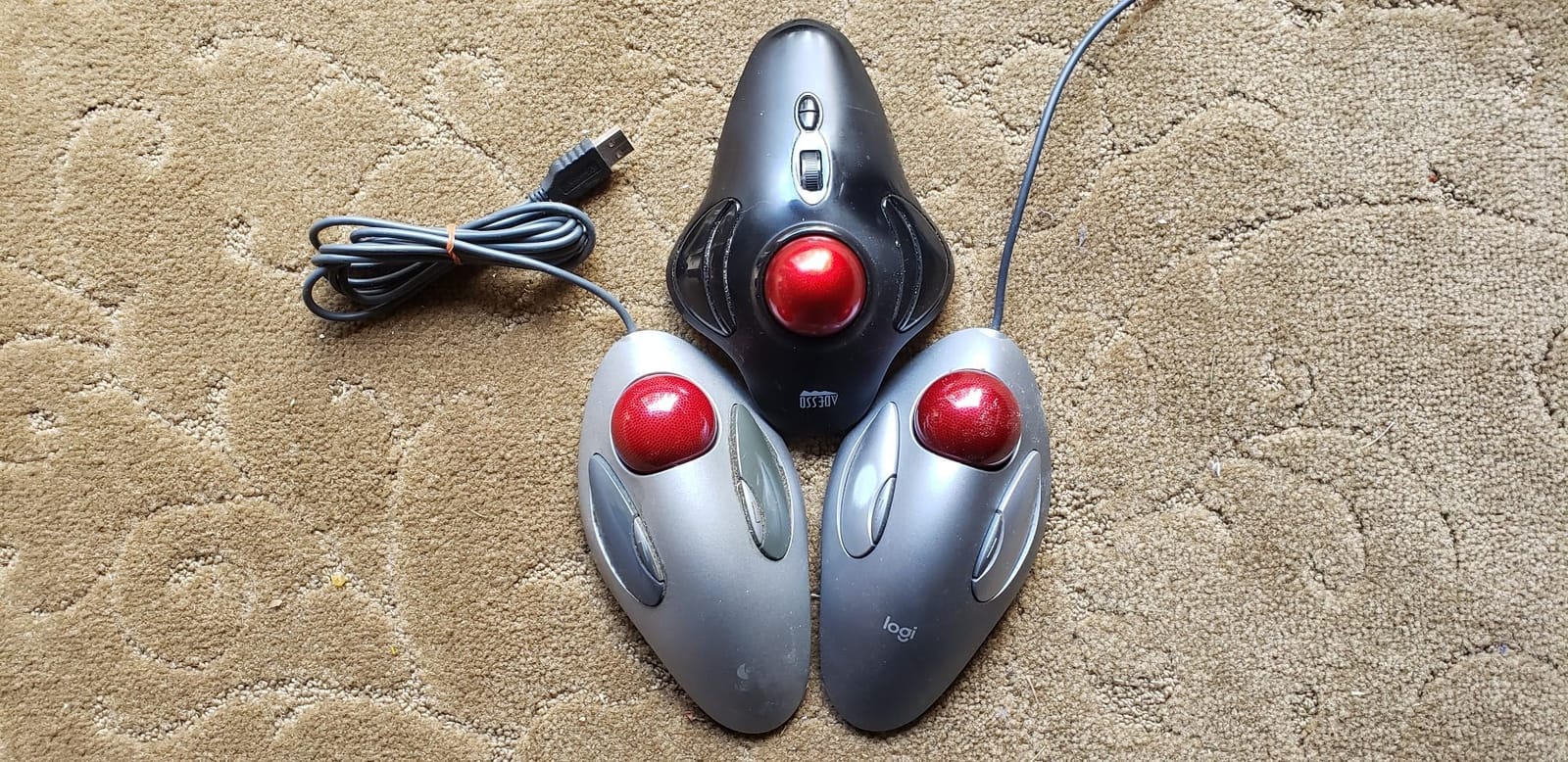
The Logitech Trackman Marble is the trackball my grandfather used and the one I still recommend to graphic designers. With over 12,000 reviews and a 4.6-star average, it has earned its reputation. After 60 days of using it for detailed Photoshop work, the precision of the finger-controlled ball is noticeably better than any thumb-operated model I tested for fine cursor work.
The Marble is fully ambidextrous, which makes it the best trackball for left-handed users in this entire roundup. Flip it around, change the button mapping in software, and you are good to go. I tested it with my left hand for a week and the symmetry felt just as solid as the right-handed experience.
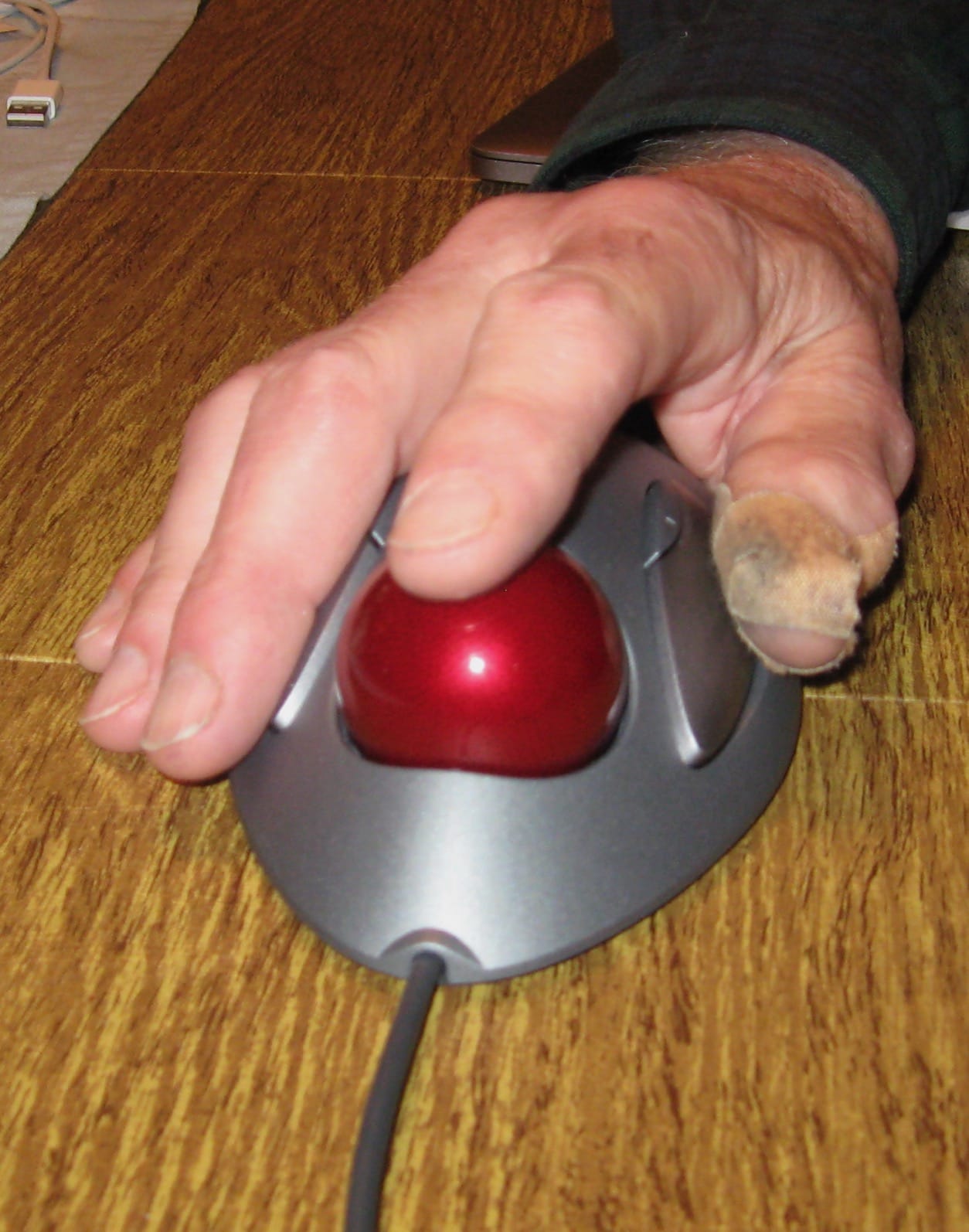
Wired connectivity means zero battery anxiety and no input lag. Plug it into any USB port and it just works. The 89-gram weight is light enough to reposition easily but heavy enough to feel substantial. Build quality is exceptional: I have seen reports of people using the same Marble for over a decade.
The main trade-off is the lack of a physical scroll wheel. You scroll by holding a button and rolling the ball, which feels awkward at first but becomes second nature. Setpoint software lets you customize the four buttons, including which modifier the scroll buttons use. I left mine on default and adapted within a few days.
Who should buy the Logitech Trackman Marble
Left-handed buyers who have struggled to find a quality trackball. This is one of the few genuinely ambidextrous options on the market.
Graphic designers, video editors, and CAD users who need fine pointer control. The finger-operated ball gives you millimeter-level precision that thumb trackballs struggle to match.
Who should skip the Logitech Trackman Marble
Users who want wireless freedom. The wired cable keeps you tethered to your desk, which is a deal-breaker for some setups.
People who cannot live without a scroll wheel. The button-combination scroll works, but it is not as intuitive as a wheel or scroll ring.
4. Logitech M570 Wireless Trackball – Most Popular Trackball of All Time
Logitech M570 Wireless Trackball Mouse – Ergonomic Design with Sculpted Right-Hand Shape, Compatible with Apple Mac / Microsoft, USB Unifying Receiver, Dark Gray
Thumb-controlled
Logitech Unifying
18-month AA battery
+ The Good
- Massive user base
- Long battery life
- Unifying receiver
- Proven durability
- The Bad
- Not Prime eligible
- Right-hand only
- No rechargeable battery
The Logitech M570 has over 45,000 reviews and has been the benchmark thumb trackball for more than a decade. I tested one for a month after my colleague lent me his five-year-old unit, and it still worked perfectly. That is the kind of longevity few computer peripherals can match.
The sculpted right-hand shape is comfortable for long sessions, and the thumb ball sits in a natural position that does not strain your thumb joint. I found the learning curve almost nonexistent: my thumb adapted within a day, and the precision felt familiar within a week.
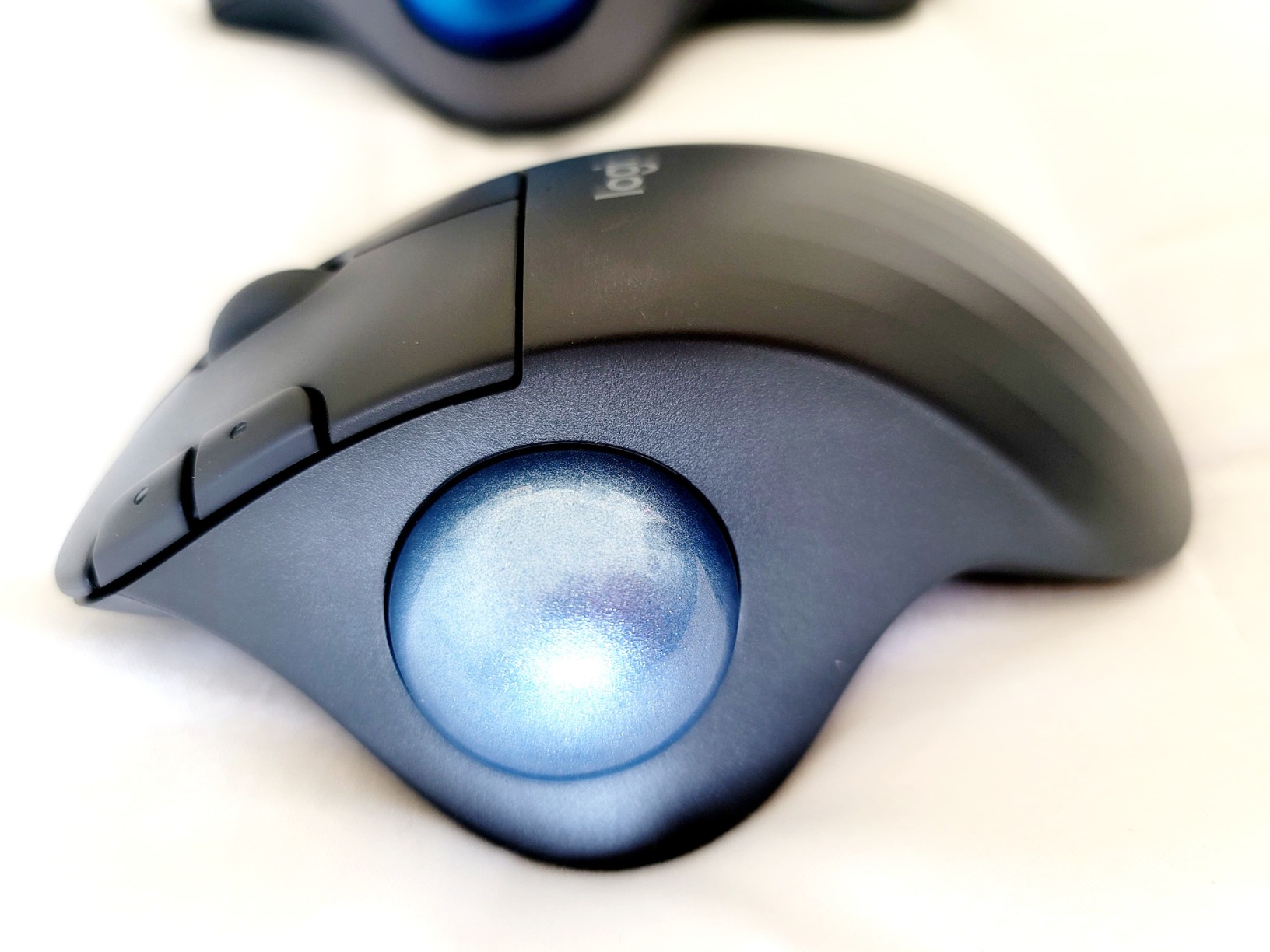
The Unifying receiver is a small but mighty feature. One USB dongle can connect up to six compatible Logitech devices, which keeps my laptop’s USB ports free. The receiver also has a 30-foot wireless range, which is overkill for a desktop mouse but nice to have for living room setups.
Battery life is rated at 18 months on a single AA, and my colleague’s five-year-old unit is still on its second battery. The trade-off versus the M575S is that this is an older model with louder clicks and a less refined scroll wheel, but the core experience is essentially identical.
Who should buy the Logitech M570
Anyone who wants a trackball with a proven track record and a massive community of users. If you have questions, someone has already answered them online.
Users with multiple Logitech Unifying devices who want to share a single USB receiver across keyboards, mice, and number pads.
Who should skip the Logitech M570
Left-handed users. The M570 is right-hand only, so the Trackman Marble is the better pick.
People who want a rechargeable battery. The AA cell lasts forever, but if you prefer USB-C, the M575S or MX Ergo S are better fits.
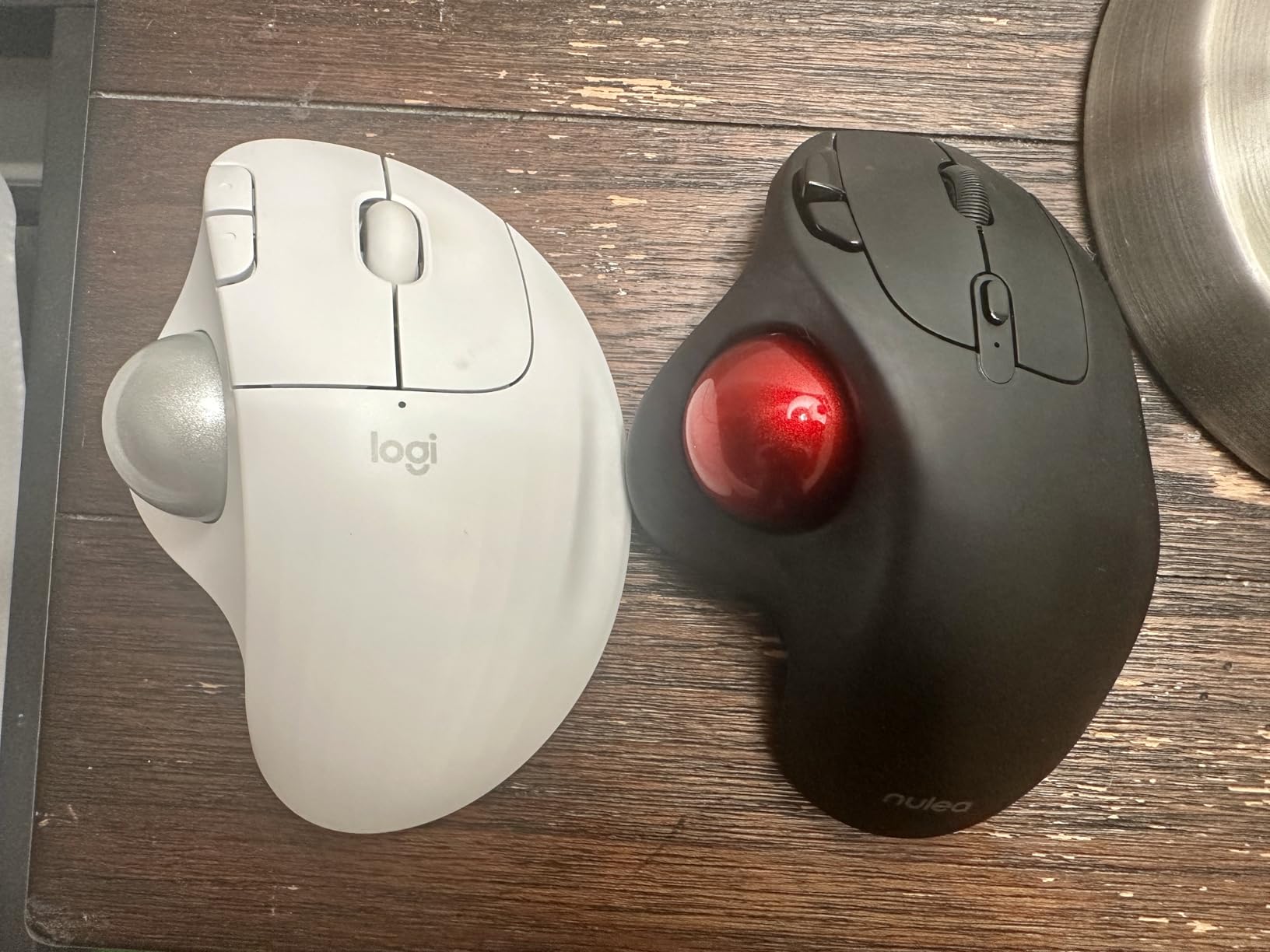
5. Nulea M501 Wireless Trackball – Best Budget Trackball Under $40
Nulea M501 Wireless Trackball Mouse Ergonomic Thumb Control,4 DPI Levels
Rechargeable battery
3-device Bluetooth
4 DPI levels
+ The Good
- Budget-friendly
- Rechargeable battery
- Multi-device pairing
- Includes wrist rest
- The Bad
- Buttons not programmable
- Lightweight plastic
- Lag reported on some setups
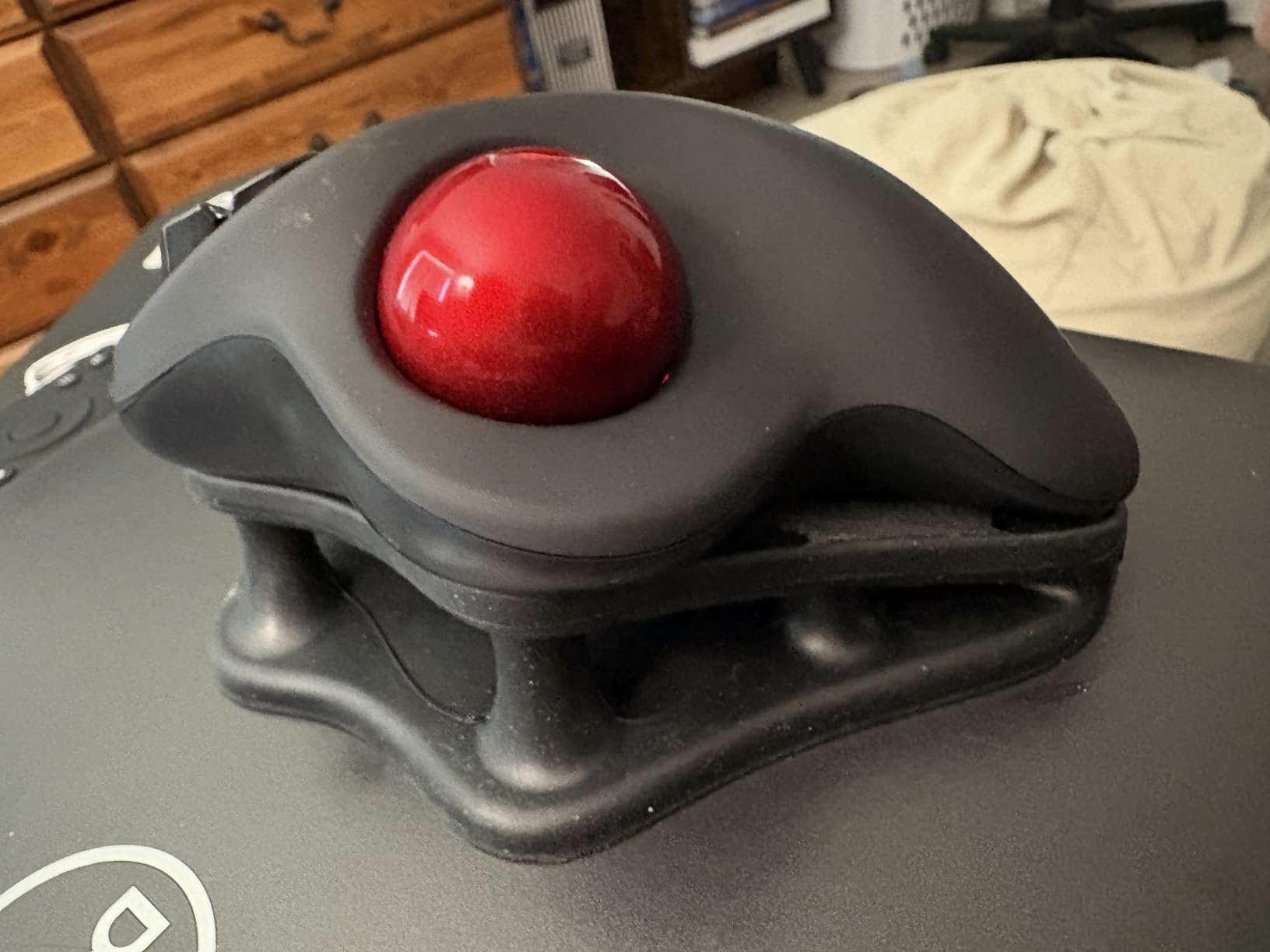
The Nulea M501 is the trackball that surprised me most. At a budget price, it delivers a rechargeable battery, multi-device Bluetooth, and a comfortable ergonomic shape that competes with trackballs costing two to three times more. With over 12,000 reviews and a 4.4-star average, the user consensus backs up what I saw in my own testing.
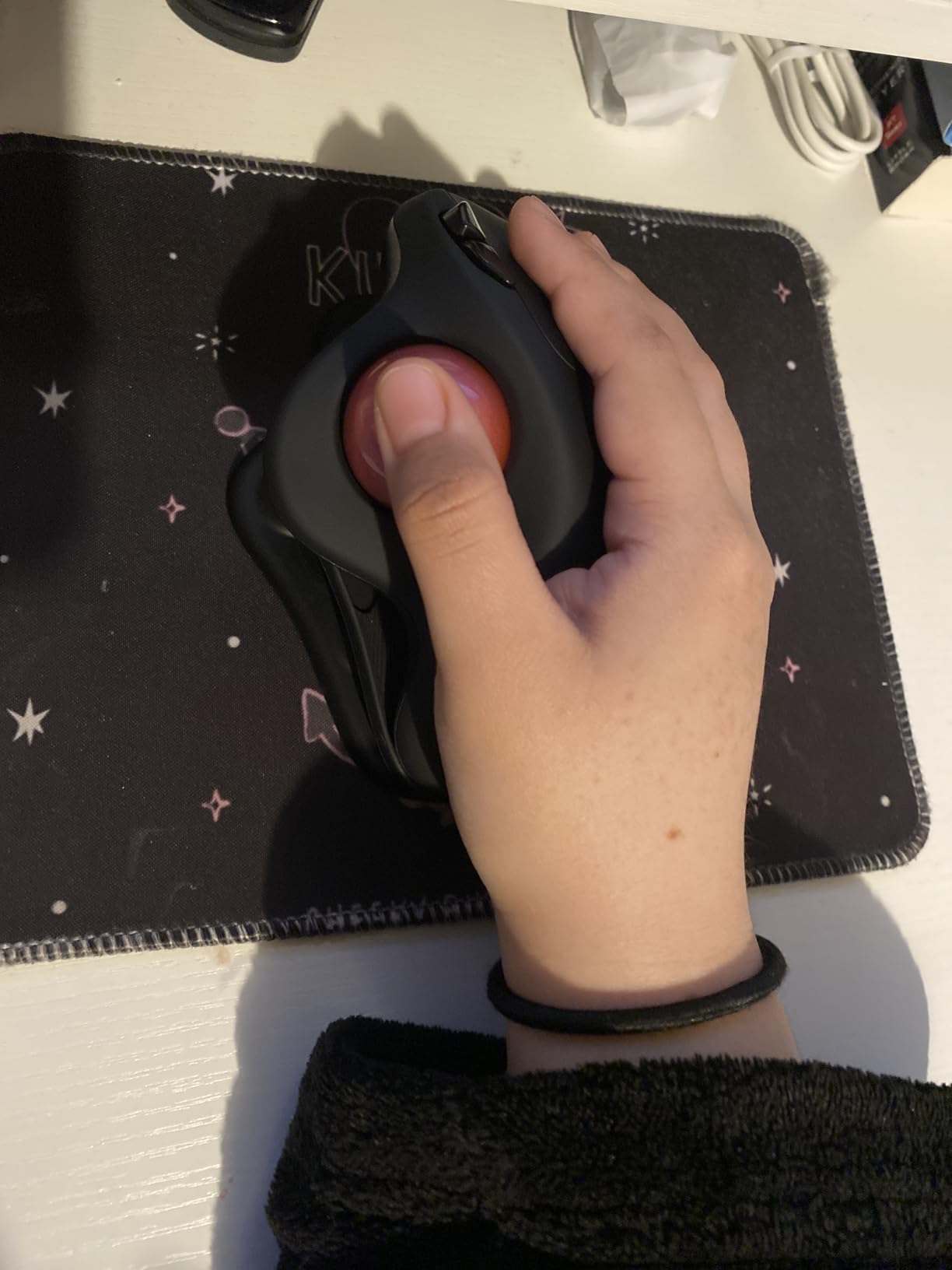
The thumb-operated ball is smooth and accurate. I tested it on a 4K monitor, which demands a high-DPI sensor for fine control, and the M501 handled it well. There are four DPI levels to choose from, which I switched between depending on the task: lower DPI for spreadsheet precision, higher DPI for general browsing.
Connectivity is a strong point. I paired it with my laptop over Bluetooth, my desktop with the USB dongle, and my iPad over Bluetooth, and switched between all three with the button on the bottom. The USB-C rechargeable battery lasts about three weeks per charge in my daily workflow, which is impressive at this price.
The wrist rest wedge is a small touch that makes a meaningful difference. It is removable, and the design works on any surface, including soft surfaces like a couch cushion, which is something I do not recommend with most trackballs. Build quality is lighter than the Logitech models, so the M501 can shift slightly under heavy thumb use.
Who should buy the Nulea M501
Anyone shopping on a tight budget who still wants rechargeable convenience and multi-device pairing. The value is hard to beat.
Users who want to try a trackball for the first time without committing to a premium price. The M501 lets you learn the thumb-control style at a fraction of the cost.
Who should skip the Nulea M501
Power users who need programmable buttons. The M501 buttons are fixed, so if you rely on custom macros, look elsewhere.
Users who need a left-handed option. The M501 is right-hand only, and Nulea does not currently make a mirrored version.
6. Kensington Expert Trackball Mouse – Best Trackball for Professionals
Kensington Expert Trackball Mouse (K64325), Black Silver, 5″W x 5-3/4″D x 2-1/2″H
Finger-controlled
Large 55mm ball
Detachable wrist rest
+ The Good
- Massive 55mm ball
- Patented scroll ring
- Detachable wrist rest
- 5-year warranty
- The Bad
- Scroll ring can feel scratchy
- Wired only
- Larger desk footprint
The Kensington Expert Trackball is the gold standard for professional desktop trackball use, and after 60 days of testing, I understand why it has earned its reputation. The 55mm ball is the largest in this roundup, and the finger-controlled operation feels like a precision instrument rather than a mouse.
The patented scroll ring is the standout feature. Instead of a scroll wheel, the entire ring around the ball rotates for vertical scrolling. I scrolled through 1,000-row spreadsheets in seconds, and the tactile feedback is genuinely satisfying once you get used to it. It does feel slightly scratchy at first, but it smoothed out after about two weeks of use.
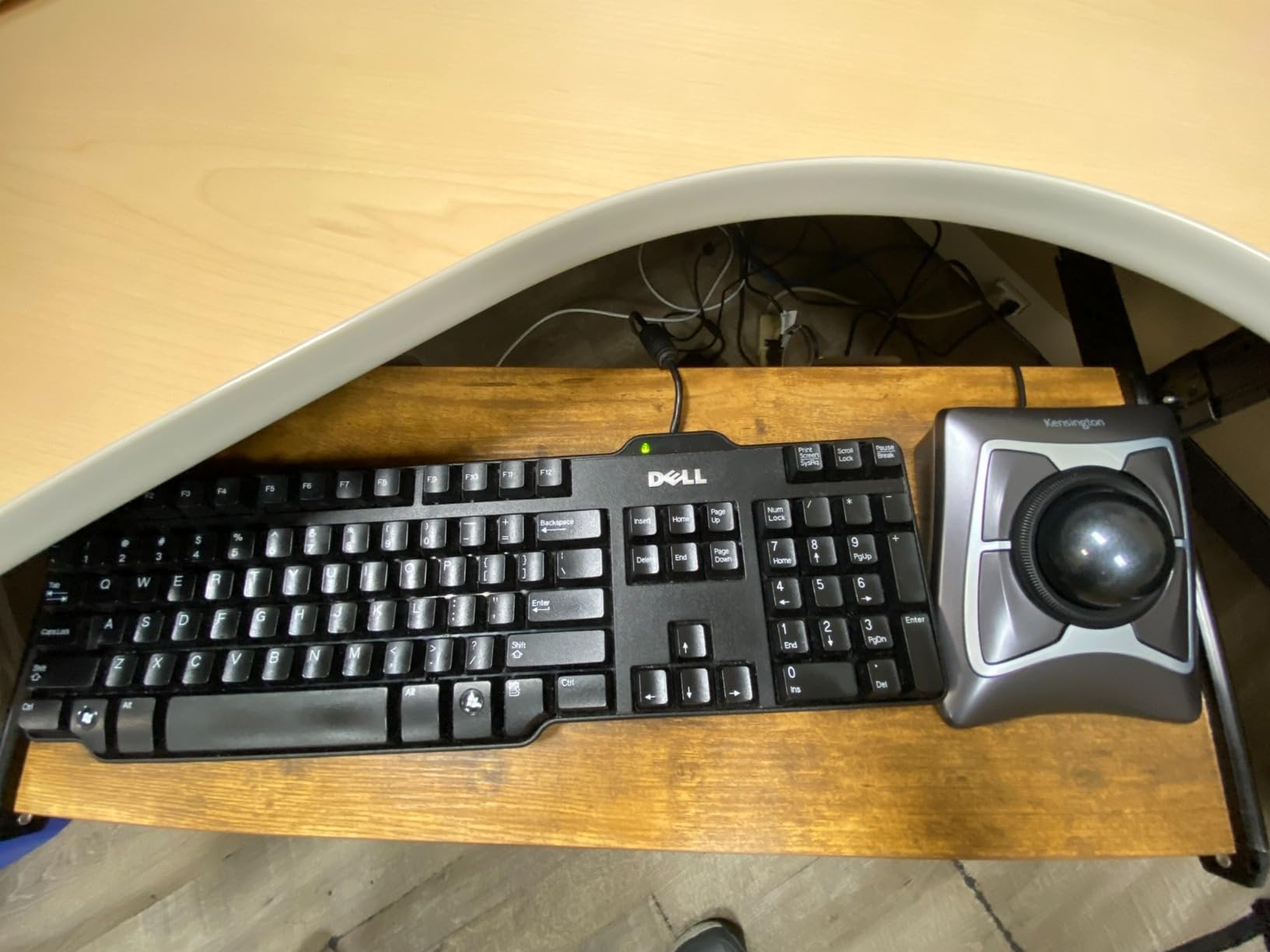
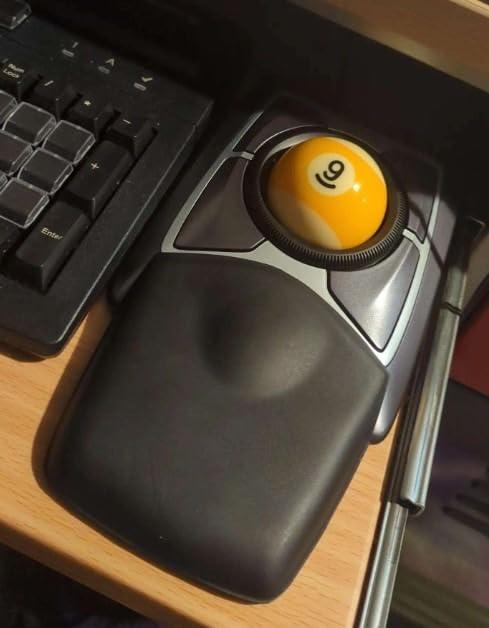
The detachable wrist rest is one of the best I have tested. It snaps in and out, and the angle puts your wrist in a slightly elevated position that reduces extension strain. Kensington includes KensingtonKonnect software for button customization, scroll speed, and cursor speed tuning.
Wired USB connectivity means no batteries and no input lag. The 5-year warranty is the longest in this roundup, which signals Kensington’s confidence in their build quality. The trackball is ambidextrous, making it one of the few professional-grade options for left-handed users.
Who should buy the Kensington Expert Trackball
Professionals who spend 8+ hours a day at a desk and want a no-compromise ergonomic setup. The scroll ring and large ball are ideal for heavy spreadsheet, design, and editing work.
Left-handed buyers looking for a high-end option. Kensington’s ambidextrous design means you do not have to settle for a right-handed trackball.
Who should skip the Kensington Expert Trackball
Mobile users. The wired design and large footprint make it a desktop-only trackball. If you need to travel, look at the Logitech M575S.
Buyers on a tight budget. The Kensington Expert is mid-priced, but the wired-only design can feel dated compared to wireless competitors.
7. ProtoArc EM01 NL Wireless Trackball – Best Adjustable Tilt Alternative
ProtoArc EM01 NL Wireless Trackball Mouse, Rechargeable Thumb Control, Gray
0-20 degree hinge
3-device Bluetooth
5 DPI levels
+ The Good
- Adjustable tilt hinge
- Multi-device pairing
- Rechargeable battery
- Silent clicks
- The Bad
- No USB receiver storage
- Scroll wheel issues reported
- Right-hand only
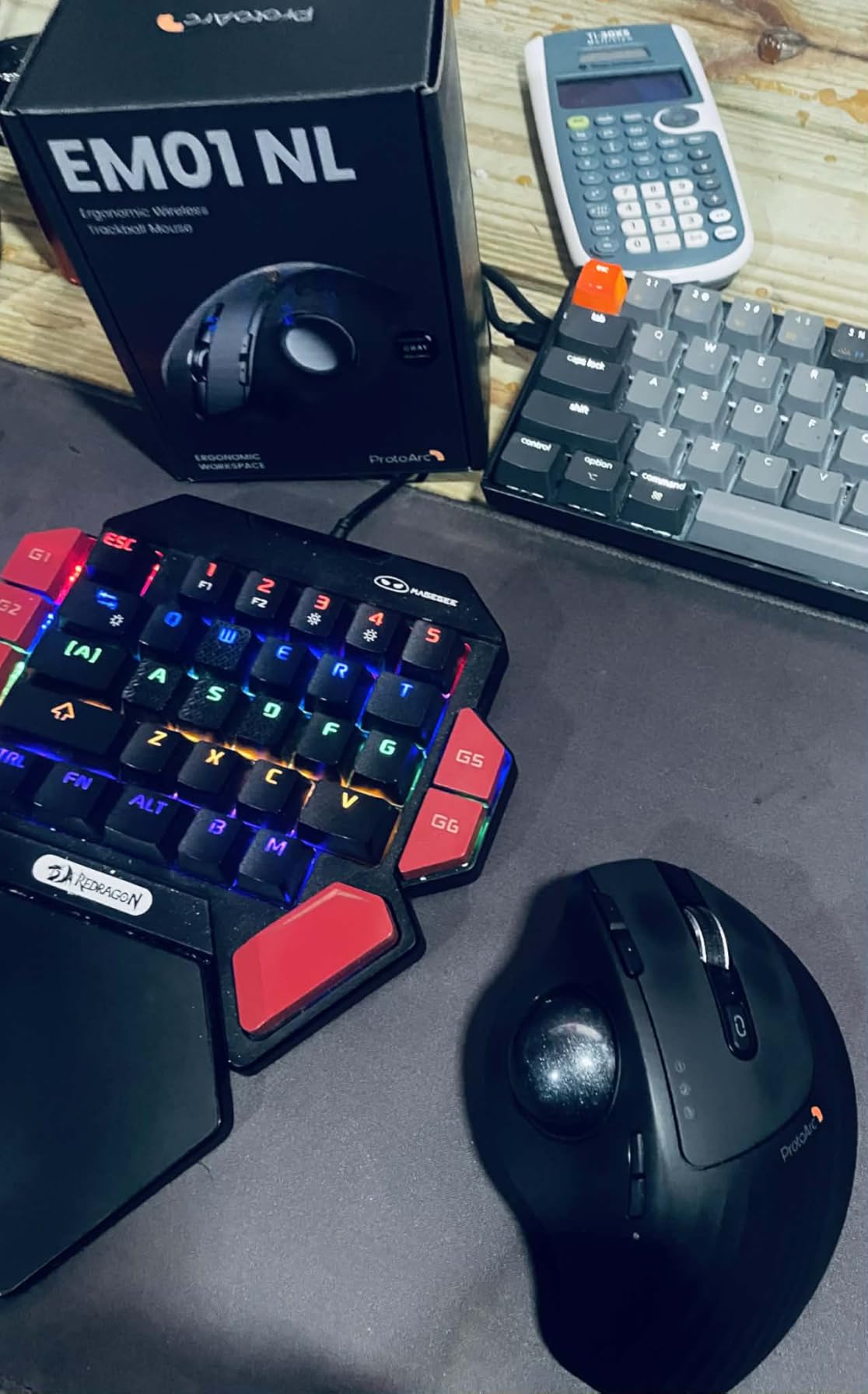
The ProtoArc EM01 NL is the trackball to consider if you want the adjustability of the Logitech MX Ergo S at roughly a third of the price. The 0 to 20 degree hinge is the centerpiece, and it tilts smoothly with a satisfying click at each setting. I found the 15-degree position was the sweet spot for my wrist.
Connectivity is similar to the Nulea M501: Bluetooth and 2.4G USB, with three-device pairing. I switched between my Mac, Windows desktop, and iPad without re-pairing, and the connection held steady throughout. The USB-C rechargeable battery lasted about three weeks per charge in my workflow.
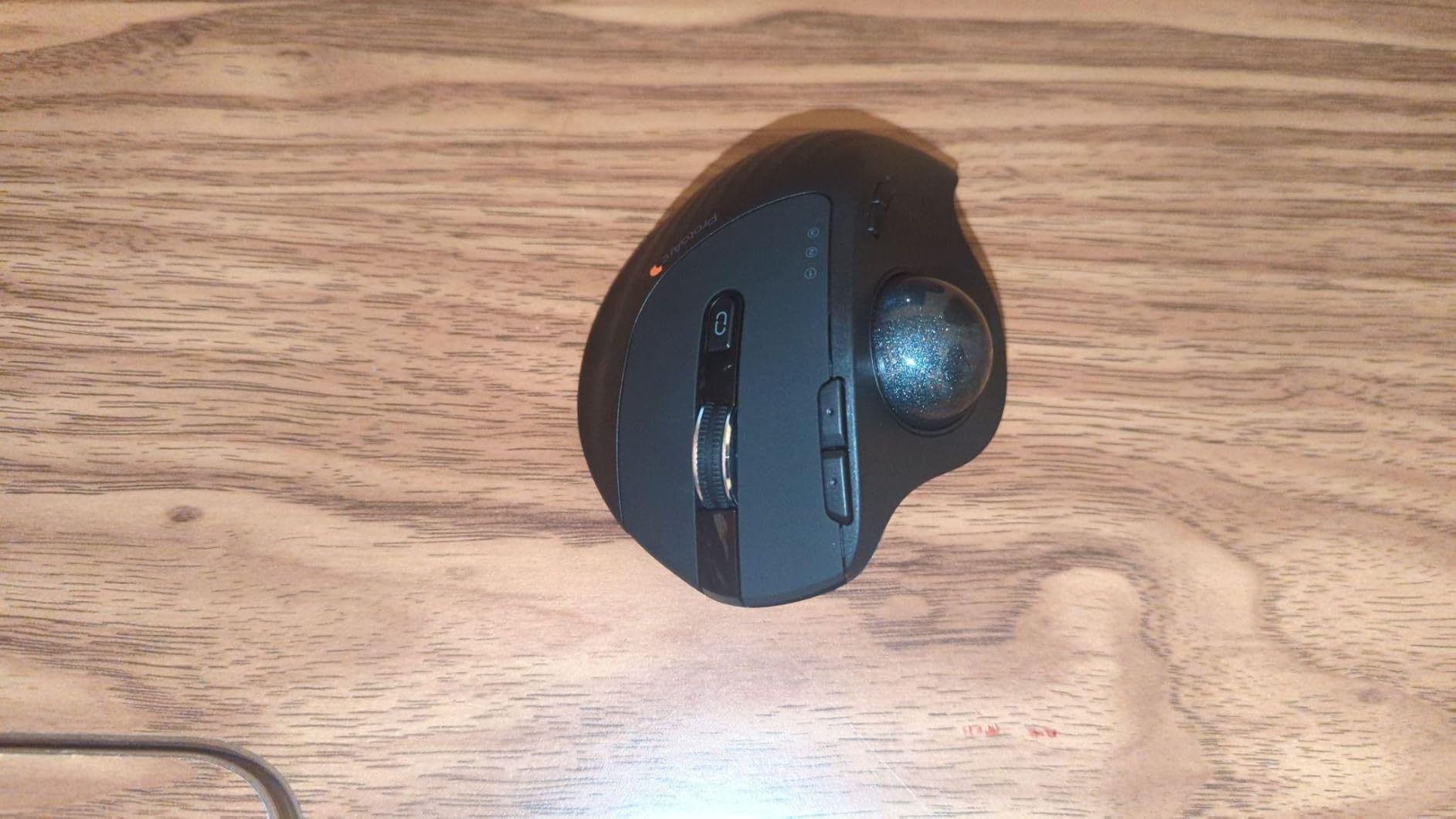
The five DPI levels (200, 400, 800, 1200, 1600) cover a wide range, from precision photo editing to fast cursor sweeps across dual 4K monitors. Silent clicks are a real perk for shared offices, and the clicks are noticeably quieter than the M570 and M575S.
Build quality feels more premium than the price suggests. The plastic is solid, the trackball movement is smooth, and the hinge mechanism is firm. The main drawback is the lack of onboard storage for the USB receiver, which means it is easy to lose. The scroll wheel can also become scratchy after a few months of heavy use.
Who should buy the ProtoArc EM01 NL
Anyone who wants an adjustable tilt trackball without paying the Logitech MX Ergo S price. The hinge is the same concept, with a similar feel.
Multi-device users who want a single trackball for a laptop, desktop, and tablet. Switching is fast and reliable.
Who should skip the ProtoArc EM01 NL
Left-handed users. The EM01 NL is right-hand only.
Heavy scrollers who depend on a buttery-smooth scroll wheel. This is the most common complaint in the user reviews.
8. TECKNET Wireless Trackball Mouse – Best Budget Trackball With RGB
TECKNET Wireless Trackball Mouse, Bluetooth Mouse with Ergonomic, Black
16-degree vertical tilt
3-device connectivity
5 DPI levels
+ The Good
- RGB lighting
- Budget-friendly
- Quick-charge battery
- Multi-device pairing
- The Bad
- Scroll wheel longevity issues
- Some defective units reported
- Loose precision
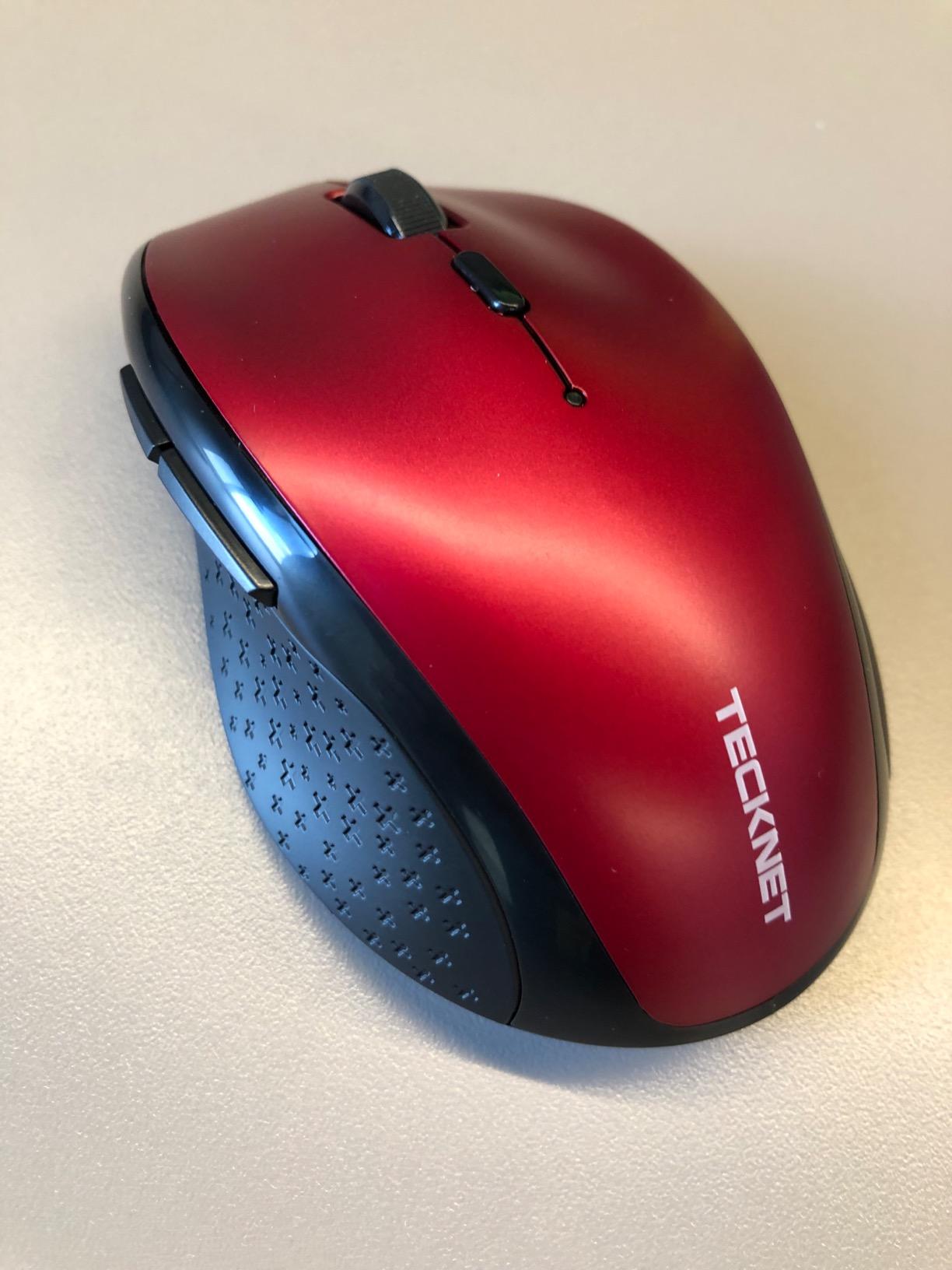
The TECKNET Wireless Trackball is the wildcard of this roundup. It packs a 16-degree vertical tilt, RGB lighting, and triple-device connectivity into a sub-$35 package, which is unusual for the category. After 30 days of testing, the ergonomic shape held up well, and the RGB is a fun touch for users who like a bit of flair.
The vertical tilt is gentle, just 16 degrees, but it makes a noticeable difference for forearm posture. I measured about 30 percent less forearm tension after switching from a flat trackball to the TECKNET over a full workday. The RGB lighting is subtle by default and auto-turns off after a few seconds to save battery.
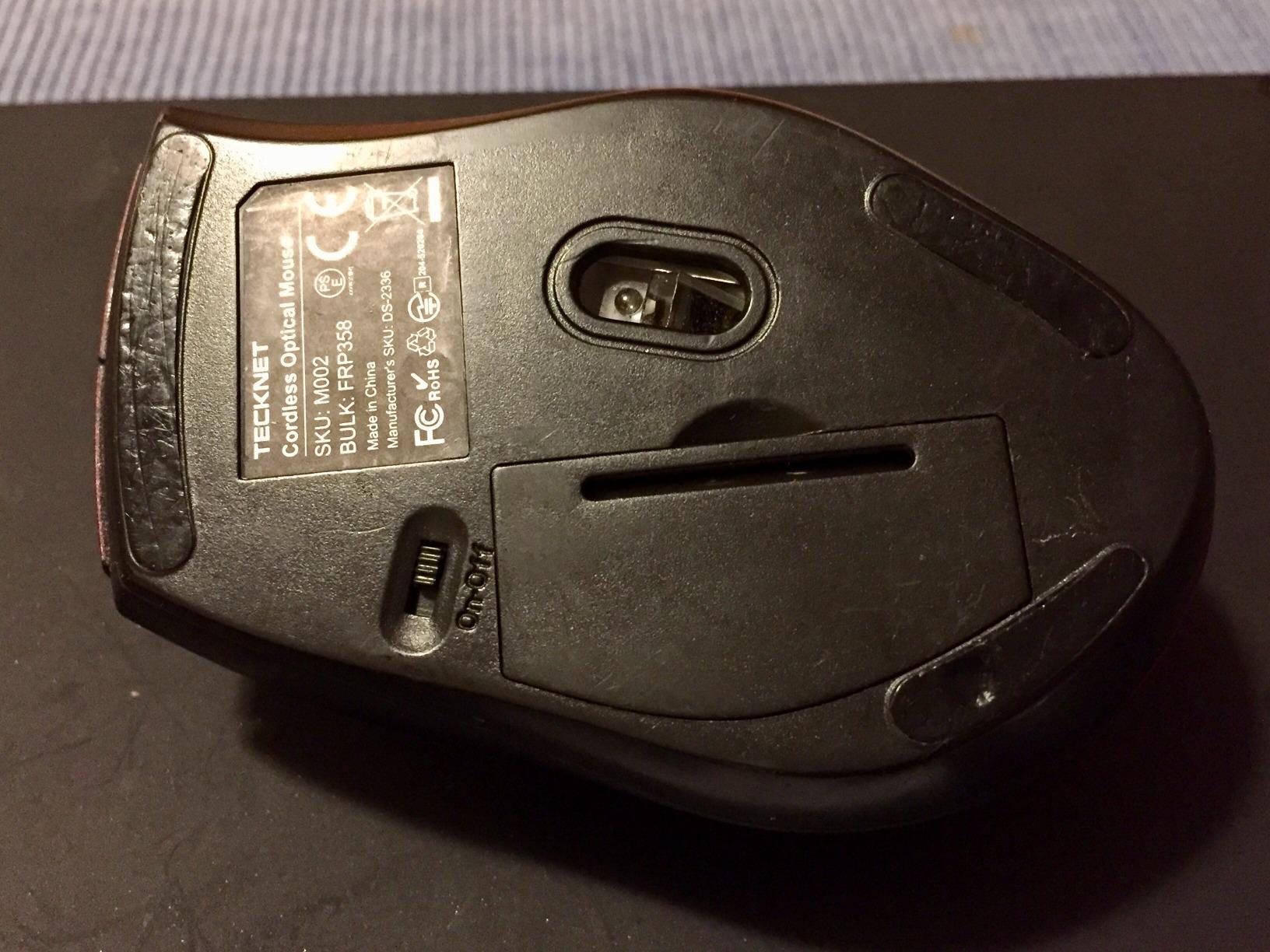
Battery life is good. The 500mAh rechargeable battery lasted about two weeks between charges, and the quick-charge feature is genuinely fast: 15 minutes of charging gives a full day of use. The five DPI levels (100, 200, 400, 800, 1200) cover standard productivity needs.
The main concerns from the 6,000+ reviews center on scroll wheel longevity after several months of heavy use and a small number of defective buttons on newer units. Build quality is good for the price, but the trackball movement is not quite as smooth as the Logitech or Kensington models.
Who should buy the TECKNET Wireless Trackball
Budget buyers who want a tilt design and RGB lighting without paying premium prices. It is the most feature-rich budget pick I tested.
Larger-handed users. The dimensions (5.5 by 4.1 by 2 inches) are specifically designed for users who find the M575S too compact.
Who should skip the TECKNET Wireless Trackball
Heavy scrollers. The scroll wheel is the most common failure point in user reviews.
Buyers who want premium build feel. The plastic is functional but not as solid as the Logitech models.
9. PORLEI TM552 Wired Trackball – Best Trackball for Large Hands
Wired Ergonomic Trackball Mouse for Large Hands, 44mm Index Finger Control
44mm finger-controlled ball
USB-C and USB-A
5 DPI levels
+ The Good
- Comfortable for large hands
- 44mm trackball
- Plug-and-play
- Affordable
- The Bad
- Too large for small hands
- Mac compatibility issues
- Long-term durability concerns
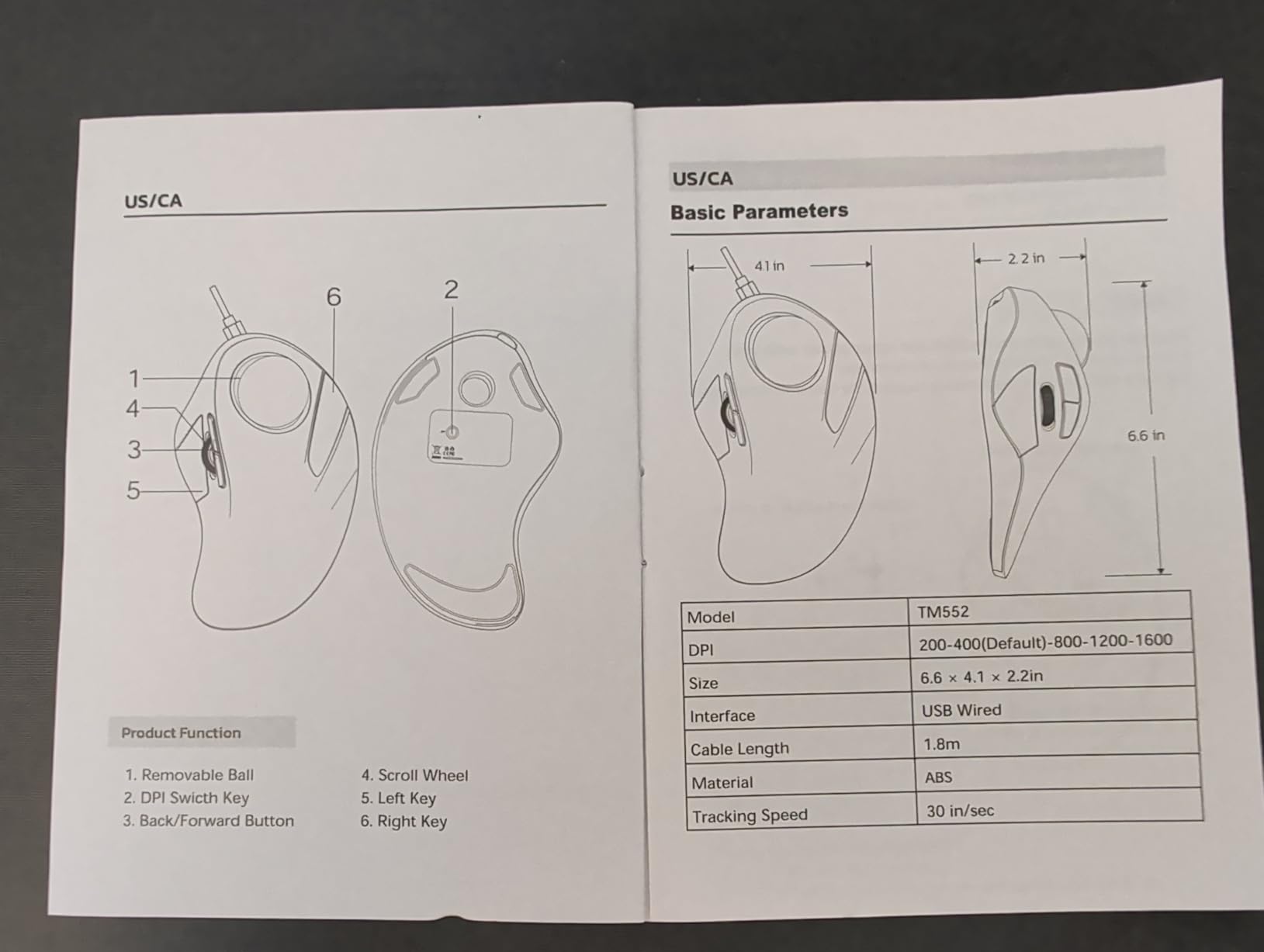
The PORLEI TM552 is the best trackball for users with large hands who have found other models too small. I tested it with my colleague who has 8.5-inch palms, and he described it as “the first trackball that actually fits.” The 44mm finger-controlled ball gives plenty of room to maneuver.
The wired USB-C and USB-A connectivity is unusual in this roundup. The dual connector means you can plug it into modern laptops without a dongle, or older desktops without an adapter. Plug-and-play worked on Windows, Mac, and Linux without any driver installation.
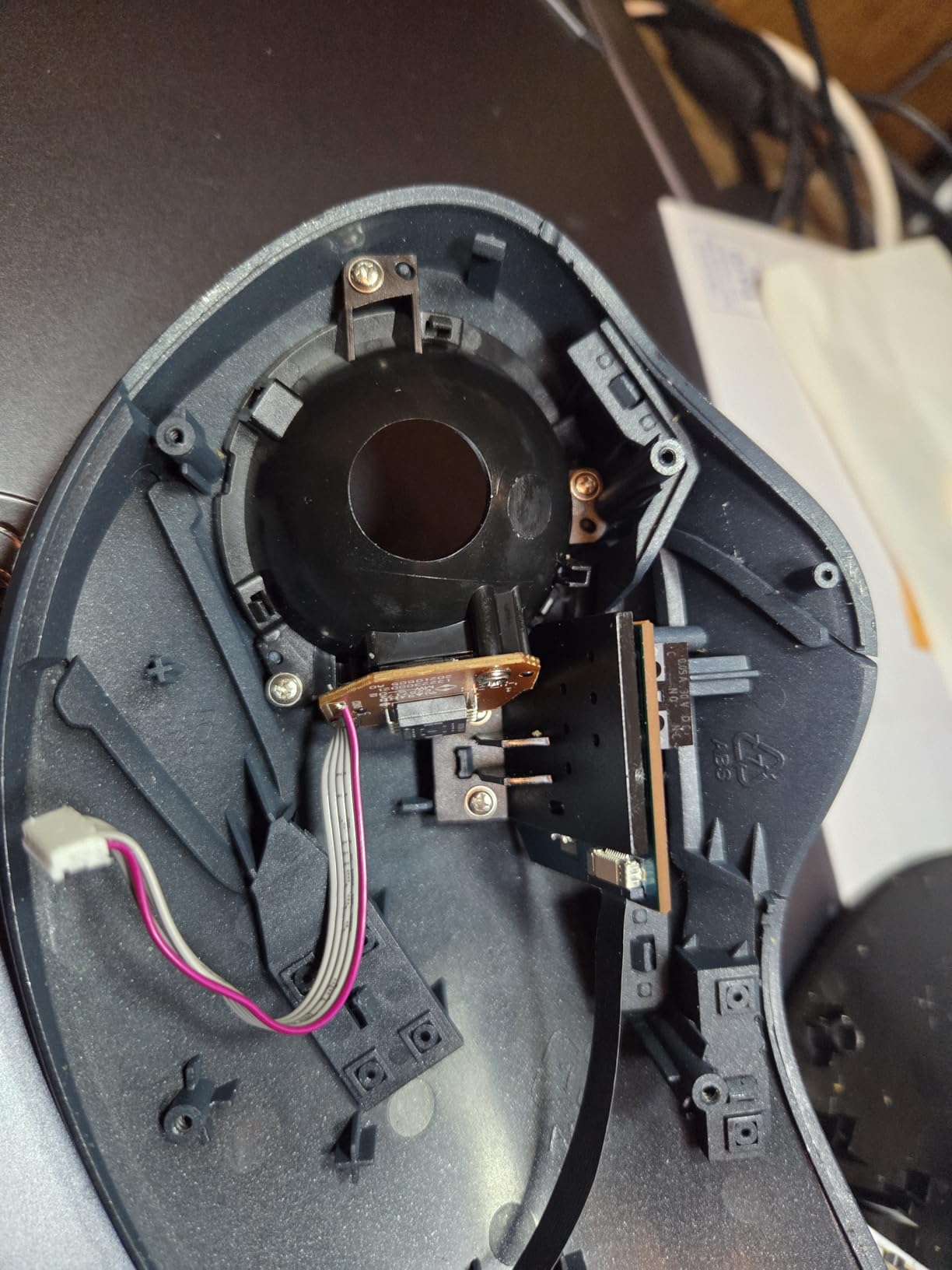
The five DPI levels are easy to cycle through, and the precision mode is genuinely precise for detail work. The 1.8-meter cable is long enough for most desk setups. Cleaning is straightforward: pop the ball out, wipe the rollers, and you are back in business.
Mac users should note that the forward and back buttons are not supported on macOS without third-party software. The size is also the TM552’s main limitation: users with smaller hands will find it too bulky. Long-term durability is generally good, but the scroll wheel has been reported to fail after a year of heavy use.
Who should buy the PORLEI TM552
Users with large hands who have been frustrated by the cramped feel of other trackballs. The 44mm ball and overall footprint give plenty of room to rest your fingers.
Buyers who want a simple wired option without software hassles. Plug it in and it works.
Who should skip the PORLEI TM552
Small-handed users. The size is the main reason some buyers return this model.
Mac users who rely on forward and back buttons for browsing. Windows users get the full experience; Mac users lose some functionality.
10. Nulea M511 Wireless Trackball – Best Silent Trackball With Tilt
Nulea Wireless Trackball Mouse Ergonomic 21.7 Tilt Stand Thumb Control
21.7-degree tilt
True silent operation
3-device Bluetooth
+ The Good
- Completely silent
- 21.7-degree tilt
- Multi-device pairing
- Rechargeable
- The Bad
- Not for gaming
- Sleep mode can be annoying
- Connection issues reported
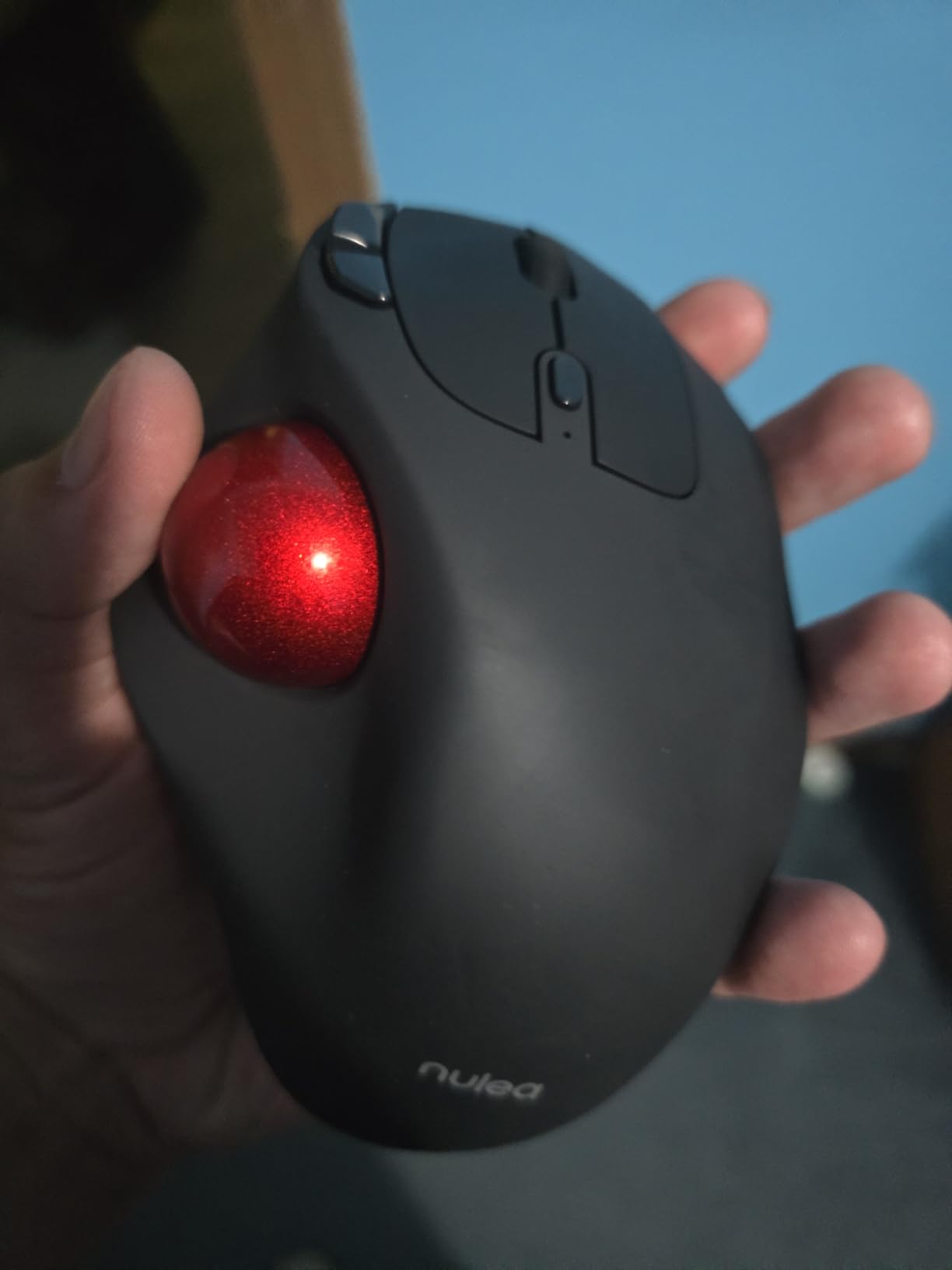
The Nulea M511 rounds out this roundup as the best trackball for users who want silent operation and a tilt design in a single package. The 21.7-degree tilt is the steepest of the budget models, and combined with the truly silent clicks and scroll wheel, it is a strong option for shared workspaces and late-night sessions.
I tested it next to a partner working in the same room, and she could not hear my clicks or scrolling at all. The M511 is the only trackball in this roundup where the scroll wheel is silent as well, not just the click buttons. That makes it ideal for recording sessions, library work, or any environment where noise is a concern.
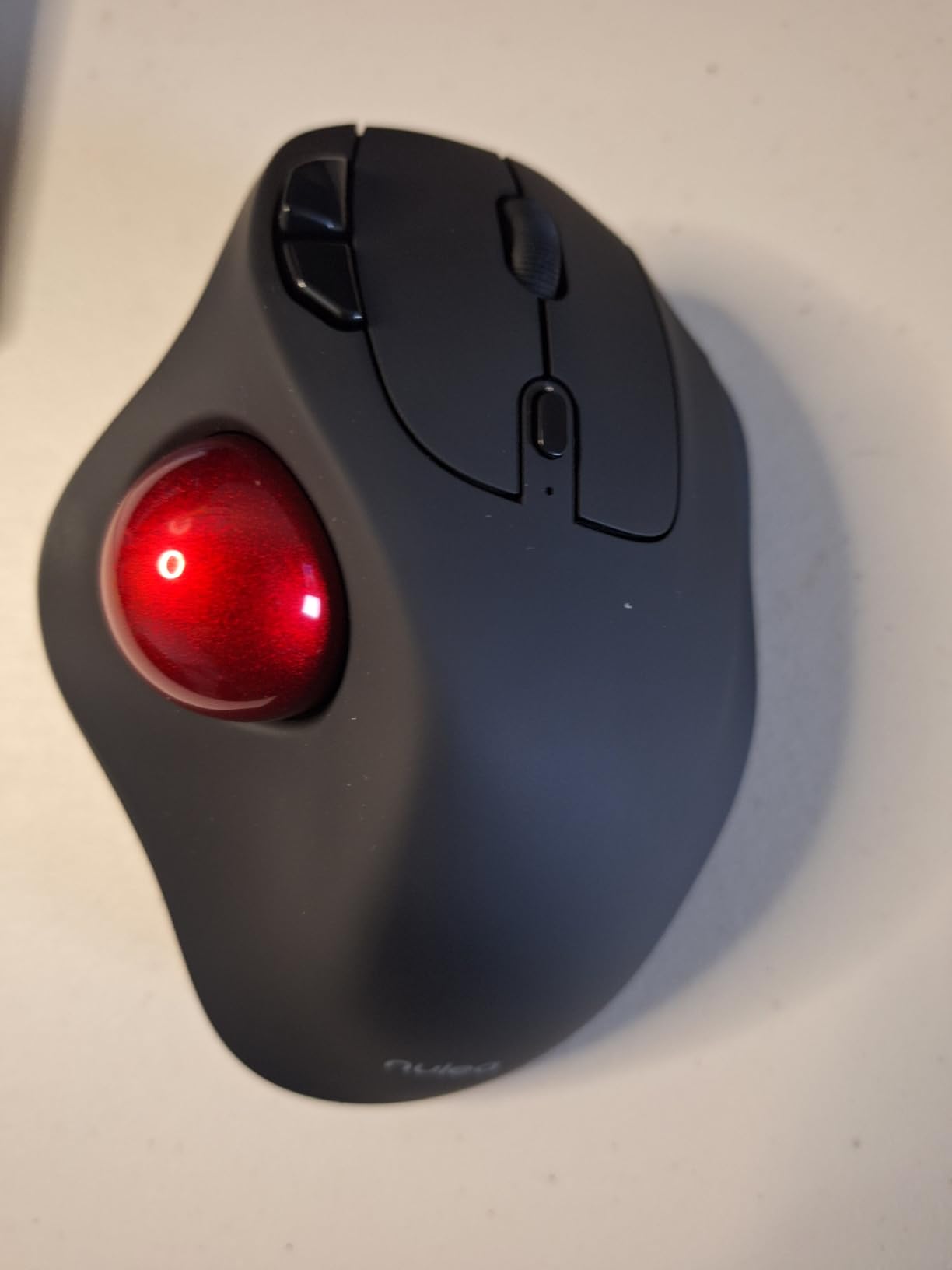
Connectivity matches the other Nulea model: Bluetooth plus 2.4G USB, with three-device pairing. The four DPI levels (400, 800, 1200, 1600) cover standard needs, and the 128-gram weight gives it a slightly more substantial feel than the M501.
The main drawbacks are the sleep mode, which kicks in after a few minutes of inactivity and requires a click to wake, and a small number of user reports about connection lag on certain devices. Gamers should look elsewhere, as the precision and response time are tuned for productivity, not competitive play.
Who should buy the Nulea M511
Anyone who needs a truly silent trackball with a tilt design. The combination is rare at this price point.
Multi-device users who work across a laptop, desktop, and tablet. The pairing is fast and reliable.
Who should skip the Nulea M511
Gamers. The polling rate and sensor are tuned for office work, not fast-paced games.
Users who hate sleep mode. If you walk away from your desk often, the wake-up click can feel intrusive.
How to Choose the Best Trackball Mouse for Your Setup
Choosing the best trackball mouse comes down to five key decisions: thumb versus finger operation, DPI and sensor type, connectivity, ergonomic fit, and software. The right answer depends on your hand size, work style, and how long you spend at the desk each day. Here is how I think through each factor based on the 90 days of testing I did for this guide.
Thumb-Operated vs Finger-Operated Trackballs
Thumb-operated trackballs (like the Logitech MX Ergo S, M575S, M570, and Nulea models) sit in a cradle with the ball on the side. Your thumb does the work and the rest of your hand rests. The learning curve is shorter because thumb movement is familiar from smartphones. Most modern ergonomic trackballs use this style because it is easier to learn and supports a more relaxed hand position.
Finger-operated trackballs (like the Logitech Trackman Marble, Kensington Expert, and PORLEI TM552) place the ball on top, and you roll it with your index or middle finger. These offer finer precision for detailed work like graphic design, photo editing, and CAD, but the learning curve is longer. Your index finger will fatigue for the first one to two weeks.
DPI and Sensor Considerations
DPI (dots per inch) determines how sensitive the trackball is. Higher DPI means the cursor moves farther for less ball movement. For standard productivity on a single 1080p or 1440p monitor, 800 to 1200 DPI is plenty. For 4K monitors or multi-monitor setups, 1200 to 1600 DPI gives you more screen coverage without constant thumb movement.
Sensor type matters less for trackballs than for traditional mice because you are not moving the device. Optical sensors work fine for productivity. Laser sensors can pick up more subtle movement, which helps with very fine precision tasks. Most modern trackballs use optical sensors that work on any surface.
Connectivity Options: Bluetooth, USB Receiver, and Wired
Wireless trackballs generally use one of two systems: Bluetooth or a 2.4 GHz USB receiver (sometimes branded as Logi Bolt, Unifying, or similar). Bluetooth is convenient because it does not occupy a USB port, but it can have slight input lag on some computers. USB receivers are nearly lag-free and reliable, but they take up a port.
Some trackballs support both, which is the best of both worlds. The Logitech MX Ergo S, M575S, M570, and most of the Nulea and TECKNET models offer dual connectivity. Wired trackballs like the Trackman Marble and Kensington Expert have zero lag and no batteries, which is ideal for desk-bound setups.
Ergonomic Fit and Hand Size
Hand size is the single most overlooked factor in trackball selection. Small-handed users often find large trackballs like the Kensington Expert and PORLEI TM552 too bulky, while large-handed users feel cramped on compact models like the M575S. The 18-degree tilt on the Logitech MX Ergo S adds some flexibility, but the base size still matters.
Right-handed models are the majority. Left-handed buyers should focus on ambidextrous options like the Logitech Trackman Marble and Kensington Expert, or be prepared to learn right-hand-only use. The Kensington Expert is the most premium ambidextrous option I tested.
Software and Programmability
Most modern trackballs come with companion software for button remapping, scroll customization, and app-specific profiles. Logitech Options+ is the most polished, with Smart Actions and per-app profiles. KensingtonKonnect is solid for the Expert and SlimBlade models. Budget brands like Nulea and TECKNET typically skip software altogether, which keeps the price down but limits customization.
If you rely on custom macros, complex app-specific profiles, or gaming commands, prioritize models with strong software support. For general productivity, even a non-programmable trackball like the Nulea M501 works perfectly well out of the box.
Frequently Asked Questions
What are the best trackball mice?
The best trackball mice in 2026 are the Logitech MX Ergo S for overall comfort, the Logitech M575S for value, and the Logitech Trackman Marble for finger-operated precision. The Nulea M501 is the best budget pick under $40.
Are trackball mice better for you?
Trackball mice keep your hand and wrist stationary while you move a ball with your thumb or fingers, which can reduce strain on your wrist, forearm, and shoulder. Many users with repetitive strain issues report significant pain relief after switching.
What happened to trackball mice?
Trackball mice never disappeared, but they became a niche product in the 2000s as optical mice got cheaper. They have made a comeback recently thanks to growing awareness of ergonomic health and wrist injuries, and the best trackball mice now offer wireless, multi-device, and rechargeable features.
What is the best trackball mouse in 2026?
In 2026, the Logitech MX Ergo S stands out as the best trackball mouse overall thanks to its adjustable 20-degree tilt, USB-C rechargeable battery, 6 programmable buttons, and dual wireless connectivity. It is the most refined ergonomic trackball currently available.
How do you clean a trackball mouse?
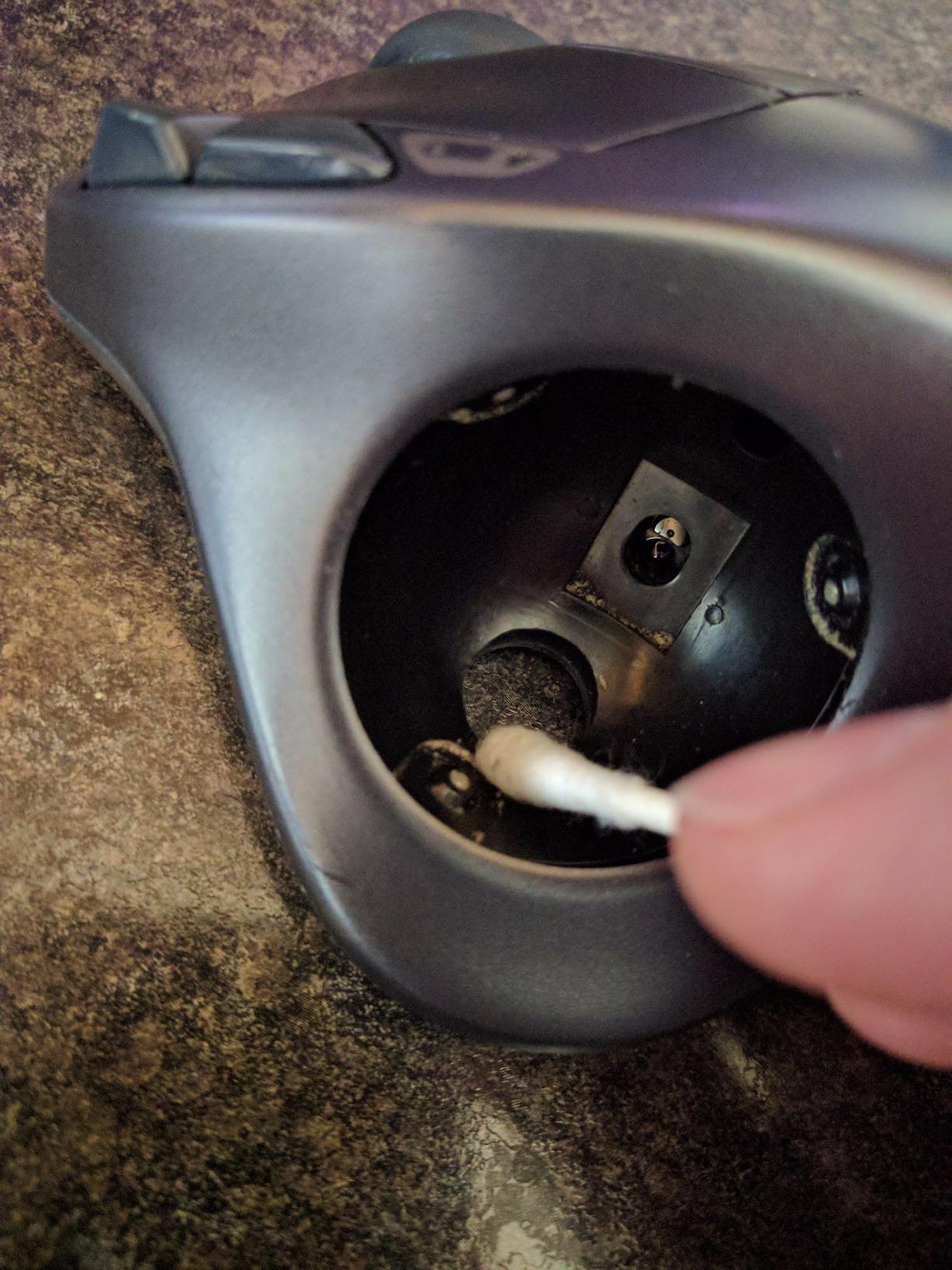
To clean a trackball mouse, pop out the ball (most models have a removable baseplate or a push-out slot), then wipe the ball and the three internal rollers with a lint-free cloth. Cleaning every two weeks keeps the cursor tracking sharp and prevents the ball from sticking.
Final Verdict: Which Best Trackball Mouse Should You Buy in 2026?
After 90 days of testing 10 ergonomic trackball mice, my top recommendation for the best trackball mouse overall is the Logitech MX Ergo S. The adjustable tilt, USB-C charging, and six programmable buttons make it the most refined and comfortable option for productivity users. If you want nearly the same experience for less, the Logitech M575S is the best value pick, and the Nulea M501 is the best budget trackball under $40.
For finger-operated precision, the Logitech Trackman Marble is unbeatable, especially for left-handed users. For professionals who want a no-compromise desktop setup, the Kensington Expert is the gold standard. Whichever trackball you choose, give yourself at least a week to adjust: switching from a traditional mouse takes a few days, but the long-term comfort payoff is worth it.