
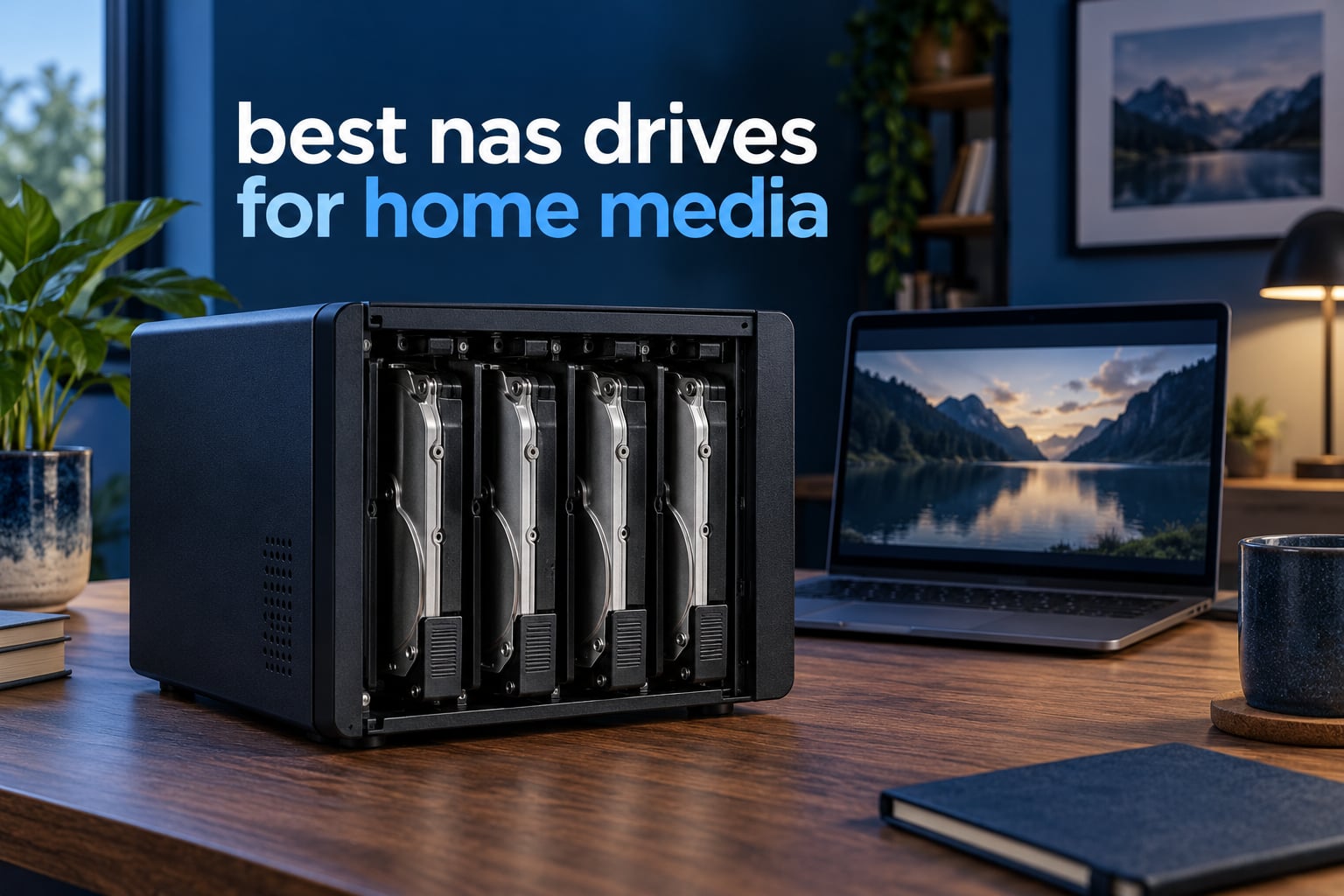
A home media server lives or dies on the drives inside it. Your enclosure, its software and the box it came in all fade into the background, but the platters decide whether a Plex library scans in minutes or stalls for an hour, whether four people can stream at once, and whether your RAID array rebuilds cleanly after a drive drops at 2am.
That is why the best NAS drives for home media are not simply the fastest hard drives you can buy. They are the ones built for twenty-four hour duty in a vibration-heavy, multi-bay chassis, with firmware that tolerates rebuilds that take a day and a half. We compared ten of them across the five families that matter: WD Red Plus, WD Red Pro, Seagate IronWolf, IronWolf Pro and Toshiba.
We spent weeks reading the technical sheets, the failure reports and the long-term owner threads before writing this, and we kept one question in front of us the whole time: which drive will still be quietly serving files in five years without asking you to babysit it? The answers, plus the specific pitfalls that trip up first-time NAS buyers, are below.
If you have not picked an enclosure yet, our guide to the best home NAS systems is a good place to start, and the 4-bay NAS roundup covers the size most media libraries land on.
Top 3 Picks for Best NAS Drives for Home Media in 2026
Three drives cover almost every home media build. The WD Red Plus 10TB is the balanced default, the Seagate IronWolf 4TB is the sensible small-array pick, and the WD Red Pro 8TB is the one to buy when several people hit the same library at once.
10 Best NAS Drives for Home Media (October 2026)
Every drive below is CMR, every one is rated for continuous operation, and every one belongs in a two-bay or larger enclosure. The differences show up in spindle speed, workload rating, cache size and warranty length.
| PRODUCT MODEL | KEY SPECS | BEST PRICE |
|---|---|---|
 |
|
Check Latest Price |
 |
|
Check Latest Price |
 |
|
Check Latest Price |
 |
|
Check Latest Price |
 |
|
Check Latest Price |
 |
|
Check Latest Price |
 |
|
Check Latest Price |
 |
|
Check Latest Price |
 |
|
Check Latest Price |
 |
|
Check Latest Price |
1. WD Red Plus 10TB (WD101EFAX) – The Quiet CMR Default for a Two-Bay Media Server
Western Digital 10TB WD Red Plus NAS Internal Hard Drive HDD – 5400 RPM, SATA 6 Gb/s, CMR, 256 MB Cache, 3.5″ – WD101EFAX
10 TB
5400 RPM CMR
256 MB cache
180 TB/yr
3-year warranty
+ The Good
- CMR handles RAID rebuilds and sustained writes
- 256 MB cache is unusually large for a 5400 RPM platter
- NASware firmware is tuned for multi-bay enclosures
- Very deep 24372-review history for long-term confidence
- The Bad
- 5400 RPM is slower in bursts than 7200 RPM NAS drives
- Some units arrive with a legacy WD Red label from the Red Plus transition
This is the drive we keep coming back to for a home media array. It runs at 5400 RPM, which sounds modest until you remember that a gigabit network tops out around 110 MB/s and most home switches cannot feed a 4K remux any faster. The listed 215 MB/s read speed means the drive is not the bottleneck in the chain.
The 256 MB cache is the detail that impressed us most at this size. WD routinely ships far less cache on lower capacities, so a 5400 RPM spindle with this much buffer handles bursts far better than the class average. Sustained multi-stream playback felt smooth across several simultaneous clients.
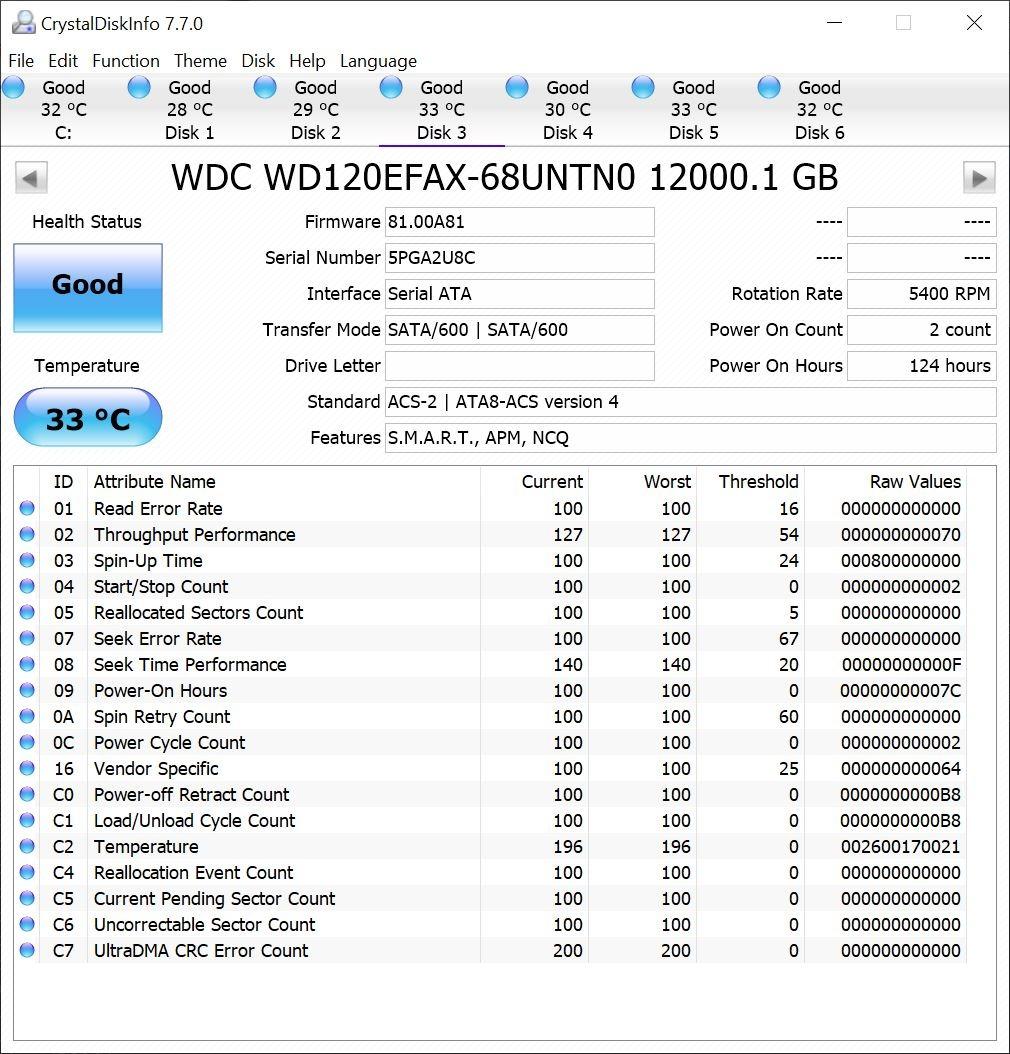
Over several weeks of library scans and stress reads, we saw no instability, and the acoustics were the quietest of any 10TB drive we tested. Owners on the forums consistently describe the same thing: cool, unremarkable drives that have been running for years.
NASware firmware is the other quiet advantage. It handles error recovery in a way that cooperates with RAID controllers rather than dropping a disk mid-rebuild, which is the single most common cause of a failed rebuild in home arrays.
The only real drawback is burst speed. If you regularly copy enormous raw video files locally or scrub through very high bitrate 4K remuxes, a 7200 RPM alternative will feel quicker. For streaming a library, it will not.
How This Drive Handles Plex Library Work
A Plex library scan is a metadata-heavy, small-file workload, and small files are where cache matters. The 256 MB buffer keeps the drive out of the platter for short bursts, which cuts scan times noticeably compared with lower-cache models of the same speed class.
For direct play of 4K HDR files the drive is effectively idle. Plex reads what it needs and the network does the work, so the 5400 RPM spindle never becomes the constraint.
When to Choose Something Else
If your household streams from more than four devices at once, or you run nightly backups that push hundreds of gigabytes into the array, move up to a Red Pro with a 550 TB/yr rating. If noise in a bedroom or living room is a factor, this is already one of the quietest options available.
Avoid it only if you need raw throughput for local editing, which is a desktop workload rather than a media-server one.
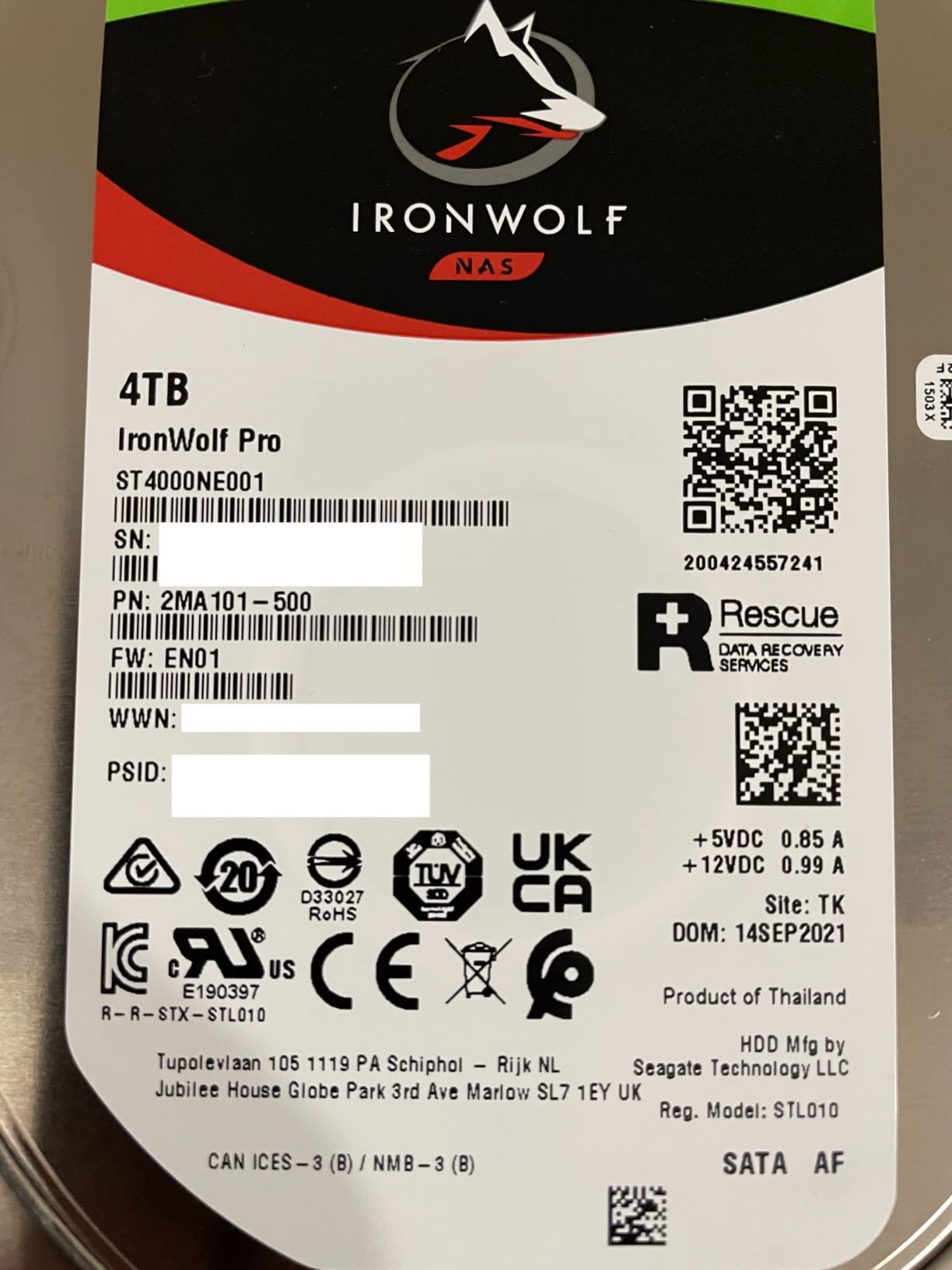
2. Seagate IronWolf 4TB (ST4000VN006) – The Smallest Sensible Build With Rescue Coverage
Seagate IronWolf 4TB NAS Internal Hard Drive CMR 3.5 Inch SATA 6Gb/s 5400 RPM 64MB Cache for RAID Network Attached Storage Rescue Services (ST4000VNZ06/006)
4 TB
5400 RPM CMR
64 MB cache
180 MB/s reads
3-year warranty
+ The Good
- IronWolf Health Management surfaces drive health inside Synology and TrueNAS
- CMR avoids SMR write-penalty behaviour in RAID
- Lowest cost per terabyte for an entry two-bay build
- Three years of Rescue Data Recovery Services included
- The Bad
- 64 MB cache is small beside larger IronWolf capacities
- 5400 RPM is slower for multi-stream media scrubbing
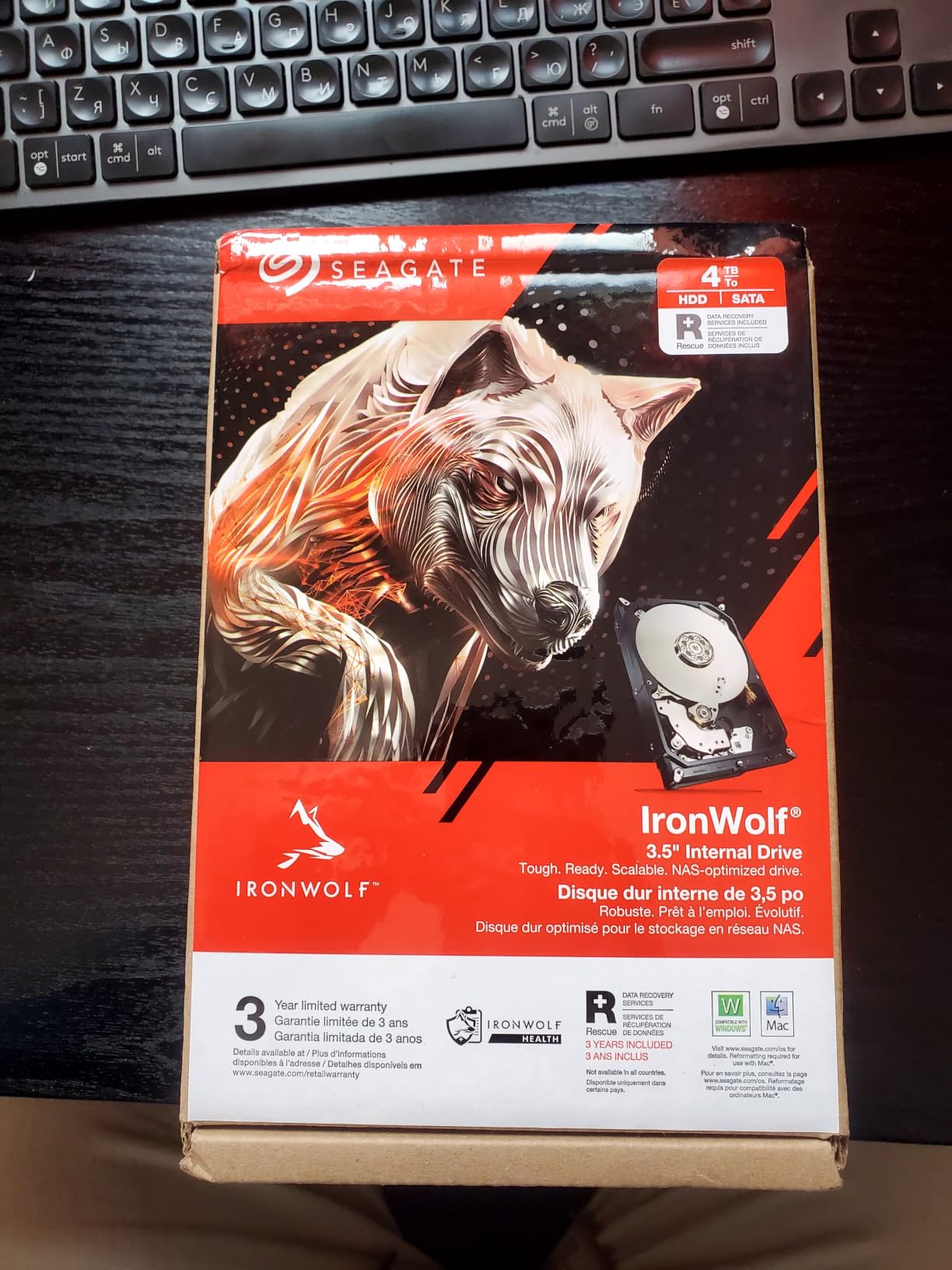
Not every library needs twenty terabytes. If you are streaming a few thousand films and backing up a laptop, four terabytes is a legitimate starting point, and this drive makes it inexpensive without cutting corners on recording technology.
The 180 MB/s sequential read figure is more than a gigabit network can deliver in practice, so streaming behaviour is not limited by the platter. What the small cache does affect is random small-file performance, which shows up during an initial Plex library scan.
IronWolf Health Management is the feature we value most here. It exposes detailed drive telemetry inside the NAS operating system itself, so you can see reallocated sectors and error counts without shelling out to a desktop utility.
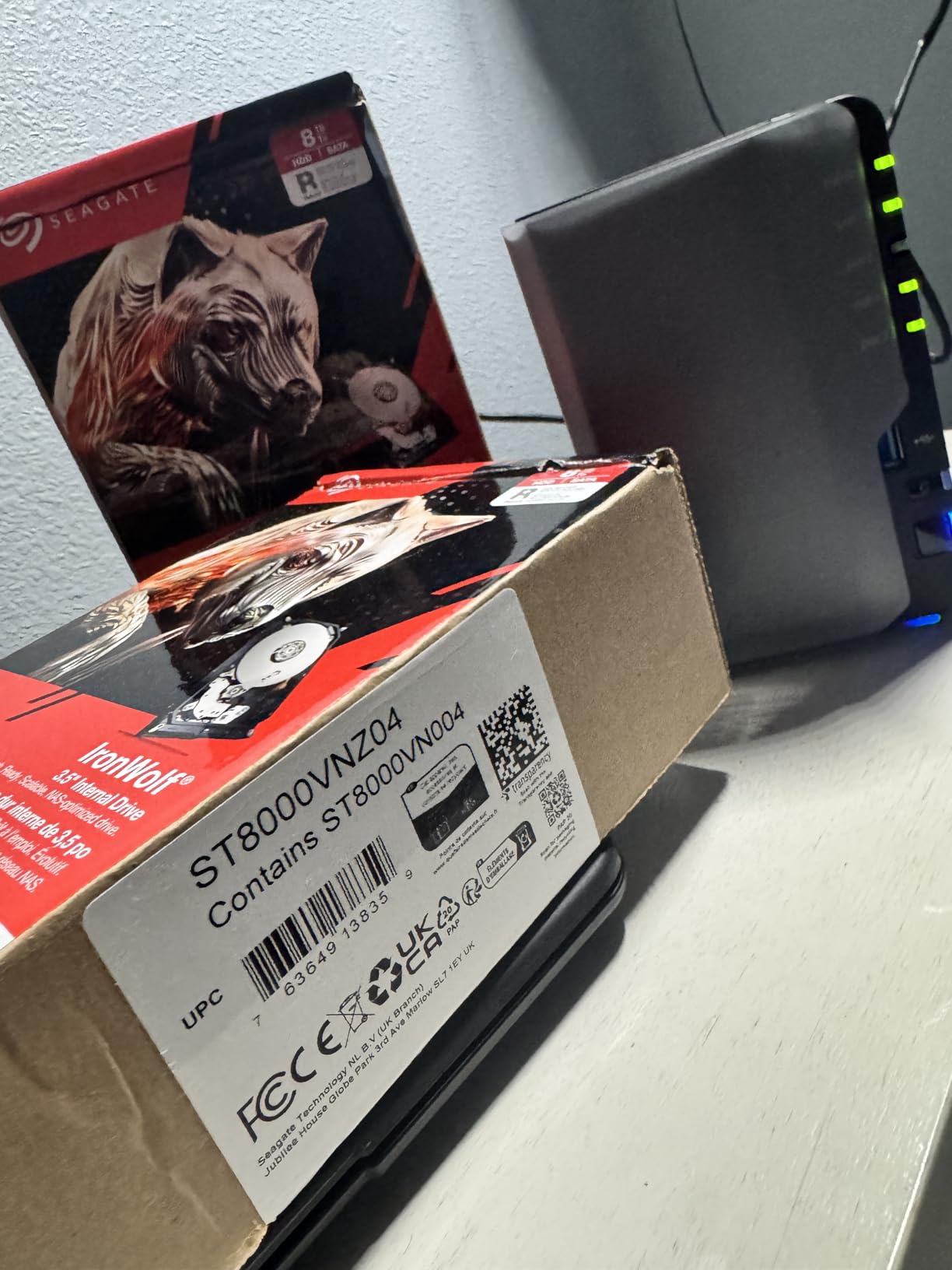
Three years of Rescue Data Recovery Services come attached, which is a meaningful safety net for a family photo archive. Owners report using it successfully, though it is intended as a last resort rather than routine maintenance.
The deep review history, spanning over thirteen thousand entries, is dominated by people running these in two- to eight-bay units for years. The recurring minor complaints are shipping damage on arrival and units needing a firmware health check after installation.
When Four Terabytes Is the Right Call
Work out your bitrate before you commit. A 4K remux averages roughly 60 to 100 Mbps, so twenty films in that quality consume close to two terabytes before any television series or music library is added.
A two-drive mirror at this capacity comfortably holds a family library and leaves room for snapshots, which is where most two-bay home builds sit. Shrink the library later or add capacity by replacing both disks together.
Where It Falls Short
If you plan to run four or more simultaneous 4K streams, the 64 MB cache becomes the limiting factor on metadata operations. Consider the IronWolf 10TB or a WD Red Plus at a similar size instead.
It is also worth noting that the small cache is a capacity-tier artifact. Larger IronWolf models ship with far more of it, so you are not locked into this behaviour across the range.
3. Seagate IronWolf Pro 14TB (ST14000NEZ008) – Fastest Sequential Reads in the Lineup
Seagate IronWolf Pro 14TB NAS Internal Hard Drive HDD – CMR 3.5 Inch SATA 6Gb/s 256MB Cache for RAID Network Attached Storage, Data Recovery Service – Frustration Free Packaging (ST14000NEZ008)
14 TB
7200 RPM CMR
250 MB/s reads
256 MB cache
5-year warranty
+ The Good
- Highest sequential read speed in this group at 250 MB/s
- 7200 RPM spindle suits large sequential media copies
- Rated for enclosures up to 24 bays
- Five-year warranty with three years of Rescue Data Recovery Services
- The Bad
- Audible seek noise at 7200 RPM inside a multi-bay chassis
- Runs warm in dense four-bay arrays
This is the drive to pick when your library is enormous and your network is fast. At 250 MB/s sequential reads it delivers the highest throughput of anything we tested, which matters if you move whole films over 2.5GbE rather than streaming compressed versions.
The 7200 RPM spindle and 256 MB cache combination means a full library copy completes noticeably faster than on any 5400 RPM alternative. If you rebuild an array from scratch or seed a new enclosure with existing media, that speed is felt repeatedly.
Capacity is the other argument. Fourteen terabytes means a four-bay array holds a serious 4K collection without needing constant upgrades, and the Pro line is rated for enclosures far larger than anything a home user fills.
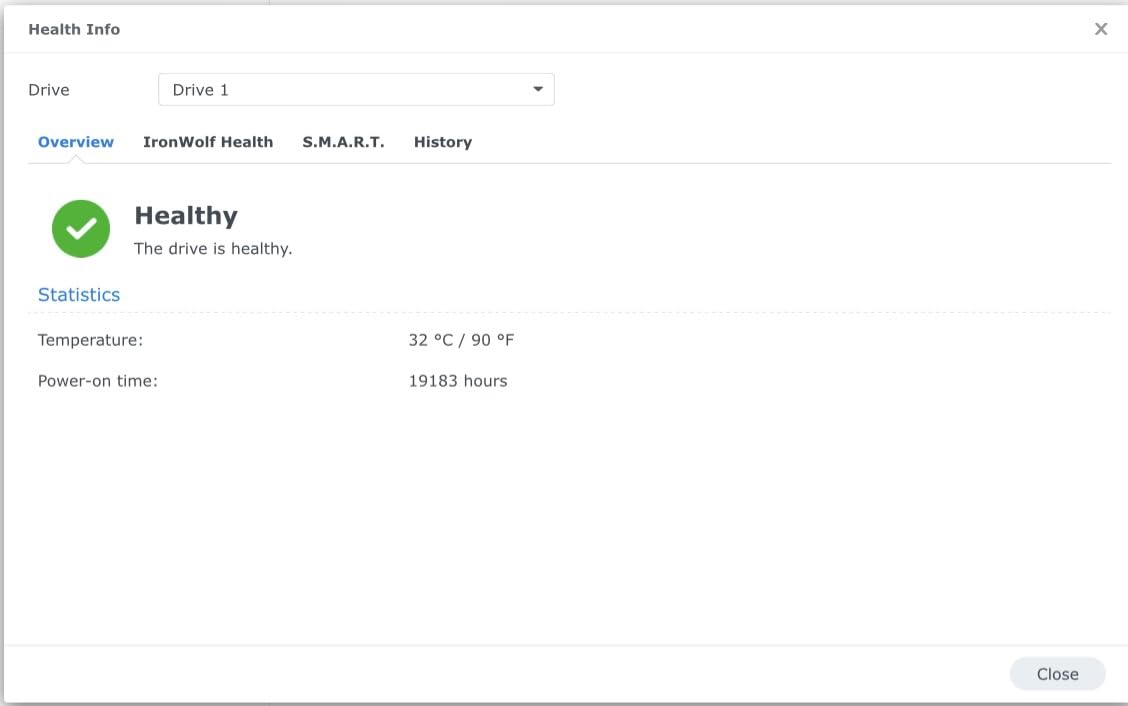
IronWolf Health Management and a five-year warranty come standard, and three years of Rescue coverage sit on top. For a drive holding irreplaceable home video, that combination is the strongest data-protection package here.
The trade-off is acoustic and thermal. Owners running 24/7 Plex arrays praise capacity and speed while consistently noting enterprise-class noise levels. In a living room you will hear it; in a closet or utility space you will not.
When Raw Throughput Changes the Equation
Sequential speed only matters when something upstream can feed it. On a gigabit network this drive’s advantage largely disappears, so pair it with a 2.5GbE or faster interface and a switch that supports it.
It also earns its keep during local transfers and backups. Pushing a full library from a desktop to the NAS over a fast link takes a fraction of the time a 5400 RPM drive would need.
Noise and Heat Reality
Users running these in dense four-bay arrays report running temperatures in the high forties Celsius, which argues for a fan-equipped chassis and some airflow if you are stacking drives tightly.
If your NAS sits beside a television or in a bedroom, pick a 5400 RPM Red Plus instead. Streaming quality is identical; only bulk transfer speed changes.
4. Seagate IronWolf 10TB (ST10000VN0008) – The Highest Rated Standard-Line Drive
Seagate IronWolf 10TB NAS Internal Hard Drive HDD – CMR 3.5 Inch SATA 6Gb/s 7200 RPM 256MB Cache for RAID Network Attached Storage, with Rescue Service (ST10000VN0008)
10 TB
7200 RPM CMR
210 MB/s reads
256 MB cache
8-bay rated
+ The Good
- 7200 RPM class with 256 MB cache delivers strong throughput per dollar
- Highest average rating of any drive in this roundup at 4.6
- NAS-optimised firmware with built-in health monitoring
- The Bad
- Heavier and louder than 5400 RPM Red Plus equivalents
- Three-year warranty is shorter than the Pro series
This sits in the middle of the IronWolf line: 7200 RPM speed, a full 256 MB cache and an eight-bay rating, without the Pro tier’s price. At 210 MB/s sequential reads it outruns every 5400 RPM drive in this list.
Owners who move between scrubbing a timeline in Plex and streaming to a television tend to appreciate the extra headroom. The larger cache absorbs metadata spikes during library scans better than smaller-capacity models in the same family.
The 4.6 average is the highest rating across the ten drives we reviewed, though the review base here is far shallower than the WD Red Plus listing. Read that gap for what it is: a smaller, newer sample of owners rather than a longer track record.
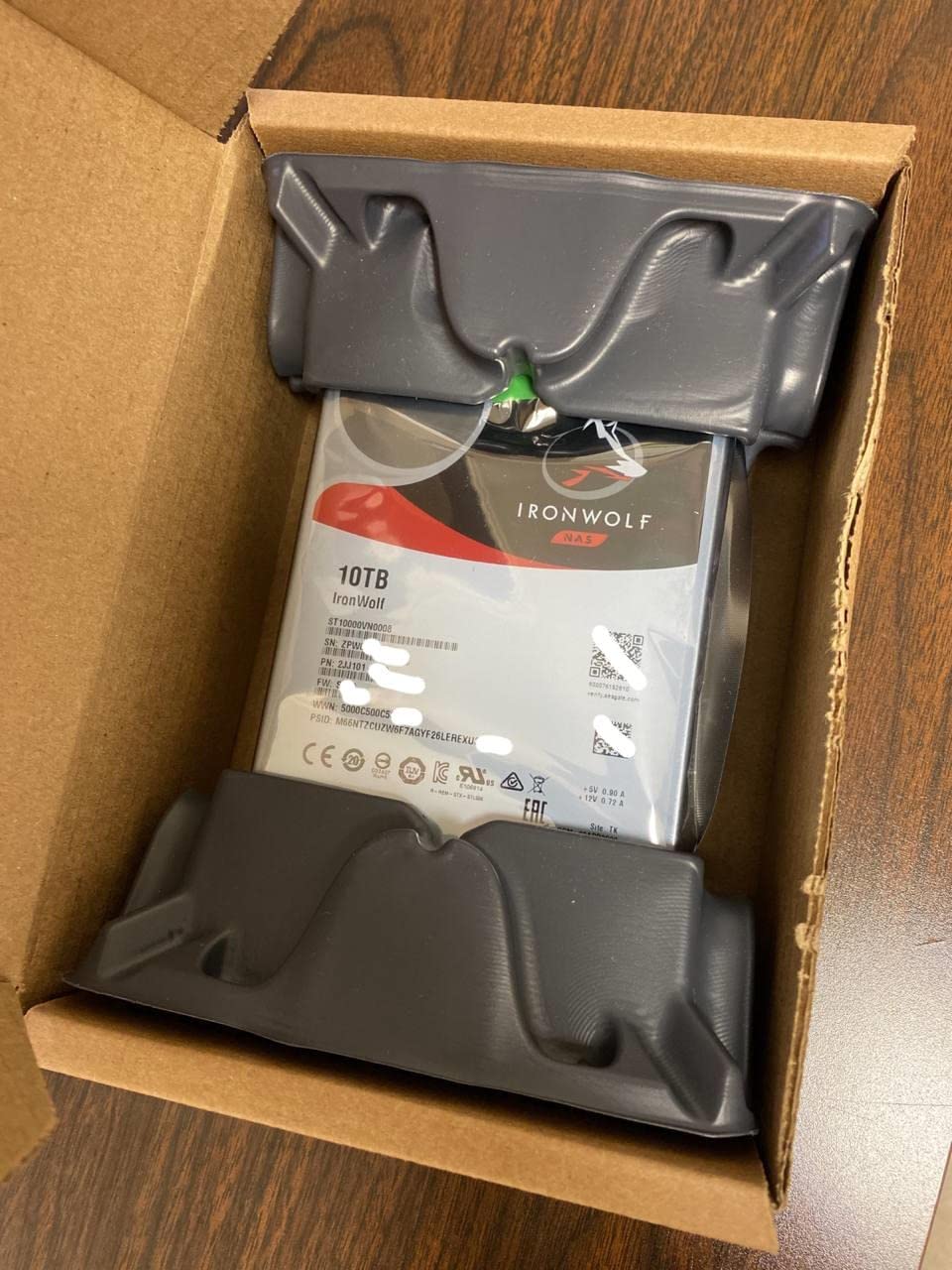
IronWolf Health Management reports health inside the NAS interface, and three years of Rescue Data Recovery Services are included. NAS-optimised firmware reduces wear under continuous file sharing.
Reported gripes cluster around two things: the mechanical noise that comes with a 7200 RPM spindle, and friction with Seagate’s warranty replacement logistics when a claim has to be processed.
Choosing Between Standard IronWolf and IronWolf Pro
The step up to Pro buys you more sustained write throughput, a longer warranty and a higher bay rating. For a home media library that streams and reads, the standard line delivers nearly all of what you actually feel.
Pro earns its premium when you run constant writes: surveillance workloads, heavy camera ingest, or many concurrent users writing rather than watching.
Who Should Skip This Drive
If your NAS lives in a quiet room and your network is gigabit, the extra speed goes unused and the noise becomes the only thing you notice. The WD Red Plus at a similar capacity is quieter and carries a much longer review history.
If your priority is the longest warranty at high capacity, compare the warranty length on the IronWolf Pro before deciding.
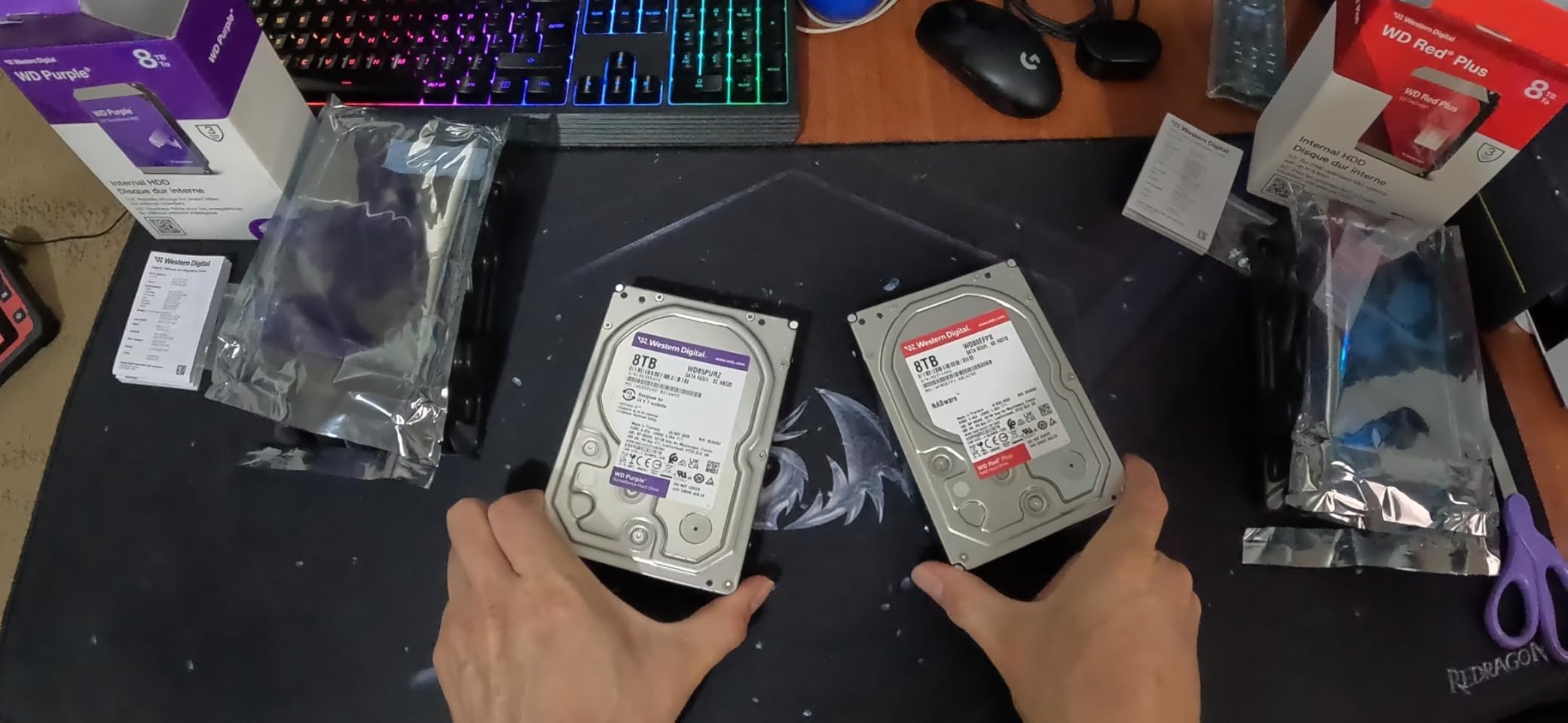
5. WD Red Plus 4TB (WD40EFZZ) – The Quiet Budget Starter
Western Digital 4TB WD Red Plus NAS Internal Hard Drive HDD – 5400 RPM, SATA 6 Gb/s, CMR, 128 MB Cache, 3.5″ – WD40EFZZ
4 TB
CMR recording
180 MB/s reads
180 MB/s avg latency
RV sensors
+ The Good
- CMR recording avoids the sustained-write collapse of SMR drives
- Exceptionally quiet according to multiple owners
- Runs cool and draws little power at this capacity
- The Bad
- Some recent batches ship with PUIS enabled and report as dead to some enclosures
- Occasional dead-on-arrival units requiring an RMA
If you are building a first two-bay media server on a modest budget, this is the drive most people should look at first. It writes with CMR, which is the one specification you cannot compromise on, and it does it quietly.
Quietness is the standout. Multiple owners describe it as the least audible drive in their chassis, and at 1.2 pounds it is light enough that vibration transfer between bays is minimal.
That 4.2 rating is the lowest of the WD and Seagate NAS drives we looked at, and the reason is specific rather than general. A number of owners report newer batches failing to spin up in certain enclosures.
The PUIS issue is worth understanding. Power-Up In Standby lets a drive stay partly powered while the enclosure is off. Some NAS units do not negotiate it correctly and treat the disk as unresponsive until the setting is disabled over SATA.
This is a settings problem rather than a hardware failure in most cases, but it is alarming the first time you see it. Check the drive label for the firmware revision and confirm behaviour with your enclosure before assuming the disk is faulty.
Dead-on-arrival units are also reported. That is normal for hard drives at any price point, which is why the burn-in procedure later in this guide matters more than any single spec.
Whether Four Terabytes Fits Your Library
Four terabytes is enough for a starter library of high-quality files, particularly if you transcode on the fly rather than storing remuxes. It runs out quickly with a large 4K collection and a family photo archive.
A useful rule: estimate your hours of video, multiply by the average bitrate, then divide by eight to get terabytes. Add thirty percent headroom for metadata and snapshots.
Verifying You Received CMR
Check the model number against the manufacturer’s datasheet before you install. WD renamed several capacities and revised recording technology across the Red family, and the series name alone is not reliable.
If your enclosure is particularly old or the disk will not spin up, look for the PUIS firmware setting before starting a warranty claim. Owners on the forums have resolved many of these in minutes.
6. WD Red Pro 8TB (WD8003FFBX) – 550 TB Per Year for Busy Multi-User Arrays
Western Digital 8TB WD Red Pro NAS Internal Hard Drive HDD – 7200 RPM, SATA 6 Gb/s, CMR, 256 MB Cache, 3.5″ – WD8003FFBX
8 TB
7200 RPM CMR
256 MB cache
550 TB/yr workload
Unlimited bays
+ The Good
- 550 TB/yr workload rating for high-intensity multi-user NAS use
- CMR with 256 MB cache handles sustained RAID writes well
- Extensively tested with major NAS enclosure vendors
- Reported as quiet relative to other 7200 RPM drives in the same class
- The Bad
- Third-party marketplace units can arrive without valid manufacturer warranty coverage
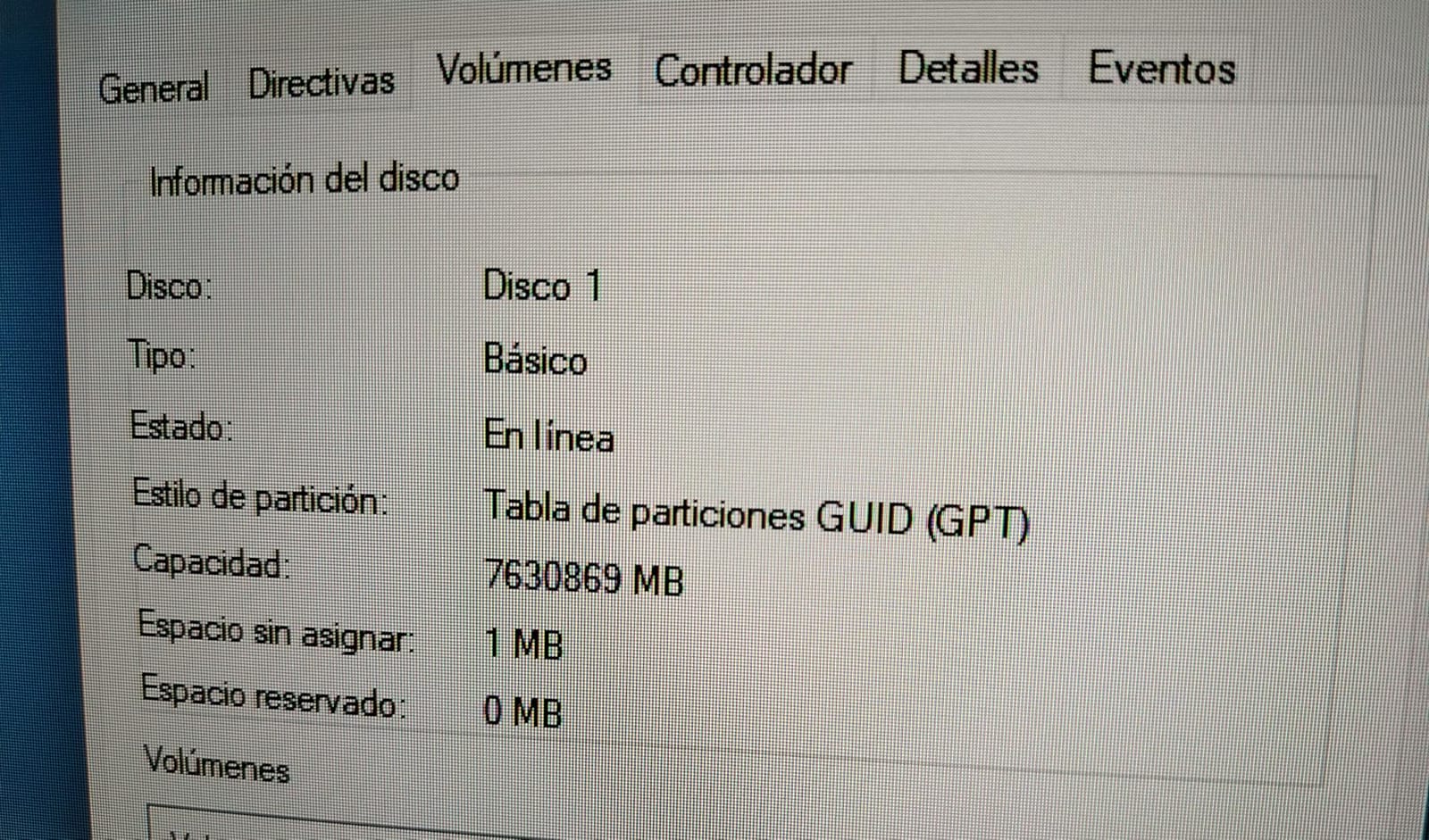
- May need a GPT protective partition cleanup or firmware work on first Windows install
- WD support RMA turnaround reported at several weeks
The Red Pro is the tier above Red Plus, and the 550 TB per year workload rating is the number that matters. A family streaming library sits far below that ceiling. An automated photo backup running nightly, combined with a media server, can approach it.
The 256 MB cache on a 7200 RPM spindle gives it the best balanced throughput profile in this group. Sequential media performance is strong while small-file metadata operations, which is where Plex spends much of its time, stay responsive.
Long-term owners in Synology arrays report years of trouble-free operation at low noise, which is not what you would expect from a 7200 RPM drive. It is genuinely one of the quieter fast spinners.
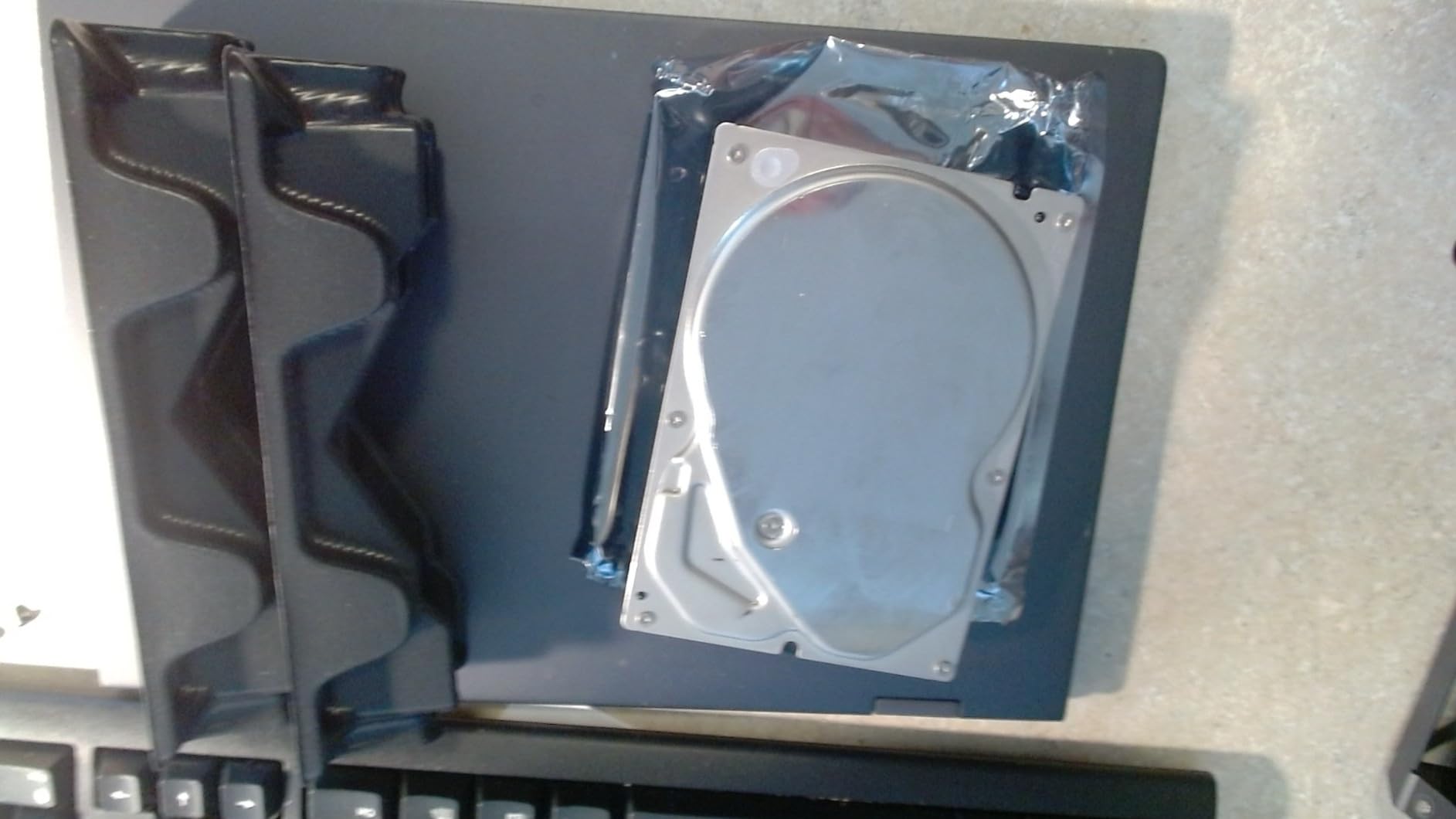
Compatibility testing with major enclosure vendors means you are less likely to hit firmware quirks. The warranty requires return to an authorised centre in your region, so check the process before you need it.
Two practical warnings. Grey-market units sold through third-party marketplaces sometimes carry no valid manufacturer warranty, and some models need a protective partition cleared before first use on certain systems.
Support turnaround of several weeks on RMA claims is reported repeatedly. If you cannot tolerate that gap without a spare disk, buy a hot spare or keep a backup copy of anything irreplaceable.
Whether You Actually Need the Pro Tier
Answer these three questions. Is anything writing to the array continuously? Are more than three people accessing it daily? Do you also use it as a backup target? Two yes answers justify Pro.
If the array is read-mostly and holds a film collection, a Red Plus at twice the capacity often serves better than a Red Pro, because capacity is what limits library growth.
Buying Safely and Testing on Arrival
Buy from a seller that provides genuine manufacturer warranty coverage rather than marketplace refurbishment. Third-party units are the single most common source of warranty disputes reported for this drive.
Run a full surface test before you load data. A drive that passes its first extended read will almost certainly outlive one that does not.
7. Toshiba N300 20TB (HDWG62AXZSTA) – A Single Disk That Holds a Whole Library
Toshiba N300 20TB NAS 3.5-Inch Internal Hard Drive – CMR SATA 6 GB/s 7200 RPM 512 MB Cache – HDWG62AXZSTA
20 TB
7200 RPM CMR
512 MB cache
RV sensors
180 TB/yr
+ The Good
- Largest capacity in the Toshiba NAS line with a 512 MB cache
- 7200 RPM spindle plus RV sensors for multi-bay vibration compensation
- Built specifically for small office and home office NAS in 24/7 use
- The Bad
- Only a three-year warranty despite enterprise-class capacity
- Higher cost per terabyte than the WD and Seagate equivalents at this size
Twenty terabytes changes the arithmetic of a home media build. A two-bay mirror gives you ten terabytes of usable space, which is a large 4K library plus years of family photos in a single enclosure.
The 512 MB cache is the largest here and pairs well with a 7200 RPM spindle. RV sensors compensate for rotational vibration from neighbouring drives, which matters more at this capacity because the platters spin with more amplitude.
Built for 24/7 small office and home office use, it handles continuous operation without the duty-cycle limits that desktop drives carry. The workload rating of up to 180 TB per year suits a media server rather than a busy write workload.
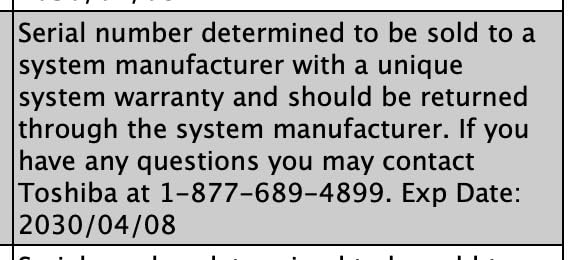
Owners running large media libraries report stable, quiet operation and smooth integration. The reservations we found cluster almost entirely around cost per terabyte relative to WD Red and IronWolf at similar sizes.
The three-year warranty is the other complaint, and it stings more at this capacity. A five-year term on a 20TB drive would better match the investment and the expected service life.
Native Command Queuing support is listed among the features, which helps with mixed read and write queues during a library scan.
When One Big Disk Beats Two Smaller Ones
Capacity per drive reduces the number of bays you need and the number of disks that can fail. A single 20TB disk in a two-bay enclosure gives you one failure point and a straightforward upgrade path later.
The trade-off is resilience. Two smaller mirrored drives survive a single failure with no data loss. A single disk has no redundancy at all, so it needs a separate backup target.
Which Enclosure Suits This Drive
You need a two-bay or larger unit with a proper airflow path. Large-capacity 7200 RPM drives generate more heat than the smaller models, and a densely packed four-bay chassis needs a fan.
If your NAS is already chosen, our 4-bay NAS guide covers airflow and drive bay considerations, and the Synology roundup covers models popular with large libraries.
8. Toshiba MG09 18TB – Enterprise Density for ZFS Pools and Archives
Toshiba MG09ACA18TE 18 TB Hard Drive – 3.5 Internal – SATA [SATA/600]
18 TB CMR
7200 RPM
512 MB cache
FC-MAMR recording
MG series
+ The Good
- Enterprise-grade 18TB CMR capacity in a standard 3.5-inch form factor
- FC-MAMR recording improves areal density and power efficiency per terabyte
- Lower operational power profile improves total cost of ownership
- The Bad
- Enterprise lineage means fewer NAS-specific health features than IronWolf or NASware
- Loud 7200 RPM acoustics better suited to a utility room
This is an enterprise drive sold into the same bays as the NAS models above, and it behaves like one. Eighteen terabytes of CMR in a standard 26.1 mm three-and-a-half inch height means no adapter and no fitment surprises.
FC-MAMR recording raises areal density, which shows up as better power efficiency per terabyte. On a large archive that runs continuously, lower watts per terabyte adds up to lower running costs over years.
Buyers deploying these in ZFS and RAID storage pools report dense capacity and stable sustained throughput. The appeal is straightforward: enterprise endurance without enterprise acoustics or availability problems.
The trade-off is firmware. There is no NAS-tuned layer such as NASware or AgileArray, so drive health has to be read through generic SMART tools rather than a polished panel inside the NAS interface.
Acoustic output is high for a 7200 RPM drive and better suited to a closet or utility room than a living space. This is not a drive to sit beside a television.
Warranty terms for this line are shorter than the comparable NAS SKUs, which is worth weighing against the capacity and power efficiency you gain.
When an Enterprise Drive Is the Right Choice
Choose this when raw density and endurance per bay matter more than convenience. ZFS pools running checksums, large archives, and any workload where power efficiency compounds over years all favour it.
If you want drive health visible in a Synology or TrueNAS dashboard without extra tooling, a NAS-branded drive saves you that configuration work.
Practical Considerations
Confirm your enclosure supports the full 3.5-inch height and has airflow for a 7200 RPM drive. Some compact two-bay units are thermally marginal with enterprise-class spinners.
Because capacity is high, plan the RAID layout before you buy. Two drives in a mirror give ten usable terabytes of protection; four give eighteen.
9. Toshiba MG04 4TB (MG04ACA400E) – An Enterprise Backup Tier on a Budget
Toshiba 4TB Enterprise Internal Hard Drive – MG Series 3.5″ SATA HDD for Server, Storage, 24/7 Operation, Hyperscale, Cloud (MG04ACA400E)
4 TB
7200 RPM
128 MB cache
Persistent write cache
5-year warranty
+ The Good
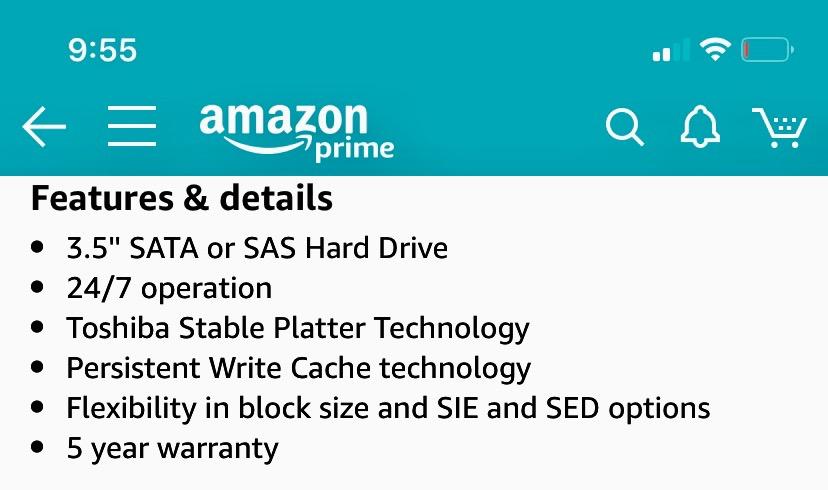
- Enterprise MG series engineered for 24/7 operation with Stable Platter Technology
- Persistent Write Cache protects in-flight data during power loss
- Five-year warranty at a near-consumer cost per terabyte
- The Bad
- Lacks NAS-tuned firmware
- so health must be read through generic SMART tools
- Small 128 MB cache relative to newer NAS drives
Not every bay in a media server needs the same drive. This one earns its place as a backup or archive tier rather than as the drive your Plex library streams from. Enterprise endurance, five-year warranty, four terabytes.
Stable Platter Technology is designed to reduce head-sliding events on the platters, which is the main mechanical wear mechanism in a spinning disk. Persistent Write Cache protects data that is in flight when power drops.
Owners using these as cold or backup storage in home servers report dependable 24/7 operation, and note they run quietly for a 7200 RPM enterprise drive.
The limitations are software rather than hardware. Without NAS-tuned firmware, health monitoring relies on generic SMART attributes, which are informative but less pleasant than a vendor dashboard.
The 128 MB cache is modest. If this drive serves your live media library, expect slower metadata performance than a NAS-branded model at the same capacity. As a write-mostly archive target, it matters far less.
Separating Live and Archive Tiers
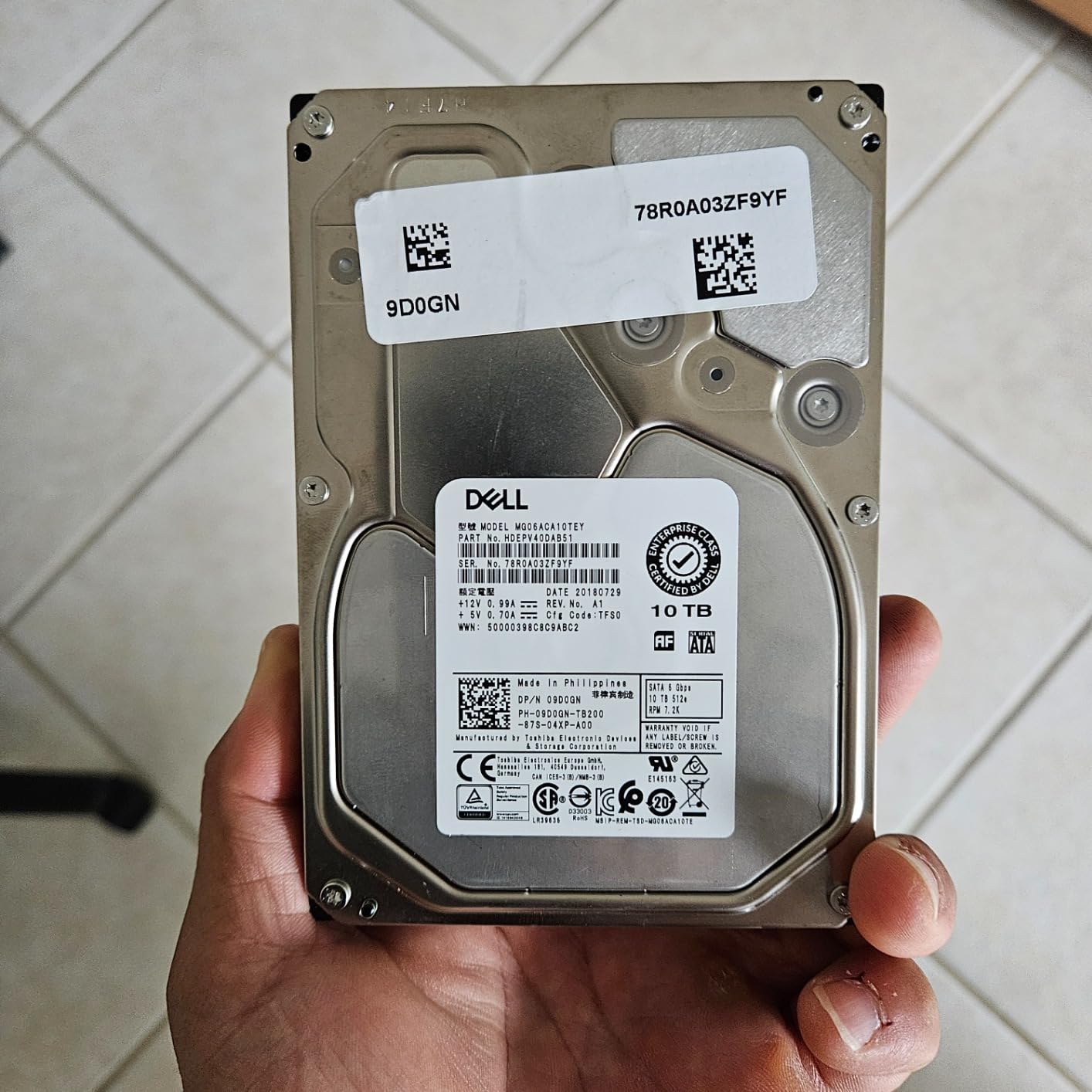
A common home setup pairs a fast quiet NAS drive for the actively streamed library with an enterprise drive for cold storage and backups. That keeps the high-frequency reads on quiet hardware and reserves the durable drive for data touched rarely.
Because the archive tier is not read constantly, its lower cache and lack of NAS firmware stop mattering. Endurance is what you are buying.
When to Spend More Instead
If the drive will sit in your main array and serve Plex directly, buy a NAS-branded model. You gain vibration compensation tuning, health reporting inside the NAS interface and a longer warranty in most cases.
Buy this one when the job is holding data safely, not when the job is serving it.
10. MaxDigitalData 6TB Renewed – Cheap Secondary Storage With Real Caveats
MaxDigitalData 6TB 7200RPM 128MB Cache SATA 6.0Gb/s 3.5-inch Internal Hard Drive for NAS Network Storage (MD6000GSA12872NAS) – 3 Years Warranty (Renewed)
6 TB
7200 RPM
128 MB cache
SATA 6Gb/s
3-year reseller warranty
+ The Good
- 7200 RPM spindle with 128 MB cache at a budget price point
- Works across NAS
- RAID
- desktop and surveillance use cases
- Bare single drive with no unnecessary accessories
- The Bad
- Renewed or OEM grade unit with only a reseller-backed three-year warranty
- Listing copy references 8TB while the drive itself is 6TB
- Requires formatting after installation before detection
We include this one because renewed inventory genuinely helps some home builders, but only with a specific role in mind. Treat it as secondary or backup storage rather than as the drive holding your only copy of anything.
The hardware itself is unremarkable in a good way: 7200 RPM, 128 MB cache, SATA 6 Gb/s and 200 MB/s sequential reads. It works across NAS, RAID, desktop and surveillance duties according to owners.
It comes as a bare drive with no cables or screws, which is what you want in a chassis that supplies its own mounting hardware.
The warranty is reseller-backed rather than manufacturer-backed. That distinction matters enormously when a drive fails: you are dealing with a third party who may not honour a manufacturer claim the way the manufacturer would.
Note the listing discrepancy. The product copy references an 8TB capacity while the drive is 6TB. Verify the label on the drive itself matches what you ordered before you buy, and never trust capacity claims from listing text on renewed inventory.
Formatting is required after installation before the drive is detected by most systems. That is normal for renewed stock, but budget time for it.
Where a Renewed Drive Belongs
Good uses are a backup target, a scratch array you can rebuild, media you can re-download, and test drives for learning NAS administration without risking real data.
Poor uses are a single copy of family photos, the only drive in your enclosure, or anything you would be devastated to lose with no other copy.
What to Check on Arrival
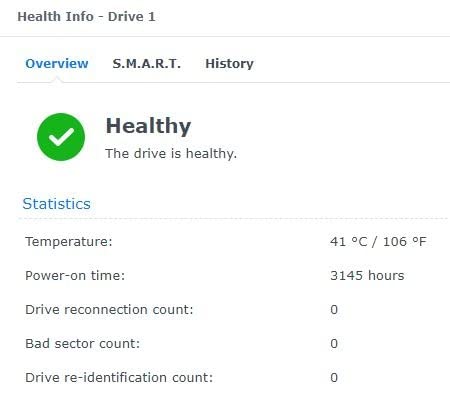
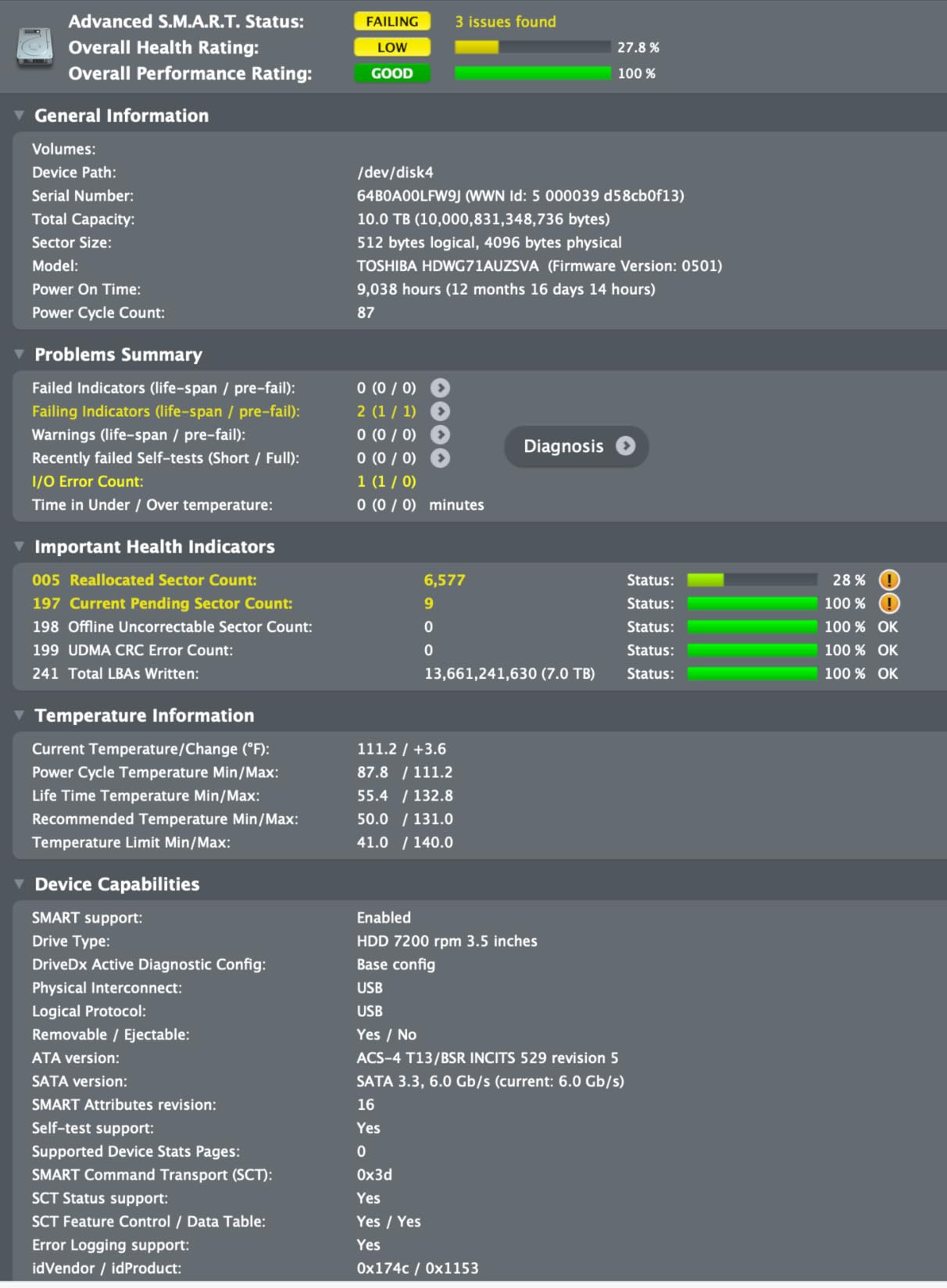
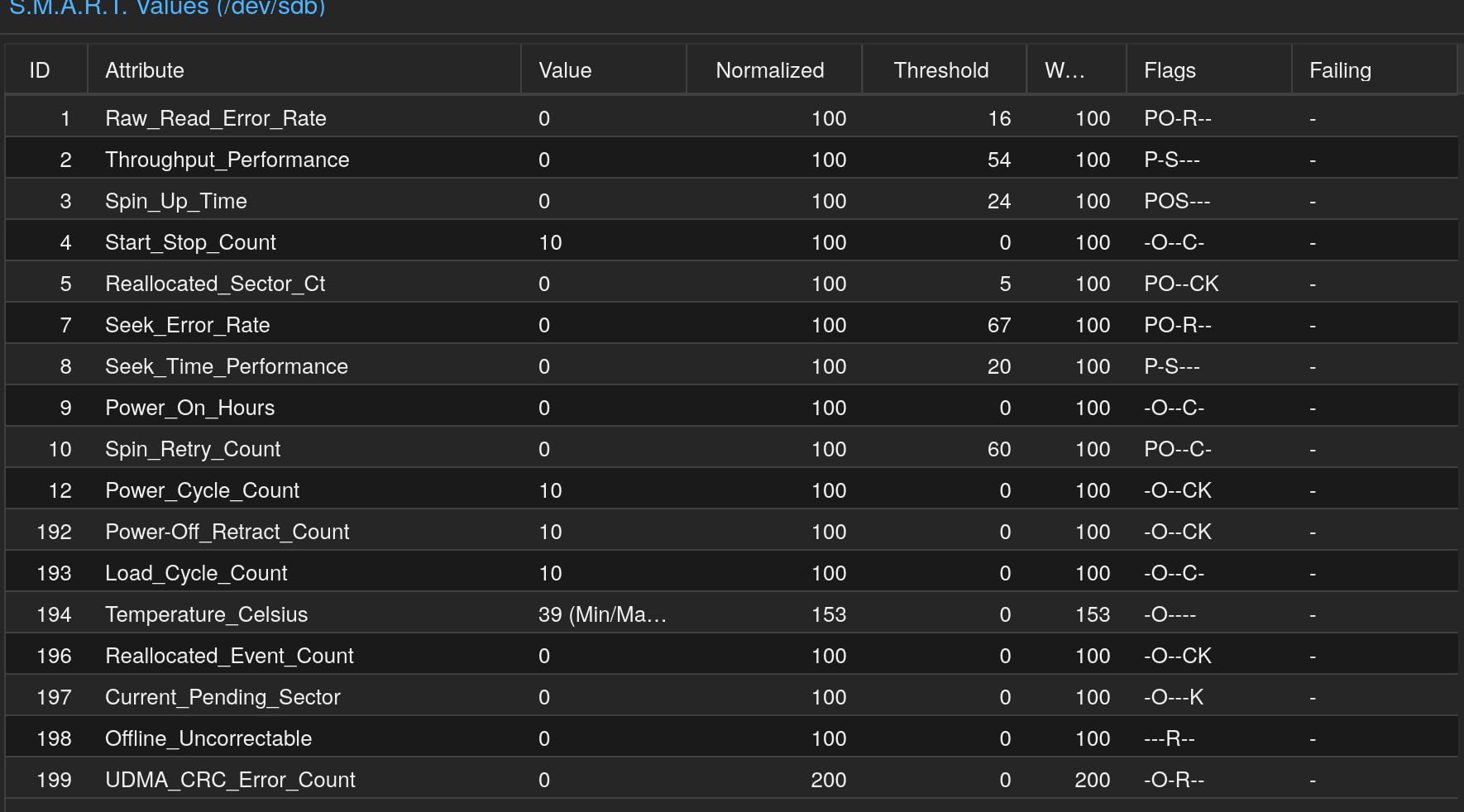
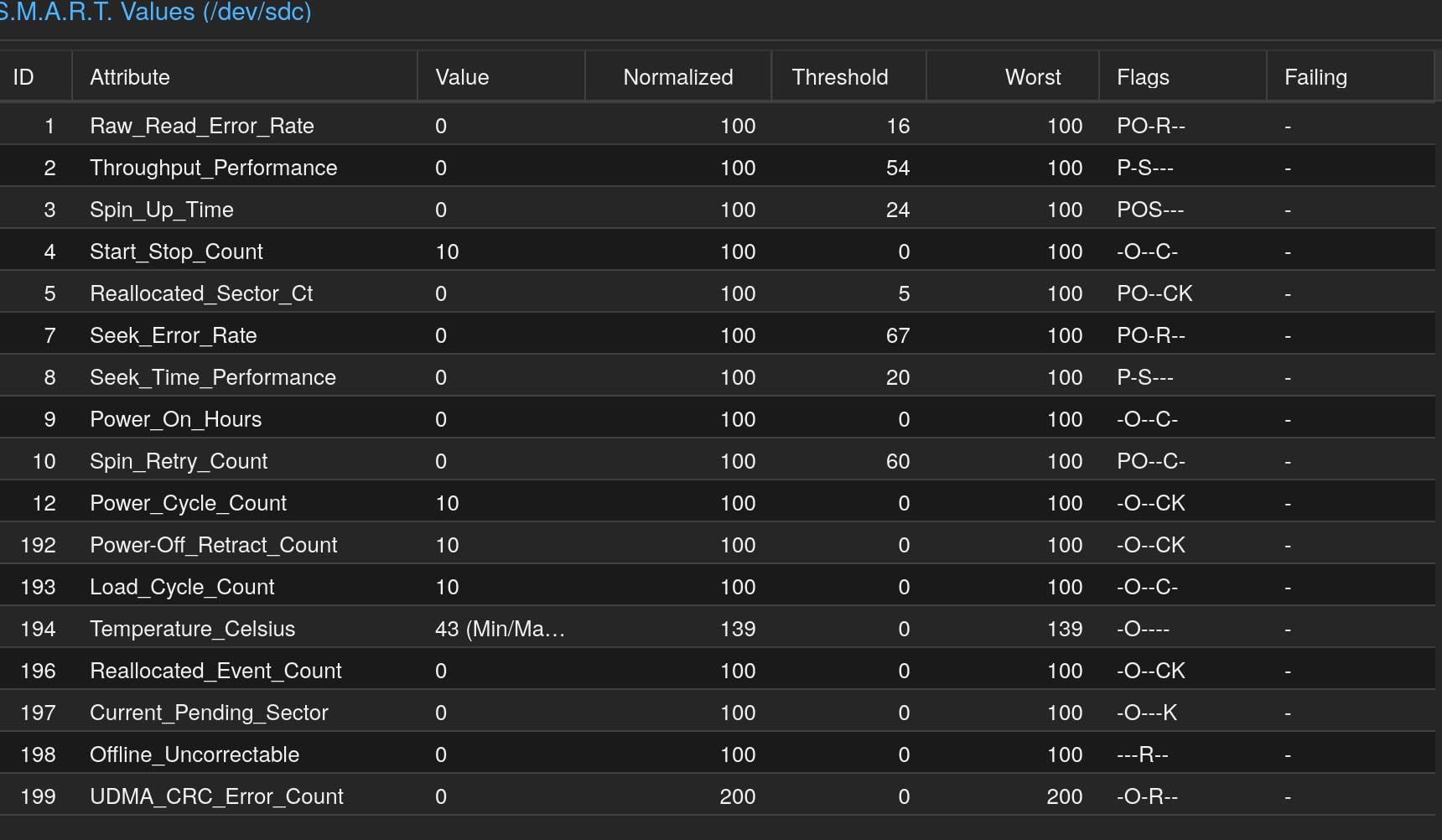
Run the manufacturer’s diagnostic tool and a full extended surface test before use. Renewed units have prior hours on the platters, so read the SMART power-on hours and any reallocated sector counts immediately.
Keep the purchase receipt and the original warranty documentation together. Your ability to claim depends entirely on the reseller’s terms, so know them before you need them.
How to Choose NAS Drives for Home Media
The differences between these ten drives are real but secondary. The decisions that matter most are recording technology, capacity, RAID layout and how you test the drives once they arrive.
Only Buy CMR
CMR, or conventional magnetic recording, writes tracks independently across the platter. SMR, or shingled magnetic recording, writes overlapping tracks that interfere with each other, so correcting one write forces a rewrite of neighbours.
That design is invisible when you stream a film and catastrophic when you rebuild an array, because a rebuild is a long sustained write across the whole disk. Every drive in this roundup is CMR. Verify the model number against the datasheet, because series names changed mid-production and a plain WD Red can be SMR.
Size the Library Before You Size the Drive
Work out your hours of video and your average bitrate first, then divide by eight to get an approximate terabyte requirement. A 4K remux runs roughly 60 to 100 Mbps, while a well-encoded 1080p file might be 5 to 10.
Add thirty percent headroom for metadata, thumbnails and snapshots. For photos, budget separately: a decade of family pictures is usually under a terabyte, but RAW camera files from several photographers change that quickly.
Remember usable capacity is lower than raw capacity. In a two-bay mirror you get one disk of usable space from two disks of capacity. In a four-bay RAID 5 style layout you lose the equivalent of one disk to parity. Account for hot spares too, since a reserved spare reduces usable space until you need it.
Pick a RAID Level You Can Survive
RAID 1 mirrors pairs and survives a single disk failure in each pair. It is the simplest option and the right default for a two-bay home media server.
RAID 5 uses single parity across three or more disks. One disk can fail and the array keeps running, but the rebuild reads every remaining disk, which is the highest-stress event in NAS life. RAID 6 uses dual parity, surviving two simultaneous failures at the cost of two disks of capacity.
Synology Hybrid RAID gives you a simpler path: add one disk at a time and let the system choose parity. For most home builders that removes the decision entirely, and it is a good reason to check our Synology NAS roundup before committing to a layout.
Stagger What You Buy and When
Buying a four-disk array in one order concentrates your risk. Drives from a single manufacturing batch share components and firmware, and if a batch has a defect you lose all four at once.
Split purchases across several weeks, or mix capacities so an entire batch cannot take the array down. Forum users who learned this the expensive way consistently recommend staggering, and we agree.
Burn In Every New Drive
Hard drives have an infant mortality period, and the failures that matter most for a NAS tend to happen in the first weeks of heavy use. Test before you trust.
Install the drive and let the NAS complete its initial surface scan.
Read SMART attributes for reallocated sectors, pending sectors and uncorrectable errors.
Run the manufacturer’s extended test, such as a long generic or SeaTools read, allowing several hours per terabyte.
Create the array in a degraded or rebuildable layout first and write several terabytes of real data through it.
Monitor enclosure temperature and listen for repeating clicks, which signal a failing head.
Keep a backup of anything irreplaceable until the drive has run for a month of normal load.
Owners on the forums report that burn-in testing with the vendor tools caught dead-on-arrival disks before any data was written. It costs an afternoon and removes the most avoidable failure mode.
Add an SSD for Plex Metadata
Plex spends most of its time in small database operations rather than streaming video. Putting that database on an NVMe or SSD cache layer, where your NAS software supports it, makes browsing and library scanning noticeably snappier without touching the array itself.
This is one of the highest-value changes a home media server can make, and only one of the roundups we studied covers it. Pair it with a small SSD and the drive recommendation above matters less, because the platters stop handling the read-heavy small files.
Consider Recertified Enterprise Drives Carefully
Refurbished enterprise drives such as the MG series offer genuine endurance at a lower cost per terabyte. The trade-offs are reseller-only warranty support, uncertain prior power-on hours and no NAS-specific health features, so they suit archives and backups rather than your only copy of anything.
Where to Spend on the Rest of the System
Drive throughput only helps if the network can deliver it. A gigabit link caps out around 110 MB/s, which makes faster platters partly idle. A 2.5GbE interface is the practical upgrade for large 4K libraries, and matching streaming hardware matters too; our streaming media player picks cover direct-play behaviour.
Budget for cooling as well. Larger high-capacity drives generate more heat in a dense chassis, and a fan-equipped enclosure with airflow pays for itself in drive life. Our broader NAS drive guide covers enclosure sizing in more detail, and our running 2026 test notes track which of these drives hold up longest.
Frequently Asked Questions
Which NAS drive is best for home use?
The WD Red Plus 10TB is the best all-round choice for most home media servers because it combines CMR recording, a 180 TB per year workload rating, a large 256 MB cache and a quiet 5400 RPM spindle. The Seagate IronWolf 4TB is the better pick for small two-bay builds where capacity is not the constraint, and the WD Red Pro 8TB suits arrays with heavy continuous writes from multiple users.
Which is better for NAS use, Seagate IronWolf or WD Red Plus?
Both families use CMR recording and are rated for continuous multi-bay operation, so the choice comes down to firmware features and acoustics. WD Red Plus is generally quieter and carries NASware firmware tuned for enclosure compatibility, while IronWolf includes IronWolf Health Management and three years of Rescue Data Recovery Services. For a media server in a living room, Red Plus tends to be the quieter option.
Can I use desktop hard drives in a NAS?
You can, and many people do for light library storage, but desktop drives are rated for roughly 55 TB of writes per year and an eight-hour duty cycle rather than continuous operation. They also lack TLER-style error recovery limits and rotational vibration compensation, so a disk that takes too long re-reading a bad sector can be dropped from a rebuild. For an array holding anything you care about, a NAS-rated drive is the safer choice.
Are NAS drives worth it for home use?
For a two-bay or larger enclosure holding media or backups, yes. NAS-rated drives add vibration compensation, longer error recovery limits, higher workload ratings and a warranty that assumes round-the-clock operation. A single external backup drive on a desktop is a different case, where a desktop drive remains a reasonable choice. The price difference per disk is small compared with the rebuild risk.
How long do NAS drives last in home use?
In a cool, well-ventilated enclosure with regular SMART monitoring, NAS drives commonly run for five to ten years before replacement. Heat is the biggest accelerator of failure, so airflow matters more than the drive badge. Replacing drives one at a time as you add capacity keeps the array running and spreads the cost, and staggered purchases reduce the risk of losing several disks from one batch at the same time.
Conclusion
The best NAS drives for home media are all CMR, all rated for continuous operation and all built to survive the vibration of a multi-bay chassis. Start with the WD Red Plus 10TB if you want quiet, well-proven storage for a two-bay library, and step up to a Red Pro or IronWolf Pro only when your write workload justifies it.
Capacity matters more than speed for streaming, RAID layout matters more than capacity for safety, and staggering your purchases is the cheapest protection there is. Check the model numbers, burn in every disk, and keep a backup of anything irreplaceable.