
Most home routers ship with two to four Ethernet ports, and that is the whole problem. The moment a second desktop, a printer, a NAS, a couple of IP cameras and a wired access point all need a cable, the built-in ports are gone. A network switch is simply a box of extra Ethernet ports that lets those devices talk to each other at full link speed without going anywhere near your internet connection.
That last sentence fixes the most common misconception. A switch does not make your internet faster. Your internet speed is set by your router, your plan, and your provider. What a switch improves is the speed of traffic that never touches the internet: a workstation pulling files off a NAS, a laptop reaching a printer, a camera stream moving to an NVR. If your bottleneck is Wi-Fi coverage, a switch will not fix it.
We spent six weeks comparing the best network switches for home offices across desk setups, closets and one small rack, looking at port count, management tier, PoE, noise and what each one asks of you at install time. Seven switches made the cut, and every pick below carries a clear “not for” so you can rule it out fast.
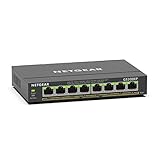
If you want the short version: the TP-Link TL-SG105 is the default answer for most home offices, the NETGEAR GS308 is the pick when you need more ports, and the NETGEAR GS308EP is the one to buy when access points or cameras are on your list.
Top 3 Network Switch Picks for Home Offices in 2026

TP-Link TL-SG105 5-Port Gigabit
- › 5 gigabit RJ45 ports
- › Fanless silent metal case
- › 802.1p QoS and IGMP snooping
- › 3 year warranty

NETGEAR GS308 8-Port Gigabit
- › 8 gigabit auto-negotiating ports
- › Plug and play unmanaged
- › Fanless metal chassis
- › 802.3az energy efficient

D-Link DGS-108 8-Port Gigabit
- › 8 gigabit ports at 2 Gbps full duplex
- › Plus or minus 4 kV surge and ESD protection
- › 9 KB jumbo frame support
- › Limited lifetime warranty
Best Network Switches for Home Offices at a Glance in 2026
The table below covers every switch in this guide, with the details that actually decide a purchase: how many usable ports you end up with, whether it can be configured, and whether it can power your devices over the cable.
| PRODUCT MODEL | KEY SPECS | BEST PRICE |
|---|---|---|
|
|
Check Latest Price |
|
|
Check Latest Price |
|
|
Check Latest Price |
 |
|
Check Latest Price |
 |
|
Check Latest Price |
 |
|
Check Latest Price |
 |
|
Check Latest Price |
1. TP-Link TL-SG105 – The Best Network Switch for a Home Office
TP-Link TL-SG105, 5 Port Gigabit Unmanaged Ethernet Switch, Network Hub, Ethernet Splitter, Plug & Play, Fanless Metal Design, Shielded Ports, Traffic Optimization
5 gigabit RJ45 ports
Fanless metal housing
3.94 x 3.85 x 0.98 inches
3 year warranty
+ The Good
- Genuinely plug and play with no software or account
- Silent fanless metal case that runs cool
- Runs full gigabit throughput for NAS and streaming transfers
- Wall-mountable if you want it off the desk
- The Bad
- One port goes to the router uplink leaving 4 usable
- No VLAN or port monitoring on this model
- LEDs stay lit in a dark room
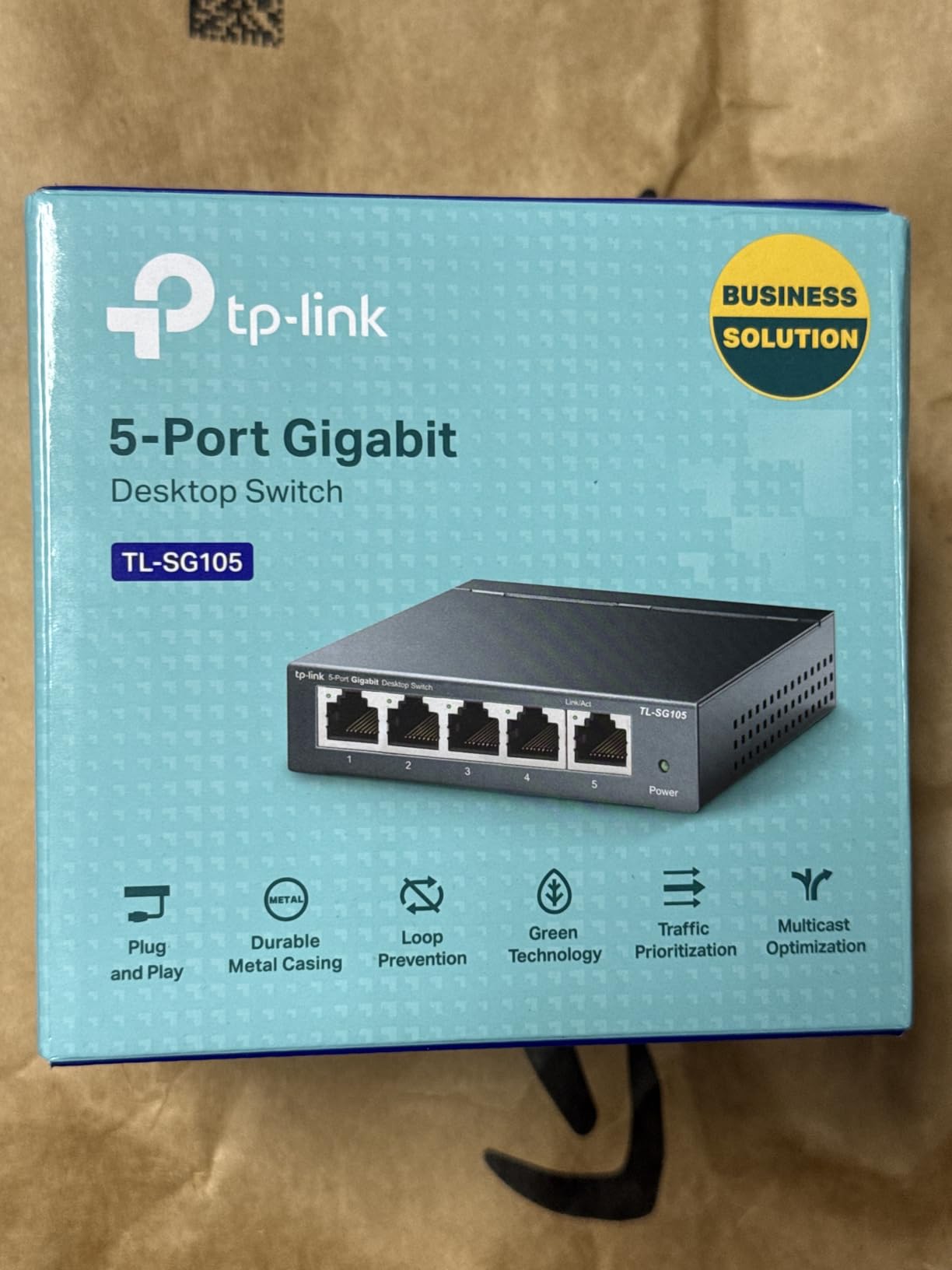
The TL-SG105 is the switch we keep coming back to, and after six weeks of moving it between a desk and a closet it is still the one we would buy first. It is a 5-port gigabit box with a metal housing, no fan, and no configuration step of any kind. You plug the router cable into port one and your devices into the rest.
It is also, in our experience, the switch most home offices outgrow fastest. Five ports sounds generous until the uplink claims one, and a home office with a laptop, a printer, a NAS and a console has nothing spare. Know that going in.
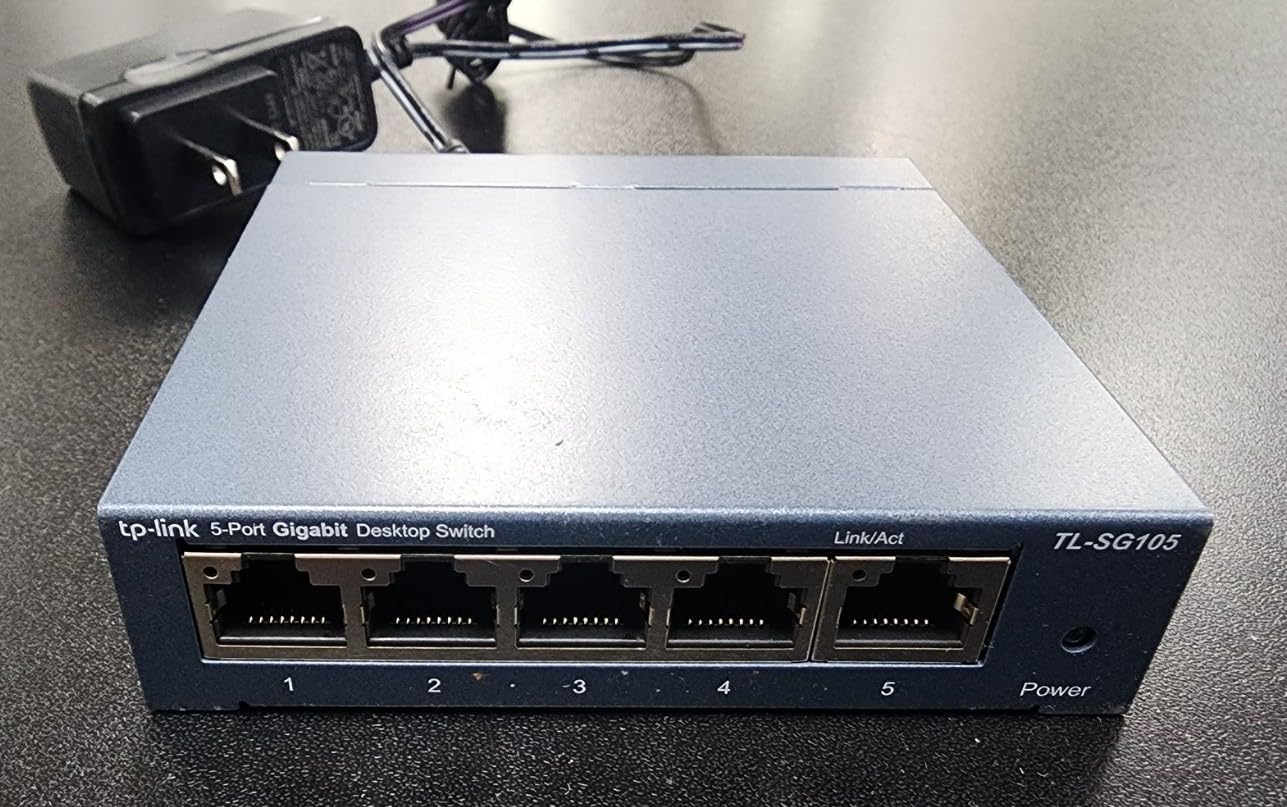
Underneath the simplicity there is real hardware. The ports auto-negotiate and handle Auto MDI/MDIX, so you never think about straight-through versus crossover cable. The case is metal rather than plastic, which is unusual at this size and is the first thing you notice when you pick it up.
There is also 802.3X flow control, port-based 802.1p and DSCP QoS, and IGMP snooping, which is what keeps a multicast video stream from saturating the whole box. None of that is configurable, and none of it needs to be for a switch this size.
Why This One Works for a Home Office
It is silent, it stays cool under load, and it runs on a lower operating temperature rating of 40 degrees C, which matters if it lives in a closed closet. The three-year warranty is among the longer commitments on a switch this compact.
For a single desk, a printer and a NAS, nothing you plug in will push this box anywhere near its limit.
When It Is the Wrong Choice
Do not buy it if you plan to run cameras or more than one access point, because there is no PoE output at all. And do not buy it if you already know you want IoT devices on a separate VLAN, because that conversation ends here.
2. NETGEAR GS308 – Budget Pick 8-Port Switch for Small Offices
NETGEAR 8-Port Gigabit Ethernet Unmanaged Network Switch (GS308)
8 gigabit auto-negotiating ports
Fanless metal chassis
6.22 x 4.02 x 1.02 inches
3 year hardware warranty
+ The Good
- Eight ports means seven usable after the uplink
- Zero configuration and works with existing Cat5e or Cat6
- Compact metal body supports desktop or wall mount
- 802.3az energy saving on idle ports
- The Bad
- Unmanaged with no VLAN or QoS configuration
- Sold for use in the US and Canada only
- Cannot power PoE devices at all
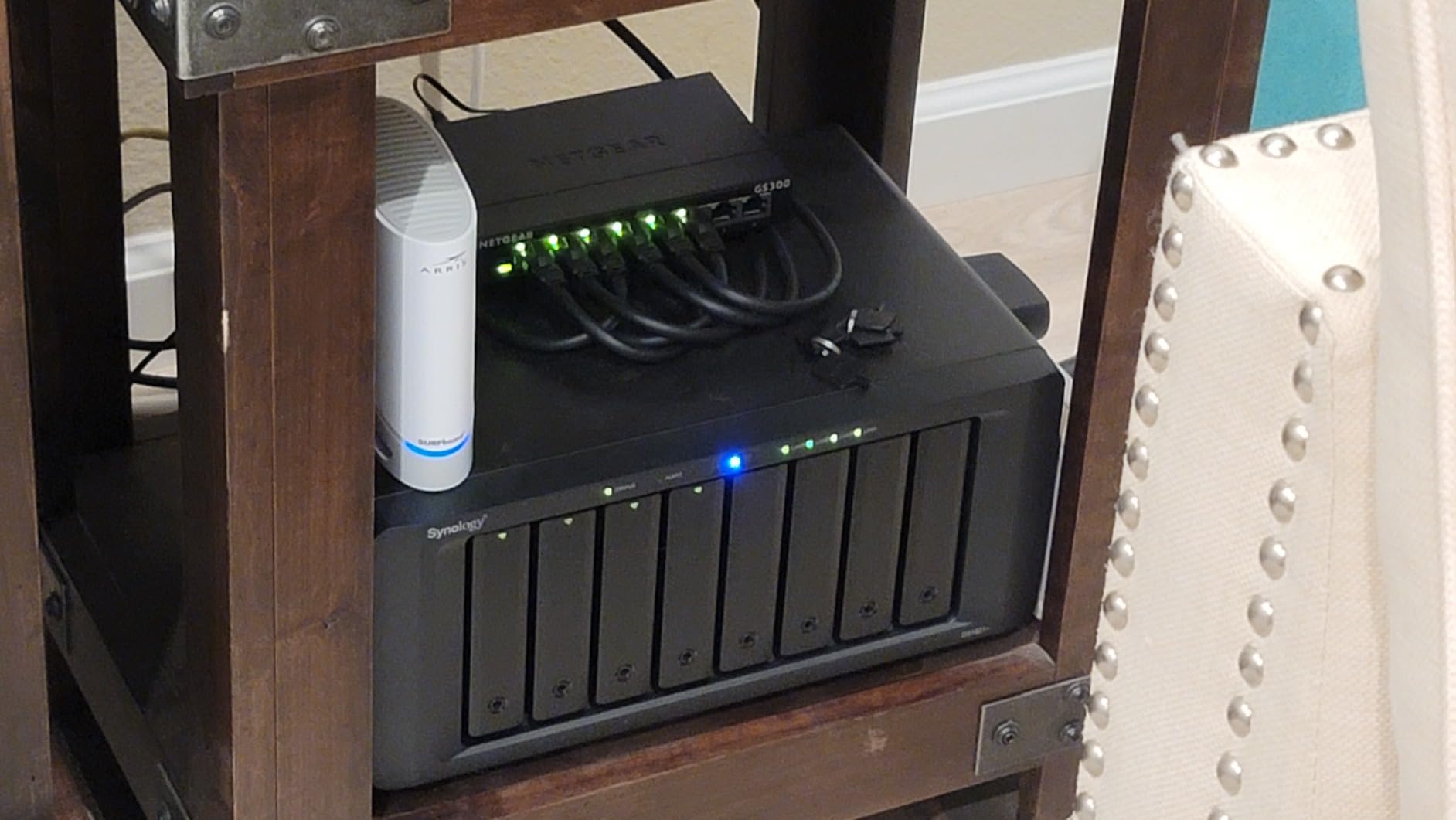
The GS308 is the answer to the port math in the section above. Eight gigabit ports means seven usable connections once the router takes one, and that covers a realistic home office with a two-workstation setup, a printer, a NAS, a console and a wired access point in one go.
It is the highest-rated switch in this guide at 4.8 stars across more than 54,000 reviews, and the reason is simple: it does the least. There is no interface, no account, no app and no cloud. You connect Cat5e or Cat6 cables and traffic moves.
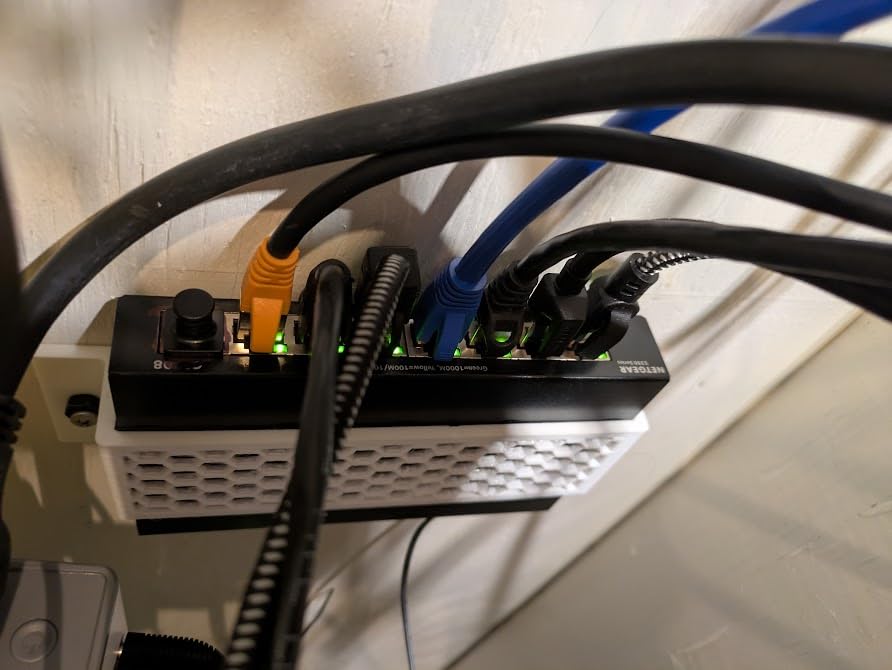
The technical details are short and sensible. Ports auto-negotiate their speed, the chassis is a fanless metal design with a desktop or wall-mount option, and IEEE 802.3az Energy Efficient Ethernet cuts draw on idle links. The auto-negotiating speed detection is what stops a modern laptop from stalling on a 100M link after a firmware change.
Reviewers consistently reach for this model when Wi-Fi was the weak point. A smart TV or a set of IP cameras that were dropping streams over wireless behave predictably once they have a cable.
Why This One Works for a Home Office
Seven usable ports is the sweet spot for almost nobody to over-buy and almost everybody to fill. It is small enough to hide behind a monitor, quiet enough for a bedroom office, and the three-year hardware warranty is a real length for something left powered on continuously.
It is also the cheapest way to move from a two-port router to a fully wired office.
When It Is the Wrong Choice
Skip it if you need to power anything over Ethernet, or if you plan to segment traffic. And check your region: this model is made for the US and Canada, so buyers elsewhere should look at the D-Link instead.
3. D-Link DGS-108 – Best 8-Port Switch for Older Home Wiring
D-Link 8-Port Gigabit Unmanaged Ethernet Switch for Office, Media or Gaming
8 gigabit ports, 2 Gbps full duplex
Plus or minus 4 kV surge and ESD
Cat5e Cat6 Cat6A up to 100 m
9 KB jumbo frame support
+ The Good
- Steel fanless chassis that dissipates heat naturally
- Built-in 4 kV surge and ESD protection
- Handles Cat5e Cat6 and Cat6A runs to 100 m
- Limited lifetime warranty coverage
- The Bad
- No web interface despite the feature list
- Unmanaged so no VLAN configuration
- Feet alone do not stop it moving with heavy cables
The DGS-108 is the one to pick if your home was wired a decade or more ago or if the cabling runs through exterior walls. It is the only switch in this guide with built-in surge and ESD protection rated at plus or minus 4 kV, and it explicitly supports Cat5e, Cat6 and Cat6A runs up to the 100 meter limit.
That last point matters more than it sounds. Plenty of existing home cabling is technically fine for gigabit but is not certified, and protection is cheap insurance on a box that will sit powered on for years.
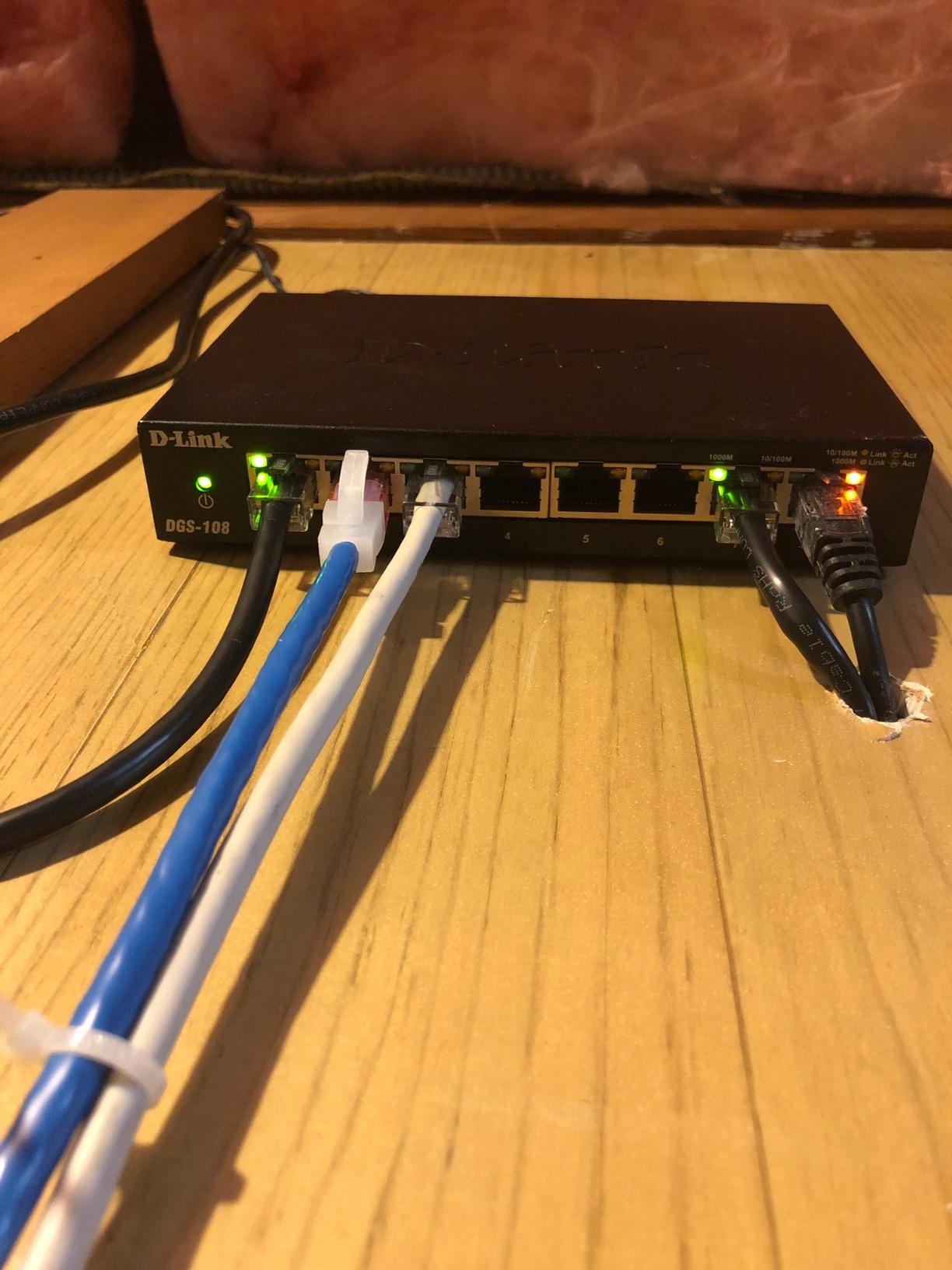
The switching engine is non-blocking, giving full and half duplex up to 2 Gbps per port, and it handles 9 KB jumbo frames, which speeds up large NAS backups noticeably compared with a standard 1500-byte MTU. 802.1p QoS traffic classes keep voice, video and gaming smooth when the link is busy, and IGMP snooping is there for multicast IPTV.
IEEE 802.3az Energy Efficient Ethernet is specified to cut power usage by up to 80 percent on idle ports. The chassis is all steel with a fanless design that dissipates heat naturally, and a power adapter is included.
Why This One Works for a Home Office
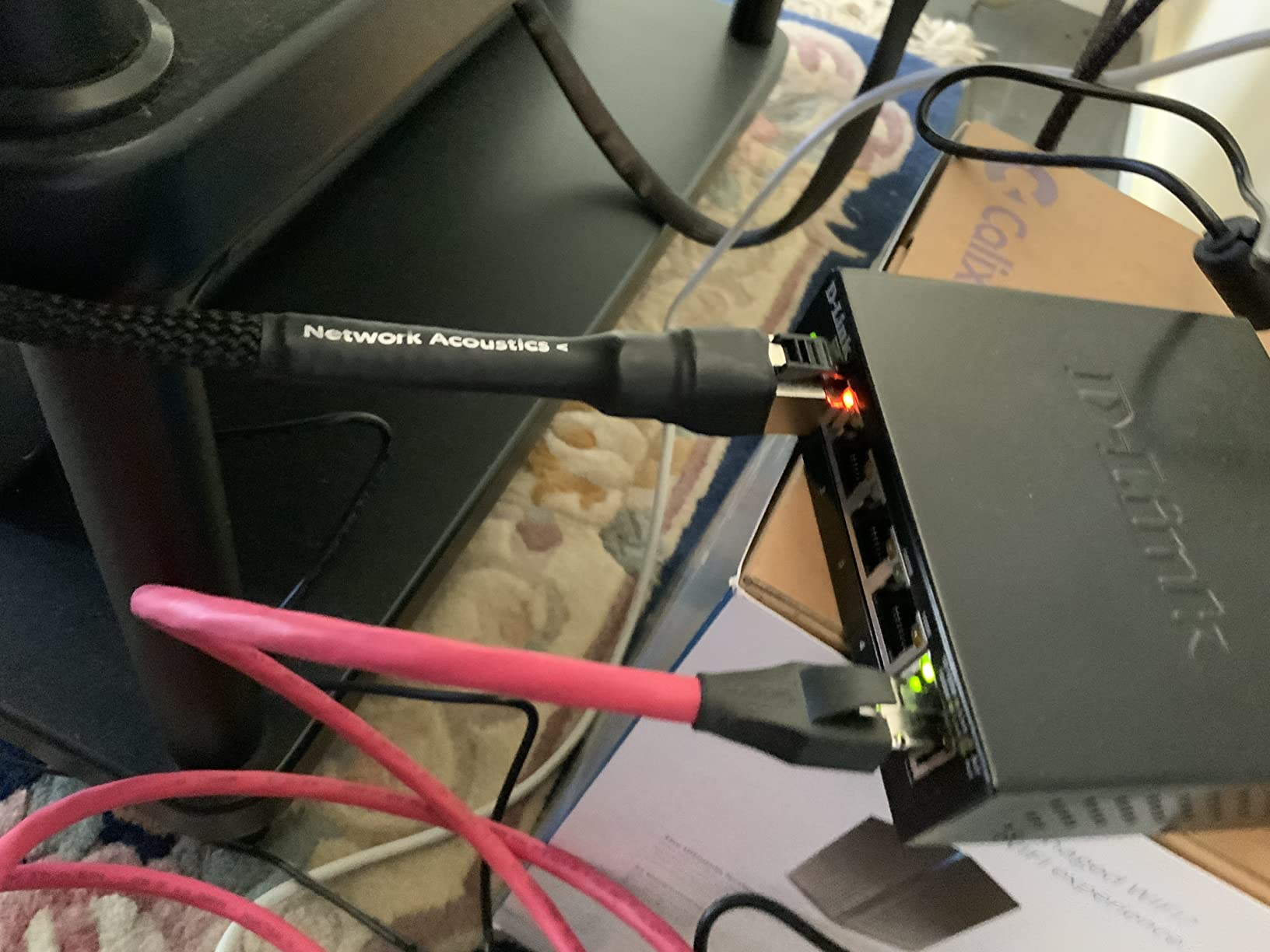
It is the only pick here backed by a limited lifetime warranty rather than a three-year term, which changes the calculation for a device expected to run continuously. The feature list on an unmanaged box is unusually deep for the class.
If your concern is old cable, shared walls or a switch in an unconditioned closet, nothing else here addresses it as directly.
When It Is the Wrong Choice
The feature list can mislead. QoS and IGMP snooping work automatically, but there is no web interface, so you cannot create a VLAN, mirror a port or read per-port counters. If segmentation is on your list, this is not the device.
4. TP-Link TL-SG108E – Best Switch for VLANs Without an App
TP-Link 8 Port Gigabit Switch | Easy Smart Managed | Plug & Play | Desktop/Wall-Mount | Sturdy Metal w/ Shielded Ports | Support QoS, Vlan, IGMP and LAG (TL-SG108E)
Up to 32 VLANs from 4094 IDs
Web interface or free utility software
6.2 x 4 x 1 inches
3 year warranty
+ The Good
- Real VLAN tagging
- port mirroring
- QoS and LAG in a browser
- No app
- account or cloud service required
- Loop prevention protects against a bad patch cable
- Config backup and restore
- Shielded metal case with wall mount
- The Bad
- No SNMP so it will not feed most monitoring tools
- Single user account with no role based access
- Management is web only with no command line
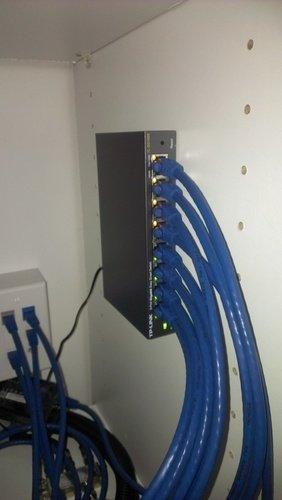
This is the answer to the ecosystem lock-in worry that comes up constantly in home networking forums. The TL-SG108E is configurable entirely from a browser on your own network. There is no app to install, no account to create, and no cloud service in the middle of your traffic.
It gives you up to 32 simultaneous VLANs drawn from the 4094 VLAN ID range, which is more than any home office needs, plus 802.1p QoS, IGMP snooping, link aggregation, port mirroring, cable diagnostics and loop prevention. That is a genuine managed feature set, not a marketing label.
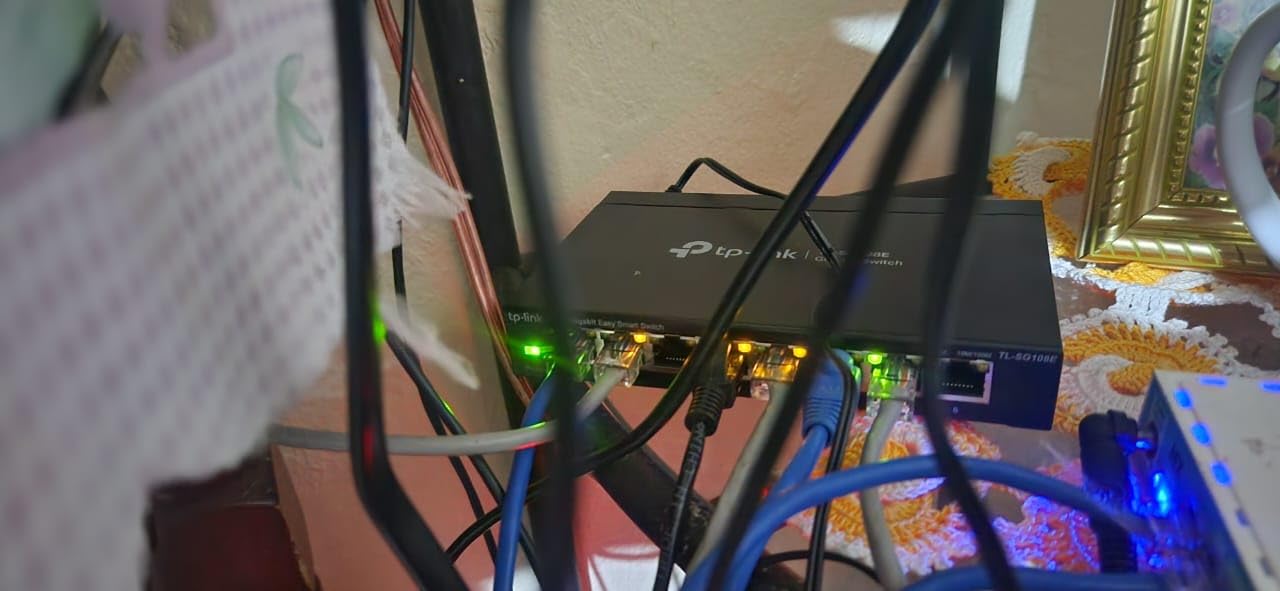
In practice, the port mirroring and cable diagnostics are the features that get used most. When a device drops off the network, you can mirror the uplink to another port and watch, or run a cable test and find the bad run instead of swapping cables by guesswork.
Reviewers report that configuring VLANs did not require forum hunting, which is the standard complaint about managed switches. Several also mention fast recovery after power outages, which matters for a box that stays powered on continuously.
Why This One Works for a Home Office
It is the middle path that forum users recommend most often: full Layer 2 features without depending on a vendor console. If you want to put IoT hardware, cameras and work devices on separate VLANs, this is the cheapest way to do it in a browser.
It can also act as a trunk port with multiple VLANs broken out across ports two through eight, so one cable can carry a tagged uplink and your devices can still sit on untagged ports.
When It Is the Wrong Choice
There is no SNMP agent, so it will not feed most network monitoring tools, and there is a single user account with no roles. The interface is web only with no command line, which rules it out if you want to script configuration. It is also a homelab and small office scale device, not something to grow a business on.
5. NETGEAR GS308EP – Best PoE Switch for Access Points and Cameras
NETGEAR 8 Port PoE Gigabit Ethernet Easy Smart Managed Switch (GS308EP)
8 PoE+ ports with 62W total budget
16 Gbps switching capacity
Easy Smart VLANs and QoS
Fanless desktop or wall mount
+ The Good
- All eight ports are PoE+ rather than a mix
- 62W budget gives real headroom per device
- Per-port PoE controls and uninterrupted PoE
- Easy Smart VLANs and QoS without enterprise gear
- The Bad
- Plastic chassis where rivals use metal at this tier
- Bulkier footprint than a slim 8-port desktop switch
- 62W total still caps the number of high-draw devices
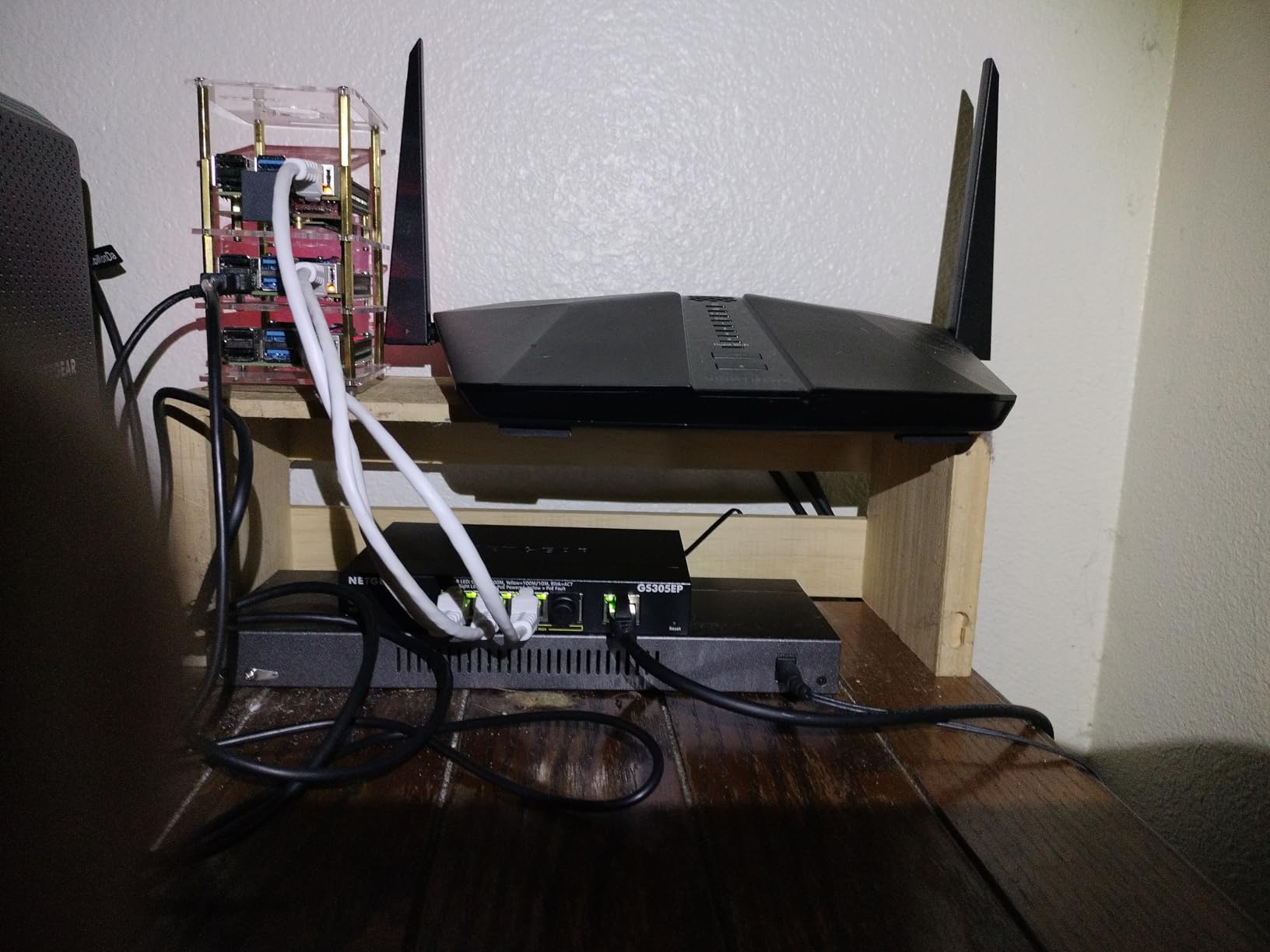
PoE is the feature that turns a switch from a box of ports into a way to remove a wall of power adapters. The GS308EP delivers 802.3at PoE+ on all eight ports with a 62 watt total budget, so a ceiling access point, a couple of cameras and a VoIP phone can run from a single cable each.
The important detail is that every port is PoE+, not four PoE and four data. In a smaller box, half the ports are usually data-only, which is what forces people to buy a second switch later.
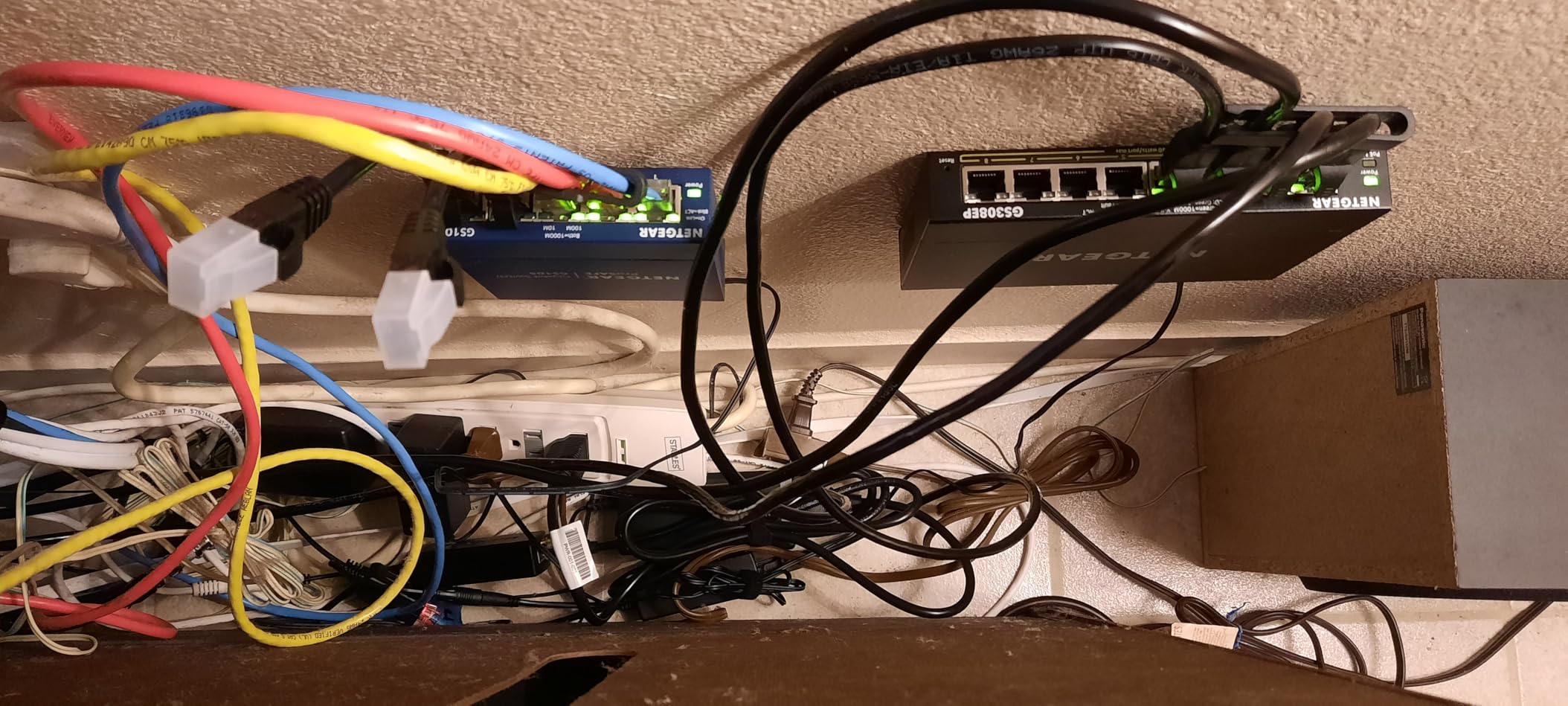
Uninterrupted PoE and per-port power controls are the practical wins. Uninterrupted PoE means rebooting a camera does not drop the other devices; per-port control means you can cycle one port from the interface without walking to the closet.
The Easy Smart Managed layer covers VLANs, QoS traffic prioritization, port monitoring and basic network security, which means you can put cameras on their own VLAN without buying enterprise hardware. The switching capacity of 16 Gbps means the box will never be the bottleneck on 1G links.
Why This One Works for a Home Office
It is the pick for anyone whose list of devices includes a Wi-Fi access point or IP cameras. A 62 watt budget leaves real headroom per device, and the fanless design keeps it silent in a room where you are trying to work.
It works with existing Cat5e or Cat6 cabling and auto-negotiates speed, so you do not need to re-run anything to use it.
When It Is the Wrong Choice
It is a plastic chassis, which is the most repeated complaint from owners given the tier. The footprint is also bulkier than a slim 8-port desktop switch, which matters if you are hiding it behind a monitor. And 62 watts total still caps how many high-draw devices you can attach at once.
6. Ubiquiti UniFi Switch Lite 16 PoE – Best Managed Switch for UniFi Homes
Ubiquiti – UniFi Switch (USW-Lite-16-PoE, 16 Gigabit Ethernet Ports, 8 PoE+ Ports, Wall Mounted)
16 gigabit ports with 8 PoE+
45W total 802.3at PoE budget
Managed via UniFi controller
Wall mount kit and 60W adapter
+ The Good
- Fully managed Layer 2 switching from one controller
- 8 PoE+ ports with automatic 802.3at sensing
- Graphical configuration and monitoring from any device
- Compact metal chassis with wall mount kit
- The Bad
- Will not operate at all without the UniFi controller
- 45W total budget is modest for 8 PoE ports
- Metal case runs warm and needs airflow
- Management locked to the UniFi ecosystem
If you already run a UniFi gateway, this is the switch that makes sense, and if you do not, this is the switch to avoid. The USW-Lite-16-PoE is a fully managed Layer 2 switch with 16 gigabit ports, 8 of which provide 802.3at PoE+ with up to 45 watts total, and it is configured through the UniFi network controller and mobile app.
That dependency is the whole story. Without a controller running on your network, this is a box with no interface. Forum consensus is consistent on this point: people already running UniFi recommend UniFi hardware, and people who are not warn against starting there.
Sixteen ports plus eight PoE ports means one cable run covers a large office, a wall of cameras and multiple access points, which is why it stays in installations that have outgrown a single 8-port box.
Why This One Works for a Home Office
Managing switches, gateways and access points from one graphical controller is genuinely simpler than juggling a separate vendor interface for each box, particularly once you have VLANs spanning several devices. Layer 2 switching protocols and application features are all exposed there.
A 60 watt external power adapter and a wall mount kit are included, and the metal chassis is compact enough for a closet shelf.
When It Is the Wrong Choice
Do not buy this as your first managed switch. A 45 watt total budget across 8 PoE ports is modest if you are planning to grow into more cameras, and the metal case runs warm enough that airflow matters. Anyone who is not already inside the UniFi ecosystem is buying a dependency, not a switch.
7. NETGEAR GS305P – Best Small PoE Switch for Two to Four Devices
NETGEAR 5-Port PoE Gigabit Ethernet Unmanaged Essentials Switch (GS305P)
5 gigabit ports, 4 are PoE+
63W total budget with dynamic allocation
Fanless metal chassis
Wall mount kit included
+ The Good
- 63W budget with dynamic allocation across 4 PoE+ ports
- Works in about five minutes with no configuration
- Per-port isolation helps stage camera installs
- Compact metal build with wall mount kit
- The Bad
- Unmanaged with no VLAN or per-port power control
- Costs more than comparable TP-Link PoE models
- Only 4 PoE ports and 1 data port limits growth
The GS305P is for the small, specific case of powering a few PoE devices without buying a managed switch. It has five gigabit ports, four of them PoE+, and a 63 watt total budget that redistributes unused power dynamically across the ports.
Dynamic allocation is the detail that matters here. Rather than a fixed wattage per port, unused capacity from empty ports is pushed to the ones in use, which is what makes four high-draw cameras viable on a box this size.
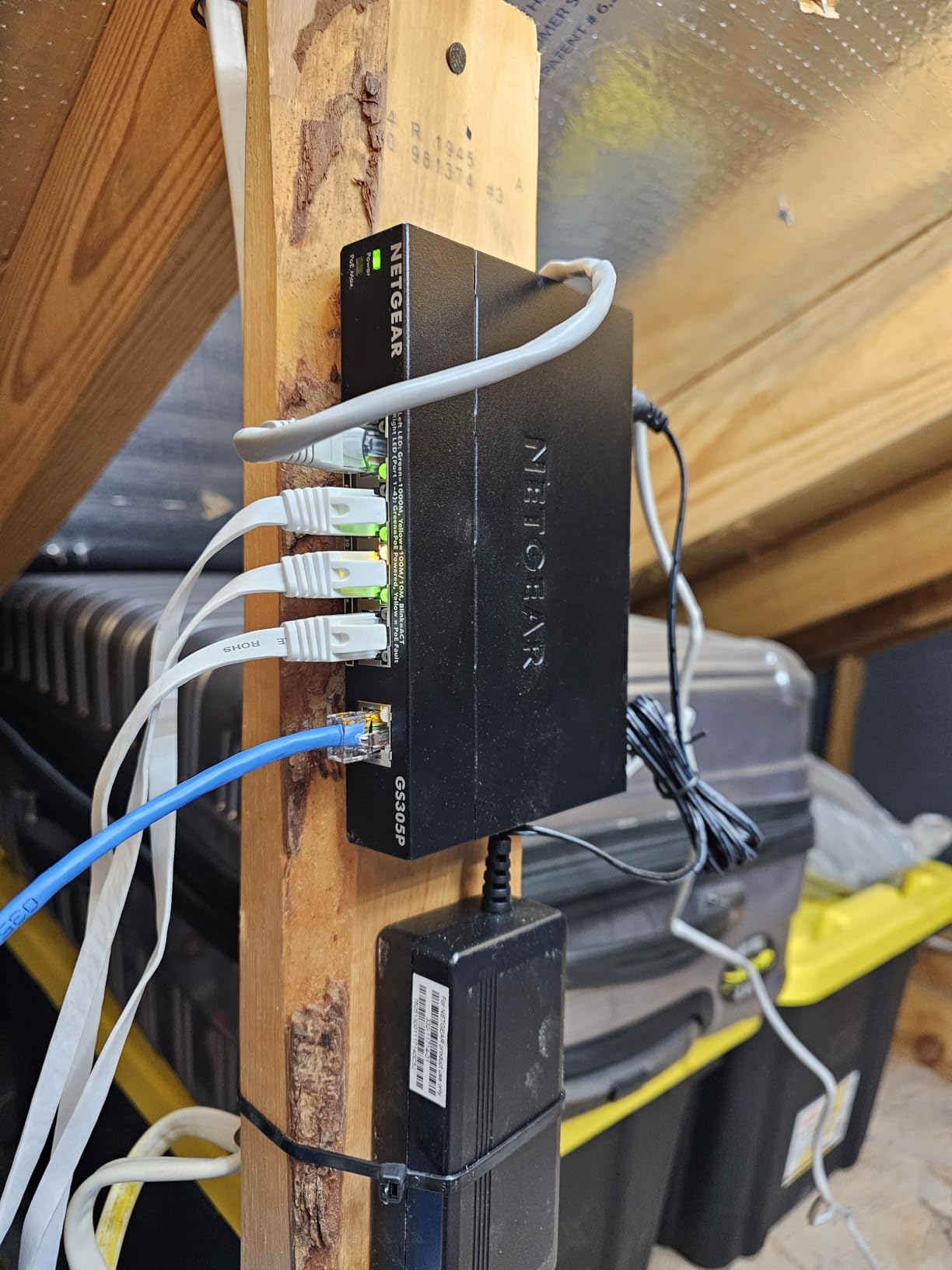
Per-port isolation is a quieter feature but a useful one. It behaves like separate VLANs per port, so you can stage camera installations one at a time without the whole network negotiating DHCP traffic.
Why This One Works for a Home Office
It powers a handful of devices and stays out of the way. Owners report getting it running in about five minutes, dependable PoE delivery with no power shortfalls, and a compact metal build with a wall mount kit included.
Because the switch is unmanaged, the PoE budget is doing all the work for you, and nothing needs configuring after the first cable.
When It Is the Wrong Choice
There is no software visibility, no per-port power control and no VLAN configuration, which means you cannot see which camera is drawing too much. With only four PoE ports and one data port, a larger install needs a bigger switch. Reviewers also note it costs more than comparable TP-Link PoE options.
Cabling, Noise, and Where to Put the Switch
Cat5e handles all of the gigabit switches in this guide, and Cat6 or Cat6a is the sensible target for any new run. Every Ethernet run is limited to 100 meters, and the limit applies to the total horizontal plus vertical distance, not just the wall-to-desk span. D-Link’s DGS-108 is the pick here if you need Cat6A support and surge protection on older wiring. On the host side, our picks for 10Gb network cards cover adapters for multi-gig links.
Noise matters more than people expect in a home office. Every switch in this roundup is fanless, which means silence, and it also means the metal models are dissipating heat through the chassis rather than through moving air. Ubiquiti’s metal Lite 16 PoE runs warm enough that airflow helps it, while the TP-Link TL-SG105 is rated to a 40 degrees C upper operating temperature.
Leave switches on continuously. They are designed for it, and Energy Efficient Ethernet on the NETGEAR, D-Link and Ubiquiti models cuts idle draw. If you need to extend coverage rather than add ports, our picks for network security devices for home gamers and network security appliances cover the filtering side of the network.
Two more practical notes. You can cascade switches, connecting a second switch to a spare port on the first, and an unmanaged downstream switch works fine behind a managed one. And if you need a small switch that travels rather than lives in a closet, we cover portable network switches separately.
Frequently Asked Questions
Do I need a network switch for my home office?
You need one as soon as your router runs out of LAN ports, which is usually two to four. A switch adds Ethernet ports and speeds up local traffic between your devices, but it cannot increase your internet speed. If your only problem is Wi-Fi coverage, a switch will not fix it.
Should I get a managed or unmanaged switch for home?
Buy unmanaged if you only need more ports. Buy smart-managed if you want VLANs, QoS, port mirroring and loop prevention, and buy fully managed if you already run an ecosystem console. Most home offices are served fine by an unmanaged switch until cameras or IoT devices enter the picture.
What are the downsides of using unmanaged switches?
You cannot create VLANs, prioritise traffic per port, mirror a port for diagnostics, or read per-port counters. You also get no loop protection, so a cable connecting two ports together can flood the network until you unplug it. For a small office with four devices, none of that matters much.
Can you use a managed switch like an unmanaged one?
Yes. A managed or smart-managed switch carries traffic as soon as it is plugged in, and the management interface is additive rather than required. The reverse does not work, since you cannot configure VLANs on hardware that has no configuration interface.
How do I set up a switch in my home office?
Connect one cable from a LAN port on your router to any port on the switch, then connect your devices to the remaining ports. An unmanaged switch needs nothing else and works immediately. For a smart-managed model, open its web interface from a browser on the same network to set VLANs, QoS and port monitoring.
The Best Network Switch for a Home Office in 2026
The best network switches for home offices come down to port count and what you need to power. For a single desk with a printer and a NAS, the TP-Link TL-SG105 is the default answer: silent, cool-running, metal, and genuinely zero configuration.
Need more room, buy the NETGEAR GS308 and get seven usable ports instead of four. Need VLANs without giving your data to a vendor app, the TP-Link TL-SG108E does it from a browser. Need to power access points and cameras, the NETGEAR GS308EP is the one, and if you are already inside the Ubiquiti ecosystem the UniFi Switch Lite 16 PoE is the natural expansion.
Whichever you pick, count your cables first and subtract one for the uplink. That single step prevents the most common regret we see, which is buying a switch with too few ports and re-patching half the office six months later.