
Spend eight hours in front of the wrong screen and your eyes will tell you about it by four in the afternoon: dry, gritty, aching behind the socket, and inexplicably tired by the time you close the laptop. That combination has a name. Digital eye strain, or Computer Vision Syndrome, is the most common vision complaint among people who work at a desk, and it is managed rather than cured.
Which puts the monitor at the centre of the problem. It is the one piece of hardware in this equation you can actually replace, and the difference between a panel that dims by pulsing its backlight and one that dims smoothly can be the difference between a headache at 6pm and a normal evening. We spent weeks reading owner reviews, forum threads and certification standards to rank the best monitors for eye strain, and we ranked them on the specs that have a real physiological mechanism behind them.
Short version: the best monitor for eye strain is one with a named flicker-free rating from a third party, a matte anti-glare coating, enough pixel density for the distance you actually sit at, and a brightness floor low enough for evening use. Blue-light modes rank last on that list, and a blue-light filter is not the first thing to buy.
Before the picks, four things free might solve more than any monitor: turn the brightness down so the screen matches your room, push the top edge to eye level at arm’s length, run a warm filter in the operating system, and set a reminder to blink fully and look at something twenty feet away. If you have not tried those, do that first. If you have and your eyes still hurt, keep reading.
If your discomfort turns out to be muscular rather than optical, our guide to the best warm eye compresses for strain relief covers the non-monitor side of the problem.
Top 3 Picks for Monitors That Reduce Eye Strain (October 2026)
The three below are the picks we would put on a desk first, and each one solves a different version of the problem. The BenQ is the default answer for almost everyone. The Dell is the one to buy when text crispness matters more than you have been admitting. The ASUS is for people whose work is judged on colour.

BenQ GW2480 24-inch IPS
- › Flicker-free backlight
- › Low blue light filter
- › Brightness Intelligence sensor
- › 250 cd matte panel

ASUS ProArt PA279CV 27-inch
- › Calman Verified
- › Delta E under 2
- › TUV flicker-free
- › USB-C 65W with hub
Quick Overview: Best Monitors for Eye Strain in 2026
Every model below was picked for a spec with a mechanism behind it. All ten run flicker-free or low-blue-light hardware, ten have an anti-glare surface, and every one names the dimming or certification claim in its key features so you can check it against the panel you end up with.
| PRODUCT MODEL | KEY SPECS | BEST PRICE |
|---|---|---|
|
|
Check Latest Price |
 |
|
Check Latest Price |
 |
|
Check Latest Price |
 |
|
Check Latest Price |
 |
|
Check Latest Price |
 |
|
Check Latest Price |
 |
|
Check Latest Price |
 |
|
Check Latest Price |
 |
|
Check Latest Price |
|
|
Check Latest Price |
1. BenQ GW2480 – Best Overall Eye-Care Monitor
BenQ GW2480 Computer Monitor 24″ FHD 1920x1080p | IPS | Eye-Care Tech | Low Blue Light | Anti-Glare | Adaptive Brightness | Tilt Screen | Built-in Speakers | DisplayPort | HDMI | VGA,Black
24-inch IPS at 1920x1080
250 cd brightness
60Hz refresh
3-year warranty
+ The Good
- Flicker-free backlight with low blue light filter
- Brightness Intelligence sensor adjusts output to the room
- Edge-to-edge bezel maximises the 24-inch footprint
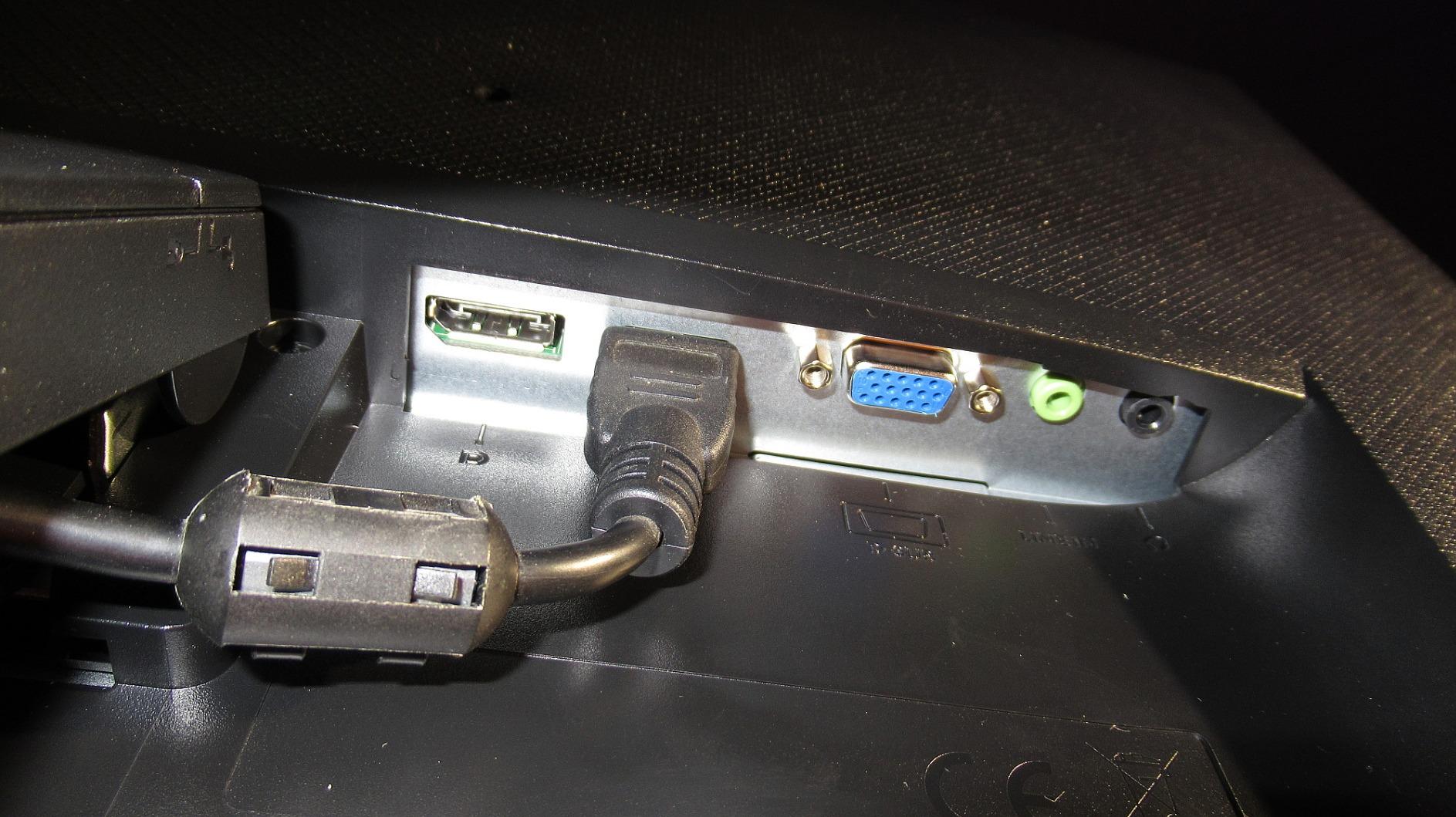
- Built-in speakers and three video inputs
- Highest review volume on this list at 12186 owner ratings
- The Bad
- Tilt-only stand with no height adjustment or swivel
- 60Hz refresh rate is dated for motion
- Glossy finish picks up reflections in bright rooms
This is the monitor we put on a desk first, and the reason is unglamorous: the owner-review volume. Twelve thousand one hundred and eighty-six ratings averaging 4.7 stars is not a marketing artefact, it is a decade of people reporting that their eyes stopped hurting at the end of the day. Reviewers working long shifts describe noticeably less end-of-day fatigue against whatever they had before, and 83 percent of ratings are five star.
What BenQ actually does here is straightforward. The backlight is flicker-free, the low blue light filter is hardware-level rather than an app you have to remember, and the Brightness Intelligence sensor reads the room and moves the brightness on its own. That third feature is the one competitors skip, and it is the only spec on this list that solves the dimming floor problem without you touching anything.
BenQ is not exaggerating when it calls this an eye-care monitor. Owners also rate picture clarity and colour accuracy as very good for the class, with clean text at Full HD, and the edge-to-edge bezel means the usable panel is as large as 24 inches can be in a small footprint.
The specification sheet is where the compromises live. A 60Hz refresh rate and an 8 millisecond response time are from a previous era of displays, and anyone who plays fast first-person shooters or watches high-frame-rate video will feel the difference immediately. For office work, spreadsheets, code and long document reading, none of that registers.
The other limit worth naming is the stand. It tilts and nothing else, so you cannot raise the panel to eye level on a taller desk, which is one of the single most effective changes a strain-prone person can make. If your desk is standard height and you can place the monitor so the top edge sits at or just below eye level, this is not a problem.
Owners also flag the glossy finish. In a bright room with a window opposite the desk, the reflections are real and the panel does not have the anti-glare coating that the ViewSonic and Acer models below carry.
Why we picked it as the default
Flicker-free hardware filtering, an ambient light sensor and a review history long enough to trust. Nothing else on this list combines all three, and for a reader who just wants a screen that stops hurting, that combination is worth more than any specification on a spec sheet.
It is also the model most commenters in eye-strain threads name as the reference point for what a good budget panel feels like, and the owner base is large enough that firmware or panel-supplier changes would show up in reviews quickly.
Where it falls short
The tilt-only stand and 60Hz refresh rate rule it out for anyone who games competitively or wants a screen that will still feel current in five years. The glossy coating is a genuine drawback if your desk faces a window, and you would need to add a monitor arm or riser to solve the height problem.
2. BenQ GW2780 – Best 27-Inch Eye-Care Panel
BenQ GW2780 Computer Monitor 27″ FHD 1920x1080p | IPS | Eye-Care Tech | Low Blue Light | Anti-Glare | Adaptive Brightness | Tilt Screen | Built-in Speakers | DisplayPort | HDMI | VGA
27-inch IPS at 1920x1080
250 cd brightness
178 degree viewing angles
3-year warranty
+ The Good
- Flicker-free backlight with low blue light filter
- Brightness Intelligence adjusts to ambient light
- 27 inches of desk space in a thin bezel
- Multiple video inputs for flexible setups
- Reviewers building multi-screen setups cite build quality
- The Bad
- Built-in speakers are tinny
- 60Hz refresh rate with 5ms response
- Tilt-only stand with no height adjustment
- Glossy finish with modest 250 cd brightness
This is the same idea as the GW2480 with eighteen more inches of diagonal, and the eye comfort story holds. Reviewers who are programmers, animators and long-session gamers report that the headaches and fatigue that started with their previous monitor largely disappeared after the switch, particularly when they combine the low blue light mode with the brightness sensor.
The 27-inch size solves a real problem the 24-inch cannot. If you sit at arm’s length and your desk is deep, 27 inches gives you enough working area that you stop leaning forward to read, which is where a lot of end-of-day strain actually comes from.
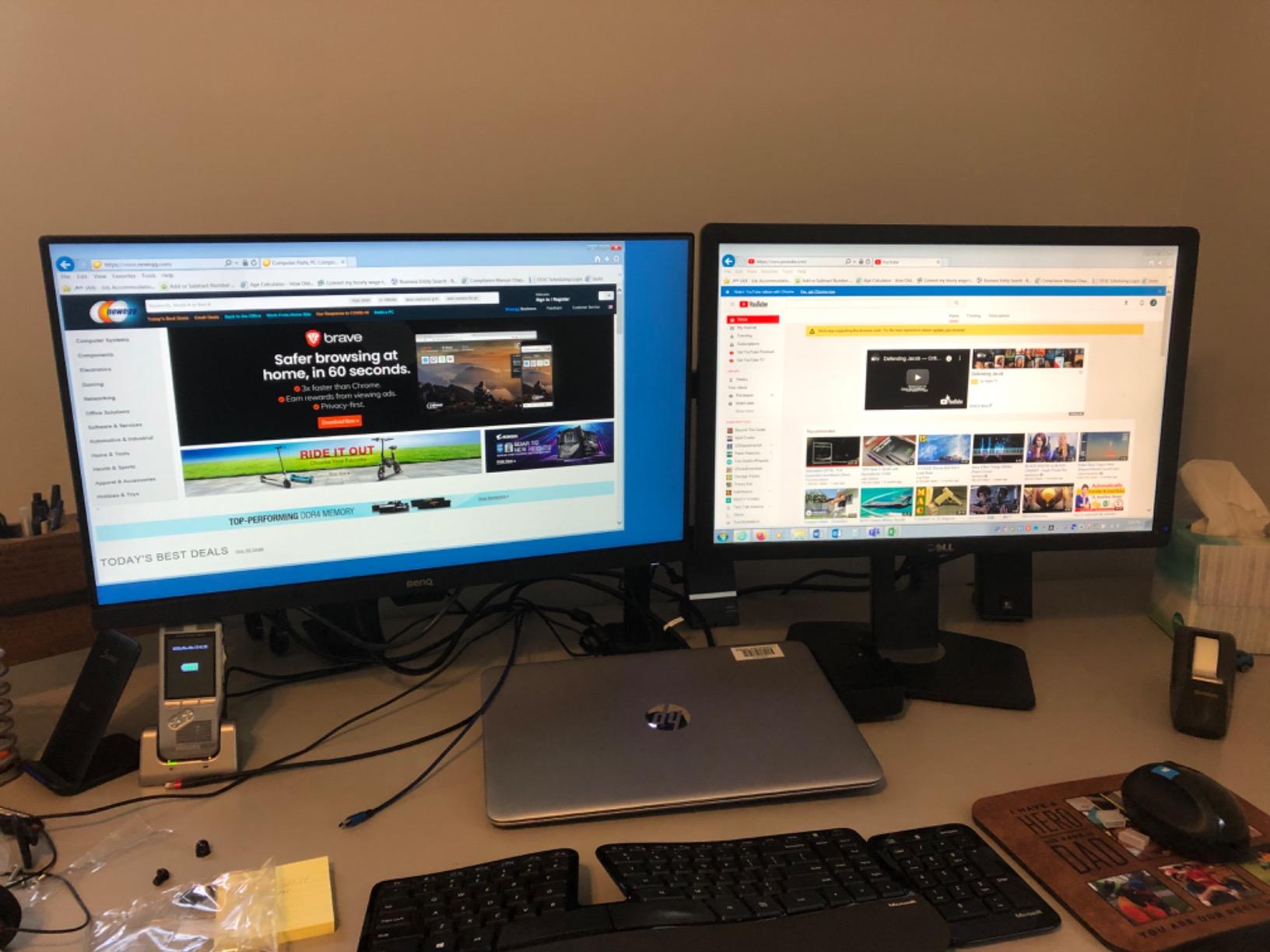
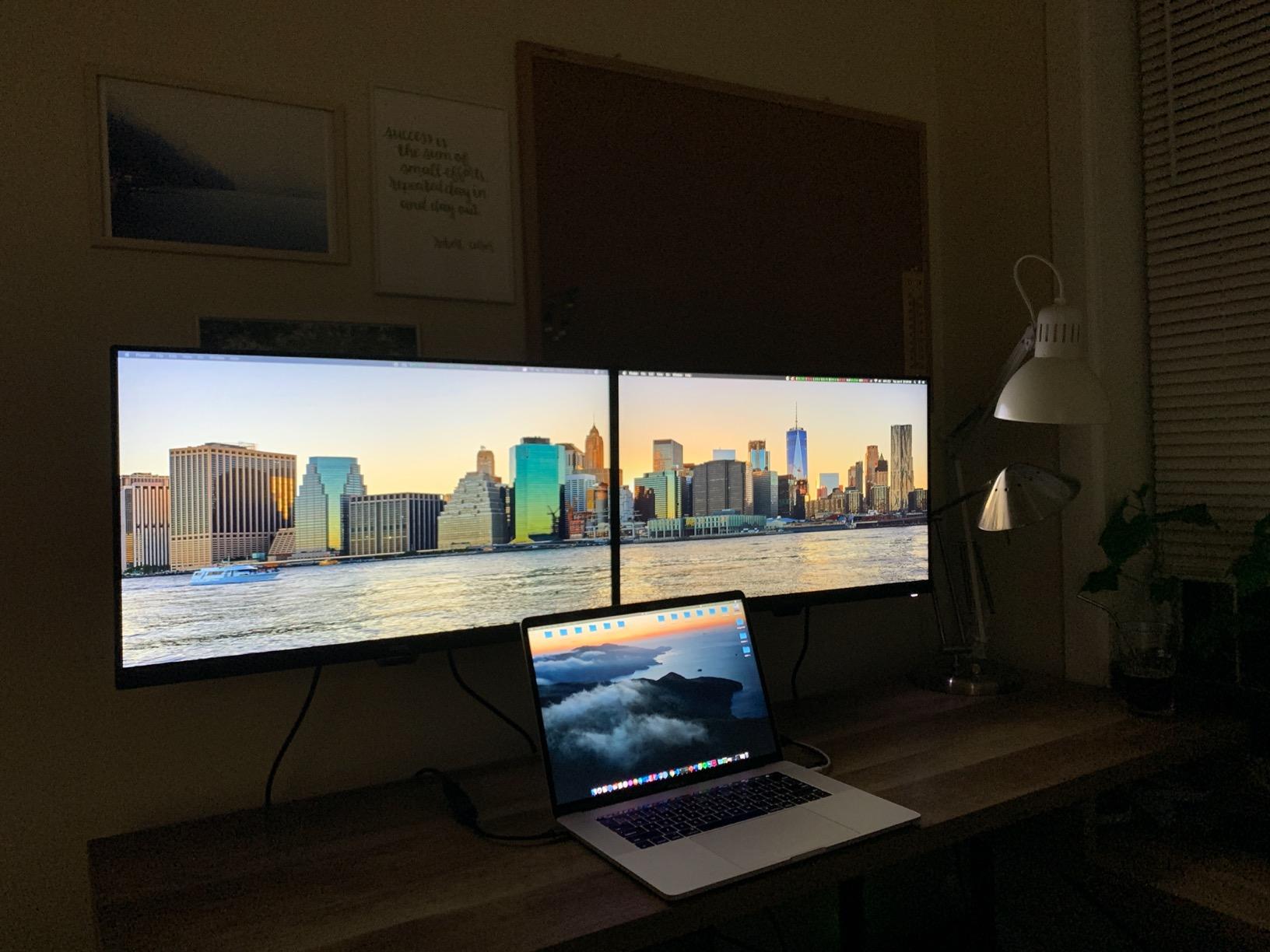
Colour and viewing angles are good, with 178 degrees and text that reads cleanly at Full HD. The thin bezel makes it easy to pair two of them, and multiple-monitor buyers in the reviews specifically call out the value and the durability of the build.
Full HD at 27 inches gives about 82 pixels per inch, which is on the low side for long reading. You will notice it most in small type and in dense interfaces. If you spend the day in a code editor or on long PDFs, moving up to a 27-inch 4K panel changes the experience far more than any eye-care mode does.
The single most repeated complaint across the reviews has nothing to do with the panel. It is the built-in audio, which reviewers describe as tinny and worse than laptop speakers. Treat them as a way to silence beeps rather than as speakers, and plan on external audio.
BenQ shipped this one with a disc-based PDF manual, which owners mention as an irritation during setup. The three-year manufacturer warranty is one of the longer commitments on this list.
Who it suits
People with a deep desk who want more working area without stepping up to a 4K panel or an ultrawide. It is the same eye-care package as the GW2480 with more screen, and it works just as well for dual-monitor arrangements.
It also makes sense if you are coming from a 19-inch panel and want a real desk setup without a large learning curve on scaling.
Who should skip it
Anyone whose work involves fine type for ten hours a day should pay the extra for a 4K panel, because the pixel density difference is the mechanism that matters at that scale. Gamers should skip it for the same reason the GW2480 does not suit them: 60Hz and 5 milliseconds are not competitive.
3. Philips 221V8LB – Best for Small Desks and Dorm Rooms
Philips 22 Inch Computer Monitor FHD 100Hz VA VESA Flicker-Free, 221V8LB
21.5-inch Full HD VA panel
3000:1 contrast
100Hz refresh
4-year warranty
+ The Good
- Flicker-free backlight with a built-in blue light filter
- VA panel gives 3000:1 contrast with deeper blacks
- 100Hz and 4ms response feel smoother than 60Hz
- Lightweight frameless design moves easily
- Four-year parts and labor warranty
- The Bad
- VA panel shifts colour off-axis
- Tilt-only stand with no height adjustment
- Glossy finish picks up reflections
- HDMI and VGA only
Sometimes the correct monitor for eye strain is a smaller one. A 21.5-inch panel at Full HD gives about 100 pixels per inch, which is genuinely fine for text, and the smaller physical size means you can keep normal arm’s-length distance without looming at it.
The eye-care hardware is genuine and named: flicker-free backlight with a built-in blue light filter. Reviewers using it for office work and long document reading credit those two features as sufficient for comfortable all-day use, which is the whole point at this size. Eighty percent of ratings are five star, and it holds a strong position in its retail category.
The VA panel is the interesting choice here. Three thousand to one contrast is roughly three times what a typical budget IPS gives you, so text sits on a darker background with more separation. If your eyes are tired partly because grey-on-white text feels flat, this does something an IPS does not.
The 100Hz refresh rate with 4 millisecond response is a genuine step up from the 60Hz panels that dominate this price bracket, and it makes scrolling feel smoother without costing you anything in the eye comfort department.
The trade-off of VA is viewing angles, and this is the most important limitation to understand. Off-axis, the colours shift noticeably, so if you have a colleague reading over your shoulder or you routinely angle the screen, an IPS panel is the better long-term buy.
The stand is fixed apart from tilt, which owners cite as the main functional limit, and the glossy surface reflects room light. Connectivity is thin at HDMI and VGA only, which is fine on a dorm desk and limiting anywhere else.
Why it earns a place here
It covers a size tier the other competitors on this page skip entirely, and it does so with the two mechanisms that matter: a flicker-free backlight and a blue light filter that runs in hardware. For a compact dorm room or a small home office where desk depth is the constraint, that is a better answer than a large screen you have to sit too close to.
Where it will disappoint
Anyone who shares their screen or works at an angle should choose the IPS options instead. The 21.5-inch size also means less working area for spreadsheets and side-by-side documents, and the glossy finish is a drawback in a sunlit room.
4. Philips 241V8LB – Best for Long Document Reading
Philips 24 Inch Computer Monitor FHD 100Hz VA VESA Flicker-Free, 241V8LB
23.8-inch Full HD VA display
3000:1 contrast
EasyRead warm mode
4-year warranty
+ The Good
- Flicker-free eye care with a blue light filter across the day
- EasyRead shifts to a warm paper-like tone for documents
- 3000:1 VA contrast makes text look clear and deep
- Three-sided frameless design suits dual-screen setups
- Lightweight build and stable stand; owners buy multiples
- The Bad
- Tilt-only stand with no height or swivel
- VA colours shift at sharp viewing angles
- Glossy finish reflects ambient light
- 250 cd brightness is modest for sunlit rooms
This is the same chassis philosophy as the 221V8LB with two features that make it the better reading monitor. The first is EasyRead mode, which shifts the display to a warm, paper-like tone for exactly the workload that tires the eyes fastest. The second is the three-sided frameless design, which makes pairing two of them on a desk look like one continuous panel rather than two boxes with a gap.
On the fundamentals it does the right things. The backlight is flicker-free with a blue light filter, the VA panel gives 3000 to 1 contrast for well-separated text, and 100Hz makes long scrolling sessions feel less jerky than a 60Hz panel.
Reviewers consistently describe it as an easy, dependable office monitor: sharp Full HD text, good contrast, quick setup and painless out-of-the-box use. Eighty-one percent of ratings are five star, and multi-purchase households are common, which tells you something about how owners live with it.

The single most repeated complaint is the stand, and owners wished for height adjustment specifically. If you can sit at a standard desk height and place the top of the screen at or just below eye level, this is manageable; if your desk is tall, budget for a riser or an arm.
The VA viewing-angle shift is worth understanding before you commit. Head-on this looks great. Lean to the side to check a calendar or read something from a colleague and the colour changes, which for most people is more noticeable than it is annoying, but for anyone doing colour judgements it is disqualifying.
Two other limits: the glossy finish reflects ambient light, and 250 cd is not enough for a room with strong daylight. In a sunlit office, you will be fighting the reflections all day.
Why it beats the smaller Philips
EasyRead is the differentiator, and it addresses a different mechanism from flicker. Flicker-free backlight removes the strobe; a warm, high-contrast white background reduces the contrast your eye has to hold while reading for hours. For anyone who spends their day in documents, contracts, PDFs or textbooks, that combination is the reason this is the reading pick.
Where it falls short
Colour-sensitive work, shared screens and any angle other than straight-on. The fixed stand and glossy panel are the same limitations the rest of this price bracket carries, and 250 cd brightness limits it to a normally lit room.
5. LG 24U411A-B – Best Budget IPS with Reader Mode
LG 24U411A-B 24-inch Full HD (1920 x 1080) IPS Computer Monitor, 120Hz, HDR10, Reader Mode, Flicker Safe, HDMI, Slim Stand Base, Black
23.8-inch IPS at 1920x1080
Matte anti-glare
Reader Mode and Flicker Safe
120Hz
+ The Good
- Reader Mode and Flicker Safe target long reading sessions
- IPS with 178 degree angles and 99 percent sRGB
- 120Hz with 1ms response makes scrolling smooth
- Matte finish handles bright office lighting
- Switch app splits the screen into sections
- The Bad
- No built-in speakers
- Fixed stand with tilt only from -5 to 20 degrees
- Single-knob on-screen control is finicky
- HDR10 support is nominal rather than true HDR
The LG is the pick if your priority order is flicker-free first, accurate colour second, and smooth motion third. Flicker Safe handles the strobe, Reader Mode handles long reading sessions, and the matte anti-glare finish handles office lighting. It draws 13 watts, which is among the lowest figures on this page and matters if the monitor runs all day.
It is a genuine IPS panel with 178 degree viewing angles and up to 99 percent sRGB coverage, so colours stay consistent whether you sit centred or lean back. Reviewers describe the colour as easily tuned rather than factory-calibrated, which is the right expectation at this tier.
120Hz with 1 millisecond motion blur reduction is unusual in this bracket and makes ordinary scrolling and window dragging feel noticeably more fluid than the 60Hz alternatives. Eighty percent of ratings are five star.
Matte is the detail worth highlighting here, because three of the cheaper models on this page have a glossy panel and reviewers on those models specifically report glare in bright offices. A matte surface scatters the light instead of bouncing it back, and reviewers single out the glare reduction as a practical daily benefit.
The Switch app is a small but real productivity feature for people running narrow windows: it splits the display into sections without a third-party utility. For study or office work it is more useful than it sounds.
Two limits that recur in the reviews. There are no built-in speakers, which means you need external audio or headphones. And the stand is minimal, offering tilt from minus 5 to 20 degrees with no height adjustment, so a taller desk needs a riser.
Why it is worth the small step up
You are paying for three things the cheaper models do not give you at this screen size: a matte surface instead of glossy, IPS viewing angles instead of a shifting VA panel, and 120Hz motion. For someone whose eyes flag up in the afternoon, the matte finish and the flicker-free backlight are the parts that matter, and both are present.
Where it falls short
The 1-year manufacturer warranty is the shortest on this list, which matters if you plan to keep the panel for a decade. The single-knob on-screen menu is fiddly to navigate, and the HDR10 label is nominal rather than a real high-dynamic-range implementation.
6. Samsung ViewFinity S50GC – Best Ultrawide for Replacing Two Screens
SAMSUNG 34″ ViewFinity S50GC Series Ultra-WQHD Monitor, 100Hz, 5ms, HDR10, AMD FreeSync, Eye Care, Borderless Design, PIP, PBP, LS34C502GANXZA, 2023, Black
34-inch Ultra WQHD at 3440x1440
TUV eye care with sensor
Eye Saver Mode
100Hz
+ The Good
- TUV-certified eye care combining a sensor with Eye Saver Mode and Flicker Free
- 3440x1440 replaces a dual-screen setup without a bezel seam
- PBP shows two sources side by side at native resolution
- 100Hz with FreeSync keeps scrolling smooth
- Borderless design looks nearly gapless when paired
- The Bad
- VA panel must be viewed head-on as colour shifts off-axis
- On-screen control toggle needs several clicks per source change
- Stand has no height adjustment and sits high
- HDR performance is basic for the price
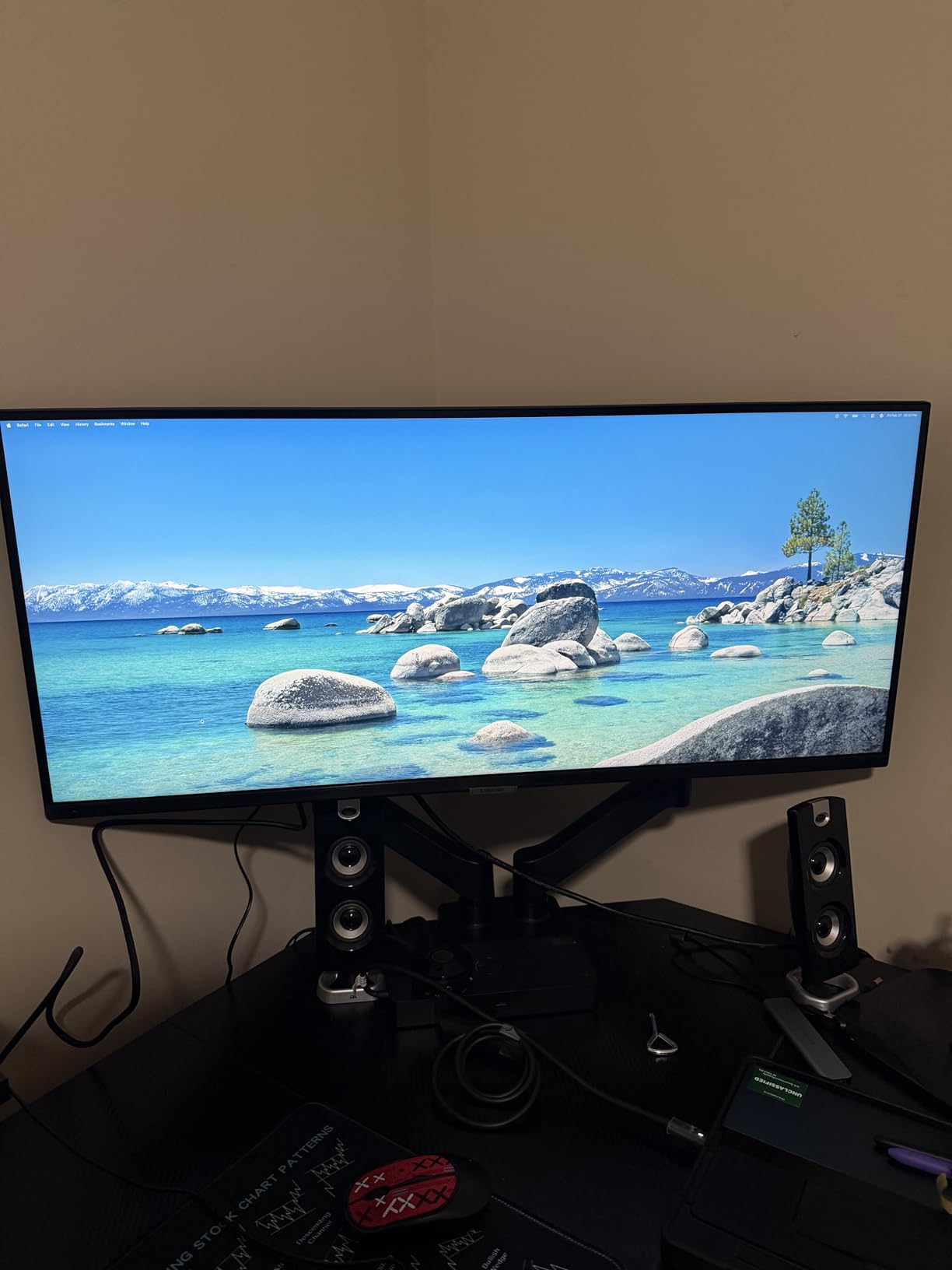
The ultrawide case for eye strain is simple and it is about neck movement rather than the panel. Two side-by-side screens mean your eyes travel between two bezels and your head turns constantly to check a second window. One 34-inch panel removes the gap and the rotation, and users who made the switch in the reviews describe it as the main comfort gain.
The eye-care package here is the most formally certified on the page after the ASUS. Samsung pairs an ambient light sensor with Eye Saver Mode and Flicker Free under a TUV-certified Intelligent Eye Care label, which means the brightness adapts to the room without you touching the menu.
At 3440×1440 the pixel density lands around 109 pixels per inch, which is better than the 1080p models here and, importantly, it stays that density across a much wider surface. Text in a narrow window at the far edge is still comfortably legible.
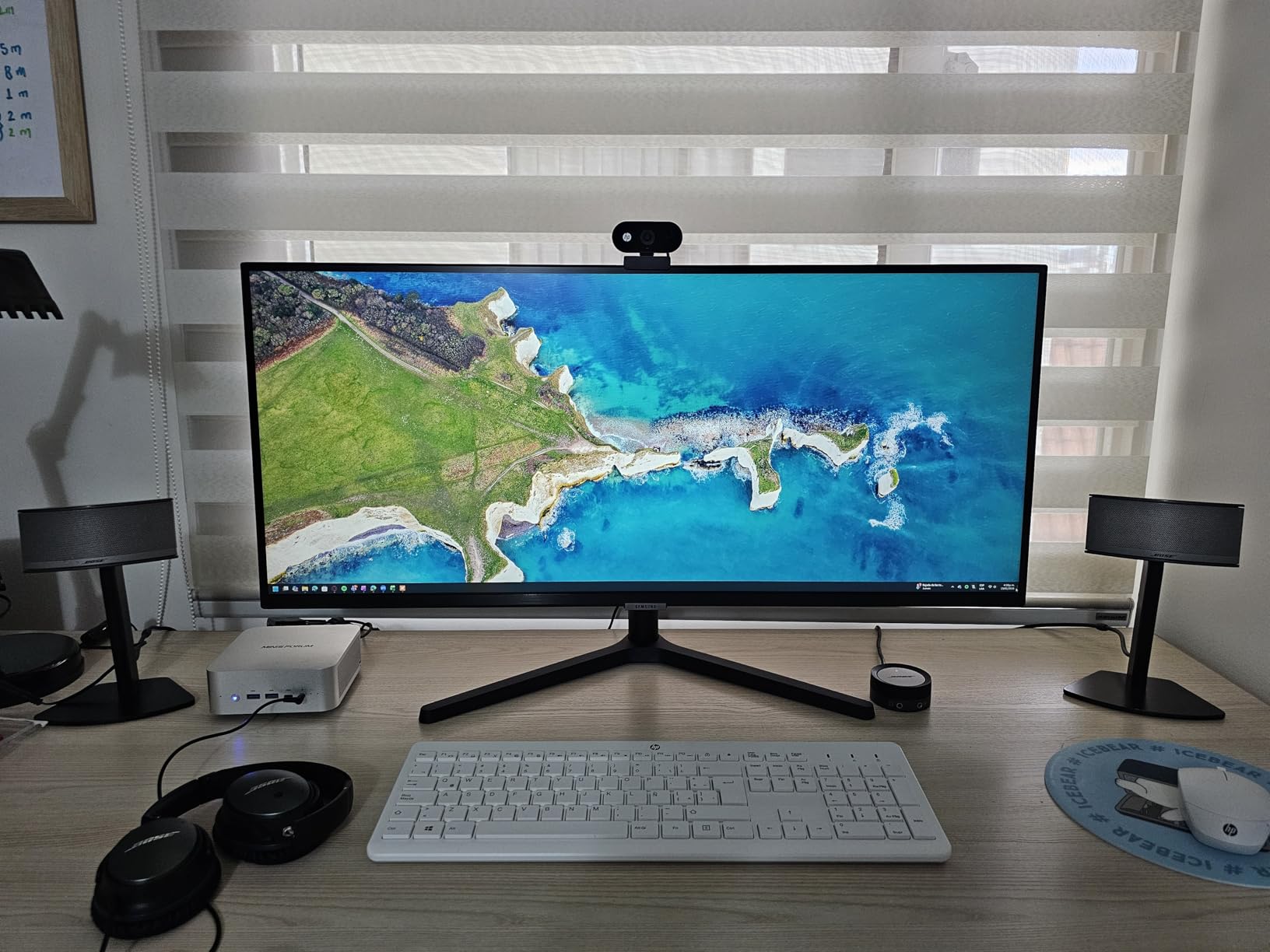
PBP is the feature that sells this to a working professional. Two sources at native resolution side by side means a laptop on one half and a desktop on the other, with no scaling and no compromises. Users coming from dual 27-inch setups report no desire to go back.
The recurring ergonomic complaints are consistent across reviews. The stand has no height adjustment and sits high for some desks, which on a 34-inch panel you really do feel. The on-screen control toggle takes several clicks per input change, which becomes tedious when you switch sources often.
Because this is a VA panel, view it head-on. Sharp side angles shift colour noticeably, which is the same VA trade-off as the Philips models and the reason the ultrawide format suits a single focused user more than a shared one.
Why the ultrawide format earns a place
Fewer screens means less bezel gap and less neck rotation across a working day, and for a strain-prone user that is a real mechanism rather than a desk aesthetic. It also removes the second monitor arm, the second power lead and the second backlight competing for desk space.
The ambient light sensor plus TUV certification also makes it one of the two or three picks here that addresses the dimming floor without manual adjustment.
Where it falls short
You need a deep desk. At 32 inches wide this is not a small-desk monitor, and the fixed stand means you will likely want an arm immediately. The multi-click input toggle and basic HDR performance are the other limits, and the one-year warranty is short.
7. Acer KB272 G0bi – Best Value 27-Inch Office Monitor
Acer 27in FHD 1920×1080 IPS 120Hz Gaming Monitor | Office KB272 G0bi
27-inch Full HD IPS
120Hz with 1ms VRB response
Matte anti-glare
99 percent sRGB
+ The Good
- IPS panel with consistent colour and wide viewing angles
- Matte anti-glare finish cuts reflections in lit rooms
- Flicker-free operation suits long office sessions
- 120Hz with 1ms response feels smooth in daily use
- 99 percent sRGB with 3-year parts and labor warranty
- The Bad
- Tilt-only stand with no height or swivel
- Full HD on 27 inches gives lower pixel density than 1440p
- HDMI and VGA only with no hub or DisplayPort
- No factory calibration for colour-critical work
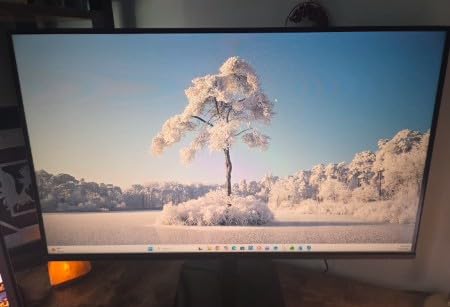
The Acer is bought as a value office upgrade and it earns that description honestly. The panel is a proper IPS with 178 degree viewing angles and 99 percent sRGB coverage, which means the colours stay put when you shift position at the desk, and the matte anti-glare coating handles reflections in a lit room.
Reviewers judge the combination of IPS colour, matte coating and a flicker-free backlight at this level favourably, and note that text at Full HD is clear enough for spreadsheets and documents. It draws 18 watts, so it is inexpensive to leave running for a full workday.
The 120Hz panel with 1 millisecond VRB response makes ordinary motion noticeably more fluid than the 60Hz alternatives in this bracket. Eighty percent of ratings are five star, and it sits high in its retail category.
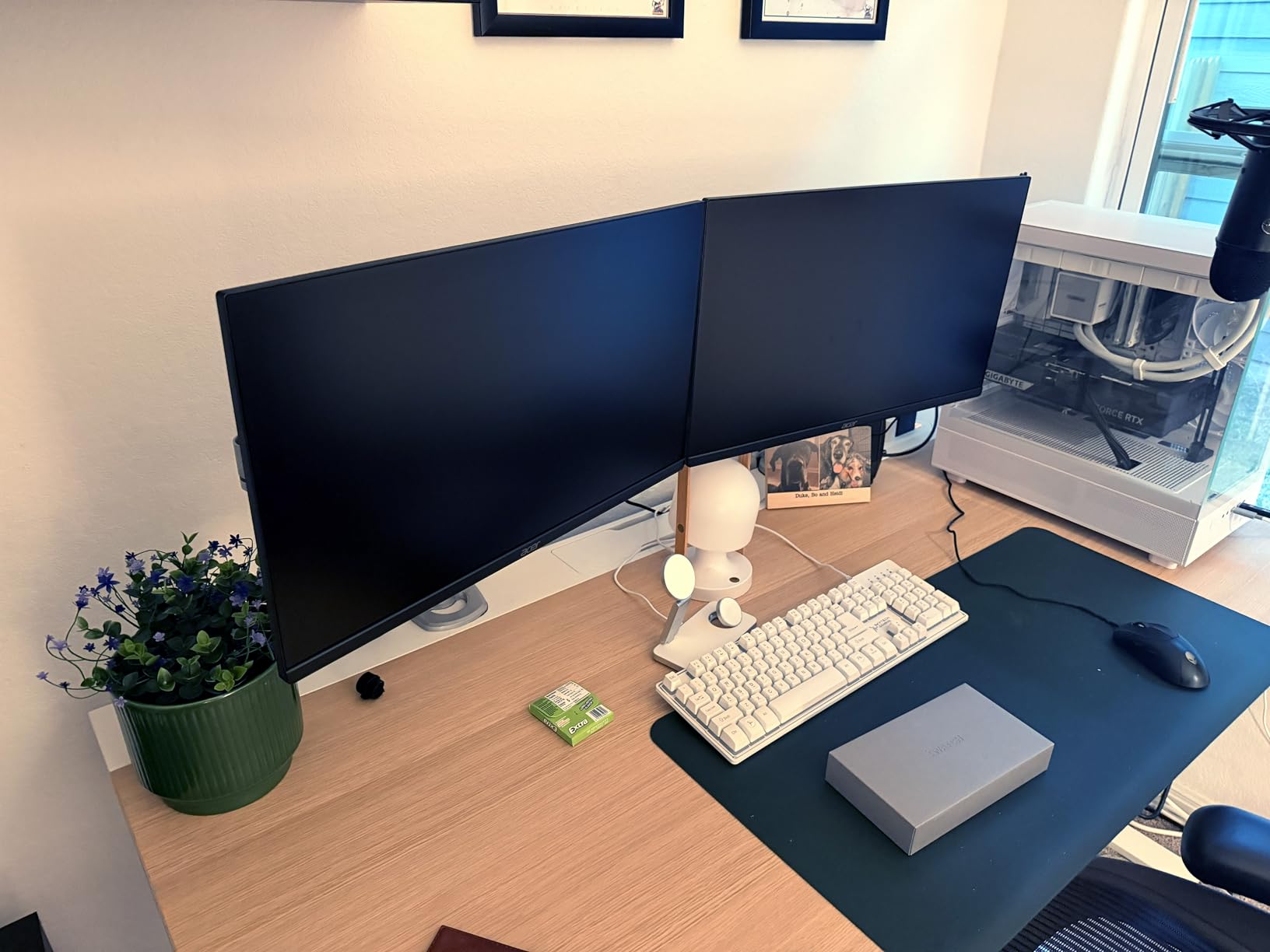
The obvious weakness is resolution. Full HD stretched across 27 inches gives roughly 82 pixels per inch, which is the same density as the BenQ GW2780. Fine for spreadsheets, not fine for code or long PDFs, where the text is small and the pixel structure starts to resolve.
If your desk is deep enough for 27 inches, it is usually deep enough for a 1440p panel, and the density jump from 82 to about 109 pixels per inch is the single biggest comfort upgrade available at this size. The eye-care features on this model are sound; the resolution is simply the limit.
Connectivity is thin at HDMI and VGA with no DisplayPort and no hub, and the tilt-only stand is the recurring ergonomic note in the reviews.
Why it sits at seven rather than higher
Everything about the panel is right for comfort and one specification is wrong: 1080p at 27 inches. If your desk will take it, a 27-inch 1440p monitor with the same flicker-free and matte specification is a better buy for long sessions. Buy this one when desk depth is the constraint, not when budget is.
Where it works well
Multi-monitor office desks where you want two matching panels, hot desks, and shared workstations. ViewSonic owners in the reviews do the same thing for the same reasons, and the low power draw suits screens that run from early to late.
8. ViewSonic VA2456A-MHD – Best for Dual-Screen and Rack Setups
ViewSonic VA2456A-MHD 24 Inch 1080p IPS Computer Monitor, 120Hz, HDMI
24-inch SuperClear IPS at 1920x1080
Flicker-Free with blue light filter
120Hz
3-year warranty
+ The Good
- Flicker-Free backlight and blue light filter reduce fatigue over 8-hour days
- SuperClear IPS holds accurate colour and wide viewing angles
- 120Hz with Adaptive Sync smooths scrolling
- Matte anti-glare surface handles office lighting
- HDMI DisplayPort VGA plus DisplayPort-out daisy chaining and speakers
- The Bad
- Basic stand with no height adjustment and minimal tilt
- 250 cd peak brightness is weak for HDR-grade content
- No USB hub or advanced ergonomic adjustment
- Some units report a slightly wobbly stand
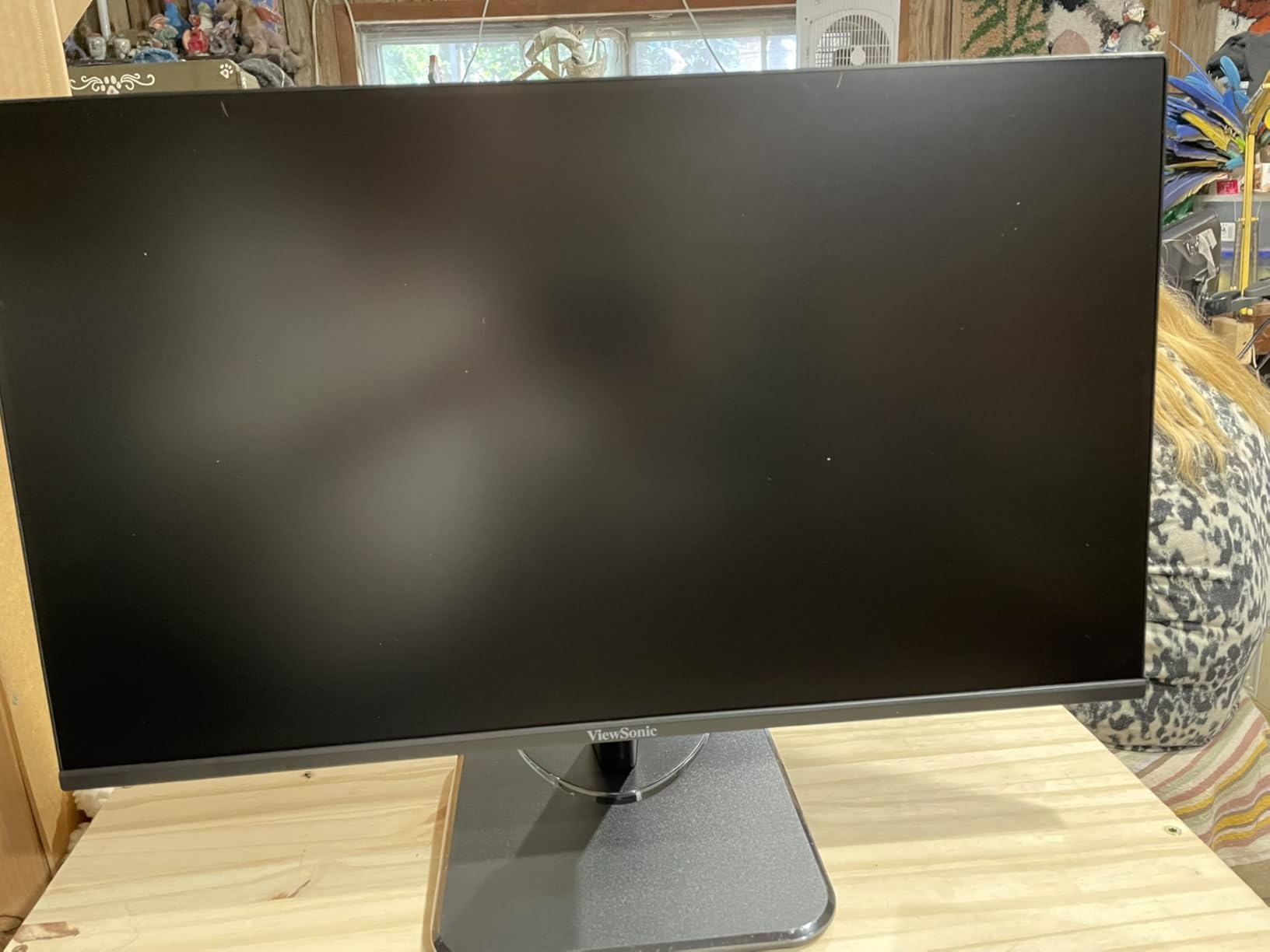
The ViewSonic has the highest rating on this page at 4.7 stars, and although the review count of 445 is the smallest in the group, the sentiment is unusually consistent. Buyers compare it favourably to more expensive alternatives and report less fatigue across a full workday, with crisp text from the SuperClear IPS panel.
Eye comfort is the headline across the reviews, and ViewSonic names both mechanisms directly: Flicker-Free technology and a blue light filter. The matte anti-glare surface is present too, which continues to be the detail that separates this from the glossy budget panels.
What makes this one unusual is connectivity for the price. DisplayPort-out daisy chaining lets you run two panels from a single output, and alongside HDMI and VGA there are built-in speakers. Reviewers highlight that port flexibility as out of character for a monitor at this level.
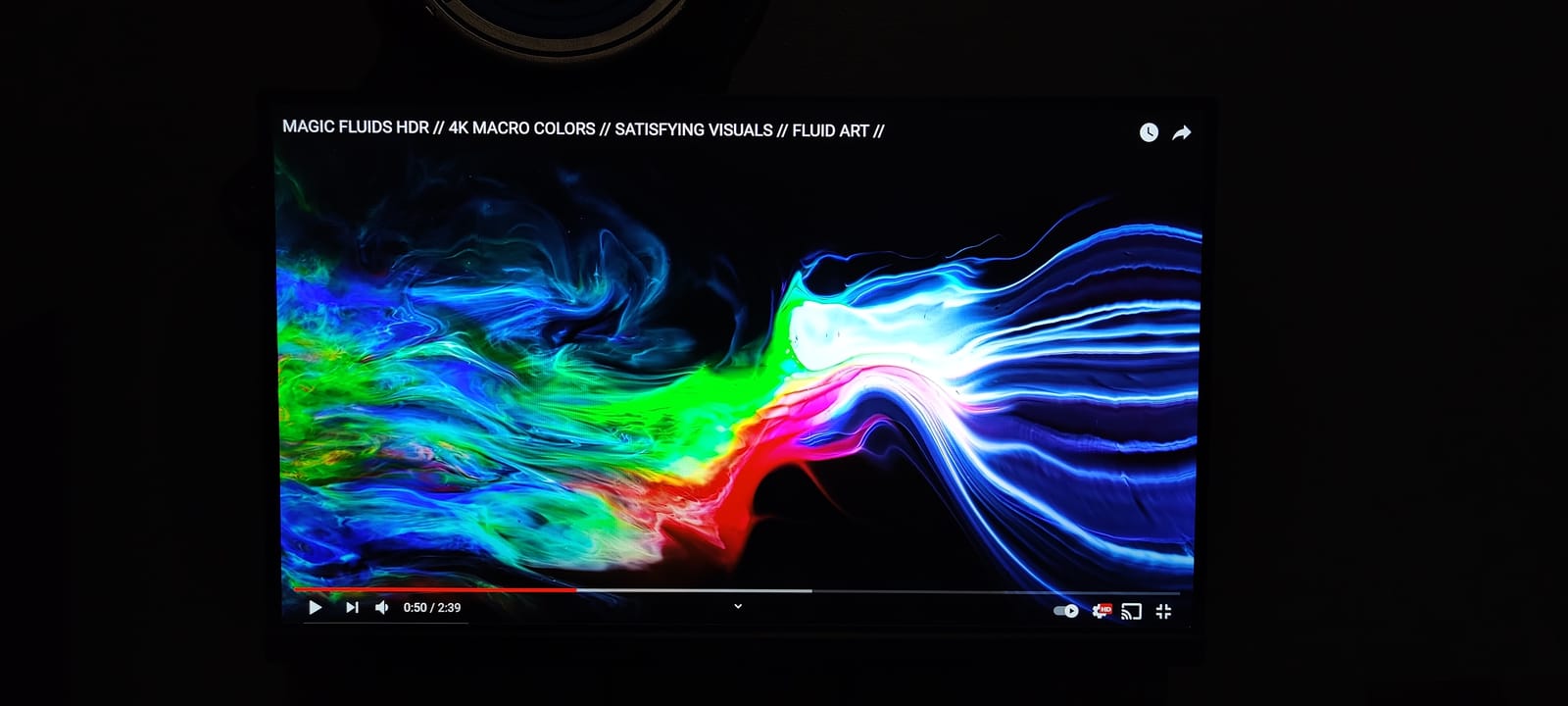
The ViewMode presets are worth knowing about. They give you Game, Movie, Web, Text and Mono profiles on a hotkey, and the Text profile in particular is a quick way to get a comfortable reading setup without digging into an on-screen menu.
ViewSonic owners are notably loyal, frequently buying multiple units for home offices, law offices and rack installations. That pattern suggests a panel people trust rather than admire.
The limitations are consistent with the rest of this bracket: a basic stand with no height adjustment, 250 cd peak brightness that cannot do HDR-grade content, and no USB hub. A small number of owners also report a slightly wobbly stand on uneven desks, so a flat surface matters.
Why it is the two-screen answer
DisplayPort-out daisy chaining means one cable to the first panel and a second panel hanging off it, which removes a cable run from every desk in a small office. Paired with the flicker-free backlight and matte surface, that gives you two comfortable panels without two sets of cabling.
Where it falls short
The 24-inch size limits how much you can fit on screen, and 250 cd is not enough for a bright room. If your desk is deep and you want one large panel instead, the ultrawide option above covers that better.
9. Dell S2725QS – Best 4K Text Sharpness at 27 Inches
Dell 27 Monitor S2725QS, 4K UHD IPS, 120Hz, 5ms, FreeSync Premium
27-inch 4K UHD at 3840x2160
ComfortView Plus
120Hz
Height tilt swivel pivot
+ The Good
- 4K at 27 inches makes text and interface elements exceptionally crisp
- ComfortView Plus reduces blue light while holding colour accuracy
- 120Hz over 4K feels far more responsive than 60Hz
- Height tilt swivel and pivot adjustment with matte finish
- 99 percent sRGB and 1500:1 contrast with built-in speakers
- The Bad
- No USB-C connectivity or built-in USB hub
- No 3.5mm audio out jack
- IPS ghosting shows in competitive first-person gaming
- Default brightness is high and needs resetting on each power-on
This is the pick where pixel density does the work. A 27-inch 4K panel gives roughly 163 pixels per inch, which means the pixel structure inside a letterform stays below the resolution limit of a healthy eye at a normal sitting distance. Owners upgrading from 1080p say exactly this in their reviews: fine print and small interface text become readable and eye fatigue drops.
That is the mechanism the whole buying guide keeps returning to. Blue-light modes are the least important item on the list, and pixel density at your actual distance is one of the most important. On a screen you read from all day, the sharpness is doing work that no eye-care mode can do.
ComfortView Plus is a real hardware feature rather than an app, reducing blue light emission to 35 percent while preserving colour accuracy, and reviewers credit it for long daily sessions. The 120Hz refresh rate over 4K makes desktop navigation feel far more responsive than the 60Hz 4K panels it replaced for people.
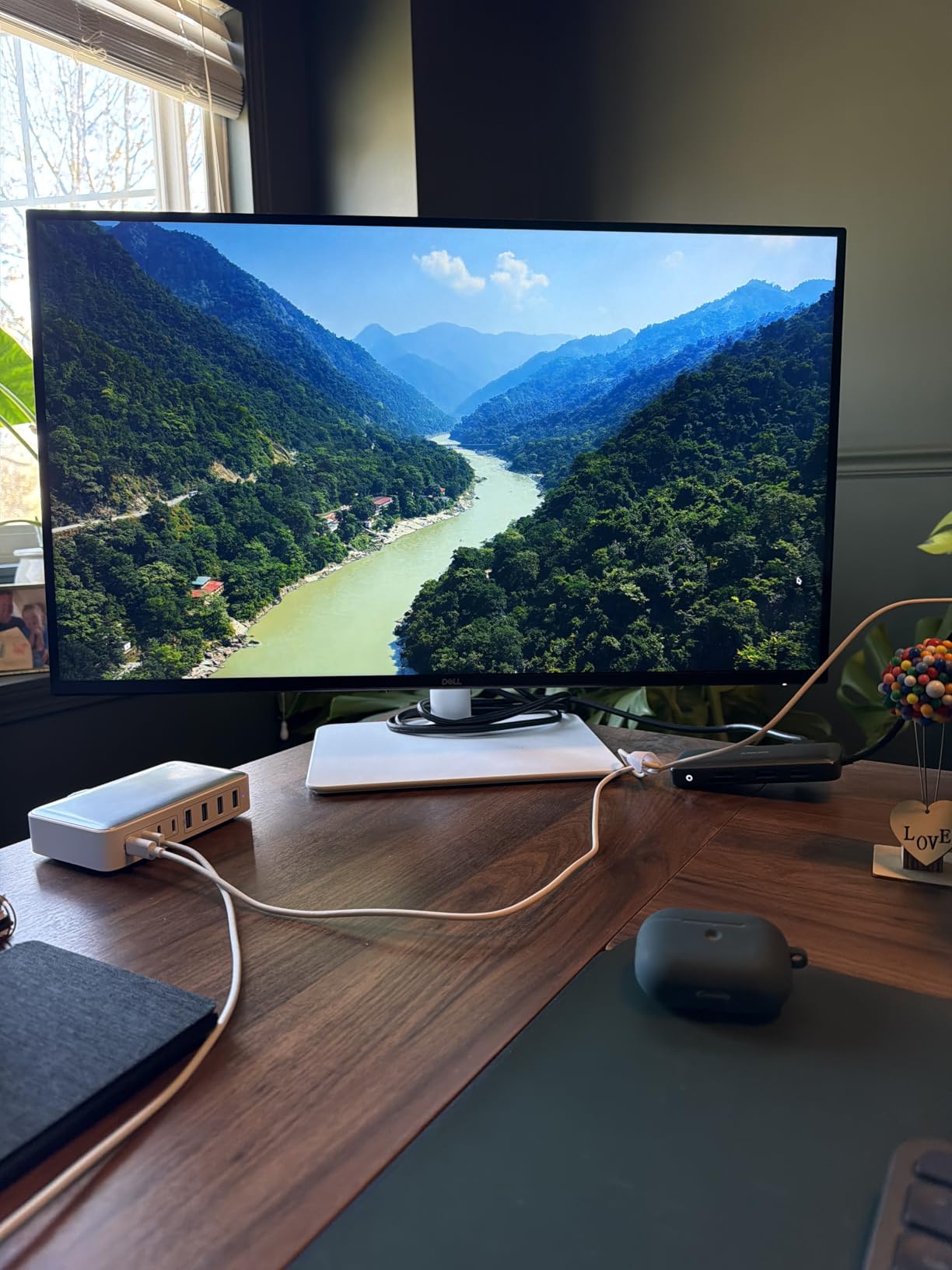
The stand is the other comfort story here. Height, tilt, swivel and pivot on a matte-finished panel means you can put the top of the screen at or just below eye level and then fine-tune it, which is the cheapest intervention on this page and one of the most effective.
Brightness is worth watching. Default brightness runs high and owners report resetting it on each power-on, which is the dimming-floor problem in its mildest form. Without an ambient light sensor you have to do it manually, and there is no sensor on this model.
Two omissions stand out for a premium-positioned display: no USB-C and no USB hub, so a laptop user cannot run a single-cable setup, and there is no 3.5mm audio out jack, so the built-in speakers are your only audio option.
Who it suits
Anyone who reads small type for a living, and especially readers over forty who find themselves leaning toward the screen. Code editors, spreadsheets, long PDFs and design applications all benefit, and multiple owners specifically link the sharpness to reduced strain in older users.
The 1500:1 contrast is unusually good for an IPS panel, which means text has better separation than most IPS displays at this resolution.
Where it falls short
It is not a gaming monitor and owners are warned off accordingly: IPS ghosting is visible in competitive first-person shooters. HDR is basic, and you need a PC and GPU combination that can drive 4K at 120Hz to see the full benefit.
10. ASUS ProArt PA279CV – Best for Colour-Critical Work
ASUS ProArt PA279CV 27 Inch 4K UHD USB-C Professional Monitor
27-inch 4K UHD IPS
Calman Verified with Delta E under 2
TUV flicker-free
65W USB-C
+ The Good
- 4K at 27 inches keeps text and fine detail sharp
- TUV-certified flicker-free operation and low blue light filter
- Calman Verified factory calibration with Delta E under 2
- USB-C 65W power delivery plus DisplayPort HDMI and a 4-port hub
- Fully adjustable stand with a 5-year warranty
- The Bad
- 60Hz refresh rate is dated for a professional display
- 5ms response shows smearing in fast content
- 19-pound chassis with a large desk footprint
- No integrated KVM despite the hub and USB-C
The ProArt is the only pick here where a third party has measured the colour accuracy and published the number. Calman Verified with a factory Delta E under 2 across 100 percent sRGB and 100 percent Rec.709 means the panel leaves the factory accurate, and a colour pre-calibration report is included in the box.
That matters for eye comfort in a way that surprises people. A screen that is out of gamut or badly calibrated makes white look wrong, and your eye works harder to reconcile it. Accurate colour is a comfort feature, not just a creative one.
It also carries TUV certification for both flicker-free operation and low blue light, which is the only dual-certification on this page, and the 4K panel at 27 inches gives the same roughly 163 pixels per inch density as the Dell above. Reviewers consistently name text sharpness as a genuine comfort benefit for long editing and office sessions.
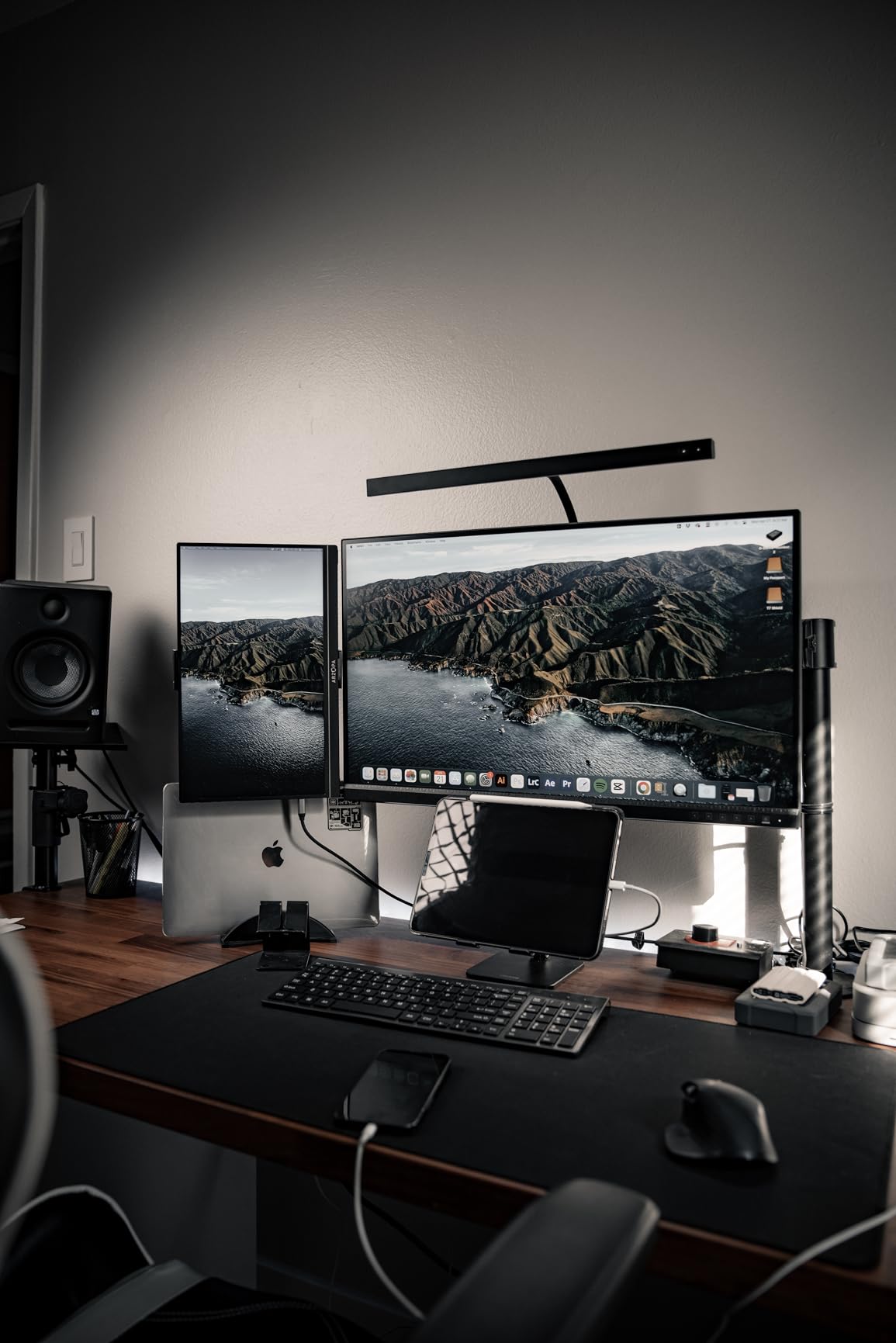
The USB-C port carries 65 watts of power delivery alongside video, and there is a four-port USB 3.1 hub behind it. For a laptop-only user, that means one cable for display, data and charging, which removes the dock and a handful of cables from the desk.
The stand is fully adjustable with height, swivel, pivot and tilt, and the warranty is five years, three plus a two-year extension with online registration. That is the longest commitment on the page, which matters to forum readers who want a monitor that stays symptom-free for a decade rather than the sharpest panel available today.
The reason it ranks tenth rather than higher is the motion specification. A 60Hz refresh rate with 5 millisecond response is dated for a professional display, and reviewers note smearing in fast content. If your work is still-image or slow-motion, it never comes up.
Who it suits
Photo, video and design professionals who need calibrated colour and a dense pixel grid on one panel. It is also the best laptop option here, since the USB-C port handles display, data and 65 watts of charging in a single cable.
If your eyes flag up after a long editing session, the combination of certified flicker-free dimming, accurate colour and 4K sharpness addresses three different mechanisms at once, and no other pick on this page does all three.
Where it falls short
The 19-pound chassis and large desk footprint need real space, and 60Hz will frustrate you if you move between still work and fast playback. There is no integrated KVM despite the hub, so switching between two machines is manual.
Eye-Strain Monitor Buying Guide: Four Specs That Actually Matter
Everything above reduces to four checks, and you can run all four in a shop in about two minutes if you bring a phone. Rank them in this order.
1. Flicker-free at low brightness, not just on the box
Look for flicker-free stated by the manufacturer rather than inferred from an eye-care badge, then verify it with the pencil test at 20 to 30 percent brightness. Watch specifically for hybrid dimming, where the panel is DC above a brightness threshold and PWM below it. That failure mode passes a shop-floor check and fails on your desk at night, and it is the most common complaint in eye-strain forum threads.
2. Matte anti-glare coating
Matte surfaces scatter room light; glossy surfaces mirror it. If your desk faces a window or sits under an overhead light, matte removes an entire category of eye strain at no cost to you. Several picks on this page carry it and several do not, and the reviews on the glossy ones mention reflections repeatedly.
3. Pixel density at your sitting distance
Twenty-four to 27 inches is the comfort sweet spot. What matters is pixels per inch at your actual distance, not the diagonal on the box. A 24-inch Full HD panel gives about 92 pixels per inch, a 27-inch Full HD panel about 82, a 27-inch 4K panel about 163, and a 34-inch 3440×1440 panel about 109. A 27-inch 4K panel at arm’s length keeps pixel structure below what a healthy eye resolves, which is why the Dell and the ASUS sit near the top of this list.
4. A brightness floor low enough for evening use
Brands publish typical brightness, never the minimum step. Only two picks here carry an ambient light sensor that solves this automatically: the BenQ GW2480 and GW2780, and the Samsung S50GC. If you do not have a sensor, set brightness manually to match the room each evening rather than leaving it at the factory default, which on the Dell runs high enough to be noticeable.
Adjustable stand, which is free comfort
Height, tilt, swivel and pivot let you put the top of the screen at or just below eye level at arm’s length. Only the Dell and the ASUS offer full adjustment on this page, and both of the Philips models, the Acer, the LG and the ViewSonic are tilt-only. A monitor arm solves this for any panel if you have the desk space.
IPS or OLED for eye comfort
IPS is the safer choice for eye comfort. Most OLED monitors control brightness by switching the pixels themselves, which means pulse-width modulation, often aggressive, and that undoes the image-quality advantage for the people most likely to be reading this page. Every pick on this list is an LCD, and for a strain-prone buyer that is a feature rather than a compromise.
Claims to discount
A high refresh rate is not an eye-strain fix. It makes motion smoother and it does nothing about backlight flicker, which is the mechanism behind most monitor eye strain. Community consensus in eye-strain threads is blunt about this: even high-Hz panels are still above zero strain, and users reject the framing that any refresh number solves the problem.
Panel manufacturer also matters more than display brand for comfort outcomes, which is the single most repeated community finding in this niche. Users with genuine sensitivity report far better results with BOE panels than with newer LG, AU or Innolux panels, and attribute strain outcomes to the maker of the panel rather than the brand on the box. Treat that as community-reported experience rather than lab fact, but take it seriously: the same display brand can ship a different panel in a different production run, and there is no published way to check which one you received.
Finally, curved monitors are widely disliked in comfort discussions despite being marketed with eye-care language, and blue-light filter badges sit at the bottom of the priority list for the reasons described above.
Fix These Five Things Before You Buy a New Monitor
If your eyes hurt at the end of every day, run through this before spending anything. Several of these are worth more than any monitor in the list.
1. Match the screen to the room, every time
A screen brighter than its surroundings keeps your pupils working. Match it to the light you actually have: low in a bright office, higher in a dim one, and low again in the evening.
2. Put the top edge at or just below eye level
Raise the monitor so you are looking very slightly down at it rather than slightly up. Looking up at a screen tilts the neck forward and keeps the eyes wide open. This one change does more for daily comfort than most upgrades.
3. Sit at 20 to 28 inches
Arm’s length, roughly. Larger screens do not need to be closer, and users who buy a bigger panel and then sit too close to read it cancel out the pixel density gain entirely.
4. Turn the window perpendicular
A window beside the screen or behind it puts a moving light source next to or behind the panel. Side-on to it, with no light directly behind you, and the reflections mostly disappear.
5. Use a warm filter and the 20-20-20 rule
Night Light on Windows and f.lux on macOS shift colour temperature in the evening, which is genuinely more comfortable even though blue light is not damaging the eye. Set a reminder every twenty minutes to look at something twenty feet away for twenty seconds, and blink deliberately rather than half-blinking.
If the soreness continues after a fortnight of correct setup, that is worth raising with an optometrist rather than a monitor retailer. Dry eye and prescription changes produce the same symptoms and neither is a display fault.
For the recovery side of the problem, our guides to eye massagers and heated eye massagers cover what helps after the screen, not during it.
Frequently Asked Questions
Is IPS or OLED better for eyes?
IPS is the safer choice for eye comfort. Most OLED monitors control brightness by switching the pixels themselves, which means pulse-width modulation, often aggressive, and that undoes the image-quality advantage for people who are already sensitive. Every pick in our list is an LCD.
What are the best monitor specs for eye strain?
In priority order: a named flicker-free or TUV eye-comfort certification, a matte anti-glare coating, pixel density high enough for your sitting distance, a screen that dims to your room’s level, then an adjustable stand. Blue-light modes come last on the list.
Does 240Hz reduce eye strain?
No. A 240Hz refresh rate makes motion smoother but does nothing about backlight flicker, which is the mechanism behind most monitor eye strain. Refresh rate is a smoothness feature, not a comfort feature.
Do blue light filter monitors actually reduce eye strain?
The evidence is weak. The American Academy of Ophthalmology does not recommend blue-light-blocking eyewear for computer use and finds no evidence that screen blue light harms the eye. A warm filter is still pleasant in the evening, but treat it as a comfort setting rather than a treatment.
Can I use a blue light filter app instead of a new monitor?
A filter app such as Night Light or f.lux handles evening colour temperature, but it does nothing about backlight flicker. Flicker is a hardware behaviour that no software setting can change, so if flicker is your problem, only a different panel fixes it.
The Best Monitor for Eye Strain: Our Final Call
The best monitors for eye strain in 2026 are not the most expensive ones, and they are not the ones with the longest feature lists. They are the panels that dim without strobing, keep reflections off your text, stay sharp at the distance you actually sit, and get dim enough for a dark evening. All ten picks here clear that bar.
Our default is the BenQ GW2480. It is the only monitor on this page that pairs flicker-free hardware filtering with an ambient light sensor, and it has 12186 owner ratings at 4.7 stars backing it up. If your desk is deep and you want more working area, the BenQ GW2780 gives you the same package at 27 inches.
Buy the Dell S2725QS instead if you read small type all day and pixel density is what is tiring you, and the ASUS ProArt PA279CV if your work is judged on colour and you work from a laptop. For a single ultrawide that replaces two screens, the Samsung S50GC handles the neck-rotation half of the problem as well as the flicker half.
Do the free setup fixes first, though. Brightness matched to the room, top of the screen at eye level, arm’s length, a warm filter in the evening and a deliberate blink every twenty minutes. No monitor cures digital eye strain, and a correctly set-up 24-inch panel will beat a badly set-up 32-inch one every time.