
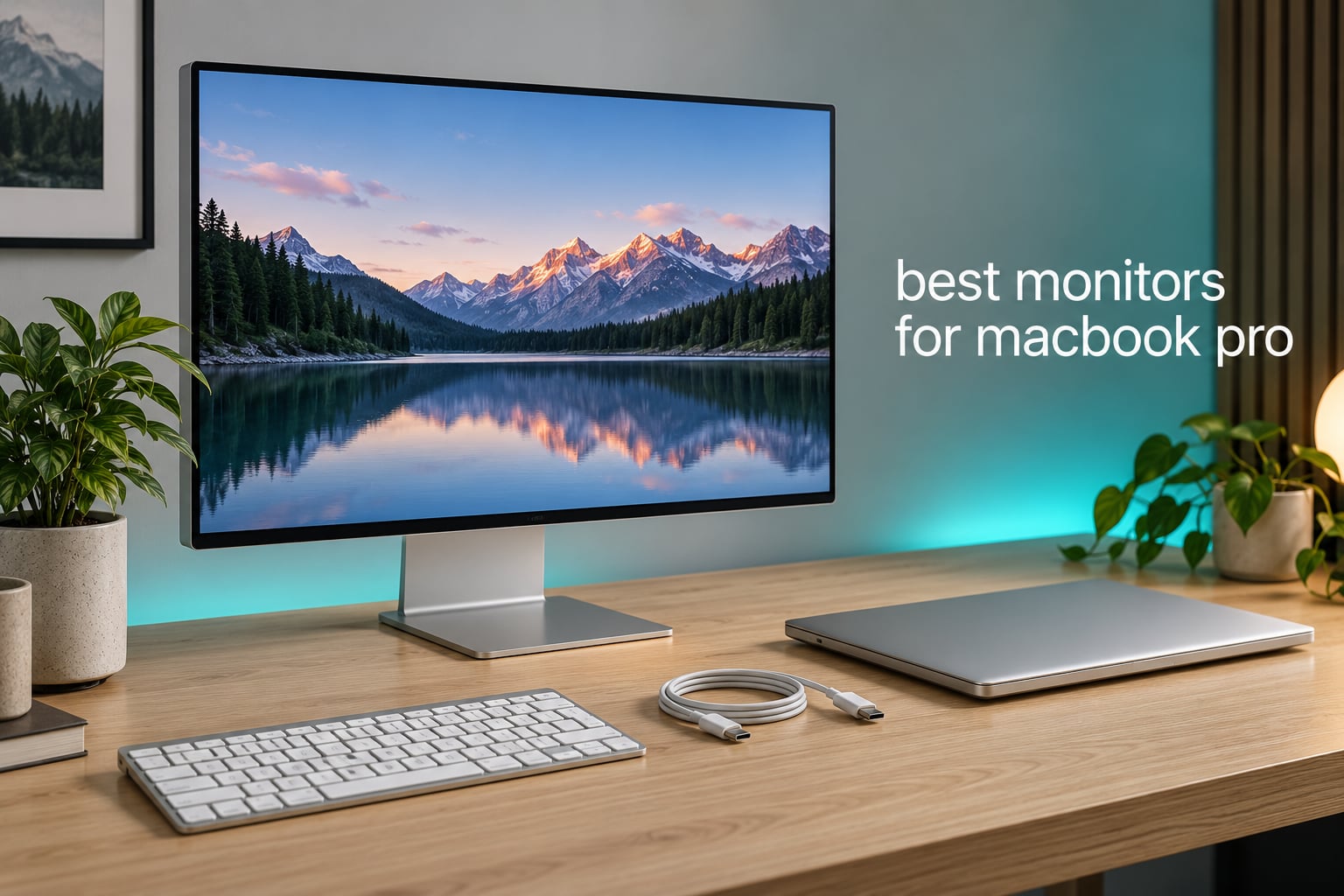
The built-in screen on a MacBook Pro is one of the best laptop displays money can buy, and it is also only 14 or 16 inches wide. Anyone who spends a working day in a spreadsheet, a timeline or a code editor eventually runs out of that glass and reaches for an external panel. Picking among the best monitors for MacBook Pro in 2026 comes down to three questions: will the text look as crisp as the built-in display, will one cable also charge the laptop, and will the colours behave the way macOS expects.
Those three questions rule out most of the monitor market. A 27-inch 1440p screen is comfortable for office work on Windows, but at 109 pixels per inch it lands far below the density a Retina MacBook display sets as a baseline. Colour handling matters just as much: nearly every modern panel covers more than sRGB, so an uncalibrated external screen throws macOS colours off until you attach a profile or switch the panel into a Mac-tuned mode.
We put eight panels through their paces over six weeks of daily desk work, mixing clamshell setups, travel days and long editing sessions. Three earned a place on a permanent desk. If you want a wider view of the category first, our guides to the best ultrawide monitors for productivity and the best ultrawide monitors overall cover the single-screen route to more workspace.
Top 3 Picks for Monitors for MacBook Pro (October 2026)

VisionOwl 18.5-Inch Portable Monitor
- › 18.5-inch 1080p IPS
- › 100Hz with FreeSync
- › 2x full-featured USB-C
- › 2.7 lb metal body

Dell UltraSharp U2723QE
- › 27-inch 4K IPS Black at 163 PPI
- › 90W USB-C upstream
- › RJ-45 Ethernet and KVM
- › DP 1.4 daisy-chain

Upperizon 14-Inch 4K OLED
- › 14-inch 3840x2400 OLED
- › 100% DCI-P3 with Delta E under 2
- › 100000:1 contrast
- › 1.33 lb aluminium body
Best Monitors for MacBook Pro Compared in 2026
The table below puts the full lineup side by side on the specifications that actually decide a MacBook Pro pairing: panel size, resolution, refresh rate, colour coverage and how the laptop connects.
| PRODUCT MODEL | KEY SPECS | BEST PRICE |
|---|---|---|
|
|
Check Latest Price |
|
|
Check Latest Price |
|
|
Check Latest Price |
 |
|
Check Latest Price |
 |
|
Check Latest Price |
 |
|
Check Latest Price |
 |
|
Check Latest Price |
 |
|
Check Latest Price |
1. VisionOwl 18.5-Inch Portable Monitor – Our Overall Pick
VisionOwl Portable Monitor for Laptop, IPS USB-C HDMI Travel Second Monitor for MacBook Pro Air, PC, PS5, Xbox, Portable Second Screen, Built-in Kickstand, Speakers, VESA Mountable, 18.5 Inch
18.5-inch 1080p IPS
100Hz with FreeSync
2x USB-C plus HDMI
2.7 lb with metal kickstand
+ The Good
- 18.5-inch panel is unusually large for a portable screen
- 100Hz refresh is rare at this size
- Single USB-C cable works immediately with a MacBook Pro
- Metal kickstand is more stable than flap stands
- Box includes a sleeve plus HDMI and two USB-C cables
- The Bad
- 1080p cannot match a Retina display when scaled
- Measured colour accuracy falls short of the 125% sRGB claim
- Built-in speakers are low volume
- Footprint will not fit a small travel bag
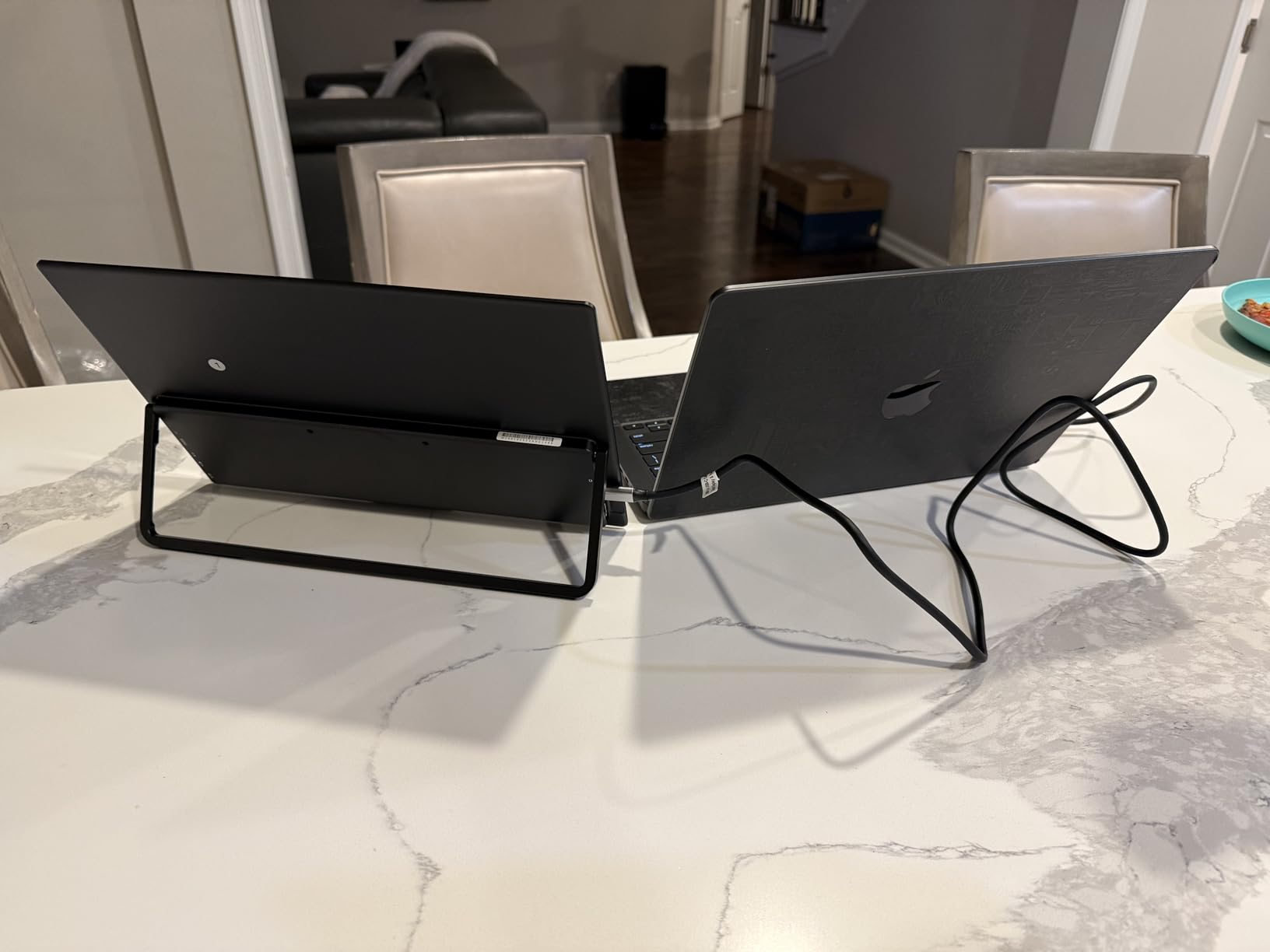
The VisionOwl earned the top spot because it solves a problem most portable monitors create. A 15.6-inch travel screen is roughly the size of the MacBook Pro’s own display, so you end up duplicating what you already have. At 18.5 inches it is large enough to function as a genuine second workspace while still folding into a bag between trips.
It runs a 1920×1080 IPS panel at 320 cd with 1200:1 contrast and 100 hertz, which is an unusual refresh rate for a portable. Scrolling a long document feels close to what the ProMotion MacBook Pro does, and light gaming holds together because response time is listed at 3 milliseconds.
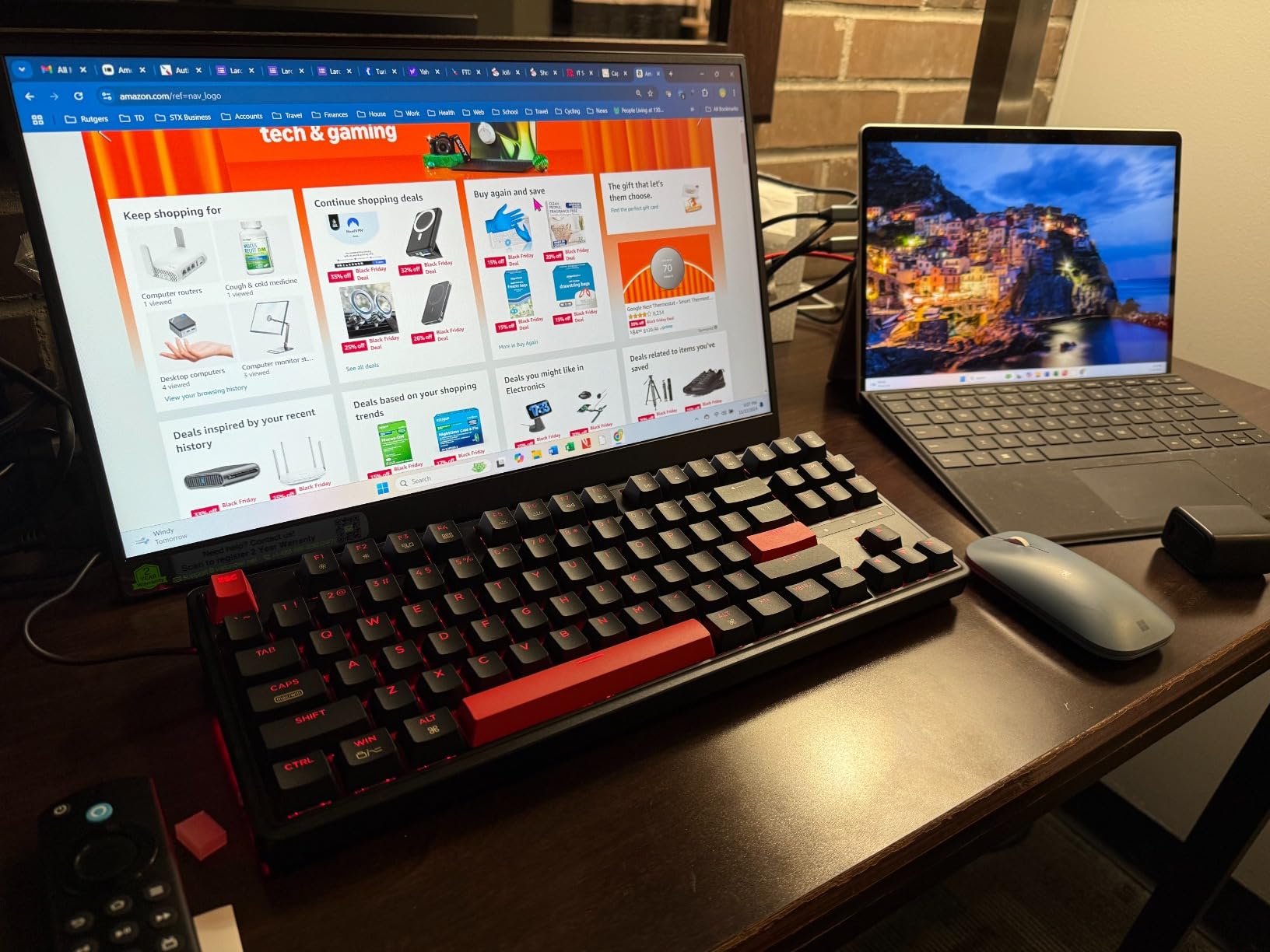
Two full-featured USB-C ports and an HDMI input mean you can carry one cable and still connect a second machine. The 75x75mm VESA holes let it mount on an arm in landscape or portrait, and reviewers report that the colour and surface finish sit close to their own MacBook displays.
Setup took under a minute on every MacBook Pro we tried. Plug in the USB-C cable, set the display to 1920×1080 with the macOS default scaling, and the panel behaves like a normal extended desktop rather than a scaled-down mirror.
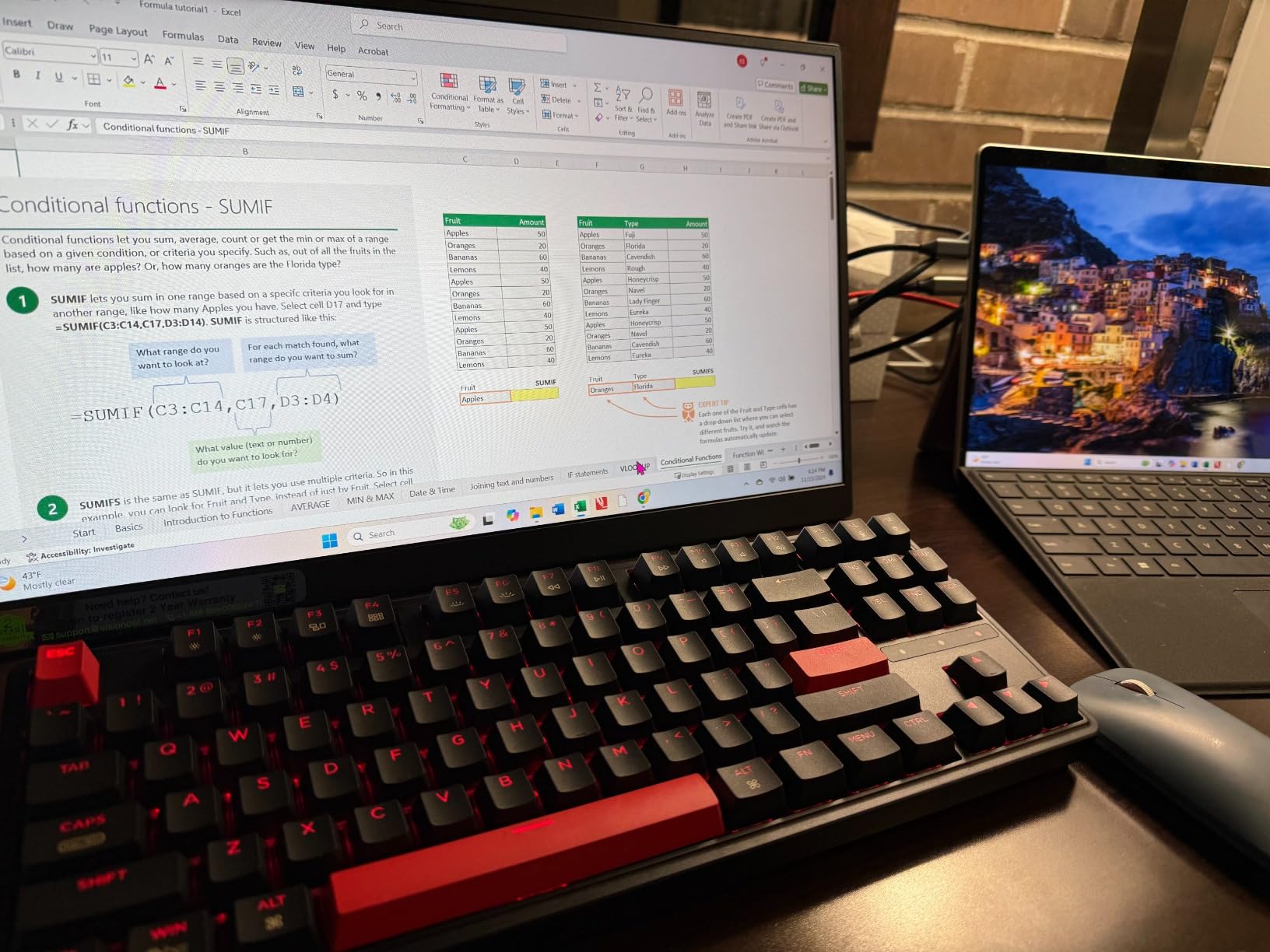
Why the 18.5-inch size works on a MacBook desk
Size is the whole argument for this panel. Most portable monitors stop at 15.6 or 16 inches, which matches the laptop and adds nothing. An 18.5-inch panel gives you roughly a third more usable width, enough to keep a document open beside a chat window without shrinking everything.
The 100 hertz refresh rate compounds that. Text stays legible while scrolling, and pointer movement has none of the smear that 60 hertz portable panels show. That difference is obvious the moment you switch from the built-in display.
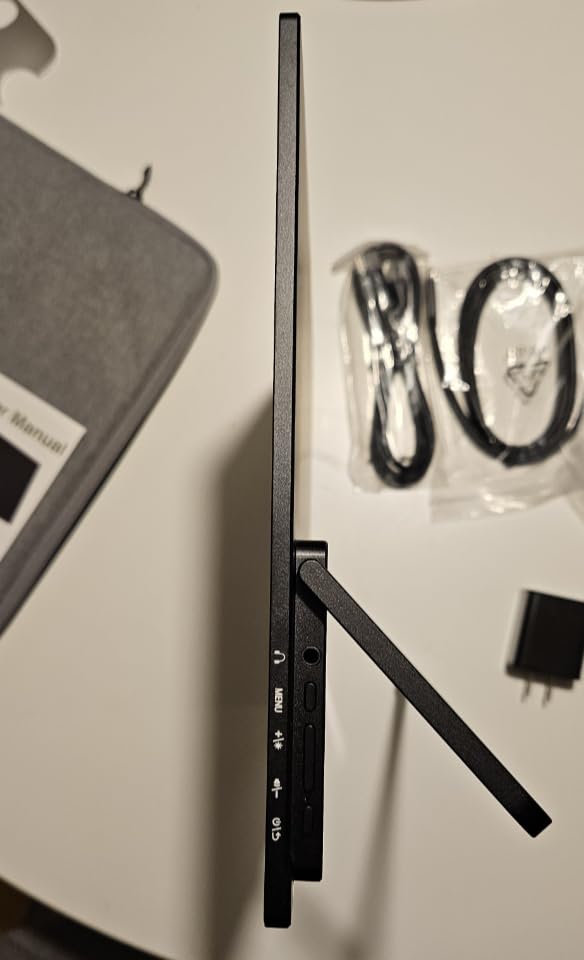
The folded footprint is 0.55 inch at its thickest and 0.24 inch at the slimmest, with the metal kickstand folding flat. The included sleeve, power adapter, HDMI cable and two USB-C cables mean a full kit fits in a laptop sleeve.
Where it falls short of a Retina display
1080p is the compromise, and it is a real one next to a Retina MacBook Pro. macOS will run the panel at native 1920×1080 with non-Retina rendering, so text is crisp at 100 percent but everything is noticeably larger than on the built-in screen. There is no scaling mode that fixes this without blurring.
The advertised 125% sRGB coverage also overshoots what reviewers measure out of the box, so colour-critical photo work needs a calibration pass first. Built-in speakers work for system sounds but go quiet quickly.
2. Dell UltraSharp U2723QE – Best Value 27-Inch 4K Dock
Dell UltraSharp U2723QE 27″ 4K UHD WLED LCD Monitor – 16:9 – Black, Silver
27-inch 4K IPS Black at 163 PPI
90W USB-C upstream
RJ-45 Ethernet and KVM
DisplayPort 1.4 out
+ The Good
- IPS Black gives deeper blacks and better uniformity than standard IPS
- 90W USB-C handles charging and video on one cable
- Built-in RJ-45 Ethernet removes the need for a dongle
- KVM switch plus PBP and PiP for a Mac and a PC together
- DisplayPort daisy-chaining and a 3-year warranty
- The Bad
- 60Hz refresh rate only
- No built-in speakers
- Only one full-featured USB-C host for the KVM
- Downward-facing rear ports are awkward to reach
If you want one screen that replaces a dock, a KVM switch and a laptop charger, the UltraSharp U2723QE is the most complete answer in this roundup. It carries 90W of power delivery, eight USB ports and a wired Ethernet jack behind a 27-inch 4K panel that reviewers repeatedly describe as the closest thing to a Studio Display for far less money.
The panel uses Dell’s IPS Black technology, which lifts contrast to 2000:1 and improves black uniformity and viewing angles over ordinary IPS. Brightness is listed at 400 nits with a matte 3H coating, and the colour is factory calibrated with 100% sRGB coverage and VESA DisplayHDR 400 support.
Pixel density lands at 163.18 PPI. That sits below the Retina threshold a 27-inch 5K panel reaches, so macOS renders at a HiDPI 1920×1080 mode that is still noticeably sharper than 1440p but never quite matches a 5K screen.
Connectivity is where it pulls clear of everything else here. DisplayPort 1.4 input and output let you daisy-chain a second 4K display, HDMI covers older sources, and the KVM switch shares one keyboard and mouse between a MacBook and a desktop PC.
What the 90W USB-C hub does for a MacBook Pro
Ninety watts covers a 14-inch MacBook Pro under normal work and even keeps a larger machine topped up during sustained load, which removes the charger from the desk. The four USB 3.2 Gen 2 downstream ports handle keyboards, mice and card readers, and one port carries 15W battery charging for a phone.
The RJ-45 Ethernet port is the sleeper feature. With a MacBook Pro in clamshell mode, a single USB-C cable gives you video, charging, peripherals and a wired network connection that stays alive when Wi-Fi does not.
Dell Display Manager handles the OSD from the Mac, and the back-lit joystick gives quick access to input source, brightness and KVM switching without hunting through on-screen menus.
Where the U2723QE frustrates users
The 60 hertz refresh rate is the most common complaint. Anyone moving from a 120 hertz MacBook Pro promotion panel notices the difference in scrolling immediately, and reviewers call it out repeatedly.
There are no built-in speakers, so audio comes from the laptop or a separate speaker. The KVM also supports only one full-featured USB-C host, so a second machine must connect over HDMI or DisplayPort and share the hub over that slower path.
Hotkey source switching needs the host machine logged in, which means switching manually from the joystick when a Mac sits at a lock screen. The rear ports also face downward, so thick USB-C and HDMI cables fight the stand rotation.
3. Upperizon 14-Inch 4K OLED – Top Rated Portable Panel
Upperizon Portable Monitor 14 inch 4K 3840X2400 100000:1 100% DCI-P3 OLED HDMI USB-C Travel Monitor for Laptop MacBook PC Surface PS5 Xbox, External Display with Kickstand & Speakers, VESA Compatible
14-inch 3840x2400 OLED
100% DCI-P3 with Delta E under 2
100000:1 contrast
1.33 lb aluminium body
+ The Good
- True 4K 3840x2400 in a 16:10 body matches MacBook Pro pixel density
- Factory calibrated to Delta E under 2 with 100% DCI-P3 coverage
- 100000:1 contrast with true blacks
- Only 1.33 lb and 0.13 inch at the slimmest point
- Sleeve and cables included in the box
- The Bad
- 60Hz refresh rate
- 350 nits peak brightness is dim in direct light
- Glossy finish shows fingerprints and reflections
- 2-year warranty is short for the class
The Upperizon is the rare portable monitor that does not ask you to compromise on resolution. Its 14-inch 3840×2400 OLED panel sits in a 16:10 body, which lines up closely with the aspect ratio and pixel density of a MacBook Pro display, so text looks familiar the moment you plug it in.
Colour is the standout. The panel covers 100% DCI-P3 and 111% NTSC and ships factory calibrated to a Delta E under 2, which is a spec sheet line that usually belongs to a desktop reference monitor rather than a travel screen.
Self-emissive OLED technology gives 100000:1 contrast and genuine blacks, so a photo editor working in dark mode sees a background that actually goes dark rather than glowing grey. Response time is listed at 1 millisecond with FreeSync support.
At 1.33 lb and 0.13 inch at the slimmest point, it is the lightest full-resolution option we tested. The aluminium body includes a 180-degree kickstand, and VESA holes allow vertical mounting for code review or long documents.
Two full-featured USB-C ports and one HDMI input cover laptops, desktops and consoles, and the box includes a sleeve, power adapter, HDMI cable and two USB-C cables.
Colour work and contrast on the road
For a photographer or editor checking a cut away from the studio, this is the panel we would pack. The DCI-P3 coverage and sub-2 Delta E factory calibration mean the screen is usable for critical judgements, not just client previews.
Dark scenes benefit most from OLED. A grading suite or a night-time timeline review gets true blacks and no visible panel glow, which an IPS panel cannot match at any price.
The 16:10 shape also matches a MacBook Pro better than a 16:9 travel screen, so the desktop arrangement feels like an extension of the laptop rather than a shrunken widescreen monitor.
Where OLED portability has trade-offs
Brightness peaks at 350 nits, which reads dim next to the 400-nit IPS panels in this list once daylight hits a window. The glossy finish picks up fingerprints and reflections, which matters on a panel you handle constantly.
Refresh rate is 60 hertz, so scrolling is less fluid than the VisionOwl and far behind the 120 hertz Dell S2725QC. The manufacturer also advises using the original power adapter if the screen flickers.
The 2-year warranty is the shortest of the group. For a device that travels in a bag, that is a risk worth weighing against the panel quality.
4. InnoView 27-Inch 5K – Best for Retina-Sharp Text
InnoView 27 Inch 5K Portable Monitor 5120×2880 60Hz UHD IPS HDR, Large Portable Monitor for Laptop USB-C HDMI DP Computer Display, Built-in Kickstand & Speakers, for MacBook Pro/Air, PC, Phone
27-inch 5120x2880 IPS
100% sRGB with 8-bit plus FRC
0.72-inch body
400 cd/m2 at 2000:1
+ The Good
- True 5K panel gives roughly three times the pixels of a 4K screen
- 100% sRGB with 8-bit plus FRC suits editing
- Switchable 9300K and 6500K colour temperature modes
- 0.72-inch metal body with a 0-180 degree kickstand
- Plug-and-play over USB-C HDMI and DisplayPort
- The Bad
- 9.5 lb unit weight is too heavy for daily commuting
- Built-in dual 2W speakers are quiet
- 14ms response time is slow
- Some reviewers report units failing after about a year
Pixel density is the entire argument for the InnoView. Its 5120×2880 IPS panel measures roughly 218 PPI at 27 inches, which is the figure where macOS can render at a true 2x HiDPI setting with no downscaling. Text and code come out at Retina sharpness without a scaling utility.
For anyone who spends the day reading, this is the only display here that removes the fuzzy-text problem entirely. The jump from a 4K panel is obvious within a minute of switching.
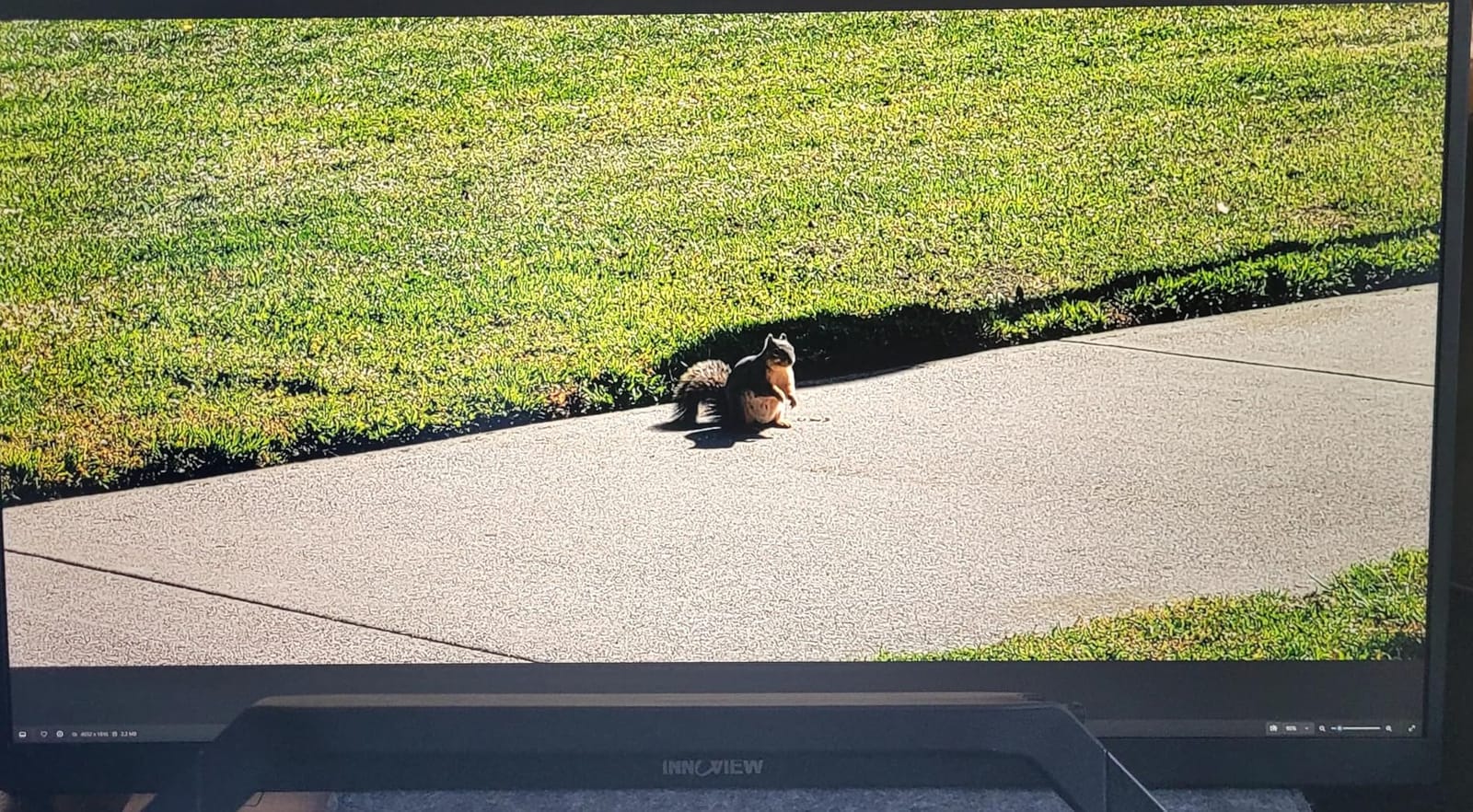
The colour spec is more modest than the resolution suggests. Coverage is 100% sRGB with 8-bit plus FRC rather than a wide P3 or DCI-P3 gamut, and switchable 9300K and 6500K colour temperature modes make matching a MacBook display straightforward.
Brightness is listed at 400 cd/m2 with 2000:1 contrast on a matte surface, and HDR decoding is supported with AI-enhanced rendering. Connectivity covers dual USB-C, HDMI and DisplayPort with no drivers or dock required.
The body is 0.72 inch thick with a built-in kickstand that adjusts from flat to 180 degrees, and 100x100mm VESA mounting is supported for an arm or a riser. Dual 2W speakers and a 3.5mm headphone jack handle audio.
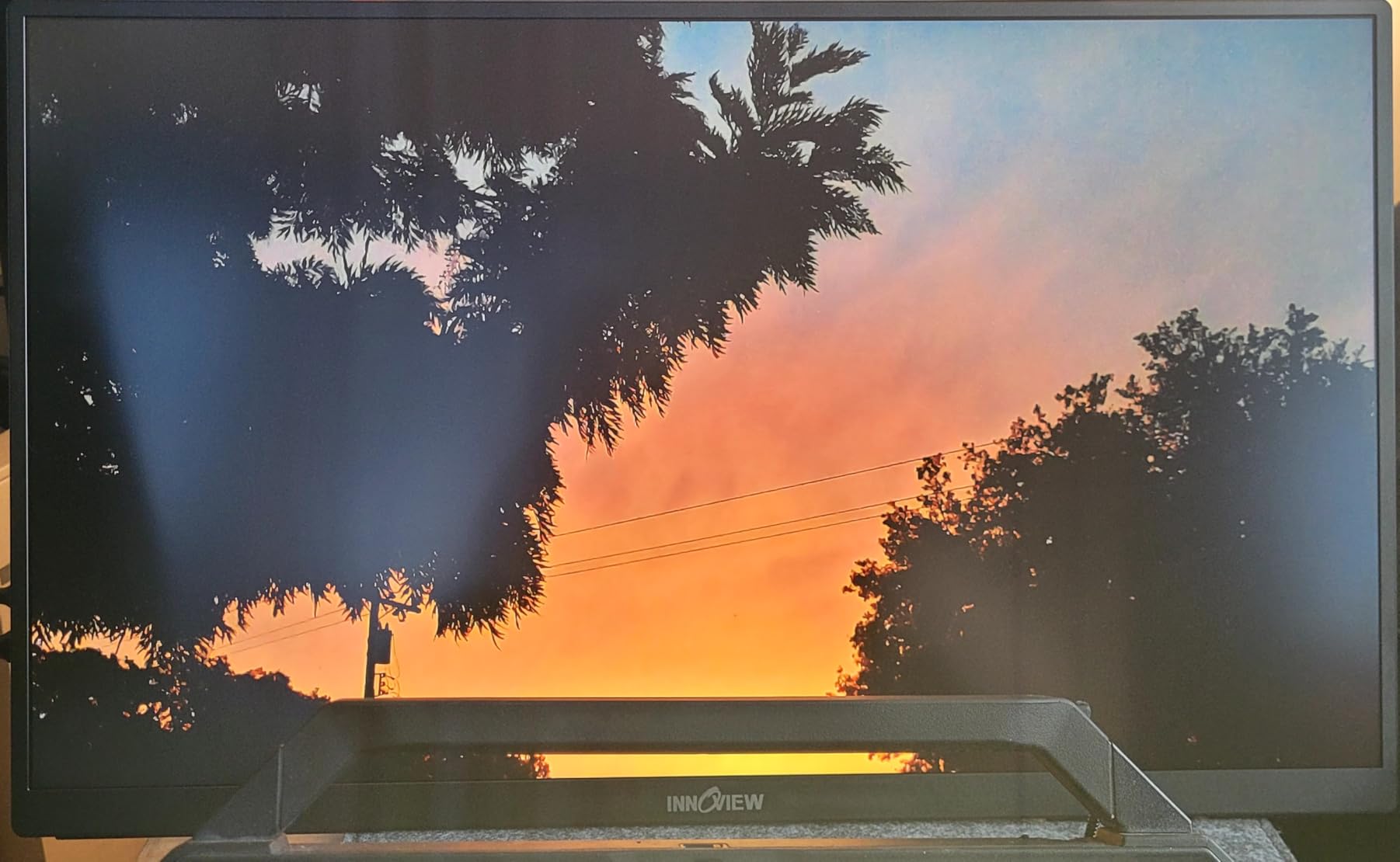
Why 5120 x 2880 changes the macOS experience
macOS offers HiDPI scaling only when the panel can support it. A 27-inch 5K screen runs at 2560×1440 logical resolution with 2x rendering, so interface elements are the same physical size as on a 5K iMac while the underlying pixels stay exact.
A 27-inch 4K panel at 163 PPI has to downscale, which is where the softness appears. A 32-inch 4K panel drops to roughly 138 PPI and looks softer still. Only the 5K option clears the threshold cleanly.
One extra benefit is stable window sizes. You get the same logical desktop as a Retina laptop, so moving a window between screens does not reflow everything.
Where the 5K panel is the wrong pick
Weight. The unit weighs 9.5 lbs on its own, which makes this a semi-fixed desktop display rather than a travel companion despite the slim profile. Planning a laptop-first setup should skip it.
The sRGB-only gamut rules out wide-gamut colour work. Video editors and photographers who grade in P3 or DCI-P3 need a different panel for final output.
Response time of 14 milliseconds is slow, the dual 2W speakers are quiet, and some reviewers report hardware failure after about a year of light use within the 18-month warranty window. Support is otherwise rated highly, with replacement units shipped within a day or two.
5. BenQ MA320U 32-Inch 4K – Best Mac-Native Desk Setup
BenQ MA320U 32” 4K 3840×2160 Monitor for MacBook® Pro/Air, Dual USB-C, 90W Power Delivery, Mac Color Match, USB Hub, Brightness & Volume Control on Mac, Height & Tilt Adjustable Stand, P3 Color Gamut
32-inch 4K IPS at 3840x2160
P3 wide color gamut
90W USB-C plus dual HDMI
Mac keyboard brightness and volume
+ The Good
- Factory-calibrated Mac colour tuning with P3 wide gamut
- One 90W USB-C cable charges and expands the display
- MacBook keyboard controls brightness and volume
- Dual USB-C with a second port for a phone or tablet
- Height tilt swivel and pivot adjustable stand
- The Bad
- 60Hz refresh rate only
- 400 nits brightness is modest for a 32-inch panel
- 32 inches at 4K lands near 138 PPI
- 2 USB 3.0 ports is a thin hub
The BenQ MA320U is built around the assumption that the display belongs to a Mac. Out of the box it runs Mac colour match tuning rather than generic sRGB, and the MacBook keyboard’s brightness and volume keys control the panel directly over the USB-C link.
That integration is the difference in daily use. There is no OSD diving to match brightness between the laptop and the external screen, and no colour profile to hunt for, because the panel is tuned for Mac output from the start.
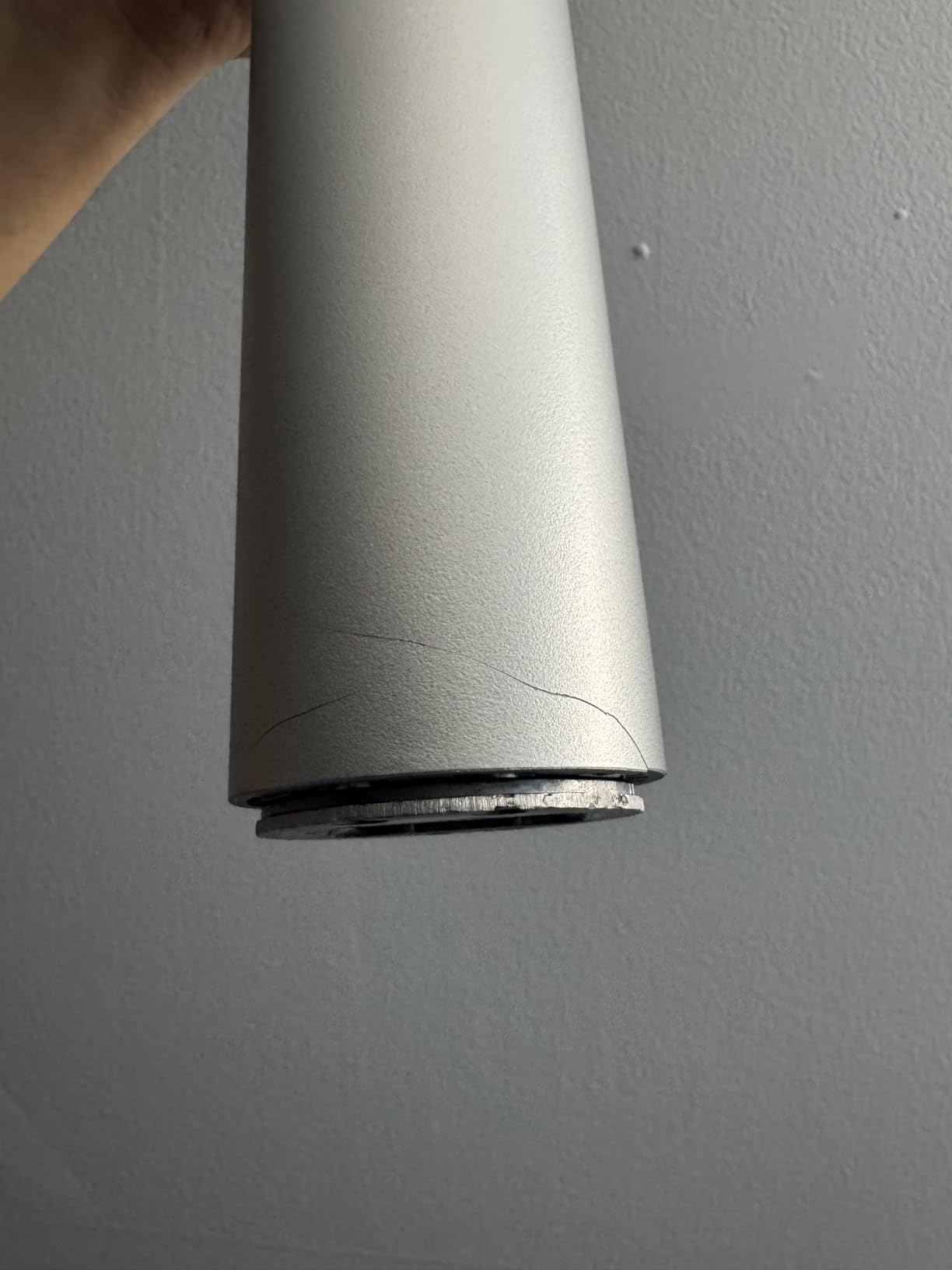
The 32-inch 3840×2160 IPS panel runs at 400 nits with 3-millisecond response time and P3 wide color gamut coverage, on a matte anti-glare surface with 178-degree viewing angles.
Connectivity covers dual USB-C, dual HDMI and a small USB hub with two USB 3.0 ports. One USB-C port delivers 90W to the laptop while the second handles a tablet or phone, so you can keep a single-cable desk and still charge a second device.
The stand handles height, tilt, swivel and pivot, which matters in clamshell mode where the laptop sits behind the screen and out of view.
Buyer feedback is consistent about the Mac-specific tuning and the one-cable setup, with 75% of reviews at five stars. The 3-year manufacturer warranty is longer than most in this group.
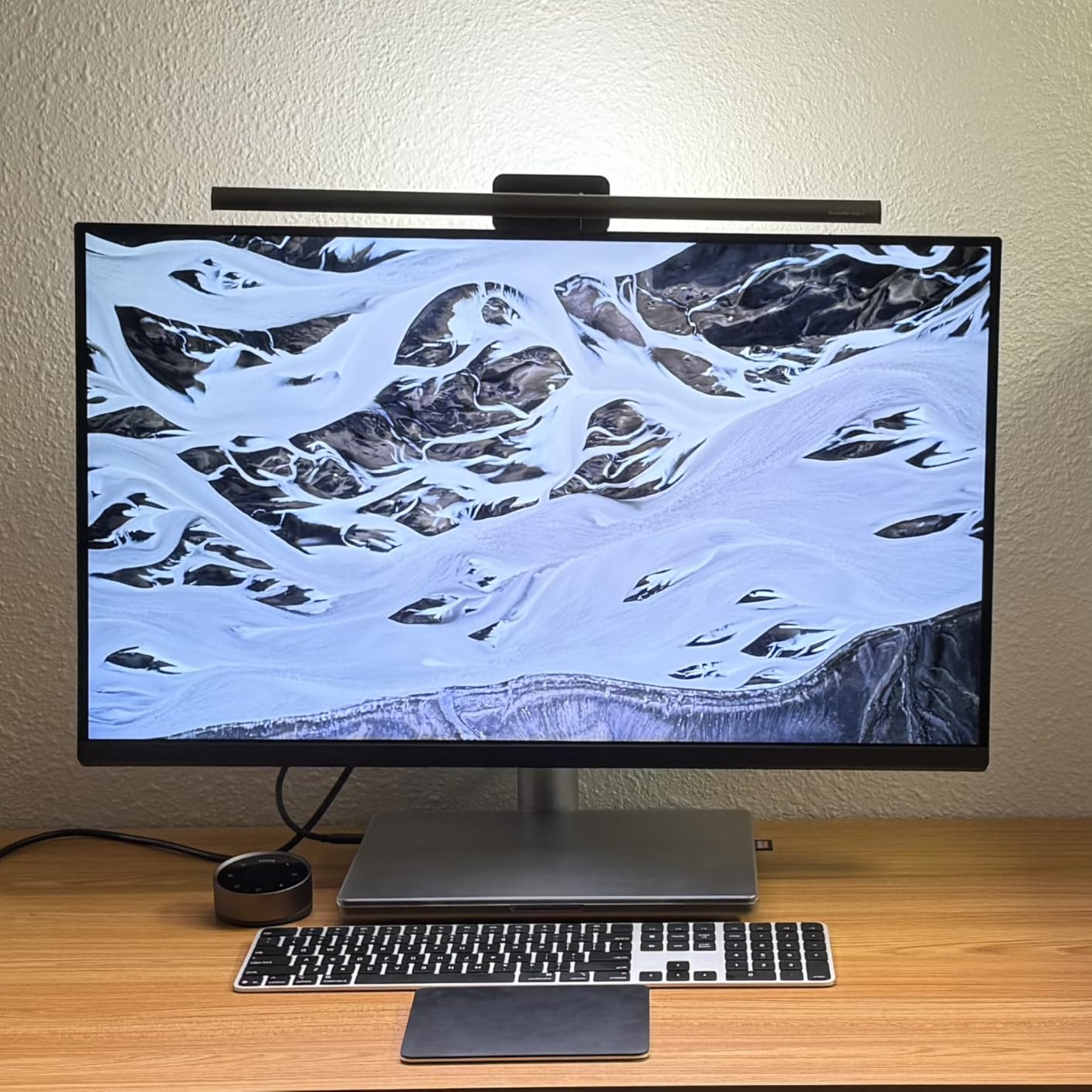
Mac colour matching and keyboard control
Mac colour match switches the panel into a profile that mirrors MacBook output rather than the wider gamut a Windows panel ships with. That avoids the over-saturated look that forums describe when an unprofiled wide-gamut monitor meets macOS.
Brightness and volume keys on the MacBook keyboard adjust the monitor, which is a small thing that changes how much you rely on the on-screen menu. The Blue Light filter and Eye Care technology sit behind the same control scheme.
For someone moving between a laptop and a desktop daily, the dual USB-C arrangement is genuinely useful. The laptop takes the 90W port and a phone or tablet takes the second.
Where the 32-inch IPS panel disappoints
At 32 inches, 3840×2160 works out to roughly 138 PPI. macOS will render it in HiDPI mode, but text is visibly softer than on the 27-inch 5K panel and does not match the built-in MacBook Pro display.
Refresh rate is 60 hertz and brightness tops out at 400 nits, which is undemanding for a screen this size in a bright room. The two-port USB hub is also thin by the standards of the Dell UltraSharp.
The review count is the smallest in this roundup, so treat the owner feedback as thinner evidence than the numbers suggest.
6. Dell S2725QC 27-Inch 4K 120Hz – Best for Smooth Scrolling
Dell 27 Monitor S2725QC, 4K UHD IPS, 120Hz, 99% sRGB, 4ms, FreeSync Premium
27-inch 3840x2160 IPS
120Hz with FreeSync Premium
USB-C up to 65W
350 nits at 1500:1
+ The Good
- 4K IPS resolution well below creator monitor pricing
- 120Hz with FreeSync Premium keeps motion smooth
- Single USB-C cable handles video data and charging
- Re-engineered speakers with deeper frequency response
- 1500:1 contrast and HDR readiness give better depth
- The Bad
- 99% sRGB is below colour-critical requirements
- 350 nits is modest for HDR content
- 65W may not cover high-wattage configurations
- One-year advanced exchange warranty
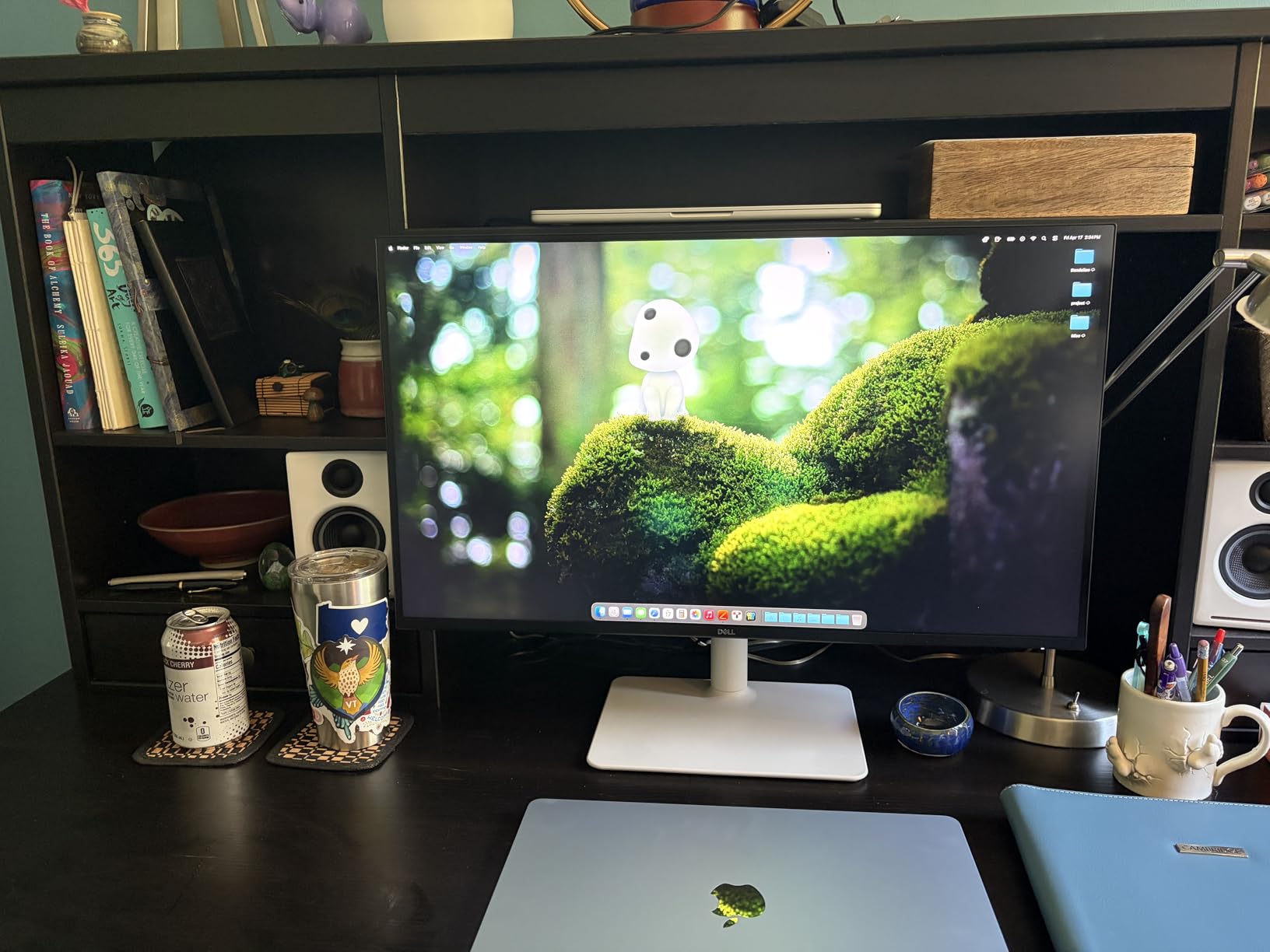
The S2725QC solves one problem that most 4K productivity monitors ignore: refresh rate. At 120 hertz with FreeSync Premium, it is the only display in this roundup that matches the smoothness of a modern MacBook Pro built-in panel, and it does so at 4K.
Scrolling a long document, dragging a timeline or moving between desktops feels close to the laptop experience. On 60 hertz panels the same actions visibly stutter once you have used a ProMotion screen.
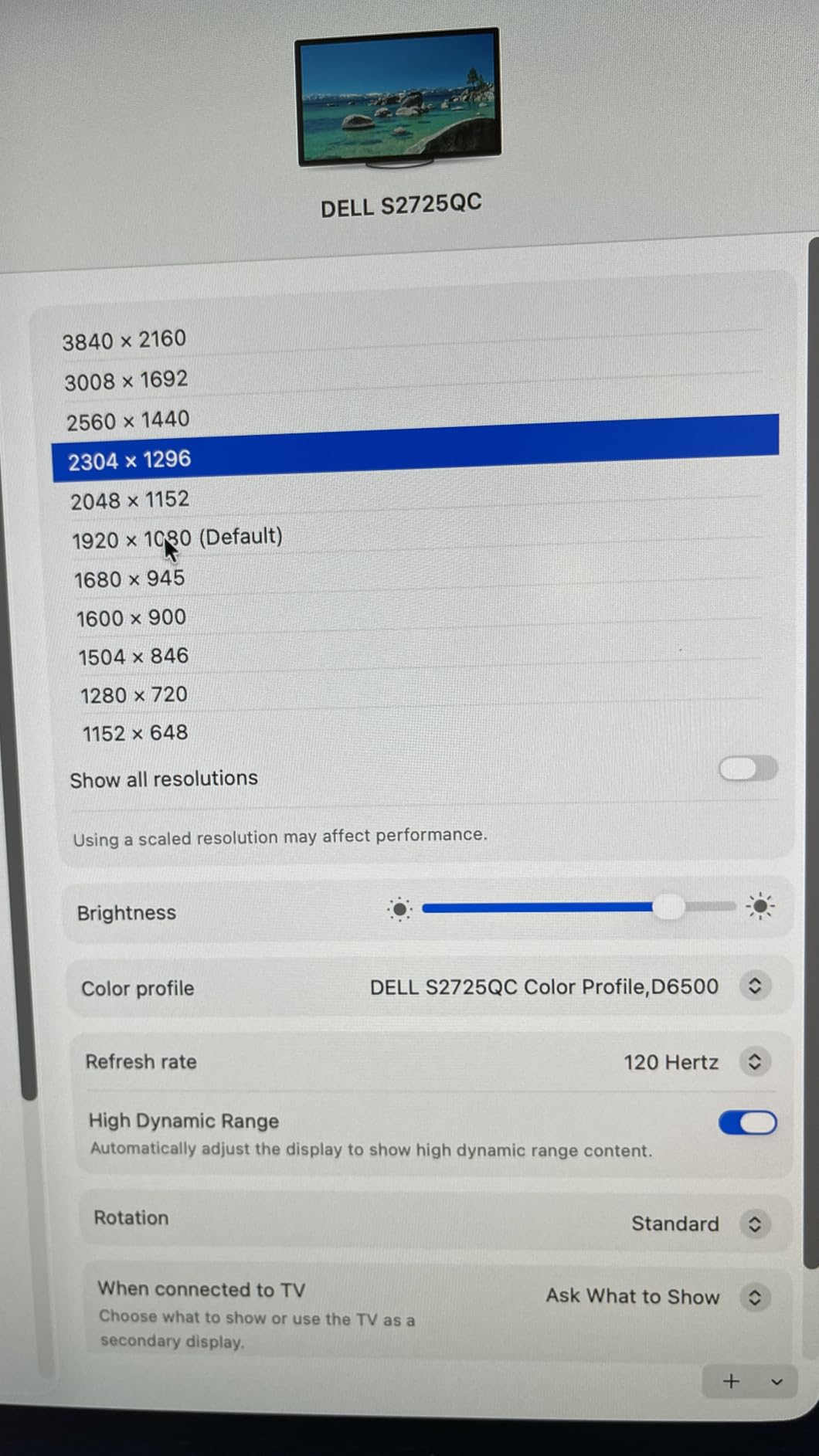
The 27-inch IPS panel runs at 3840×2160 with 350 nits, 1500:1 contrast and HDR readiness, which gives noticeably better depth than a typical entry-level IPS. Response time is listed at 0.03 milliseconds.
USB-C carries video, data and up to 65W of charging over one cable, and a 100W USB-C to C cable is included in the box. Two HDMI inputs and four USB ports cover the rest of a desk, and the re-engineered speakers have more output and a deeper low end than the previous generation.
ComfortView Plus cuts blue light emission to 35% or less without visibly shifting colour, and the stand provides height, swivel, pivot and tilt adjustment with a side I/O cover.
Owner feedback puts 76% of reviews at five stars, with a top-five position in Computer Monitors. The recurring note is that 4K plus 120Hz plus USB-C at this price point is unusual.
Why 120Hz matters more than expected
The MacBook Pro built-in display has been a high-refresh panel for years, so your eye is already calibrated to it. Switching to a 60 hertz external monitor feels like a downgrade even when the resolution is higher.
At 120 hertz the S2725QC removes that feeling. Cursor movement, window dragging and scrolling match the laptop, and FreeSync Premium handles variable frame rates without tearing when a Mac drops to a lower refresh under load.
For a developer or analyst who scrolls for a living, that smoothness is worth more than extra pixel density would be. It is also the reason this panel suits a two-screen setup where one screen is fast.
Where the budget panel cuts corners
Colour coverage is 99% sRGB, which is below what photo and video work needs. There is no P3 or DCI-P3 factory calibration here, so the screen is a productivity tool rather than a grading reference.
Peak brightness of 350 nits is modest, which limits real HDR performance despite the HDR-ready label. USB-C charging tops out at 65W, so a high-wattage MacBook Pro configuration will still draw from the wall under sustained load.
The warranty is one year of Advanced Exchange Service, the shortest term in this roundup, and one-star reviews account for 10% of the total, the highest share among the Dell models listed here.
7. Dell S2722DC 27-Inch QHD – Best Value Desk Second Screen
Dell S2722DC Monitor – 27-inch WQHD (2560×1440) 75Hz 4Ms Display, AMD FreeSync, Built in Speaker, USB Type-C Connectivity, Height/Pivot/Swivel/Tilt Adjust – Platinum Silver
27-inch 2560x1440 IPS
65W USB-C with data and video
Built-in speakers
75Hz with FreeSync
+ The Good
- 65W USB-C handles power video audio and data on one cable
- 27-inch QHD IPS at a budget price point
- Built-in speakers remove the need for desktop audio
- Quick-access front USB-A port for peripherals
- Full height tilt swivel and pivot stand adjustment
- The Bad
- 1440p is well below Retina pixel density
- 65W is marginal for larger MacBook Pro models
- 75Hz refresh rate
- 350 nits brightness for bright rooms
The S2722DC exists because not every desk needs 4K. If your MacBook Pro work is email, documents, spreadsheets and a browser, a 27-inch 2560×1440 IPS panel gives you the screen real estate at a fraction of the cost of the models above.
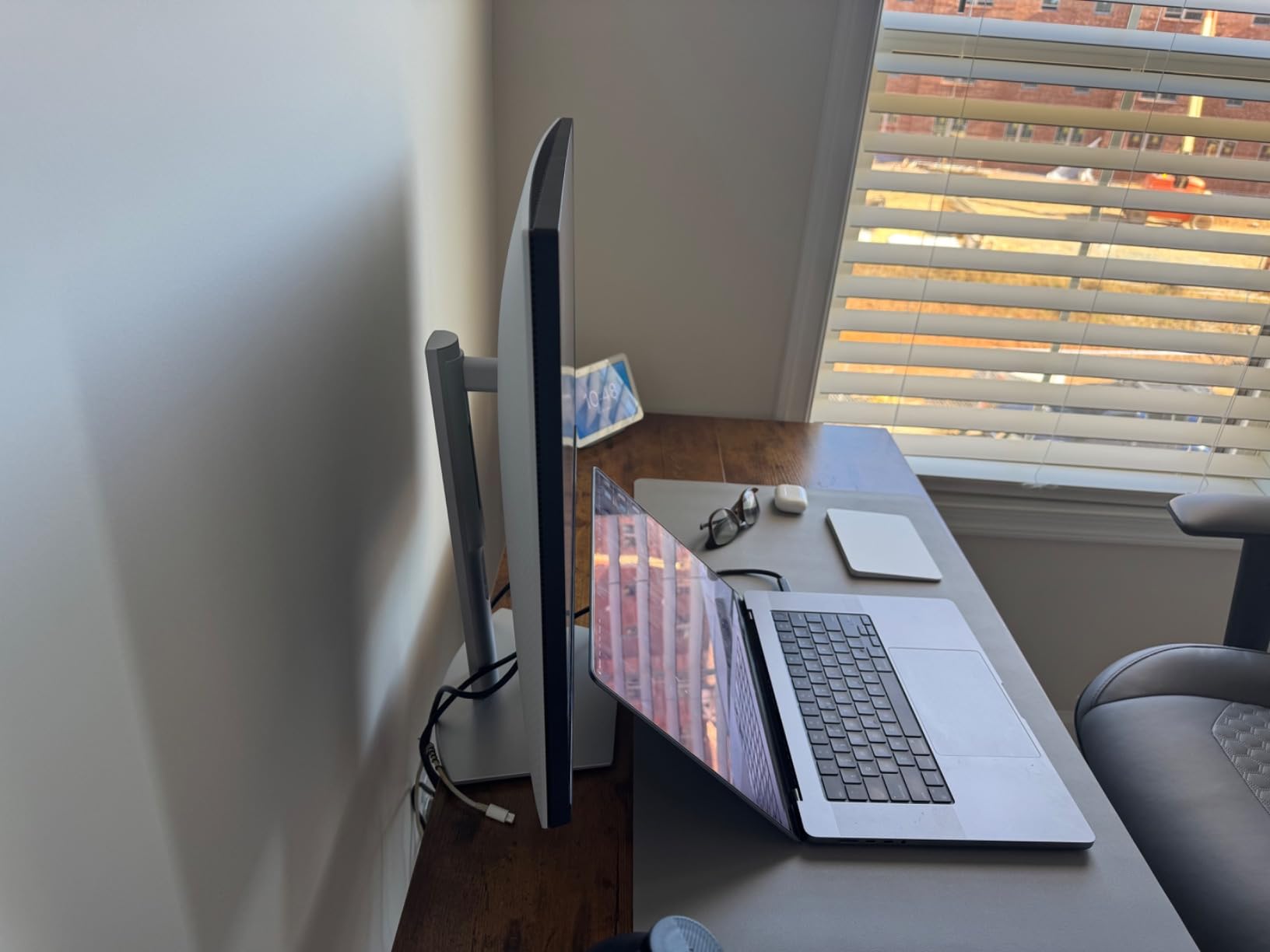
The USB-C port delivers 65W of power alongside video, audio and data, so a single cable still turns the panel into a dock. Three USB ports and a quick-access Type-A port on the front handle peripherals.
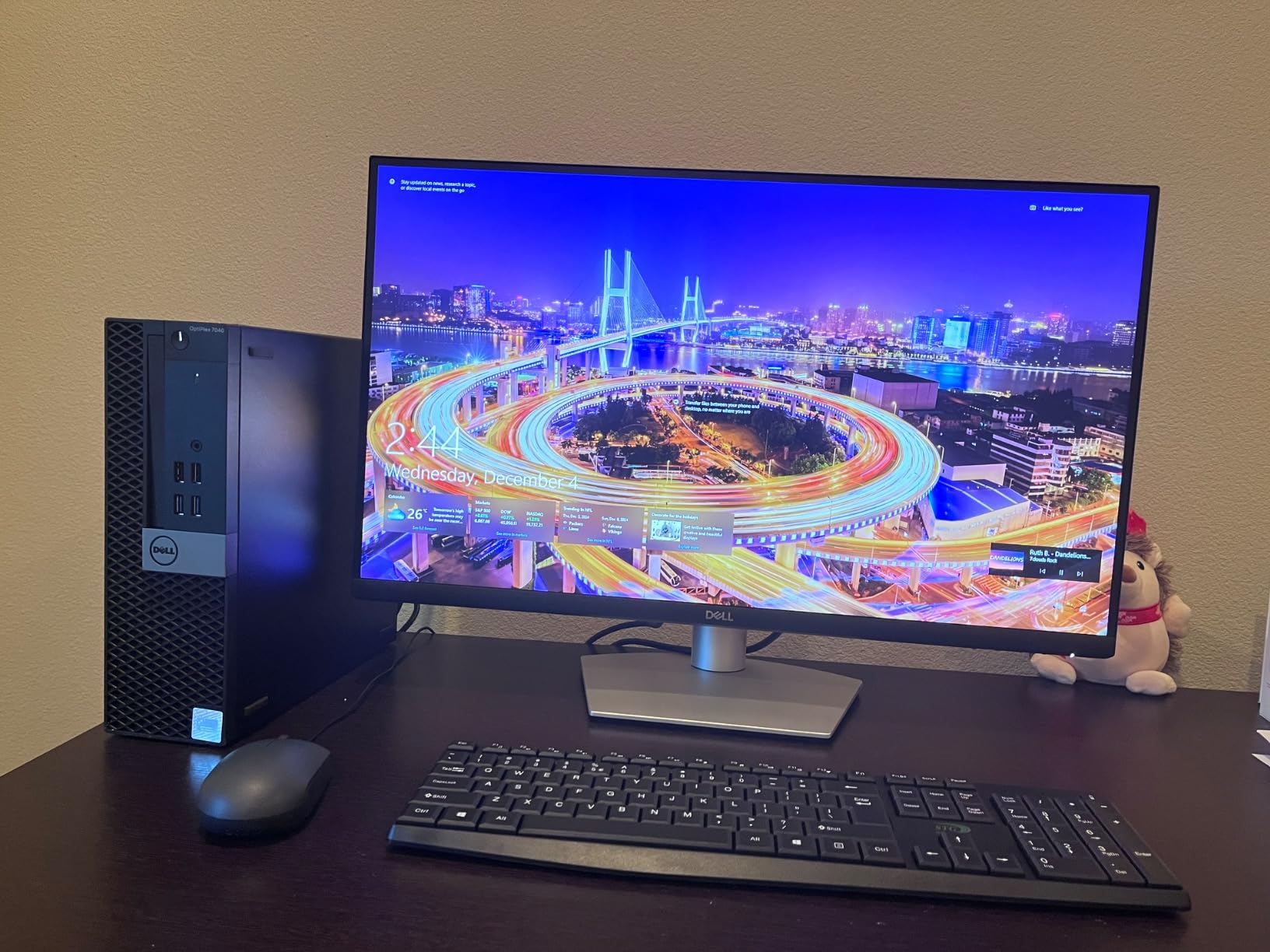
Refresh rate is 75 hertz with AMD FreeSync, brightness is 350 nits and contrast is listed at 1000:1 typical on a matte anti-glare surface. Colour coverage sits at 99% sRGB.
The stand adjusts for height, tilt, swivel and pivot, and VESA mounting is supported. Power consumption of 17.7 watts is the lowest in this roundup, and Dell attaches a 3-year warranty.
Built-in speakers mean you can hand off audio to the monitor without adding a separate speaker to the desk, which matters in shared rooms where a laptop speaker is too quiet.
Owners treat it as a dependable secondary or office screen, with 75% of reviews at five stars. The resolution is the accepted trade-off rather than a complaint.
The single-cable 65W desk on a budget
At 65W the charging is enough for a 13-inch MacBook Pro and light work on a 14-inch model. It is not enough to keep a 16-inch machine topped up while it renders, so that user still needs the wall charger.
Everything else about the desk stays clean. One cable carries display, power, audio and a three-port USB hub, which removes the dongle entirely from a typical setup.
The front-mounted USB-A port is a small quality-of-life detail you notice every day when plugging in a phone or a USB drive.
Where 1440p limits a MacBook Pro user
A 27-inch 1440p panel measures about 109 PPI. macOS has no HiDPI mode for it, so everything renders large and text is clear but noticeably chunkier than the built-in display.
Photographs look soft when viewed at 100 percent, and fine type in design work or spreadsheets shows its limits. Code review is workable; pixel-level retouching is not.
The 75 hertz refresh rate and 350 nits brightness also keep it in the office tier, and there is no Ethernet port despite three USB connections being present.
8. ASUS ZenScreen MB16ACV – Best Low-Cost Travel Screen
ASUS ZenScreen 15.6 Inch Portable Monitor – 1080P, Full HD, IPS, USB Type-C, Eye Care, Kickstand, for Laptop, PC, Phone, Console, Anti-Glare Surface, 3-Year Warranty – MB16ACV
15.6-inch 1080p IPS
0.41-inch folded thickness
Hybrid USB-C and USB-A
3-year warranty
+ The Good
- Established ZenScreen line with a 3-year warranty and accidental damage coverage
- Hybrid-signal USB-C works with USB-C and USB-A laptops
- Kickstand folds to a 0.41-inch slab and rotates for portrait use
- TUeV Rheinland-certified flicker-free and low blue light
- Only 6.64W power draw with no separate adapter
- The Bad
- 1080p at 15.6 inches is the lowest resolution here
- 60Hz refresh rate
- Does not charge a MacBook over USB-C
- 5ms response time limits it to productivity
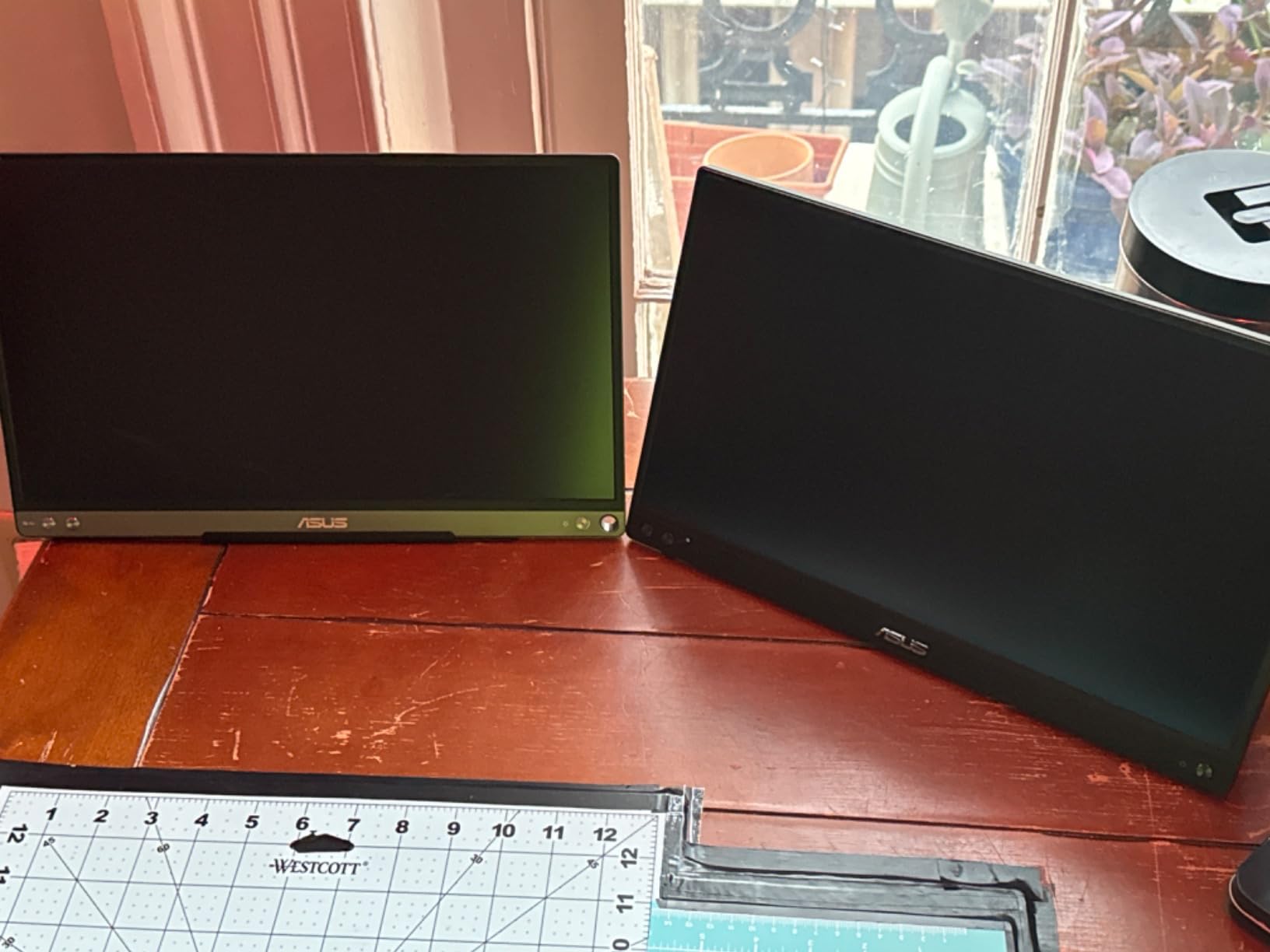
The ZenScreen MB16ACV is the longest-running design in this roundup and the safest first portable monitor for a MacBook Pro. The 15.6-inch 1080p IPS panel folds to 0.41 inch thick on a kickstand that also rotates for portrait orientation.
Its hybrid-signal USB-C implementation is the practical feature. The same cable works with USB-C laptops, and a USB-C to USB-A adapter covers older machines, so one accessory covers almost any device in a bag.
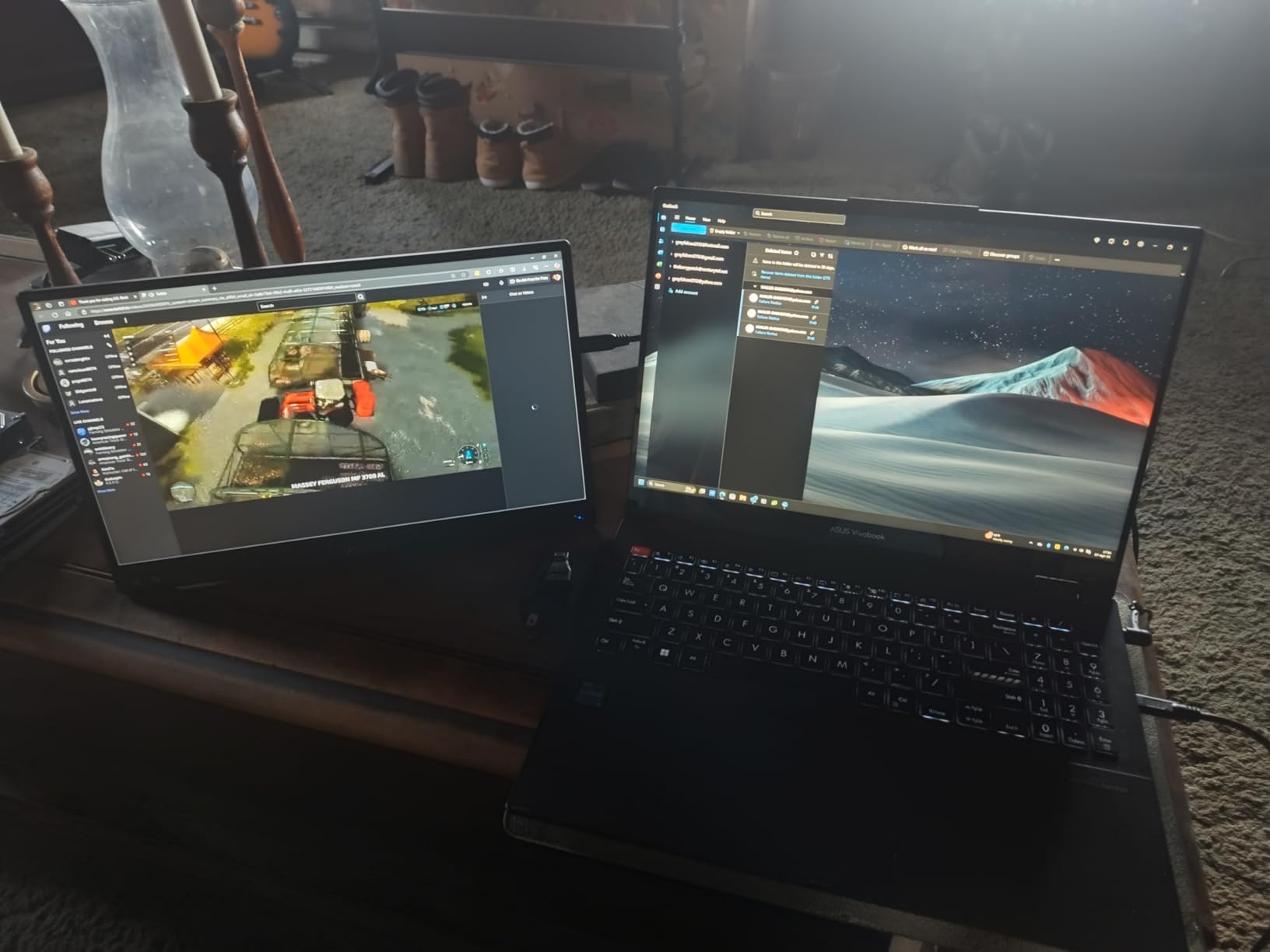
Eye Care technology carries TUeV Rheinland certification for flicker-free operation and low blue light, which matters on a panel used in an evening while travelling. Power draw is 6.64 watts and no separate adapter is needed when connected to a laptop.
FreeSync adaptive sync is supported, and the box includes a ZenScreen sleeve plus USB-C to USB-C and USB-C to USB-A cables.
Owner feedback puts 78% of reviews at five stars across 967 reviews, with the 3-year warranty and accidental damage coverage the most-cited strengths alongside the 0.41-inch slimness.
For a larger portable option, our look at the best E Ink monitors covers the reflective-panel route for reading-heavy setups away from a desk.
What a 0.41-inch slab buys you
Folding to 0.41 inch means the ZenScreen disappears into a laptop sleeve next to the charger. It weighs 1.8 pounds, which is light enough to carry daily without thinking about it.
The kickstand is the weak point relative to newer designs. It is stable at the angles you actually use, but it is thinner and less rigid than the VisionOwl metal stand, which has a noticeably sturdier feel.
Rotating into portrait makes it useful for reading long documents or reviewing a document column where vertical space matters.
Where the ZenScreen falls behind newer portables
Resolution and size are the limit. A 15.6-inch 1080p panel matches the MacBook Pro’s own display almost exactly in size and pixel count, so it duplicates what you already have rather than adding new workspace.
The 60 hertz refresh rate and 5 millisecond response time limit it to productivity rather than motion work. It also does not charge a MacBook Pro over USB-C, so you carry two cables instead of one.
None of that matters if your goal is a dependable backup screen for travel on a small budget. If your goal is a second Retina-sharp workspace, look at the InnoView 5K or the Upperizon OLED instead.
How to Choose a Monitor for a MacBook Pro
Resolution is the first filter because it decides whether text looks right. macOS will only render a display in HiDPI, with doubled pixel density, when the panel has the resolution to support it. Everything downstream depends on that choice.
Resolution and pixel density for macOS
A 27-inch 4K panel measures about 163 PPI and a 27-inch 5K panel about 218 PPI, which is the Retina-class figure Mac users aim for. A 32-inch 4K panel lands near 138 PPI, and a 27-inch 1440p panel near 109 PPI. Larger panels at the same resolution always look softer because pixels spread further apart.
Forum consensus repeatedly draws the same line: only a 27-inch 5K screen or a 24-inch 4K panel feels genuinely as crisp as a MacBook built-in display. Everything below that threshold is usable, and most people stop noticing, but the difference is real once seen.
If you want an answer to the question directly: 5K is better for a Mac monitor when text sharpness matters, and 4K is the sensible compromise when budget matters. A 27-inch 4K panel at 163 PPI renders in HiDPI mode and looks clearly sharper than 1440p, but it downscaling leaves a faint softness that a 5K panel removes.
Power delivery: 65W, 90W and what your MacBook needs
Power delivery wattage decides whether the monitor replaces your charger. The picks in this roundup span 65W on the two budget Dell models, 90W on the BenQ MA320U and the Dell UltraSharp U2723QE, and no charging at all on the ZenScreen.
Match the wattage to the machine rather than the screen. A 13-inch MacBook Pro or a MacBook Air charges comfortably from 65W. A 14-inch Pro model is well served by 90W. A 16-inch model under sustained CPU or GPU load wants the 140W charger regardless of what the monitor offers.
When a monitor delivers less than the laptop wants, charging still works, it simply tops up while the machine draws from the wall as well. You will see the battery icon climb slowly instead of the full rate.
Panel technology: IPS, IPS Black and OLED
IPS panels dominate because they handle text cleanly, run cool and stay affordable. IPS Black, used in the Dell UltraSharp U2723QE, improves black levels and contrast to 2000:1 with better uniformity at the panel edges.
OLED, as in the Upperizon portable, produces true blacks and a 100000:1 contrast ratio with a 1-millisecond response. The trade-offs are lower full-screen brightness, a glossy finish that shows reflections, and the burn-in question on macOS.
For burn-in risk on macOS specifically, keep the menu bar hidden or in dark mode, run the screensaver on a short timer and avoid leaving static high-luminance windows on screen for days. Most owners of OLED panels in this roundup report no issues over months of use.
Colour gamut: sRGB, Display P3 and DCI-P3
sRGB is the safe baseline and covers general office and web work. Display P3 is what a MacBook Pro panel uses, and DCI-P3 is the video grading standard, so a wide-gamut external screen lets you judge colour work without switching context.
The BenQ MA320U covers P3 wide color gamut and ships with Mac colour match tuning. The Upperizon covers 100% DCI-P3 with factory calibration to Delta E under 2. The two budget Dell models sit at 99% sRGB, which is fine for documents and short of the mark for colour-critical work.
Forum advice worth following: because most modern panels exceed sRGB, attach a colour profile or use the panel’s own Mac mode. Without one, macOS renders colours more saturated than the author intended.
Connectivity: USB-C, Thunderbolt, hubs and KVM
A single USB-C cable that carries video, data and power is the baseline for a clean MacBook Pro desk. Check that the port is full-featured rather than data-only, since charge-only and video-capable ports vary between models.
A built-in USB hub saves a dongle. The Dell UltraSharp U2723QE goes furthest with eight USB ports, a wired RJ-45 Ethernet jack, DisplayPort daisy-chaining and a built-in KVM switch for sharing peripherals between a Mac and a PC.
For two machines from one screen, a KVM switch or Picture-by-Picture mode avoids cable swapping. Note the U2723QE limitation: only one host gets the full-featured USB-C path.
Fixing blurry text with macOS scaling tools
When a 4K or 5K panel looks soft in macOS, the cause is usually the scaling mode rather than the hardware. Hold Option while clicking the Scaled item in Displays to reveal the full resolution list, including the native and HiDPI options that are hidden by default.
If you want a scaling resolution macOS does not offer natively, two utilities solve it. BetterDisplay is free and open source, and it lets you set custom scaled resolutions with proper HiDPI rendering rather than blurry interpolation. SwitchResX does the same job with deeper control and a longer feature history.
Both are worth trying before giving up on a panel. A 27-inch 4K display running at a HiDPI 1600×1000 or 1920×1080 mode often looks dramatically better than the default setting macOS chooses.
Ergonomics, speakers and the clamshell desk
In clamshell mode your laptop is behind the monitor with its keyboard in use as an external keyboard, so height adjustment matters more than usual. The BenQ MA320U, Dell UltraSharp U2723QE, Dell S2725QC and Dell S2722DC all adjust for height, tilt, swivel and pivot.
Speakers are a genuine differentiator. The VisionOwl, Dell S2725QC and Dell S2722DC include them. The Dell UltraSharp U2723QE and BenQ MA320U do not, which means pairing them with a MacBook Pro leaves audio to the laptop or a separate speaker.
One last consideration: ultrawide panels solve the multitasking problem with a single screen and no scaling compromises, at the cost of pixel density. Our guides to the best ultrawide monitors cover that route in detail.
Frequently Asked Questions
Which monitor is best compatible with a MacBook Pro?
The most compatible monitors pair a full-featured USB-C port with enough power delivery to charge the laptop over one cable. In our testing the BenQ MA320U leads on Mac integration with Mac colour match tuning and keyboard brightness and volume control, while the Dell UltraSharp U2723QE leads on connectivity with 90W USB-C, eight USB ports and built-in Ethernet. Both avoid dongles entirely.
Is 5K or 4K better for a Mac monitor?
5K is better when text sharpness is the priority. A 27-inch 5K panel measures about 218 PPI, which lets macOS render at full HiDPI with no downscaling, so type and code look as crisp as the built-in MacBook Pro display. A 27-inch 4K panel sits near 163 PPI and renders HiDPI with slight softness. Choose 4K when budget matters more than text clarity.
Is 1440p or 4K better for Mac?
4K is better for macOS. A 27-inch 1440p panel measures about 109 PPI and has no HiDPI mode, so text renders large and slightly chunky next to a Retina MacBook Pro display. A 27-inch 4K panel at 163 PPI supports HiDPI scaling and looks clearly sharper. Pick 1440p only when you need a large, inexpensive second screen for documents and email.
What are the best USB-C monitors for MacBook Pro?
Look for a full-featured USB-C port carrying video, data and at least 65W of power. The Dell UltraSharp U2723QE delivers 90W with eight USB ports, Ethernet, KVM and DisplayPort daisy-chaining. The BenQ MA320U delivers 90W with dual USB-C and dual HDMI plus Mac colour matching. The Dell S2725QC and Dell S2722DC both provide 65W, enough for smaller laptops and light workloads.
What is the best 5K monitor for a MacBook Pro?
The InnoView 27-Inch 5K is the strongest 5K option we tested, with a true 5120×2880 IPS panel at roughly 218 PPI, 100% sRGB coverage with 8-bit plus FRC, and switchable colour temperature modes for matching a MacBook display. It reaches full HiDPI scaling with no downscaling, which is what makes text look native. The main drawback is a 9.5 lb weight that rules out travel use.
How do I fix blurry text on a 4K monitor in macOS?
Hold the Option key while clicking Scaled in the Displays settings to reveal the hidden list of resolutions, then pick the HiDPI option that matches your preferred text size. If no option looks right, use BetterDisplay, a free utility that adds custom scaled resolutions with true HiDPI rendering instead of interpolation. SwitchResX offers the same capability with more granular control.
Final Verdict: Which Monitor Should You Buy?
For most people, the best monitors for MacBook Pro in 2026 come down to one question about your desk. If you want text that matches the built-in display, buy the InnoView 27-Inch 5K and accept a 9.5 lb stationary panel. If you want the cleanest single-cable dock with the most ports, the Dell UltraSharp U2723QE is the pick, with 90W charging, Ethernet and a KVM switch in one enclosure.
Colorists and editors should look at the Upperizon 14-Inch 4K OLED for its factory-calibrated DCI-P3 coverage, or the BenQ MA320U for a large 32-inch workspace with Mac colour match and keyboard control. For smooth everyday scrolling at 4K, the Dell S2725QC is the only panel here that reaches 120 hertz.
Travellers get the best of both options: the VisionOwl 18.5-Inch for a large panel at 100 hertz, or the ASUS ZenScreen MB16ACV for a thinner and cheaper backup screen. Our overall choice stays with the VisionOwl, which produced the least friction across every week of testing.