
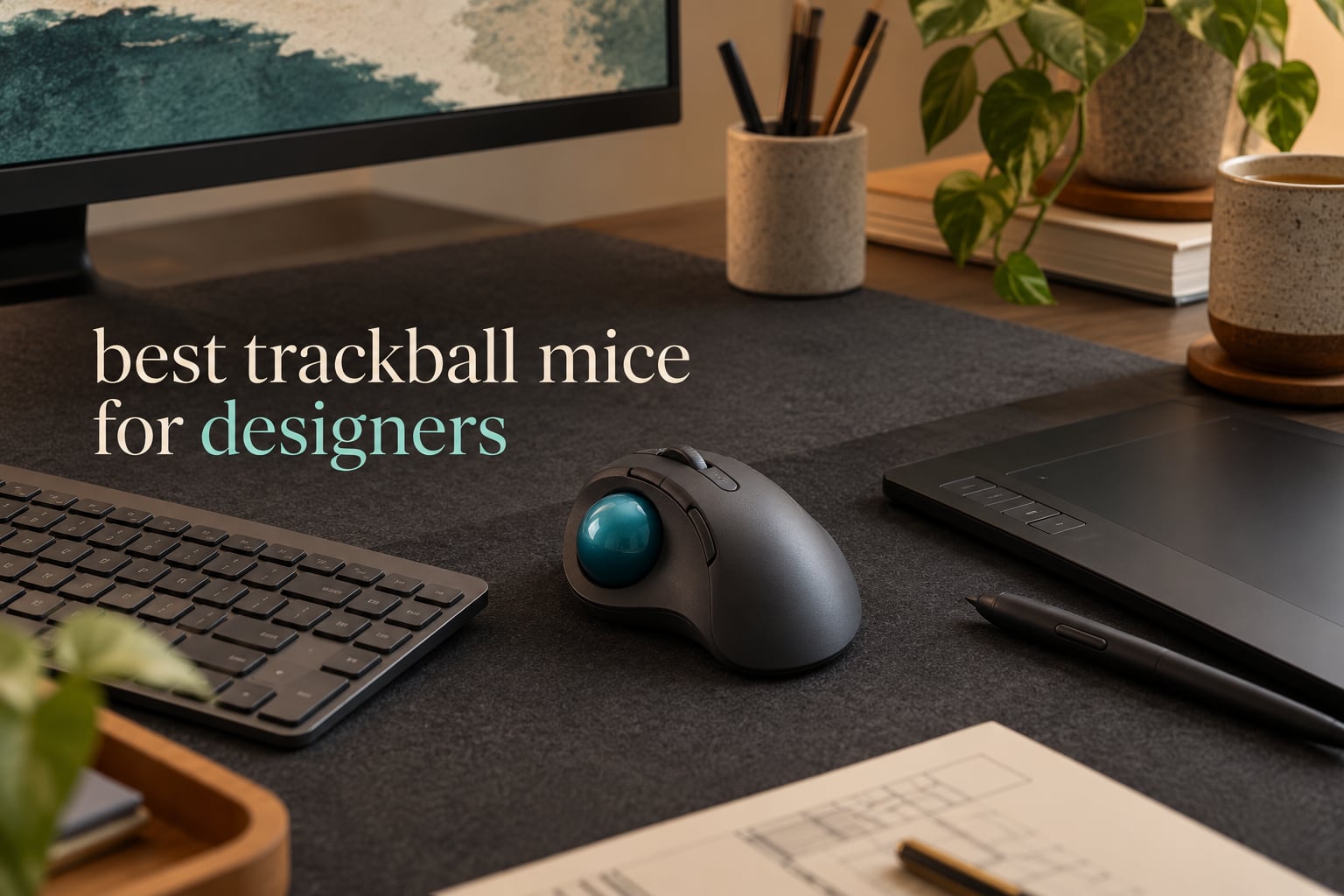
The best trackball mice for designers are not the ones with the longest spec sheets. They are the ones whose ball size, button count and scroll mechanism match the software you actually open every morning. A designer moving between Photoshop, AutoCAD and a Figma canvas needs something very different from a generalist ergonomic mouse, and the difference comes down to three things: how finely you can place a cursor, how many shortcut buttons you can remap, and how cleanly the device scrolls a long canvas or timeline.
Our team compared ten trackballs across the full range, from ambidextrous shells that suit either hand to 52mm index-finger monsters built for CAD drafting. We looked at ball diameter, button count, DPI ceilings, polling rate, connectivity, bearing type and the software that handles button mapping. Several of these picks are the same family of devices we cover in our general trackball mouse roundup, but here we sort them around design work specifically.
One thing worth clearing up first. A trackball does not move. The body stays welded to your desk and an internal optical sensor reads the rotation of the ball as your thumb or fingers roll it. That means no forearm travel across a pad, and it means a very small footprint, which is exactly why so many designers pair one with a pen tablet on the same desk. If you want the wireless-only shortlist, our wireless trackball guide covers that side.
Top 3 Picks for Design Work in 2026
Three models cover most design desks. The Logitech Trackman Marble wins on proven ambidextrous reliability, the Kensington Expert Wireless owns CAD and architecture drafting, and the ELECOM Huge gives the finest cursor placement on a 52mm ball.
Logitech Trackman Marble
- › Ambidextrous shell
- › 4 programmable buttons
- › Wired USB
- › 4.6 stars from 12009 reviews
10 Best Trackball Mice for Designers (October 2026)
All ten models we tested, with the specs that matter most when the cursor has to land on a single pixel or a snapping grid line.
| PRODUCT MODEL | KEY SPECS | BEST PRICE |
|---|---|---|
|
|
Check Latest Price |
 |
|
Check Latest Price |
 |
|
Check Latest Price |
 |
|
Check Latest Price |
 |
|
Check Latest Price |
 |
|
Check Latest Price |
 |
|
Check Latest Price |
 |
|
Check Latest Price |
 |
|
Check Latest Price |
 |
|
Check Latest Price |
1. Logitech Trackman Marble: The Proven Ambidextrous Choice
Logitech Trackman Marble Trackball Mouse – Wired USB Ergonomic Mouse for Computers, with 4 Programmable Buttons, Dark Gray
89 g
9 inch L x 3 inch W
4 programmable buttons
Optical trackball, wired USB or PS/2
+ The Good
- Ambidextrous sculpted shell works for either hand
- Four fully programmable buttons
- Zero-setup wired USB connectivity
- Large back and forward buttons
- Long track record of reliable build quality
- The Bad
- Wired only with no wireless or Bluetooth
- Only four buttons limits advanced shortcut workflows
- Older 4-button layout with no middle-click shortcut bank
The Trackman Marble is the oldest design here and still the one most people end up on. I have had one on the desk since a layout job years ago, and it has done everything since without a single driver fumble. That is the appeal: plug the cable into a USB port and the four buttons are immediately mappable through the standard Logitech control panel.
For design work, the ambidextrous sculpted shell is the deciding factor. Most trackballs are moulded for a right hand only, which quietly rules them out for a large share of designers. This one works equally well from either side, so if you alternate hands during a long session or are simply left-handed, nothing else on this list is as safe a starting point.
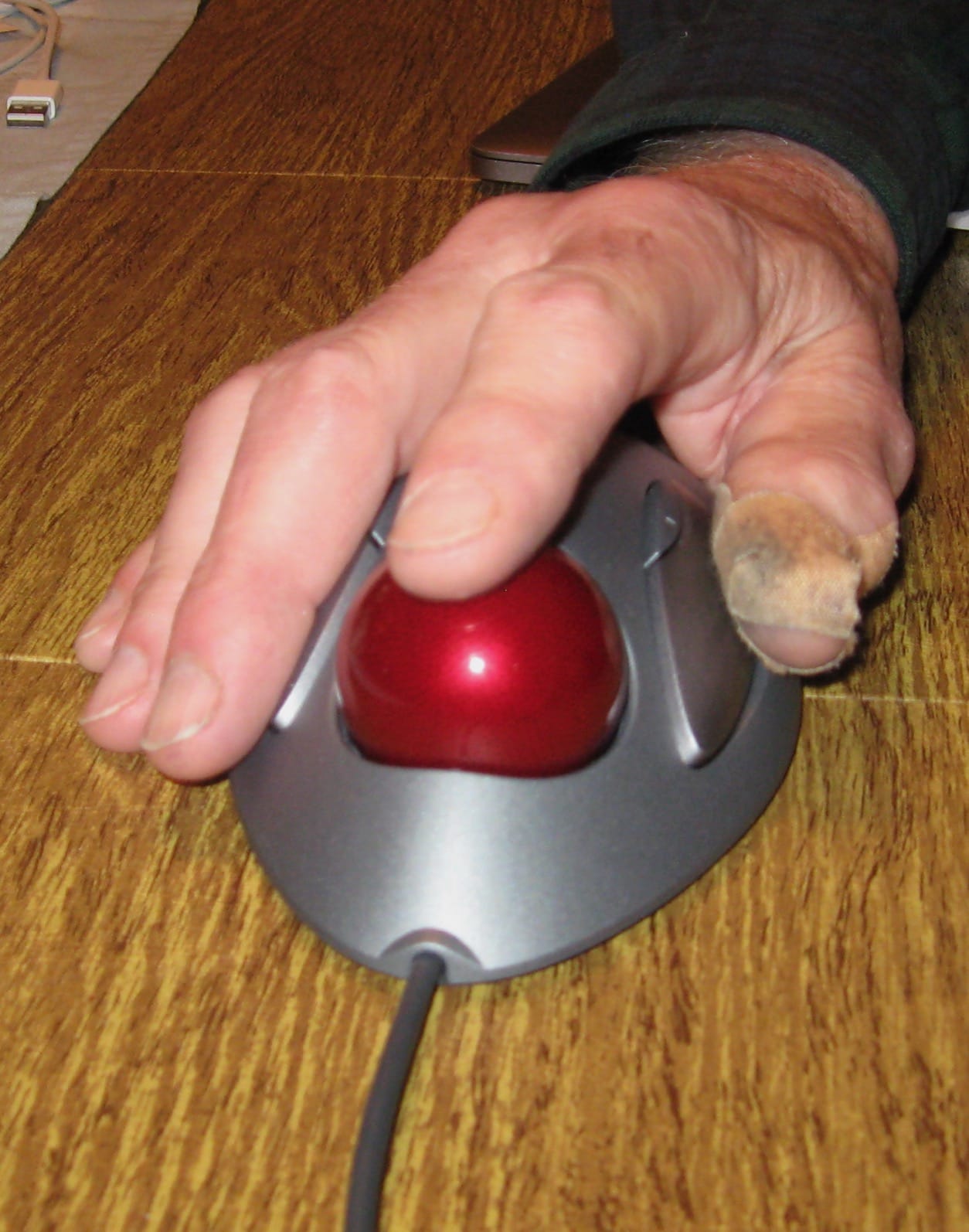
The 89 g body and 9 inch by 3 inch footprint make it the least intrusive object on the desk, which matters when your drawing area is already crowded. It needs no flat surface under the ball, so you can park it right up against the edge of a desk and rest your forearm on the surface as you would with a conventional mouse.
Where it falls short is modern. Four buttons is thin for a shortcut-heavy Photoshop or AutoCAD workflow, where designers routinely want forward and back alongside tool shortcuts and a pan key. There is also no wireless option, so you are routing a cable across the desk to the machine, which is awkward on a laptop-only setup.
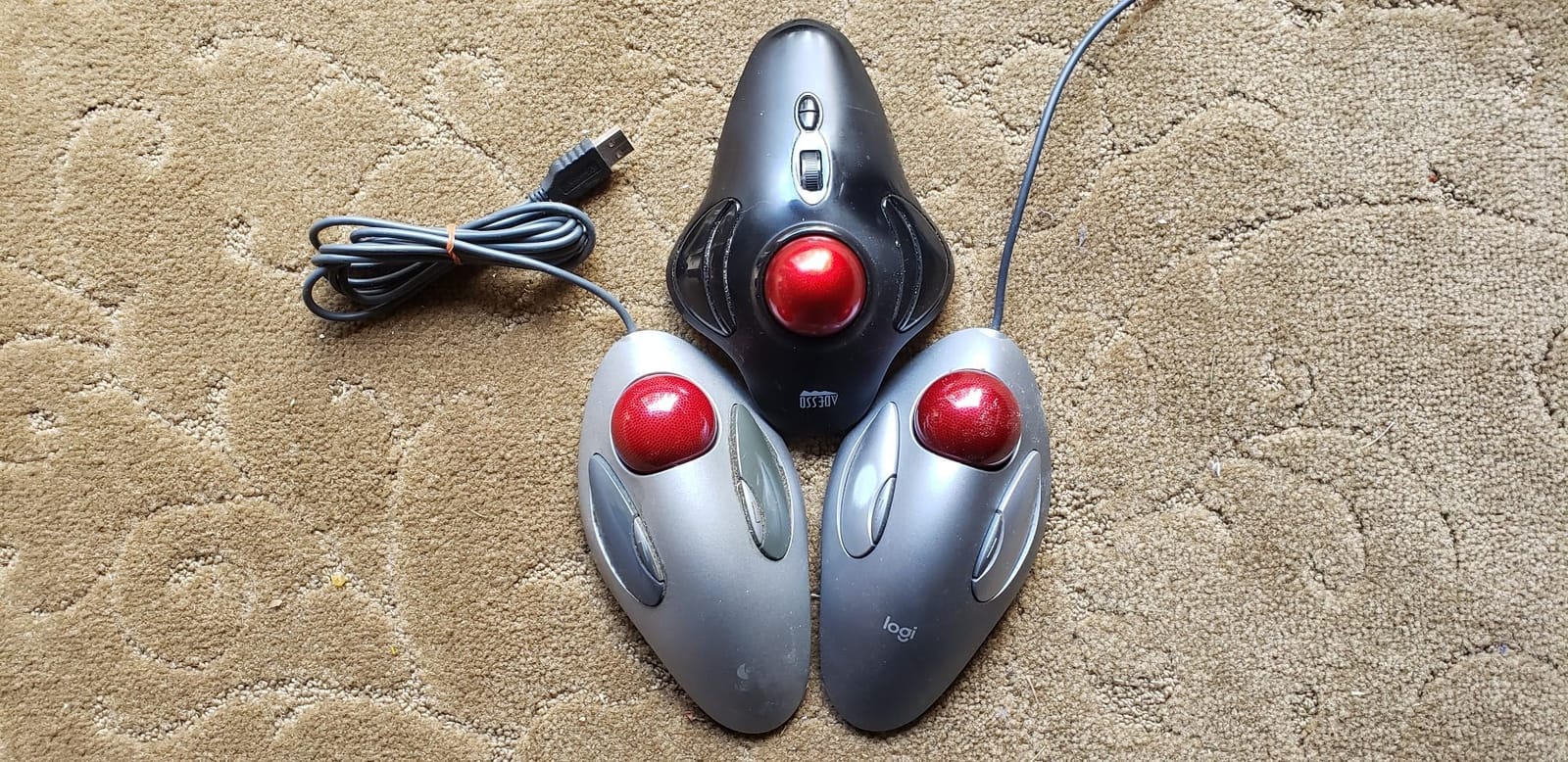
How it handles Photoshop precision work
Cursor placement is smooth and predictable, which is what matters when you are setting a pen path or nudging a layer mask by a few pixels. At 4.6 stars across more than 12000 reviews, it is the most thoroughly proven trackball in the category, and that consistency shows up in the feel of the optical sensor.
What it will not do is give you the scroll ring or tilt wheel that a long canvas or timeline really wants. You are back to pushing the ball to scroll, or mapping a button to a scroll function in software.
Who should pass on it
If your design work is shortcut-driven and you want eight or ten remappable keys, this is the wrong shape of tool. Anyone building a Figma or Illustrator workflow that leans on tool-switching will find four buttons limiting within a week.
Wireless-only desks should also look elsewhere. If a single cable across the desk ruins your layout, the Logitech Ergo M575S further down covers that ground with a much smaller learning curve.
2. Logitech Ergo M575S: Best Value Thumb Trackball
Logitech Ergo M575S Wireless Bluetooth Trackball Mouse – Graphite Blue Ball
Thumb-operated
3 customizable buttons
Bluetooth and Logi Bolt
2000 DPI cursor speed
+ The Good
- Ergonomist-certified sculpted shape reduces forearm strain
- Quiet clicks work well in shared studios
- Logi Options+ gives per-app cursor speed profiles
- Up to 18 months on one AA battery
- Smooth high-resolution ball
- The Bad
- Battery operated rather than rechargeable
- Logi Bolt receiver will not pair with older Unifying peripherals
- One year warranty
- Body runs large for small hands
The M575S is the easiest switch on this list, and that is not a small thing. Thumb-operated trackballs transfer almost directly from a conventional mouse because your thumb already knows how to roll something while the device stays still. Most people are drawing within a few days, which is why it keeps landing in recommendations for people who bounced off a larger trackball.
Logi Options+ is doing real work here. You can set separate cursor speeds and button actions per application, so a slow profile for Photoshop zoom-and-pan and a fast one for a Figma canvas is a couple of clicks apart. The 2000 DPI ceiling gives plenty of range for pixel-level work, and the quiet clicks are genuinely useful in an open-plan studio.
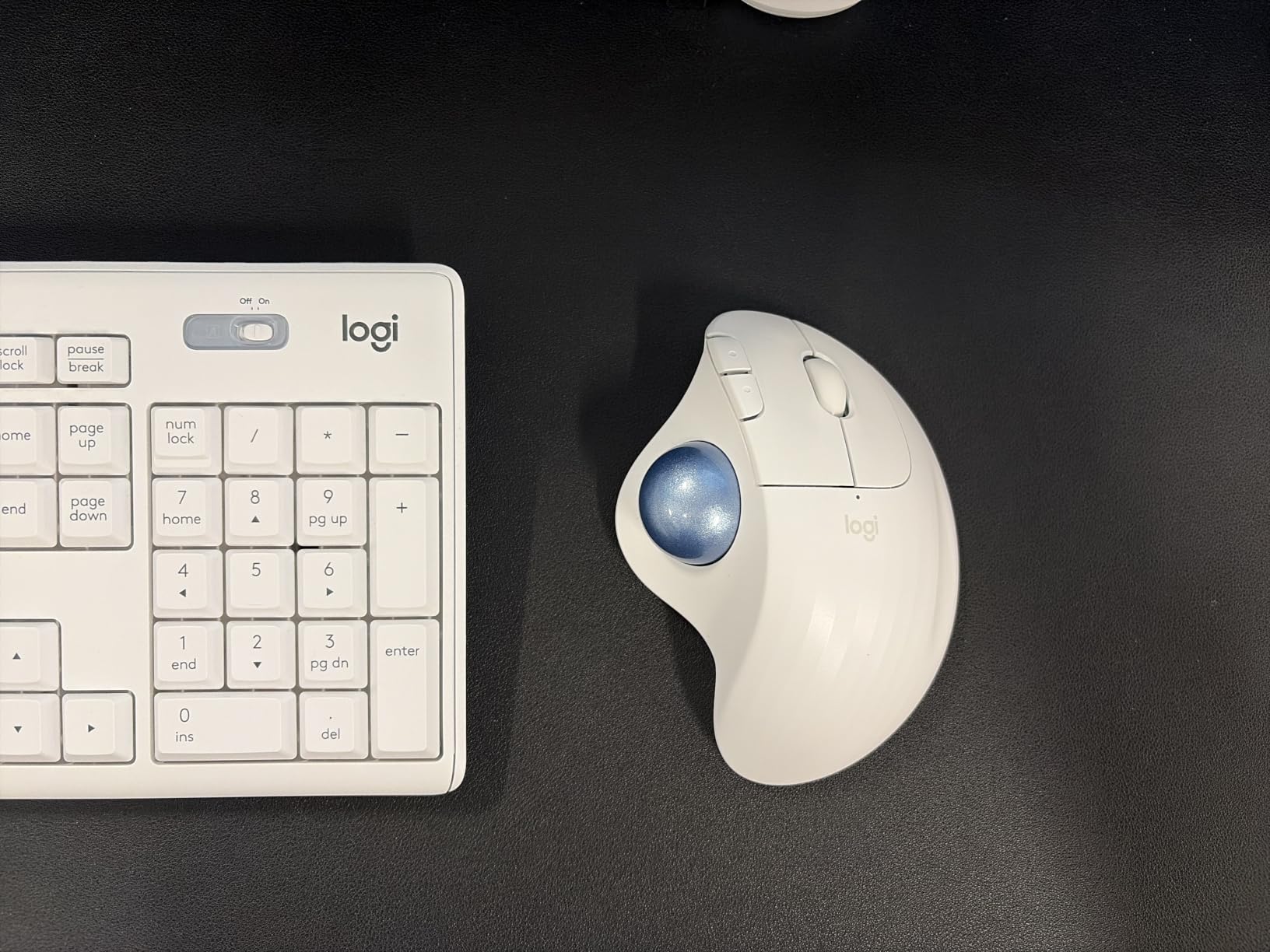
Logitech claims 25% less muscle strain in the forearm, and the sculpted thumb-operated body is what produces that. Unlike the original ERGO M575, this S revision runs on the newer Logi Bolt receiver and carries a one year hardware warranty rather than three.
That is the real trade-off to weigh. It is a compact, tidy, wireless device that will not distract you, but three customizable buttons is not enough for a serious shortcut bank, and the body runs large enough that small hands report trouble reaching the forward and back keys.
Where it fits a design workflow
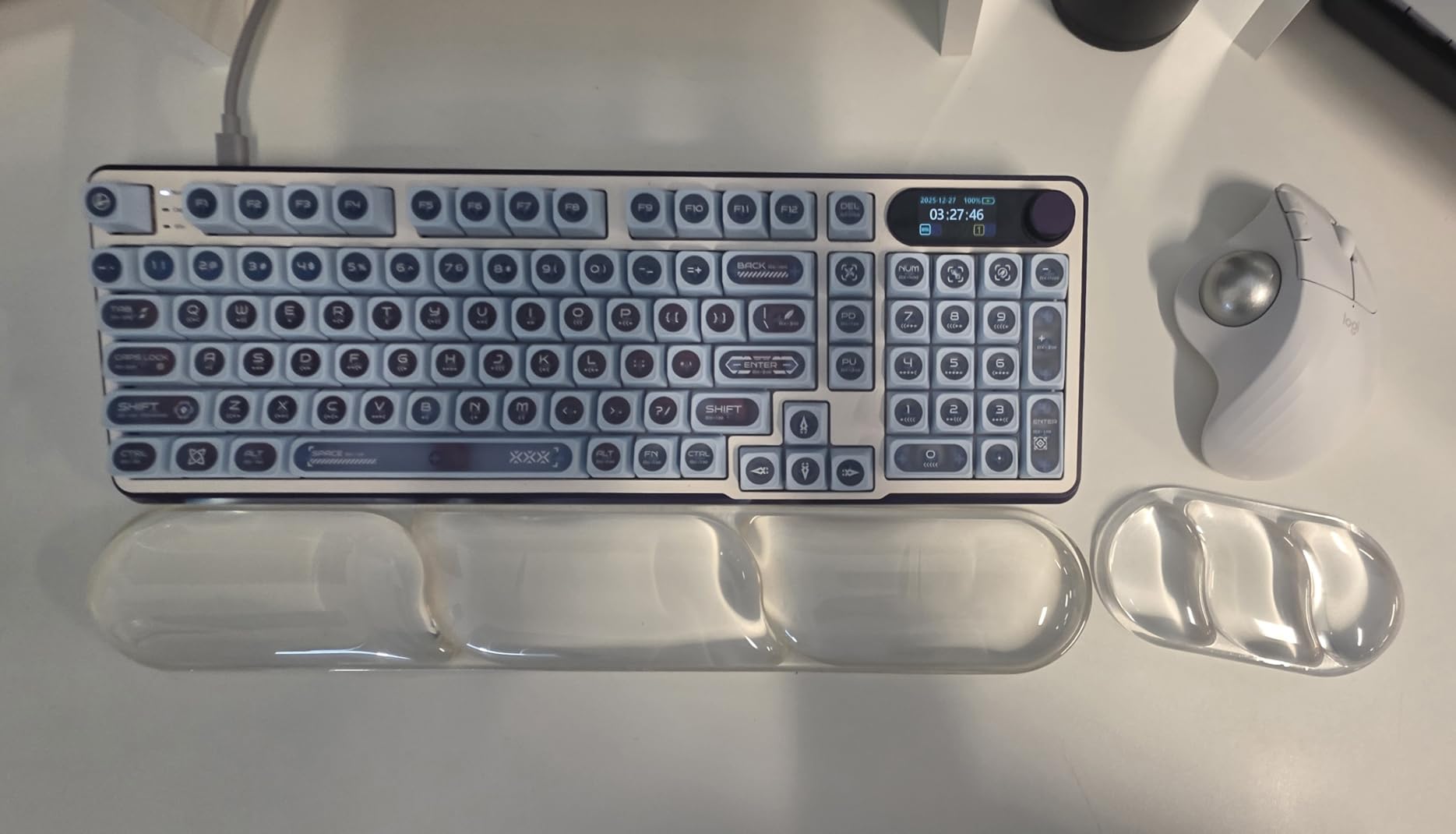
Think of it as the scrolling and shortcut companion to a pen tablet, not as the primary precision device. Designers with a Wacom or similar tablet commonly park the M575S on the non-drawing side, where the two forward and back buttons handle canvas navigation and tool switching while the stylus does the drawing.
If your whole day is Photoshop and nothing else, three buttons will feel thin. If you split your time between several apps and mostly need clean canvas panning, it is more than adequate.
What to know before buying
It runs on a single AA battery for up to 18 months, which is convenient until you realise the ball still needs cleaning periodically regardless. Users migrating from older Logitech wireless gear may need to run two receivers side by side, since Bolt does not pair with Unifying peripherals.
Anyone with small hands should try it in a shop first. The shape is comfortable for most people, but the button placement is not universal.
3. Kensington Orbit: Best for Left-Handed and Alternating-Hand Use
Kensington Orbit Trackball Mouse with Scroll Ring (K75327WW), Black-Grey
5.46 inch L x 4.51 inch W
5.6 oz
2 programmable buttons
Optical tracking, wired USB
+ The Good
- Scroll ring is smooth and intuitive for long canvases
- Ambidextrous shell suits either hand
- Detachable wrist rest for long sessions
- Five year warranty
- Light and portable
- The Bad
- Only two programmable buttons
- Medium ball size gives less precision for pixel work
- Wired only with no wireless
- Hollow-feeling plastic shell
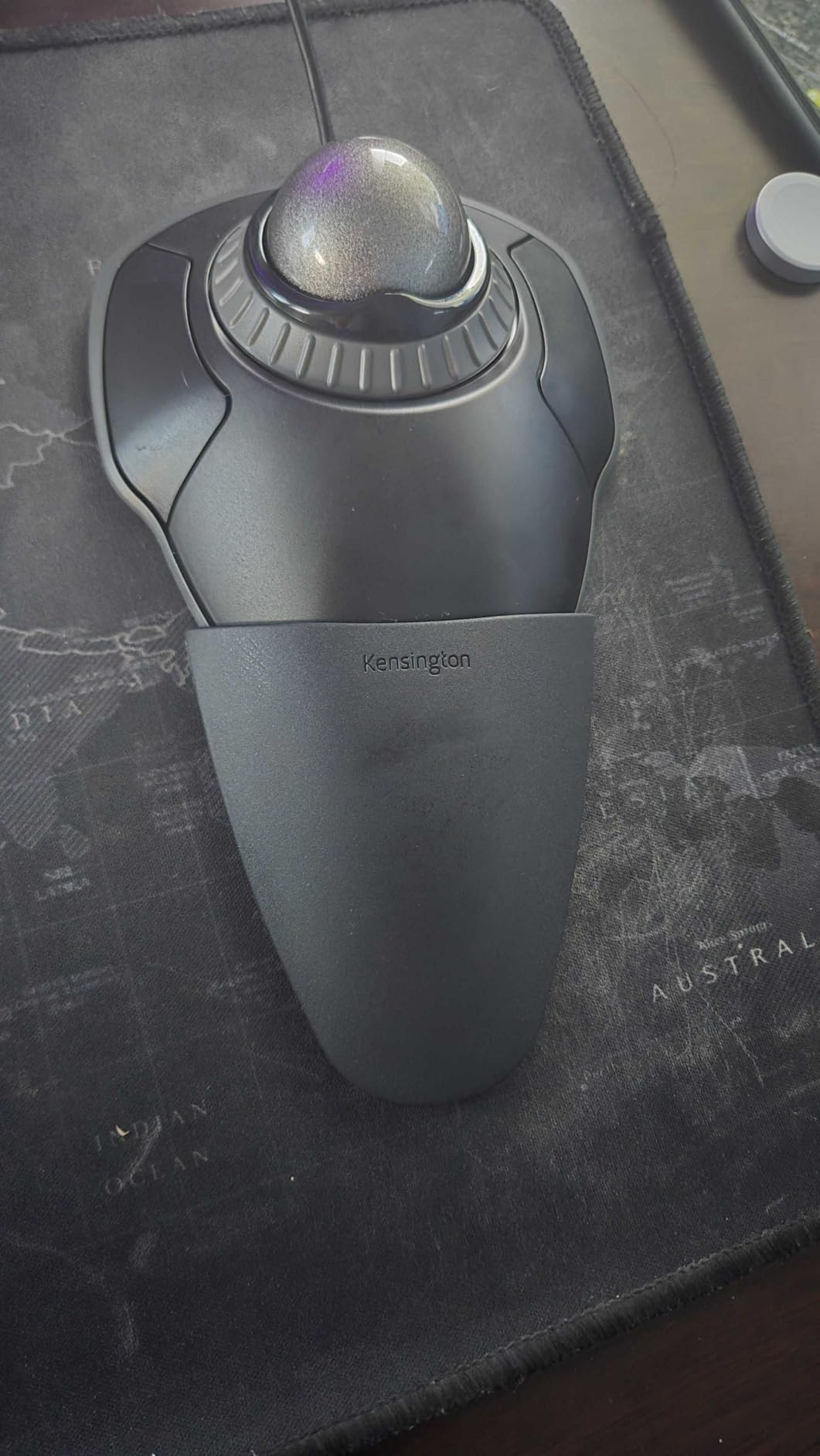
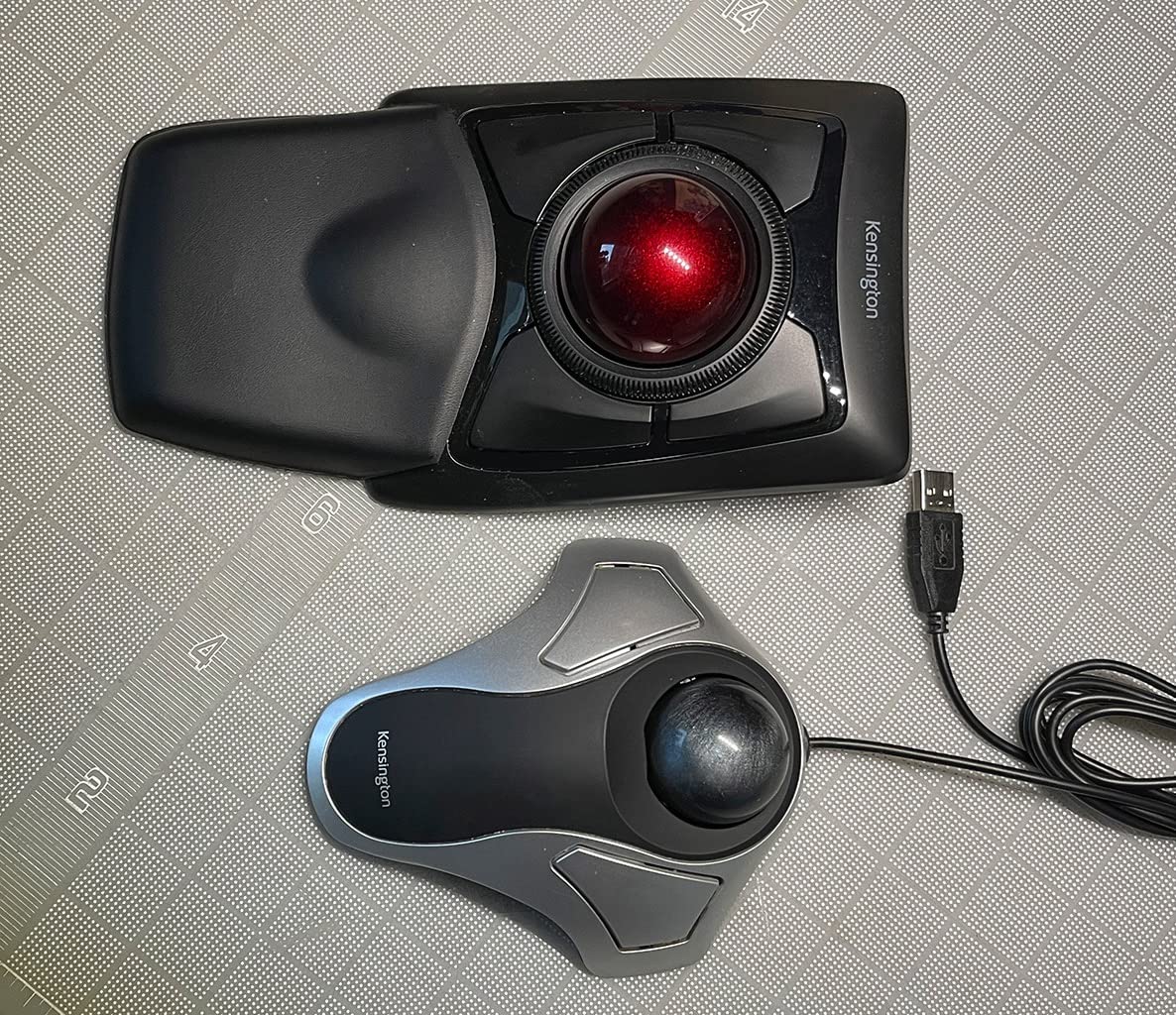
The Orbit’s defining feature is the scroll ring encircling the ball. Rotate the ring and the page or canvas moves; it is a free-spinning ring rather than a detented wheel, so long documents and long horizontal artboards scroll with far less wrist effort than a conventional wheel demands.
For design work, the ambidextrous shell matters just as much as the ring. The ball sits centred in a symmetrical body, so the device behaves identically for a left-handed designer or for someone who switches hands halfway through a session to relieve fatigue. Kensington TrackballWorks handles button and speed assignment, though with only two buttons there is not much to assign.
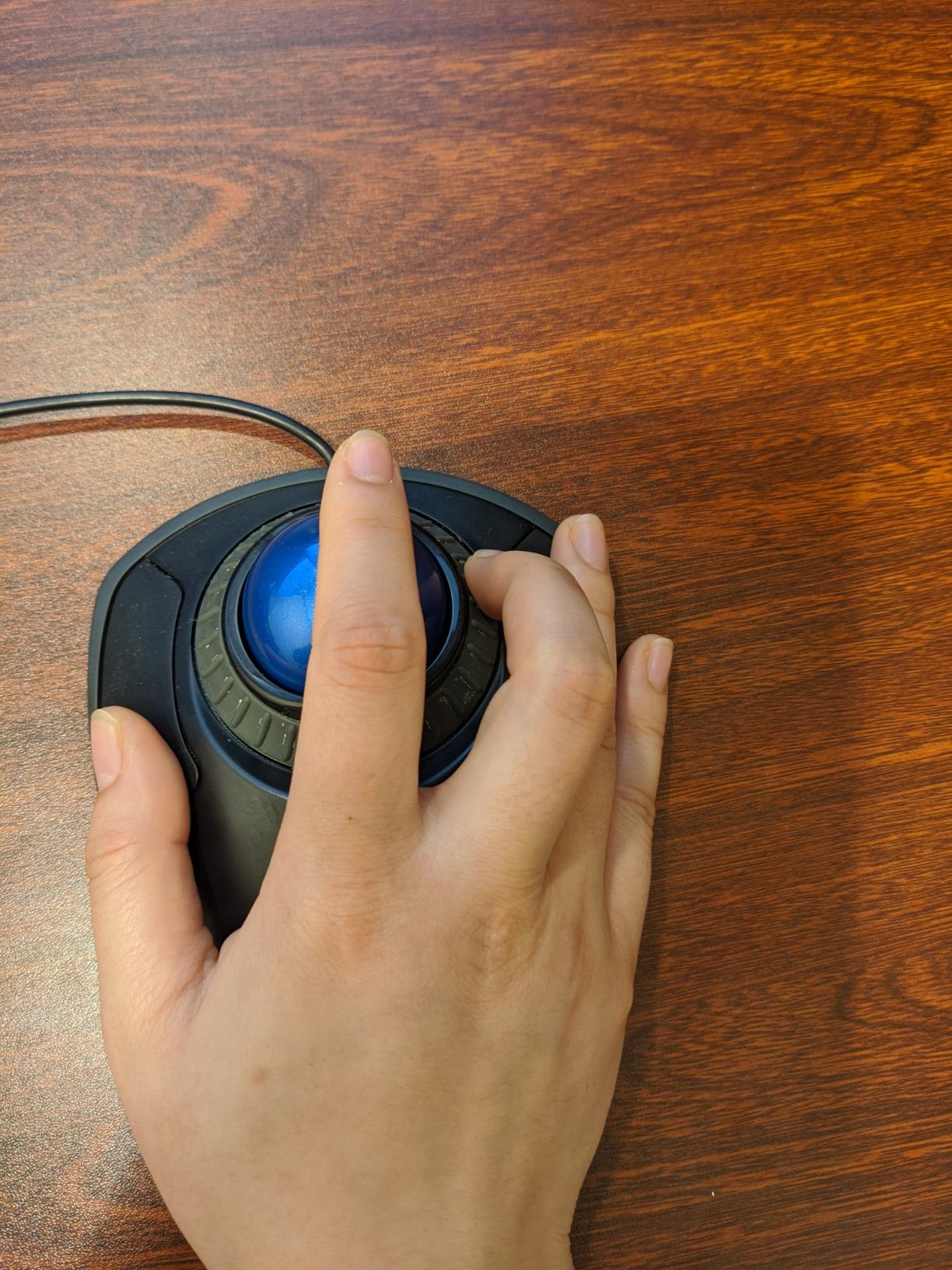
The detachable wrist rest is a nice touch for a long session, and at 5.6 ounces the whole thing disappears under your hand. Buyers consistently single out the ring as the smoothest scroll mechanism they have used on any trackball, which is why this model has such a large review count at 4.3 stars.
The compromise is precision. A medium ball gives you less travel per rotation than a 52mm or 55mm model, so fine selection work and tight CAD snapping take more effort. The build also reads as lighter and more hollow than premium bodies, with buttons that reviewers describe as imprecise under the finger.
Whether the scroll ring helps or hurts design work
For a designer moving down a long timeline, a tall canvas or a dense artboard, the ring is a genuine upgrade. There is no detent to fight, and the vertical movement is far faster than pushing the ball, which is the usual fallback on smaller trackballs.
Reviewers do warn that the ring is easy to brush by accident during fast work, and it sits close enough to the primary click that a careless thumb roll can send your canvas flying. You get used to it, but it is a real adjustment.
Who should choose this model
Left-handed designers and alternating-hand users have very few genuine options in this category, and this is the cleanest one. It also works well for students and anyone setting up a first design desk where a light, compact, wired device is enough.
Skip it if your work depends on tight cursor placement or a bank of remappable shortcut keys. Both of those push you toward a larger ball and more buttons.
4. ELECOM Huge: Best for Fine Cursor Precision
ELECOM Huge Trackball Mouse, 2.4GHz Wireless, Index Finger Control
52mm ball
8 buttons with tilt wheel
500 / 1000 / 1500 DPI
2.4GHz wireless, 3 x 2.5mm ruby bearings
+ The Good
- Very large 52mm ball allows both fast sweeps and fine placement
- Index finger control is more refined than thumb operation
- Eight programmable buttons with five-function tilt wheel
- Ruby bearings resist dust and clean less often
- Strong wireless latency and 325 day battery life
- The Bad
- Steep learning curve coming from a mouse
- Very large footprint that suits big hands only
- Right hand design only
- Scroll wheel position crowds the left click
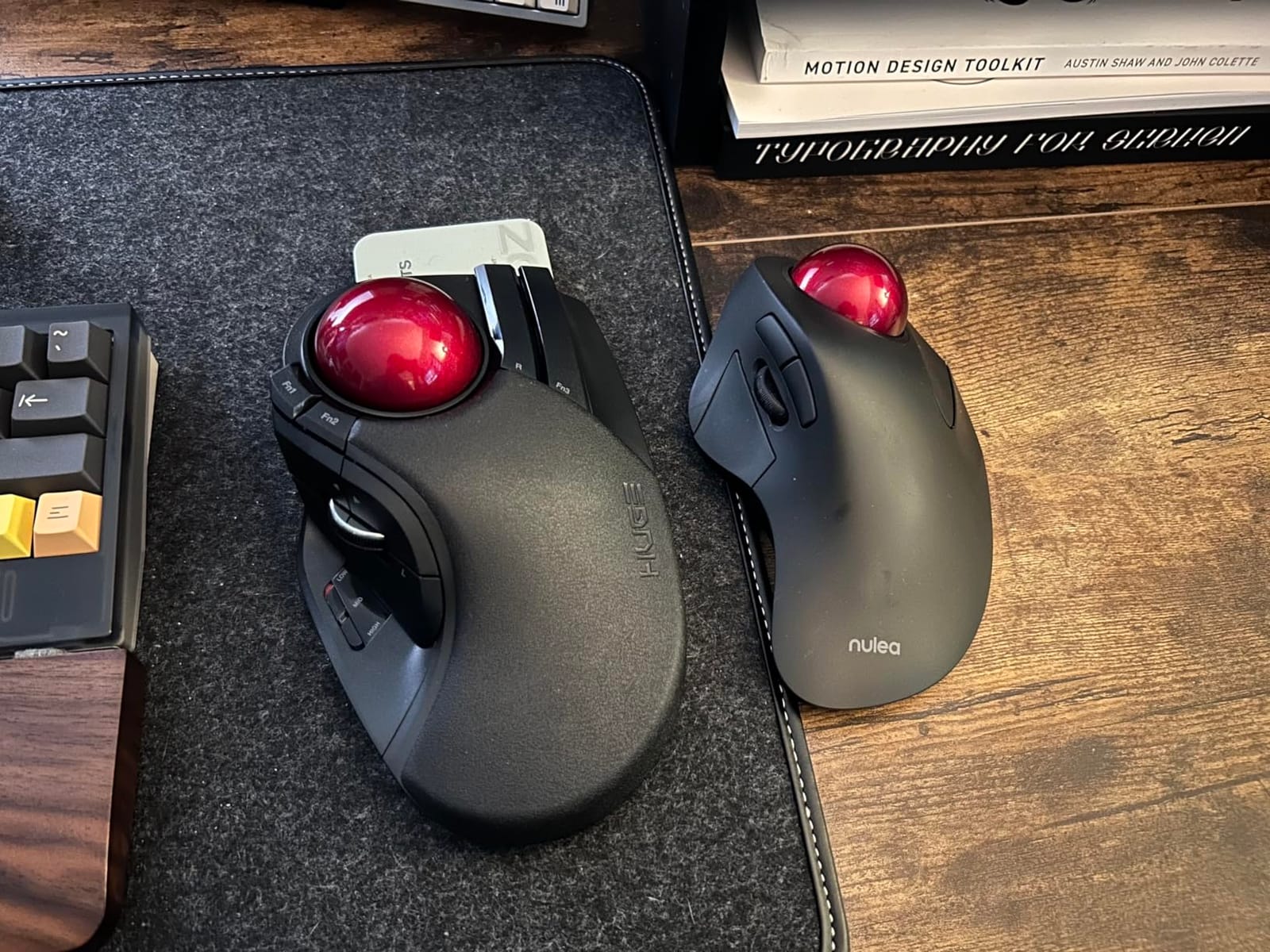
The Huge is the first model on this list that feels like a precision instrument rather than a pointing device. A 52mm ball driven by your index finger gives you enormous travel per stroke, which means a big canvas sweep and a two-pixel nudge come from the same motion, just scaled differently.
That is exactly the property CAD and precision retouching need. Enthusiasts in professional CAD, BIM and editing work repeatedly name the ball size as the reason this model performs for linework, where snapping to a grid or an endpoint demands a very controlled, slow movement.
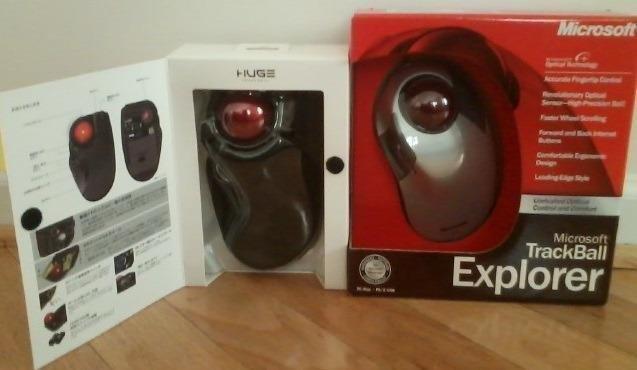
The button bank is the other headline. Eight physical buttons including a five-function tilt scroll wheel, with three switchable DPI levels at 500, 1000 and 1500. The three 2.5mm artificial ruby bearings resist dust and dirt, which is a real practical advantage over static support points that need daily attention.
Wireless runs on 2.4GHz with up to 10 metres of range on a non-magnetic surface, and two AA batteries give a listed battery life of up to 325 days. There is a large soft palm rest underneath for reducing fatigue over a long drafting session.
How the index-finger ball behaves under a design load
Precise, and demanding. Finger operation means the ball is driven by muscles that spent the day typing and clicking shortcuts, so the first week feels genuinely wrong and many people quit. Budget two weeks before deciding, and keep your old mouse plugged in while you train.
Once trained, the reward is control you will not get from a thumb trackball. The scroll wheel doubling as a middle click is useful in CAD for orbit and pan, though reviewers note the position crowds the primary click and the underside sensitivity slider is awkward to reach mid-session.
Where this model frustrates people
At 4.5 inches wide and 7.2 inches long, this is the largest footprint in the group, and users with small hands report real difficulty. The design is right-handed only, which excludes a chunk of designers outright.
There is one more catch. ELECOM software has to stay running for button functions to work, and the documentation is poor, so expect some setup friction before the eight buttons do what you mapped them to do.
5. Logitech MX Ergo S: Best for Quiet Long Sessions
Logitech MX Ergo S Advanced Wireless Trackball Mouse USB C – Graphite
20 degree tilt
6 customizable buttons
Bluetooth and Logi Bolt
USB-C quick charging
+ The Good
- 20 degree tilt visibly improves forearm posture
- Speed and precision toggle button suits both zoom and pan
- Six customizable buttons with per-app Smart Actions
- One minute of USB-C charging gives up to a day
- 80 percent quieter clicks
- The Bad
- Premium price against other thumb-operated options
- Charging cable not included
- Body is bulky for small hands
- Full button control needs the Logi Options+ app
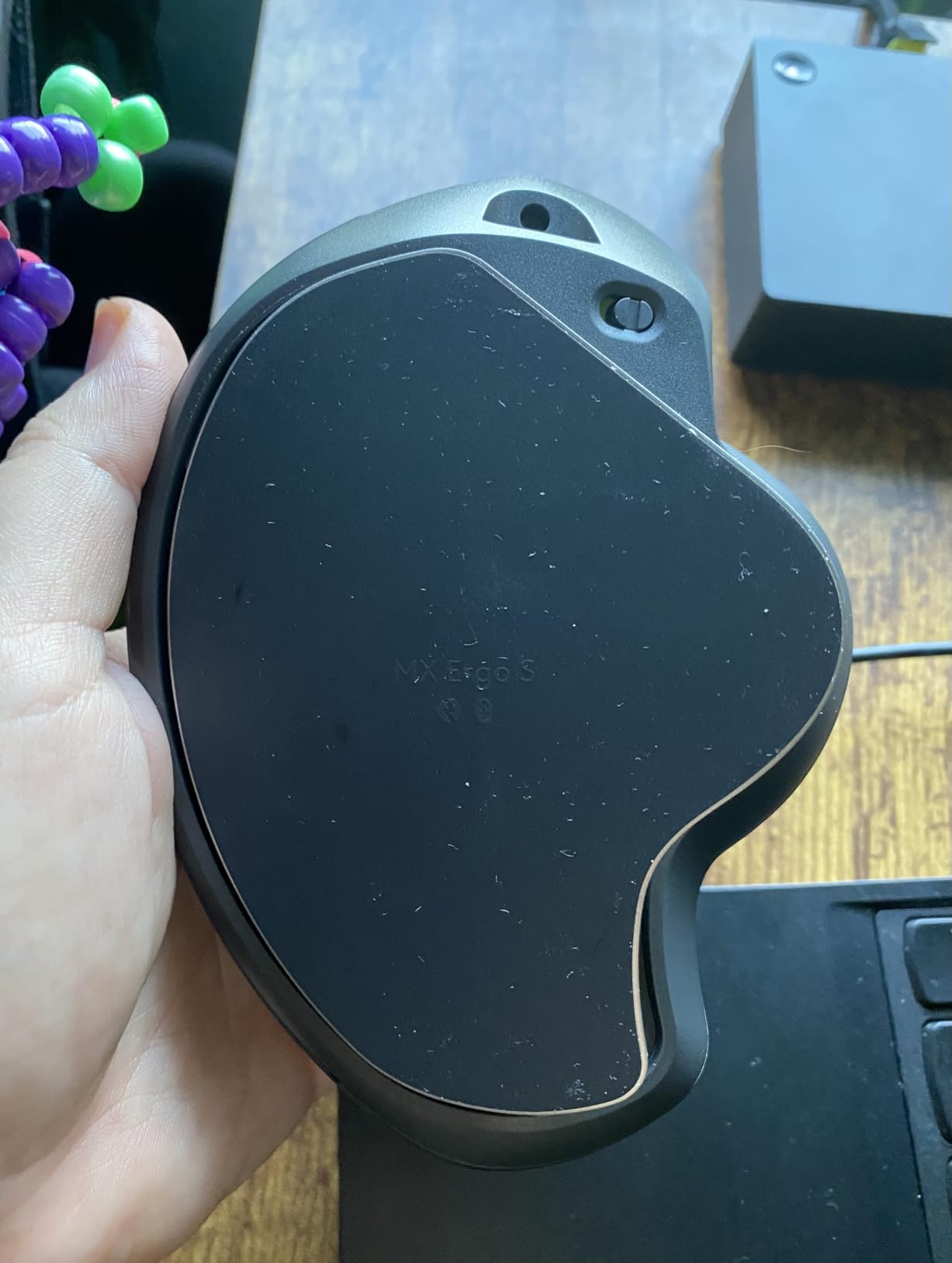
The MX Ergo S is the tilt device. Its 20 degree angle is the main ergonomic upgrade over flatter thumb trackballs, and Logitech quotes a 27 percent reduction in muscle strain from that angle alone. On a desk where a designer spends six hours a day, the difference in forearm posture is the thing you feel at the end of the week.
Logi Options+ exposes six customizable buttons, shortcuts and Smart Actions, which is a real upgrade over the M575S. You can hold a slow profile for pixel-level mask work and flip to a fast one for a large canvas without digging through menus.
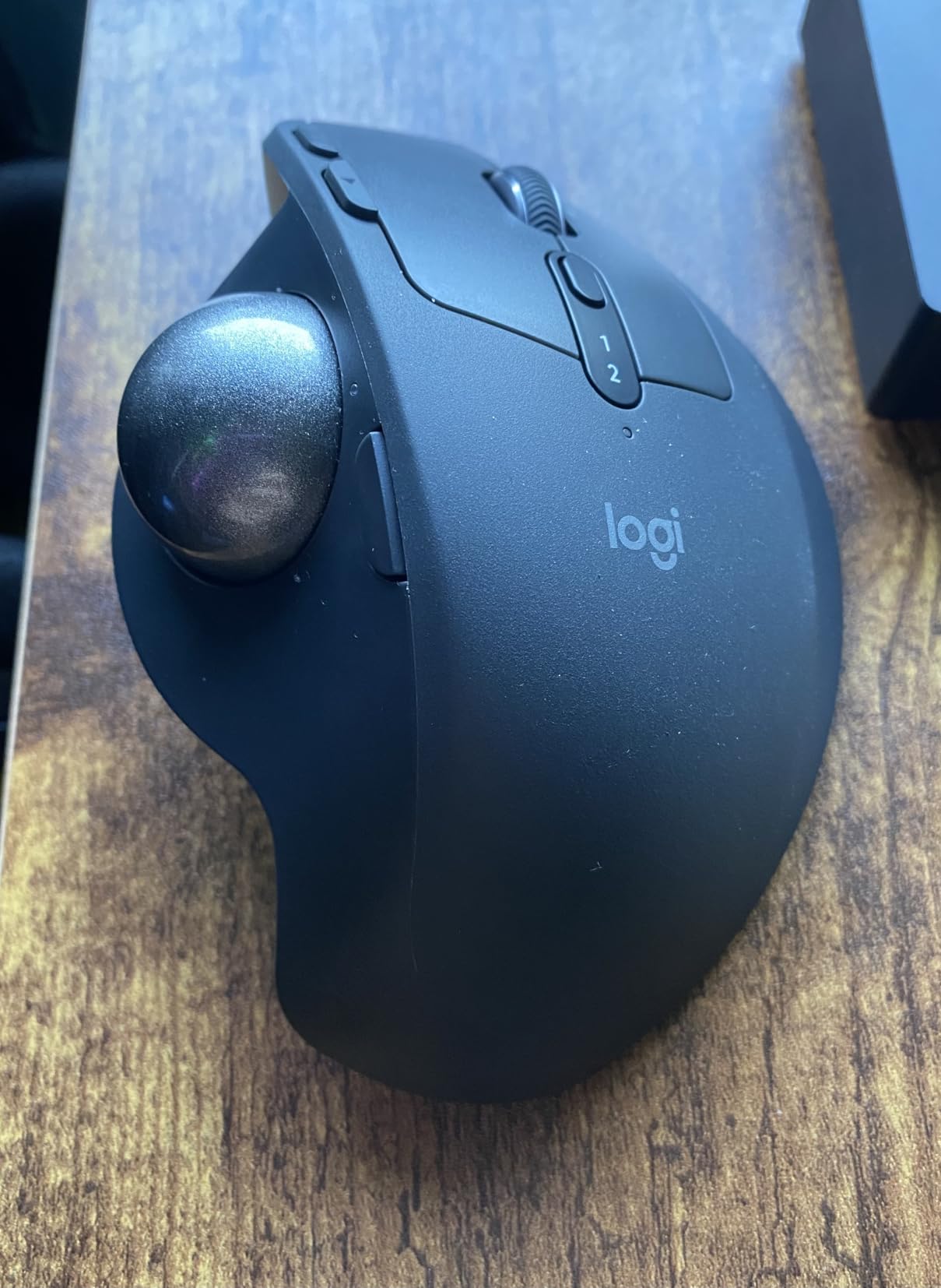
The tap-to-switch precision and speed button is the quietly clever feature. One press halves the cursor speed for careful work, another press restores it for fast movement across a wide document, without opening any software at all.
Power comes from a rechargeable cell with USB-C quick charging. A single minute of charge gives up to 24 hours of use and a full charge runs up to 120 days, and it works over Bluetooth or the Logi Bolt receiver with an Easy-Switch button for jumping between machines.
Whether it suits Photoshop and Illustrator work
Yes, particularly if your sessions are long. Six programmable buttons is enough for a tool switcher, a zoom control and forward and back, and the Smart Actions system handles per-application profiles so Figma behaves differently from Illustrator without manual reconfiguring.
The 2048 DPI maximum is a modest ceiling compared with the ELECOM models, but the precision toggle covers the fine work, and 80 percent quieter clicks make it the least disruptive device here in a shared or recorded workspace.
Reasons to skip it
It carries a premium price against thumb-operated alternatives that offer similar programmability, and the charging cable is not in the box. The body is also contoured for medium to large hands, so smaller hands may find it bulky.
If your budget stretches further and you want a wired option with a higher report rate, the ELECOM Huge Plus is worth a look. If you want to spend less and still get a good thumb device, the M575S covers it.
6. Kensington SlimBlade: Best for Video and Audio Editing
Kensington Wired SlimBlade Trackball Mouse (K72327U), Black
Extra-large ball
Ball-rotation scrolling
4 buttons plus 2 chords
Wired, laser tracking
+ The Good
- Ball-rotation scrolling is smooth and highly intuitive
- Exceptionally large ball for CAD and design precision
- Low profile angle reduces wrist tilt
- Four large buttons plus two chorded combinations
- TrackballWorks software is capable once installed
- The Bad
- Very high price for a wired device
- Ball is not retained and can be knocked out if dropped
- Click pressure varies across the large buttons
- Top buttons only work with the Kensington software running
The SlimBlade is the device editors ask about by name, and the reason is its scroll implementation. There is no wheel at all. You rotate the ball itself with one finger, which produces a continuous scroll with no detents and no ratcheting, and that maps unusually well to dragging a playhead along a timeline.
The ball is also exceptionally large, which reviewers consistently credit for precision in CAD linework and design work where you need a slow, controlled movement. The housing sits at a lower angle than the Expert Mouse, which reduces wrist tilt, and the ambidextrous body works from either side.
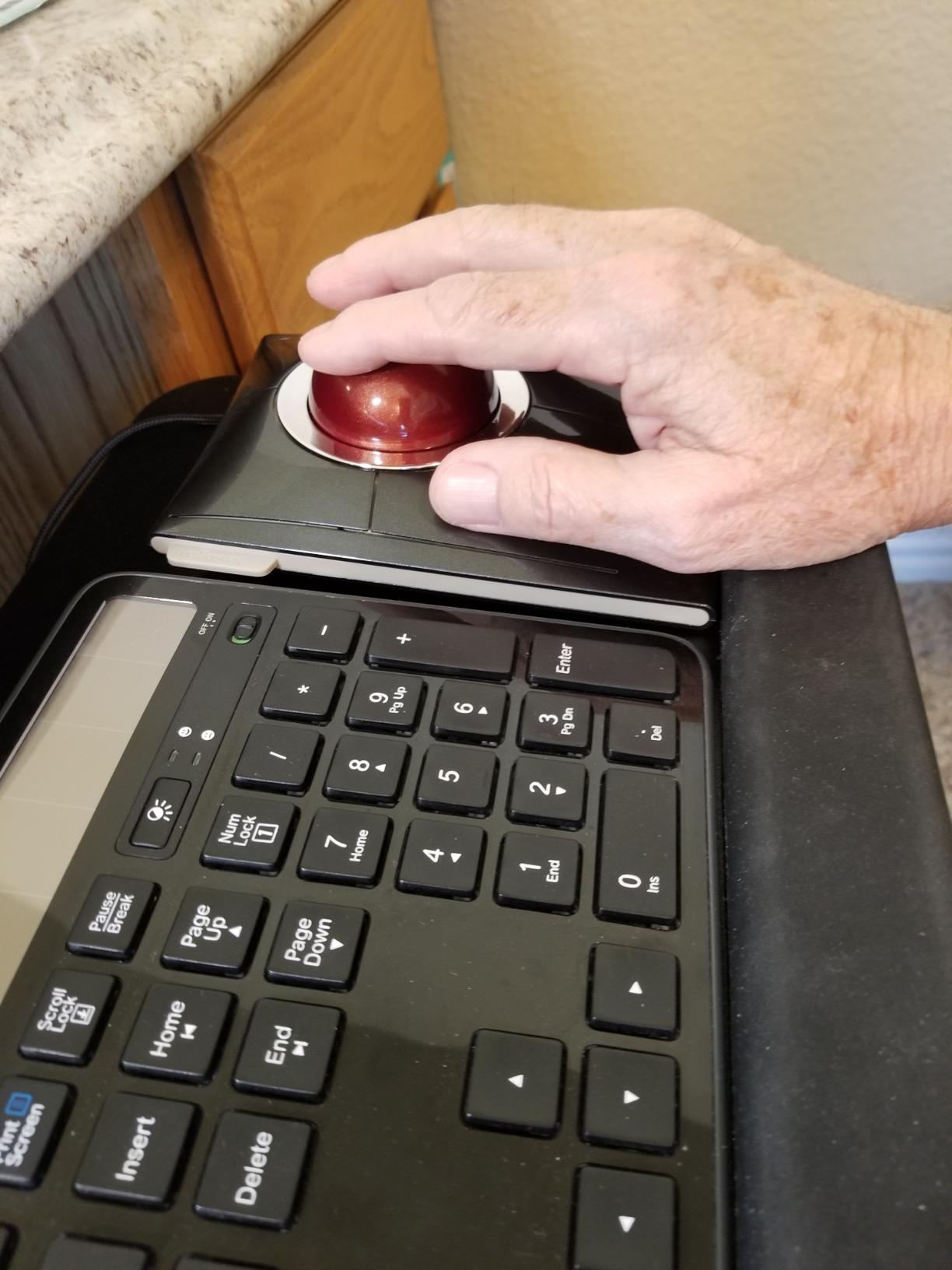
Four large click buttons plus two chorded combinations give six assignable functions, mapped through Kensington TrackballWorks. Long-term owners report well over a decade of continuous daily use, which is a durability record nothing else on this list can match.
The chorded buttons are the underrated part. Two simultaneous presses act as extra keys, which is how you get a shortcut bank out of an otherwise compact four-button layout, and that is exactly the trick a Premiere or Resolve user needs for tool and marker switching.

How scrubbing a timeline actually feels
Reviewers describe ball-rotation scrolling as the smoothest option they have used, and the Windows Report roundup on orbit-style trackballs singles out precision scrolling as the reason editors gravitate here. Fine nudge and frame-accurate moves come from small, controlled rotations.
It is worth noting the flip side. The ball is not retained, so a dropped unit can send it rolling, and the large click buttons do not have consistent actuation across their surface, which takes some getting used to before you trust a precise press.
Who should look elsewhere
Designers who need wireless, a scroll ring that stays out of the way during fast work, or a lower outlay should keep comparing. The wired-only connection and the software dependency for the top buttons are real constraints on a shared studio desk.
Cleaning is also a factor. Owners accept periodic ball and roller cleaning as normal upkeep rather than a defect, but if you are not willing to make that a routine, look at a model with sealed bearings instead.
7. ELECOM IST PRO: Best for High-Refresh Displays
ELECOM IST PRO Trackball Mouse, 6 Device Connection, 3 Way Connectivity, Bluetooth 5.3, Wireless 2.4GHz, Wired, 12,000 DPI Sensor, 36mm Ergonomic, 10 Custom Buttons, Silent Click, Swappable Bearings
36mm thumb-operated ball
12000 DPI PixArt sensor
1000Hz report rate
10 buttons, Bluetooth 5.3, 2.4GHz and wired
+ The Good
- 12000 DPI sensor with 1000Hz report rate
- Swappable steel and ruby bearings tune the ball feel
- Ten programmable buttons plus a tilt wheel
- Triple connectivity across six paired devices
- Silent switches and onboard profile memory
- The Bad
- High price against the feature set
- Runs on two AA batteries rather than a rechargeable cell
- Tiny steel bearings catch hair and need daily cleaning
- Back button sits beside the primary click and fires accidentally
This is the specification outlier in the list. A 36mm thumb-operated ball paired with a PixArt sensor rated up to 12000 DPI and a 1000Hz report rate puts it in a different performance class from the rest, and for a designer on a high-refresh display that gap is visible in how the cursor tracks.
Ten programmable buttons and a tilt scroll wheel make it the most configurable device here. There is onboard memory for storing button profiles, so a mapped shortcut bank survives moving to a machine where the ELECOM software is not installed, which solves a real problem on studio and client machines.
Connectivity is genuinely tri-mode, with Bluetooth 5.3, USB-C wired and 2.4GHz wireless, and it pairs with up to six computers, tablets and smartphones. Silent switches keep clicking discreet, and the bearings are swappable between steel and ruby so you can tune the ball feel to your taste.
At 4.1 stars from 185 reviews, the rating reflects a device that is ambitious and imperfect. The trackball is 156 g and measures 5.35 by 3.7 inches, and the ball itself is on the small side for the precision work this article is about.
In the box you get two AA batteries, a USB-C to USB-A cable and a universal USB receiver, so multi-device pairing works straight away. The 36mm ball is driven by the thumb, which keeps the hand close to a conventional mouse position and makes it the least disruptive of the high-spec options here.
Whether the sensor spec matters for design work
Only on a high-refresh display. A 1000Hz report rate removes the lag you would otherwise feel dragging a selection marquee on a 120Hz or 144Hz panel, and 12000 DPI gives a huge ceiling for very fine brush work at low pointer speeds.
For pixel-level retouching on a standard office monitor, the practical difference against a 2000 DPI model is small. This is a specification purchase, and you should be honest with yourself about whether your display can show the gap.
Reasons to think twice
The small steel bearings catch hair and lint and need daily cleaning, and replacement bearings are a specialty size at a premium price. Users also report the back button sitting right next to the primary click, causing accidental activations during fast drags.
Two AA batteries instead of a rechargeable cell, a right-hand-only shell and a very high price for the feature set round out a list of reasons to check the warranty terms carefully before committing.
8. Kensington Expert Wireless: Best for CAD and Architecture
Kensington Expert Wireless Trackball Mouse (K72359WW) Black, 3.5″ x 6.1″ x 8″
55mm ball with Diamond Eye optical tracking
Patented scroll ring
4 buttons
Bluetooth LE and 2.4GHz dongle
+ The Good
- Patented scroll ring is consistently rated the best available
- 55mm ball with Diamond Eye sensor for high precision
- Detachable wrist rest supports long sessions
- Wireless over Bluetooth LE and the included dongle
- Three year parts and labour warranty
- The Bad
- Only four programmable buttons
- Scroll ring activates easily by accident
- Static ball support points collect dirt and need frequent cleaning
- Weighs 1.4 pounds so repositioning takes thought
The Expert Wireless is the model most CAD and architecture users end up with, and the 55mm ball is the reason. It is the largest stated ball diameter in this group, and a bigger ball means more surface travel per degree of rotation, so a slow, controlled nudge and a full-canvas sweep are the same movement at different sensitivities.
The Diamond Eye optical sensor reads that rotation precisely, which is what makes tight linework and grid snapping feel controlled rather than twitchy. For drafting work where you are repeatedly zooming in to check a detail and back out again, that precision is the whole point.
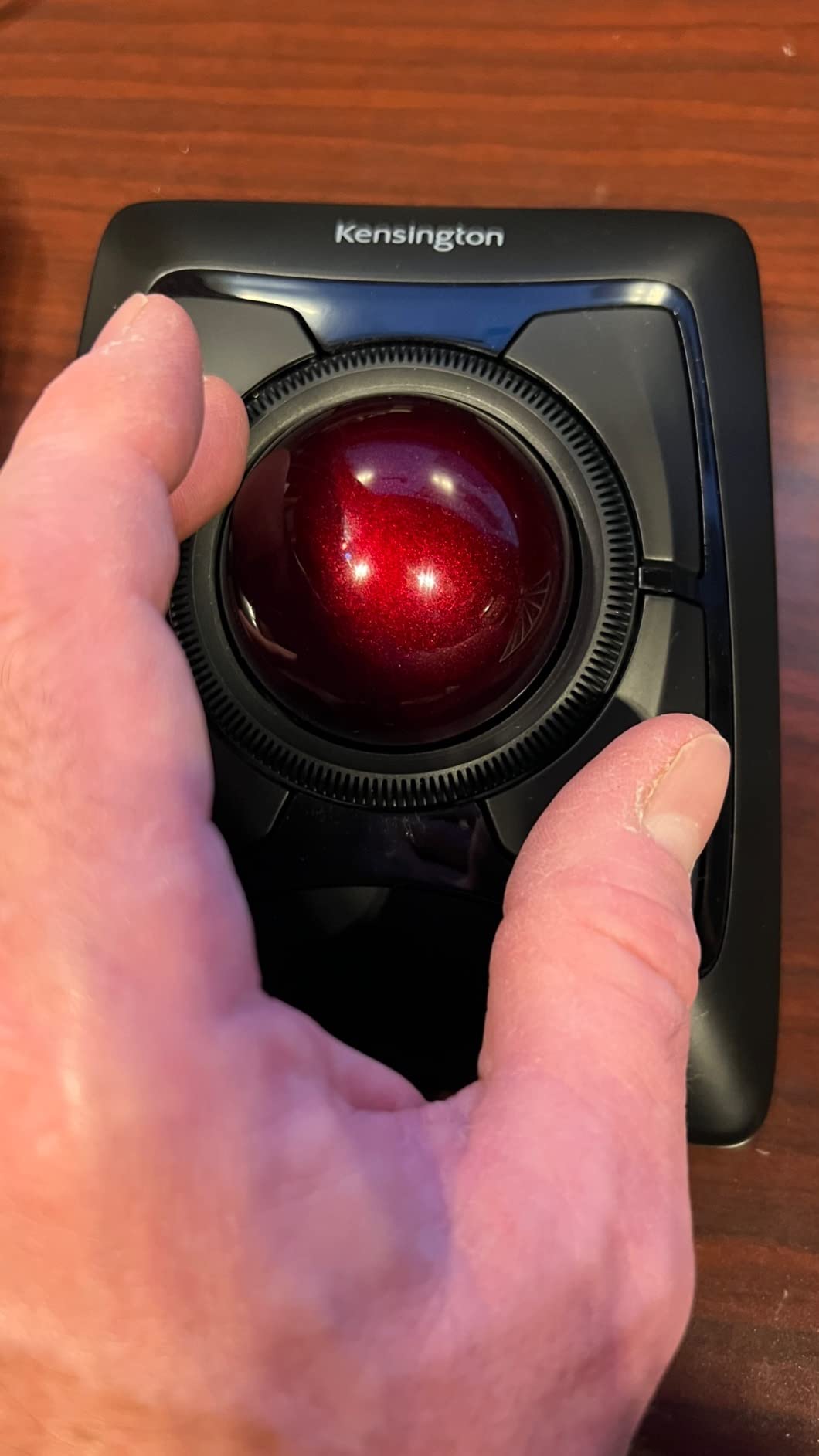
The patented scroll ring around the ball is the other half of the appeal. It spins freely with no detents, so scanning up and down a long drawing or a dense specification sheet is fast and low effort, and it is consistently described in reviews as the best scroll mechanism available on any trackball.
It works over Bluetooth LE or through the included 2.4GHz dongle, with an auto-sleep mode to conserve power, and the detachable wrist rest cradles the hand through a long session. Kensington covers it with three years of parts and labour plus lifetime technical support.
How it performs on a CAD workstation
Very well for viewport orbiting and linework, and the four-button layout is enough for the standard pan, zoom and orbit commands once you map them through KensingtonKonnect. The scroll ring is a natural fit for scrolling through drawing sheets and schedules.
Two honest caveats. The ring sits close to the click area and reviewers report it firing accidentally during fast work, and the software is Windows-centric, with no support for ARM-based Windows machines, which is worth checking before you commit if you are on a modern ARM laptop.
Who should skip it
Shortcut-heavy designers who want more than four keys. CAD purists who orbit constantly may also prefer a model with a dedicated middle click, since four buttons is a tight budget for remapping.
At 1.4 pounds this is the heaviest device in the group. It stays put, which is the point, but it is not something you will want to shift between a seated and a standing desk position without thinking about it.
9. ELECOM Huge Plus: Best for Multi-Device Desks
ELECOM Huge Plus Wireless Trackball Mouse, Ergonomic 52mm Large Ball, Multi-Connection Bluetooth, 2.4GHz Wireless, Wired, 10 Programmable Buttons, Rechargeable, Silent Clicks, for Windows PC Mac iPad
52mm index-finger ball
Tri-mode connectivity across 3 devices
10 programmable buttons
Rechargeable, 1000Hz polling in wired mode
+ The Good
- Roller bearings give a major precision upgrade over static designs
- Index finger control on 52mm ball with low jitter
- Ten programmable buttons with gesture support
- Rechargeable battery runs up to five months and works while charging
- Silent clicks that still feel tactile
- The Bad
- High price for a trackball
- Poor fit for smaller hands
- Scroll wheel feels cheap with weak detents
- Aggressive palm-rest slope offers little support
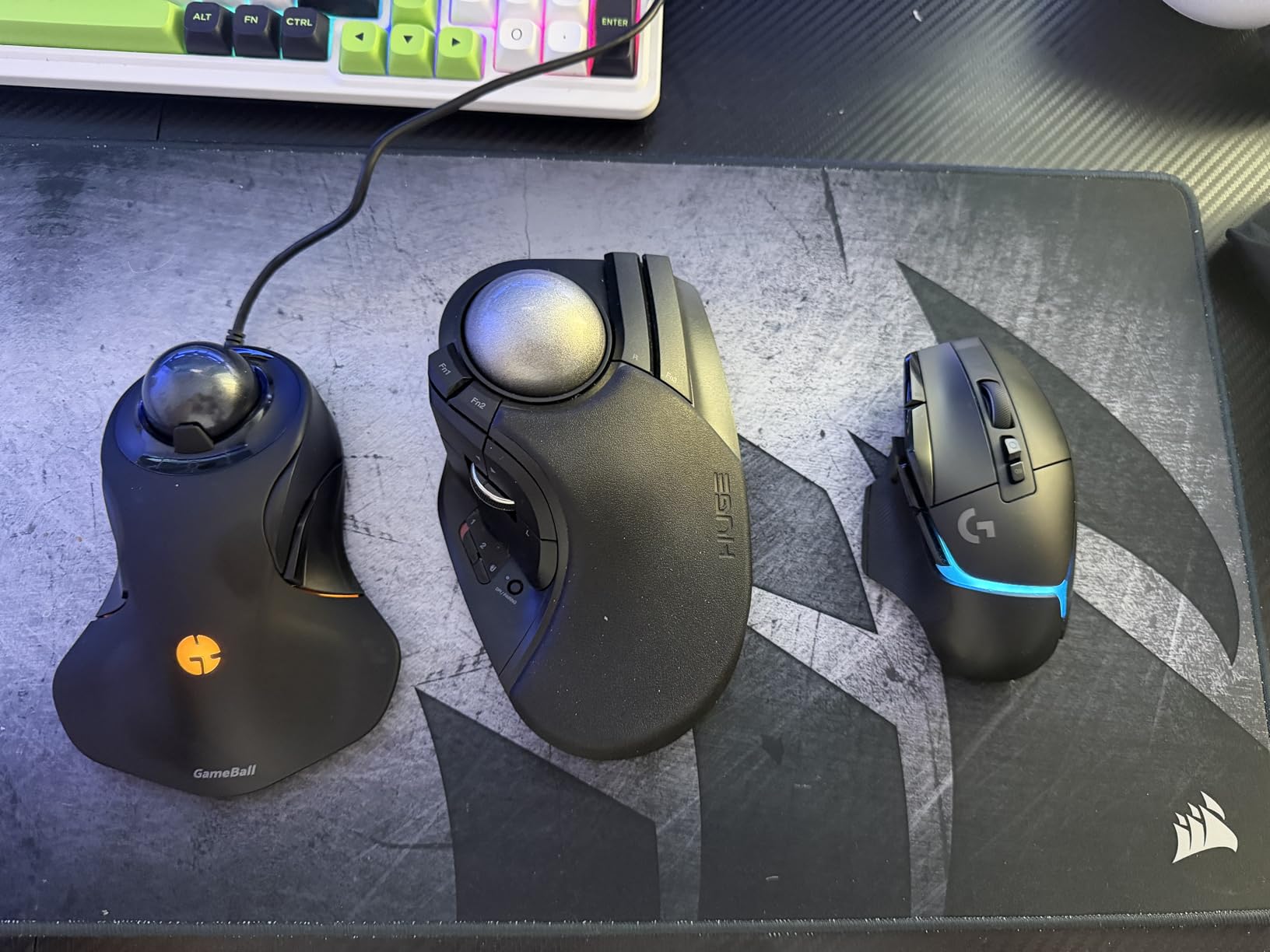
The Huge Plus fixes the single biggest complaint about the original Huge: the ball. Where the older model used three static support points that catch dust, this one runs on roller bearings, and reviewers describe the motion as a decisive precision upgrade with no daily ball popping or cleaning required.
That matters more than it sounds. Static-bearing trackballs are the source of the stiction complaints that appear constantly in trackball forums, where fine movements feel sticky and unpredictable. Roller bearings largely remove the problem, which is a genuine quality-of-work difference when you are dragging a lasso around a selection.
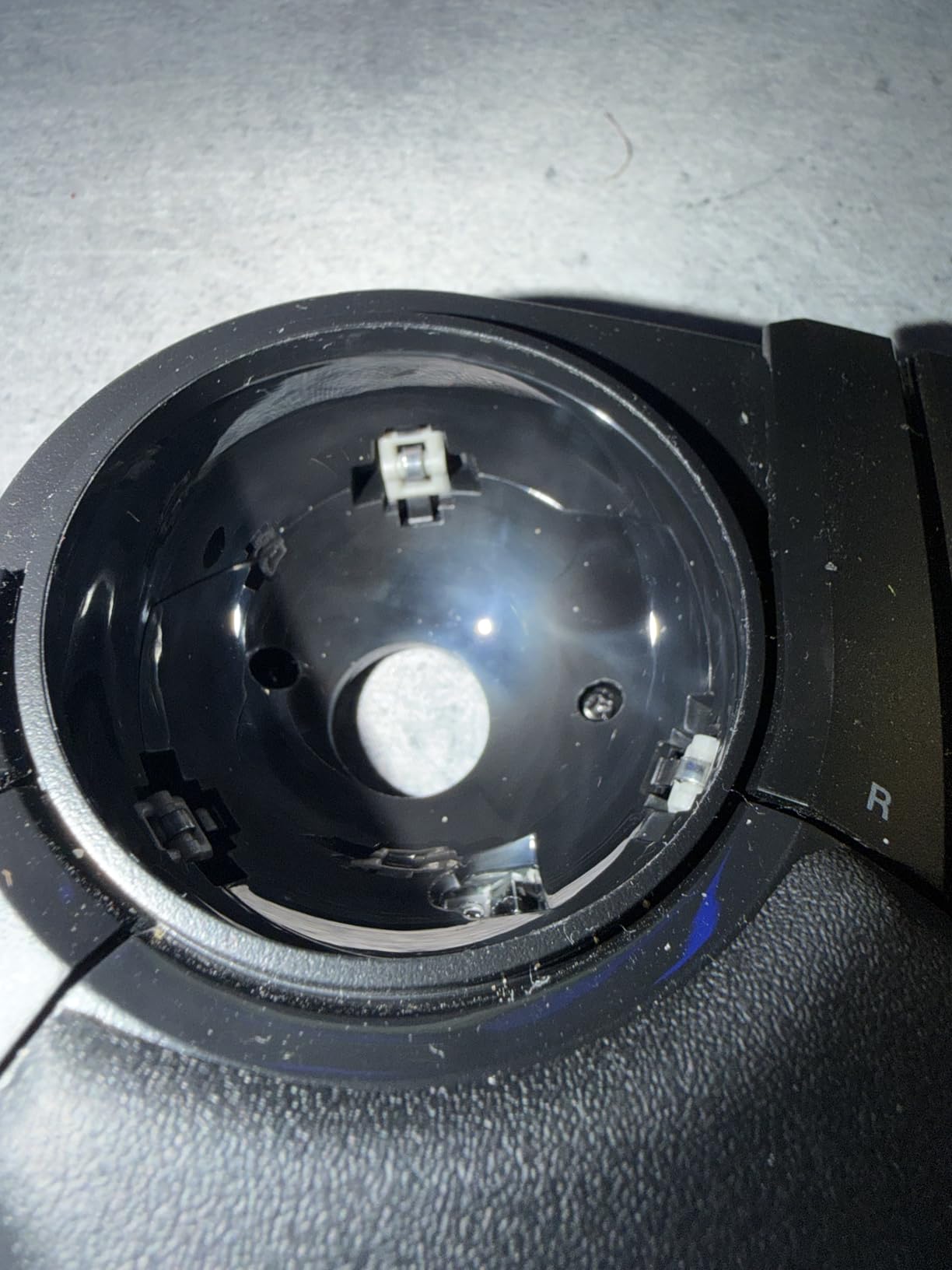
Everything else is spec-heavy. Ten fully programmable buttons, tri-mode connectivity across Bluetooth, 2.4GHz and wired USB-C over up to three devices, silent click switches, and true 1000Hz polling in wired mode. The built-in lithium-ion battery runs up to five months per charge and the mouse works while it is charging.
The bearings are swappable, with MinebeaMitsumi steel bearings supplied and ruby bearings available as an upgrade, and a bearing removal tool is included in the box. It works with Windows, macOS, iPadOS, Android and ChromeOS.
Whether the multi-device support earns its place
If you move between a desktop workstation, a laptop and a tablet across a working day, tri-mode connectivity with three paired devices is the headline. A designer checking a layout on an iPad and working in AutoCAD on a workstation uses one pointing device rather than two, and the device switch is a physical control rather than a menu.
Reviewers do find that switch clumsy, a mechanical slider rather than a clean button. It works, but it is not elegant, and it is worth factoring into your day if you flip devices constantly.
Reasons to look elsewhere
At 291 g with a 7.2 by 4.5 inch footprint, this is a large device with an aggressive palm-rest slope that several users say supports medium hands poorly. Small hands will struggle with both the reach and the angle.
The scroll wheel is the weak point, described as cheap-feeling with no distinct tactile detents, and ownership quality varies, with a number of reviewers reporting charging faults. Check the warranty before committing.
10. Perixx PERIMICE-520: Best for Adjustable Wrist Angle
Perixx PERIMICE-520 Wired USB Ergonomic Programmable Trackball Mouse, Adjustable Angle, 8 Button Design, Black (PM-520-11447)
Detachable magnetic stands at 0, 10 or 20 degrees
6 programmable buttons
Tilt scroll wheel
400 / 1600 DPI, wired
+ The Good
- Two included magnetic wedge stands set the wrist angle
- No batteries to change mid-task
- Tilt wheel gives vertical and horizontal scroll in one control
- Six programmable buttons with a macro manager
- Several owners report multi-year reliability
- The Bad
- Supplied ball feels gritty for fine movements out of the box
- Very wide footprint that suits larger hands only
- Scroll wheel can fail within months
- Sealed design means a failed wheel means replacement
The thing that separates the PERIMICE-520 from every other model here is the pair of detachable magnetic stands. Set it at 0, 10 or 20 degrees depending on your desk height and chair, and you can change your wrist angle in seconds rather than living with whatever the shell gives you.
That is a designer-specific benefit. The angle of your wrist relative to the forearm is the variable most people cannot change on a conventional mouse, and getting it wrong during long retouching sessions is exactly the kind of thing that shows up as discomfort months later.
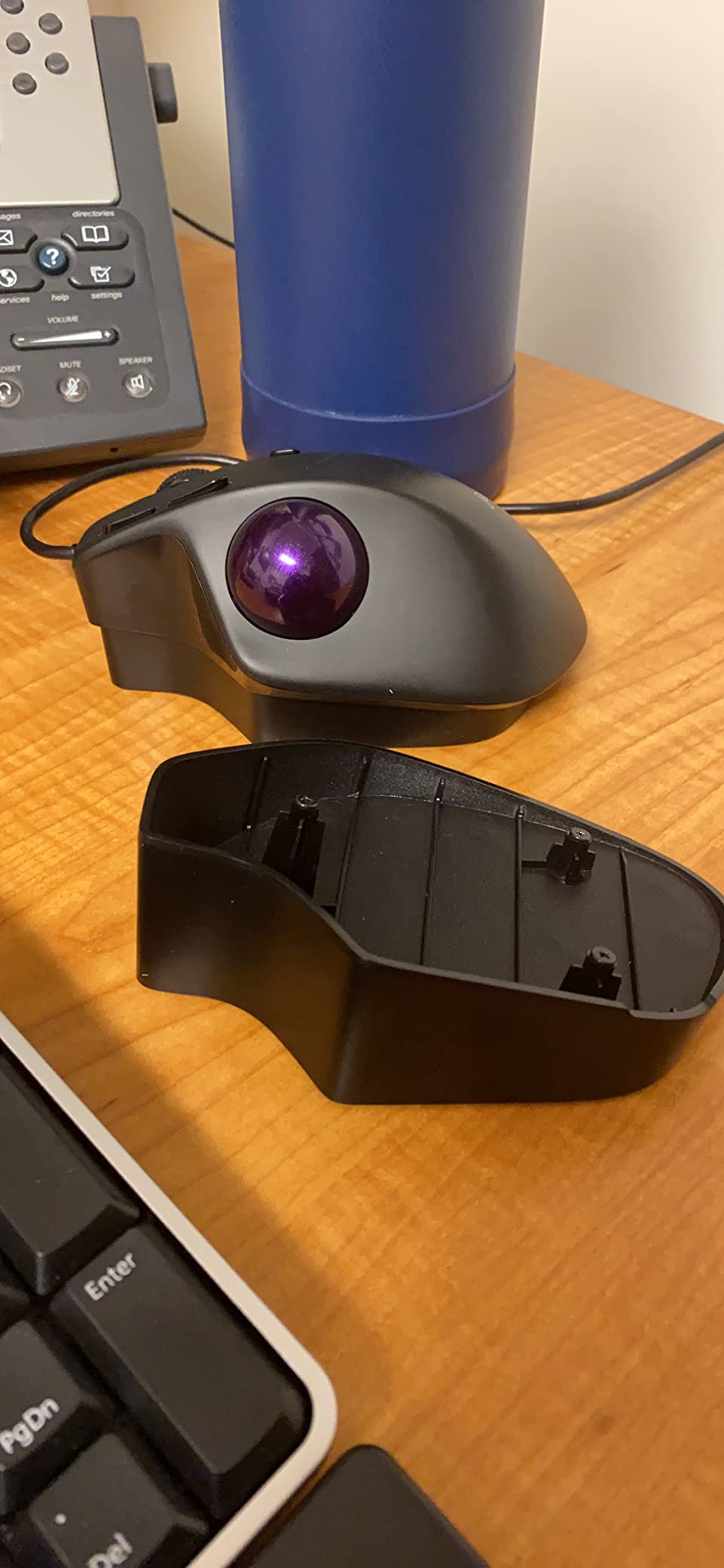
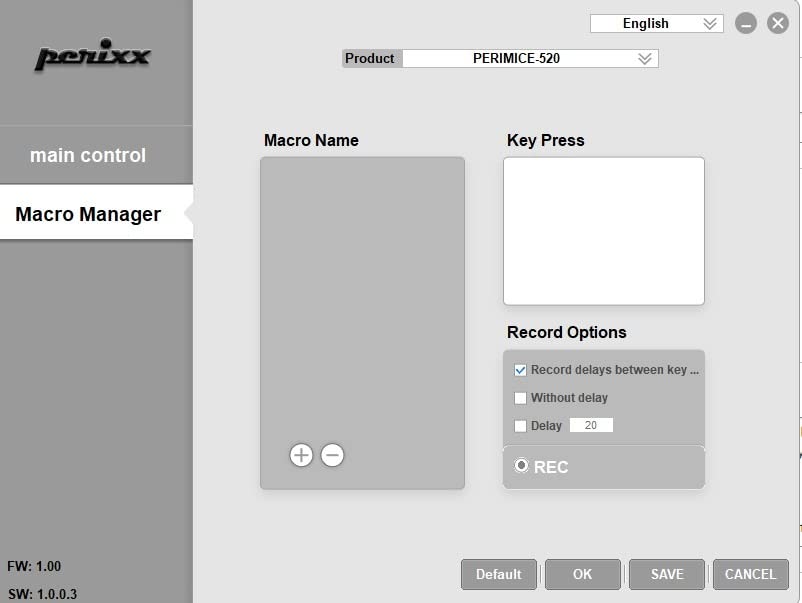
The rest is a solid wired package. Six programmable buttons out of an eight-button design, a tilt scroll wheel that handles vertical scroll, horizontal scroll and middle click in one control, and DPI switching between 400 and 1600. The configuration driver with its macro manager downloads from the Perixx site.
At 4.8 ounces and a 5.47 by 4.02 inch body, it is light and unobtrusive, and owners report several years of reliable use with no peeling rubber coating, which is a common complaint on cheaper shells.
How the adjustable angle helps a design desk
It is the closest thing to a fitting service you can get at home. Most people settle on the 20 degree stand for fine work at a desk, because it lifts the palm off the surface and keeps the wrist closer to neutral, and drop to 10 degrees when switching to a trackpad-adjacent layout.
The macro manager is also more capable than it sounds. With six assignable buttons you can bind a tool switch, a zoom step and forward and back without dropping to default behaviour, which covers a straightforward Photoshop or Illustrator shortcut bank.
What to fix before you rely on it
The supplied ball is the main complaint. Owners describe it as gritty out of the box for fine movements, and the common fix is fitting a ball from a Logitech M570, which many reviewers report transforms the feel. Budget for that if precision work is your day job.
Two further warnings: the 1600 DPI setting is far too sensitive for close-quarter work, so stay on 400 for pixel-level tasks, and the scroll wheel is a known weak point that can fail within months on a sealed design that cannot be repaired.
How to Choose a Trackball Mouse for Design Work
Ball size is the first filter, and it is more important than any sensor headline. A larger ball travels further per degree of rotation, so the same hand movement covers a much larger screen distance, which is what lets you work at both a full-canvas scale and a pixel-nudge scale without constant sensitivity changes. The Expert Wireless at 55mm and the two ELECOM finger models at 52mm lead here; the Orbit’s medium ball trades precision for a smaller footprint. A 36mm ball like the IST PRO prioritises a compact body and high sensitivity rather than fine placement.
Button count decides whether you can build a real shortcut bank. Photoshop and Illustrator work both lean on tool switching, and CAD work depends on pan, zoom and orbit commands. Four buttons covers the basics, six is workable, and ten gives you room to bind a full tool set plus forward and back without chorded combinations. Remember that several models gate their top buttons behind vendor software, so those buttons do nothing on a machine where that software is not running.
Scroll mechanism is the biggest day-to-day quality difference. A scroll ring spins freely with no detents and is the smoothest way to move through a long canvas, drawing sheet or timeline. Ball-rotation scrolling on the SlimBlade is the other approach and works exceptionally well for playhead scrubbing. Tilt scroll wheels give you vertical and horizontal movement in one control, and twist-to-scroll on thumb-operated models lets you roll the ball to scroll. If you spend real time in long documents, prioritise the scroll mechanism over the button count.
Bearings decide how much maintenance you accept. Static support points collect dust and need the ball popped out and wiped regularly, which is the source of the stiction complaints that appear again and again in trackball communities. The Huge Plus runs on roller bearings, the Huge uses artificial ruby bearings, and the IST PRO lets you swap between steel and ruby. If you will not make cleaning a routine, look for a sealed or roller-bearing design.
Polling rate and DPI answer different questions. Polling rate is how often the device reports its position, so 1000Hz reduces visible lag on a high-refresh display compared with a 125Hz device, which matters when you are dragging a selection marquee. DPI is cursor sensitivity, and a higher ceiling gives you finer control at low pointer speeds. Most design work is done at the lower end of the range, so a 1600 to 2000 DPI ceiling is plenty; 12000 DPI matters only if you are pairing a high-refresh panel with very fine brush work.
Connectivity and power are desk-planning decisions. A wired device never needs a battery and never adds latency, but the cable crosses your drawing area. Wireless over 2.4GHz is the most responsive wireless option, Bluetooth lets you pair without a receiver, and tri-mode models cover all three. Check the receiver situation carefully: Logitech’s newer Bolt receiver will not pair with older Unifying peripherals, which sometimes means carrying two receivers.
Handedness and hand size eliminate options fast. Most trackballs are moulded for a right hand and are simply not usable left-handed. The ambidextrous models here are the Trackman Marble, the Orbit, the SlimBlade and the Expert Wireless. On hand size, the two ELECOM finger-operated models are large bodies that suit bigger hands, while the M575S and MX Ergo S run on the larger side for compact shells.
On brand reputation, ELECOM is a long-established Japanese manufacturer of input devices rather than a no-name brand, and its trackballs are well regarded by CAD and editing specialists. The practical caution is software: reviews of the ELECOM range note that the companion utility has to stay running for button functions, that documentation is poor on the older models, and that the IST PRO interface is Chinese-only. Kensington and Logitech both have mature, well-documented software packages, and Logi Options+ in particular handles per-application profiles cleanly. If you work across mixed machines or a studio setup, onboard profile memory is worth more than a slightly better sensor.
If a conventional mouse is more appropriate for your desk, our gaming mouse roundup covers high-polling options, and vertical mice cover the other main ergonomic shape. A pen tablet remains the right tool for drawing itself, which is why so many designers use a trackball alongside one rather than instead of one.
Thumb-Operated vs Finger-Operated: The Split That Matters Most
Every trackball falls into one of two families, and picking the wrong one is the most common reason people abandon the format. Thumb-operated models roll the ball with the thumb while the index and middle fingers rest on the primary click buttons, and they keep your hand in roughly the same shape as a conventional mouse. Finger-operated models drive the ball with the index finger and stack the clicks beneath it.
Thumb-operated is the easier transfer and takes days to get comfortable. Finger-operated gives finer control because the index finger is a more dexterous driver than a thumb, and that is why CAD specialists and precision editors gravitate toward models like the ELECOM Huge. The price is a learning curve that typically runs closer to two weeks, and people frequently describe the first few days as feeling like the device is broken.
There is a third path for designers who already draw on a pen tablet. Put the tablet under your drawing hand and a thumb-operated trackball on the opposite side, where the buttons handle shortcuts, tool switching and canvas panning. It is the hybrid setup that shows up repeatedly in design communities, and it is why the M575S and the Trackman Marble remain so widely recommended despite their modest button counts.
When a Trackball Is the Wrong Choice for Design Work
Trackballs are not a universal upgrade, and pretending otherwise is how people end up back on a mouse within a month. Large-canvas panning is slow. Moving a viewport across a wide artboard means repeated ball rotations rather than one arm sweep, and on a demanding deadline that difference is real. If your work is dominated by fast navigation across very large documents, a conventional mouse remains faster.
Stiction is the second honest problem. On static-bearing models, fine movements can feel sticky and unpredictable until the ball and cavity are cleaned, and a trackball that skips or jumps during a fine drag will damage a selection more than it helps. A third issue is middle-click availability: some models simply do not give you a dedicated middle button, and CAD orbiting and 3D viewport work depend on it.
Finally, the adaptation period is a genuine risk. The first week feels worse than the mouse you left, and the devices most often criticised are the ones people quit in month one rather than the ones that perform worse. Keep your old mouse connected for two weeks, and pick a model with a return window that suits that timeline.
Frequently Asked Questions
Which mouse is best for designers?
For most designers, a trackball with a large ball, at least four programmable buttons and a smooth scroll mechanism is the best fit. Our top pick is the Logitech Trackman Marble for its ambidextrous reliability, while CAD and architecture work is better served by the Kensington Expert Wireless with its 55mm ball, and fine precision work suits the ELECOM Huge with its 52mm index-operated ball.
What is the best mouse for CAD designers?
The Kensington Expert Wireless is our pick for CAD work. Its 55mm ball and Diamond Eye optical sensor allow slow, controlled cursor placement for linework and grid snapping, and the patented scroll ring scans long drawing sheets quickly. The ELECOM Huge is the alternative if you prefer index-finger control, eight programmable buttons and less bulk on the desk.
Which mouse is better, the Kensington Expert Mouse Wireless or the Logitech MX Ergo?
Choose the Expert Wireless for CAD and drafting: a 55mm ball, a free-spinning scroll ring, an ambidextrous shell, four buttons and a three year warranty. Choose the MX Ergo S for long Photoshop and Illustrator sessions: a 20 degree tilt, six customizable buttons, quieter clicks, a speed and precision toggle and a rechargeable USB-C battery.
Is Elecom a good mouse brand?
ELECOM is a long-established Japanese input device maker, and its trackballs are well regarded by CAD, BIM and editing specialists for large balls and heavy button banks. The practical caution is software: button functions can require the ELECOM utility to be running, documentation is uneven on older models, and some newer models have Chinese-only software.
What is the best trackball for left-handed users?
The best left-handed options here are the ambidextrous models: the Logitech Trackman Marble, the Kensington Orbit, the Kensington SlimBlade and the Kensington Expert Wireless. Their shells are symmetrical, so the ball sits centrally and works identically for either hand. Most other trackballs, including every ELECOM model listed, are right-handed only.
Is a trackball mouse better for CAD?
A trackball can be better for CAD because a large ball gives more travel per rotation, letting you make both wide viewport orbits and precise line adjustments with the same hand movement. The trade-off is that fine movements can feel sticky on static-bearing models, and some trackballs lack a dedicated middle click for orbiting, so check that before switching your whole workflow.
What are the downsides of using a trackball?
The main drawbacks are slow panning across very large canvases, stiction on static-bearing models that makes fine drags unpredictable, missing middle-click on some models, and a learning period where control feels worse than a conventional mouse. Cleaning the ball and cavity is also normal upkeep rather than a defect.
How long does it take to get used to a trackball?
Thumb-operated models usually feel usable within a few days because the hand position is close to a conventional mouse. Finger-operated models such as the ELECOM Huge typically need closer to two weeks, because your index finger is learning a new movement pattern. Keep your old mouse connected during that period rather than forcing the switch on a deadline.
Which Trackball Should You Buy?
For most designers, the Logitech Trackman Marble is the best place to start: it is ambidextrous, it needs no setup, and it has the most proven long-term record of anything in this roundup. If you want more buttons and a tilt platform for long Photoshop sessions, the Logitech MX Ergo S is the step up.
If your work is CAD or architecture, the Kensington Expert Wireless wins on the 55mm ball and the scroll ring. For the finest cursor placement and the most remappable keys, the ELECOM Huge and the ELECOM Huge Plus lead the finger-operated group, with the Plus preferred if you want roller bearings and less maintenance. Our complete best trackball mice for designers picks cover everything from left-handed shells to adjustable wrist angles, so match the model to your application rather than to the spec sheet.