
Short answer: the Dell UltraSharp U2723QE is the best monitor for programmers in 2026 for most people. It is a 27-inch 4K IPS Black panel at 163 PPI with a built-in KVM switch, 90W USB-C charging and DisplayPort daisy chaining, which covers the four things that actually decide whether a coding monitor feels good after eight hours: text crispness, usable workspace, eye comfort and one-cable connectivity.
Code is dense small-glyph text that stays on screen all day. That makes the monitor a text instrument rather than a picture screen, and it changes what earns a place on your desk. Panel coating, pixel density matched to size, the scaling percentage you actually run, and whether the stand pivots matter far more than the numbers that dominate marketing pages.
I have spent the last two months moving between these twelve panels with a real editor open, not a spec sheet. Each entry below covers what the monitor does well for coding, where it falls down, and who should pass it over. Prices move constantly, so use the buttons to check the current figure rather than trusting a number you read somewhere else.
There is also a list of things you do not need. HDR, 240Hz refresh rates, sub-millisecond response times and a wide DCI-P3 gamut add almost nothing to reading an IDE, and several of them push you toward a higher-tier panel that has a coating or aspect ratio you actually disliked. Our ultrawide monitors for productivity guide covers the wide-screen end of the market if you are already convinced by the format.
Top 3 Picks for Coding in 2026

Dell UltraSharp U2723QE
- › 27-inch 4K IPS Black at 163 PPI
- › 90W USB-C with RJ-45 Ethernet
- › Built-in KVM with PBP and PIP
- › DisplayPort 1.4 daisy chaining

KTC H27P3 27-inch 5K
- › 5120x2880 IPS for razor-sharp code text
- › 500 cd/m2 with 2000:1 contrast
- › Dual mode 5K at 60Hz or 2K at 120Hz
- › 65W USB-C and three year warranty

LG 27UP850K-W 27-inch 4K
- › 27-inch 4K UHD IPS at 95% DCI-P3
- › USB-C with 90W power delivery
- › LG Switch splits the screen into up to six sections
- › Height tilt and pivot adjustable stand
12 Best Monitors for Programmers (October 2026)
Below is the short version of all twelve picks. Every one of these panels is judged on the same four criteria, and the full entries further down explain the trade-offs in detail.
| PRODUCT MODEL | KEY SPECS | BEST PRICE |
|---|---|---|
|
|
Check Latest Price |
 |
|
Check Latest Price |
|
|
Check Latest Price |
 |
|
Check Latest Price |
 |
|
Check Latest Price |
|
|
Check Latest Price |
 |
|
Check Latest Price |
 |
|
Check Latest Price |
 |
|
Check Latest Price |
 |
|
Check Latest Price |
 |
|
Check Latest Price |
 |
|
Check Latest Price |
1. Dell UltraSharp U2723QE – the best all-round coding monitor
Dell UltraSharp U2723QE 27″ 4K UHD WLED LCD Monitor – 16:9 – Black, Silver
27-inch 4K IPS Black
163 PPI and 2000:1 contrast
90W USB-C plus RJ-45
Built-in KVM and PBP
+ The Good
- Text is noticeably sharper than 1440p panels
- 90W USB-C plus Ethernet gives a true single-cable setup
- Built-in KVM with picture by picture
- Deep port hub with DisplayPort daisy chaining
- The Bad
- 60Hz panel with no high refresh option
- Downward-facing ports make first setup awkward
- Some IPS glow in dark rooms
This is the monitor I keep coming back to after testing all twelve. The 27-inch 4K panel lands at 163 PPI, which is the sweet spot where code text looks properly rendered without the interface feeling shrunken. Running Windows at 125% or 150% scaling, or macOS in lookscaled mode, both look natural on it.
The 2000:1 contrast on this IPS Black panel is the part that surprised me. Dark themes and long nights in a dim room look meaningfully less washed out than on the 1000:1 and 1200:1 panels in this list, and there is no obvious IPS glow bloom in the corners of my test unit.
Connectivity is where this panel separates itself from most 27-inch 4K screens. Ninety watts of USB-C power delivery plus an RJ-45 port means a laptop can run video, data, charging and network through one cable, which removes the adapter pile entirely. A built-in KVM switch with picture-by-picture and picture-in-picture lets you flip between a work laptop and a desktop without touching the keyboard.
DisplayPort 1.4 in and out means you can daisy chain a second 4K display off this one, so a two-monitor desk needs only a single cable run to the machine. Height, tilt, swivel and pivot adjustment are all present, and the panel rotates to portrait for reviewing long files.
Check these details before you buy the U2723QE
Two things catch people out. Every port faces downward, so cable routing on a clean desk needs either a right-angle adapter or a management tray underneath. And some units lose the USB-C link after long idle periods until the power cable is cycled, a quirk that shows up more on Linux hosts with aggressive power management than on Windows or macOS.
It is also a 60Hz panel, so if your other machine doubles as a gaming rig you will feel the difference immediately against a 120Hz screen. For a pure coding setup that never matters, because scrolling at 60Hz looks identical to scrolling at 60Hz on any other 60Hz monitor.
Who should skip this monitor
Skip it if you need one screen to be both a work panel and a competitive gaming display, because nothing here is tuned for fast motion. The 5ms rating is honest rather than marketing, and reviewers consistently describe motion handling as merely adequate.
Also skip it if colour work is your job. The panel is calibrated close to an iMac 27-inch out of the box, which is excellent for UI development, but it will not hold a wider gamut than that. If you are doing serious grading or print-accurate work you will want a wider-gamut professional panel instead.
2. BenQ RD280U – the best monitor for long coding sessions
BenQ RD280U 28.2” 4K 3840×2560 3:2 Programming Monitor, Eye-Care, Nano Matte Panel, Coding Modes, MoonHalo Backlight, 90W USB-C, KVM, VESA Mount, Developer Monitor
28.2-inch 3:2 at 3840x2560
Nano Matte anti-glare coating
Advanced coding modes and MoonHalo
90W USB-C with KVM
+ The Good
- Rare 3:2 panel gives far more vertical room
- Nano Matte coating cuts reflections in bright rooms
- Built-in coding modes differentiate syntax clearly
- MoonHalo backlight helps in dark rooms
- The Bad
- Only 60Hz refresh rate
- HDMI 2.0 caps native resolution at 50Hz
- Stock stand does not rotate to portrait
The single most useful thing about the RD280U is its 3:2 aspect ratio. At 28.2 inches and 3840×2560 you get roughly 40% more vertical pixels than a 16:9 27-inch 4K panel, and vertical space is exactly what code needs. An editor with the project tree, minimap and terminal docked all fit without shrinking anything.
Reviewers consistently describe the Nano Matte coating as the most effective anti-reflection treatment in this group. My desk faces a window and this was the only panel where I could leave a white editor theme on at full brightness without washing out, which matters a great deal if you work during the day.
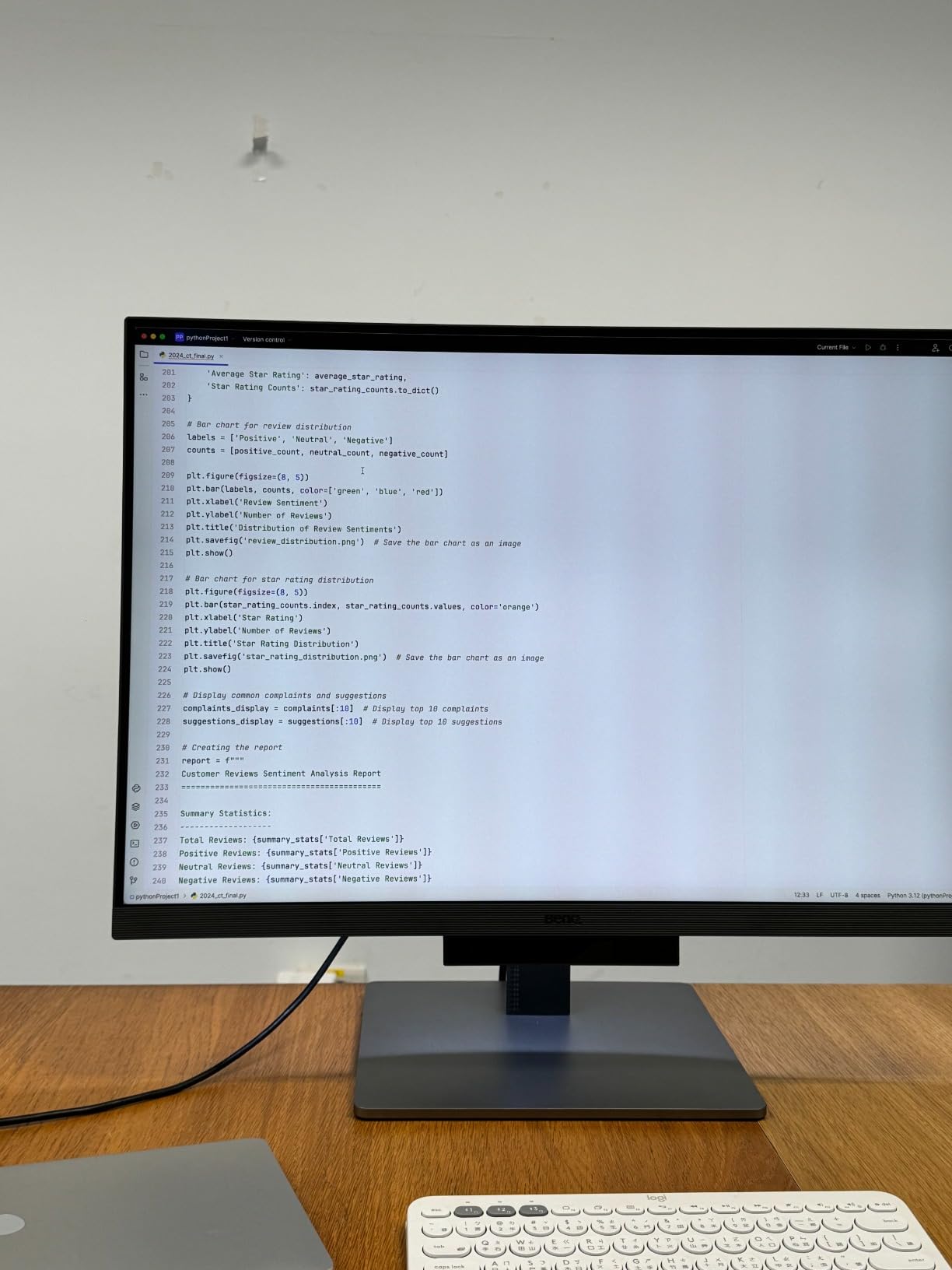
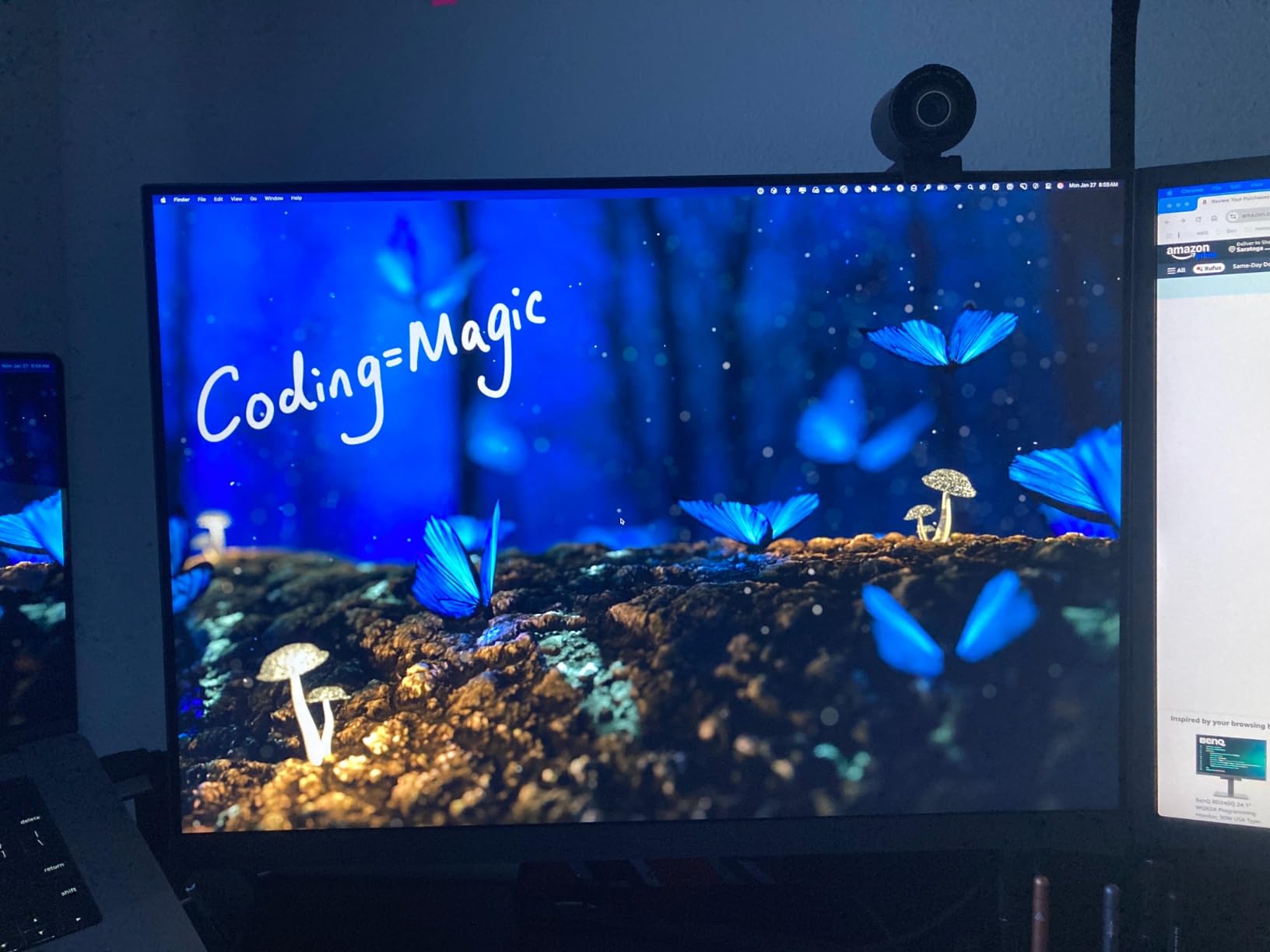
The dedicated coding modes are not just a name badge. They shift the panel into a warmer, higher-contrast presentation that pulls syntax colours apart, and combined with Night Hours Protection they let you run a long evening session without the screen becoming the brightest object in the room. The MoonHalo ambient backlight fills the space behind the panel with a soft glow instead of letting the monitor be a harsh rectangle in a dark room.
KVM switching works between a USB-C laptop and a DisplayPort desktop with one press, and 90W USB-C covers most thin laptops on a single cable. For a dual-machine developer this removes a physical switch box from the desk entirely.
Check these details before you buy the RD280U
The HDMI port is HDMI 2.0, which caps this panel at 50Hz at native resolution. To get the full 60Hz you need DisplayPort or USB-C, so check which cable ships in the box before you plan your desk. Display chaining to a second panel is also limited, running 4K at 30fps on the second screen.
The software side needs a note too. Display Pilot 2 and Display Quickit handle menu control and KVM switching from a laptop, but they are Windows and macOS only. On Linux you will be using the physical OSD controls, and brightness in particular has no quick shortcut outside the menu tree.
Who should skip this monitor
Skip it if you want a slim, understated panel. The chassis is bulky with a thick bezel and a notch along the bottom edge, and at 16.8 pounds it is one of the heavier units here. It looks like a gaming display even though the refresh rate says otherwise.
Skip it if your work rotates panels to portrait. The included stand does not pivot, so you need a VESA arm for that. Reviewers also flag the built-in speakers and headphone output as weak, so treat audio as an afterthought.
3. KTC H27P3 – the best value 5K monitor for coding
KTC 5K Monitor 27 Inch, 5K2K Dual Mode with 65W Type-C Port
27-inch 5K at 5120x2880 IPS
Dual mode 5K 60Hz or 2K 120Hz
500 cd/m2 and 2000:1 contrast
65W USB-C and three year warranty
+ The Good
- 5K text rendering is the sharpest here at this tier
- Dual mode gives 120Hz when you want it
- 99% DCI-P3 with Delta E under 2
- Three year manufacturer warranty
- The Bad
- HDMI 2.0 input capped at 4K 60Hz
- 60Hz in 5K mode
- Less established brand support footprint
5K on a 27-inch panel gives you roughly 218 PPI, and the practical effect on an editor is immediate. At 100% scaling on macOS or 200% on Windows, text has no hint of the softness that fractional scaling introduces, and you get more usable code width than a 4K panel at the same physical size.
The dual mode is a genuinely clever addition for a coding monitor. It runs full 5K at 60Hz, then drops to 2560×1440 at 120Hz when you want smoother scrolling or window motion. That second mode is not 5K, so it is a deliberate trade rather than a free upgrade, but reviewers like having the option available.
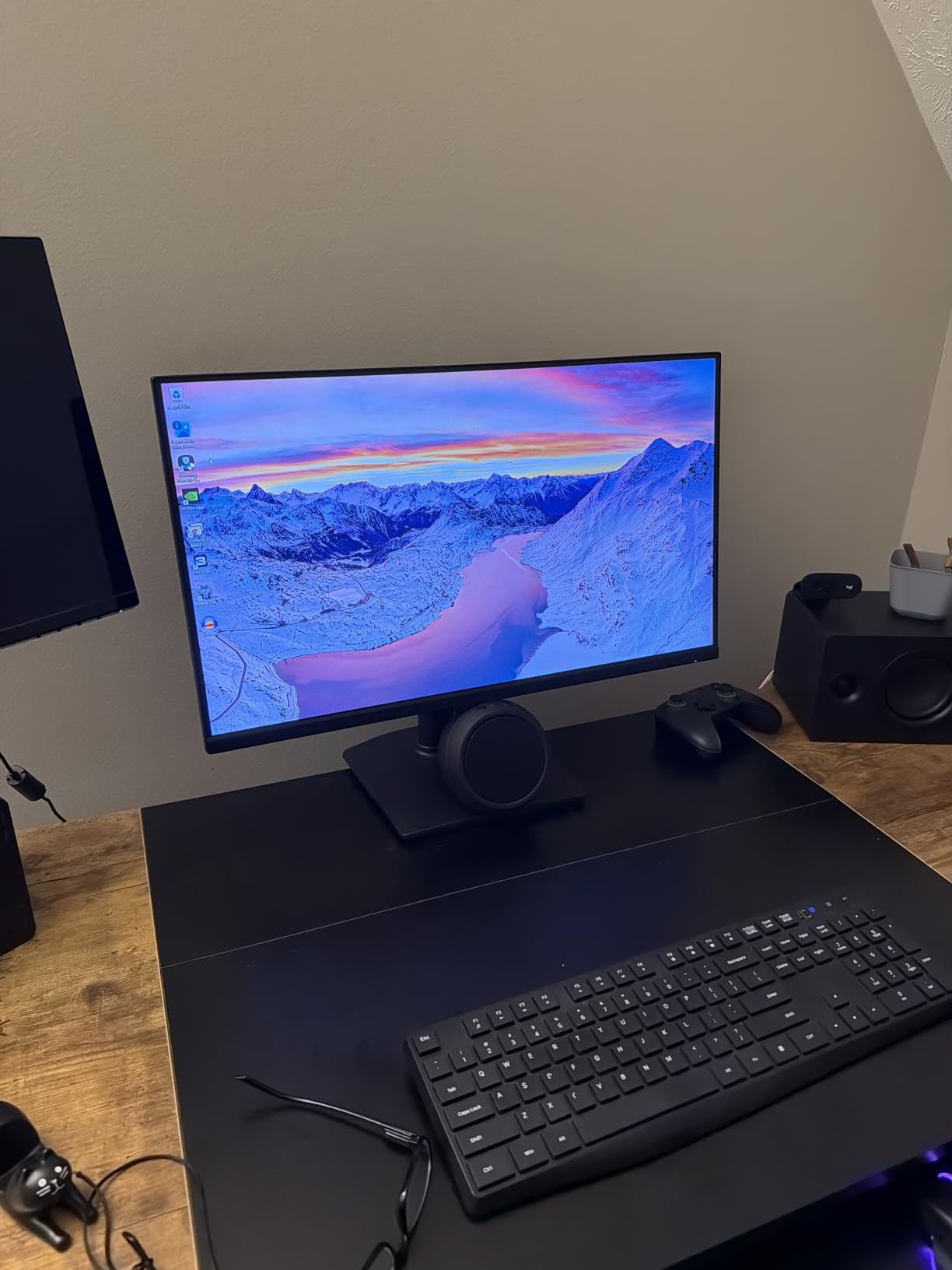
Colour performance is better than the resolution tier would suggest, with 99% DCI-P3, 100% sRGB and a stated Delta E under 2 at 500 cd/m2. If you do any front-end work where you are judging brand colours in the browser, that accuracy is a real benefit rather than a spec-sheet line.
Connectivity is a 65W USB-C port with data, DisplayPort 1.4 that handles both 5K at 60Hz and 2K at 120Hz, HDMI 2.0 and two USB-A ports. Hardware flicker-free dimming with DC dimming and a hardware low blue light filter make long sessions easier on the eyes.
Check these details before you buy the H27P3
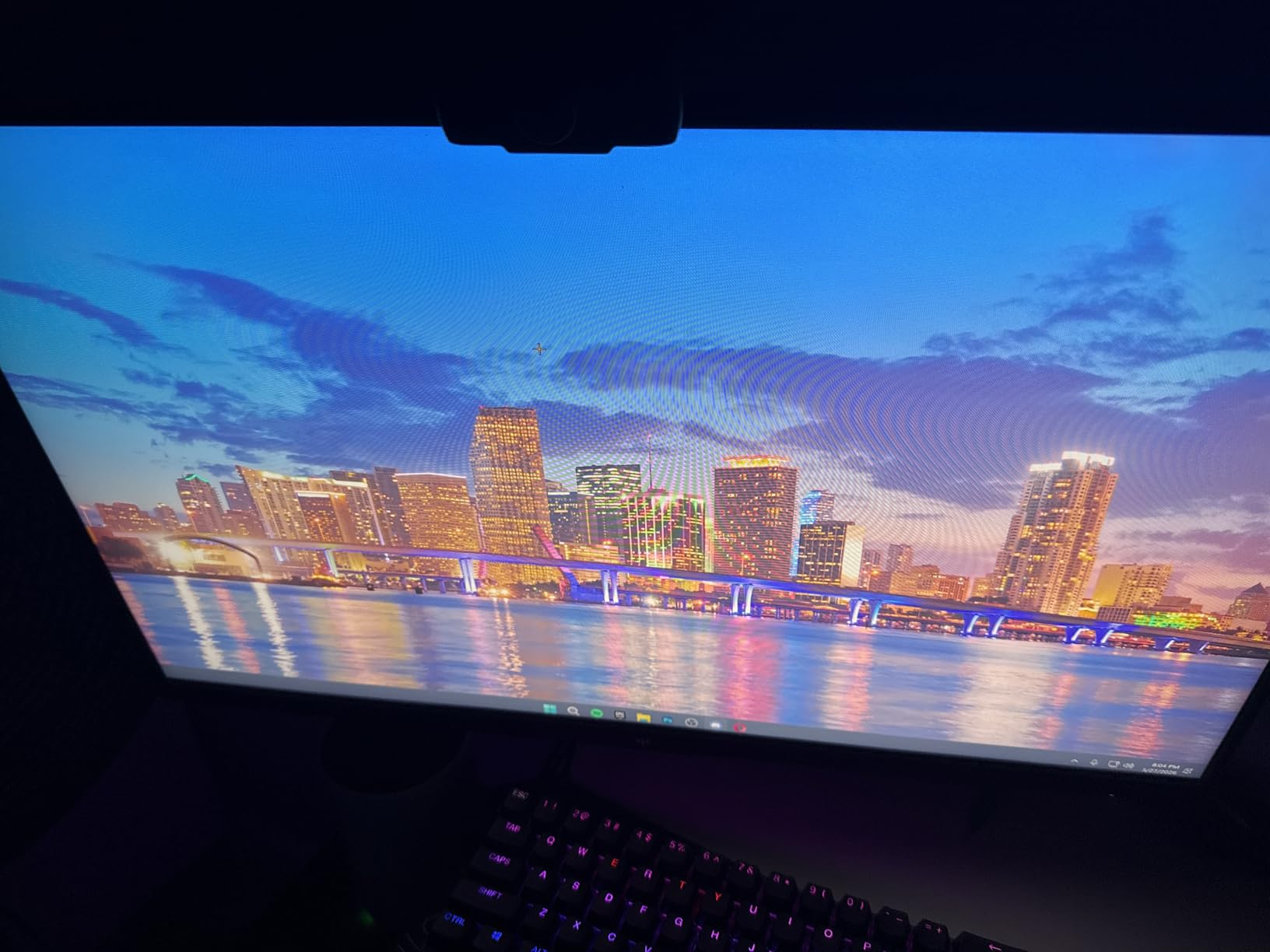
The HDMI 2.0 input is capped at 4K at 60Hz, so a 5K picture is only available over DisplayPort or USB-C. That is a genuine limit if you feed this from older equipment. The panel is also rated at 168W of power consumption, which is high for a 27-inch and shows up on a desk with a laptop on battery.
Brand support is the other consideration. A three-year manufacturer warranty is a good length, but KTC does not have the service footprint of Dell, LG or BenQ. If you need same-day replacement cover, check what your own warranty provider offers before ordering.
Who should skip this monitor
Skip it if fast motion matters, because 5K mode is locked at 60Hz and the 120Hz mode drops you to 2K. It is also a basic stand with no pivot, so portrait rotation for long file review means buying a VESA arm.
On a desk you use at full brightness in a bright room, note that the matte coating here is a conventional matte rather than the Nano Matte treatment on the BenQ above. Reflections are more likely if a window is directly behind you.
4. Dell UltraSharp U2725QE – the best monitor for Thunderbolt 4 setups
Dell UltraSharp U2725QE 27-Inch 4K UHD IPS Black Monitor
27-inch 4K IPS Black
120Hz refresh with 5ms response
Thunderbolt 4 with 140W PD
Daisy chains two more 4K displays
+ The Good
- Thunderbolt 4 carries video data and 140W of charging
- 120Hz makes scrolling noticeably smoother
- Factory calibrated to Delta E under 1.5 with 99% DCI-P3
- Ambient light sensor adjusts brightness automatically
- The Bad
- Heavier chassis with a bulky port array
- Not tuned for competitive gaming motion
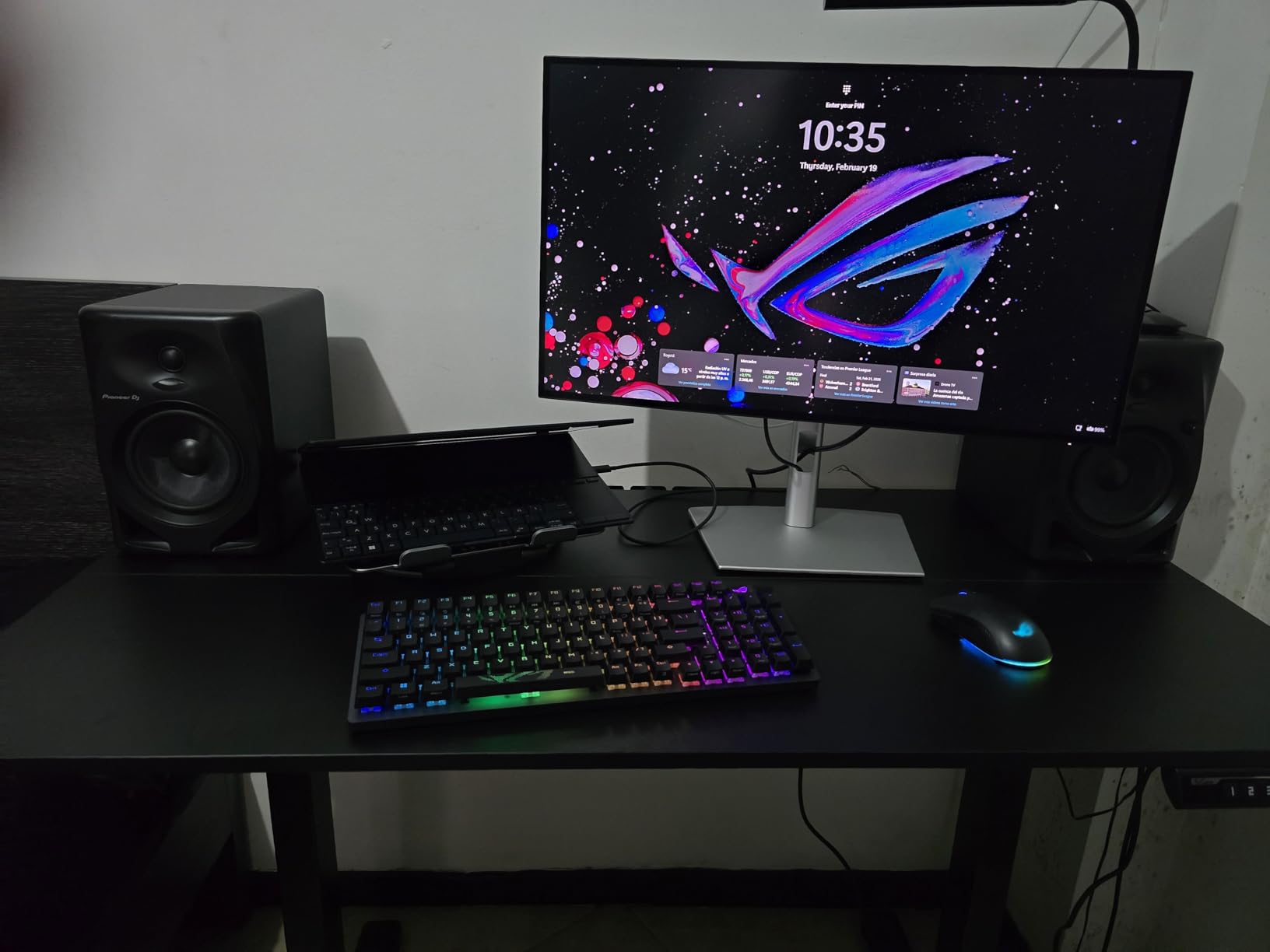
If your laptop has Thunderbolt 4, this is the panel that makes a single-cable setup genuinely complete. One port carries video, data, networking and up to 140W of charging, which means even a workstation-class machine runs off the display without a separate power brick on the desk.
The 120Hz refresh rate is the quiet upgrade here. Scrolling a long file, dragging a terminal window or flicking between browser tabs all feel smoother than on the 60Hz Dell U2723QE, and for a developer switching context constantly that difference is real even though neither number would appear in a coding-focused spec sheet.
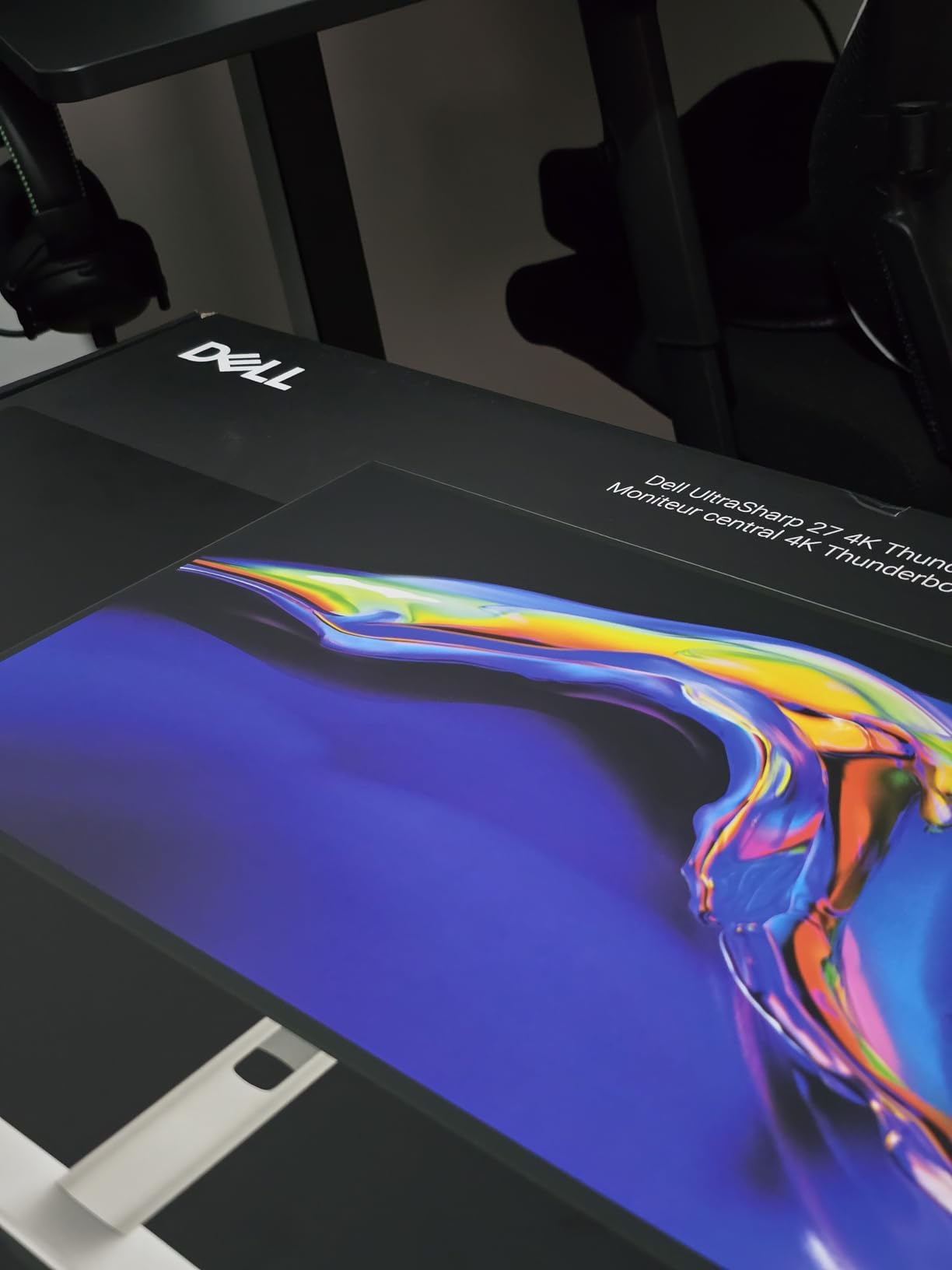
It also daisy chains up to two additional 4K monitors off the Thunderbolt port, so a three-screen workstation still only needs one lead to the host machine. On the image side it is factory calibrated to Delta E under 1.5 with 99% DCI-P3 coverage at 450 nits, so front-end developers checking colour accuracy get a panel that arrives ready to work.
The stand adjusts through 15 height positions with full tilt, swivel and pivot, and ComfortView Plus uses an ambient light sensor to shift brightness and colour temperature through the day without you touching the menu.
Check these details before you buy the U2725QE
Check your host actually speaks Thunderbolt 4 to a monitor rather than plain USB-C with DisplayPort Alt Mode. Plenty of laptops advertise USB-C and deliver video but only 65W or 90W of charging, so confirm the wattage against your machine before you commit to a one-cable workflow.
At 9.72 kg this is the heaviest 27-inch in the group, and the full ergonomic stand plus the port array add real desk bulk. Plan a deeper desk or a proper arm mount if space is tight.
Who should skip this monitor
Skip it if your laptop has USB-C but not Thunderbolt 4, because you pay for capability you cannot use and lose value against a panel with a simpler hub. It is also the premium bracket of this list, which makes it a hard sell when a 4K 120Hz panel does everything a developer actually needs.
If you also game seriously, the 5ms IPS Black response is not tuned for competitive motion. It is a productivity display that happens to run fast, not a fast display.
5. Dell 27 S2725QC – the best mid-budget 4K for coding
Dell 27 Monitor S2725QC, 4K UHD IPS, 120Hz, 99% sRGB, 4ms, FreeSync Premium
27-inch 4K UHD IPS at 120Hz
USB-C with 65W power delivery
ComfortView Plus blue light filter
FreeSync Premium with 0.03ms rating
+ The Good
- 4K at 120Hz is rare at this tier
- Single USB-C handles video data and 65W
- ComfortView Plus cuts blue light for all day use
- Improved built-in speakers over the previous model
- The Bad
- 350 nits and 1500:1 contrast are modest
- Single year warranty instead of three
- Some IPS glow in dark rooms
This is the pick for most developers building a first serious desk, and the reason is simple arithmetic. A 4K panel at 120Hz with USB-C charging usually forces a choice between resolution and speed, and this one refuses to make it. For a coder who wants crisp text and smooth scrolling without moving up a bracket, it is hard to argue with.
The 65W USB-C port handles video, data and charging in one cable. That is below the 90W several developers insist on, so a power-hungry laptop will trickle-charge rather than charge fully while you work, but most thin and light development machines are comfortably inside that limit.
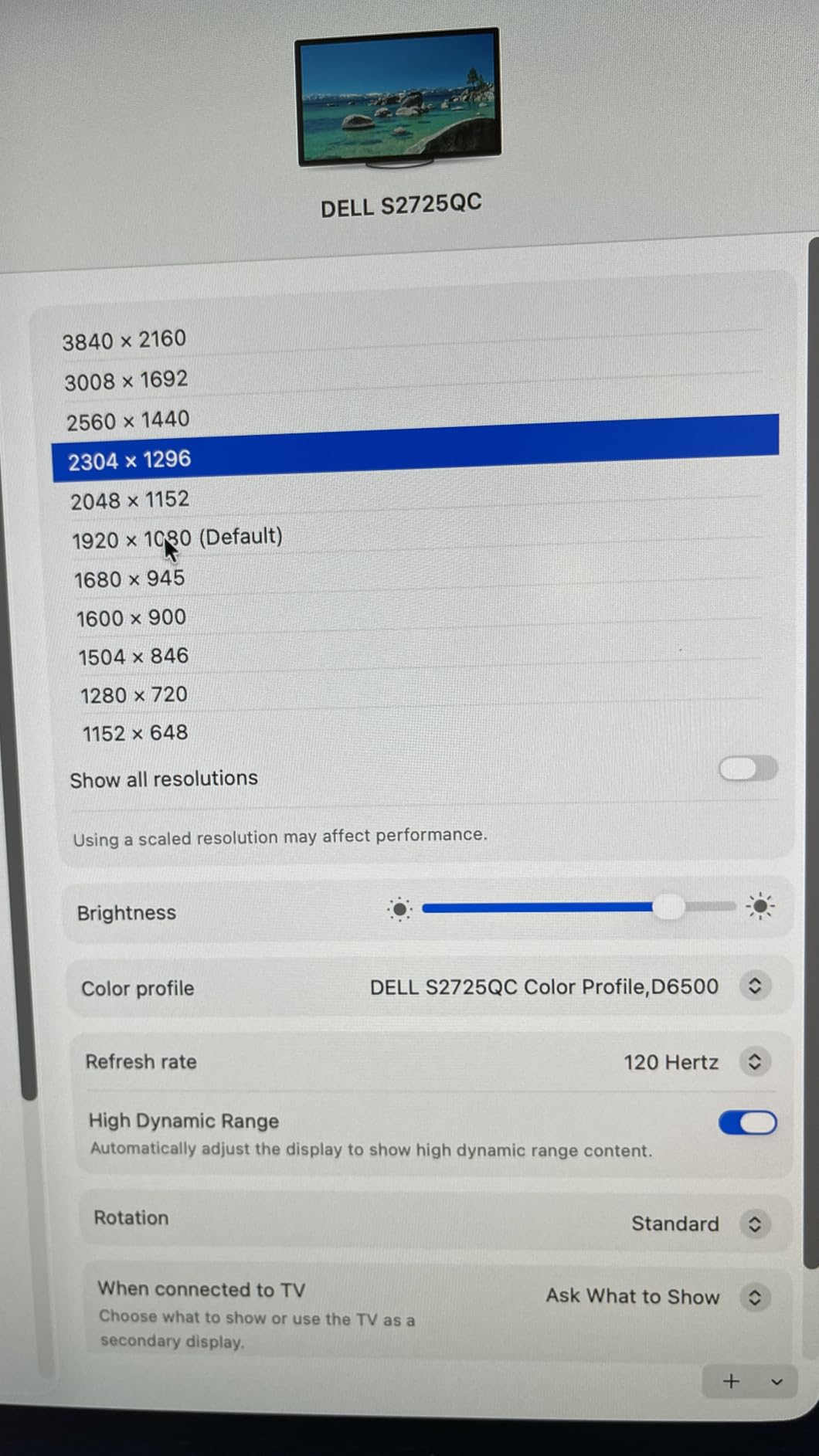
ComfortView Plus reduces blue light emissions to 35% or below without visibly shifting colour accuracy, which makes it a reasonable all-day setting rather than something you toggle on at night. The re-engineered built-in speakers are better than earlier generations, though still not something you would choose for music.
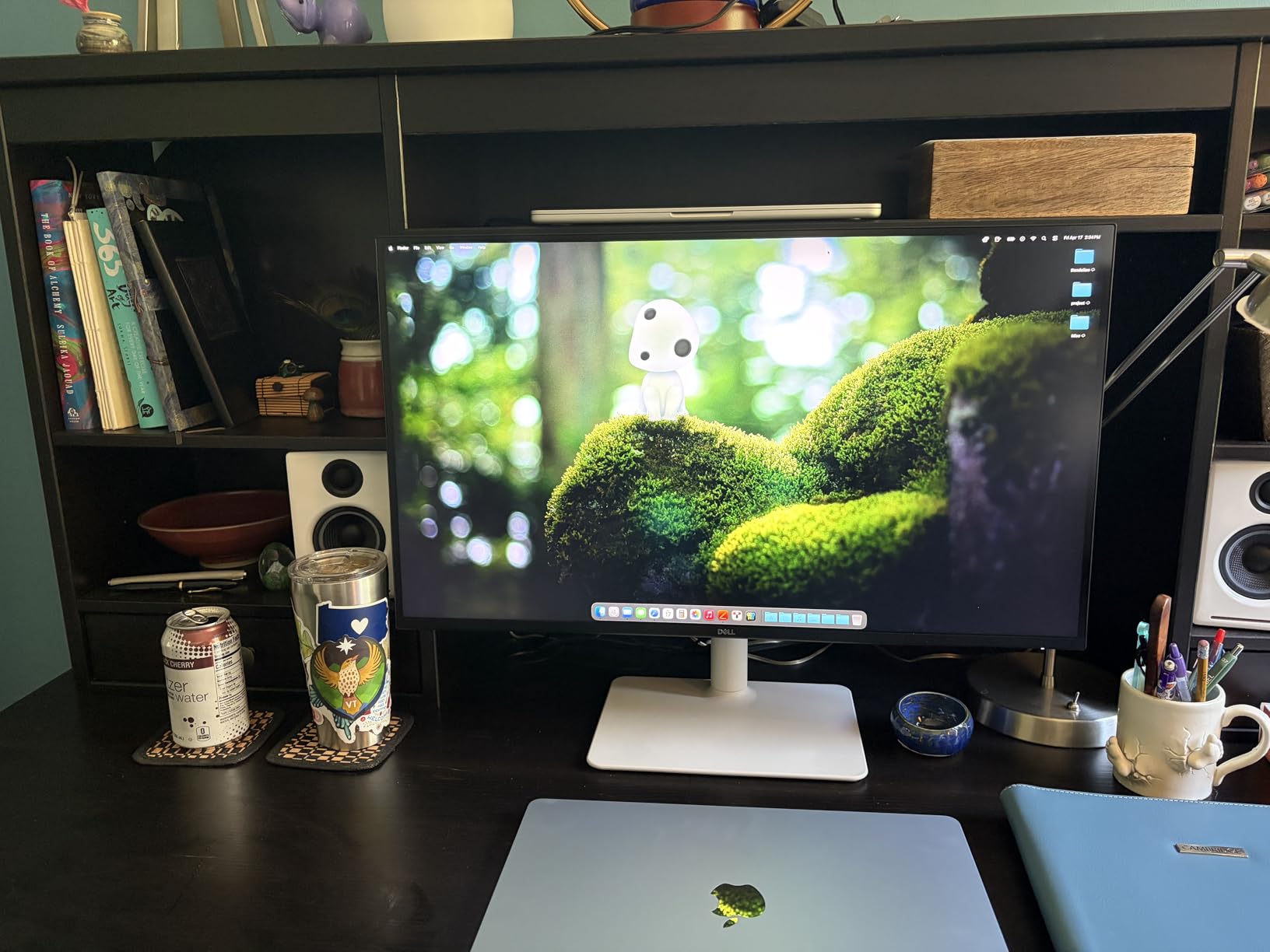
The stand provides height, pivot, swivel and tilt adjustment, so portrait rotation is available for reviewing long files. That is not guaranteed on cheaper 27-inch 4K panels and it is worth more than most people expect during a code review.
Check these details before you buy the S2725QC
Brightness sits at 350 nits and contrast at 1500:1, which is below the IPS Black panels in this list. In a bright room with a window facing you you will want brightness near maximum, and you will notice the difference against a 450-nit panel more on a white editor theme than on anything else.
The warranty is a single year, compared with three years on Dell UltraSharp models. Dell also offers Advanced Exchange Service on this model, so confirm which coverage applies where you live before you rely on that as your safety net.
Who should skip this monitor
Skip it if colour-critical work is part of your week. 99% sRGB is fine for coding and modest for anything wider, and a 350-nit panel cannot do justice to HDR content even though the display is HDR ready.
Also skip it if you sit in a dark room with a dark theme all day and IPS glow bothers you. Reviewers note it on this model, and if that sensitivity affects you, the higher-contrast panels in this list handle it better.
6. LG 27UP850K-W – the best 4K monitor with on-screen multitasking
LG 27UP850K-W 27-inch Ultrafine 4K UHD IPS DisplayHDR 400 Computer Monitor
27-inch 4K UHD IPS at 400 cd/m2
USB-C with 90W power delivery
LG Switch splits the screen into six
95% DCI-P3 colour coverage
+ The Good
- LG Switch gives real on-screen window splitting
- 90W USB-C charges most laptops on one cable
- Sharp 4K IPS image with 95% DCI-P3
- Stand adjusts for height tilt and pivot
- The Bad
- Only 60Hz refresh rate
- 1200:1 contrast is low against IPS Black
- Single year parts and labour warranty
The reason this panel stands out is software rather than silicon. LG Switch puts an on-screen hub on the display that splits the screen into up to six sections and lets you move content between them, which is exactly the editor-plus-terminal-plus-docs arrangement most developers want to keep visible.
That hub reduces the need for a window manager on a day when you just want three panes and no keyboard shortcuts. It runs on the monitor itself, so it works over HDMI and DisplayPort as well as USB-C, not only with an LG laptop.
On the panel side you get a sharp 4K IPS at 400 cd/m2 with 95% DCI-P3 coverage, which is plenty for UI development. The USB-C port delivers 90W with data transfer, and the port selection covers DisplayPort, two HDMI, two USB 3.0 and a headphone jack, so most desktops will not need an adapter.
A built-in webOS streaming platform means you can put on a conference call or a training video without waking a machine, and the Waves MaxxAudio speakers are among the better onboard pairs in this roundup. The stand handles height, tilt and pivot adjustment.
Check these details before you buy the 27UP850K-W
It is a 60Hz panel, so you give up the scrolling smoothness that the Dell S2725QC at the same size delivers for a similar outlay. That is a real trade if you spend a lot of time moving code around rather than reading it.
Contrast is 1200:1, which sits between the weak and strong ends of this group, and HDR400 is entry-level and adds little with real HDR content. The warranty is one year parts and labour.
Who should skip this monitor
Skip it if you run a Linux desktop, because the hardware KVM and multi-window behaviours that make the Switch app valuable are tuned for Windows and macOS clients. You get the panel, not the workflow.
Also skip it if you want a wide colour space for design work alongside development. 95% DCI-P3 is respectable but it is not the accuracy you would buy a professional panel for, and the calibration story is thinner than Dell’s.
7. Dell UltraSharp U2724D – the best 1440p monitor if you dislike scaling
Dell UltraSharp 27 Monitor – U2724D 68.47cm (27), W128815277 (U2724D 68.47cm (27))
27-inch 2560x1440 IPS at 350 nits
120Hz refresh with FreeSync
Ambient light sensor and ICC profiles
Full height tilt swivel and pivot
+ The Good
- 120Hz at 1440p is an unusual pairing
- Sharp panel with no edge brightness bleed
- Slim InfinityEdge bezels look clean
- Fast USB 3.2 Gen 2 hub
- The Bad
- 1440p shows less code than a 4K panel at the same size
- Bundled USB-C cable is only 1 meter
- Colour falls short of wider-gamut pro panels
This is the honest answer for anyone who has fought fractional scaling and given up. At 2560×1440 on 27 inches there is no scaling decision to make. You run 100% everywhere, every application renders as its author intended, and the text is as sharp as the panel can physically make it.
Forum consensus across the programming communities keeps landing here for new developers and students, and I understand why. The entire class of problems that makes 27-inch 4K frustrating, per-application DPI overrides, blurry fractional scaling on Linux, tiny text at 100% on a small 4K panel, simply does not exist on this display.
The 120Hz refresh at 1440p is an unusual combination and it makes a visible difference to scrolling through long files. FreeSync is supported, and the InfinityEdge bezel keeps the panel looking clean in a two-monitor or three-monitor arrangement.
There is also an integrated ambient light sensor that adjusts brightness and colour temperature automatically, ICC profile management through the Dell Display Manager software dashboard, and a factory calibration report in the box. The stand adjusts for height, tilt, swivel and pivot.
Check these details before you buy the U2724D
The honest limitation is workspace. A 1440p panel shows roughly 55% fewer pixels than 4K at the same size, so you see fewer lines of code and fewer columns of a diff at once. If your work is reading long files and large diffs all day, that difference compounds faster than you expect.
The bundled USB-C cable is only one metre, which is rarely enough to reach the back of a monitor on a deep desk. You will be supplying your own cable, so check that whichever you buy carries video, data and the wattage your laptop needs.
Who should skip this monitor
Skip it if you want maximum code on screen and are comfortable setting a scale factor once in your OS settings. There is no technical reason this panel cannot run smaller text, only a preference reason.
Skip it for colour-critical design work alongside development. Reviewers note that coverage does not reach the Adobe RGB territory of higher-tier professional panels, so a designer-developer hybrid may want a wider gamut screen instead.
8. LG 32UP83AK-W – the best big-screen 4K for long files
LG 32UP83AK-W 32-inch Ultrafine 4K UHD (3840 x 2160) IPS Computer Monitor, 60Hz, HDR10, Built-in Speaker, Reader Mode, HDMI, DisplayPort, USB Type-C 60W PD, Tilt/Height/Pivot Adjustable Stand, White
31.5-inch 4K UHD IPS at 350 cd/m2
USB-C with 60W power delivery
Reader Mode for text-heavy work
Height tilt and pivot adjustable stand
+ The Good
- Shows far more code and documents than a 27-inch
- IPS brightness holds from wide angles
- Reader Mode is useful for long reading sessions
- USB-C single-cable with 60W charging
- The Bad
- Only 60Hz refresh rate
- 1000:1 contrast is the weakest in this roundup
- One year warranty only
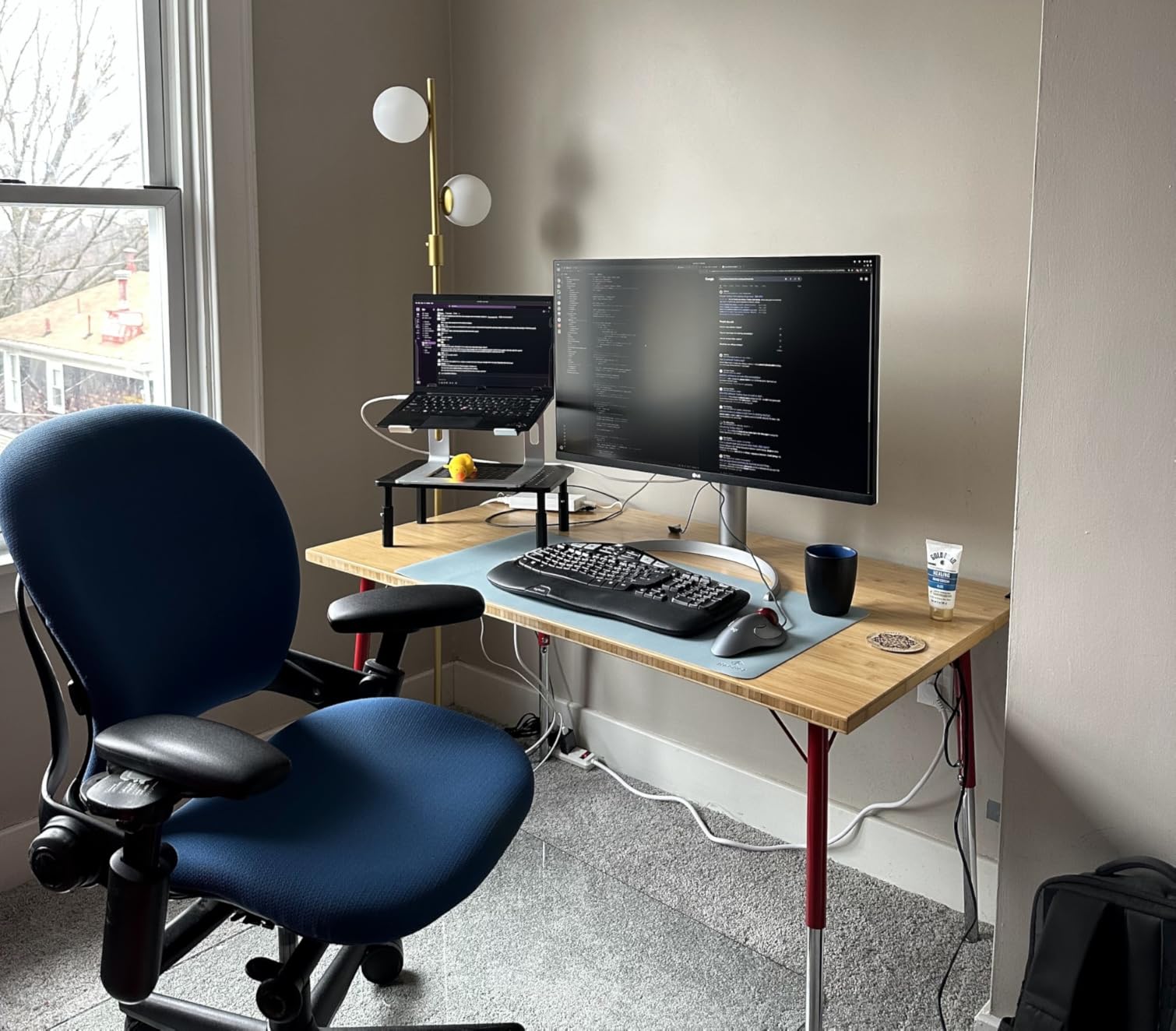
At 31.5 inches this is a genuine single-screen replacement for a smaller 27-inch without adopting an ultrawide aspect ratio. You get the extra width of 4K plus noticeably more vertical room, which means a long file, a documentation pane and a terminal can share the screen without any of them shrinking.
Reviewers repeatedly push back on the idea that 32-inch 4K is unusable at 100% scaling. At roughly 140 PPI on a matte IPS panel the text is fine, and if you want it larger the OS scale slider handles it. The common complaint about big 4K panels is really about desk depth, not legibility, and we cover that in the buying guide.
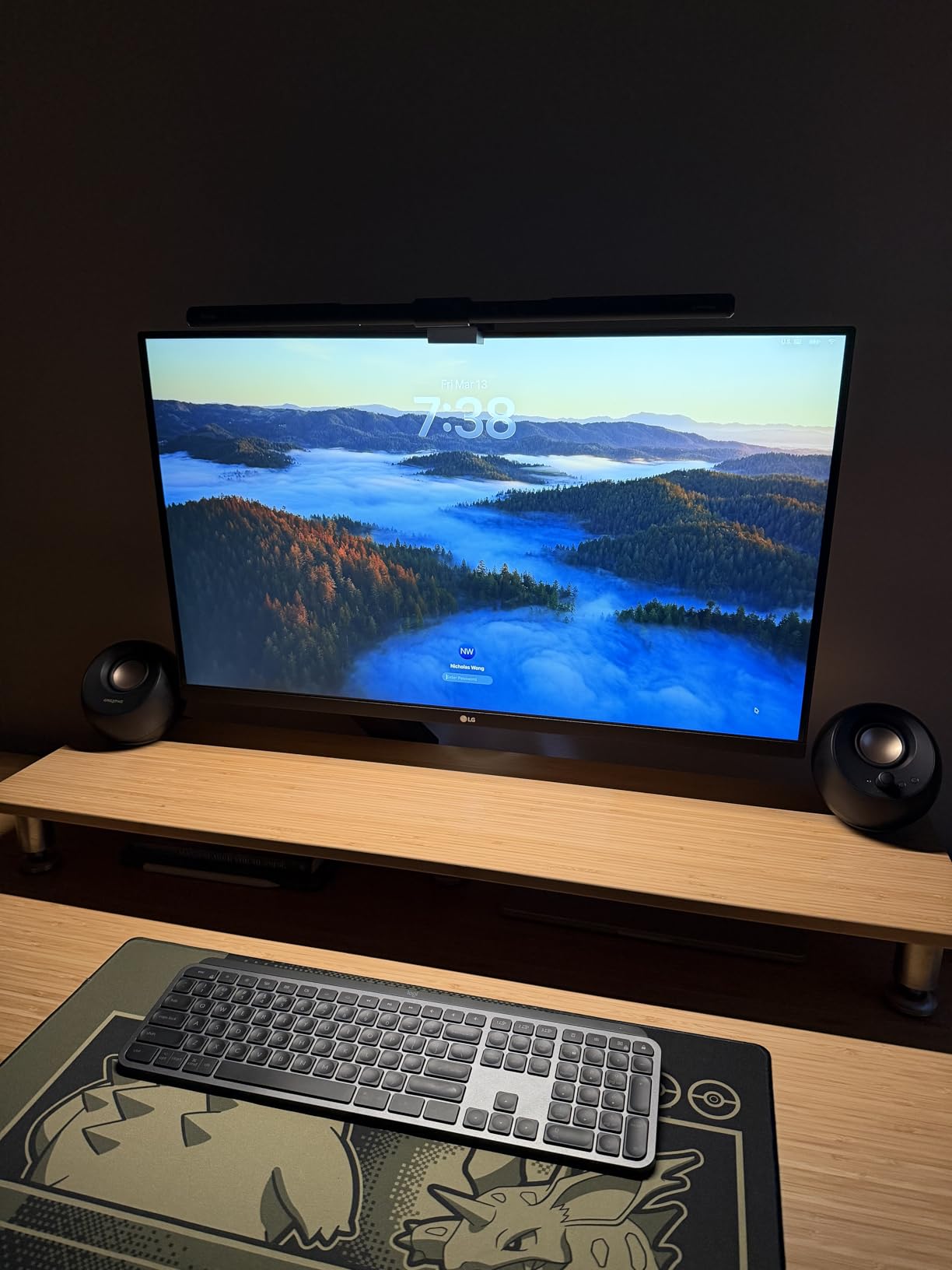
Reader Mode is a simple filter that shifts the panel to a warmer, paper-like presentation. It is not transformative but it is a genuine option for anyone reading specifications or long-form documentation rather than code all day.
The USB-C port carries 4K video, data and up to 60W of charging, which covers most ultraportables comfortably and falls short for heavier machines. The stand covers height, tilt and pivot, so portrait rotation is available for diff review.
Check these details before you buy the 32UP83AK-W
Contrast is 1000:1, the lowest in this roundup, which gives flat blacks in a dark room and makes a dark editor theme look slightly grey. If you work at night in a dim space, a panel with 2000:1 contrast will look noticeably better.
At 8.3 kg this is a substantial panel, and at 28.1 inches wide it will not sit comfortably next to a 27-inch on a standard desk. Measure before you order, because a 32-inch display pushed too far back to fit is the most common cause of neck strain in this list.
Who should skip this monitor
Skip it if you are sensitive to contrast in dark themes, because 1000:1 is the weakest figure here and the difference against a 2000:1 panel is visible at low brightness.
Skip it if you want smooth motion. It is 60Hz only, and the 350-nit brightness is modest for the HDR10 content the panel supports. It is a workspace display, not a media display.
9. INNOCN 27C1U – the best 4K monitor for MacBook users
INNOCN 27″ 4K USB-C Monitor for Laptop MacBook/Mac mini – 16:9 IPS 3840 x 2160 Display, HDR400, DeltaE<2, DisplayPort, HDMI PC Monitor, 1.07B+ Colors, Built-in Speakers, Adjustable Stand, Black
27-inch 4K IPS at Delta E under 2
USB-C 65W with DisplayPort 1.4 and HDMI 2.1
Full stand with pivot to portrait
1.07B colours with HDR400
+ The Good
- Sharp colour accurate 4K IPS for the price
- Stand adjusts height swivel tilt and pivots to portrait
- USB-C charging plus DisplayPort and HDMI 2.1
- Three-sided frameless design looks clean
- The Bad
- Only 60Hz refresh rate
- 1000:1 contrast is low against IPS Black
- No USB hub so peripherals need a separate dock
If you write code on a MacBook and want one cable for video, data and charging without stepping up a bracket, this panel does that at 65W over USB-C. The legacy DVI and VGA ports were removed in favour of USB-C and DisplayPort, which tells you how the manufacturer expects it to be used.
Colour accuracy is the standout specification. A stated Delta E under 2 across 1.07 billion colours with 400 nits and HDR400 means front-end developers and anyone doing design-adjacent work get a panel that holds colour without a calibration loop, which is unusual at this level.
The stand is the other quiet strength. It offers 45 degrees of swivel, plus or minus 5 inches of height, 5 degrees forward, 20 degrees back and plus or minus 90 degrees of pivot, so portrait rotation for code review is available without buying an arm.
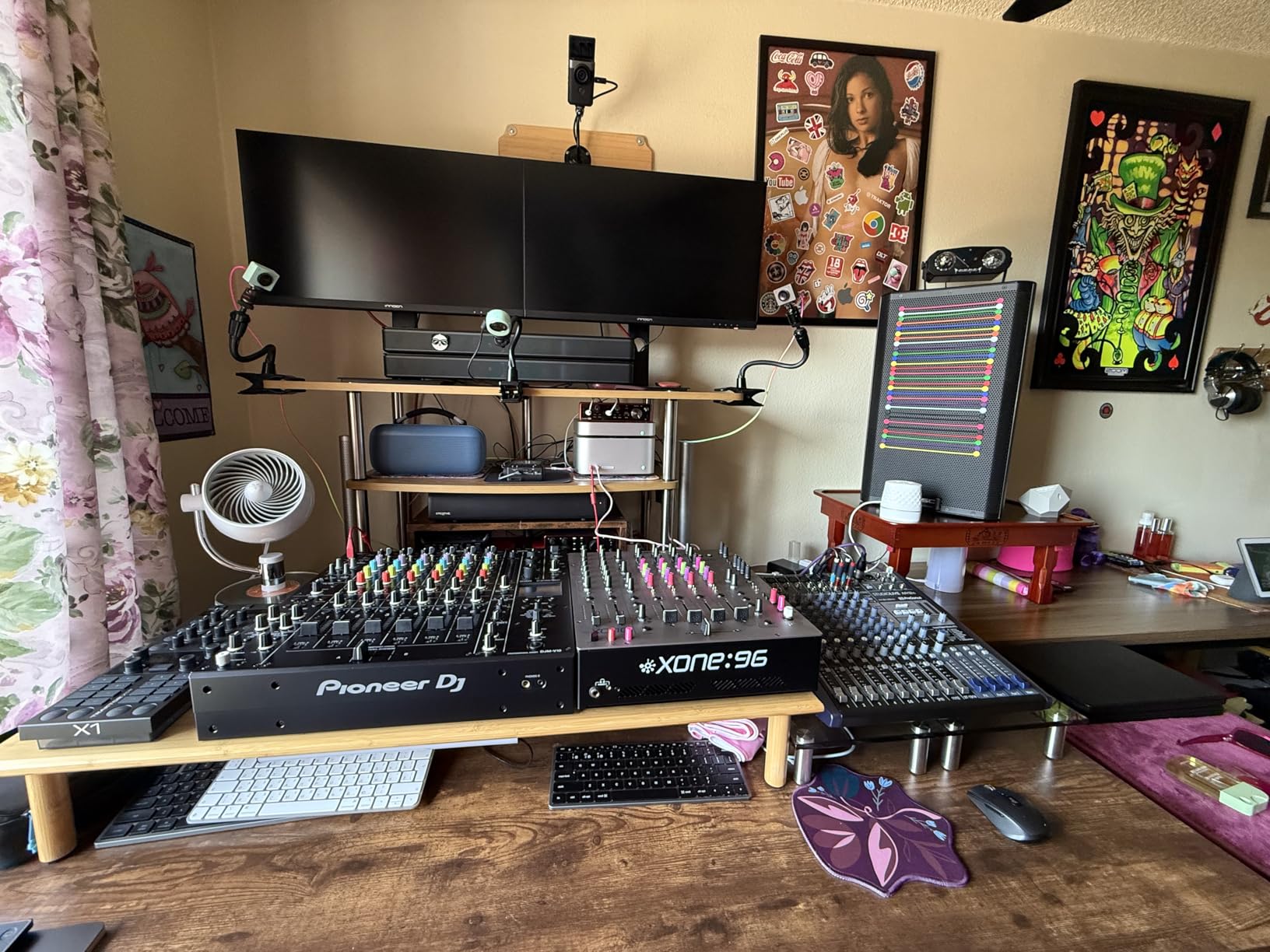
Input selection covers DisplayPort 1.4, HDMI 2.1 and USB-C, and the display is G-Sync compatible for smoother motion in what spare capacity a 60Hz panel allows. The three-sided frameless design keeps the desk looking tidy in a one-monitor setup.
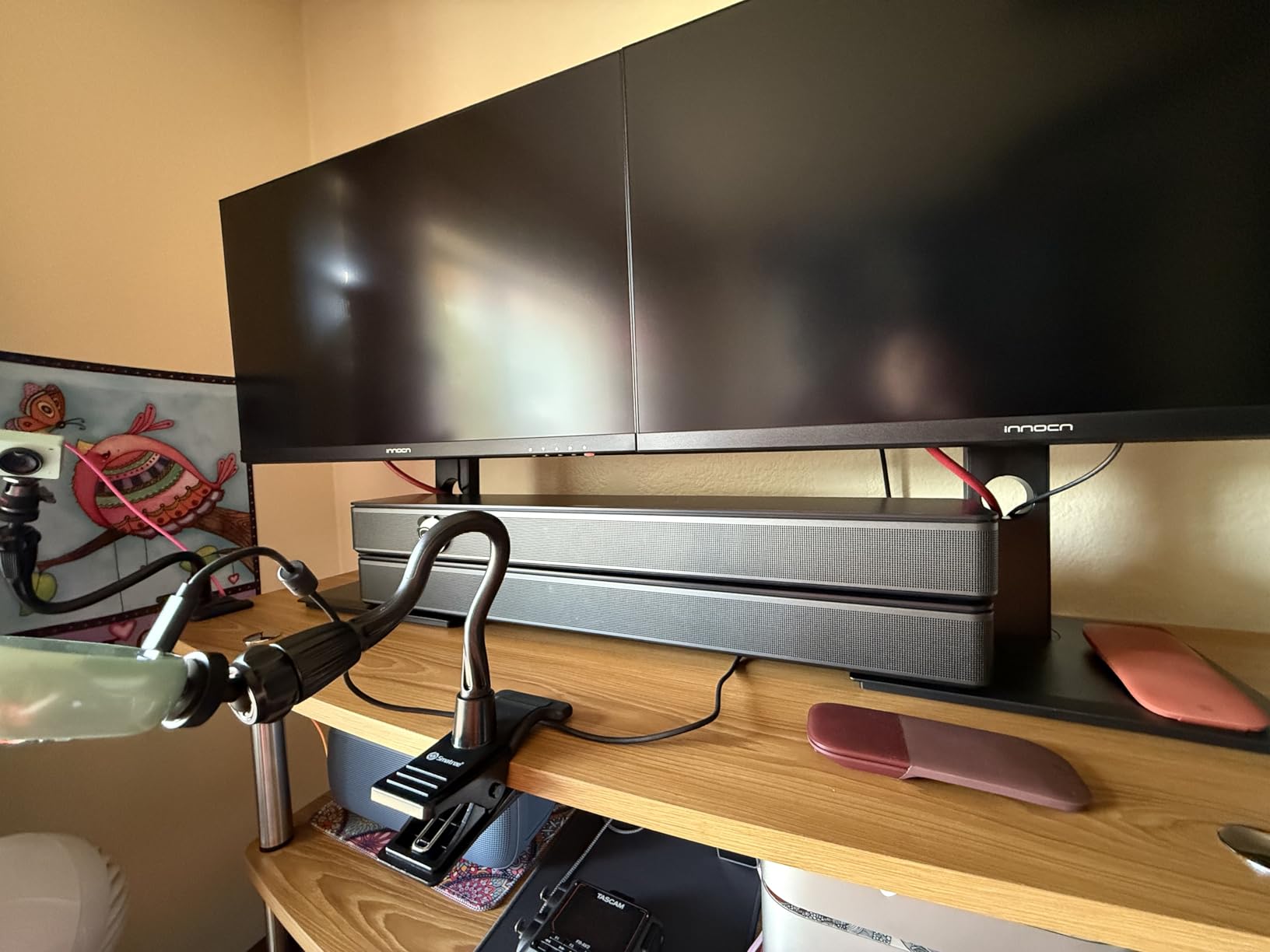
Check these details before you buy the 27C1U
There is no USB hub beyond the single USB-C port. If your usual workflow is keyboard, mouse and an external drive straight into the monitor, you will still need a dock, which costs money and desk space that this monitor was supposed to save.
The warranty is one year from a manufacturer with a smaller support footprint than Dell, LG or BenQ. The mounting pattern is also VESA 75×75 rather than the more common 100×100, so check your arm or wall bracket accepts the smaller plate.
Who should skip this monitor
Skip it if you want the deep port selection that makes one-cable setups genuinely frictionless. It is a display with a USB-C port, not a dock, and the distinction shows up every time you plug something in.
Also skip it for dark-room work, since 1000:1 contrast makes black backgrounds look grey, and skip it if you need gaming refresh rates at 60Hz with no headroom.
10. Acer CB272K bmiprux – the best budget 4K monitor for coding
Acer 27in 4K 3840×2160 IPS 60Hz Office Monitor CB272K bmiprux
27-inch 4K IPS at 2000:1 contrast
Integrated USB-C 90W docking
Eyesafe low blue light and 99% sRGB
Three year parts and labour warranty
+ The Good
- Sharp detailed 4K at the lowest cost here
- Integrated 90W USB-C dock keeps it to one cable
- 2000:1 contrast is unusually good at this tier
- Three year warranty
- The Bad
- Slow startup and slow wake from sleep
- Some USB-C link dropouts needing a power cycle
- Very heavy at 18.3 pounds
This is the entry point if the budget is fixed and 4K matters more than polish. A 27-inch 3840×2160 IPS panel with 2000:1 contrast is a genuinely good code canvas, and having that contrast figure at this cost level is unusual. Reviewers describe the calibration and colour reproduction as close to perfect.
The integrated USB-C 90W dock means a laptop connects with a single cable for display, data and charging, which is the one feature many cheaper 4K panels drop entirely. With 90W you are covered for most thin and light development machines.
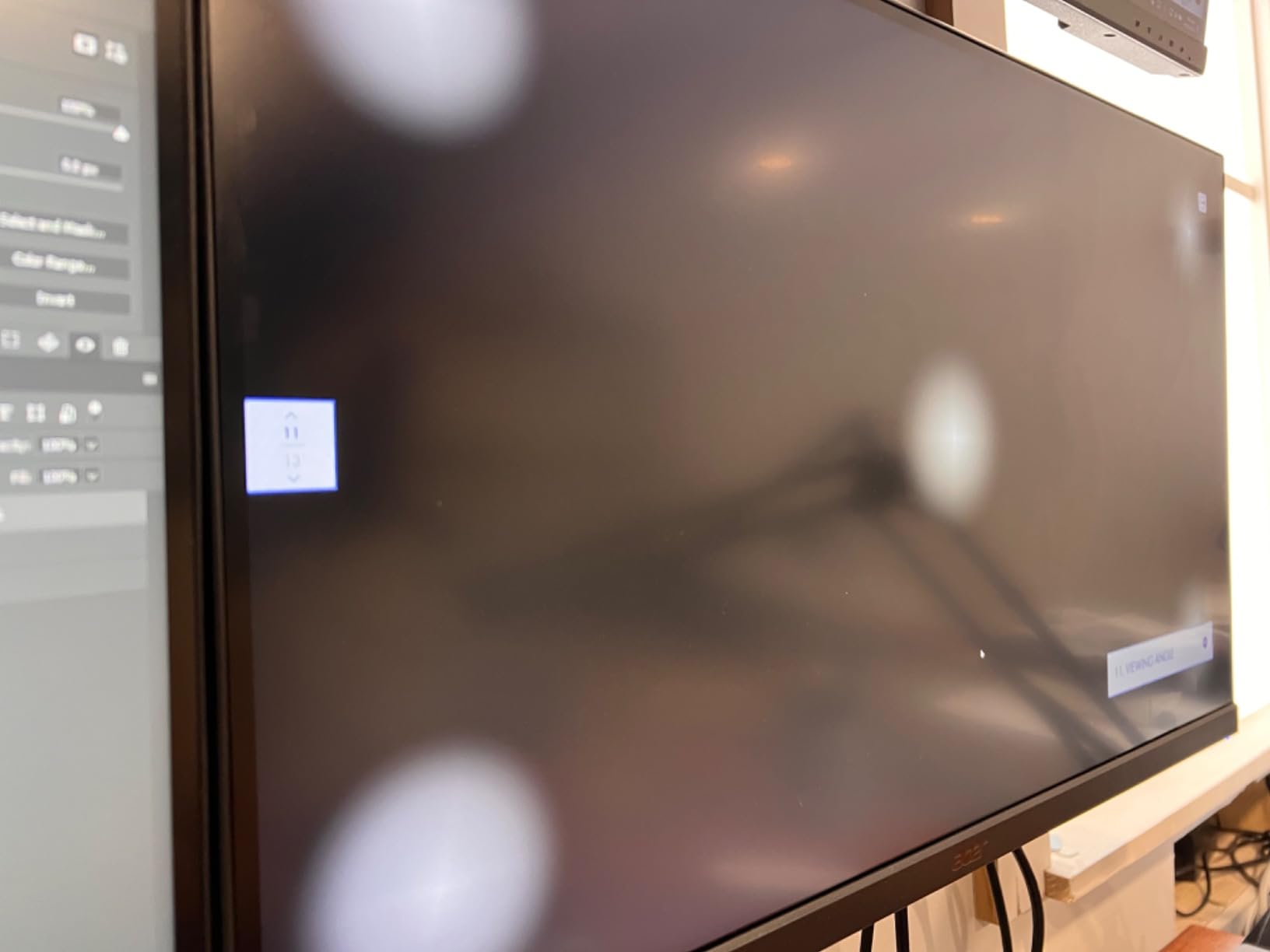
The zero-frame bezel maximises the usable screen area and looks tidy in a single-monitor setup. AMD FreeSync is supported, and Eyesafe Display protection filters high-energy blue light without the heavy colour shift some low blue light modes impose.
A three-year parts and labour warranty is longer than several picks in this roundup at a fraction of their cost, and that is worth real money over a five-year ownership cycle.
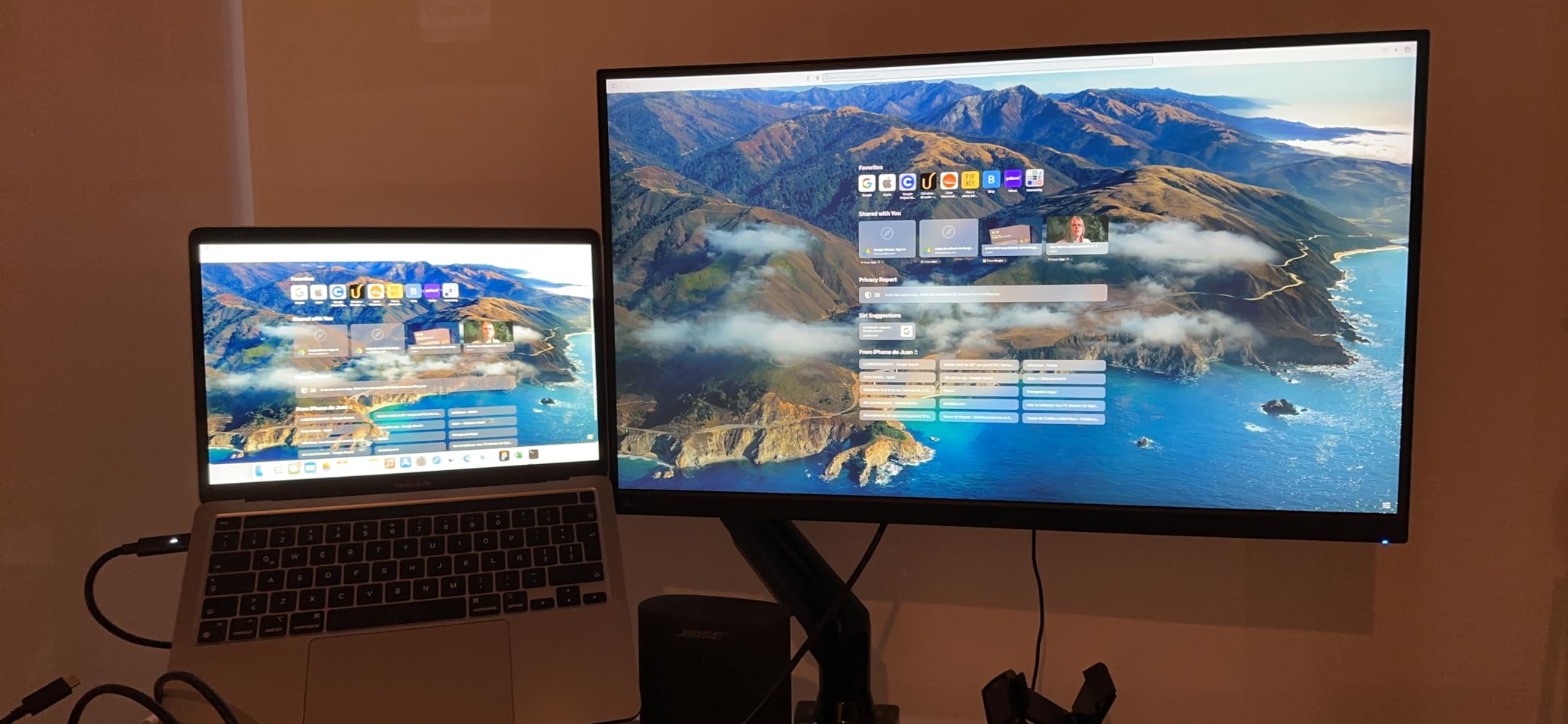
Check these details before you buy the CB272K
Power behaviour is the recurring complaint. Reviewers report slow startup and slow wake from sleep, which adds friction to the first ten minutes of every working session. Some units also drop the USB-C link and need a power cycle to recover, so a rebooted machine may be part of your routine.
At 18.3 pounds this is by a wide margin the heaviest panel here, which means a deep desk and a solid surface. Check it fits before ordering, particularly if you plan to mount it on an arm.
Who should skip this monitor
Skip it if you are irritated by slow wake times, because that is the complaint that appears most often and it repeats daily. It is also a 60Hz panel, so there is no smoothness option at all.
Skip it if you need wide colour work, since 99% sRGB and 350-nit brightness are fine for code and modest for anything beyond it. Reviewers also note a higher share of defective-unit and misaligned-button complaints than the Dell and LG models in this list.
11. Samsung 49-inch Ultrawide – the best ultrawide for editor plus terminal
Samsung 49” Business Curved Ultrawide Dual QHD Computer Monitor, USB-C, DisplayPort, HDMI, 120Hz, VESA DisplayHDR 400, Built-in Speakers, Height Adjustable Stand, Eye Care, LS49C954UANXZA, 2024
49-inch 32:9 at 5120x1440
1000R curve with 3000:1 contrast
120Hz refresh
USB-C with 90W plus hub and speakers
+ The Good
- Huge 32:9 canvas replaces a dual monitor desk
- 1000R curve reduces edge distortion
- 3000:1 contrast is the strongest in this roundup
- 120Hz refresh keeps scrolling smooth
- The Bad
- 45 inches wide demands a large desk
- 5120x1440 vertical resolution is modest for the size
- No built-in KVM despite multi-device support
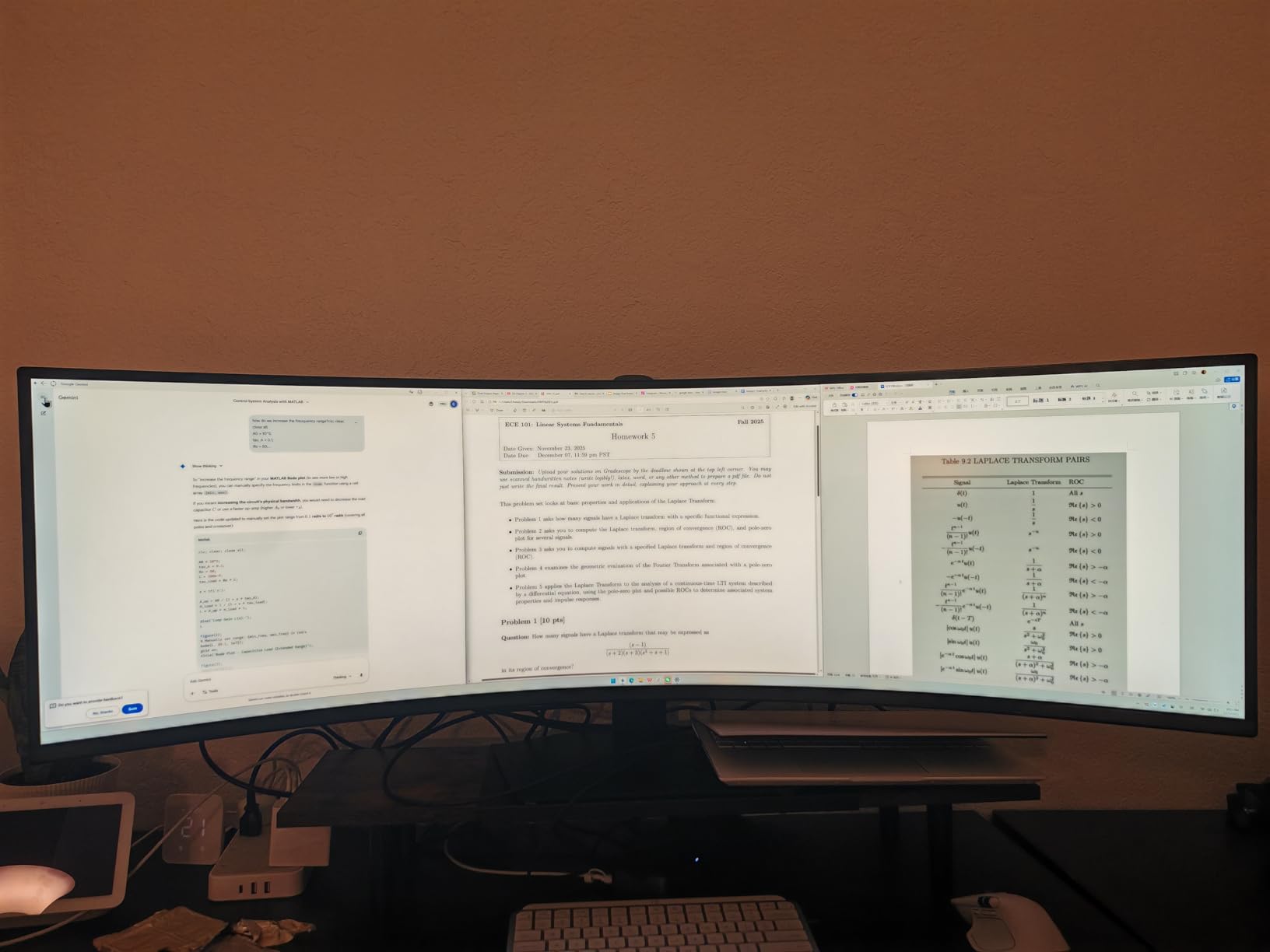
This is the one-panel answer to the editor, terminal and documentation problem. At 5120×1440 you get 1440 vertical pixels, which matches a good 27-inch 4K screen, spread across 49 inches of width. Editor on one side, terminal and browser dev tools on the other, without a bezel down the middle.
Contrast is 3000:1, the strongest figure in this roundup, and the 1000R curve is gentle enough that only the far corners curve at all. At this size the curve genuinely helps because it keeps the outer thirds of the panel closer to your eye line than a flat 49-inch would.
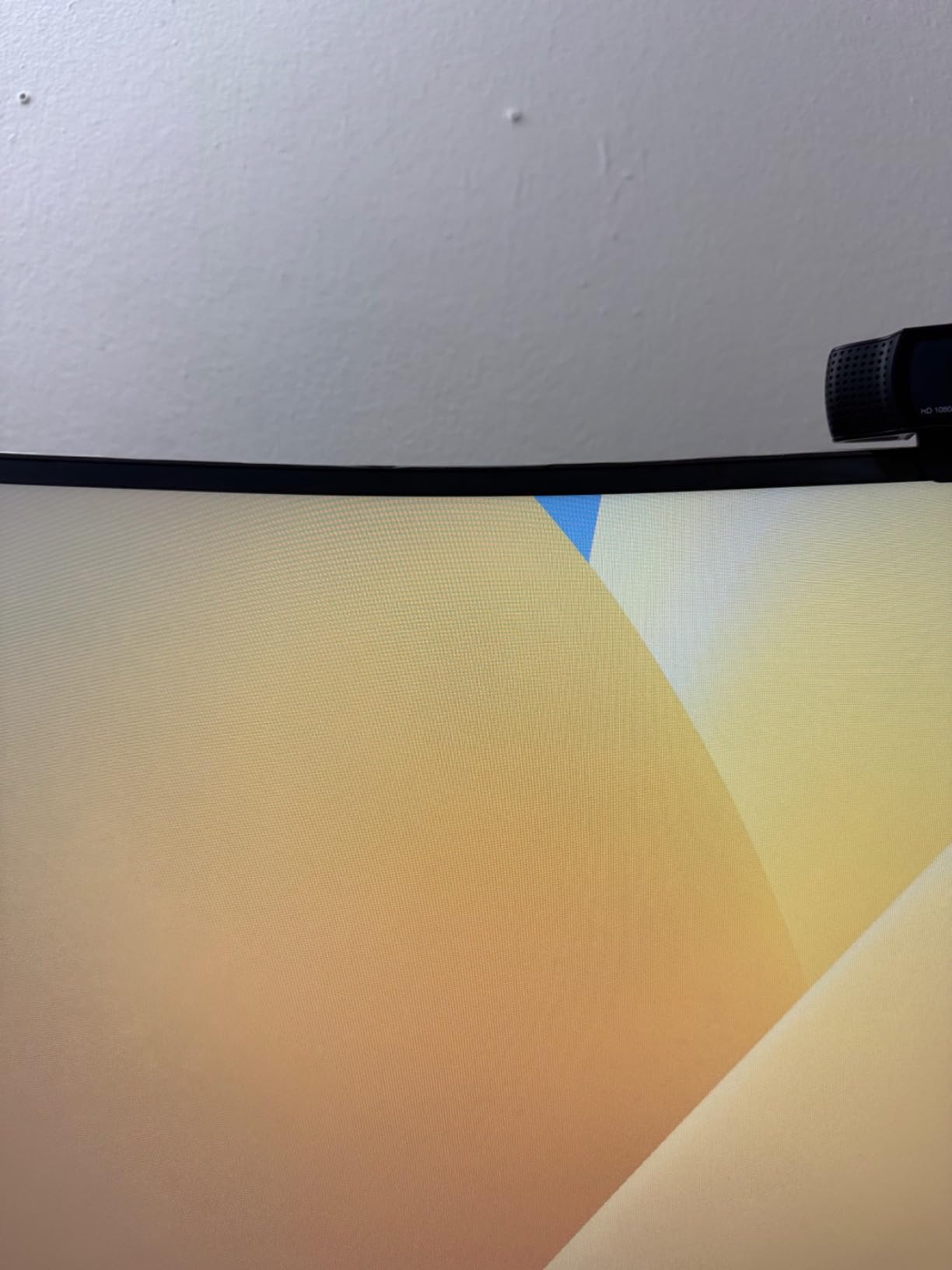
Reviewers describe it as a single-screen replacement for a dual-monitor desk rather than a gaming ultrawide. The 120Hz refresh keeps scrolling and window motion smooth across such a wide canvas, and USB-C with 90W charging plus DisplayPort, two HDMI and a USB hub make it self-contained as a docking hub.
If you have not yet decided whether to go ultrawide, our ultrawide monitor roundup covers the format across sizes and refresh rates.
Check these details before you buy the Samsung 49-inch
Measure your desk. At 45.18 inches wide and 32.2 pounds, this needs a surface most people do not have, and the panel ends up further from you than 49 inches of screen was designed for, which pushes text to the edges of your vision.
The vertical resolution of 1440 pixels means no individual window is very tall. Split the screen three ways and each window is shorter than on a single 27-inch, so this rewards people who want width over height, not everyone. There is also no built-in KVM despite the multi-device connectivity.
Who should skip this monitor
Skip it if you work in a small room, on a small desk, or if your chair cannot get close enough for the centre of a 49-inch panel to be at a comfortable distance. Screen distance defeats ultrawide width every time.
Skip it if you need vertical resolution for very long files or a tall diff side by side with your editor. This is a wide tool, not a tall one, and reviewers treat the modest vertical pixels as the accepted trade.
12. ASUS ZenScreen MB16ACV – the best portable monitor for coding on the move
ASUS ZenScreen 15.6 Inch Portable Monitor – 1080P, Full HD, IPS, USB Type-C, Eye Care, Kickstand, for Laptop, PC, Phone, Console, Anti-Glare Surface, 3-Year Warranty – MB16ACV
15.6-inch Full HD IPS at 0.41 inch thick
Single USB-C for video and power
Kickstand folds to portrait
1.8 pounds with three year warranty
+ The Good
- Weighs under 2 pounds and fits a laptop sleeve
- One USB-C cable carries video and power
- Kickstand rotates to portrait for code review
- TUV flicker-free and low blue light certified
- The Bad
- 1080p gives less workspace than a desktop panel
- Single USB-C port with no hub
- Small stand is not height adjustable
Treat this as a second screen rather than a desk replacement. At 15.6 inches and 1080p the usable canvas is small, so it works best as a dedicated window for documentation, a video call or a terminal tail rather than as your editor.
What it does well is disappear. At 1.8 pounds and 0.41 inches thick it fits in the same sleeve as a laptop, and the hybrid-signal USB-C solution carries both video and power so there is one cable and no adapter brick. Reviewers consistently describe it as the dependable travel companion rather than a compromise desktop screen.
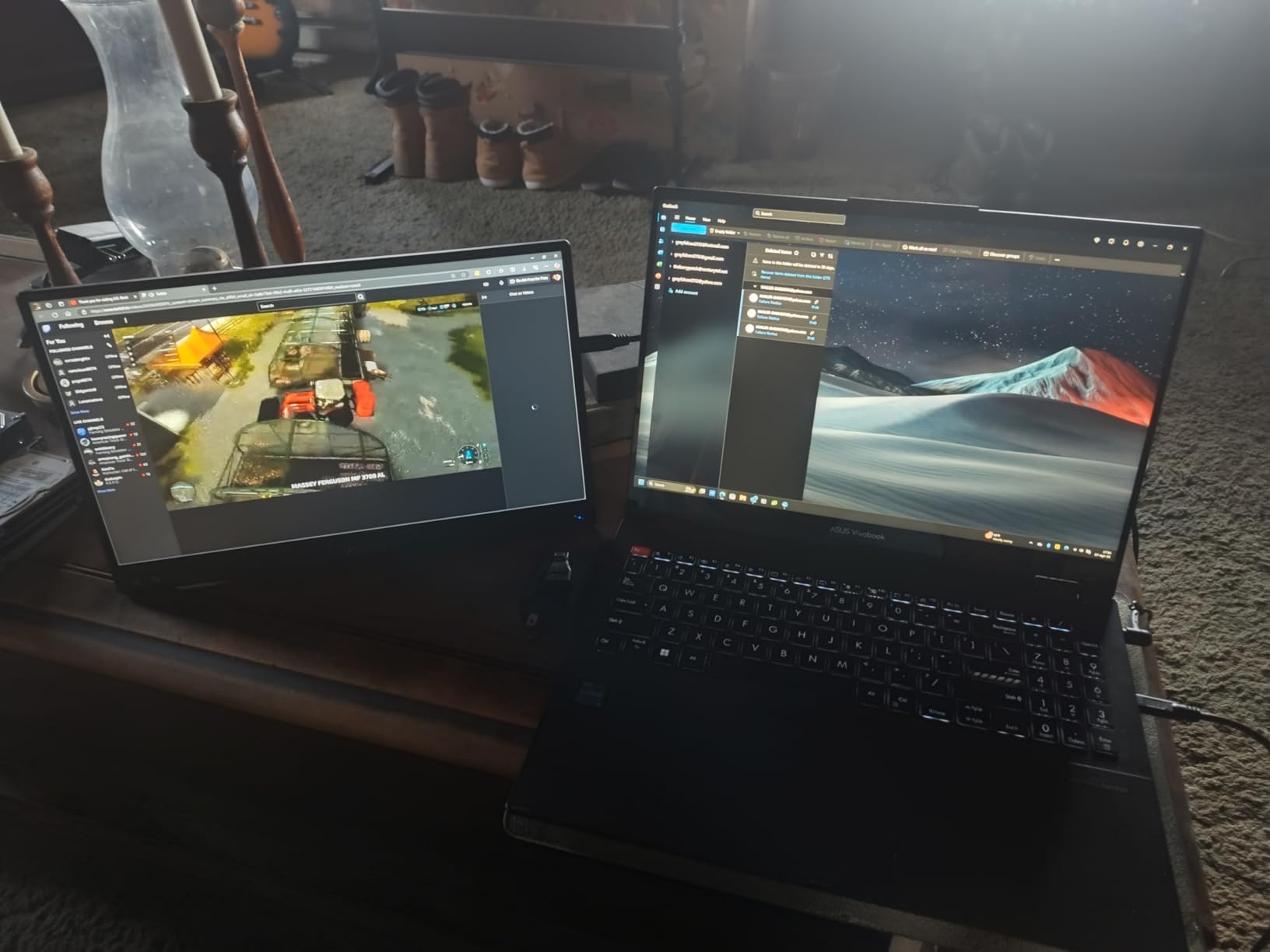
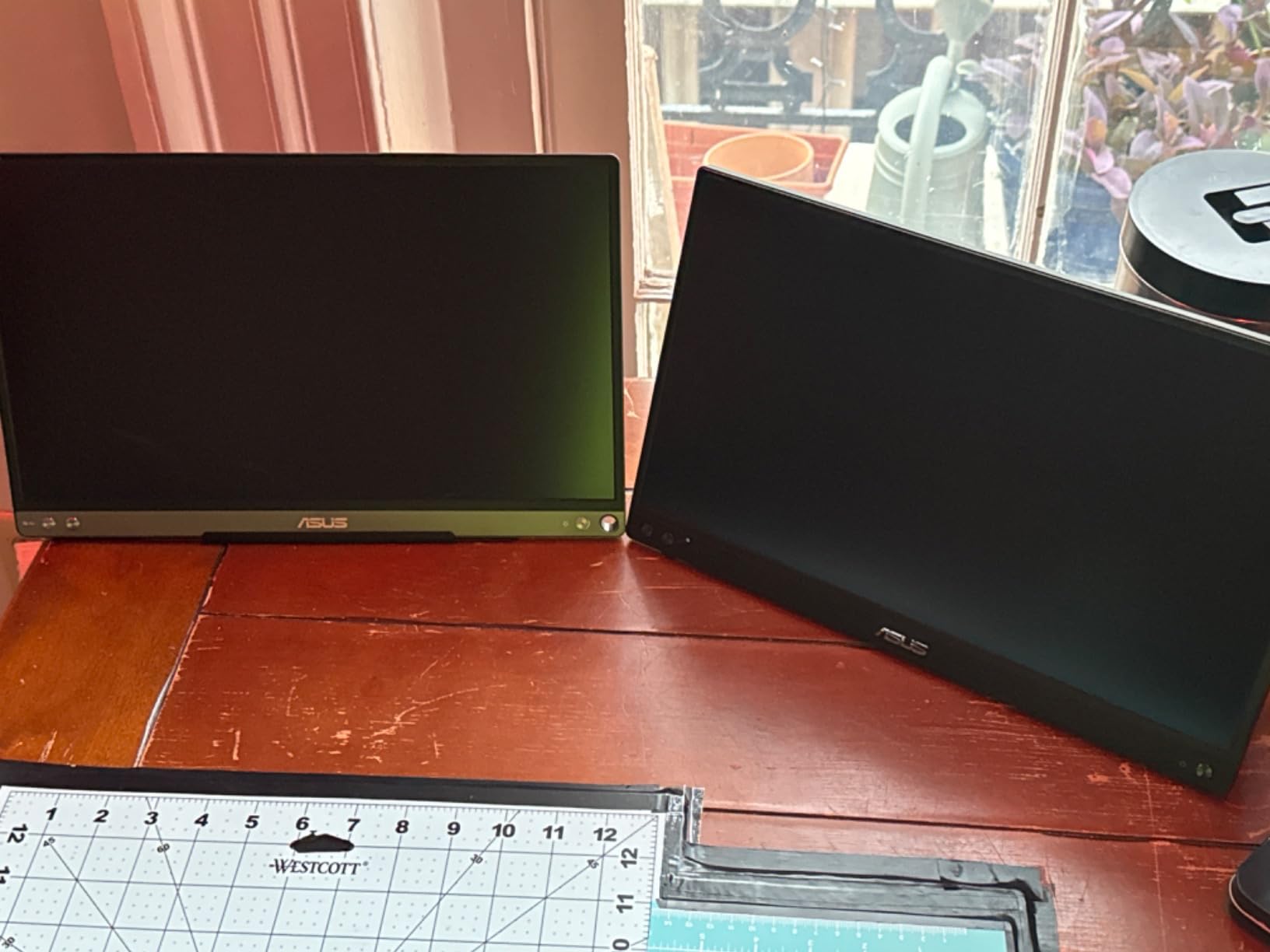
The kickstand folds flat and rotates to portrait, which is more useful than it sounds. Rotating a 15.6-inch panel upright gives you a tall narrow column for reading a long stack of log output or a side-by-side diff, and the aspect ratio works better for text than the same content on a wide screen.
Eye Care with TUV Rheinland flicker-free and low blue light certification handles long sessions, and a tripod mount is available for an external arm. It also works with USB Type-A laptops through the included adapters, plus phones and consoles.
Check these details before you buy the ZenScreen
There is a single USB-C port with no hub and no charging pass-through on some setups, so you are limited to one device at a time and cannot keep your laptop charged while the monitor takes the port.
The built-in stand is not height adjustable, only a folding kickstand, so eye-level placement depends on what is underneath it. And at 60Hz with a small canvas, it is not the primary display for a full day of development however convenient it is on the road.
Who should skip this monitor
Skip it if you intend to code full days on it. A 1080p panel at 15.6 inches cannot hold enough code for a primary workflow, and the small stand will not sit at eye level on most desks without help.
Skip it if you want a single-cable dock with USB peripherals attached, since there is no hub at all. For a permanent extra monitor in a fixed setup, a 27-inch 4K panel at this price bracket is a better use of the money.
How to Choose a Monitor for Programming
Seven decisions account for nearly all of the difference between a monitor that is pleasant to code on and one that causes eye strain by 4pm. Work through them in this order, because size and resolution constrain each other and everything else sits on top.
Start with resolution and pixel density
Pixel density, measured in PPI, determines how crisp code text looks. The number alone means nothing without the panel size, because a 4K resolution stretched across 32 inches is a very different experience from the same resolution across 27. The rule of thumb most developers converge on is roughly 140 PPI or higher for comfortable reading, which is what a 32-inch 4K panel delivers and what a 27-inch 4K panel comfortably exceeds.
Below that, text starts to look soft or forces a scale factor that blurs it. A 27-inch 1440p panel sits around 109 PPI, which is why it looks fine at 100% scaling but the glyphs are not as finely rendered. A 27-inch 5K panel reaches about 218 PPI, which is the sharpest text in this roundup and the closest to a 27-inch Apple Retina panel.
On the question of whether 1440p is enough for programming: it is genuinely enough if you refuse to use fractional scaling, and not enough if you spend your day reading long files and large diffs where every extra line reduces context switching. 1080p at 1920×1080 versus 3840×2160 is not a close comparison at any size above 24 inches.
27-inch 4K versus 32-inch 4K
27-inch 4K (163 PPI): the all-rounder. Sharp text, a physical size that fits most desks, and a comfortable viewing distance. Choose this if your desk depth is under 28 inches or you share the space.
32-inch 4K (about 140 PPI): more workspace for the same scaling percentage, with text still readable at 100%. Choose this if you want long files and docs visible beside the editor without shrinking anything.
27-inch 5K (about 218 PPI): the sharpest text available here, but it needs either macOS lookscaled mode or a 200% Windows scale to be comfortable, and it is the most demanding on graphics hardware.
34-inch 3440×1440 ultrawide: width without height. Great for editor plus terminal, poor for two tall documents side by side.
49-inch 32:9: a 32-inch’s vertical resolution spread across nearly two panels wide. The width-to-height maths matters more than the diagonal number.
The practical difference between 27 and 32 inches is viewing distance, not legibility. A 32-inch panel needs roughly 70 to 80 cm of desk depth to sit at a comfortable distance, and pushing it further back to fit a shallow desk forces constant head movement, which is a common source of neck strain.
Monitor scaling on Windows, macOS and Linux
This is the question nobody in the roundup category answers properly, so here is the direct answer: on a 27-inch 4K panel, use 150% on Windows if you want larger text and more room for application chrome, and 125% if you want to see more code per glance. On a 32-inch 4K panel, stay at 100%. On a 27-inch 5K panel, use 200% on Windows or the lookscaled default on macOS.
Windows handles fractional scaling by bitmap-scaling between steps, and older applications that declare themselves DPI-unaware can render microscopic text unless you override them per application. The per-application DPI override in display settings fixes that once per app, and it is a ten-minute job that changes how the whole desktop feels.
macOS uses lookscaled HiDPI mode, which renders the interface at a doubled pixel grid rather than scaling a bitmap, so text stays sharp at every step. The trade is that the available steps are coarser, and 27-inch 5K panels exist precisely because macOS users want a step above lookscaled 4K.
Linux HiDPI behaviour varies by desktop environment, and this is the most common source of forum complaints in the panel data. GNOME and KDE handle fractional scaling differently, and some toolkits still ignore the scale factor, which is why several monitors in this roundup ship desktop software for Windows and macOS only.
IPS, VA and OLED for code editors
IPS is the right default for coding and the programming communities reach for it almost without exception. The reason is viewing angle stability and colour consistency, both of which matter when a monitor sits slightly off-centre on a desk with a window to the side. Matte IPS in particular keeps reflections down and text readable in a bright room.
VA panels offer deeper blacks and higher contrast, but reviewers report text smearing as the panel dims, which is exactly the failure mode that makes code hard to read for long stretches. The 3000:1 contrast on the Samsung ultrawide in this roundup is a genuine asset in a dark room, and the smearing is the price of it.
OLED deserves an honest answer. The contrast and text rendering are superb for dark themes, and a modern OLED with a dark IDE and a screensaver enabled is low risk. But a developer who leaves a bright static editor open all day is the classic burn-in profile, and pixel shift plus a screen timeout reduces the risk without removing it. None of the monitors here are OLED, which is a deliberate choice for a roundup about text legibility.
Screen size, desk depth and viewing distance
Above about 32 inches, desk depth starts to constrain the choice more than resolution does. Sit at your normal working distance and ask whether the whole panel fits without pushing it back, because a 49-inch panel pushed to the far end of a desk becomes a poster you read at the edges and a poster you cannot read in the middle.
Portability is the opposite problem. If you travel weekly, the ASUS ZenScreen in this roundup is the only one that fits a laptop sleeve, and a 27-inch panel that stays home is worth more than a second screen you never unpack.
USB-C docking and single-cable setups
If you code on a laptop, USB-C power delivery is the feature that changes your desk most. The threshold to know: 65W is enough for most ultraportables, 90W covers the wide majority of thin and light development machines, and you need more only if you run a workstation-class laptop. Check your laptop’s charging wattage before you pick the monitor, because a port that carries video but not enough power leaves you with a second charger anyway.
KVM switching is the second half of that story. A built-in KVM lets you press one button to move keyboard, mouse and display between a work laptop and a personal desktop instead of buying a physical switch box. Several panels here add picture-by-picture so you can see both machines at once, which is useful when you are pairing an API client on one machine with a browser tool on the other.
Daisy chaining over DisplayPort MST or Thunderbolt 4 means a two or three monitor desk needs only one cable run to the host, which matters more than it sounds once you are routing cables behind a desk with a channel cover.
Ergonomics and eye comfort
The most important ergonomic decision is not the monitor, it is the height. The top of the panel should sit at or just below eye level when you are seated upright, and that is a function of your chair, your desk and the monitor’s height adjustment range. A panel that cannot reach eye level needs a riser or an arm.
Height, tilt, swivel and pivot are all worth insisting on, and pivot to portrait specifically pays off during code review, where a tall column of text at a readable size beats a short wide window every time. VESA 100 mounting is the most common pattern, though note that some budget panels use the smaller 75×75 plate.
For eye comfort, rank features by evidence rather than by name. Hardware flicker-free dimming and DC dimming matter more than a low blue light filter, because PWM flicker at low brightness is what causes headaches on long evening sessions. A matte coating that actually suppresses reflections does more for comfort in a bright room than any eye care badge, and an ambient light sensor that adjusts brightness automatically beats a manual slider you forget to change.
What you do not need to pay for
Four things appear on almost every monitor page and add almost nothing to writing and reading code. First, HDR. A DisplayHDR 400 badge requires no local dimming zone and produces a barely different image against SDR, and a coding monitor runs mostly below 300 nits on a dark or normal theme anyway.
Second, high refresh rates. 120Hz is worth having because it is cheap and scrolling is smoother, but 144Hz versus 240Hz is invisible in an editor. Third, sub-millisecond response ratings, which describe motion blur handling and say nothing about text legibility. Fourth, a wide DCI-P3 gamut, which matters only if your job involves grading or print-accurate colour.
Spending on those instead of a matte nano coating, a 2000:1 contrast ratio or a stand that reaches eye level is the most common way people buy the wrong monitor for coding. Judge on the four things you feel every hour: text crispness, workspace, comfort and cable simplicity.
Frequently Asked Questions
Which computer monitor to get?
For most developers, a 27-inch 4K IPS monitor is the right answer. Look for matte anti-glare coating, at least 140 pixels per inch, height and pivot adjustment, and a USB-C port if you code on a laptop. In this roundup the Dell UltraSharp U2723QE leads because it combines 163 PPI with a built-in KVM switch, 90W USB-C and DisplayPort daisy chaining.
Is IPS better than VA for coding?
Yes, for most programming setups. IPS keeps colour and brightness stable at wide viewing angles and shows no text smearing as brightness drops, which matters over an eight-hour session. VA offers deeper blacks and higher contrast but reviewers report smearing on dark text as the panel dims. Choose VA only if you work in a very dark room and value contrast more than long-session stability.
What is the best size monitor for coding?
27 inches at 4K is the default answer, and 32 inches at 4K if you want more workspace at the same scale percentage. Both sit above 140 pixels per inch so text stays sharp. Go larger only if your desk has at least 70 to 80 cm of depth, because pushing a big panel further back to fit causes more neck strain than it solves.
Should I buy a 27 or 32 inch monitor?
Buy 27 inches if your desk is shallow or you share the space, because it needs less viewing distance to stay comfortable. Buy 32 inches if you regularly read long files and large diffs and want them beside your editor without shrinking. Both 4K sizes run at 100% scaling comfortably, so the decision is about physical fit rather than legibility.
Which scaling is better for a 4K monitor, 125% or 150%?
On a 27-inch 4K panel, 150% gives larger text and more room for application chrome, while 125% shows more code per glance. On a 32-inch 4K panel stay at 100%. On 27-inch 5K, use 200% on Windows or the default lookscaled mode on macOS. Linux users should test both because some toolkits ignore the scale factor entirely.
Is 1440p enough for programming?
Yes, if you run it at 100% scaling and want zero troubleshooting. A 27-inch 1440p panel gives about 109 pixels per inch, which reads cleanly and avoids fractional scaling problems entirely. It shows roughly 55% fewer pixels than 4K at the same size, so if your work is reading long files all day the extra workspace of 4K is worth the scaling setup.
Is an ultrawide monitor better for coding?
An ultrawide is better if your workflow is one wide window plus a narrow companion, such as an editor with a terminal docked beside it. A 34-inch 3440×1440 gives width without height, so splitting it three ways leaves each window short. A 49-inch 32:9 keeps 1440 vertical pixels and genuinely replaces a dual-monitor desk, provided your desk is deep enough.
Do I need a USB-C monitor with power delivery if I code on a laptop?
If you code on a laptop, yes. USB-C with at least 65W lets one cable carry display, data and charging, removing the adapter pile and freeing a port. Check your laptop’s charging wattage first, since many USB-C ports carry video but not enough power. Add a built-in KVM and you also stop needing a physical switch box between two machines.
The Best Monitor for Your Code
After two months with all twelve, the Dell UltraSharp U2723QE remains the best monitor for programmers in 2026. The 163 PPI 4K panel, 2000:1 contrast, built-in KVM and 90W USB-C with Ethernet cover the four things that decide whether a coding display works at hour eight, and more than a thousand reviews back that up.
For value, the KTC H27P3 gives you a 27-inch 5K panel with 218 PPI and a three year warranty, which is the sharpest text in the group at a price that undercuts the premium 4K options. If you would rather not configure scaling at all, the Dell UltraSharp U2724D at 1440p runs perfectly at 100% and gets you out of scaling problems permanently.
Whichever you pick, check the stand reaches eye level, confirm the USB-C wattage covers your laptop, and ignore every specification you will never use while you type. Pairing the right panel with a good keyboard matters more than the last 200 nits, and our best keyboards for programmers guide covers the other half of the desk.