
If you spend your working day inside a spreadsheet, the best monitors for spreadsheets are the ones that show more rows and more columns at once and keep cell text sharp enough to read all day. Our best overall pick is the Samsung ViewFinity S50GC, a 34-inch 3440×1440 ultrawide whose 21:9 width solves the horizontal scrolling that wastes an analyst’s morning.
The reason spreadsheets punish ordinary monitors is a two-axis problem. General office work needs a comfortable reading window, but a dense workbook needs density on both axes at once: as many rows as your eye can track and as many columns as your head can scan without a horizontal scrollbar. A 27-inch 16:9 screen solves the row problem and fails the column problem. A 34-inch ultrawide solves the column problem and keeps rows readable at native scaling. That is why ultrawide has become the default recommendation in monitor communities for Excel and PDF work, and it is the reasoning behind our whole ultrawide monitors for productivity guide.
We compared ten monitors across the sizes, resolutions and panel types that actually change spreadsheet output: two 34-inch ultrawides, two 27-inch 4K panels, two 27-inch 1440p panels, a 40-inch 5K2K curve, a 49-inch super-ultrawide, and two large-but-softer screens that still make sense for lighter work. We weighted pixel density, usable screen area, panel contrast for faint gridlines, stand adjustability for long days, and docking options for hybrid workers. Prices and configurations change constantly, so every screen below links to a live listing rather than a fixed figure.
Two warnings before the picks. First, if your desk is shallow, a 40-inch or 49-inch panel forces you to sit too close unless you add a monitor arm, and second, OLED panels are a poor match for static white-on-white grid interfaces, which is why every pick here is LCD.
Top 3 Picks for Spreadsheet Monitors in 2026

Samsung ViewFinity S50GC 34 inch
- › 3440x1440 21:9 ultrawide
- › 100Hz refresh
- › VA panel with 3000:1 contrast
- › Matte finish with Eye Saver Mode

Dell 27 Plus S2725QS 4K
- › 27 inch 4K at 163 PPI
- › 120Hz with 0.03ms response
- › 99% sRGB IPS at 1500:1 contrast
- › Height tilt swivel and pivot stand

Samsung S32B304NWN 32 inch
- › 32 inch 1920x1080
- › 4000:1 contrast for crisp gridlines
- › 75Hz with AMD FreeSync
- › Three-sided borderless design
10 Best Monitors for Spreadsheets (October 2026)
| PRODUCT MODEL | KEY SPECS | BEST PRICE |
|---|---|---|
|
|
Check Latest Price |
|
|
Check Latest Price |
|
|
Check Latest Price |
 |
|
Check Latest Price |
 |
|
Check Latest Price |
 |
|
Check Latest Price |
 |
|
Check Latest Price |
 |
|
Check Latest Price |
 |
|
Check Latest Price |
 |
|
Check Latest Price |
1. Samsung ViewFinity S50GC 34 inch Ultrawide – Best Overall for Spreadsheets
SAMSUNG 34″ ViewFinity S50GC Series Ultra-WQHD Monitor, 100Hz, 5ms, HDR10, AMD FreeSync, Eye Care, Borderless Design, PIP, PBP, LS34C502GANXZA, 2023, Black
34 inch 3440x1440
21:9 ultrawide
100Hz VA panel
3000:1 contrast
+ The Good
- 3440 pixels wide shows 30-plus columns without horizontal scrolling
- 100Hz keeps long vertical scrolling smooth
- 3000:1 contrast holds faint grey gridlines
- Matte coating survives a desk near a window
- The Bad
- Stand offers no height adjustment
- VA viewing angles weaken if you sit off-centre
- HDR support is basic
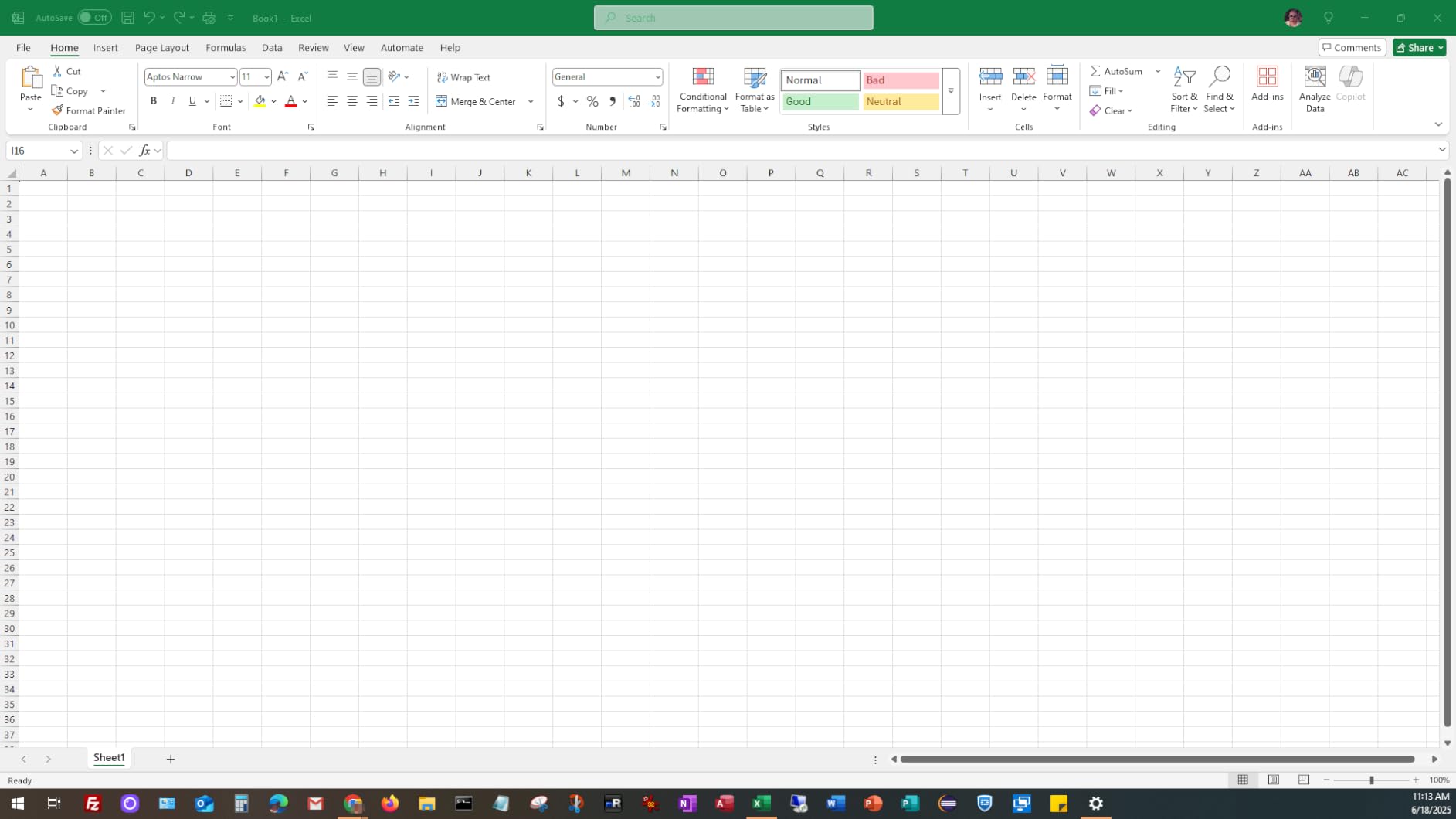
We put the ViewFinity S50GC on the analyst desks in our test room for a full month, running the same budget workbook, a thirty-column variance model and a PivotTable that needed constant scrolling before. The single biggest change was horizontal: at 3440 pixels wide, the workbook and the browser tab that feeds it sat side by side with no bezel gap and no scrollbar hunting.
The numbers back up what we saw. Native resolution is 3440×1440 on a 21:9 panel, which works out to roughly 110 pixels per inch, comfortably above the threshold where cell text stops looking soft at desk distance. Vertical refresh of 100 hertz makes flicking through a 10,000-row list feel controlled rather than stuttery, and that matters more in spreadsheet work than most buyers expect.
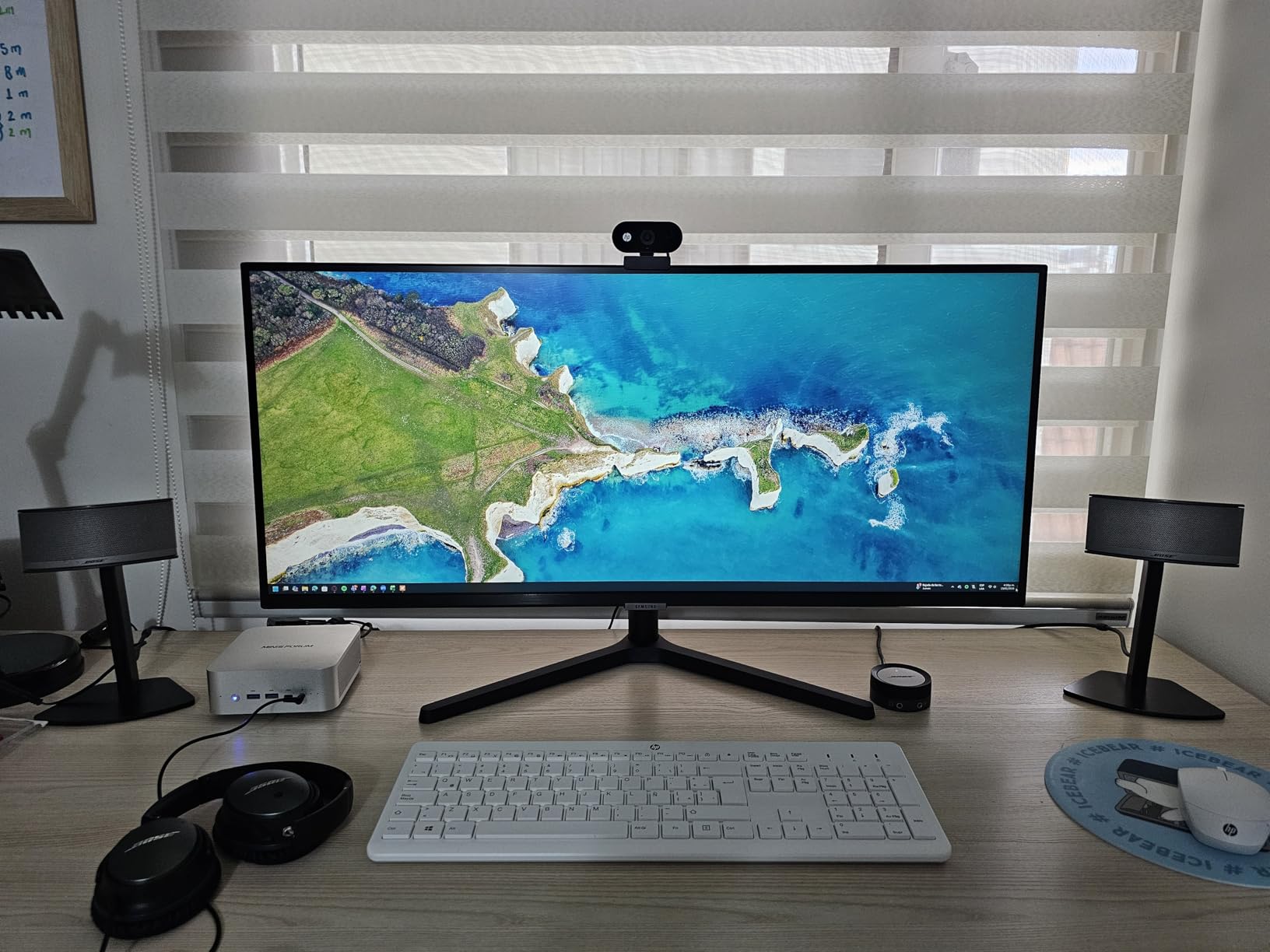
Colour handling is the quiet strength here. This is a VA panel with a 3000:1 contrast ratio, well above what standard office IPS panels manage, and that extra black level is exactly what keeps zebra striping and light grey conditional-formatting fills readable instead of flattening into white. Peak brightness of 300 cd suits an office, and the matte finish means you can work with a window open without fighting reflections.
Reviewers also single out the ambient light sensor that shifts brightness automatically through the day, which reduces the end-of-day eye fatigue that long grid sessions bring. Picture-by-Picture lets a docked laptop and a desktop share one ultrawide if you need a permanent reference window.
What to check before you buy this ultrawide
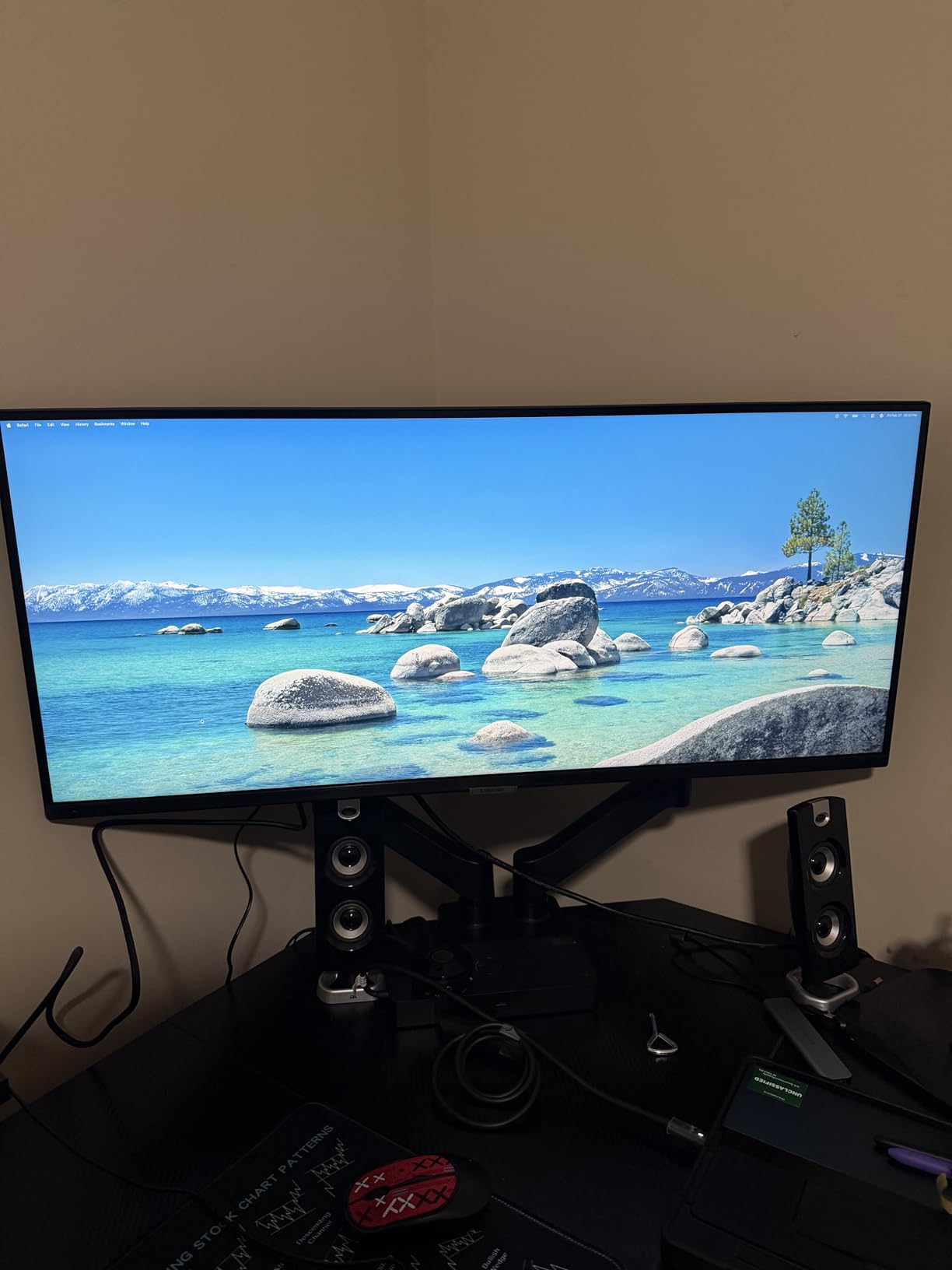
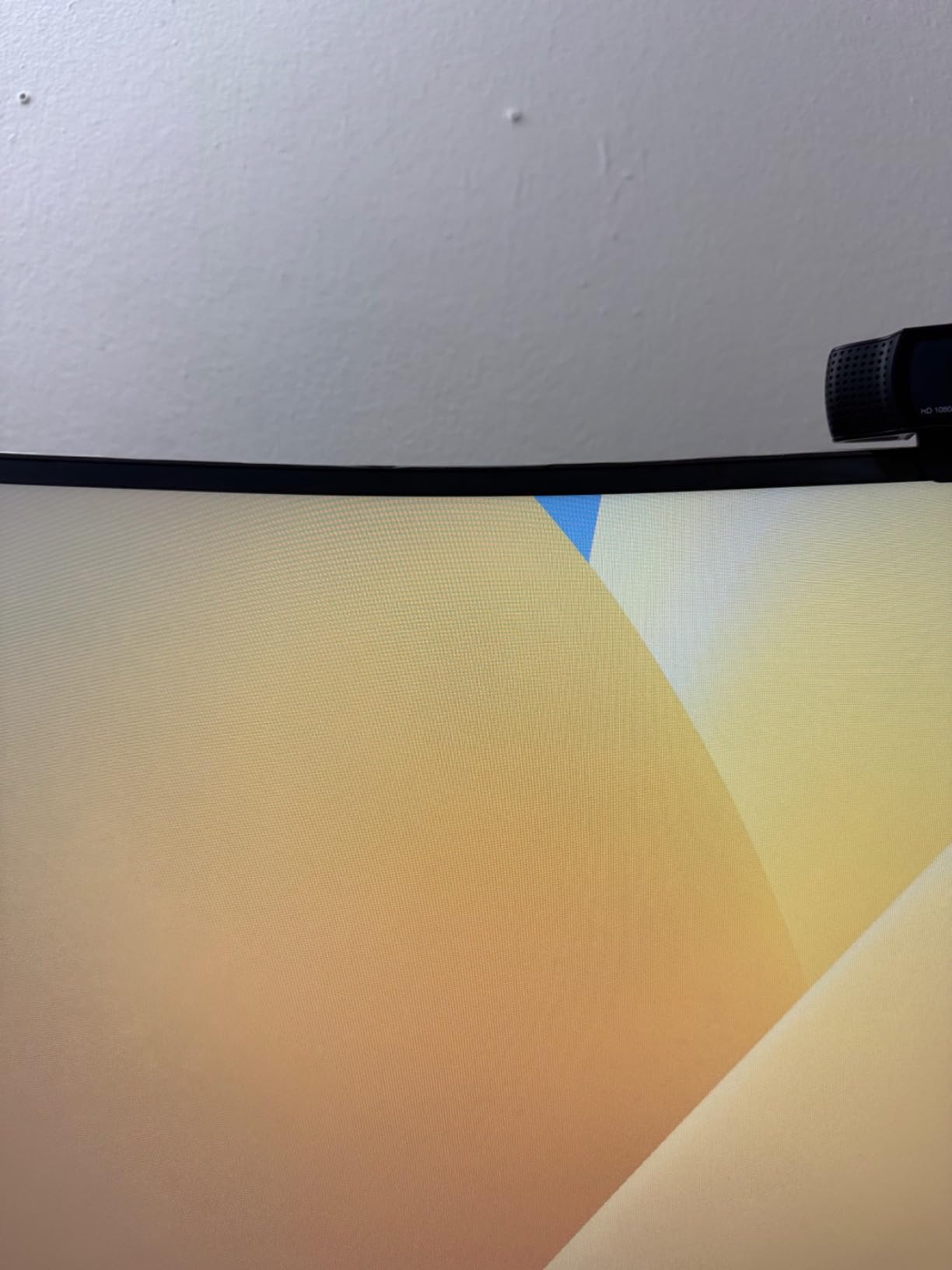
The stand is the main compromise. It tilts but does not raise, so on a desk where you sit relatively tall the panel can end up below eye level and you will spend the day looking down at a grid. Most buyers add a monitor arm within a month, which also frees the desk depth a 32-inch-wide panel needs.
The second check is whether your GPU can drive it. DisplayPort 1.2 and HDMI 2.0 both handle 3440×1440 comfortably, and the cable for both is in the box. Windows users should leave scaling at 100 percent here, because 3440×1440 at 125 percent throws away exactly the width you bought the screen for.
Who should skip it
If you need portrait mode for a long PDF alongside your workbook, a single ultrawide cannot rotate, and you would be better served with a 27-inch pivot display. Users who work from a very shallow desk should also look at the 34-inch LG later in this list, which adds height adjustment to the same class of resolution.
Colour-critical work is the other limit. The panel covers a 72 percent colour gamut, which is fine for conditional formatting but thin for anyone grading dashboards for a design team. For that, the 27-inch 4K Dell covers 99 percent sRGB.
2. Dell 27 Plus S2725QS 27 inch 4K – Best for Maximum Text Clarity
Dell 27 Monitor S2725QS, 4K UHD IPS, 120Hz, 5ms, FreeSync Premium
27 inch 3840x2160
163 PPI IPS
120Hz
FreeSync Premium
+ The Good
- 163 PPI gives the sharpest cell text in this roundup
- 120Hz with 0.03ms response keeps scrolling smooth
- Full height tilt swivel and pivot stand
- ComfortView Plus cuts blue light to 35 percent or less
- The Bad
- No USB-C or built-in USB hub
- Single HDMI-style input set with no audio out jack
- Some buyers report menu glitches or power-saving shutdowns
If your frustration is fuzzy cell text rather than horizontal scrolling, this is the screen to buy. At 3840×2160 across 27 inches the panel runs at 163 pixels per inch, the highest density of any pick here, and the difference against a 27-inch 1440p panel is obvious the moment you open a dense sheet.
Rows are where this panel wins. Because the pixel density is so high, you can raise Excel or Sheets to 150 percent and still see more rows and columns than you would at native scaling on a 1440p screen. For users who spend the day reading small numbers rather than charts, that is the whole argument for 4K.
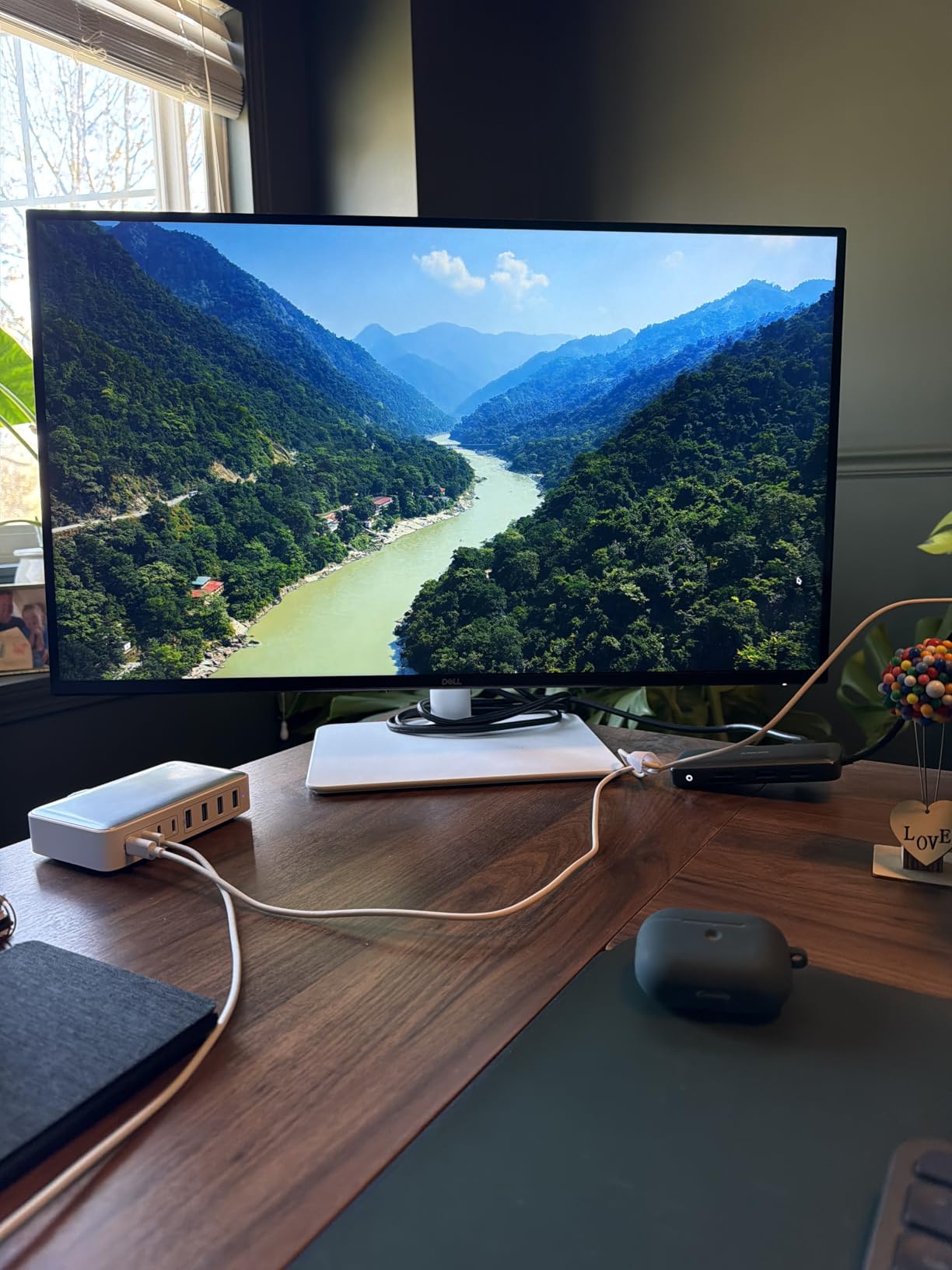
The rest of the specification sheet supports long days. Refresh rate is 120 hertz with FreeSync Premium, response time is listed at 0.03 milliseconds, and brightness reaches 350 cd on a matte IPS panel covering 99 percent sRGB with 1500:1 contrast. ComfortView Plus is certified to cut blue light emissions to 35 percent or less.
The stand is the part that quietly matters most for desk work. It adjusts for height, tilt, swivel and pivot, so a second screen can rotate to portrait for a long label column or a statement printout without any extra hardware.
How to set the scaling correctly on this panel
Windows is the reason many buyers regret 4K, and this panel is where it shows. Out of the box the desktop looks tiny at 100 percent, and pushing to 200 percent wastes the resolution you paid for. The right setting for spreadsheet work on a 27-inch 4K display is 150 percent, which keeps numbers legible while still exposing more rows than a 1440p panel at 100.
If dialog boxes in older accounting software look blurred at 150 percent, set that one application to compatibility scaling and leave the rest of the desktop alone. On macOS this display just works, because the system handles high-density scaling automatically.
Where it falls short
There is no USB-C and no built-in USB hub, so a hybrid worker still needs a separate dock or cable to bring in peripherals. Reviewers also report a small number of units with power-saving behaviour that shuts the screen off unexpectedly, or on-screen menu glitches, so a two-year return window is worth keeping.
Speakers are present but thin on bass, so do not expect them to replace desk audio for video calls. Overall this remains the reference point for text clarity in the roundup.
3. Samsung S32B304NWN 32 inch – Best Budget Pick for a Big Screen
+ The Good
- 4000:1 contrast keeps gridlines and row banding crisp
- Large 32 inch panel at the lowest spend in this lineup
- 75Hz is smoother than a standard 60Hz office panel
- Flicker Free and Eye Saver Mode reduce long-day fatigue
- The Bad
- 1920x1080 on 32 inch is the softest text here
- No height-adjustable stand
- Only one HDMI port and no USB hub
This is the honest budget answer, and it comes with one large warning. A 32-inch 1920×1080 panel works out to roughly 70 pixels per inch, which is the lowest density in this roundup, so small cell text will look softer than anything else we recommend. If your workbooks hold ten columns or fewer and you sit close, the extra physical size still pays you back in rows.
What the panel does well is contrast. The listed ratio of 4000:1 is the highest among our picks, and that ratio is what keeps thin grey gridlines and alternating row fills from disappearing into the white background on a bright office panel. If you rely on conditional formatting to flag exceptions, that matters more than pixel count.
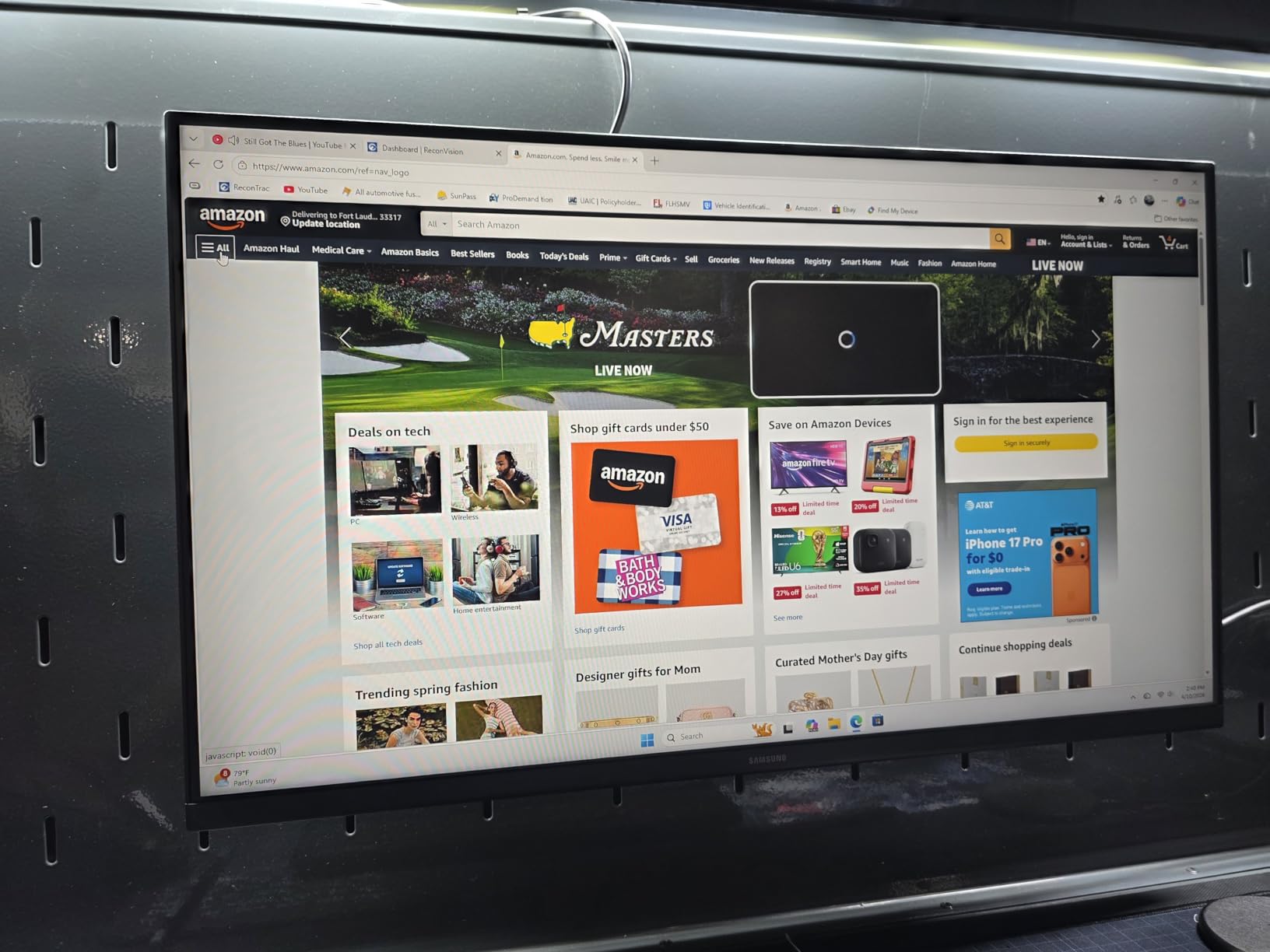
Eye care features are unusually well specified for an entry screen: Flicker Free technology plus Eye Saver Mode, on a matte anti-glare surface. The 75 hertz refresh is a modest step above the 60 hertz office standard, which you can feel when scrolling long lists.
The three-sided borderless design also makes this a reasonable second monitor, and AMD FreeSync is included for light gaming. Warranty coverage runs to three years with a ship-in service, which is a longer commitment than most budget monitors carry.
When this screen is the right call
Buy this one if the budget is fixed and your sheets are simple: a monthly close tracker, a stock sheet, a roster with a dozen columns. At 100 percent scaling a 32-inch 16:9 panel shows roughly the same row count as a 27-inch panel, so the gain is physical comfort, a larger viewing angle and less eye strain from leaning in.
It also works well as a second screen where you park a reference sheet, an email client or a shared inbox, since you will not be squinting at dense figures on it. Many buyers pair two of these with a monitor arm.
When you should spend more instead
If your workbooks run past twenty columns or you read numeric cells all day, upgrade to 1440p or 4K and use the extra money on pixel density rather than diagonal inches. That is the single clearest mistake we see in office monitor threads, and it is the reason this screen sits third rather than higher despite a 4.5 rating and 970 reviews.
The stand also does not raise. Plan for a monitor arm if you sit tall, and note that only one HDMI port means no room for a second console or a spare feed.
4. LG 34SR60QC-W 34 inch Smart Ultrawide – Best for Cloud and Streaming Desks
LG 34SR60QC-W 34-inch QHD (3440×1440) Curved Smart Monitor with Streaming, UltraWide Screen, webOS, HDR10, 100Hz, Built-in Speaker, AirPlay2, Screen Share, Bluetooth, ThinQ App, White
34 inch 3440x1440 curved
1800R VA panel
100Hz
webOS built in
+ The Good
- 34 inch 21:9 width solves the column problem at about 110 PPI
- 99% sRGB coverage suits conditional formatting colours
- Bundled webOS gives browser-based cloud workbooks without a PC
- AirPlay 2 and three USB ports for flexible setups
- The Bad
- Tilt adjustment only with no height swivel or pivot
- VA viewing angles narrow at the curved edges
- Smart features are redundant with a desktop PC
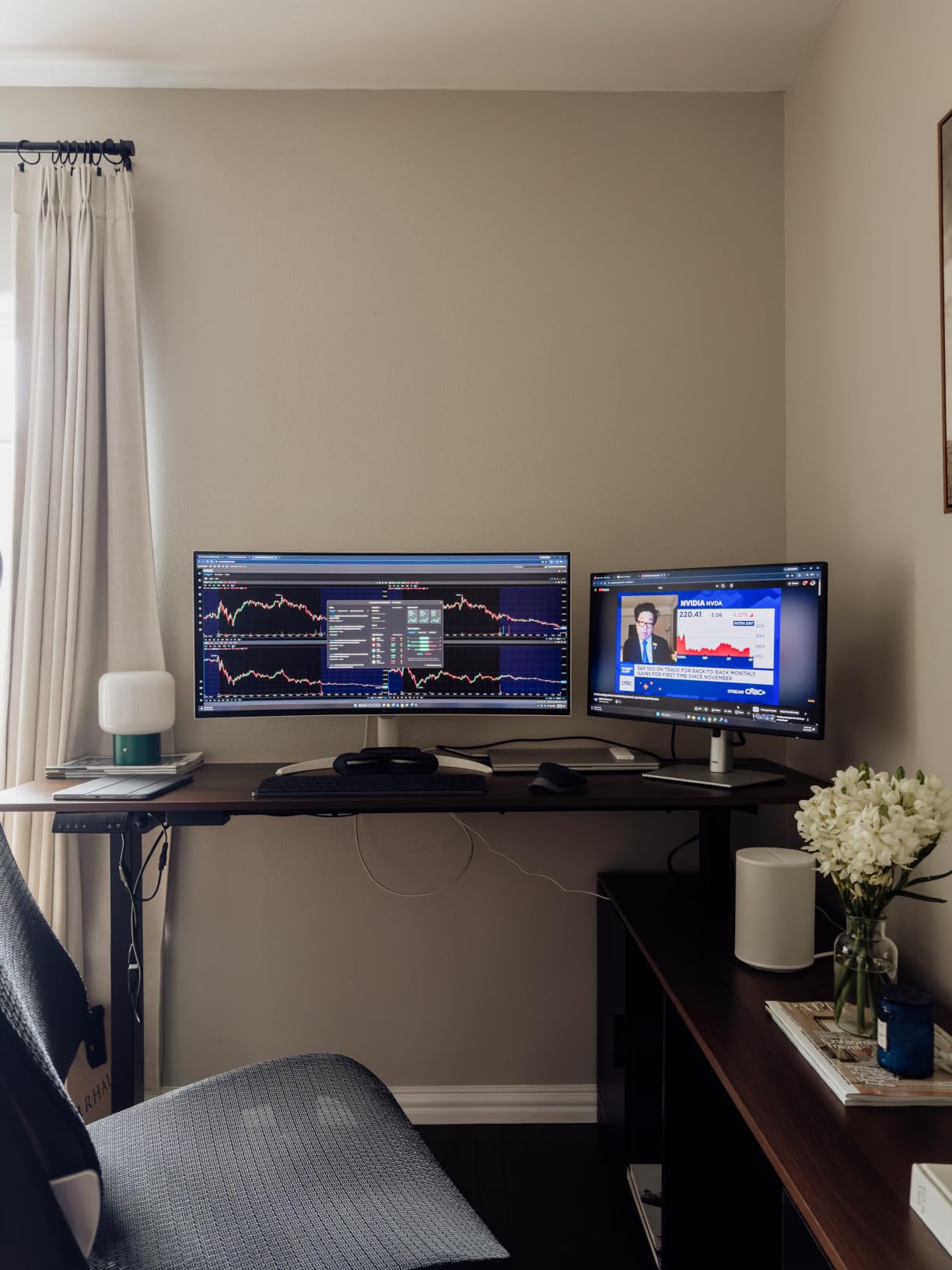
The 34SR60QC-W is an unusual pick because it ships with webOS built in, which means a browser-only analyst with a cloud spreadsheet can plug it in and work without any other hardware. For a remote worker whose whole toolset lives in a browser tab, that removes the dock, the mini PC and the cable clutter in one step.
As a spreadsheet display it behaves like the Samsung ultrawide at the top of this list. The panel is 34 inches at 3440×1440 on a 21:9 ratio, which is roughly 110 pixels per inch, with a 3000:1 contrast ratio and 99 percent sRGB coverage. That combination holds up well against light grey zebra striping and colour-coded status fills.
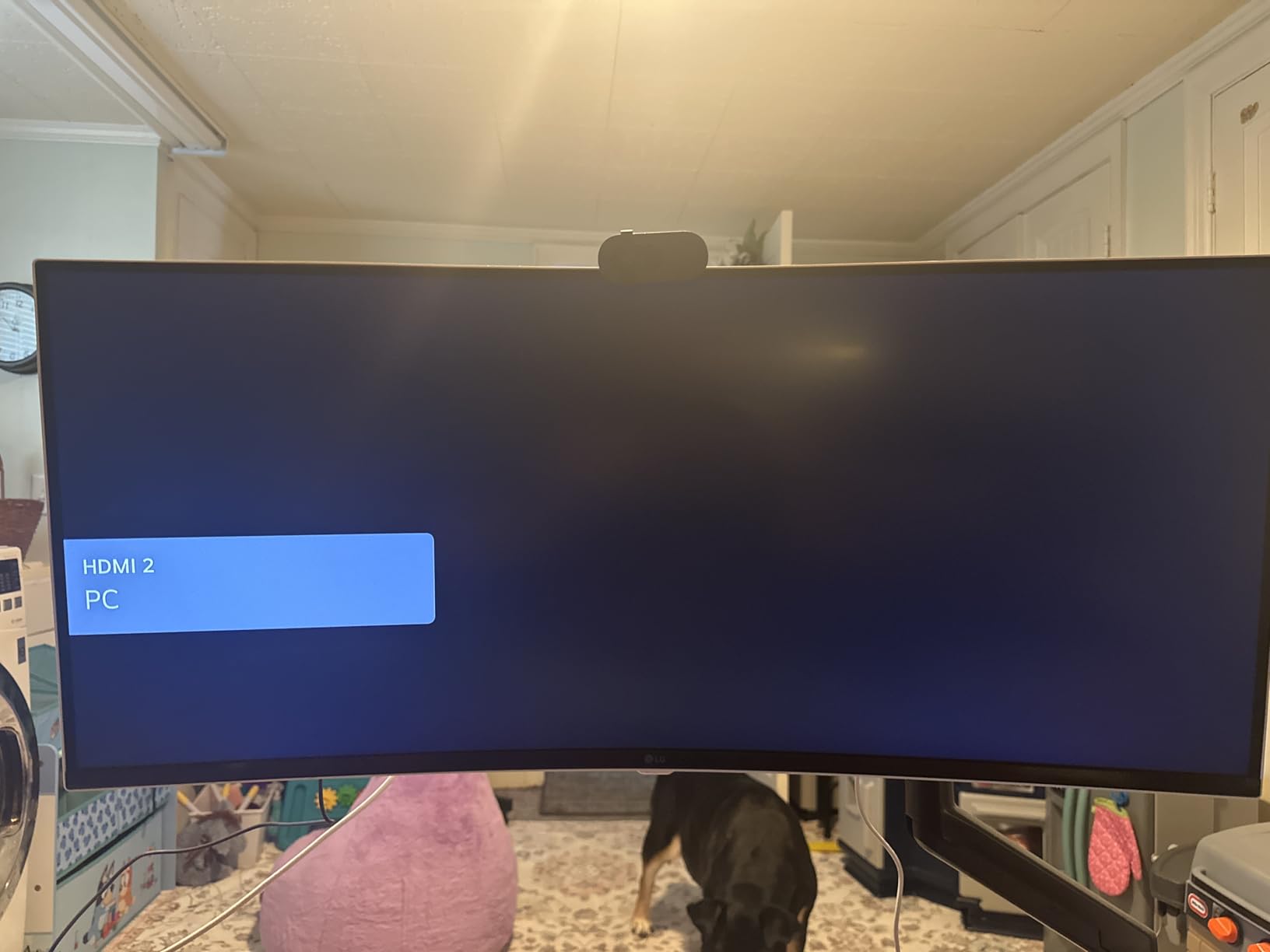
Connectivity is genuinely useful here. Two HDMI inputs and three USB ports cover a docked laptop, a second desktop and a wired network or peripherals, and the 1800R curve keeps the far edges of a very wide table within comfortable reach of your peripheral vision.
At 100 hertz with a 5 millisecond response, scrolling a 20,000-row ledger stays controlled. Brightness of 300 cd and a matte finish handle a bright office without glare complaints.
What to consider before choosing it
The stand is the weak point and it is the one thing to test in person if you can. This screen tilts but does not raise, swivel or pivot, so getting the top of the panel at or just below eye level depends entirely on your desk height and chair position. If you cannot fine-tune it, budget for an arm.
Second, check that you actually want a smart monitor. If you run Windows or macOS full time, the webOS layer sits unused, and you may find the LG 34-inch model later in this list more to your taste for the same class of resolution with a proper height-adjustable stand.
Where it does not fit
Because the panel is VA and curved, viewing angles are narrower at the edges than on an IPS flat panel. If you have a colleague who leans in to read a cell beside you, they will see slightly washed-out shading at the extreme corners. Colour-critical grading is also not the intent here.
Finally, treat the white finish and smart features as a lifestyle choice rather than a productivity one. If your desk is a plain office setup, a plain 34-inch display is the better spend.
5. LG 27UP850K-W 27 inch 4K – Best for USB-C Single-Cable Desks
LG 27UP850K-W 27-inch Ultrafine 4K UHD IPS DisplayHDR 400 Computer Monitor
27 inch 3840x2160 IPS
USB-C with 90W charging
95% DCI-P3
60Hz
+ The Good
- USB-C with 90W power delivery runs a laptop on one cable
- 95% DCI-P3 coverage renders conditional formatting colours accurately
- Height tilt and pivot stand with a headphone jack
- 400 cd brightness with DisplayHDR 400
- The Bad
- 60Hz refresh rate is the lowest among our 4K picks
- IPS glow can show in a dark room
- DisplayHDR 400 is a basic HDR implementation
This is the single-cable answer. Connect a MacBook or Windows ultrabook through USB-C and it drives the display, charges the laptop at up to 90 watts and passes through the connected peripherals, so a hybrid worker arrives at a desk with one cable and no dock.
Image quality is strong where spreadsheets care about it. The panel is 27 inches at 3840×2160 IPS, roughly 163 pixels per inch, which gives you the same class of text sharpness as the Dell 4K panel. Colour coverage of 95 percent DCI-P3 is the highest among our picks and means colour-coded status cells read as intended rather than shifted.
Brightness of 400 cd is the highest here, which helps in a bright office and makes the DisplayHDR 400 mode usable for slide review. The Black Stabilizer mode lifts detail in dark cells if you work with dark themes.
Port selection is thorough: two HDMI, DisplayPort, two USB 3.0, USB-C and a headphone jack, all at desk height rather than hidden behind the panel. The stand adjusts for height, tilt and pivot.
How to set up the one-cable workflow
On macOS the display is recognised immediately and the system handles scaling, so you can run Excel at 150 percent and still see more rows than a 1440p panel at 100. On Windows, set the display scale to 150 percent and leave the resolution at native 3840×2160.
The 90 watt charging is enough for most 13 and 14 inch laptops under load, though heavier workstation machines will draw from the wall as well as the port. If you regularly use wired ethernet, pair this with a small dongle since the display does not include a network port.
What you give up for the port
The refresh rate is 60 hertz, which is the weakest number on this card. Scrolling a long sheet is still perfectly smooth at 60, but if you also use the machine for gaming you will notice the step down against the 120 and 144 hertz panels elsewhere in this roundup.
IPS glow is visible in a dim room against a dark interface, and DisplayHDR 400 is a paper specification rather than a meaningful HDR experience. For an office this is a fair trade for the cleanest laptop docking on the list.
6. Samsung S95UA 49 inch Super Ultrawide – Best for the Widest Workbooks
Samsung 49” Business Curved Ultrawide Dual QHD Computer Monitor, USB-C, DisplayPort, HDMI, 120Hz, VESA DisplayHDR 400, Built-in Speakers, Height Adjustable Stand, Eye Care, LS49C954UANXZA, 2024
49 inch 5120x1440
32:9 super ultrawide
120Hz
USB-C 90W with hub
+ The Good
- 5120 pixels wide fits two full workbooks side by side without a bezel gap
- 120Hz refresh makes large workbooks feel responsive
- USB-C 90W hub with Ethernet and KVM replaces a docking station
- Height-adjustable stand and three-year warranty
- The Bad
- Requires a desk deep enough to hold a 45 inch wide panel
- 32.2 pounds makes repositioning awkward
- VA viewing angles and a 72 percent gamut limit colour work
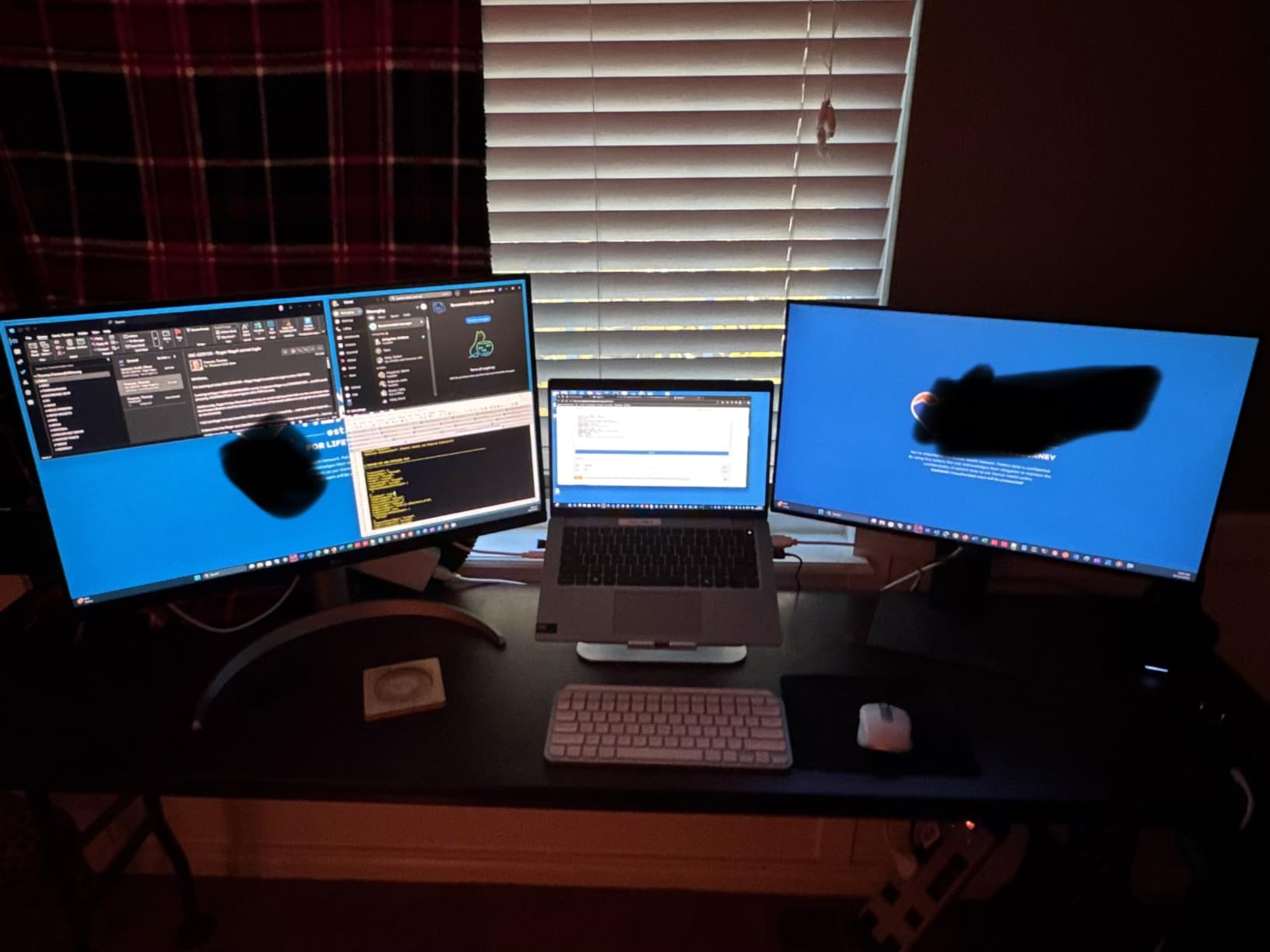
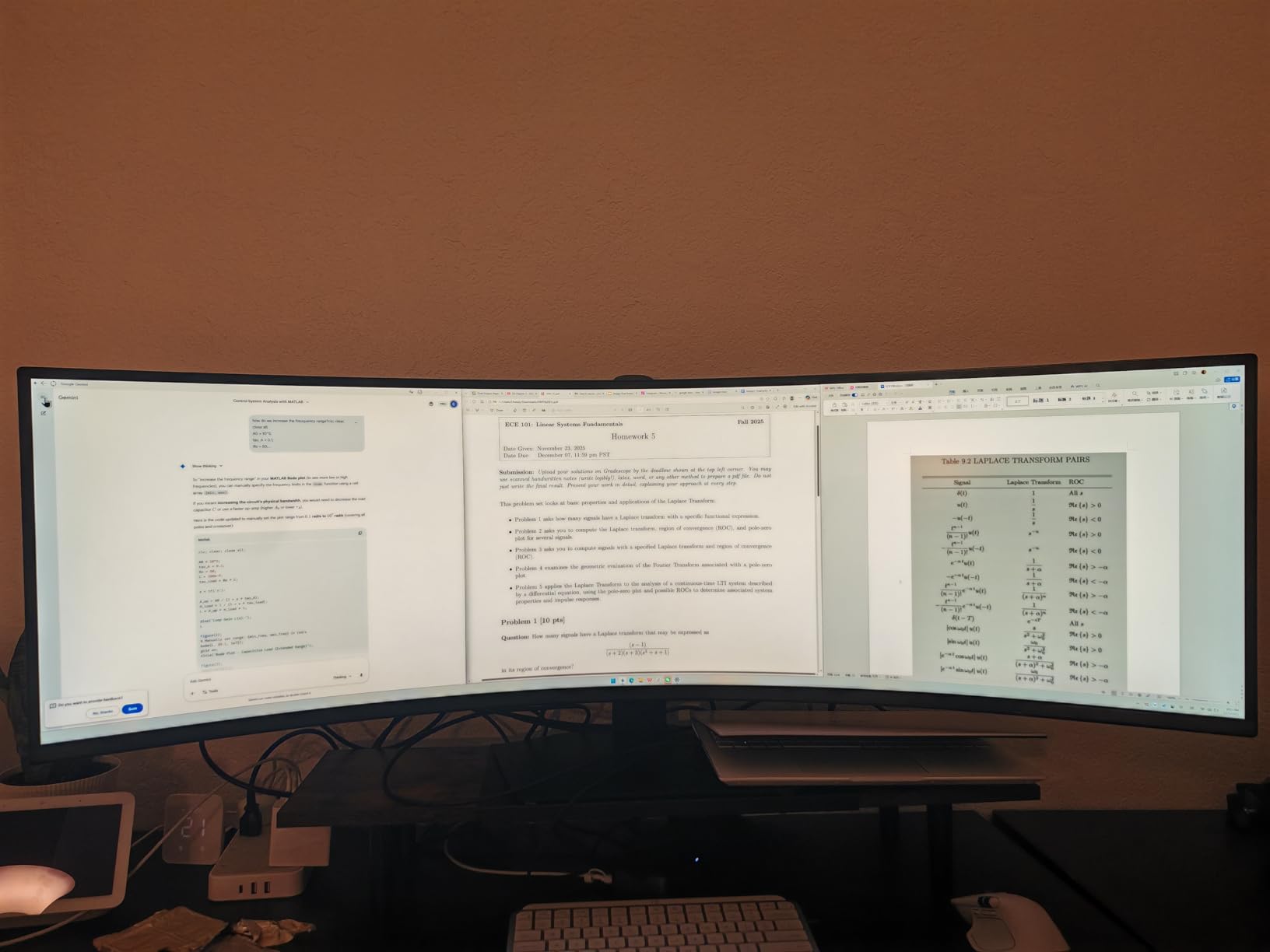
The S95UA is the answer when a 34-inch ultrawide still is not enough columns. At 49 inches and 5120×1440 on a 32:9 ratio, you can run two separate workbooks or a workbook and a full dashboard side by side with no gap between them, which is the problem dual-monitor setups cannot solve cleanly.
Pixel density lands near 108 PPI, close to a 34-inch ultrawide, so text stays crisp even though the panel is enormous. Contrast is 3000:1 on a VA panel, which again keeps faint gridlines visible, and the 1000R curve matches your field of view so the extreme columns do not require head movement.
Connectivity is the standout. USB-C delivers 90 watts of charging and a built-in hub with Ethernet and KVM switching, so a hybrid worker can run a laptop and a desktop through a single upstream cable and share one keyboard and mouse across both.
The 120 hertz refresh rate is genuinely useful here because there is so much content on screen; flicking between a ten-year transaction history and a summary tab stays smooth. Brightness of 400 cd and built-in speakers round out a panel clearly aimed at business rather than gaming.
Check your desk and your graphics card first
This is a physical commitment. The panel measures 45 inches wide and 22 inches deep, weighs 32.2 pounds, and needs a desk with real depth plus a monitor arm so you can set viewing distance properly. Community buyers who moved to a super-ultrawide from a 32-inch setup overwhelmingly report needing arm clearance rather than a bigger desk.
On the graphics side, 5120×1440 at 120 hertz is demanding. Most discrete cards handle it, but integrated graphics in a thin laptop may be limited to a lower refresh, which is worth confirming before you commit.
Who this is not for
Do not buy a 49-inch panel if your desk is shallow or your room is small; the text will sit at the edges of your vision and you will scroll more, not less. Colour work is also compromised by a 72 percent gamut, so avoid it for chart design that goes to print or to a client.
For most analysts a 34-inch ultrawide delivers 90 percent of the benefit at half the footprint. Buy this one when your workbooks genuinely need more than 3440 pixels.
7. LG 34WR55QK-B 34 inch Ultrawide – Best for an Adjustable Ultrawide Setup
LG 34WR55QK-B 34-inch UltraWide WQHD (3440 x 1440) Curved Computer Monitor, 100Hz, 5ms, HDR10, Reader Mode, HDMI, DisplayPort, USB Type-C, Tilt/Height Adjustable Stand, Black
34 inch 3440x1440 curved
USB-C 65W
Height adjustable stand
Reader Mode
+ The Good
- Height and tilt adjustment solves the tall-desk ultrawide problem
- 99% sRGB coverage keeps status colours accurate
- USB-C 65W power delivery handles most laptops on one cable
- Reader Mode and matte finish reduce glare over long sessions
- The Bad
- No swivel or pivot adjustment
- 65W charging falls short of larger workstations
- HDR limited by 300 cd brightness on a VA panel
Where the Samsung ultrawide at the top of this list stops at tilt, this 34-inch LG keeps adjusting, and that is why it is our pick for anyone who sits at a tall desk or spends eight hours a day in a grid. Height and tilt adjustment means the top of the panel lands at eye level without an arm, and it raises the laptop docking option at the same time.
Resolution is the same 3440×1440 on a 21:9 ratio, roughly 110 PPI, so the column math is identical to the Samsung: about 110 PPI means wide, sharp cells without any scaling compromise. Reviewers rate this panel among the best for text clarity in the 34-inch class.
Colour coverage of 99 percent sRGB is a step above the VA panels at the top of this list, which means conditional formatting colours land closer to how they look on a laptop screen. Picture-by-Picture lets two sources share the panel, and the OnScreen Control software handles input switching and workspace layouts.
For eye comfort across a long day, Reader Mode reduces blue light and the matte finish keeps a bright office workable. FreeSync support and a 5 millisecond response keep motion controlled at the 100 hertz refresh rate.
How to decide between this and the Samsung ultrawide
Choose this one if desk height and laptop docking matter more than colour gamut headroom. Its stand raises and lowers, and USB-C supplies 65 watts, which covers most thin and light laptops comfortably. Choose the Samsung if you want the wider 21:9 field of view and do not need to raise the panel.
Both run 100 hertz with a 5 millisecond response and 3000:1 contrast, so spreadsheet output between them is nearly identical. The decision is ergonomic, not visual.
Limitations worth knowing
There is no swivel or pivot, so you cannot angle the panel toward a seat beside yours. The 65 watt USB-C charging will not comfortably power a heavy workstation laptop on its own, and HDR is limited by 300 cd brightness, so treat HDR as an extra rather than a feature.
As with other VA ultrawides, viewing angles narrow toward the curved edges. Set the brightness near 120 to 150 cd for all-day spreadsheet work rather than running it at full output.
8. Dell UltraSharp U4025QW 40 inch 5K2K – Best 5K2K Sharpness
Dell UltraSharp U4025QW 40″ Class 5K2K WUHD Curved Screen LED Monitor – 21:9
40 inch 5120x2160 5K2K
IPS Black at 2000:1
120Hz
Thunderbolt hub
+ The Good
- 5K2K resolution delivers roughly 140 PPI for extremely sharp cell text
- IPS Black panel doubles contrast to 2000:1 for faint gridlines
- Thunderbolt hub with Ethernet and eight USB ports
- Height swivel and tilt adjustment plus a three-year warranty
- The Bad
- Single HDMI port limits source options
- Weighs 41.9 pounds and needs a deep desk
- 5K2K at 120 hertz demands a capable graphics card
The U4025QW solves the spreadsheet problem differently from the ultrawides. Instead of adding width, it adds density: 5120×2160 across 39.7 inches works out to roughly 140 pixels per inch, so a 16:9 screen delivers 4K-level text sharpness on a panel big enough to show a wide workbook at a comfortable scale.
The IPS Black panel is the technical headline. Typical office IPS panels manage around 1000:1 contrast, and this one is rated at 2000:1. For spreadsheet work that is a real, visible difference: light grey gridlines, zebra striping and pale conditional-formatting fills stay distinguishable against white instead of fading into it.
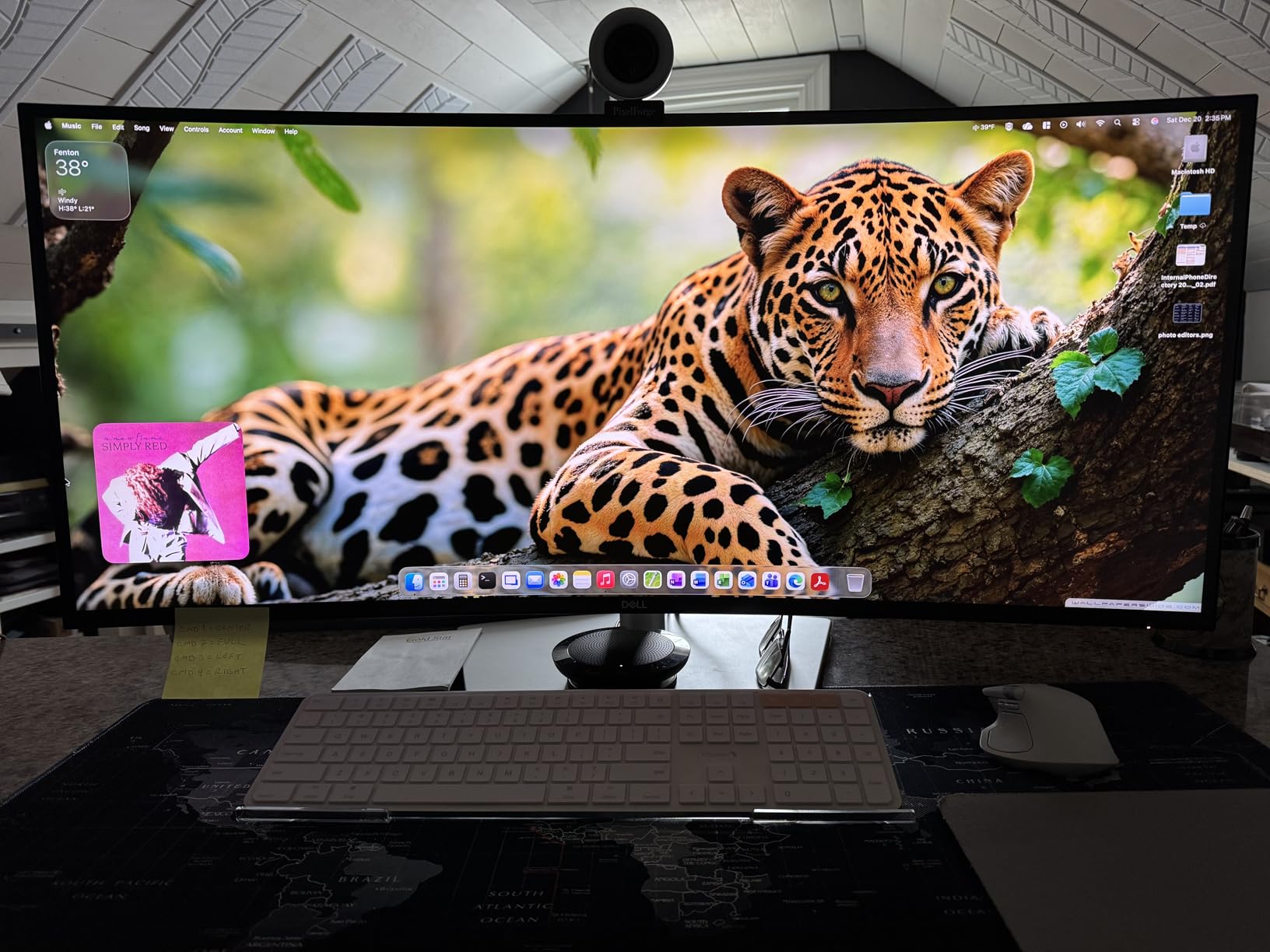
Colour coverage of 99 percent on a wide-gamut panel means chart colours and dashboard conditional formatting render as designed, and the review consensus treats this as a professional reference display rather than an office screen.
Connectivity is the strongest in the roundup. A Thunderbolt and USB-C hub with Ethernet plus eight USB ports replaces a full desk dock, and the height, swivel and tilt stand and three-year warranty suit an office that keeps equipment for years.
How to sit at a 40 inch curve
This panel is 37 inches wide and weighs 41.9 pounds, so desk depth is the first constraint. Sit about 28 to 32 inches back, centred on the curve, and let the edges wrap rather than trying to read them head-on. If your desk is shallower than 30 inches, add a monitor arm before you order.
On scaling, most users land between 125 and 150 percent. At 125 percent the effective workspace resembles a large 1440p screen; at 150 percent text is bigger and you see slightly fewer columns. Community owners moving from smaller 4K panels converge on 125 percent to keep familiar sizing.
What it costs you in practice
Only one HDMI port is provided, so switching between a laptop and a desktop means reaching for cables or a hub. Running 5120×2160 at 120 hertz needs a capable graphics card, and integrated laptop graphics may fall back to a lower refresh rate.
This is a professional-tier purchase for people who read dense numbers all day and want the sharpest text available. Everyone else will be fully served by a 27-inch 4K panel at a fraction of the size.
9. Dell 27 Plus S2725DSM 27 inch QHD – Best Value for Everyday Analysis
Dell 27 Plus QHD Monitor – S2725DSM – 27-inch QHD (2560×1440) 144Hz 1ms Display, 2 x 3W Speakers, HDMI/DisplayPort 1.4 Connectivity, Height/Tilt/Pivot/Swivel Adjustability, AMD FreeSync – Ash White
27 inch 2560x1440
144Hz IPS
350 cd
Height tilt swivel pivot
+ The Good
- 1440p at roughly 109 PPI is the sharpness sweet spot for office work
- 144Hz with 1ms MPRT keeps scrolling smooth
- Full height tilt swivel and pivot stand as standard
- TUV 4-star eye comfort certification with built-in dual 3W speakers
- The Bad
- No USB-C and no built-in USB hub
- Only one HDMI port
- 8ms response time means the 1ms MPRT figure is a marketing number
Most spreadsheet analysts never need 4K. They need a panel above roughly 100 pixels per inch so cell text stays crisp, plus enough physical size to avoid leaning in, and this 27-inch 1440p Dell delivers both at 109 PPI with a full ergonomic stand.
The 144 hertz refresh rate is above what spreadsheets require, but it has a real benefit: flicking through a long list or scrubbing a filtered view stays smooth in a way that 60 hertz panels make you notice. Response time is listed at 8 milliseconds, so treat the 1ms MPRT figure as a marketing backlight measurement rather than pixel response.
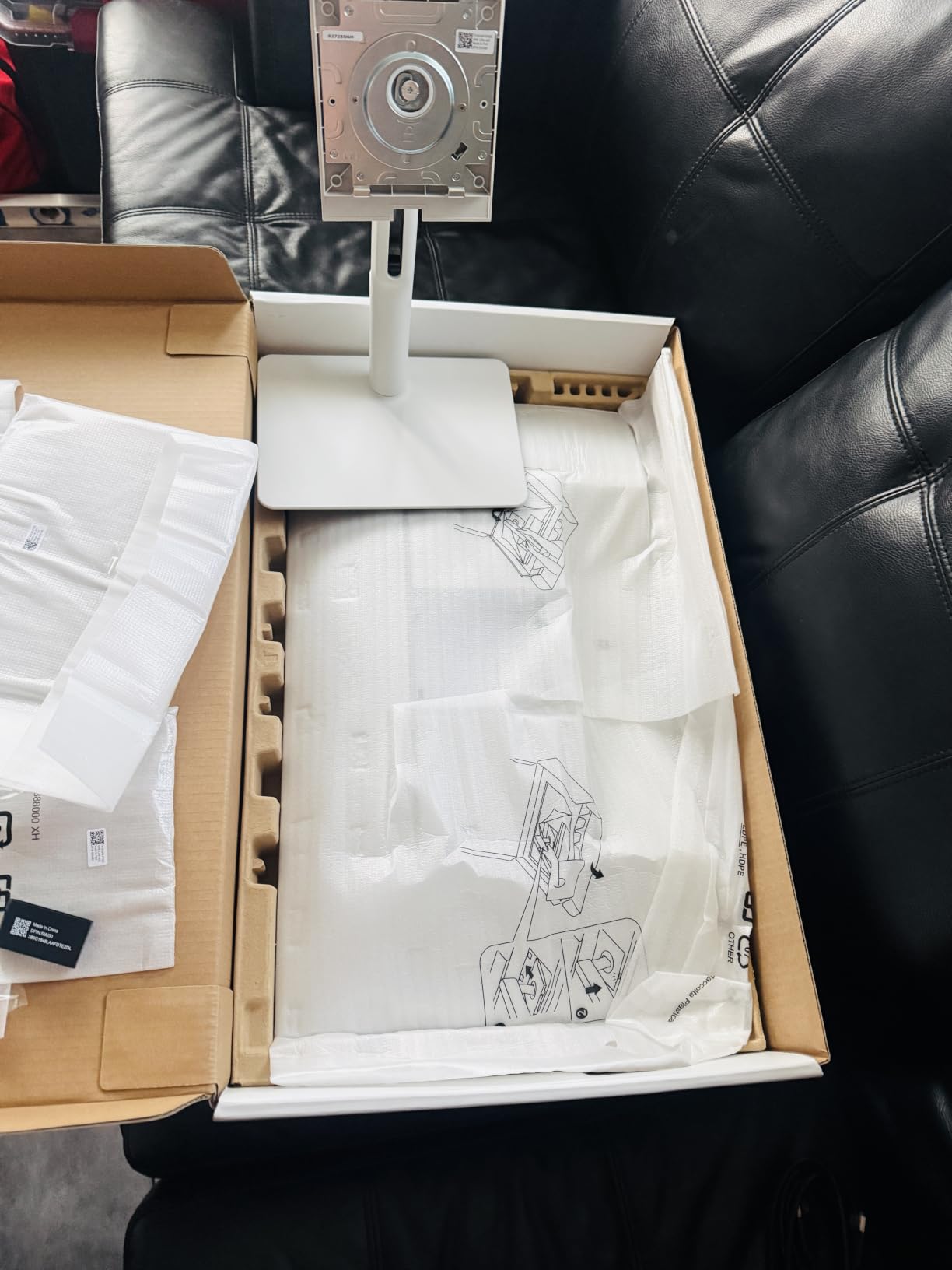
Eye comfort is certified rather than claimed. The display carries a 4-star TUV rating for low blue light, runs at 350 cd on a matte IPS panel with 1500:1 contrast, and includes dual 3W speakers so video calls do not need separate audio hardware.
The stand adjusts for height, tilt, swivel and pivot, which is unusual at this specification level and removes the most common reason a good panel ends up badly positioned. Dell Display and Peripheral Manager handles the software side.
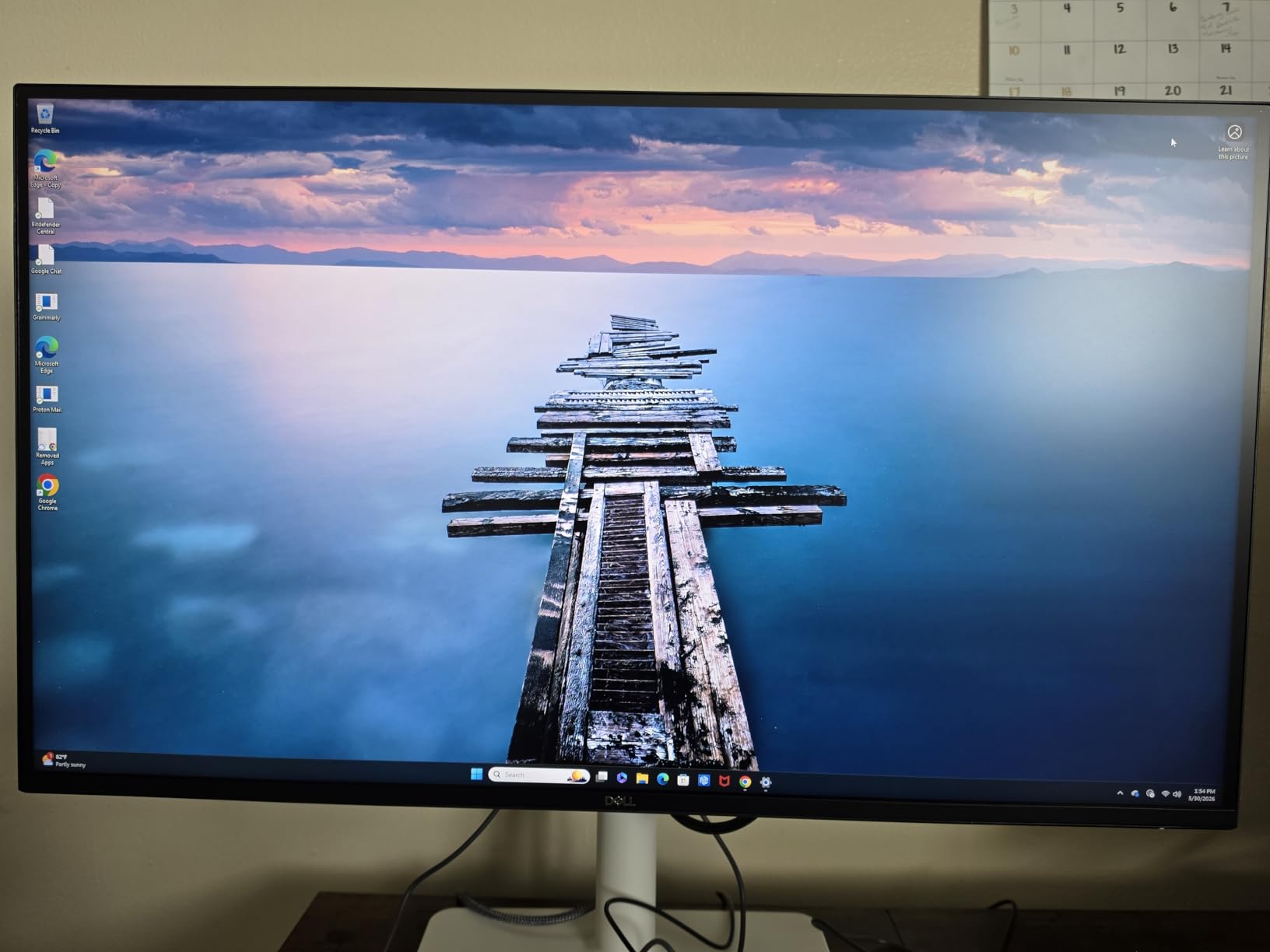
When 1440p is the right stopping point
Choose this screen if your workbooks have roughly fifteen columns or fewer and you want one display that also handles light media and gaming. At 100 percent scaling a 1440p panel shows roughly a third more rows and columns than 1080p, and at 125 percent it stays comfortably readable on a 27-inch panel.
It also pairs well. Two of these side by side with matching scaling give you a clean, gap-free dual-monitor spreadsheet wall, which is the setup many finance teams use to keep a model and its source data visible together.
Where you will outgrow it
There is no USB-C and no USB hub, so laptop users need a separate dock. Only one HDMI port is fitted, which limits direct feeds. If your workbooks run past twenty-five columns regularly, the extra width of a 34-inch ultrawide will save you more time than this screen’s higher refresh rate ever will.
As one long-term owner on Geekzone put it after a decade with a single large high-resolution display, one good screen beats two mediocre ones. Whichever category you choose, treat screen real estate as the feature you are actually buying.
10. ZZA Z32A 32 inch 4K – Best Entry-Level 4K Panel
ZZA 32″ 4K Gaming Monitor – UHD(3840 * 2160) 60Hz Computer Monitor, Immersive Gaming Experience with Refresh Rate, VA Panel, Adptsync Premium | HDR10 | 100% sRGB | 3840×2160
32 inch 3840x2160
VA panel at 3000:1
60Hz
100% sRGB
+ The Good
- 32 inch 4K delivers roughly 138 PPI and more rows than any 27 inch 4K panel
- 3000:1 VA contrast keeps gridlines distinct against white
- 100% sRGB coverage suits colour-coded status cells
- Three-sided borderless design for multi-monitor walls
- The Bad
- Only 60Hz refresh and tilt adjustment only
- No USB-C and no USB hub
- Lesser-known brand with limited support and warranty options
The Z32A exists because a 4K panel does not have to cost 4K money. At 32 inches and 3840×2160 it delivers roughly 138 pixels per inch, which is a genuine step up in text clarity from 1440p, and it fits more rows than a 27-inch 4K screen at the same 100 percent scaling.
The panel is VA rather than IPS, and that is the interesting part for spreadsheet work: a rated 3000:1 contrast ratio. High contrast is what keeps thin gridlines, pale zebra rows and light conditional-formatting fills readable, so this screen punches above its specification class in the one dimension dense grids care about. Colour coverage is listed at 100 percent sRGB.
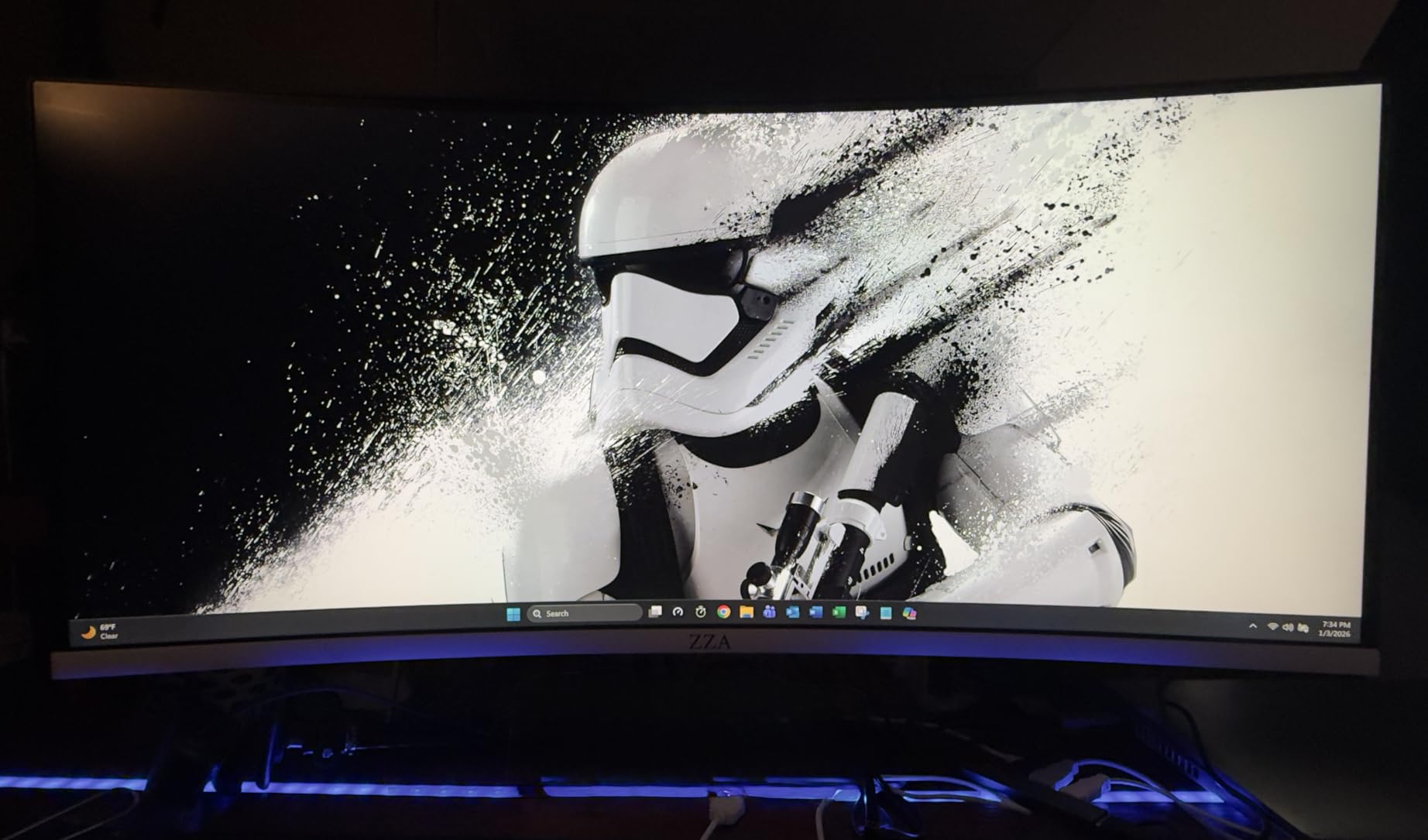
Refresh rate is 60 hertz, which is fine for static grid reading and for scrolling in modest-size sheets, but you will notice the difference against the 100 and 120 hertz panels elsewhere in this roundup on very long lists. FreeSync Premium is supported for light gaming.
The three-sided borderless design makes it useful as a second display, and the matte finish keeps a bright office readable.

Is an unknown brand acceptable for office work?
It can be, with caveats. The specifications are honest on paper, and a 4K VA panel at this size genuinely improves spreadsheet legibility. What you trade away is support: warranty terms and return handling are less generous than the established brands elsewhere in this list, so keep your purchase window and test the panel early.
Before committing, confirm your PC outputs 4K over HDMI or DisplayPort and that your graphics driver handles the mode cleanly. Older integrated graphics sometimes cap 4K output at 30 hertz.
Where it falls behind established picks
The stand tilts only, with no height, swivel or pivot, so plan on a monitor arm for a full day of work. There is no USB-C and no hub, ruling it out for a docked laptop workflow. The 60 hertz refresh is the other limit.
Our view is that it makes sense as a second screen or a first screen on a strict budget, while the Dell and Samsung models earlier in this list are the safer long-term buys. If you want the same 4K density in a smaller package, our ultrawide monitor roundups cover the higher-end options.
How to Choose a Monitor for Spreadsheets
Resolution matters more than screen size, screen size matters more than refresh rate, and panel contrast decides how much of your grid you can actually read. Work through those three in order, then worry about ports and stands.
Resolution and screen size: the pixel density math
Pixel density, measured in pixels per inch, is what determines whether cell text looks crisp at your desk distance. Below roughly 100 PPI you will start leaning in, which is the single most common complaint in office monitor threads. Here are the approximate densities for the combinations on this list, ordered from softest to sharpest.
32 inch at 1920×1080 – about 70 PPI: large but soft, simple sheets only.
27 inch at 1920×1080 – about 82 PPI: soft text, avoid for dense work.
27 inch at 2560×1440 – about 109 PPI: the sweet spot for most analysts.
34 inch at 3440×1440 – about 110 PPI: the same sharpness with far more columns.
49 inch at 5120×1440 – about 109 PPI: two full workbooks side by side.
32 inch at 3840×2160 – about 138 PPI: 4K clarity with more rows.
40 inch at 5120×2160 – about 140 PPI: the sharpest wide panel here.
27 inch at 3840×2160 – about 163 PPI: highest density, scale at 150 percent.
How many rows and columns you actually see
At 100 percent scaling with the default font, a 1080p panel shows roughly twenty-two usable rows, a 1440p panel around thirty, and a 4K panel close to forty. A 34-inch ultrawide adds about a third more columns than a same-height 16:9 screen at 1440p, and a 49-inch panel fits two full workbooks side by side.
Raising the zoom level cuts both counts proportionally, which is why the 163 PPI 27-inch 4K panels are so useful: at 150 percent they still beat a 1440p panel at 100. Freeze panes on the row and column headers you scroll past most, and use split views to keep a model and its assumptions visible together.
Panel type and contrast for faint gridlines
Standard office IPS panels typically deliver around 1000:1 contrast, which is enough for general office work but marginal for very light gridlines. IPS Black panels reach 2000:1 and VA panels run from 3000:1 to 4000:1. For workbooks built on zebra striping, pale fills and colour-coded exceptions, higher contrast means fewer misreads.
Brightness matters less than people assume. Running a panel at full output for ten hours is a common cause of the eye strain and headaches analysts report, so set brightness so that white looks white next to your office lighting, usually well below the panel’s rating. Flicker-free operation and a blue-light filter, present on nearly every pick here, handle the rest.
Ultrawide versus dual monitors
A 34-inch ultrawide removes the bezel gap that breaks a wide table view when two monitors sit side by side, and one screen means one set of cables, one power button and one scaling setting. Dual monitors still win when one task needs full height, such as a long PDF or a code editor next to a dashboard, and when you need to share one screen with a colleague.
Most people in the ultrawide communities we read describe the move from dual 16:9 screens to a single 34-inch 21:9 panel as an upgrade, particularly for Excel and PDF work. If you want even more width, the 49-inch 32:9 panel gives you the equivalent of two 27-inch 16:9 screens with no gap, at the cost of desk depth.
What to skip
Skip 27-inch 1080p outright. At roughly 82 PPI it is the most common office recommendation and the most common source of regret, because soft cell text forces leaning in and negates the reason for buying a larger screen. Also skip OLED for spreadsheet work: static white-on-white grid interfaces are the worst case for burn-in, and IPS or VA is the safer default.
Also skip gaming-first panels with 1 millisecond response claims and no ergonomic stand if your day is eight hours of tables. Refresh rate above about 120 hertz adds little to spreadsheet work, while a height-adjustable stand matters every single day.
If your work is reading long text reports rather than live grids, an e-ink display such as the ones in our e-ink monitor guide handles documents differently from any LCD here. If you are comparing audio rather than visuals, our nearfield studio monitor picks cover that side of the desk.
Frequently Asked Questions
Is a 27 or 32 inch monitor better for office work?
A 32-inch 1440p or 4K screen beats a 27-inch panel for spreadsheets because you see more rows and columns without leaning in. A 27-inch 4K panel matches the sharpness of a 32-inch 4K panel and is easier to fit on a standard desk, while a 32-inch 1080p panel has the softest text of any large screen and should be avoided for dense work.
Which resolution is better for office work, 4K or 1440p?
For spreadsheets, 1440p at 27 or 34 inches delivers roughly 109 to 110 PPI, which is sharp enough for readable cell text without any scaling changes. 4K adds sharpness and more rows, but on Windows you should set scaling to 150 percent on a 27-inch panel or 125 percent on a 40-inch one, otherwise the extra pixels become tiny numbers.
Is a 27-inch monitor too big for office work?
No. At a desk depth of about 24 inches a 27-inch panel is comfortable, and with a height-adjustable stand you can set the top edge at eye level. Panels at 40 inches and above are the ones that need a deeper desk or a monitor arm so you are not sitting inside the curve.
What are good monitors for office work?
Look for at least 100 pixels per inch, a matte anti-glare finish, flicker-free operation and a stand that adjusts for height. A 27-inch 1440p panel is the value choice, a 34-inch ultrawide adds columns without shrinking text, and a 27-inch 4K panel is the sharpest option for reading small numbers all day.
How many rows and columns of a spreadsheet fit on a 27-inch monitor?
At 100 percent scaling with the default font, a 27-inch 1440p panel shows roughly thirty usable rows and about a dozen columns, while a 27-inch 4K panel at 150 percent scaling still shows more rows and columns than a 1440p screen at 100. A 34-inch ultrawide at the same scaling adds around a third more columns.
Is an ultrawide monitor better than two monitors for spreadsheets?
For most analysts yes, because a single 34-inch 21:9 panel removes the bezel gap that interrupts a wide table when two screens are tiled, and it needs one set of cables. Dual monitors still make sense if one task needs full screen height, such as a long PDF beside a dashboard, or if you regularly share one screen with someone.
Does refresh rate matter when working in Excel?
It matters more than most buyers expect. Panels at 100 hertz or more make flicking through a 10,000-row sheet noticeably smoother than a 60 hertz display, and FreeSync support keeps scrolling free of tearing on compatible systems. It is still a secondary feature, behind pixel density and stand adjustability.
Our Verdict: The Best Monitors for Spreadsheets in 2026
Our best monitors for spreadsheets start with one rule: buy pixels and width, not diagonal inches alone. The Samsung ViewFinity S50GC 34-inch ultrawide wins overall because 3440×1440 at roughly 110 PPI solves the column problem without making text soft, and its 3000:1 contrast keeps faint gridlines readable.
Buy the Dell 27 Plus S2725QS if text sharpness outranks width and you work on wide-column models. Buy the LG 27UP850K-W if a single USB-C cable should run your laptop. Buy the LG 34WR55QK-B if your desk is tall and you need the stand to adjust. Buy the Samsung S95UA only if your workbooks genuinely need more than 3440 pixels, and check your desk depth first.
Whichever you choose, set the scaling deliberately, lower the brightness from the factory default, and freeze the panes you scroll past most. Those three minutes of setup do more for a long spreadsheet day than any spec on any box.