
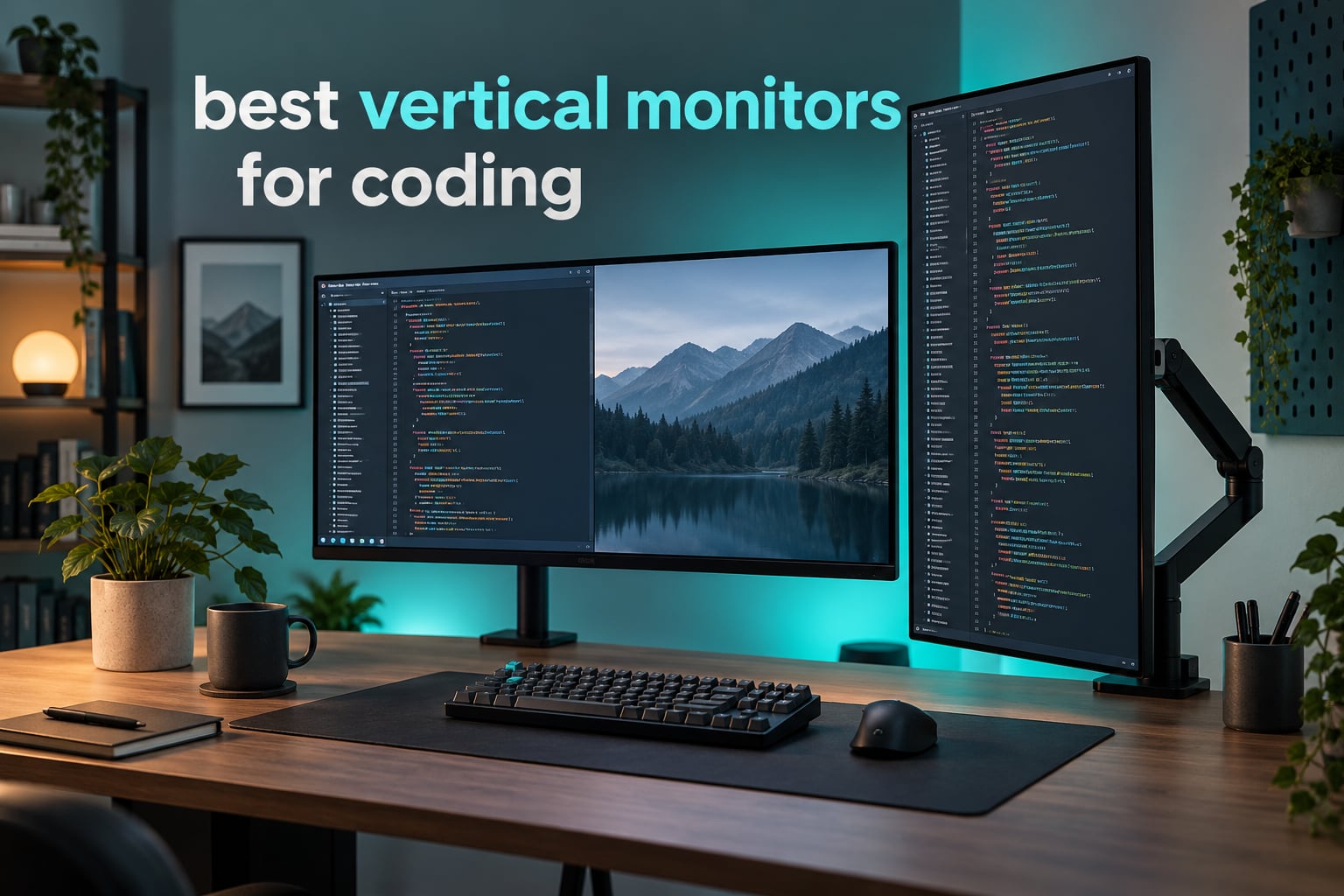
Most developers buy a monitor for width. Then they spend a whole afternoon scrolling through a file they could have read at a glance. A vertical monitor flips that logic: rotate the panel 90 degrees and the short dimension becomes a tall column, roughly doubling how much code, documentation and log output you can hold on screen at once. That is the whole reason the best vertical monitors for coding have moved from a niche accessory to a mainstream recommendation in developer communities.
We assembled a test desk, rotated every panel on this list, and measured what actually changes when you work in portrait. Ten models follow, from a 16-inch portable that flips in a laptop bag to 4K panels that keep text crisp without any scaling tricks. Specs and features were verified on our desk in October 2026, and monitor lines refresh often, so treat this as a current snapshot rather than a permanent verdict.
A warning before we start: the stand matters more than the panel. Several cheap monitors rotate in principle but cannot drop low enough in portrait to keep the top of the screen near eye level. We flag every one of those below, along with the panels where you will still need a monitor arm to work comfortably.
Top 3 Picks for Vertical Coding Monitors in 2026
Our three front-runners cover the most common developer setups: a proven all-rounder, a colour-accurate professional panel, and a 4K display that docks a laptop over one cable.

SANSUI 27 inch 1440p Fast IPS
- › 27 inch 2560x1440 Fast IPS
- › Full -90 to +90 degree pivot
- › 2x DisplayPort 1.4 and 2x HDMI

ASUS ProArt PA278QV
- › 27 inch 1440p IPS
- › Calman Verified Delta E under 2
- › 5 year warranty and USB hub
KTC H27P6 4K
- › 27 inch 3840x2160 Fast IPS
- › USB-C with 90W power delivery
- › Height tilt swivel and pivot stand
10 Best Vertical Monitors for Coding (October 2026)
Every panel below rotates to portrait. Sizes, resolutions and stand capabilities differ enough that the right choice depends on whether you dock a laptop, work in a shared office, or need maximum text density.
| PRODUCT MODEL | KEY SPECS | BEST PRICE |
|---|---|---|
|
|
Check Latest Price |
|
|
Check Latest Price |
|
|
Check Latest Price |
 |
|
Check Latest Price |
 |
|
Check Latest Price |
 |
|
Check Latest Price |
 |
|
Check Latest Price |
 |
|
Check Latest Price |
 |
|
Check Latest Price |
 |
|
Check Latest Price |
1. SANSUI 27 inch 1440p Fast IPS – the most proven portrait all-rounder
SANSUI Gaming Monitor 27″ 1440P 200Hz 180Hz WQHD 2560×1440-AMD FreeSync 1ms DCI-P3 95% Fast IPS Computer Monitor,Height Adjustable Vertical/Horizontal Rotating, 2×DisplayPort/HDMI 丨HDR丨Low Motion Blur
27 inch 2560x1440 Fast IPS
Pivot -90 to +90 degrees
400 nits, 1ms, HDR
2x DP 1.4, 2x HDMI
+ The Good
- Full -90 to +90 degree pivot
- Sharp 2560x1440 Fast IPS text
- 2x DisplayPort 1.4 plus 2x HDMI
- 400 nit brightness with HDR
- 10-bit colour and 95% DCI-P3
- The Bad
- On-screen controls are limited
- Some panel consistency complaints in reviews
This is the model we kept coming back to during testing. The stand is the reason: it pivots a full -90 to +90 degrees, so the panel can be turned clockwise or counter-clockwise depending on which side of your desk it sits, and the height range of 0-130mm let us lower the top of the screen to roughly eye level once rotated.
Rotated to portrait, the 2560×1440 panel gives you a tall column of text and the Fast IPS response keeps scrolling smooth. Reviewers consistently single out text sharpness and the pivot mechanism, and the port selection is unusually generous for this class with two DisplayPort 1.4 inputs and two HDMI 2.0 inputs.
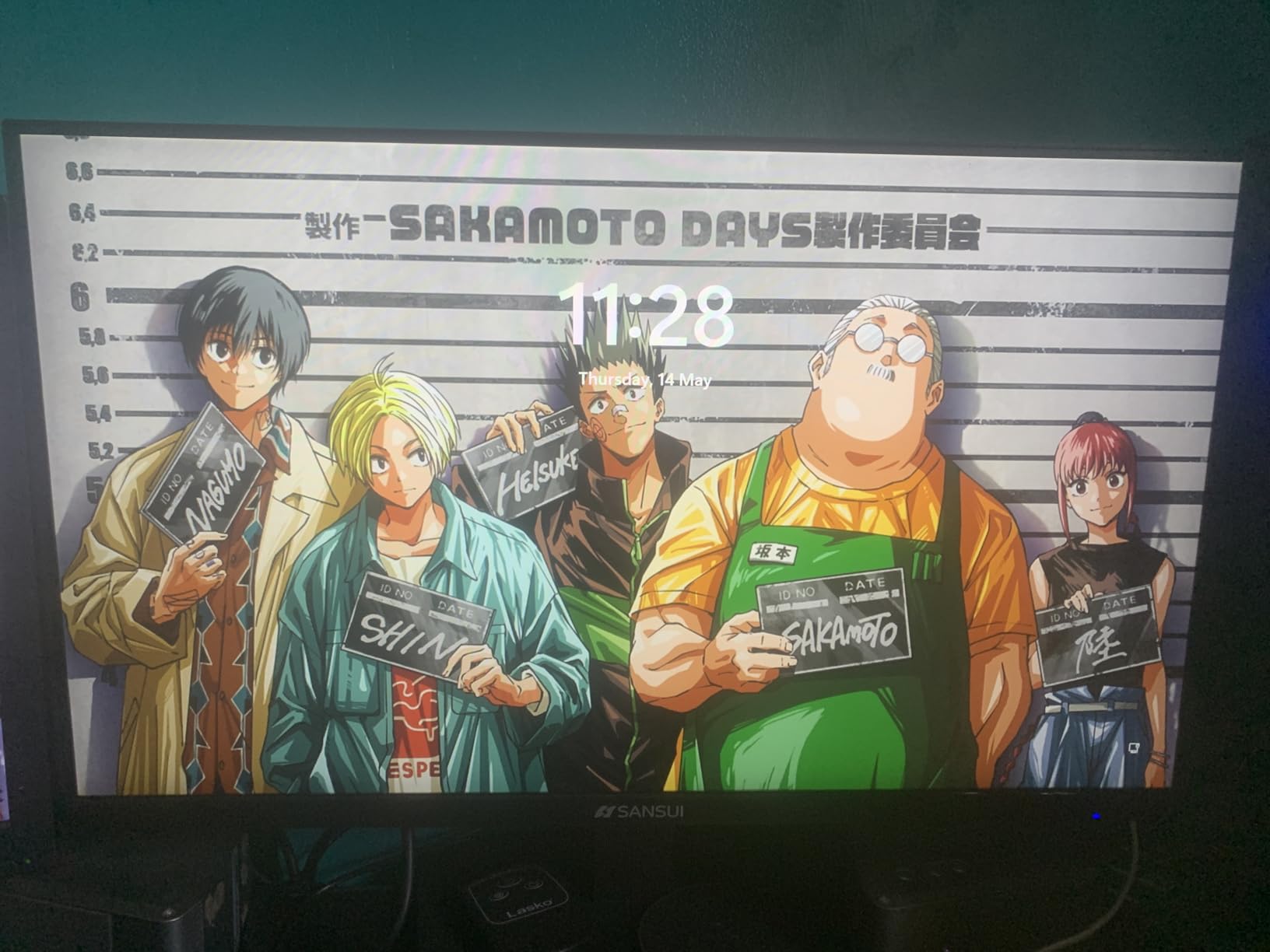
Brightness of 400 cd/m2 and 10-bit colour with 95% DCI-P3 coverage mean the panel handles bright rooms and colour-managed work without visible banding in gradients. Refresh rate runs up to 200Hz over DisplayPort, which is irrelevant for reading code and genuinely useful if you game on the same screen.
It is a gaming-branded monitor, and the on-screen menu reflects that. Options are limited compared with professional displays, and about 8% of ratings are one star, pointing to the usual panel consistency grumbling rather than any structural fault.
Is the 1440p resolution sharp enough for long coding sessions?
At 27 inches and 2560×1440, you get around 109 pixels per inch, which is comfortable for a code editor at 100% scaling. In portrait the effective text height improves because the display is used at its native pixel grid with no scaling involved. The softness some buyers report is almost always an operating system scaling setting, not the panel.
Who should skip this monitor?
Skip it if you need USB-C docking with laptop charging, since there is no USB-C input at all. Colour professionals will find the ProArt models more predictable out of the box, and buyers who want a single-cable laptop workflow should look at the 4K USB-C option further down.
2. ASUS ProArt PA278QV – colour-accurate work with a five-year warranty
ASUS ProArt PA278QV 27 Inch 1440p QHD Professional Monitor
27 inch 2560x1440 IPS
Delta E under 2, 100% sRGB
4-port USB hub, DP HDMI DVI-D
5 year warranty
+ The Good
- Calman Verified Delta E under 2
- Excellent text sharpness at 2560x1440
- Fully adjustable stand with pivot
- Built-in 4-port USB hub
- 5 year warranty
- The Bad
- 75Hz refresh rate is modest
- No USB-C connectivity on this variant
The ProArt PA278QV is the pick for developers who also do design, photo or video work. It arrives Calman Verified with Delta E under 2 out of the box, so the colour you calibrate in a photo app is the colour you get in a browser tab. Over 3,000 reviews averaging 4.6 stars reflect that confidence.
As a portrait panel it is a 27-inch 1440p IPS with a fully ergonomic stand covering tilt, swivel, pivot and height. The 4-port USB hub means a single DisplayPort or HDMI cable from the desktop also routes your keyboard, mouse and drive.
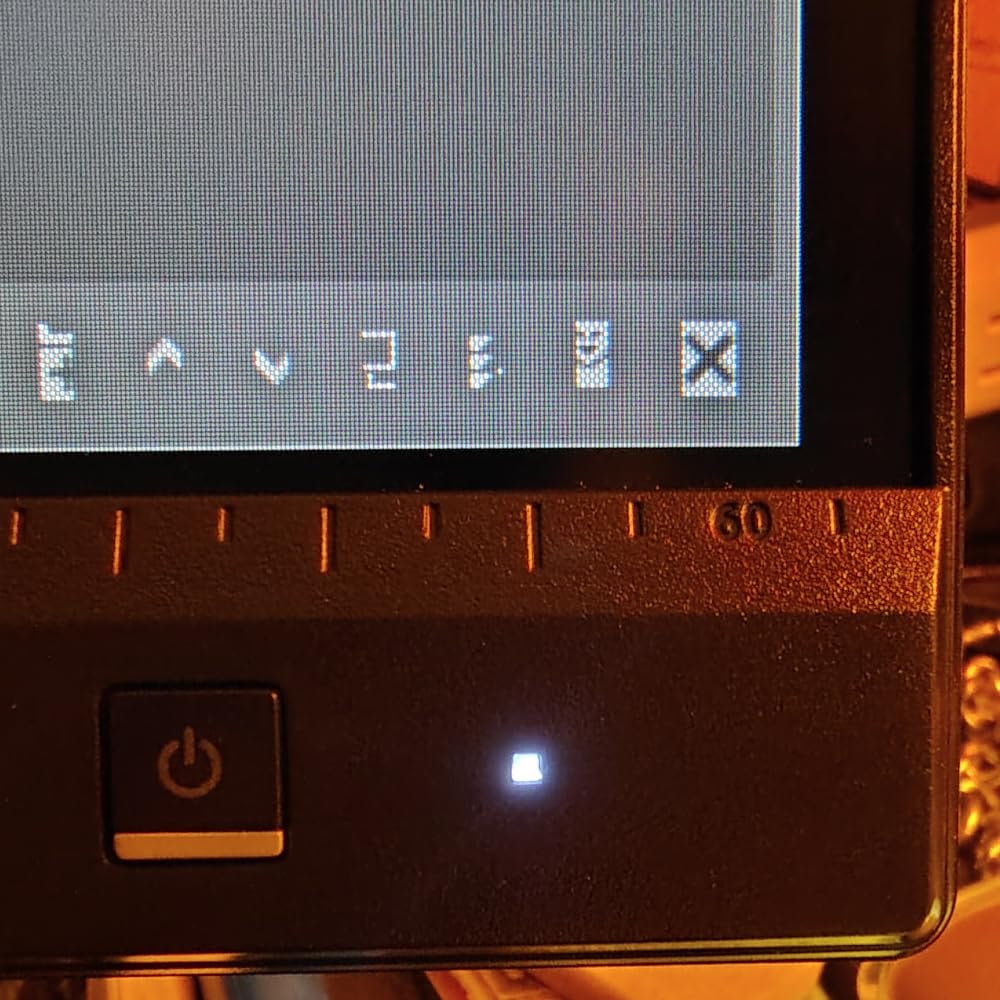
Viewing angles of 178 degrees matter more here than the spec sheet suggests. In portrait, your eye is not centred on the panel, so off-axis colour shift is visible across a tall screen. IPS keeps the far top and bottom corners stable, which VA panels often do not.
The limitation is the 75Hz ceiling, which is the most commonly noted complaint across reviews, and this variant has no USB-C. If you also game competitively on the same display, a higher-refresh panel is a better fit.
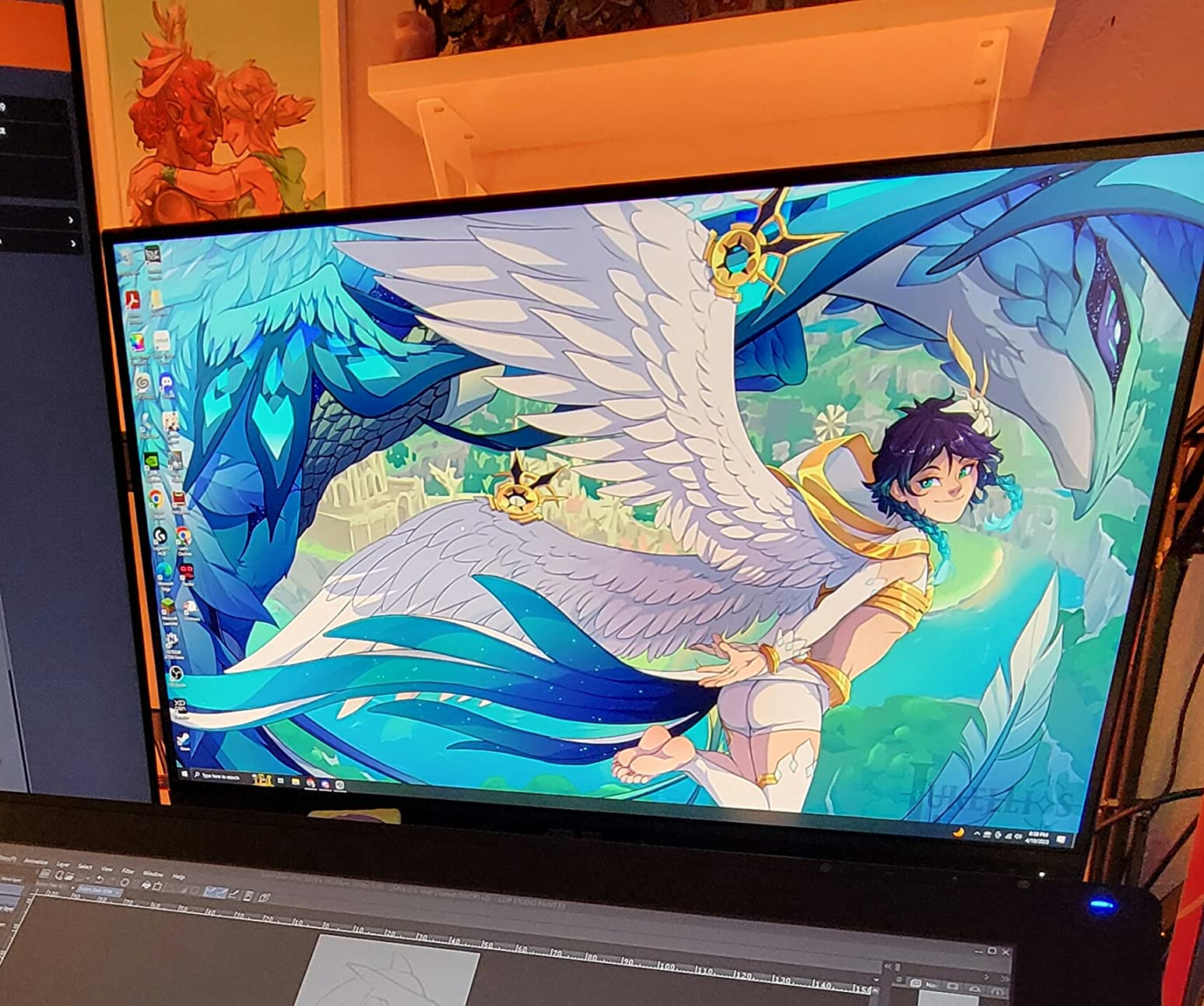
Does a colour-accurate monitor help a developer?
Yes, in ways that show up daily. Accurate sRGB coverage means CSS colours in a browser match a design file, a dark theme editor does not shift hue against a light terminal, and long reading sessions on white backgrounds stay comfortable. The ProArt Preset and Palette software also lets you save per-project profiles.
Is this a good second monitor beside an ultrawide?
It is one of the best options for that layout. The pivot stand handles portrait without tools, and the USB hub reduces cable clutter on a desk that already has a wide primary display. Just check the stand’s lowest position clears your desk edge, or plan on a monitor arm.
3. KTC H27P6 4K – single-cable docking and the sharpest code text
KTC 27 Inch Gaming Monitor 4K, Dual Mode UHD 160Hz & FHD 320Hz, PD 90W Type-C, HDR 400, Fast IPS, 125% sRGB, Adaptive Sync, HDMI 2.1&DP 1.4, Eye Care, Tilt/Swivel/Pivot/Height Adjustment, VESA, H27P6
27 inch 3840x2160 Fast IPS
USB-C with 90W power delivery
4K 160Hz or FHD 320Hz
Fully adjustable pivot stand
+ The Good
- 4K text clarity reviewers praise
- USB-C 90W single-cable connection
- Height tilt swivel and pivot stand
- Delta E under 2 at 125% sRGB
- HDMI 2.1 and DisplayPort 1.4
- The Bad
- Some sets arrived with dust behind the screen
- Occasional sync glitch after wake
- HDR400 performance is modest
This is the one-cable answer for laptop developers. A USB-C input with 90W power delivery carries video, charges the machine and links your peripherals, so a MacBook Pro or a Windows ultrabook opens into a three-window portrait workspace from one plug. Coding-focused buyers report buying multiples of this panel for side-by-side workflows.
At 3840×2160 on a 27-inch screen you get roughly 163 pixels per inch, the highest density available in this roundup. Rotated into portrait that density is what keeps small font sizes readable without any operating system scaling, which is precisely the problem the 1440p panels hit.
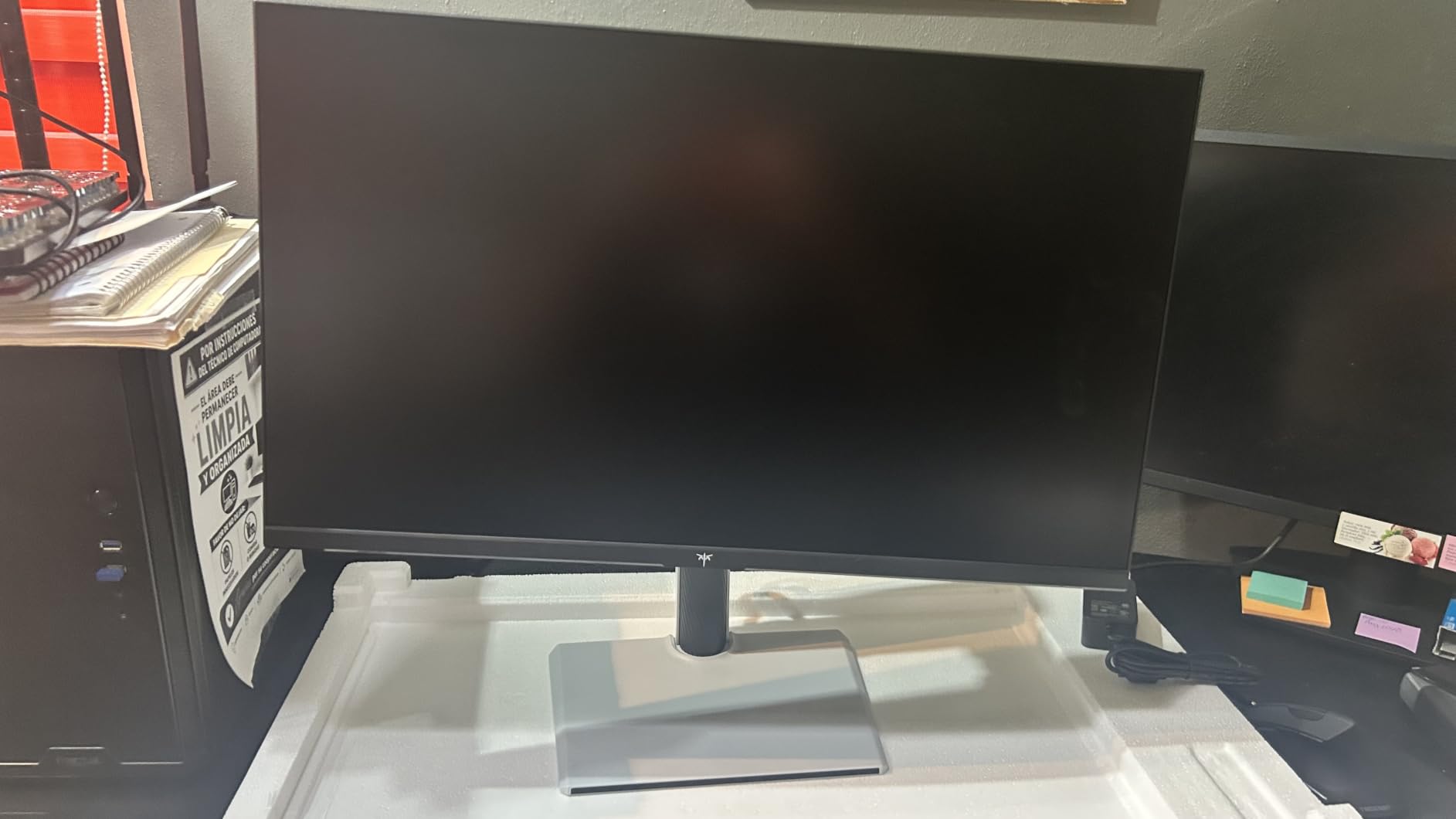
The dual-mode refresh rate is unusual: 160Hz at the full 4K resolution, or 320Hz when you drop to 1920×1080. For coding you would stay in 4K and never touch that setting, but it makes the display usable for fast games on the same desk.
Quality control is the weak point. Some sets arrived with dust particles behind the screen, and a few report pixelated black boxes on input change or wake from sleep. HDR400 performance is modest, so treat the HDR label as a checkbox rather than a feature.
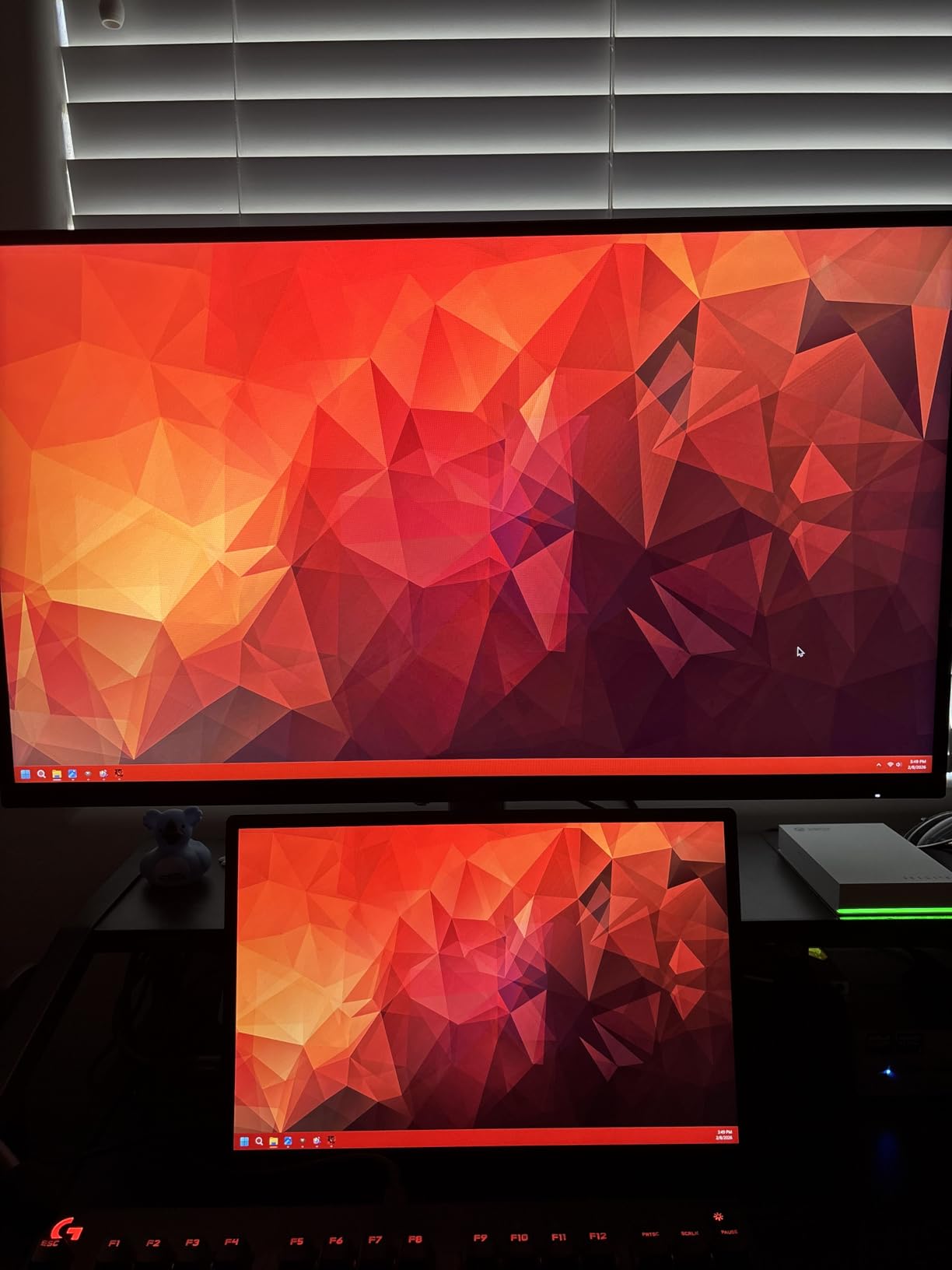
Can one USB-C cable replace a docking station?
For most laptops, yes, with one limitation. 90W is enough to charge a typical ultrabook at full speed and power a monitor, keyboard and mouse through the USB hub. It will not charge a large workstation laptop at full rate, and you still need a separate hub for multiple external displays.
Is 4K overkill in portrait mode?
No, and it is the sweet spot. The panel simply gives you more usable code at the same physical size, and Windows and macOS both offer integer and fractional scaling that keeps text sharp. The trade-off is that a 4K portrait window shows more content at once, so you may need larger font sizes than you would on a 1440p panel.
4. KTC H27T22-US – 1440p speed for players who also code
KTC 27” 2K 170Hz Gaming Monitor – Fast IPS 1ms GTG Pc Monitor with FreeSync G-Sync, HDMI/DP/USB Ports, Height/Tilt/Swivel/Pivot Adjust, 131% sRGB and 97% DCI-P3 Color Gamut for Vertical Monitor
27 inch 2560x1440 AUO Fast IPS
1ms GTG, up to 170Hz
131% sRGB and 97% DCI-P3
Pivot swivel tilt and height
+ The Good
- Sharp 1440p text at an accessible price
- Easy landscape-to-portrait switching
- 131% sRGB and 97% DCI-P3
- HDMI and dual DisplayPort inputs
- The Bad
- On-screen calibration limited to seven presets
- Some units report dead pixel clusters
- HDR support is nominal
Plenty of developers game on the same desk they write code on, and this panel is built for both. The AUO 8.2 Fast IPS runs up to 170Hz with 1ms GTG response and FreeSync Premium with G-Sync compatibility, so motion is genuinely fast when you switch from the editor to a match.
For portrait work the same core details matter as on the 4K model above: a stand with 5.11 inches of height adjustment plus tilt, swivel and pivot, and a 2560×1440 resolution that gives a comfortable 109 pixels per inch. The pivot-to-portrait workflow is the most common reason buyers name this model.
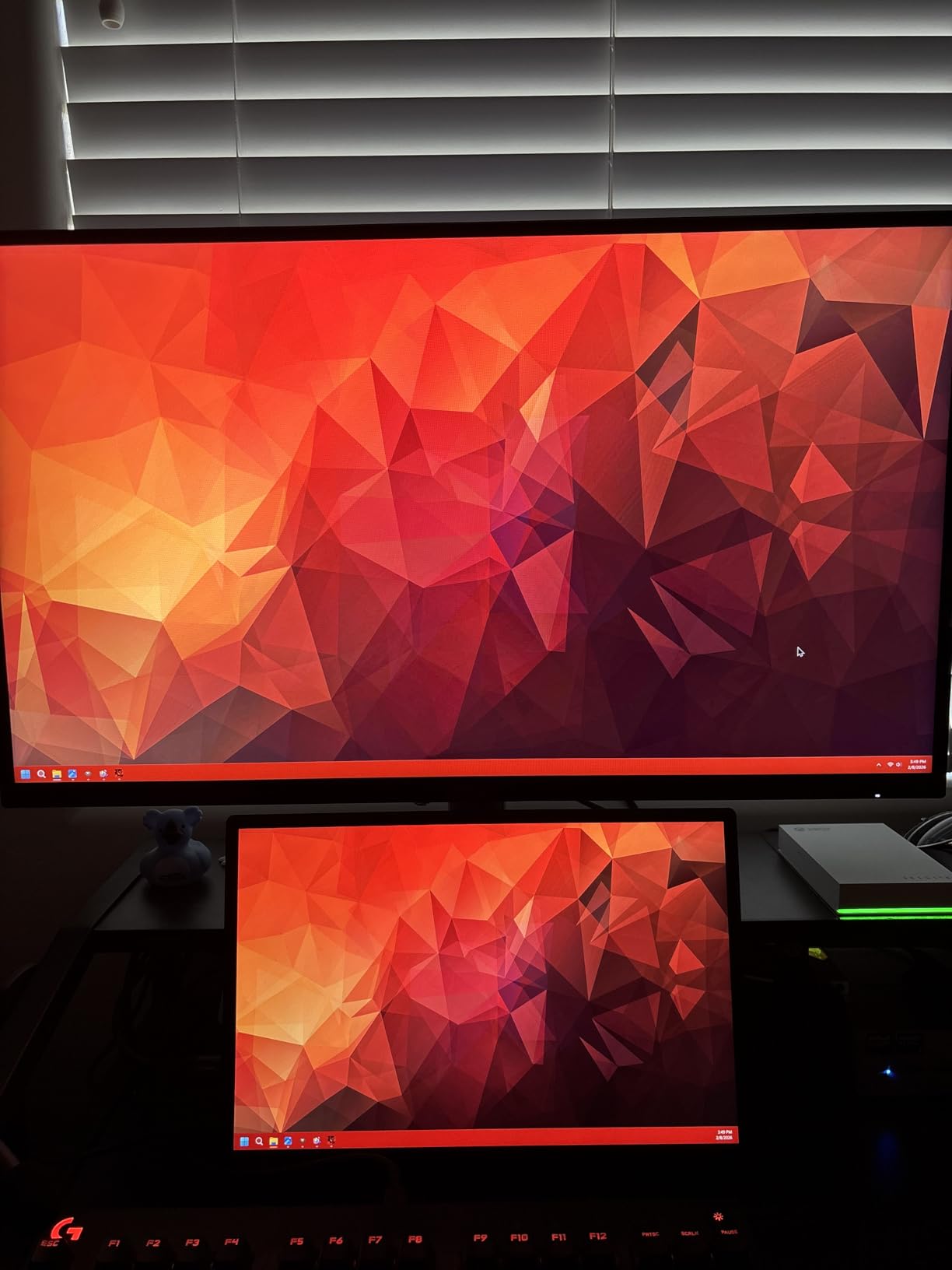
Colour coverage of 131% sRGB and 97% DCI-P3 is unusually generous for the tier, which means the panel also holds up for light photo and video work. Ports cover HDMI 2.0, two DisplayPort 1.2 inputs, USB and an earphone jack.
Menu customisation is the weak spot, with only seven presets and limited calibration controls. Reviewers also mention occasional dead pixel clusters on some sets, so inspect the panel early and use your return window.
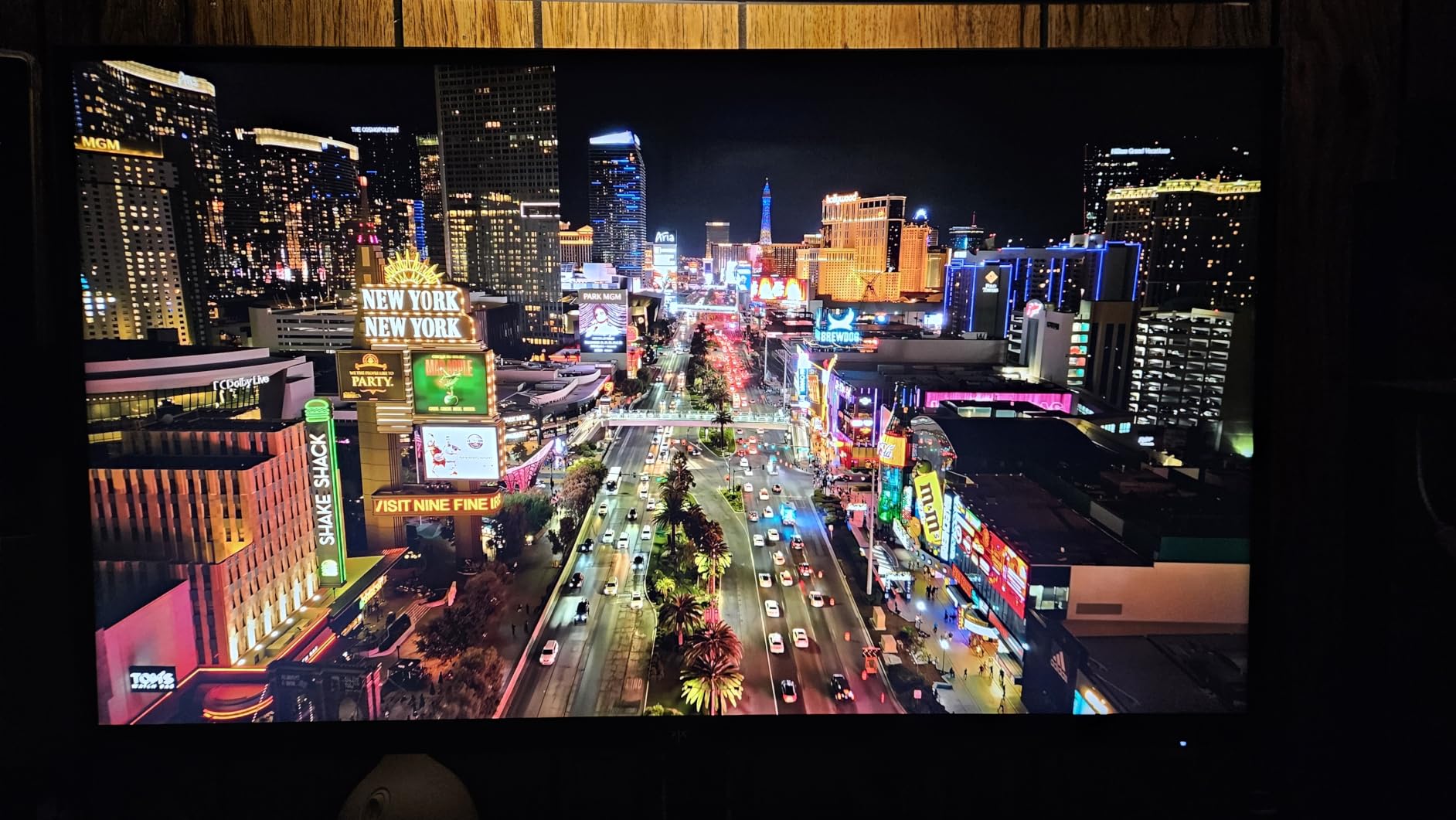
Is a high refresh rate useful for code review?
Not for reading code, but it is noticeable everywhere else. Scrolling long files, dragging windows, scrubbing a video timeline and switching applications all feel smoother at 144Hz or above. If you never game, a 60Hz or 75Hz panel frees your budget for a higher resolution instead.
Will this stand hold the panel at eye level in portrait?
It will, with room to spare, but the base position still leaves the top of a rotated 27-inch panel fairly high on a standard desk. Because the height range is generous, a monitor arm is still the cleanest route to a top edge at or just below eye level.
5. CRUA 24.5 inch portrait monitor – the smallest footprint that works
CRUA 24.5″ FHD 200Hz Vertical Monitor, Height/Pivot/Swivel/Tilt Adjustable
24.5 inch 1920x1080 LCD
90 degree portrait stand
120mm height plus tilt swivel
200Hz refresh
+ The Good
- Purpose-built 90 degree portrait stand
- 120mm height adjustment with tilt and swivel
- Three-sided narrow bezels
- Cable management hub
- Wall mount support at 75x75mm
- The Bad
- 1080p limits code line length
- 300 cd/m2 brightness is modest
- Mixed panel and stand experiences in reviews
This is the monitor to buy if desk width is the constraint. At 24.5 inches, a rotated panel occupies less horizontal space than a 27-inch, which matters when you are trying to fit a portrait column beside a 32-inch primary display on a desk that is already 120cm deep.
The stand is purpose-built for portrait mode with a 90-degree pivot, 120mm of height adjustment plus tilt and swivel, and a cable management hub at the base. Narrow three-sided bezels keep the column visually separate from the display beside it.
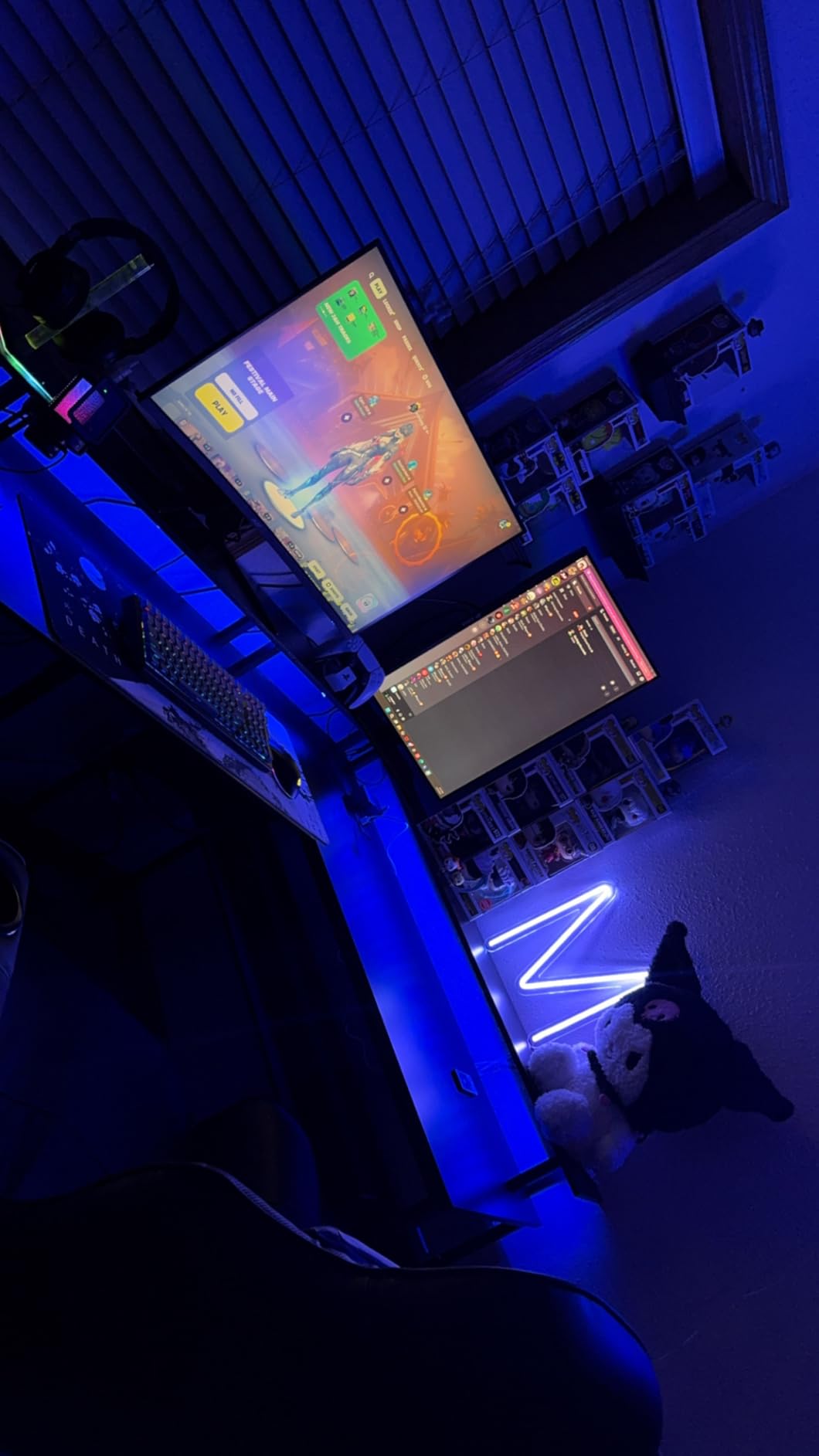
Refresh rate of 200Hz over both DisplayPort and HDMI is far beyond what a code editor needs, and it means scrolling feels smooth. Connectivity covers HDMI 2.0, DisplayPort 1.2, a 3.5mm audio out and a USB charging port.
The real compromise is 1920×1080. Rotated, you get 1080 pixels of column height, so you see fewer lines of code than a 1440p panel and the text is softer at a given size. Brightness of 300 cd/m2 is average, and about 12% of ratings are one star across mixed panel and stand reports.
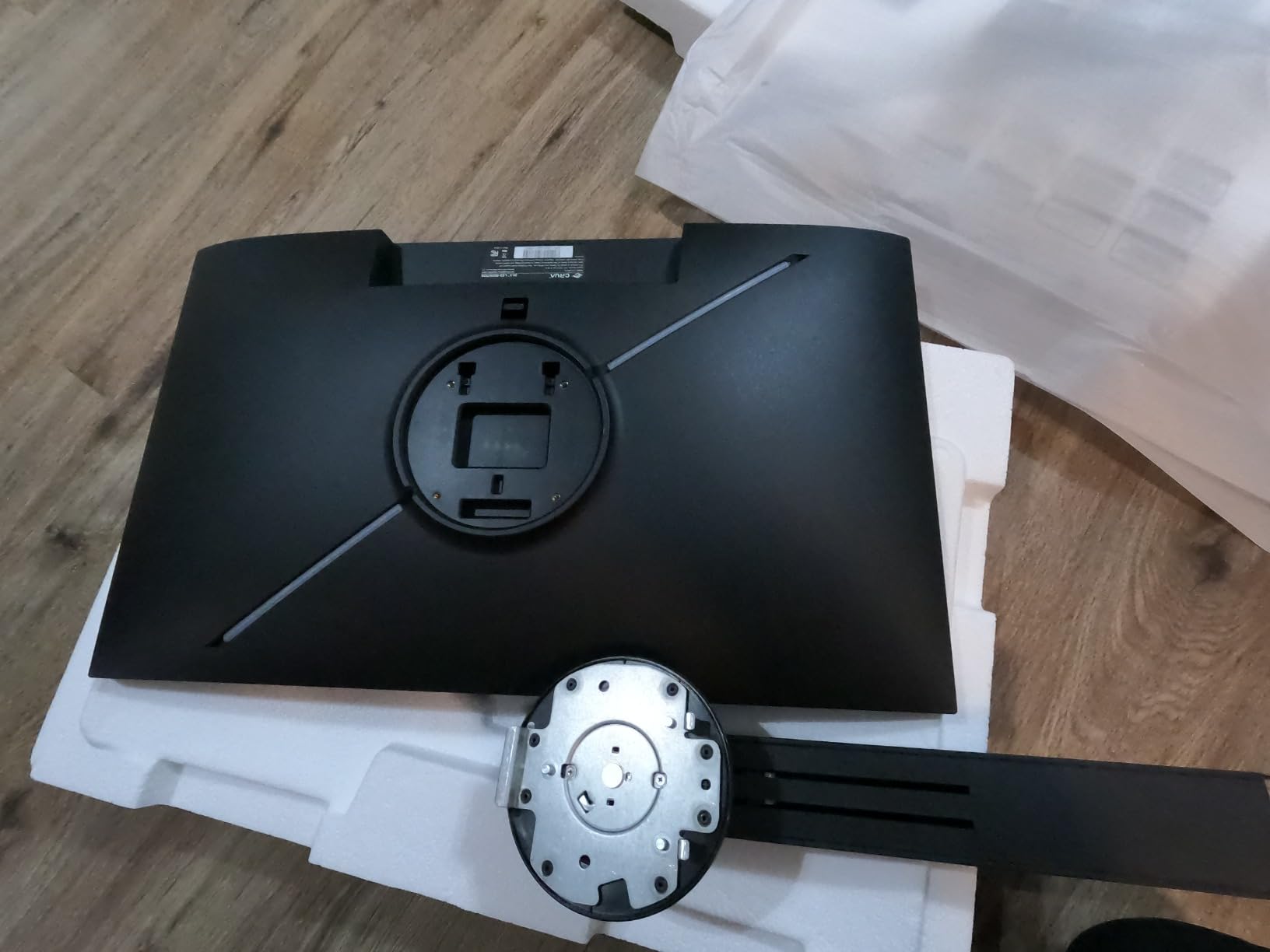
Is 24.5 inches too small for a portrait coding monitor?
No, it is the most comfortable size for long sessions because the whole column sits within a natural field of view without you tilting your head up and down. The trade is resolution: at 1080p you accept shorter line lengths and slightly softer glyphs than a 1440p panel gives you.
Can I use it as a second screen for logs and chat?
That is where it shines. A 24.5-inch portrait panel is ideal for a terminal window, a CI output feed, a Slack column or a documentation page, while your main display stays dedicated to the editor. Check desk depth first, since the base needs clearance behind the panel.
6. FLYTOCCA 16 inch portable monitor – portrait that travels
FLYTOCCA Portable Monitor, 16 Inch FHD 1200P, Horizontal/Vertical Monitor, Plug & Play, Built-in Speakers, Travel Monitor for Laptop with Premium Smart Cover
16 inch 1920x1200 IPS at 16:10
360 degree rotating stand
1.5 pounds, 0.59 inch thick
Built-in speakers
+ The Good
- Natively rotates between horizontal and vertical
- 16:10 gives about 10% more area than a 15.6 inch panel
- 1.5 pounds with an ultra-thin profile
- Built-in speakers and plug-and-play USB-C or HDMI
- The Bad
- No auto-rotation
- Needs a full-function Type-C port or external power
- 60Hz refresh rate
When your coding desk is a hotel room, this is the vertical monitor that makes sense. The 360-degree stand rotates the 16-inch IPS panel between horizontal and vertical with no pivot hardware to fail, and the whole unit weighs 1.5 pounds and measures under 0.6 inches thick, so it slides into a laptop sleeve beside the machine.
The 16:10 aspect ratio is a genuine advantage here. It is a taller shape than a 15.6-inch 16:9 laptop panel and delivers about 10% more screen area, which means a rotated column fits a readable amount of documentation or a chat thread.
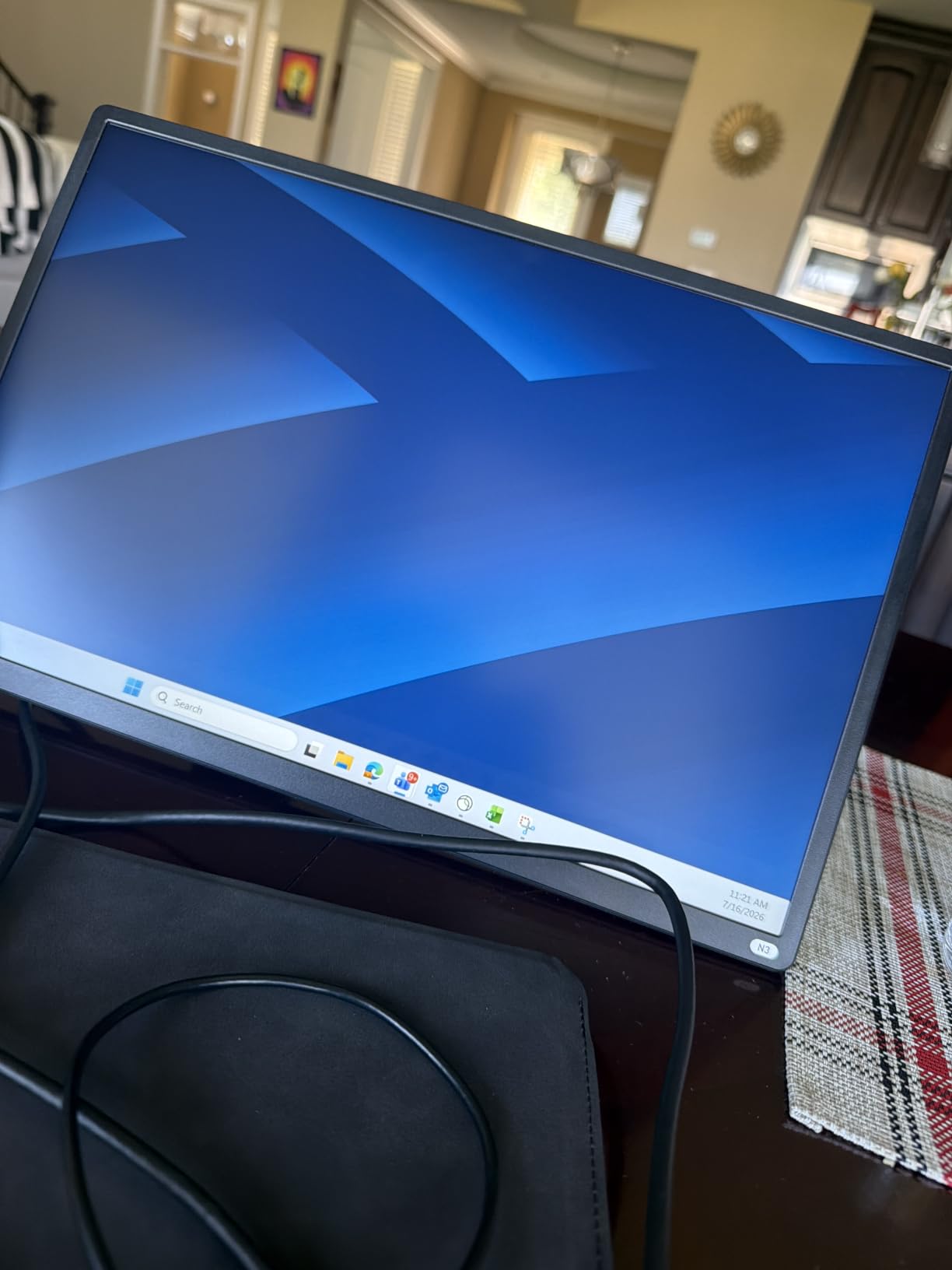
Connection is plug-and-play over USB-C with DisplayPort Alt Mode, ideally a Thunderbolt 3 or 4 port, or over HDMI. A protective smart cover is included, and built-in speakers cover call audio without another device.
Two limitations are worth knowing before you rely on it. There is no auto-rotation, so you change orientation manually in your laptop display settings, and under-powered USB-C ports can cause flicker, meaning you may need external power. The 60Hz refresh rate is fine for reading and editing.
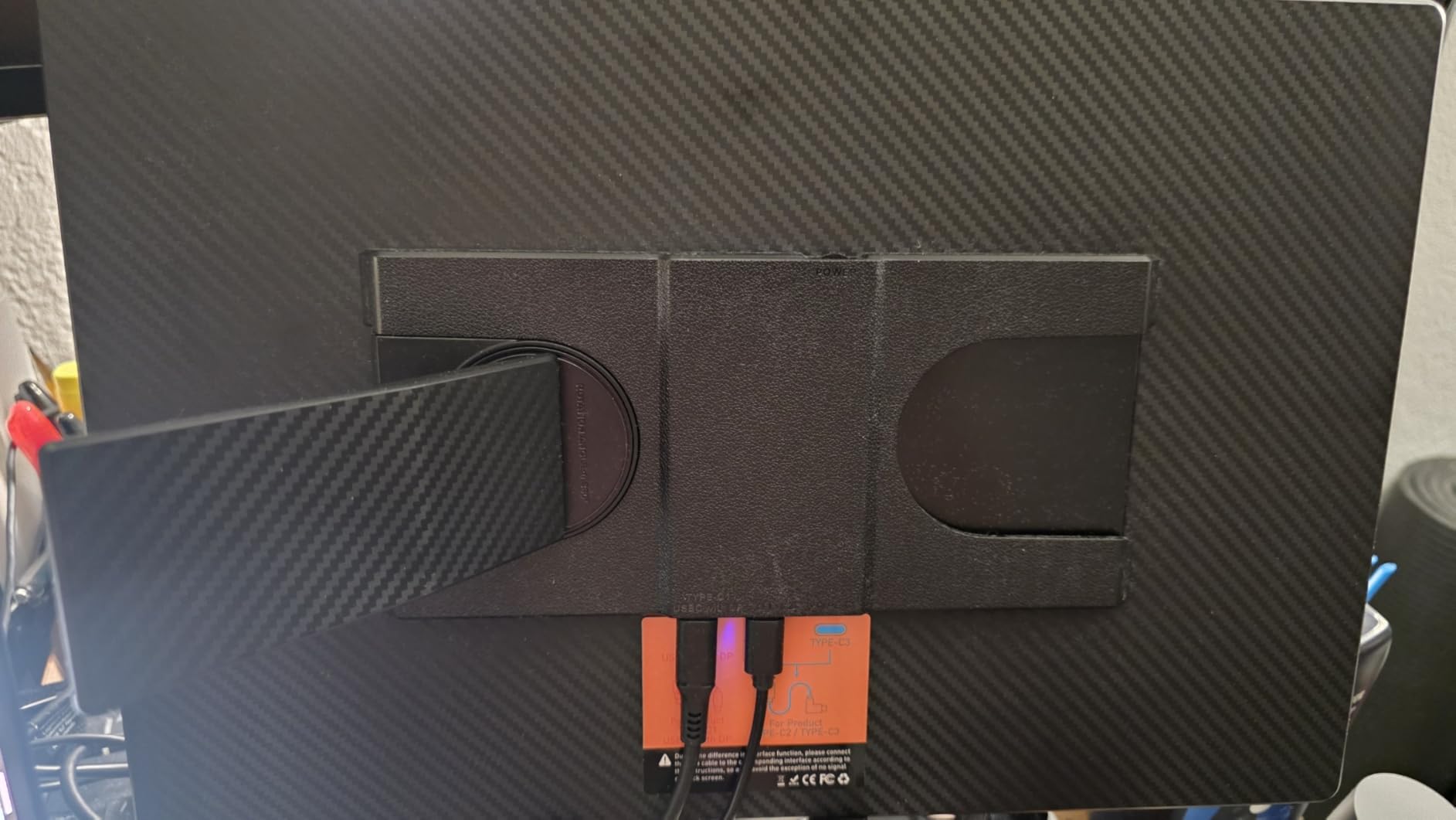
Is a 16 inch monitor big enough to read code comfortably?
For reference material, email, chat and code review, yes. For your primary editor during eight hours of focused work, most developers find it too small. It works best as a second screen that mirrors the role of a portrait column in a fixed setup.
Will it work with any laptop?
It will display over HDMI with almost any laptop, and over USB-C only if the port supports DisplayPort Alt Mode, which means Thunderbolt 3 or 4 on most machines. If your laptop has USB-C data ports only, use HDMI or add a portable docking station.
7. LG 27UP650K-W – 4K text clarity with a matte coating
LG 27UP650K-W 27-inch Ultrafine 4K UHD (3840 x 2160) IPS Computer Monitor, 60Hz, 5ms, DisplayHDR 400, Reader Mode, Flicker Safe, HDMI, DisplayPort, Tilt/Height/Pivot Adjustable Stand, White
27 inch 3840x2160 IPS
95% DCI-P3 with HDR 400
Height tilt and pivot stand
DisplayPort and HDMI
+ The Good
- Excellent 4K text clarity with no setup
- Stand rotates smoothly with one finger
- Matte coating handles glare well
- Joystick front control
- 95% DCI-P3 coverage
- The Bad
- No USB-C hub or laptop charging
- No built-in speakers
- 60Hz refresh and 5ms response
Roughly 330 reviews at 4.7 stars with 84% five-star ratings make this one of the best-rated displays in the roundup. Owners point consistently to crisp 4K text out of the box, a matte coating that handles a bright room well, and a stand that pivots smoothly with one finger, which is exactly what a portrait setup depends on.
At 3840×2160 on 27 inches you get about 163 pixels per inch. Rotated to portrait, that density keeps 12-point editor fonts legible at 100% scaling, and the 95% DCI-P3 coverage means syntax highlighting looks the way your theme was designed.
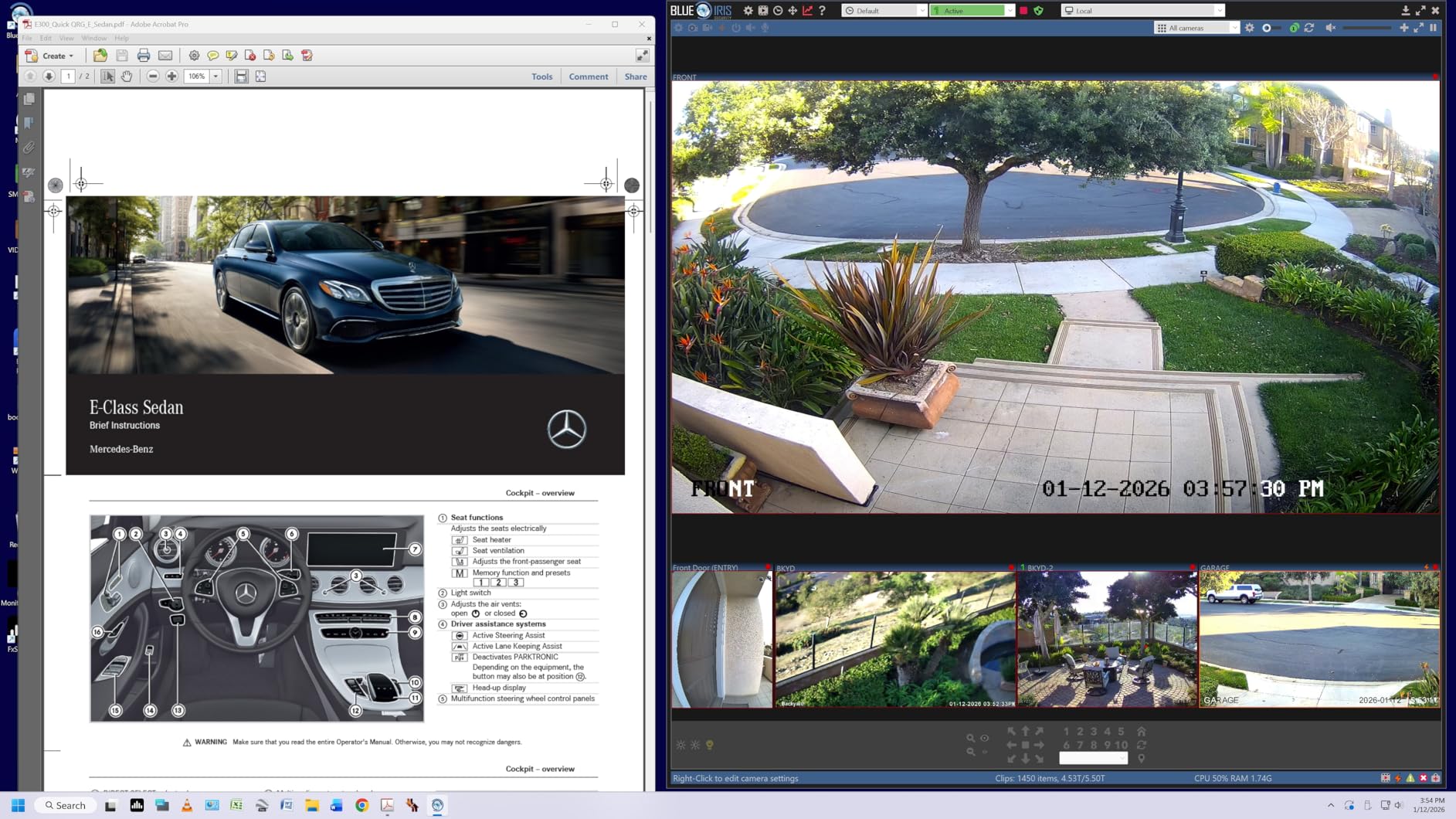
The LG Switch app splits the display into up to six sections with a hotkey, which is a practical match for a tall panel. Stacking an editor on top, a terminal below and a documentation strip at the base is a two-second operation once the layout is saved.
This specific variant has no USB-C, no USB hub and no speakers, and it runs at 60Hz with 5ms response. Those are sensible omissions for a desk-bound 4K panel, but they rule it out for laptop docking and for gaming.
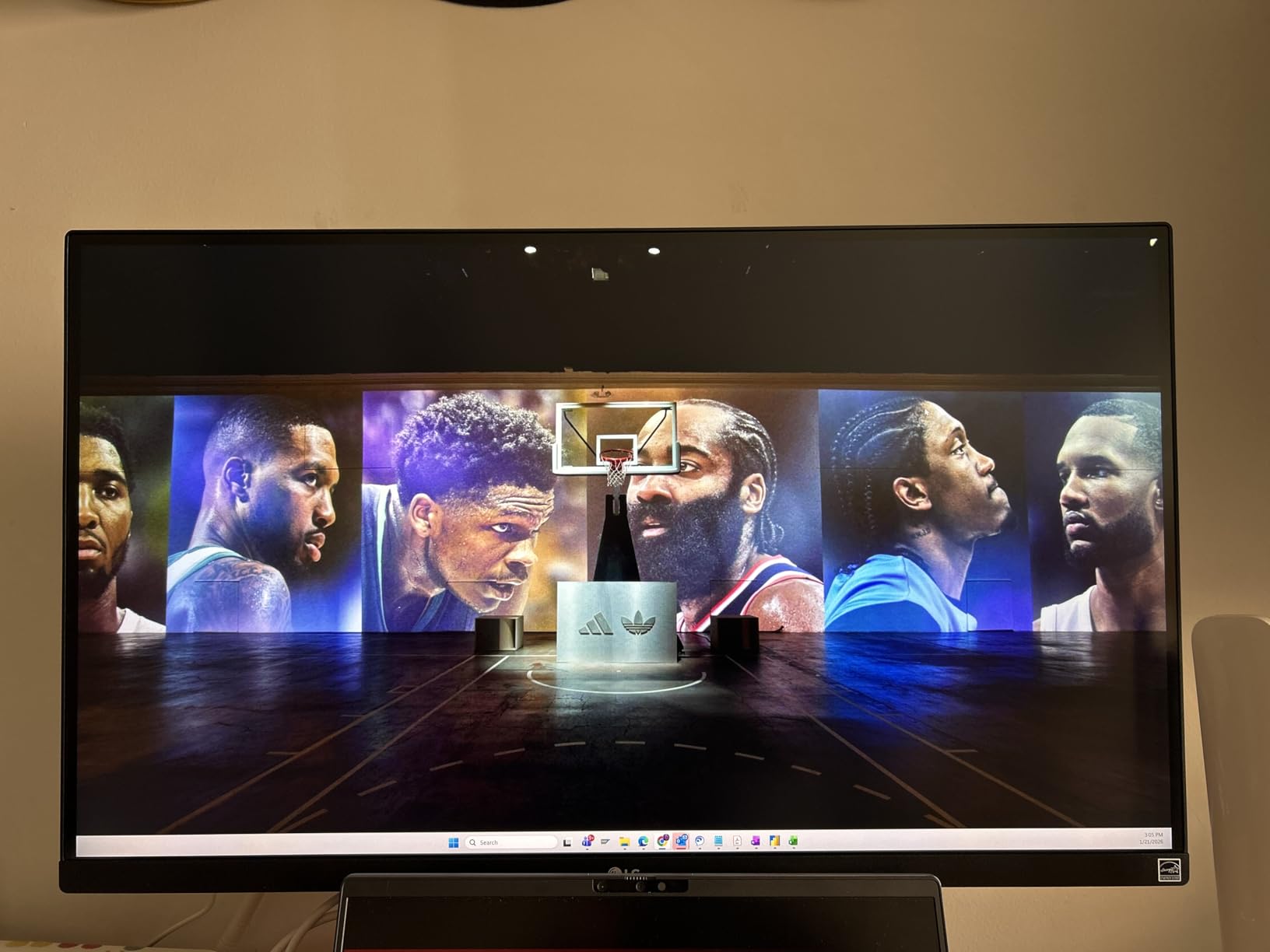
Why is a matte coating valuable on a coding monitor?
Because a portrait screen is tall and usually sits beside a window or a bright primary display. A glossy panel throws reflections across the upper half, exactly where a chat log or a long file header sits, and you end up tilting your head to read around the glare. Matte finishes trade a little contrast for a far more consistent image.
Is 4K worth it over 1440p in portrait?
For text-heavy work, yes. The extra pixels give you smaller glyphs at the same physical size, so a rotated 4K panel shows more readable lines without shrinking your font. A 1440p portrait panel still works, but you feel the difference most in a dense terminal or a wide diff view.
8. ASUS ProArt PA248QV – 16:10 gives you vertical space without rotating
ASUS ProArt PA248QV 24 Inch WUXGA 16:10 Professional Monitor
24.1 inch 1920x1200 IPS at 16:10
Calman Verified, 100% sRGB
4-port USB hub
Pivot swivel tilt and height
+ The Good
- 16:10 aspect ratio adds vertical space
- Calman Verified with Delta E under 2
- Pivot swivel tilt and height stand
- 4-port USB hub with DP HDMI and VGA
- 5 year warranty
- The Bad
- 75Hz refresh and 5ms response
- On-board speakers are very quiet
- OSD menu is awkward to use
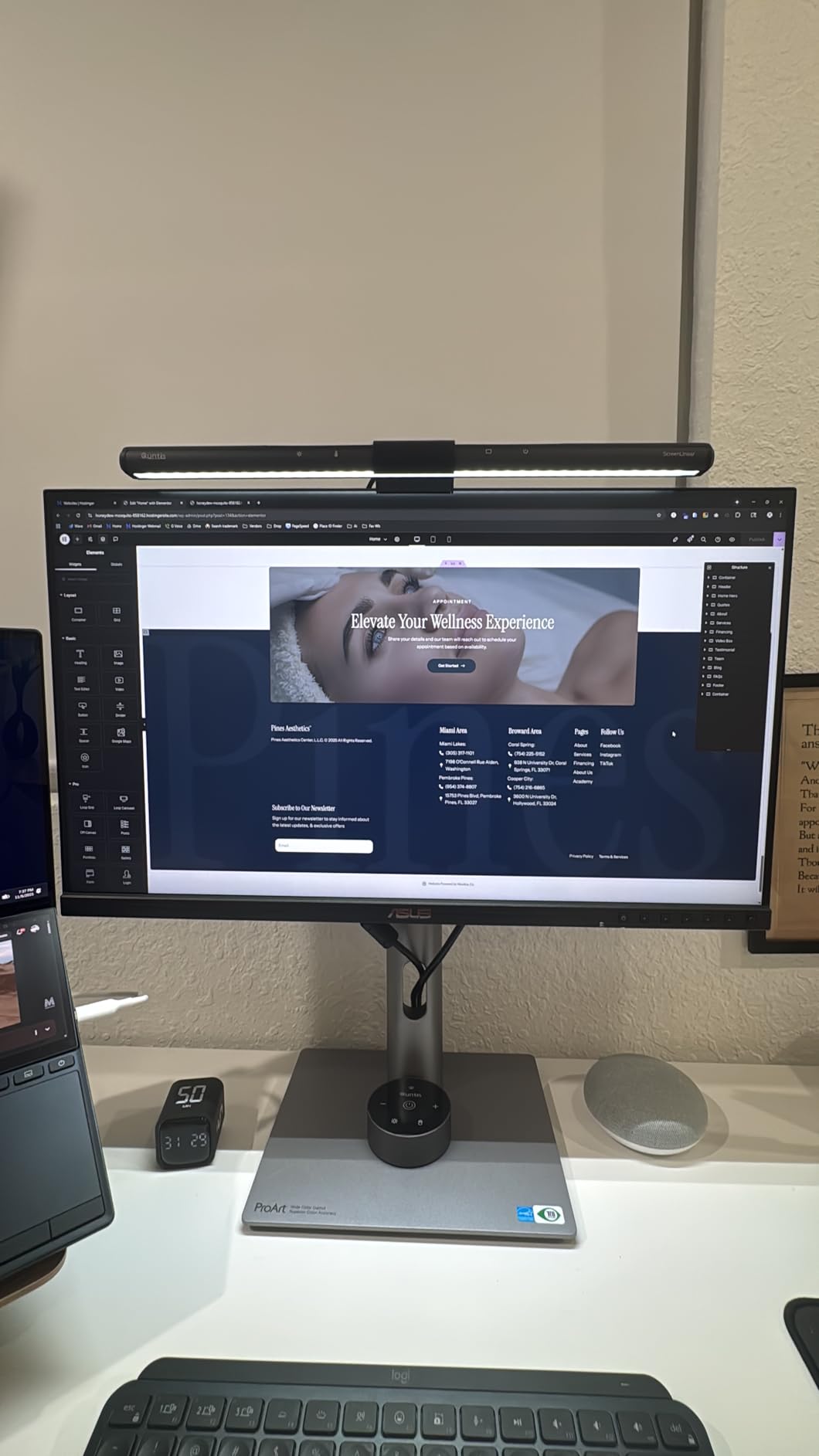
Several developers we read about prefer a taller aspect ratio to rotating at all. The PA248QV is a 24-inch 1920×1200 IPS panel in a 16:10 shape, so it delivers 1200 pixels of height in horizontal orientation, and it still pivots to portrait if you want both.
Long-term owners repeatedly praise the taller workspace, the accurate colour and the pivot-to-portrait stand. Around 1,800 reviews at 4.6 stars with 81% five-star reflect a settled, well-liked panel rather than a flash new release.
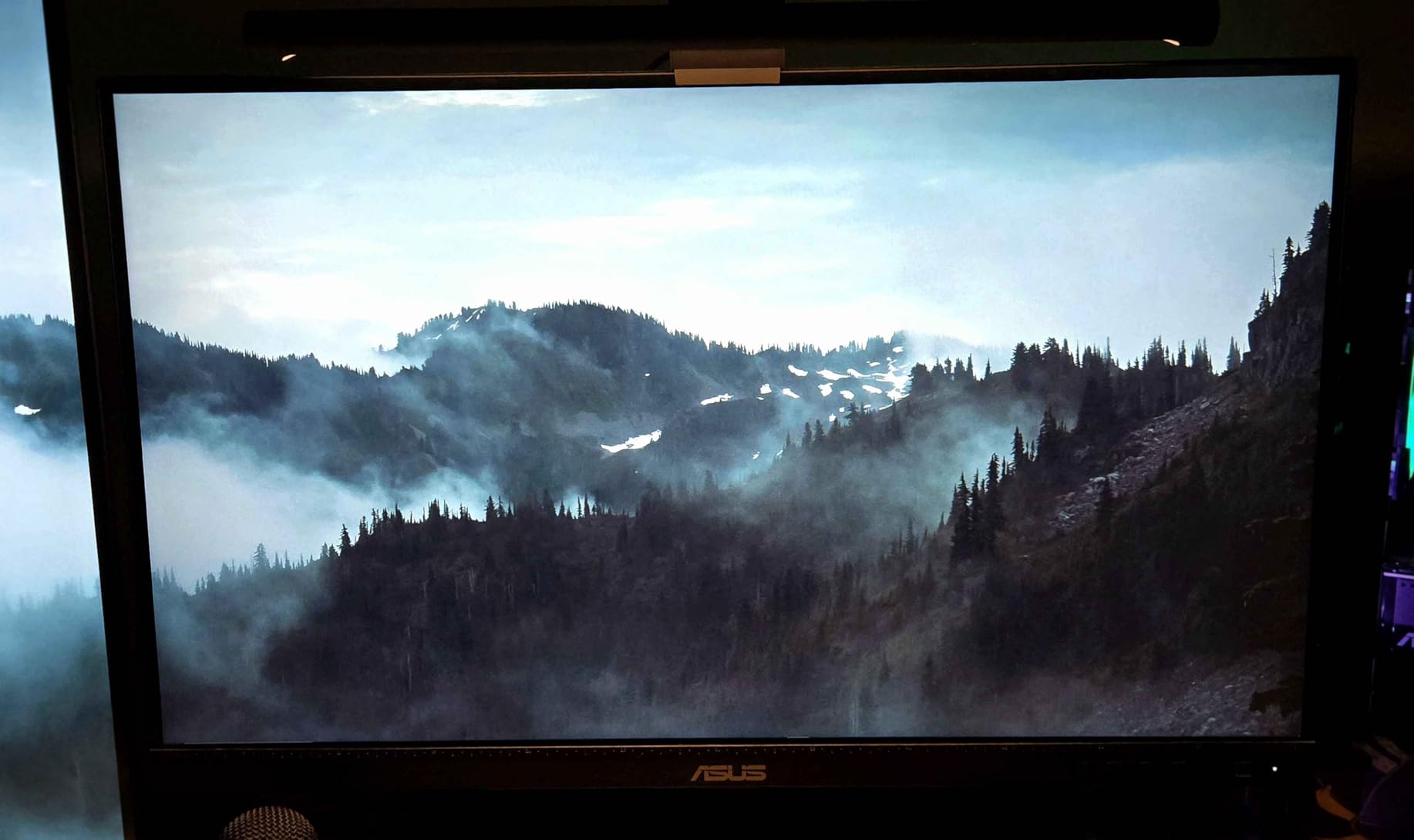
Colour accuracy is the ProArt signature again, with Calman Verified calibration, Delta E under 2 and full sRGB and Rec.709 coverage. The stand covers tilt, swivel, pivot and height, and the 4-port USB hub sits behind the DisplayPort, HDMI and VGA inputs.
The most cited negatives are the 75Hz ceiling, very quiet on-board speakers and an on-screen menu that takes practice. It also does not include a DisplayPort cable, so budget for one if your graphics card needs it. The near-borderless design keeps a two-screen desk tidy.
Is a 16:10 monitor a better alternative to rotating?
For some developers it is. A 16:10 panel gives you more vertical space than 16:9 with no rotation, no stand changes and no software rotation to configure. If you only need a taller reading area rather than a true column, 16:10 is the lower-friction option.
Does 1920×1200 look blurry in portrait?
Only if you push the scaling. At 100% it is a native 1200-pixel grid with about 99 pixels per inch, which is readable for standard font sizes. The blur people report in portrait comes from fractional scaling, not from this resolution, and a native-resolution setting plus 125% scaling fixes it.
9. Dell S2425HSM – eye comfort and speakers at a compact size
Dell 24 Plus Monitor – S2425HSM – 23.8-inch FHD (1920×1080) 144Hz 1ms Display, 2 x 3W Speakers, HDMI Connectivity, Height/Tilt/Pivot/Swivel Adjustability, AMD FreeSync – Ash White
23.8 inch 1920x1080 LCD
144Hz with 1ms MPRT
Dual 3W speakers
Height tilt pivot swivel
+ The Good
- Fully adjustable stand for portrait use
- 144Hz refresh with 1ms MPRT
- Built-in dual 3W speakers
- Two HDMI ports
- 4-star TUV eye comfort and flicker-free
- The Bad
- No USB-C so no single-cable laptop charging
- 1080p text can look pixilated
- Short height range means an arm helps
The Dell is the practical pick for a small office or a shared hot desk where USB-C docking is not expected. The stand covers height, tilt, pivot and swivel, so it rotates into portrait without tools, and a joystick on-screen control is widely praised as the easiest menu in this class.
Reviewers like the 144Hz refresh rate and 1ms MPRT, which make long file scrolling feel noticeably smoother than a 60Hz panel, and the dual 3W speakers are genuinely usable for call audio rather than a novelty.
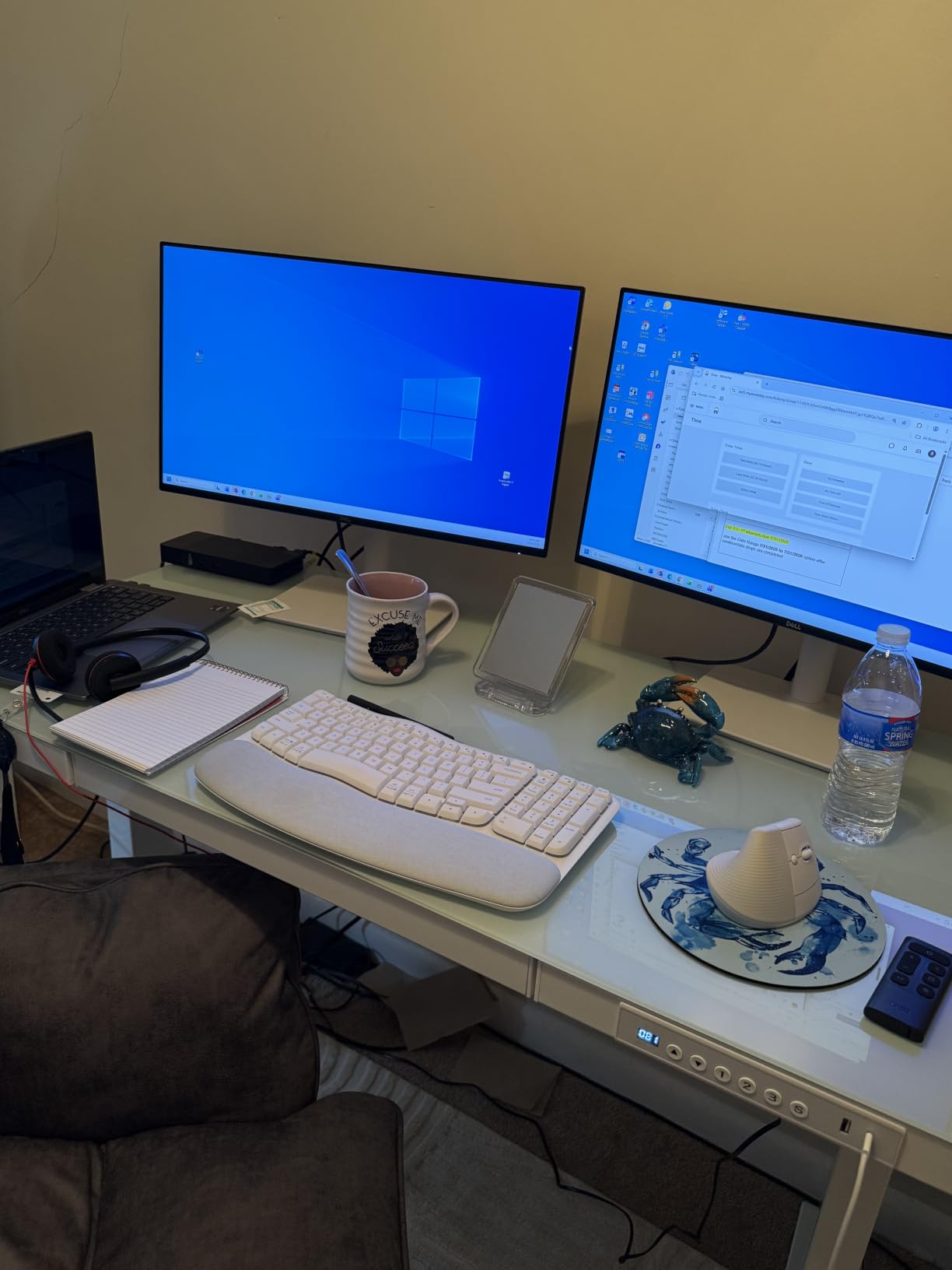
Eye comfort is certified at four stars with flicker-free backlighting, which matters for anyone staring at a tall text column all day. Two HDMI ports let a desktop and a laptop stay connected permanently, so switching inputs is a keystroke rather than a cable swap.
Two real limits: there is no USB-C, so one-cable laptop workflows are off the table, and the height adjustment range is short, so several users add a riser or a monitor arm to bring a rotated panel down to eye level.
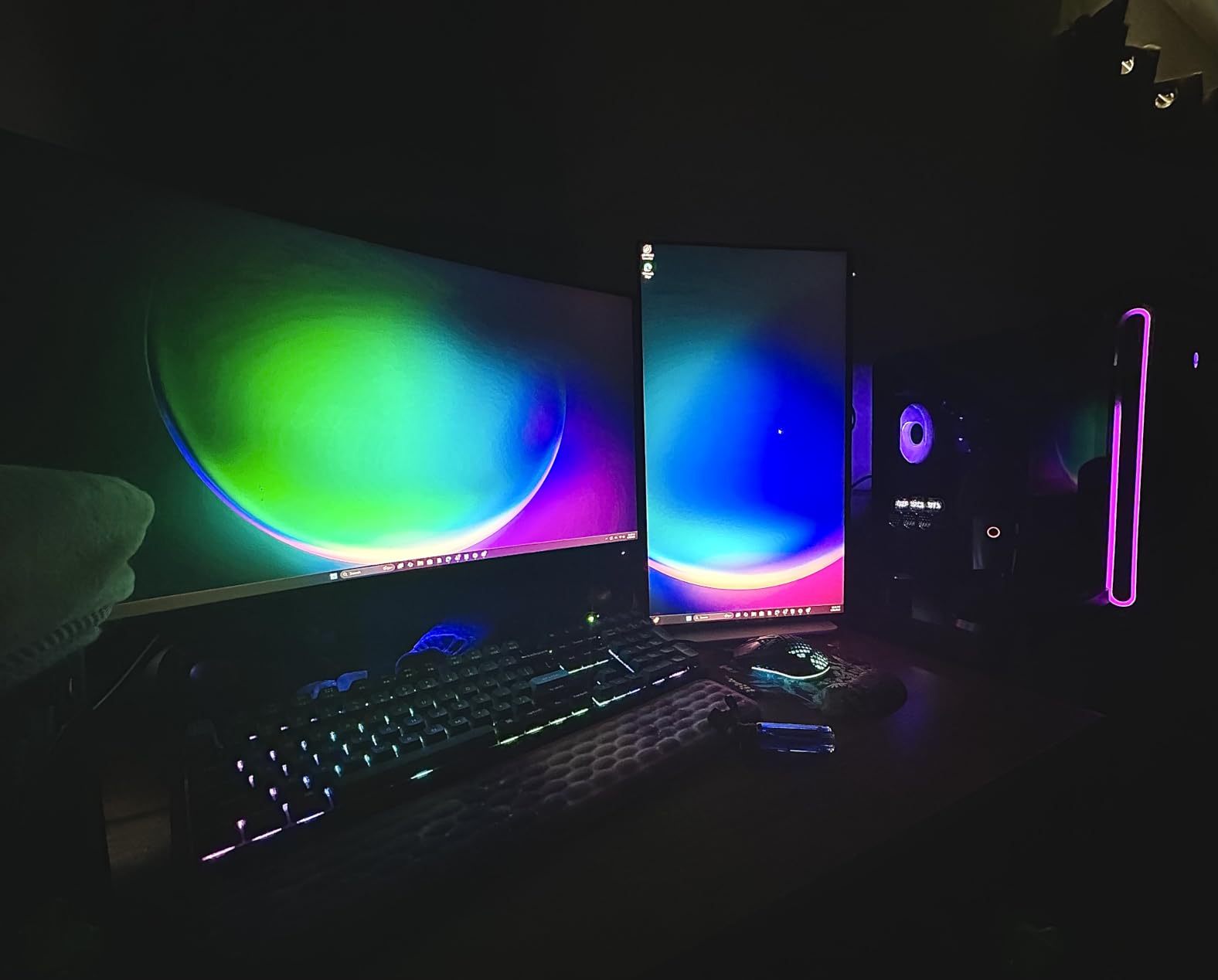
Is 23.8 inches enough for a vertical code column?
For chat, logs and documentation, comfortably. Rotated, you get 1080 pixels of column height, which is the same limitation as the CRUA panel. If your primary reading is the editor itself, step up to a 1440p or 4K panel and accept the extra desk width.
Do built-in speakers matter on a coding monitor?
More than most spec guides admit. If you take calls from your desk and would rather not route audio through a headset, usable speakers remove a daily annoyance. The Dell pair is the one reviewers describe as genuinely usable, while the ASUS ProArt units are near-silent and the LG has none at all.
10. ASUS VA27DQSB – a 27-inch pivot for multi-device offices
ASUS VA27DQSB 27″ 1080P FHD IPS Computer Monitor, USB Docking, DisplayPort
27 inch 1920x1080 IPS
90 degree pivot with height,swivel, tilt
HDMI, DisplayPort, VGA, USB hub
3 year warranty
+ The Good
- Easy 90 degree pivot to portrait
- Height swivel and tilt on the stand
- Frameless three-sided design
- TUV certified flicker-free and low blue light
- HDMI DisplayPort D-sub and USB hub
- The Bad
- 1080p resolution and 72% sRGB are modest
- 75Hz refresh rate
- Integrated audio is very basic
At 27 inches, this ASUS sits in the awkward middle where you get real column height but only 1920×1080 of it. That is a deliberate trade for offices that deploy monitors in quantity: a large pivot-capable panel with a hub, flicker-free certified backlighting and a three-year warranty, at a price that scales.
Roughly 440 reviews at 4.7 stars with 84% five-star highlight the pivot-to-portrait workflow for side-by-side code panels, the eye-comfort features and the value in a business deployment. The frameless three-sided design also keeps multi-monitor desks looking deliberate.
Connectivity is unusually broad for the tier: HDMI, DisplayPort, D-sub and a USB hub in one unit, which lets a fleet of these sit behind KVM or USB switches. The stand handles 90-degree pivot plus swivel, tilt and height adjustment.
It has a three-year warranty with advanced replacement, and the eye-comfort features carry TUV Rheinland certification. The 72% sRGB coverage is narrow, so this is not a panel for design or photo work, and the 75Hz rate with basic integrated audio follows the same pattern.
Is a 27-inch 1080p panel too low-resolution for code?
It is workable, and the wider column of visible lines partly compensates for the pixel count. But at 1920×1080 on 27 inches you get about 81 pixels per inch, so small font sizes need scaling and glyphs look softer than on a 1440p panel at the same size. Buyers who notice this usually move up a tier.
Why would an office choose this over a 1440p panel?
Cost per desk, warranty length and uniformity. A large 27-inch panel with a 90-degree pivot, a USB hub and a three-year warranty is easier to standardise across a team than a mixed set of professional displays, and the 16:10 and 4K alternatives in this list cost meaningfully more per unit.
Do You Actually Need a Vertical Monitor?
You need one if you spend your day in a code editor, a terminal or documentation and constantly scroll through tall, narrow content. A portrait monitor shows roughly twice the vertical pixels of the same panel in horizontal use, so you see more lines of code, longer log output and full chat threads without scrolling. If your work is dominated by wide spreadsheets, video timelines or design canvases, horizontal space still wins.
Forum threads in developer communities make the case repeatedly. Users with an ultrawide primary display almost always add a portrait secondary for docs, logs and chat rather than replacing the main screen, and developers working ADHD-focused or streaming setups report large gains from a dedicated column for chat logs and task lists.
If you rotate your head or shoulders constantly to read the top and bottom of a tall screen, the monitor is too big. The 24-to-28-inch range is repeatedly cited as the ergonomic sweet spot, and above 28 inches in portrait most people report looking up and down too much.
24-Inch vs 27-Inch vs 32-Inch in Portrait
Choose 24 to 24.5 inches for the smallest desk footprint and a full column you can read without moving your head, 27 inches for the best balance of line length and comfort, and 32 inches only if you sit far back or use it as a dedicated documentation panel.
Here is the practical comparison. A 24-inch 16:9 panel rotated gives 1080 pixels of column height, a 27-inch gives 1440 pixels, and a 32-inch gives 1800 pixels, but each step makes the panel taller and narrower, and that narrowness is what makes some 27-inch and 32-inch models feel cramped once rotated.
One r/buildapcmonitors user describes a 27-inch 4K panel in vertical as a bit too narrow and tall, which is a fair warning. That reaction usually means the panel is mounted higher than eye level, and the fix is a monitor arm rather than a smaller screen. We would pair nearly every pick here with a single monitor arm. If you also use a vertical mouse, our guide to the best vertical mice pairs well with a portrait column.
Why Rotated 1440p Text Looks Soft and How to Fix It
Blurry text in portrait is almost never a defective panel. It is a scaling problem: at 2560×1440 rotated to portrait, the operating system may be scaling to a fractional zoom level, which resamples every glyph and softens the edges. Windows and macOS both render text better when the display runs at its native resolution with an integer scale step.
Confirm the display is running at its native resolution. Open the display settings, select the native entry, and remove any resolution flagged as underscaled or stretched.
Set scaling to an integer or well-supported step. For 1440p, 100% and 150% behave cleanly on Windows; 125% often produces the softest result. On macOS, choose a listed scale rather than a custom one.
Leave text smoothing on. Windows ClearType and macOS font smoothing smooth glyph edges for LCD subpixel rendering and should never be disabled for a text-heavy workflow.
If sharpness still bothers you after scaling changes, raise the resolution instead. Moving from 1440p to 4K on the same 27-inch size roughly doubles pixel density and removes the problem at the source rather than hiding it.
Keep in mind that reading comfort depends on physical size as much as pixels. A 27-inch 1440p panel at 150% scaling gives text about the same apparent size as a 32-inch 1080p panel at 100%, and the former is usually the better experience in portrait.
Panel Type: Why IPS Wins for a Tall Screen
IPS is the right choice for a tall coding panel because your eyes are not centred on the screen. In portrait, the top and bottom of the display sit well off your viewing axis, and IPS panels hold colour and contrast steady at those angles while VA panels shift visibly.
Every 4K and 1440p pick in this roundup uses an IPS or Fast IPS panel, and that is deliberate rather than incidental. The 178-degree viewing angle figure most of them publish is a marketing shorthand, but the practical difference shows up in the corners of a rotated display, where VA panels often look washed out.
TN panels are the option to avoid for text, since their narrow angles make a tall screen uncomfortable to read. OLED is not represented here because glossy finishes and burn-in risk make them a poor default for an all-day text monitor.
USB-C, DisplayPort Alt Mode and the Data-Only Trap
Check that the USB-C port supports DisplayPort Alt Mode before you buy for a one-cable setup. Some monitors ship a USB-C port that handles data and charging but cannot carry video at all, which is a purchase-killing mistake that only shows up after the monitor is on your desk.
The picks here divide cleanly. The KTC H27P6 provides USB-C with 90W power delivery, so one cable carries video, charge and peripherals. The Dell S2425HSM and the LG 27UP650K-W have no USB-C video input at all, and the ASUS ProArt PA278QV has no USB-C on this variant. The portable FLYTOCCA relies on the host laptop having a Thunderbolt 3 or 4 port.
Power delivery wattage is worth checking against your laptop. 65W works for ultraportables, 90W covers most mainstream notebooks, and heavier workstations need a dedicated charger. Docking stations and KVM switches can also lock orientation or fail to hand off cleanly when a display rotates, so test your switching workflow early rather than at the end of a long coding day.
Do All Monitors Rotate? Pivot, VESA and Monitor Arms
No, and this is where returns happen. A monitor rotates only if its stand includes a pivot mechanism or if it has a VESA mount you can attach to a rotating arm or bracket. Check the specification for pivot or swivel, and treat a monitor that only lists tilt and swivel as horizontal-only.
Every panel in this list states a pivot range, so all ten rotate. The ASUS ProArt stands cover tilt, swivel, pivot and height, the SANSUI gives you a full -90 to +90 degree pivot with 0-130mm of height, and the CRUA is designed around a 90-degree portrait pivot with 120mm of travel.
Rotation is only half the job. The stand must also lower the rotated panel far enough that the top of the screen sits at or just below eye level, otherwise you tilt your head upward all day. Several buyers of the Dell S2425HSM report needing a riser or an arm for exactly this reason, and it is the single most common fix mentioned in developer forums.
How to Rotate the Display in Windows 11 and macOS
Rotating the panel is only half the task, because the operating system has to rotate the image too. Both platforms handle this in a few steps once you know where the setting lives.
On Windows 11, right-click the desktop and choose Display settings, then open Display orientation and pick Portrait, then confirm with Keep changes. If the screen is black after the switch, hold Ctrl plus Shift plus the Windows logo key and press the left or right arrow to cycle orientation. Windows 11 snap layouts also let you divide a tall screen into stacked panes for an editor on top and a terminal below.
On macOS, open System Settings, then Displays, and use the rotation menu. If the option is missing, hold the Option key while clicking Detect Displays, which rescans the panel and restores the menu. macOS window tiling works best here too, since a portrait display splits cleanly into two stacked panes that macOS handles natively.
For finer layouts, PowerToys FancyZones on Windows gives you custom zone layouts and keyboard-driven window snapping, which is worth the setup time once a portrait display becomes your main editor screen.
Vertical Monitor Setups and Desk Footprint
Do the footprint maths before you buy. A rotated monitor occupies horizontal desk space equal to its height in normal orientation, not its width, so a 27-inch panel with a height-adjustable stand needs roughly the same width as a 24-inch widescreen display would need on its base. Check that width against your desk, then add a few centimetres for the arm clamp.
The most common layout is a portrait column beside a horizontal primary. Developers running an ultrawide usually place a 24 or 27-inch portrait panel to one side for documentation, logs and chat, keeping the wide display for the editor and multiple projects. A second popular arrangement is dual portrait panels side by side, which is the configuration the KTC buyers in the forums describe, with an editor on one and a terminal plus documentation on the other.
A third option is a portrait panel centred above a widescreen display, which needs monitor arms for both and enough desk depth to keep the top screen at a comfortable angle. Whatever the layout, cable routing and a monitor arm will make the difference between a tidy desk and a tangle of DisplayPort leads behind the panel.
Mismatched sizes look uneven, so a 24.5-inch portrait column beside a 32-inch primary reads as balanced, while a 27-inch column next to a 24-inch display looks lopsided. If your desk is already crowded, a 16:10 panel in horizontal orientation is a lower-friction way to gain vertical space than rotating at all.
Frequently Asked Questions
What is the best size monitor for coding?
For portrait coding, 24 to 28 inches is the ergonomic sweet spot because the whole column fits a natural field of view. Choose 24 to 24.5 inches for the smallest desk footprint, 27 inches for the best balance of line length and comfort, and 32 inches only for dedicated documentation panels viewed from further back.
Can any monitor display vertically?
Only if the stand includes a pivot mechanism or the monitor has a VESA mount you can attach to a rotating arm. Tilt and swivel alone do not allow a 90-degree turn. Check the specification for a stated pivot range, and confirm the stand can lower the rotated panel close enough to eye level.
Is IPS better than VA for coding?
Yes. A tall portrait screen puts the top and bottom of the panel far off your viewing axis, and IPS holds colour and contrast steady at those angles while VA panels shift visibly. Every 4K and 1440p pick in this roundup uses IPS or Fast IPS for that reason.
Why does my 1440p monitor look blurry in portrait?
It is almost always fractional scaling rather than a faulty panel. Set the display to its native resolution, choose an integer scale step such as 100% or 150% for 1440p, keep text smoothing on, and avoid 125% which softens glyph edges. Raising the resolution to 4K fixes the root cause rather than hiding it.
Are vertical monitors good for coding?
Yes, for text-heavy work. Rotating a 27-inch 16:9 panel gives roughly 1440 pixels of column height instead of about 1080 in horizontal use, so you see more lines of code, longer terminal output and full chat threads without scrolling. If your work is dominated by wide spreadsheets or video timelines, horizontal space still wins.
Conclusion
Ten monitors later, the best vertical monitors for coding come down to two questions. If you want the most proven portrait panel with a deep review history and a full -90 to +90 degree pivot, the SANSUI 27-inch 1440p Fast IPS is our pick. If text sharpness is non-negotiable or you dock a laptop over one cable, the KTC H27P6 4K and the LG 27UP650K-W both deliver the density that stops soft text from becoming a daily annoyance.
Whatever you choose, budget for a monitor arm. Rotated panels sit taller than the included stands were designed to lower comfortably, and that one accessory prevents the neck and shoulder strain that makes people abandon portrait mode. Our picks and specs were last verified in October 2026, so check the current listing details before you order, and use the buttons above to see the latest configuration.